How do I link a branch location to Google Maps in Rekaz?
To link a branch to Google Maps in Rekaz, open the relevant branch, search for your business in the branch’s Google Maps link field, select the correct map location, and save it.
Set the location separately for each branch so that every branch is linked to its own correct place on the map.
Steps
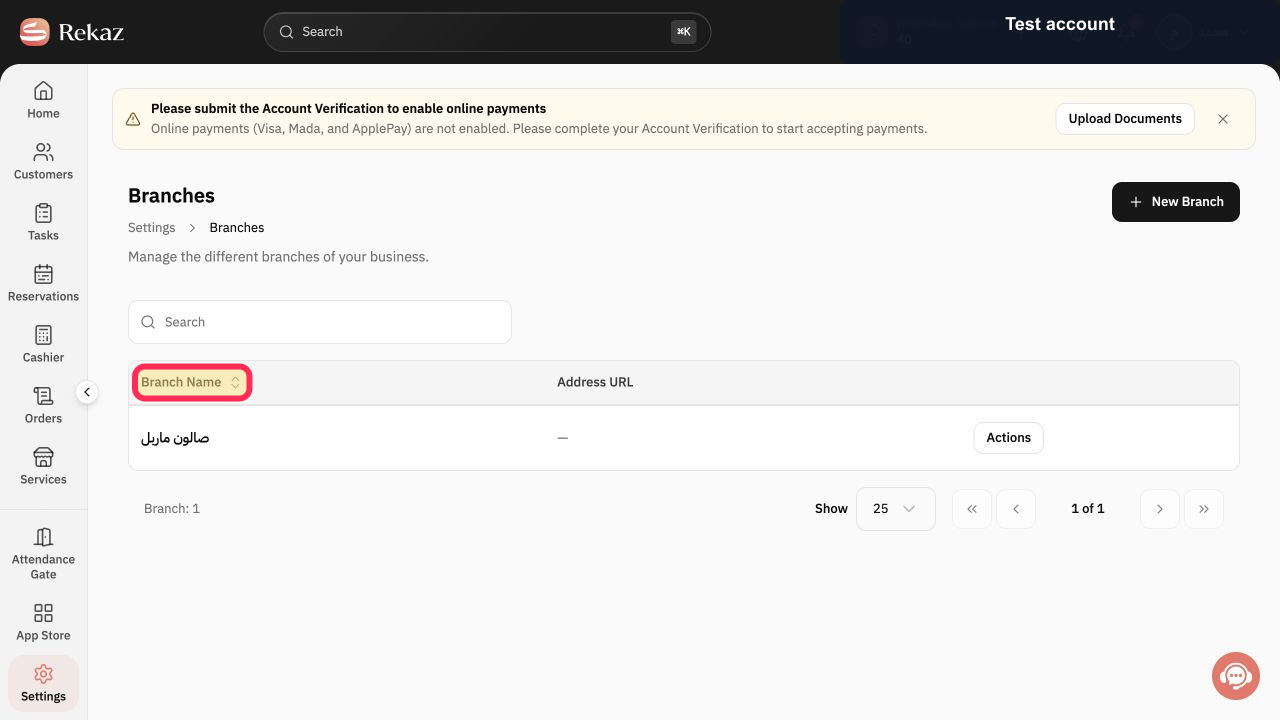
From Home, open the Branches page, then select the Branch Name for the branch you want to link to a location.
The selected branch opens for editing.
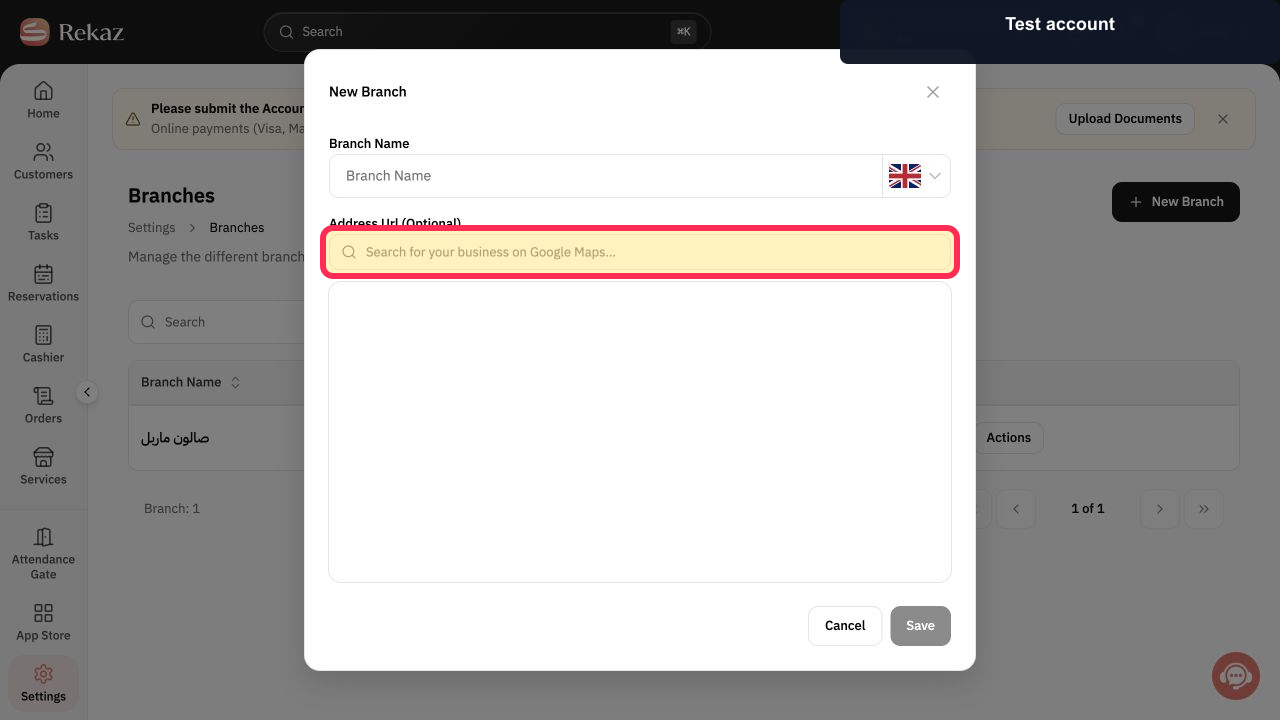
In the Branch link in Google Maps field, search for your business and select its location on the map.
The selected business location is shown on the map.
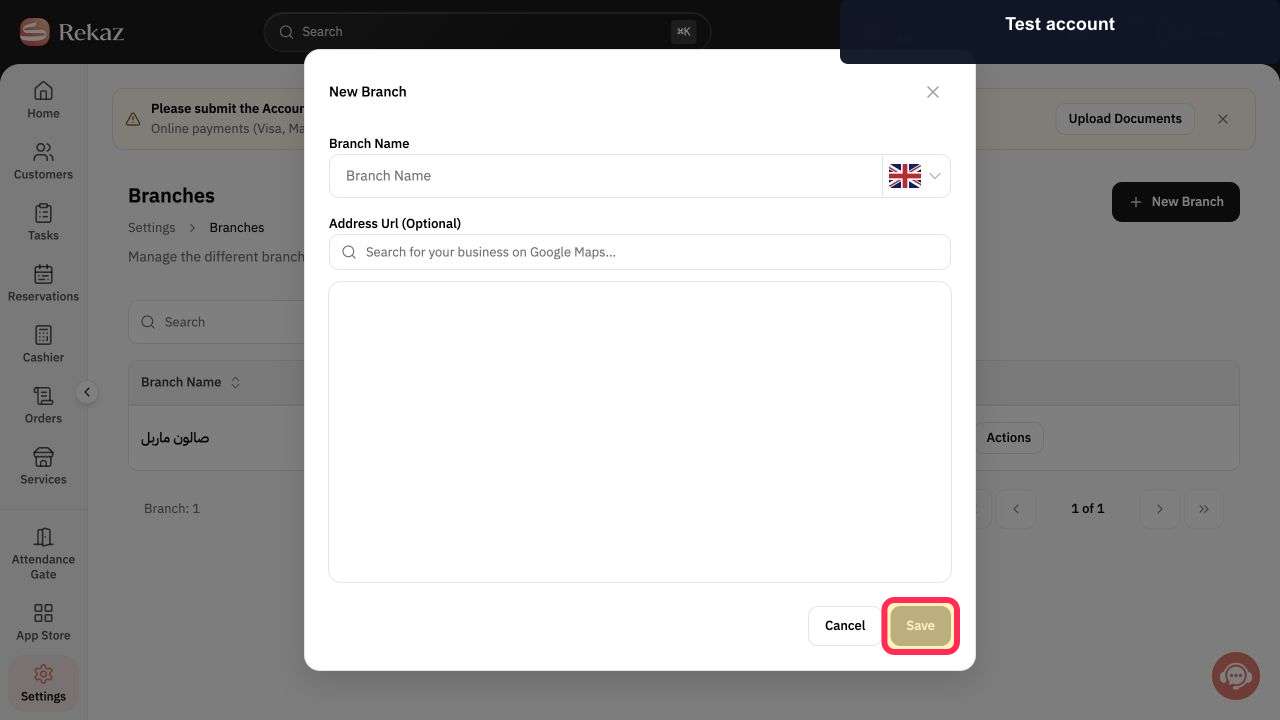
Review the selected location, then select Save.
The branch’s Google Maps location is saved.
Illustrated guide
Step 1: Select the branch you want to link to Google Maps.
Step 2: Search for your business and select its location on the map.
Step 3: Review the selected location and save the branch.
Important notes
Choose the correct business result before saving.
If you have more than one branch, repeat these steps for each branch and select the correct location for that branch.
Related questions
How do I add my business location in Rekaz?
How do I link a branch to a map in Rekaz?
Where can I add a branch location in Rekaz?


