Why aren’t Rekaz bookings appearing in Google Calendar?
If Rekaz bookings are not appearing in Google Calendar, first activate the Google Calendar integration from the App Store and complete the required Google authorization. Then check that you authorized the intended Google Account and calendar, and test with a new future booking.
The Google authorization and calendar synchronization were not completed in the verified walkthrough. Follow the checks below if bookings still do not appear after authorization.
Steps
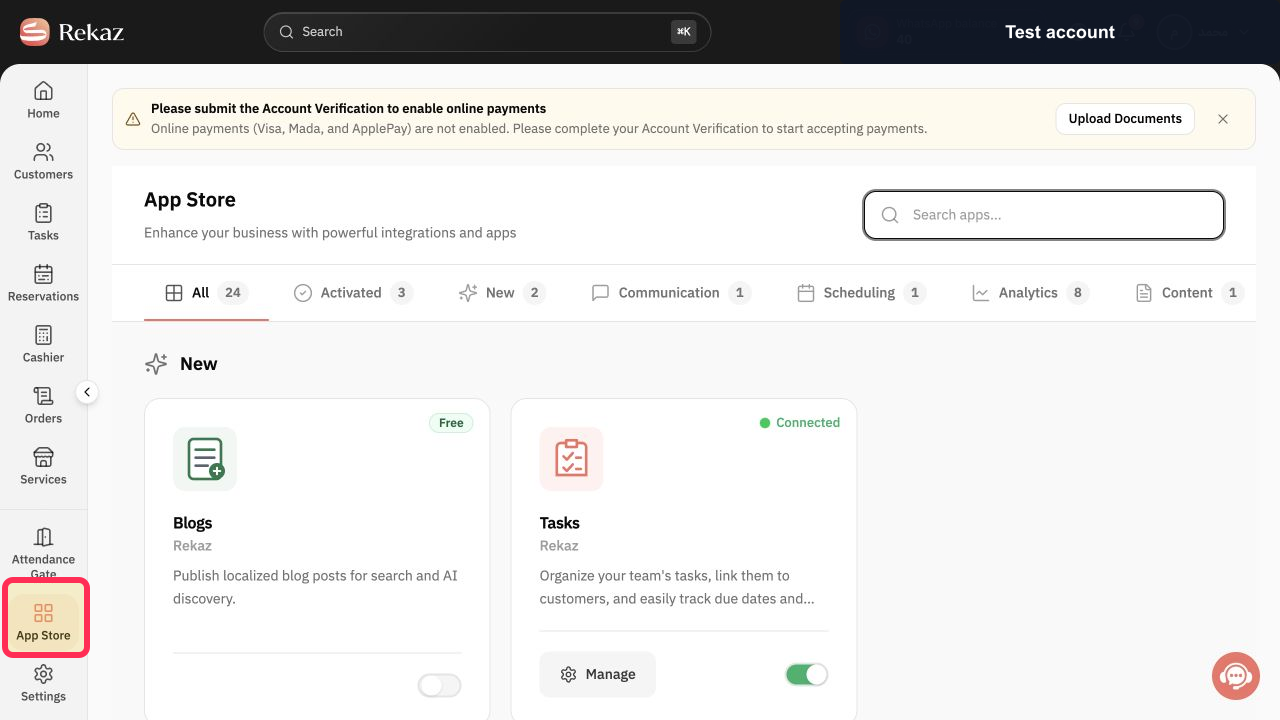
From the sidebar, click App Store.
The App Store opens.
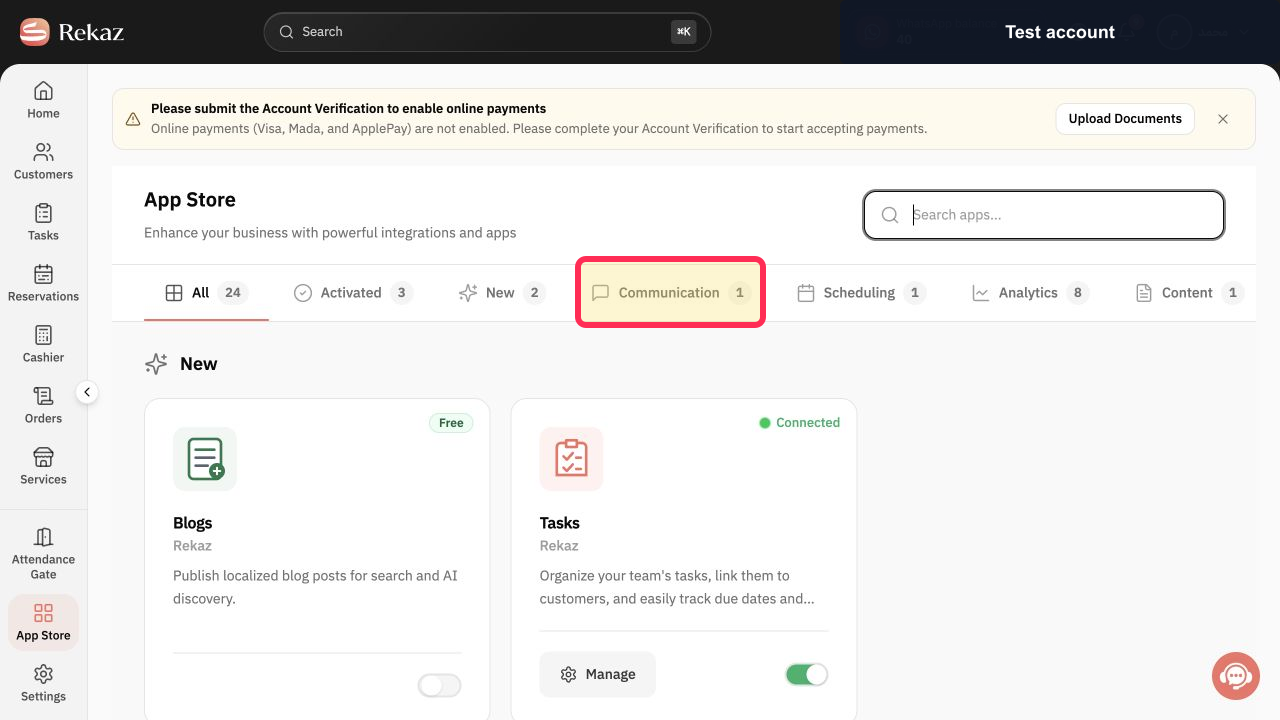
Select Communication.
The Communication category opens and shows its available integrations.
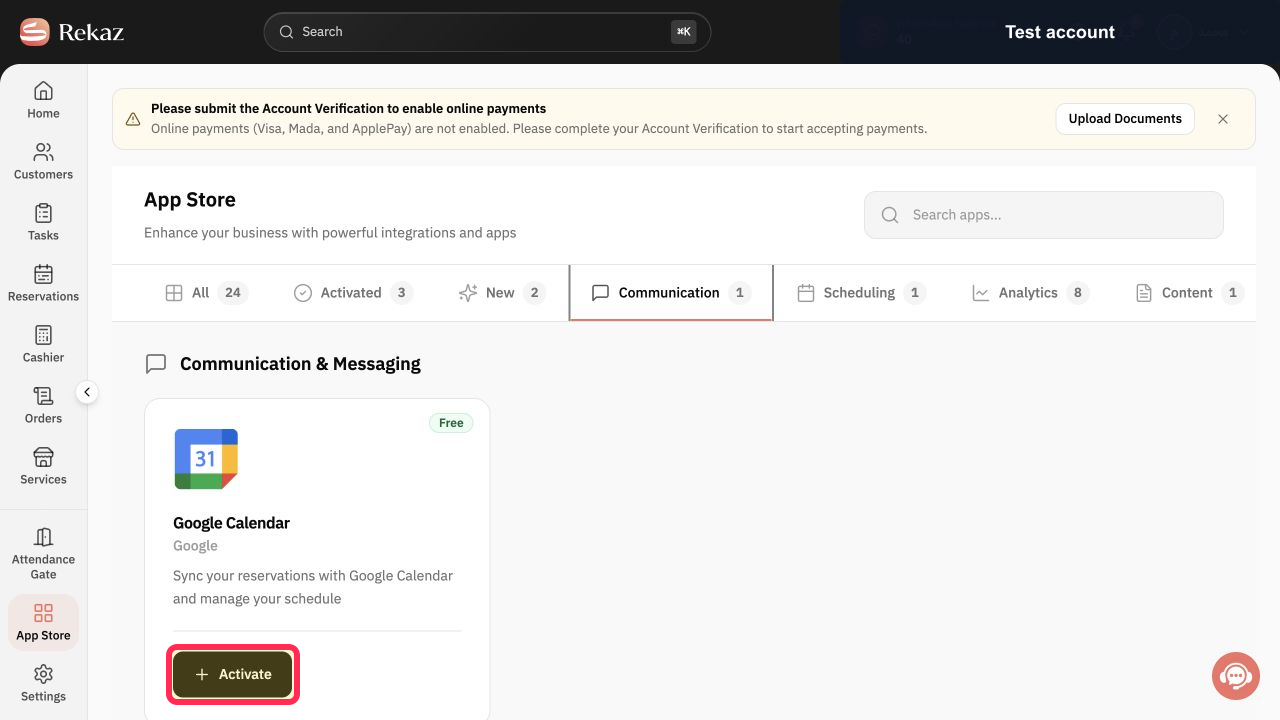
On the Google Calendar card, click Activate.
The Google Calendar integration setup opens.
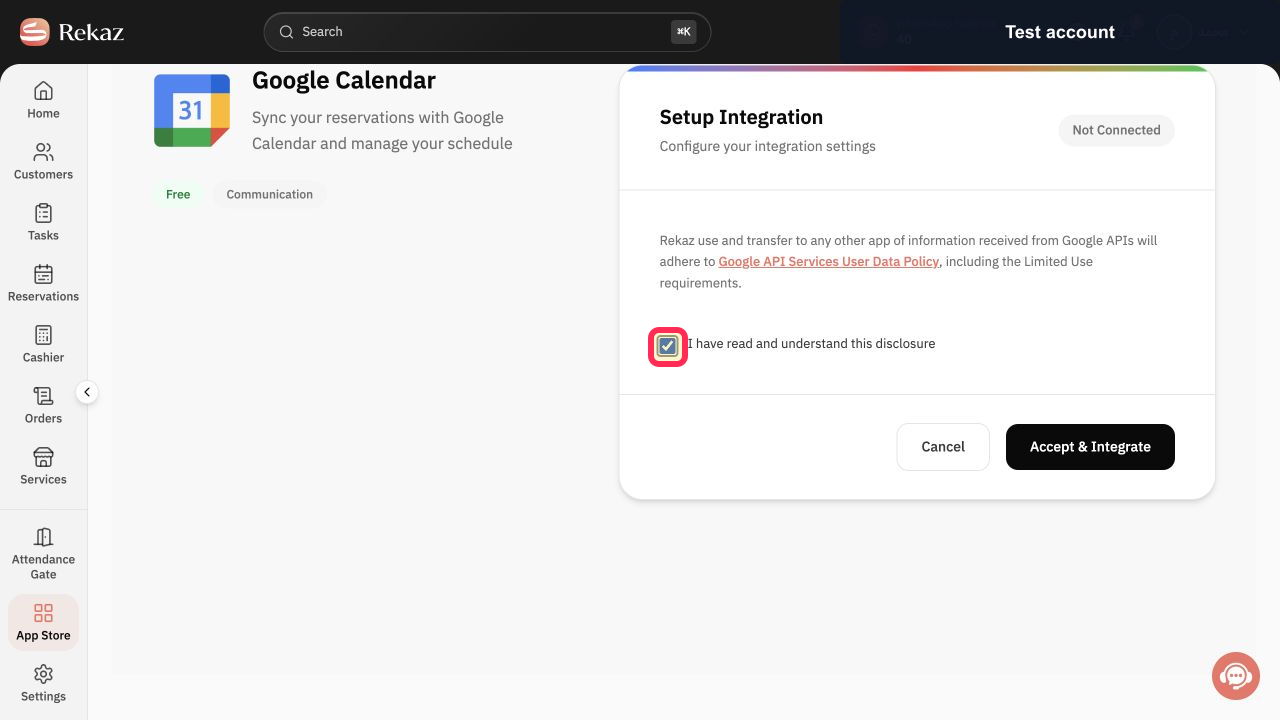
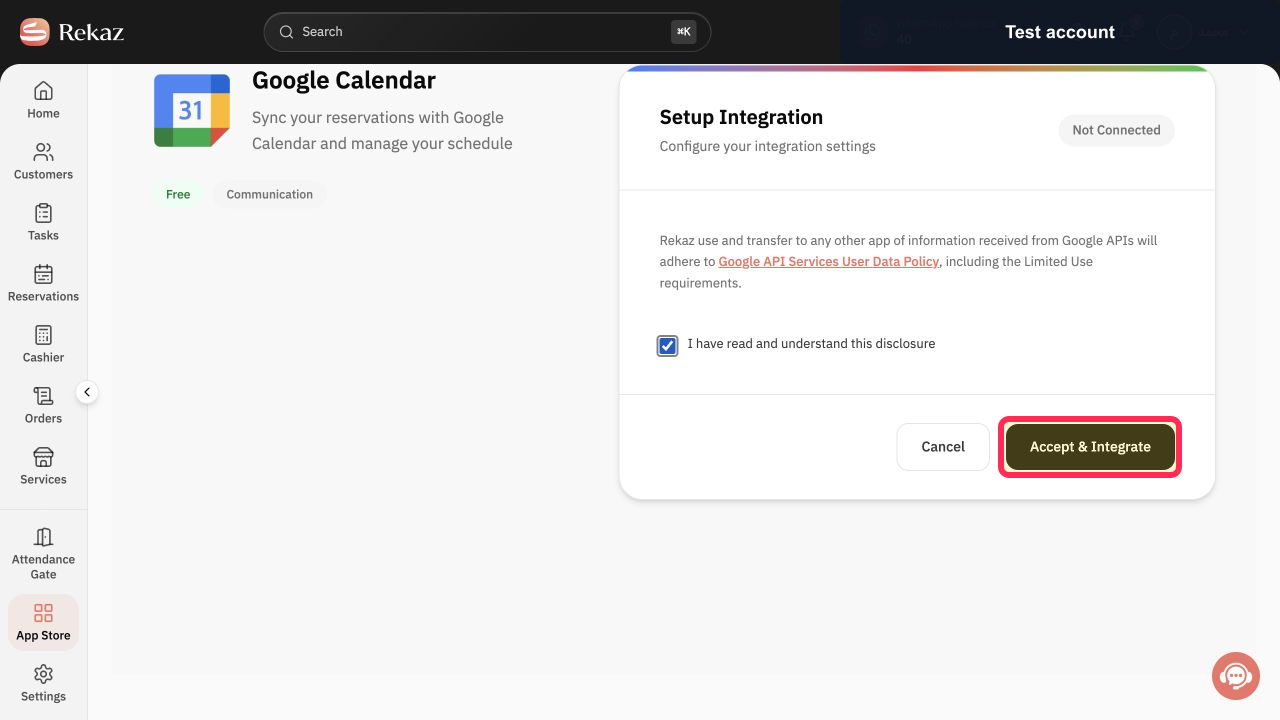
Select I have read and understand this disclosure.
The disclosure acknowledgement is selected.
Click Accept & Integrate to begin Google authorization.
You are taken to the Google authorization process.
Illustrated guide
Step 1: Open the App Store from the Rekaz sidebar.
Step 2: Select the Communication category in the App Store.
Step 3: Activate the Google Calendar integration.
Step 4: Confirm that you have read and understood the Google data disclosure.
Step 5: Begin Google authorization for the Google Calendar integration.
If bookings still do not appear
After completing Google authorization, confirm that the integration status is Connected rather than Not Connected.
Check that you authorized the correct Google Account and are viewing the calendar associated with that account.
Create a new future booking and allow time for synchronization before checking the connected calendar. Do not assume that older bookings will be sent retroactively.
Important limitation
The external Google OAuth authorization and synchronization test were not completed in the verified walkthrough. A Connected status and successful calendar synchronization cannot be confirmed from this process alone.
Related questions
How do I activate Google Calendar in Rekaz?
Why is my Google Calendar integration not connected in Rekaz?
Which Google Account should I check when Rekaz bookings are missing from Google Calendar?
Do older Rekaz bookings sync to Google Calendar after I connect it?


