How do I restore a cancelled order in Rekaz?
To restore a cancelled order in Rekaz, open the order, select Restore from Actions, and confirm the restoration.
The restored order returns to Pending Payment with its existing items retained. Review the items and amount before you continue with payment.
Steps
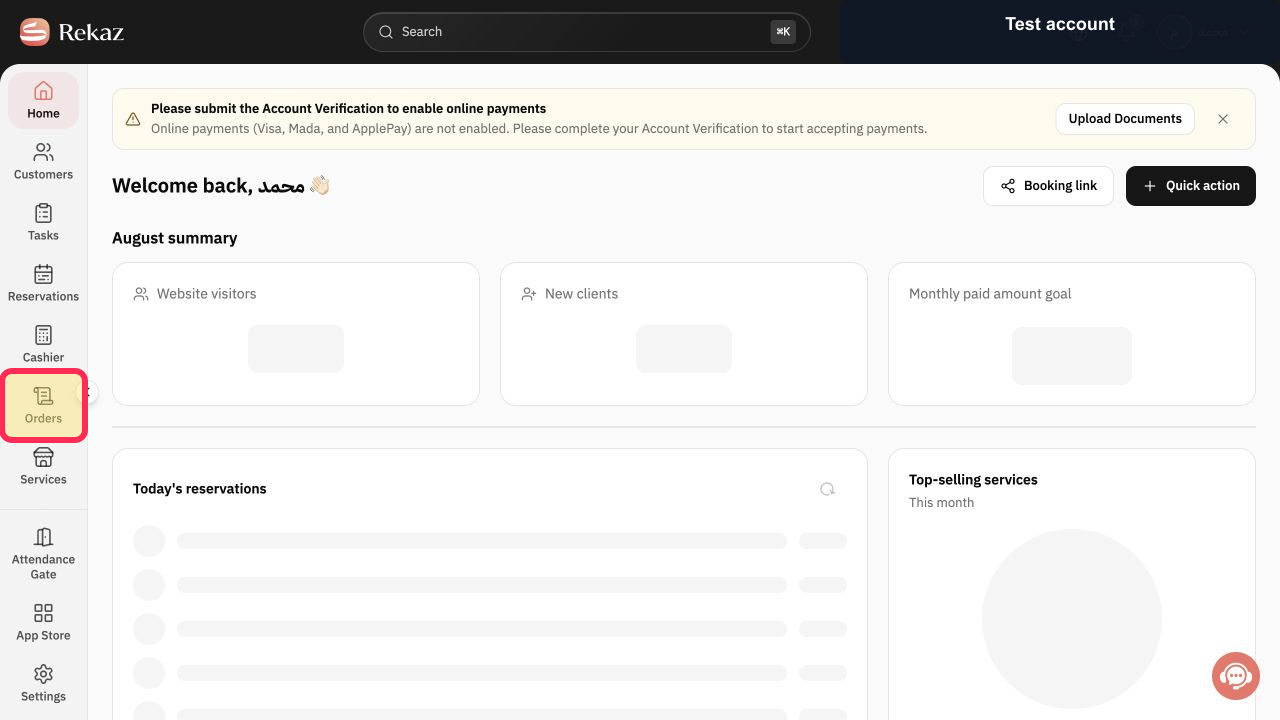
From the Home sidebar, select Orders.
The Orders area opens.
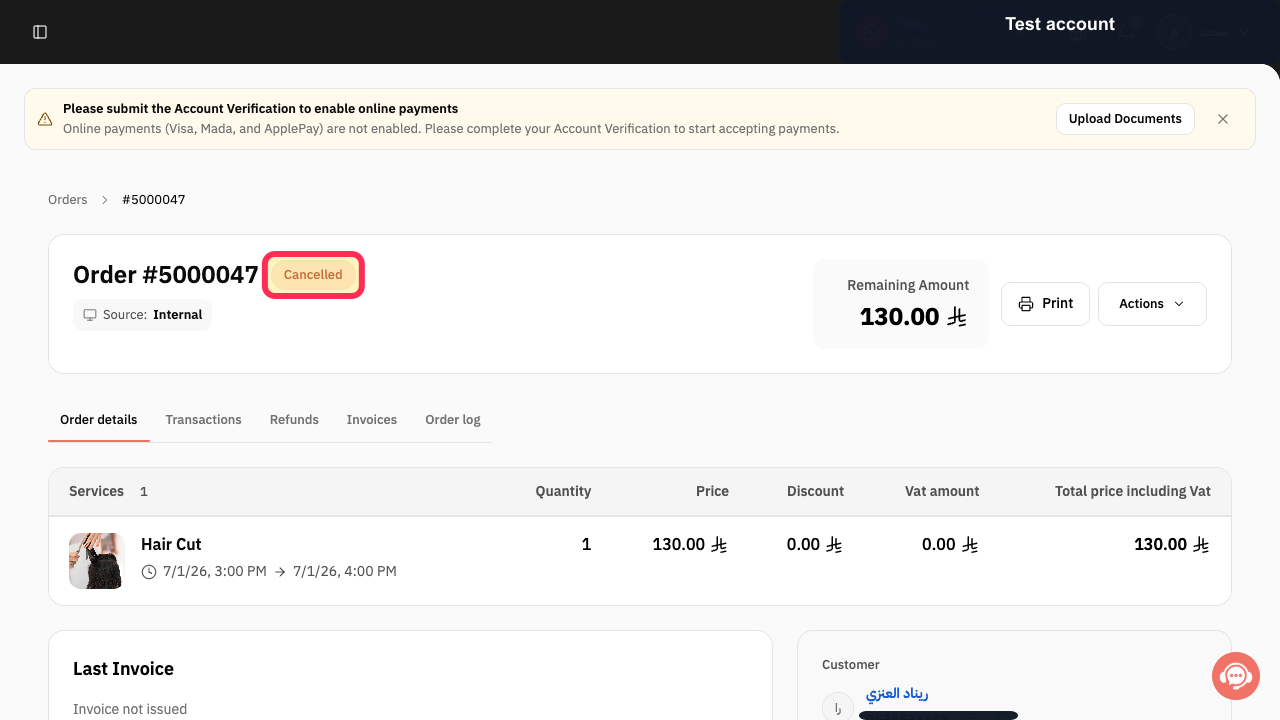
Open the cancelled order that you want to restore.
The cancelled order details open.
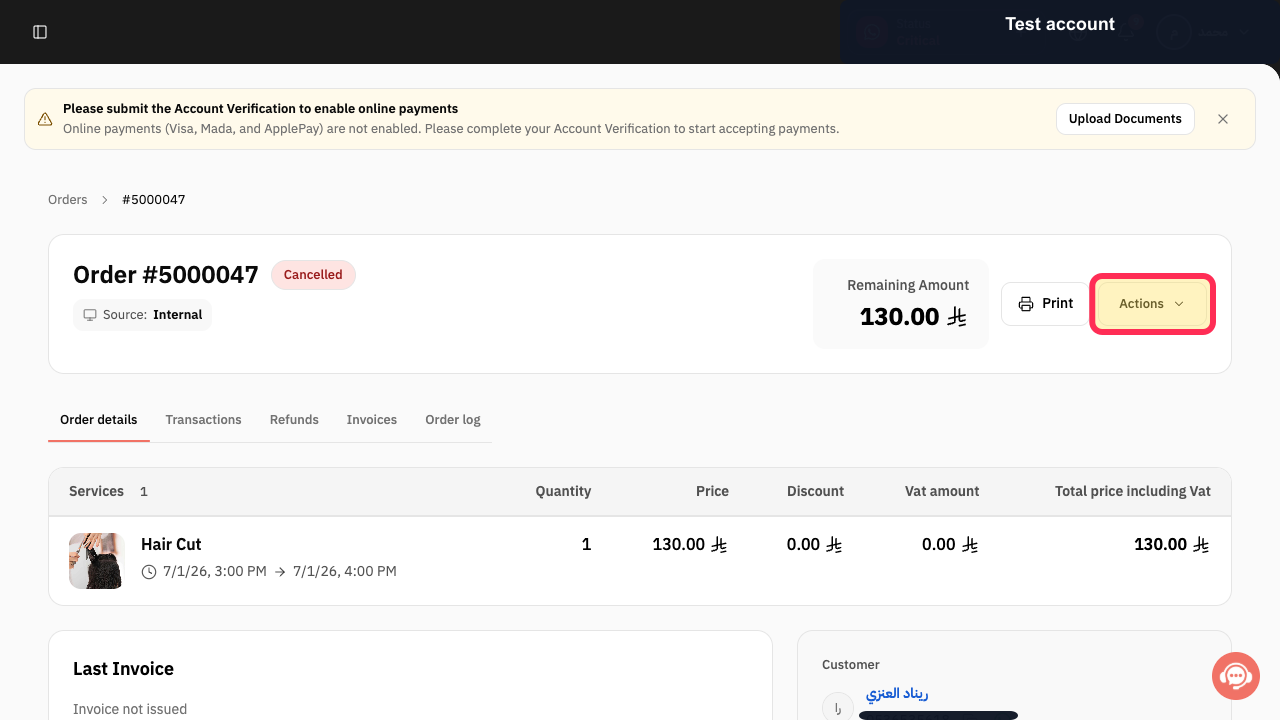
In the cancelled order, select Actions.
The available order actions are displayed.
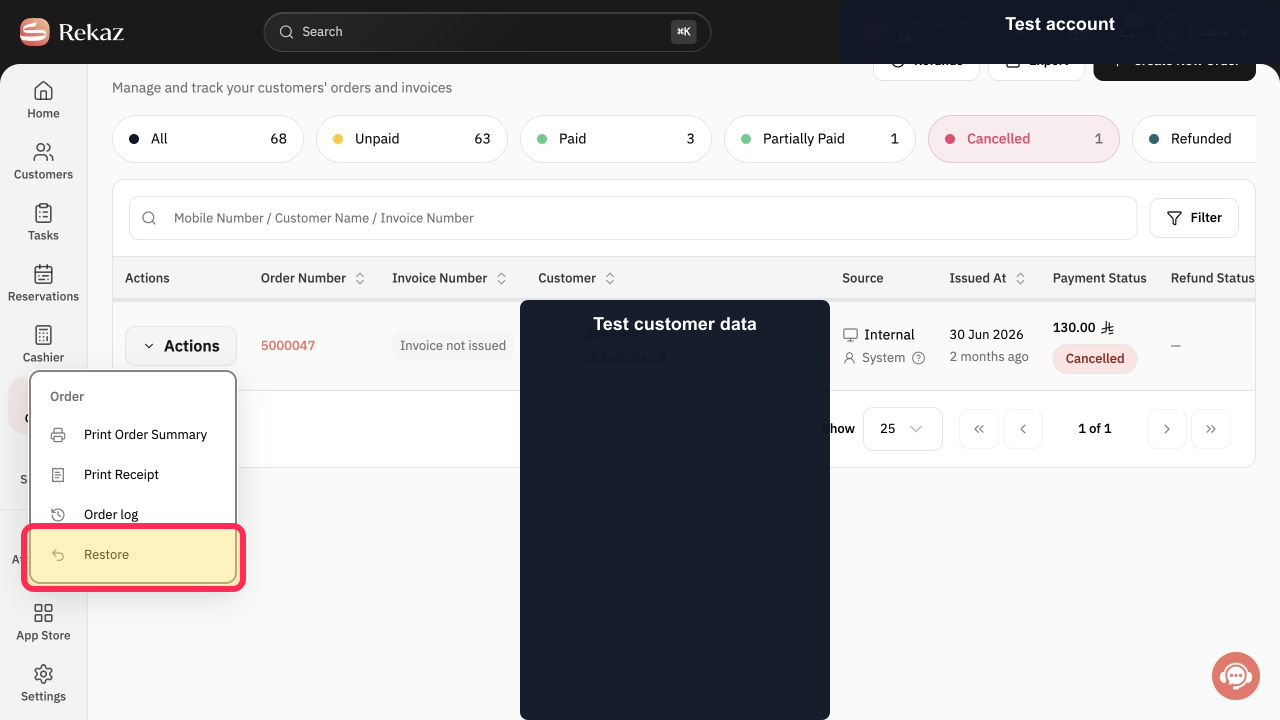
Select Restore.
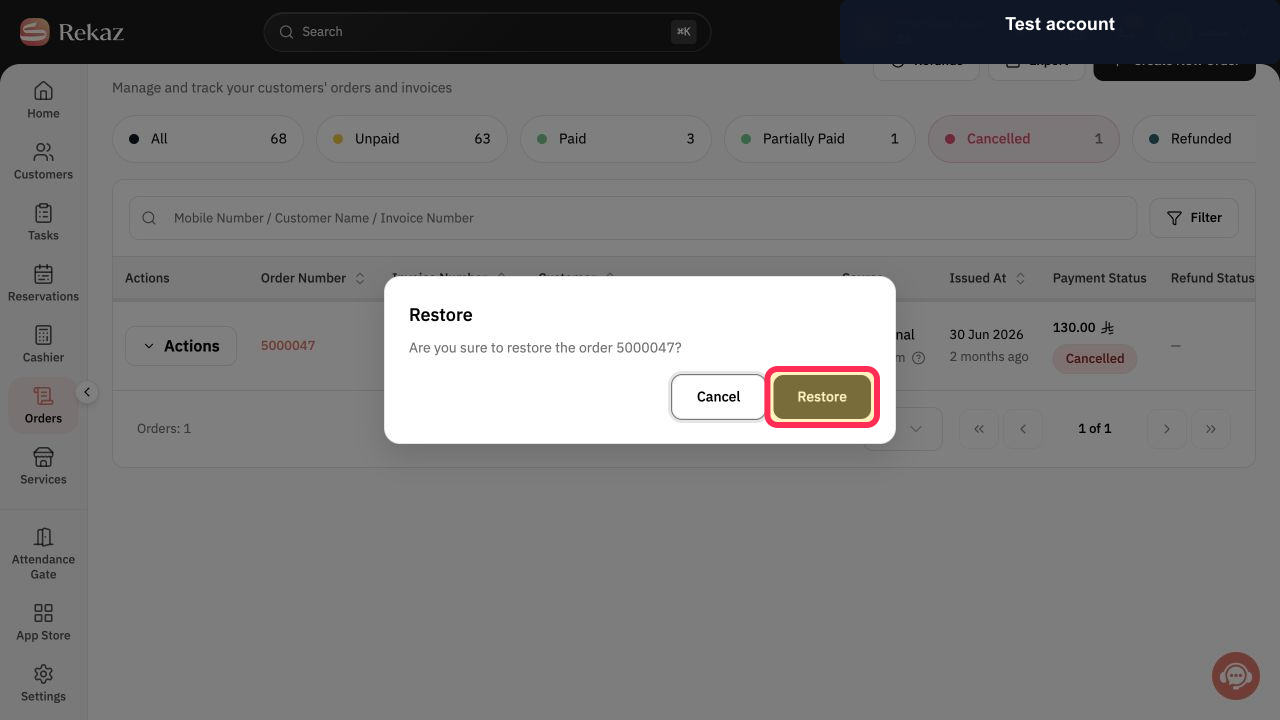
A confirmation prompt for restoring the order is displayed.
Review the confirmation, then select Restore.
The order is restored and returns to Pending Payment with its items retained.
Illustrated guide
Step 1: Select Orders from the sidebar.
Step 2: Open the cancelled order.
Step 3: Open Actions in the cancelled order.
Step 4: Select Restore.
Step 5: Confirm that you want to restore the order.
Important notes
After restoring the order, review its items and amount.
You may need to check any linked reservations before continuing with payment.
Related questions
How do I undo a cancelled order in Rekaz?
Where can I find Restore for a cancelled order in Rekaz?
Can I restore a cancelled invoice in Rekaz?


