How do I change a subscription start date in Rekaz?
Changing the start date can affect whether the subscription is active or starting soon. Review any pause record and customer usage before editing the date.
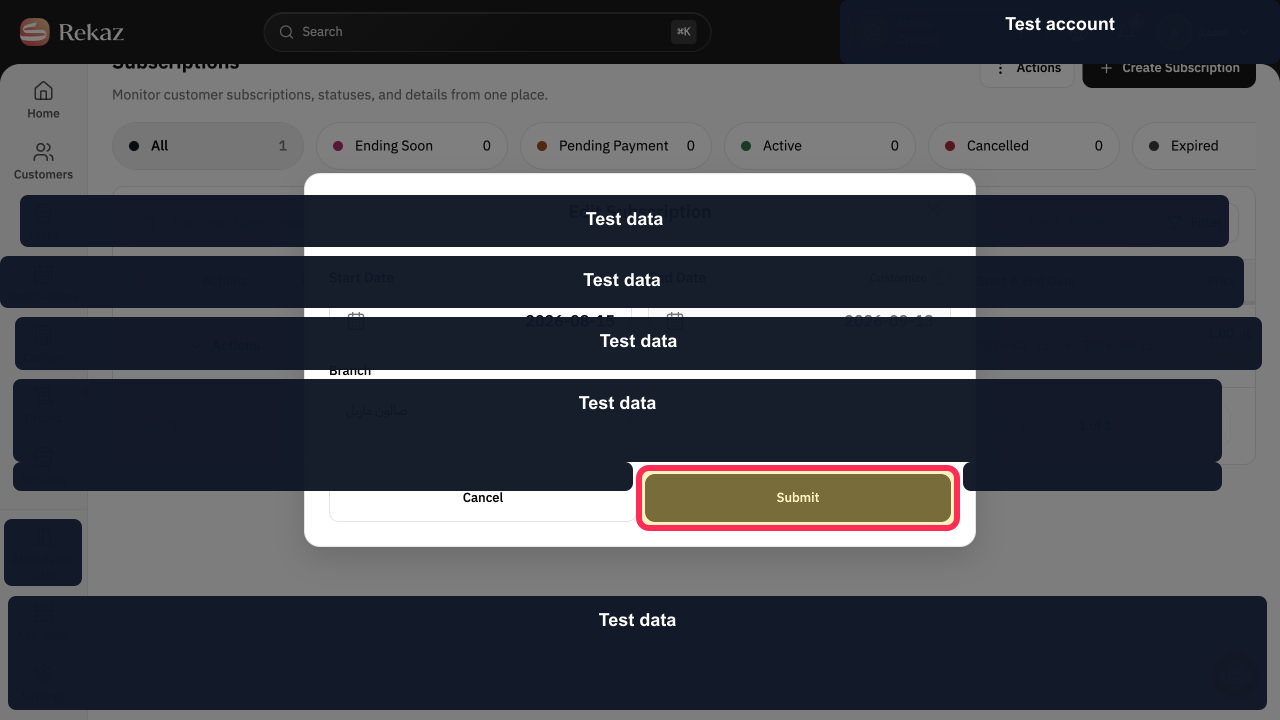
The current edit form finishes with Submit, not Save.
Steps
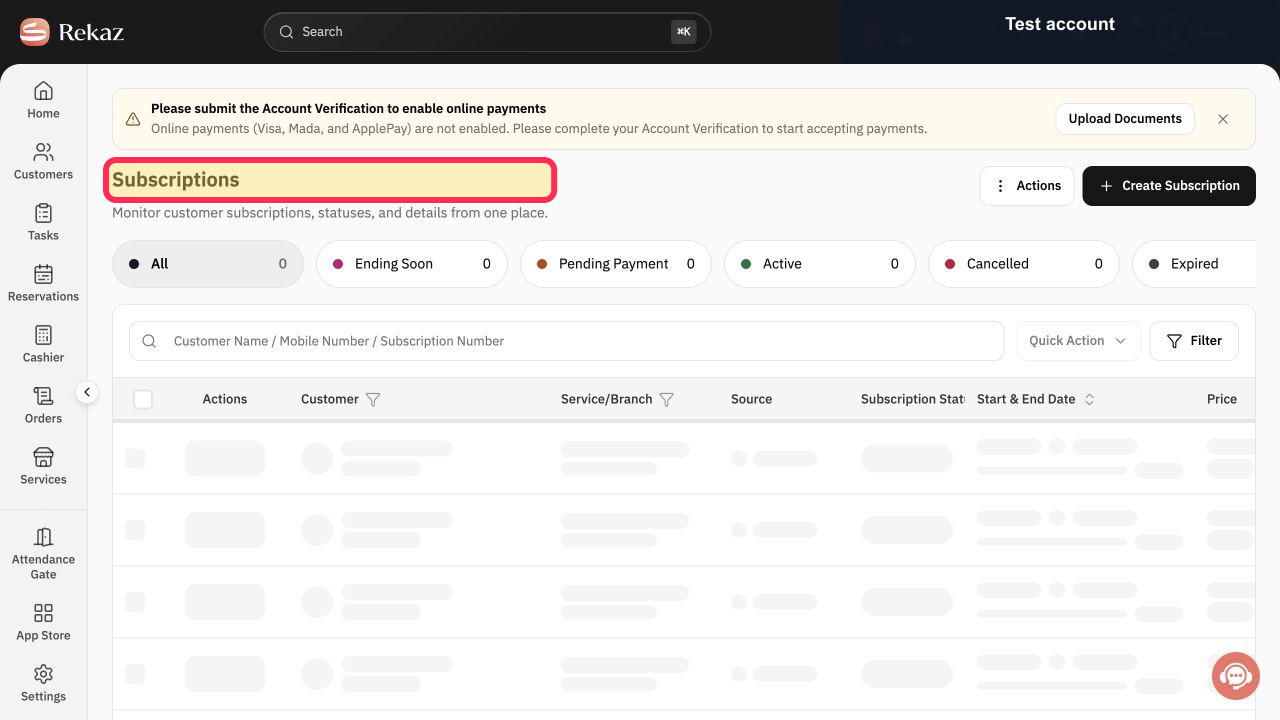
Select Subscriptions and locate the customer subscription.
The subscription row is visible.
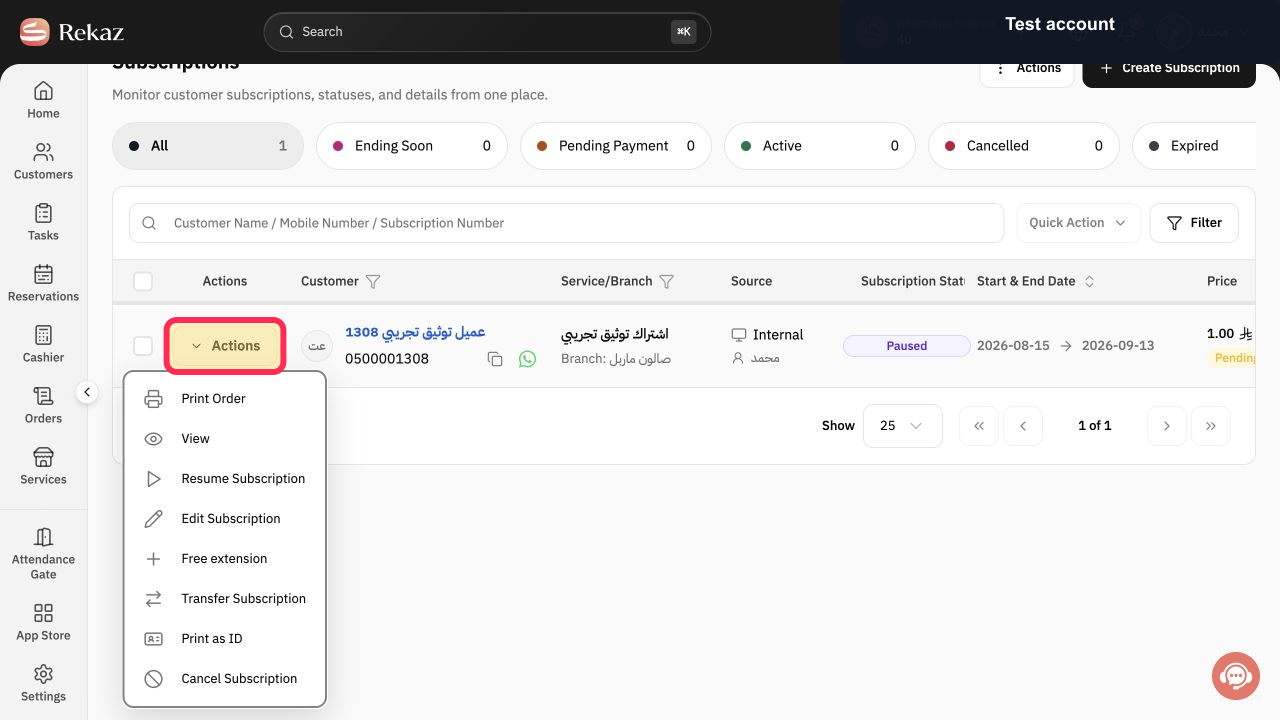
Select Actions in the subscription row.
The Actions menu opens.
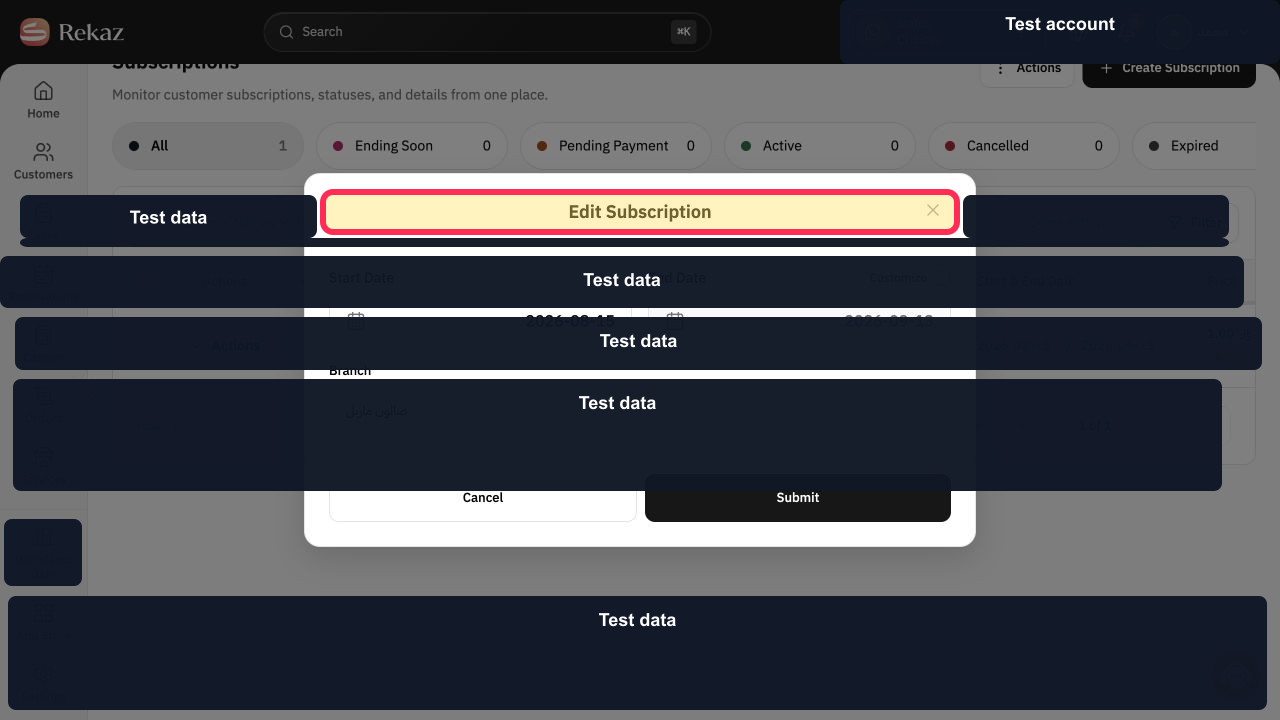
Select Edit Subscription.
The Edit Subscription dialog opens.
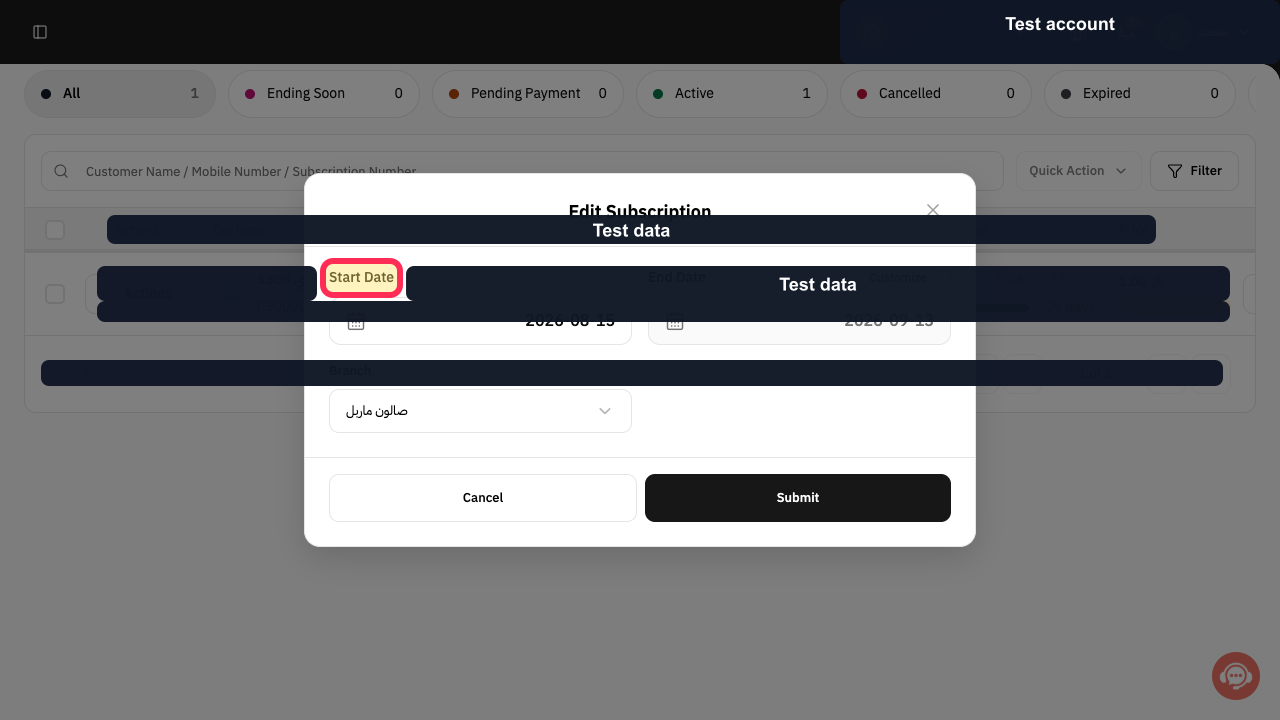
Select Start Date and choose the new date.
The new subscription start date is shown.
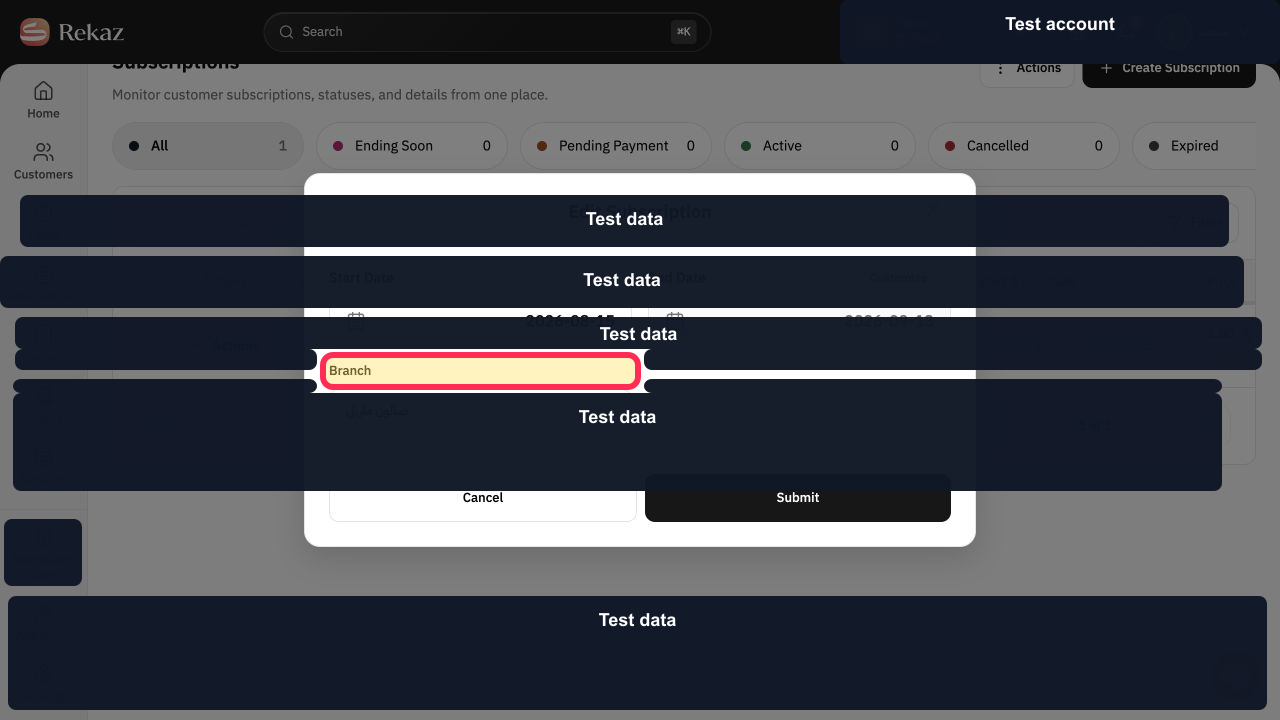
Review End Date and Branch. Enable Customize only when the end date must also be changed.
The related subscription dates and branch are verified.
Select Submit.
The subscription changes are submitted.
Illustrated guide
Step 1: Locate the subscription to edit.
Step 2: Open the subscription Actions menu.
Step 3: Open Edit Subscription.
Step 4: Change the subscription Start Date.
Step 5: Review the end date and branch.
Step 6: Submit the new subscription start date.
Important notes
A future start date may affect the subscription status.
Review all values and details before completing a final or financial action.
Do not change a subscription record that has a paused status before reviewing its status.
Related questions
Where can I find Edit Subscription in Rekaz?
What should I check before changing a subscription start date in Rekaz?
Why might a future subscription start date affect the subscription status in Rekaz?


