How do I cancel a customer subscription in Rekaz?
Cancelling a customer subscription is different from pausing it. Confirm the customer, service, payment status, and any financial obligation before cancelling.
The cancellation dialog provides Keep subscription as the safe exit and Cancel subscription as the final destructive action.
Steps
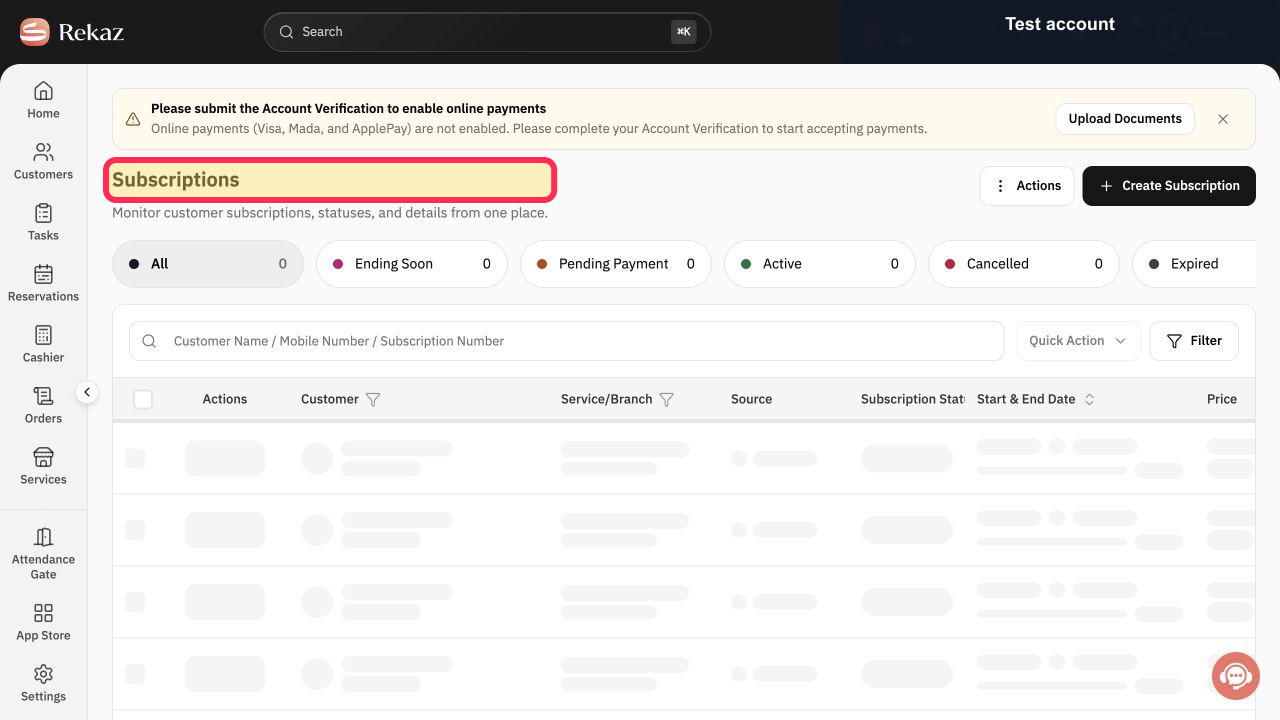
Select Subscriptions and locate the customer subscription to cancel.
The correct subscription row is visible.
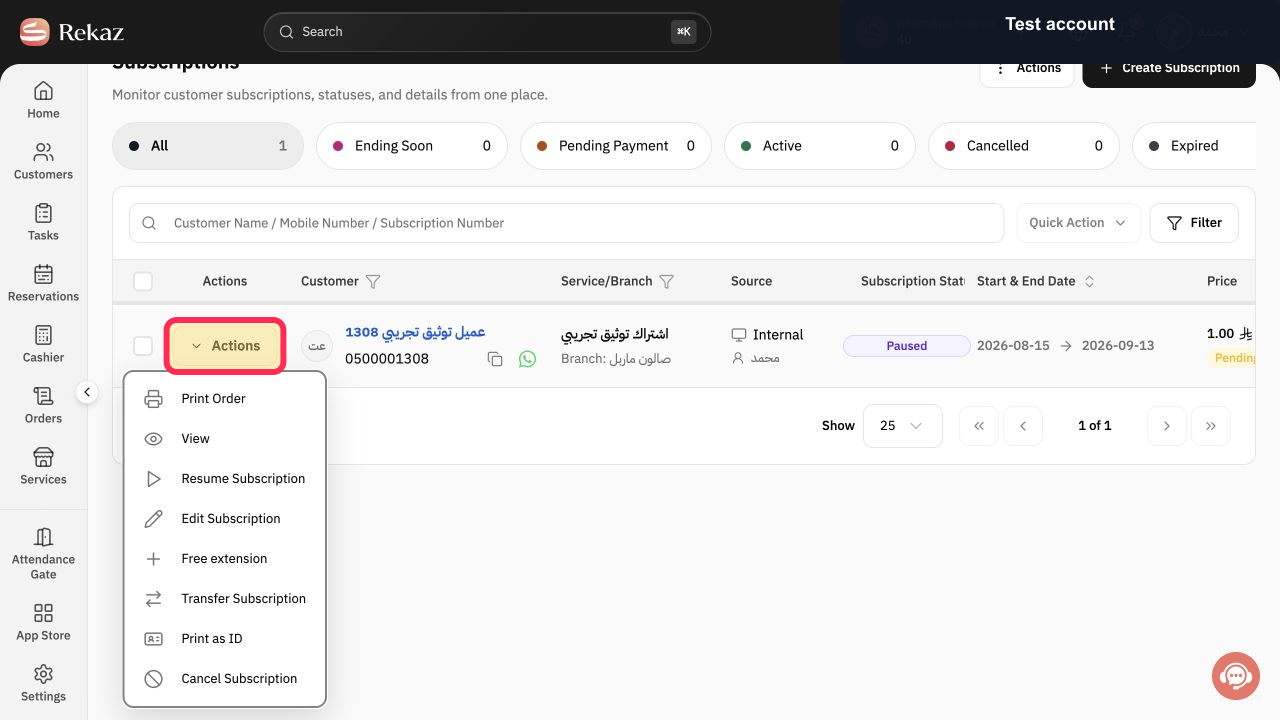
Select Actions in that row.
The subscription Actions menu opens.
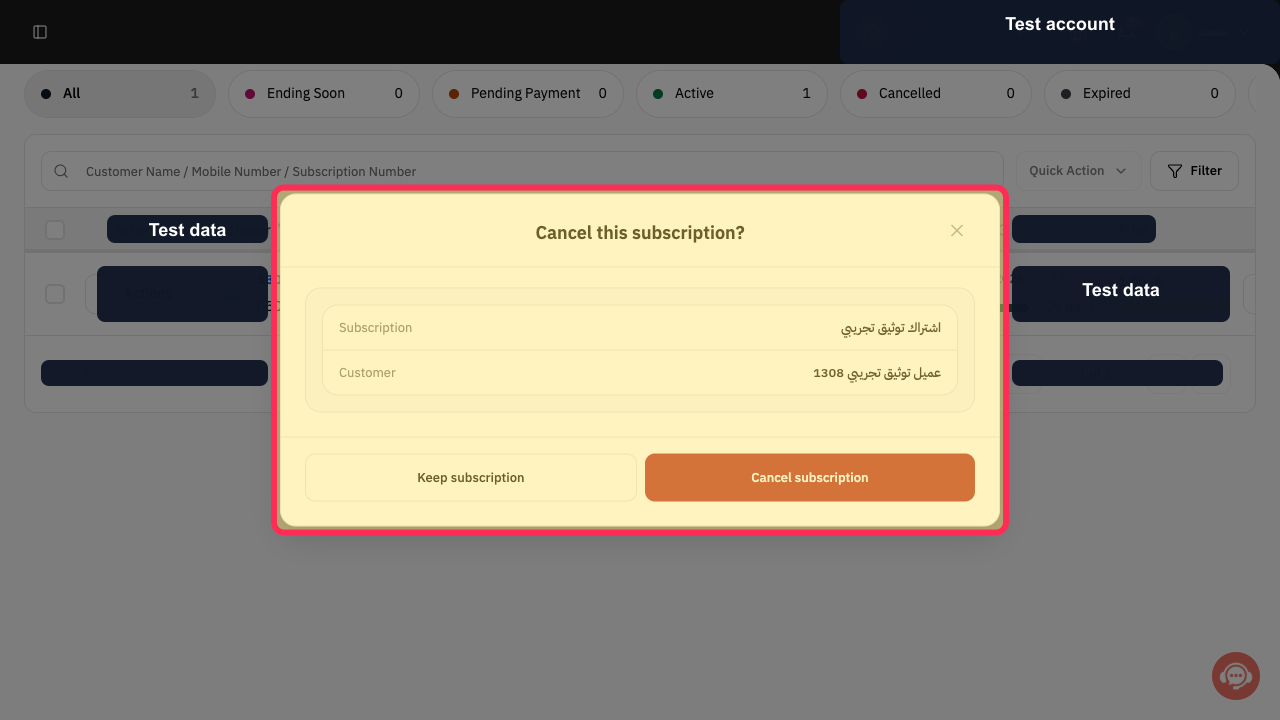
Select Cancel Subscription. Confirm that the Cancel this subscription? dialog opens before continuing.
The cancellation confirmation dialog opens for the selected record.
Verify the Subscription and Customer values shown in the dialog.
The cancellation target is confirmed before the final action.
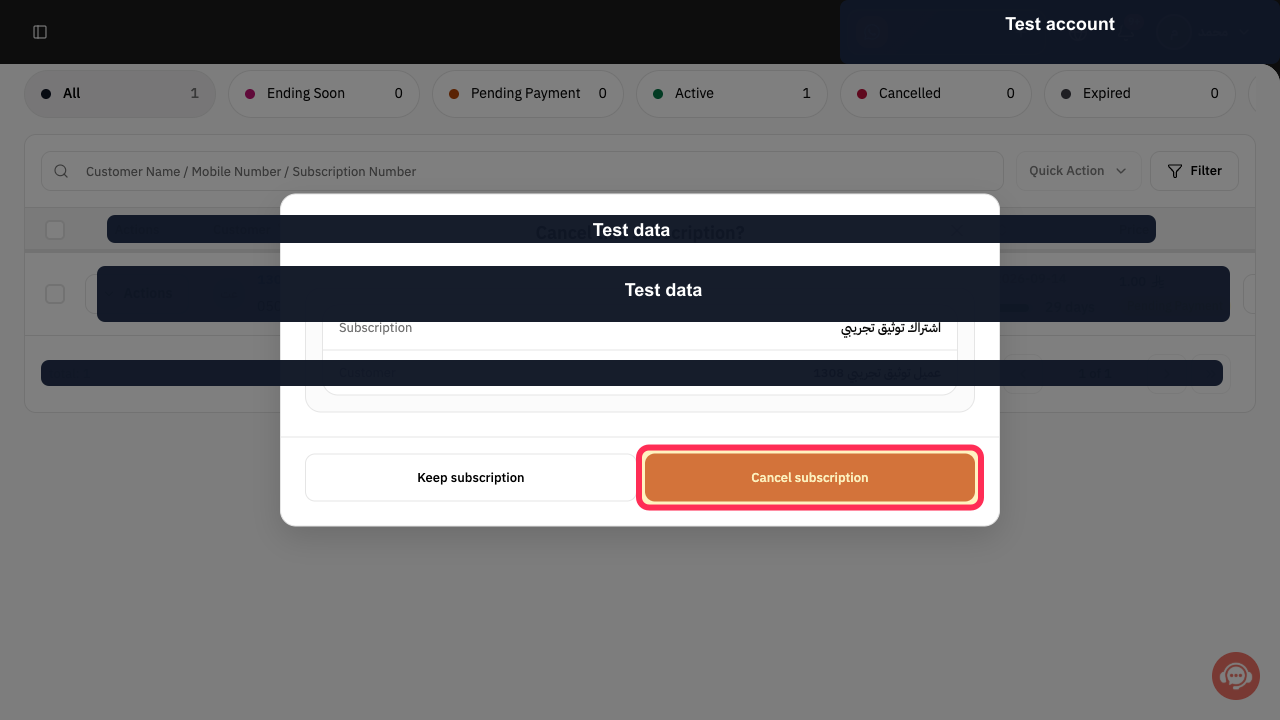
Select Cancel subscription to proceed, or Keep subscription to close the dialog without cancelling.
The subscription is cancelled only after the destructive confirmation.
Illustrated guide
Step 1: Locate the subscription to cancel.
Step 2: Open the subscription Actions menu.
Step 3: Open and verify the cancellation confirmation dialog.
Step 4: Verify the subscription and customer values before cancellation.
Step 5: Confirm cancellation or keep the subscription.
Important notes
Cancelling a subscription is not the same as pausing it.
Review any amounts or commitments associated with the subscription before taking this final action.
Related questions
How can I cancel a customer’s subscription in Rekaz?
Where is the Cancel Subscription option in Rekaz?
What should I check before cancelling a subscription in Rekaz?


