How do I reactivate a paused subscription in Rekaz?
Use the Paused tab to locate customer subscriptions that can be resumed. Rekaz enables the bulk Quick Action only after one or more rows are selected.
The confirmation resumes only the selected paused subscriptions; review the selected records before confirming.
Steps
Select Subscriptions, then select the Paused tab.
Paused customer subscriptions are displayed.
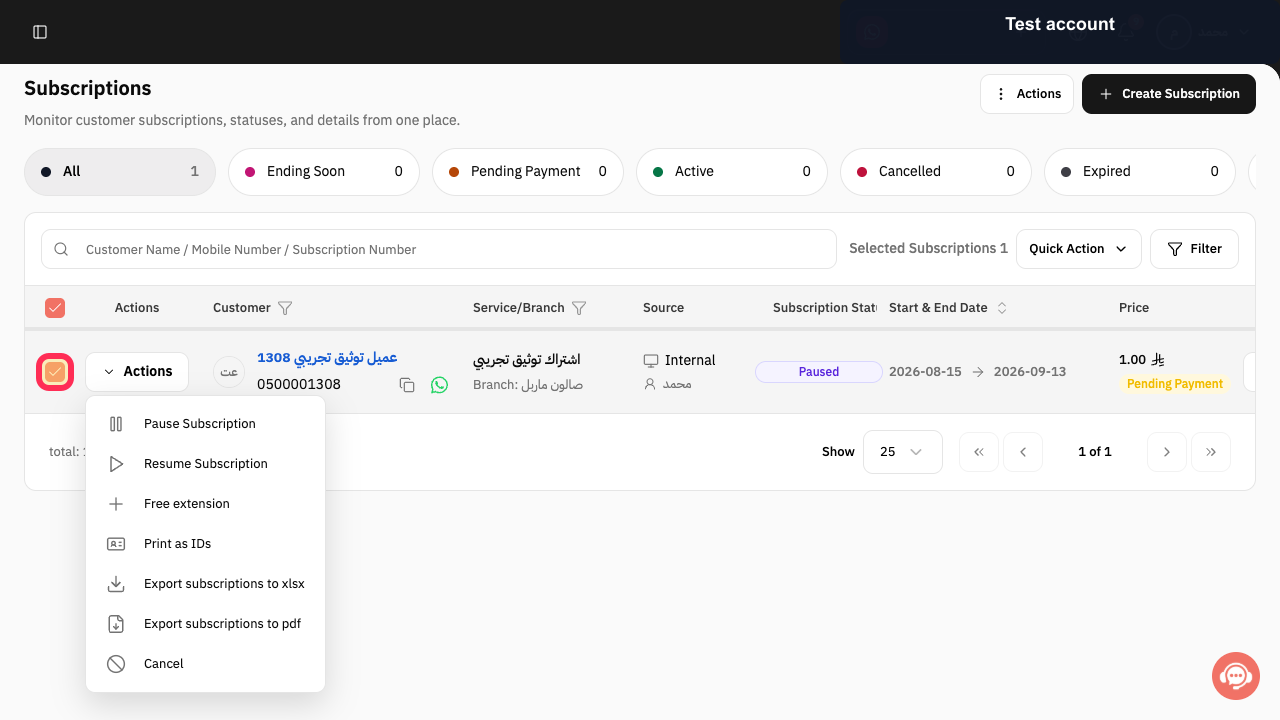
Select the checkbox for the paused subscription or subscriptions to resume.
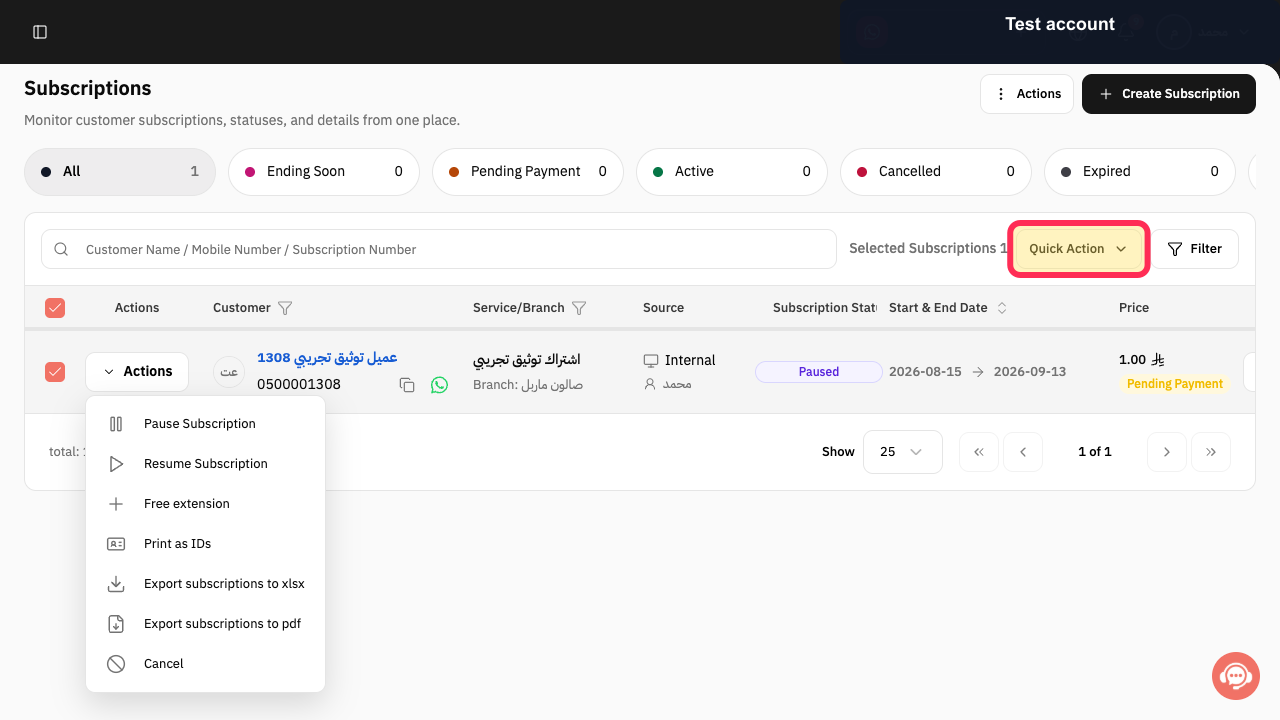
Quick Action becomes available for the selected rows.
Select Quick Action.
The available bulk actions open.
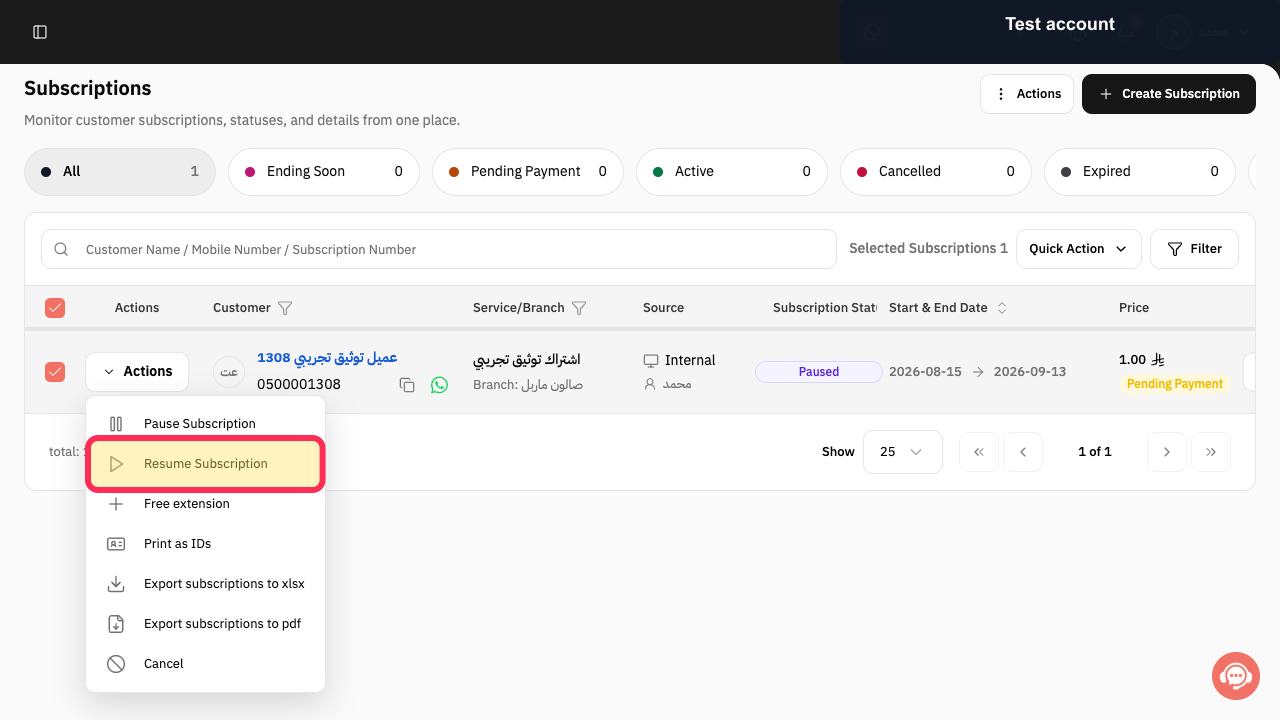
Select Resume Subscription.
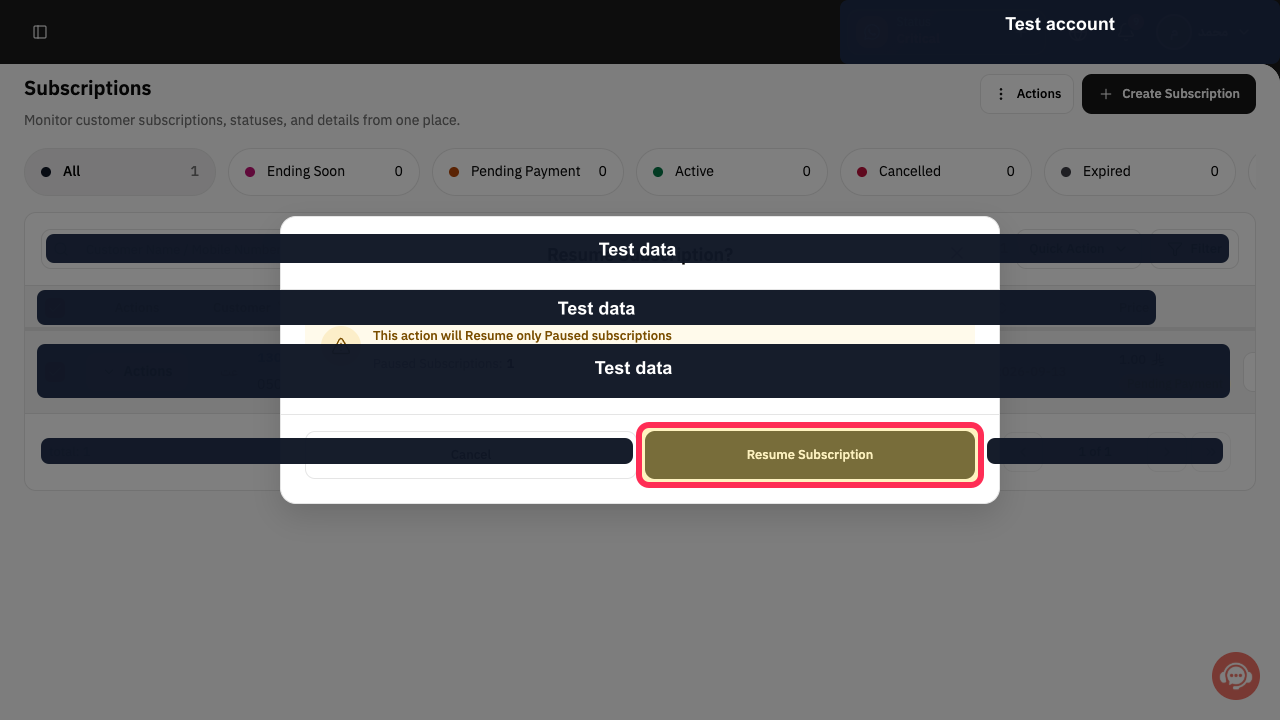
A Resume Subscription confirmation dialog opens.
Review the selected records and select Resume Subscription to confirm.
The selected paused subscriptions are submitted for resuming.
Illustrated guide
Step 1: Open the Paused subscriptions list.
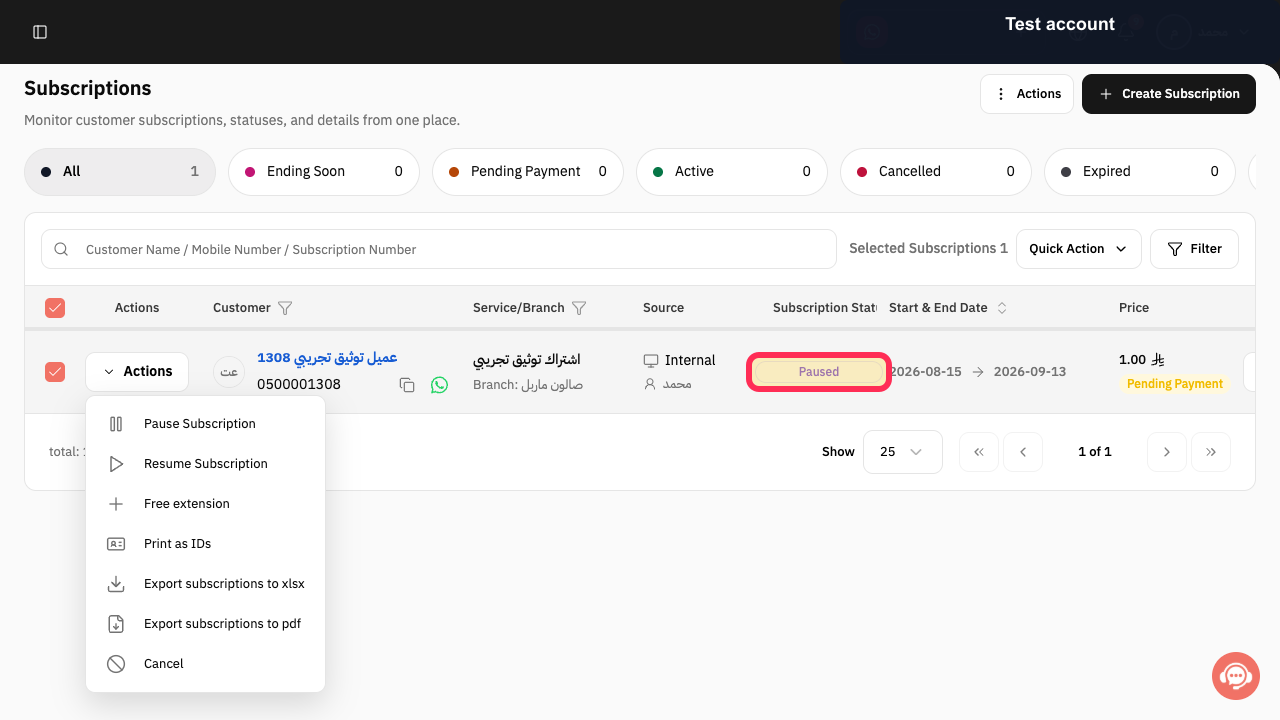
Step 2: Select the paused subscriptions to resume.
Step 3: Open Quick Action.
Step 4: Choose Resume Subscription.
Step 5: Confirm resuming the selected subscriptions.
Important notes
Reactivation ends the temporary pause and returns the subscription to Active status.
Review all displayed values and data before completing a final or financial action.
Check the End Date carefully before you confirm, as the pause duration may affect it.
The exact navigation path to the subscriptions list and the exact label of the final confirmation control require verification in the current interface.
Related questions
Where can I find the option to reactivate a paused subscription in Rekaz?
What are the steps to reactivate a subscription after a temporary pause in Rekaz?
Does reactivating a paused subscription affect its End Date in Rekaz?


