How do I renew a customer subscription in Rekaz?
Renew Subscription creates a new subscription period from the existing customer subscription. Review the current end date and the proposed new period before continuing.
The renewal uses a second Payment stage and finishes with Create. Closing the dialog leaves the current subscription unchanged.
Steps
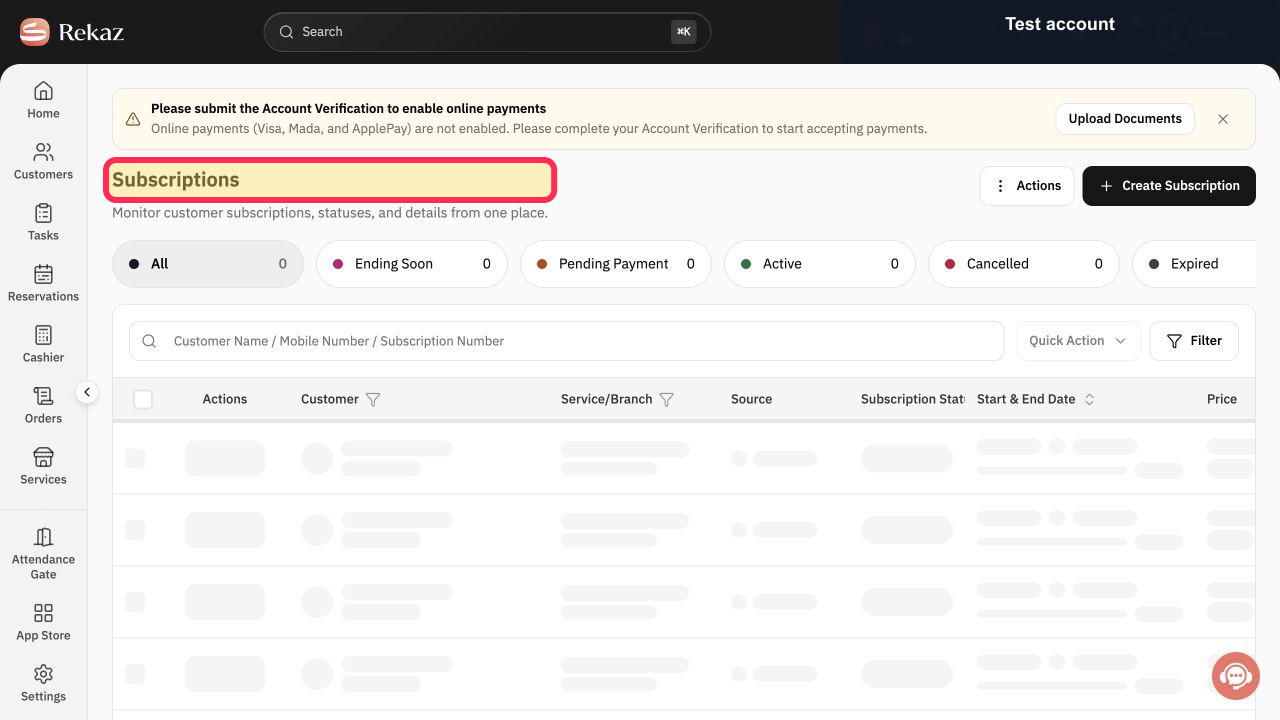
Select Subscriptions and locate the customer subscription to renew.
The correct subscription row is visible.
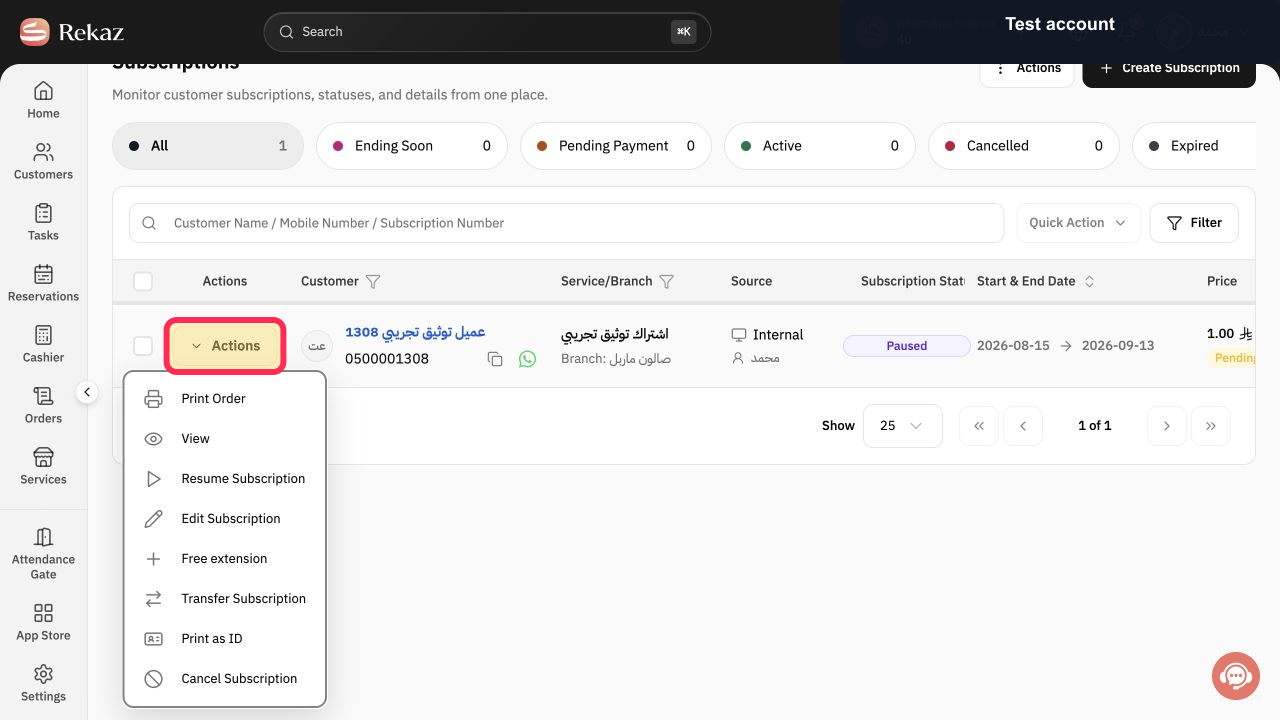
Select Actions in that row.
The subscription Actions menu opens.
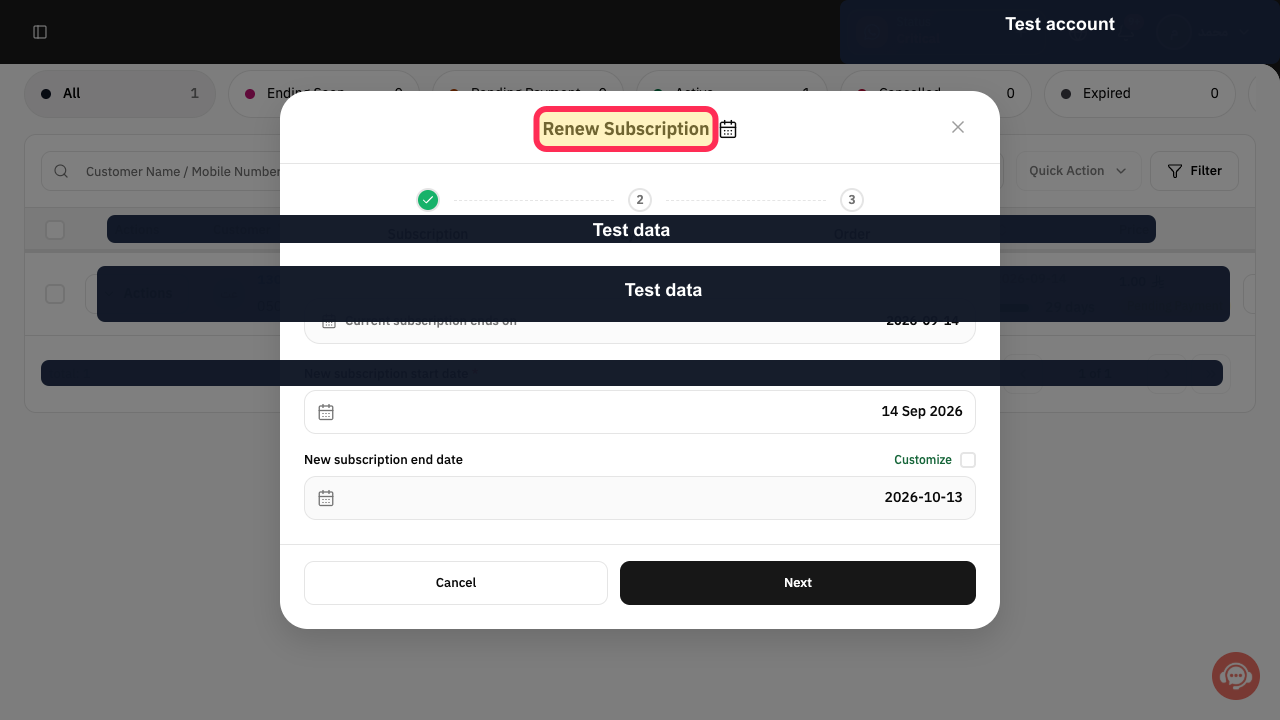
Select Renew Subscription.
The renewal dialog opens and shows the current subscription end date.
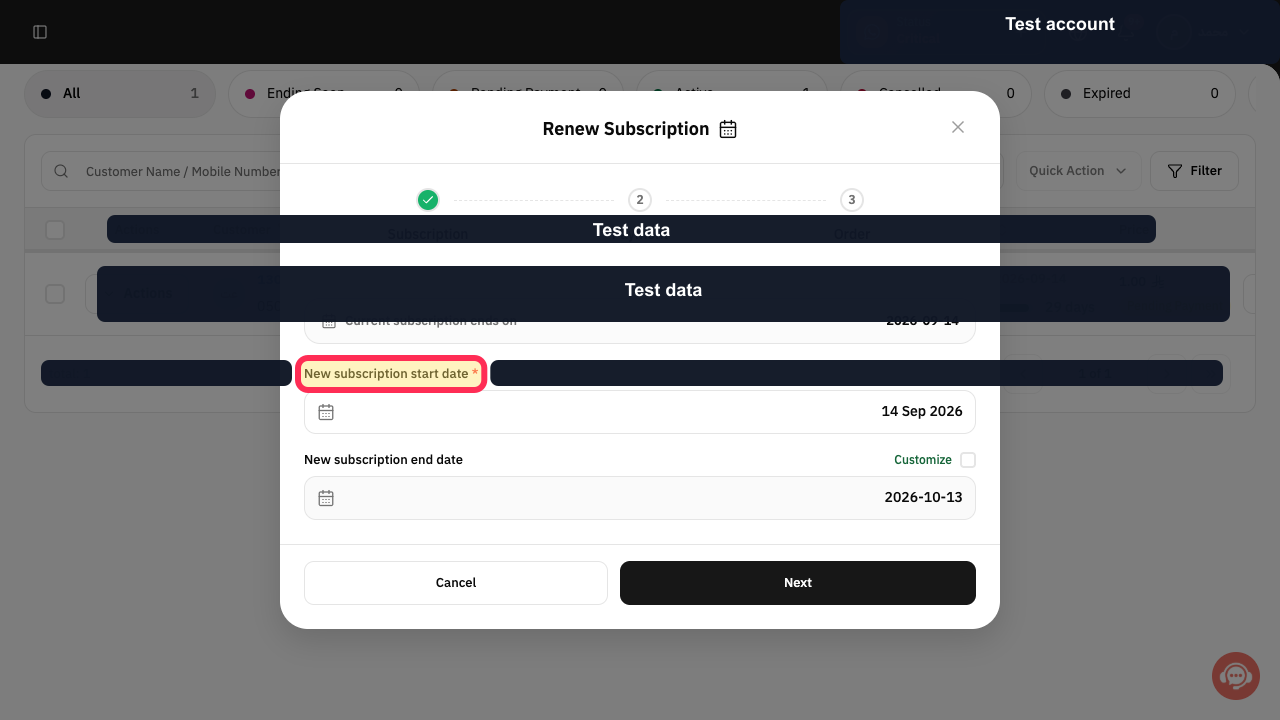
Set New subscription start date.
The renewal start date is selected.
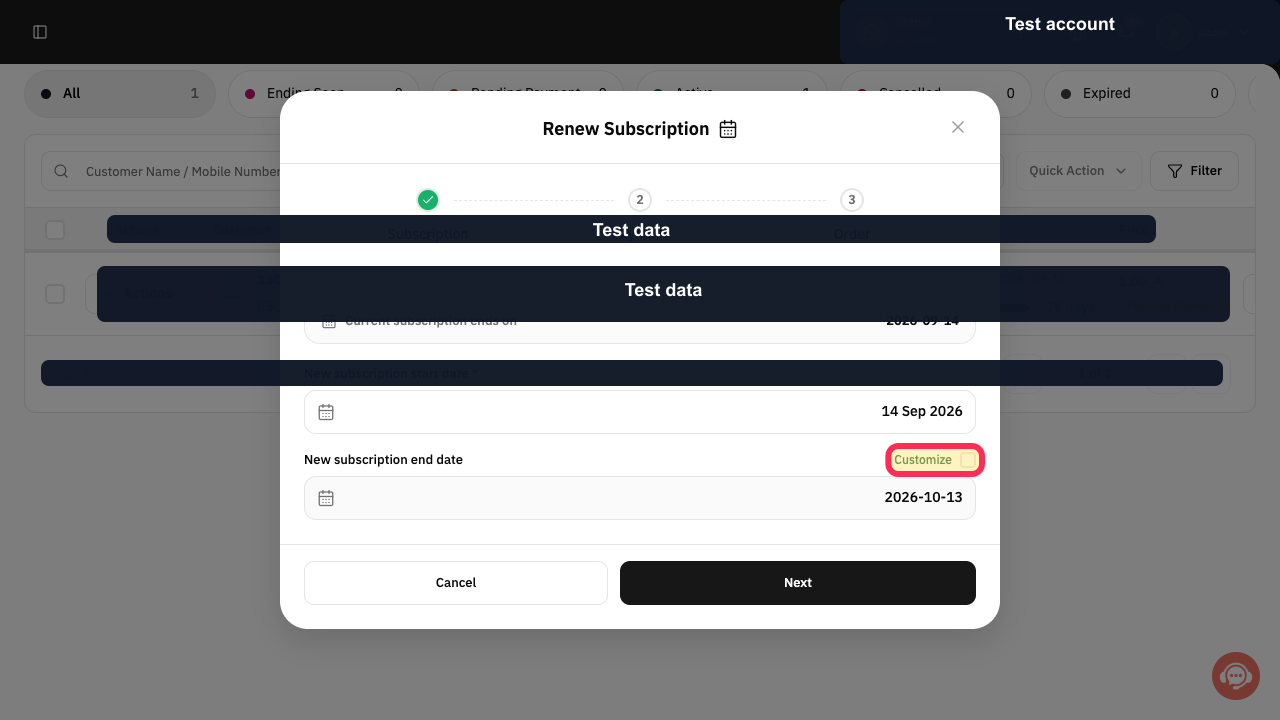
Optional: enable Customize when the calculated New subscription end date must be changed.
The renewal end-date setting follows your selection.
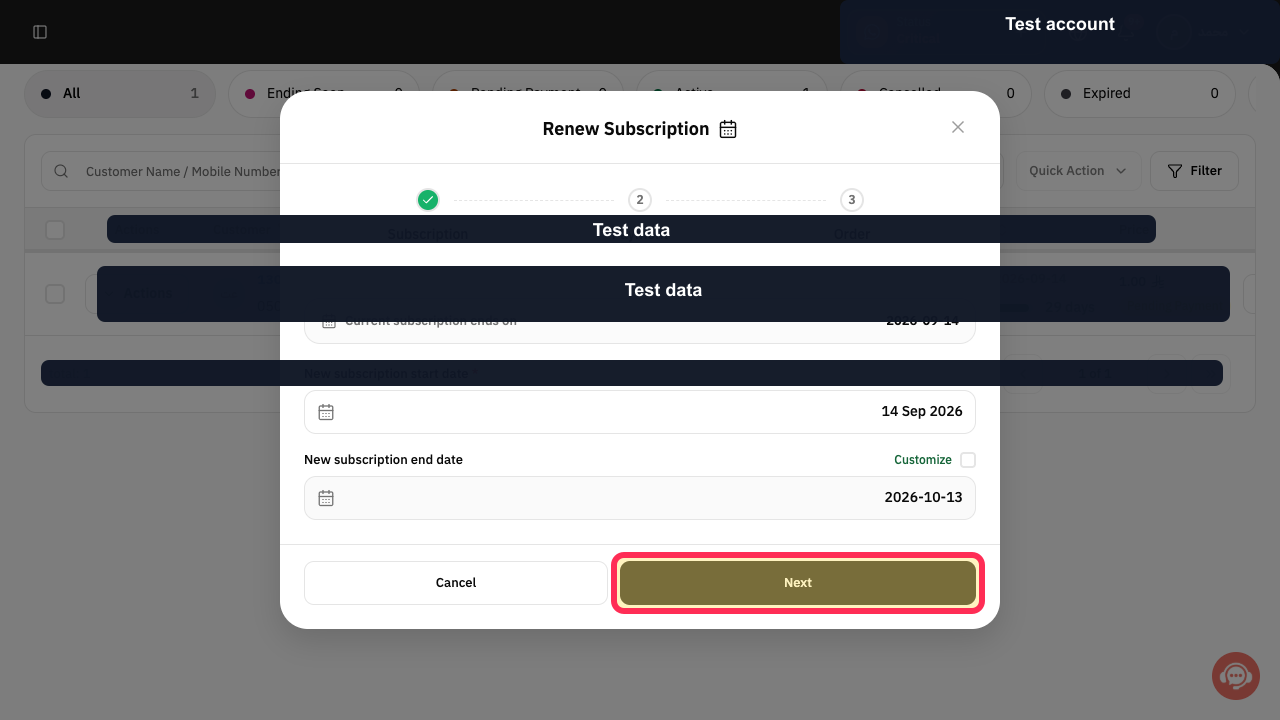
Select Next.
The renewal Payment stage opens.
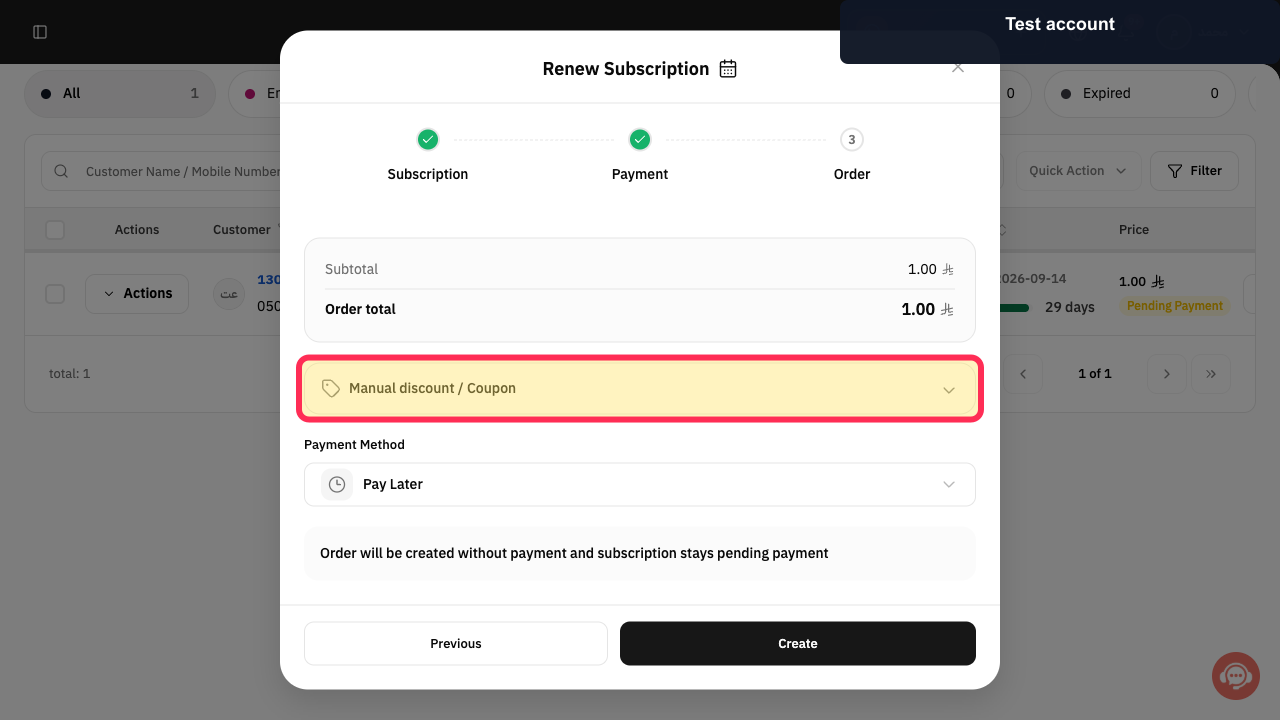
Review Subtotal and Order total, and open Manual discount / Coupon only when needed.
The renewal price and any discount are ready for confirmation.
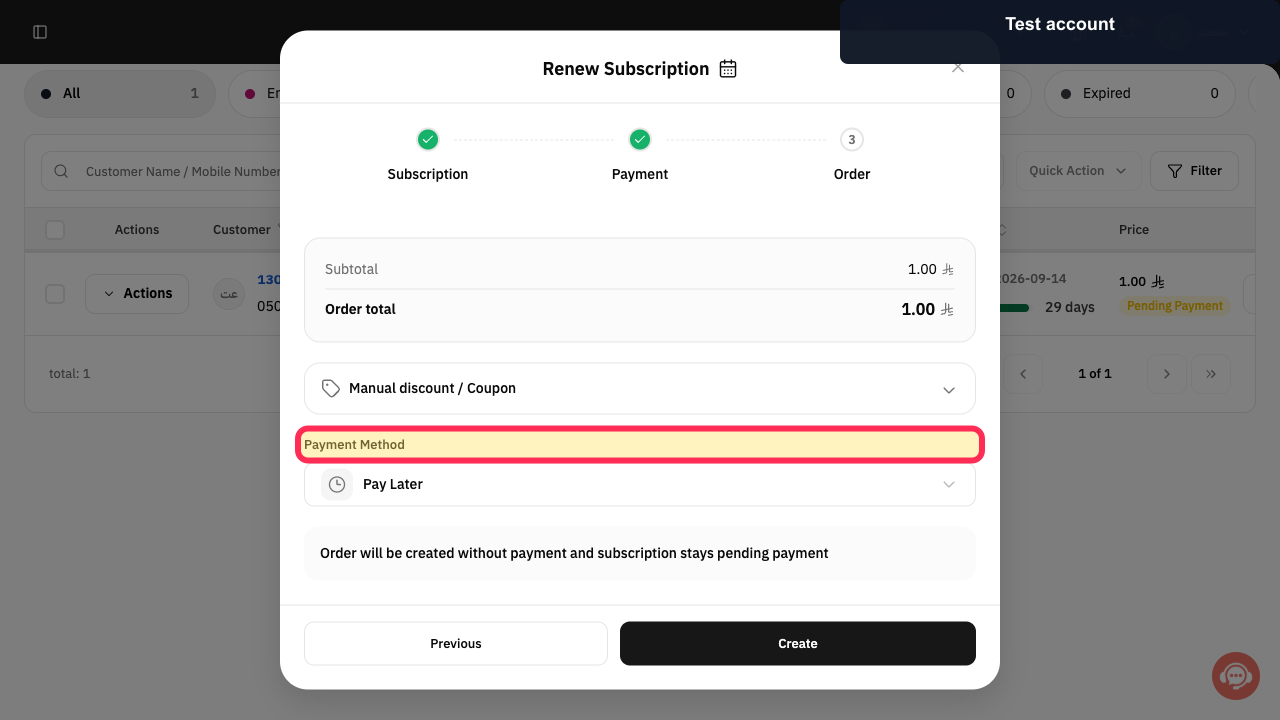
Choose Payment Method. Keep Pay Later when the renewed subscription should remain pending payment, or select the method actually used.
The renewal payment treatment is selected.
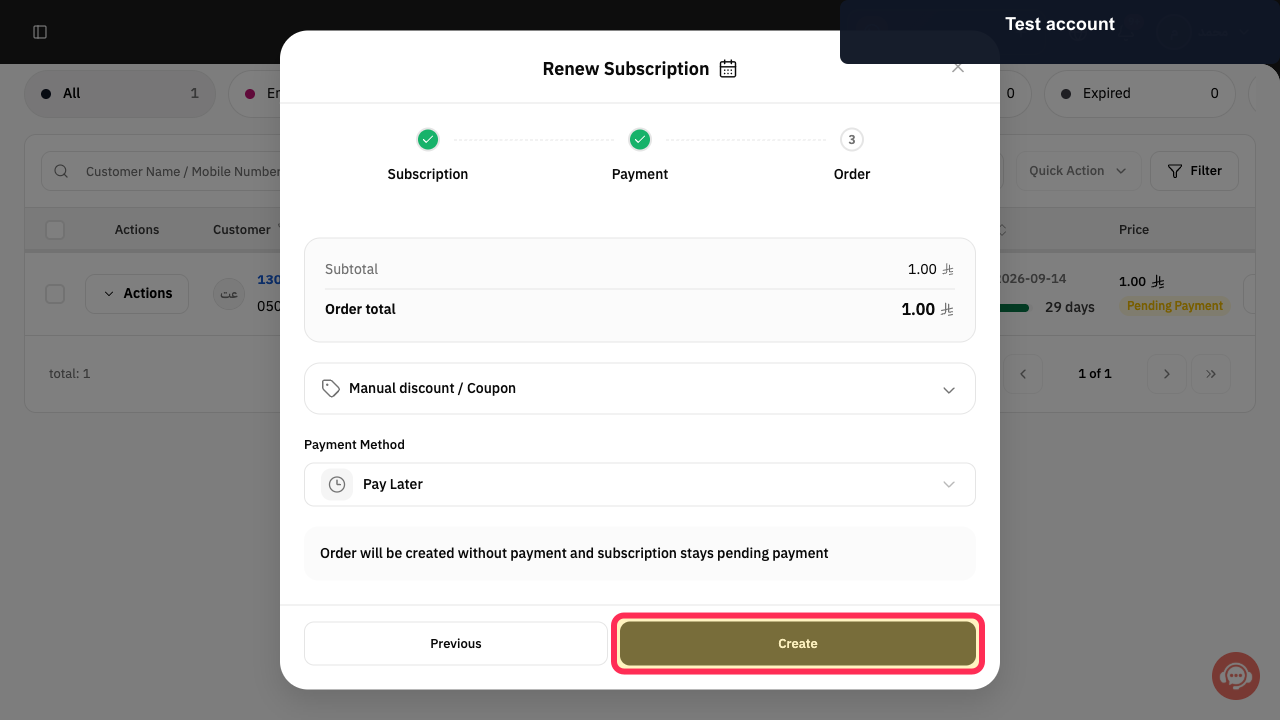
Select Create.
The renewed subscription period is submitted for creation.
Illustrated guide
Step 1: Locate the customer subscription to renew.
Step 2: Open the subscription Actions menu.
Step 3: Start renewing the subscription.
Step 4: Set the new subscription start date.
Step 5: Customize the renewal end date when needed.
Step 6: Continue to renewal payment.
Step 7: Review the renewal total and optional discount.
Step 8: Choose the renewal Payment Method.
Step 9: Create the renewed subscription.
Important notes
Check the Start & End Date and Amount before recording any payment or completing the renewal.
The source does not verify the current navigation path to the customer subscription list or the exact English label of the final completion button.
Related questions
Where can I find the Renew subscription option in Rekaz?
What should I check before renewing a customer subscription in Rekaz?
How do I choose a payment method when renewing a subscription in Rekaz?


