How do I create a new customer subscription in Rekaz?
Create a customer subscription from the Subscriptions page. Rekaz guides you through Subscription, Configuration, and Payment before the record is created.
Add another subscription is available for multiple services in one order. There is no Quantity field in the current workflow.
Steps
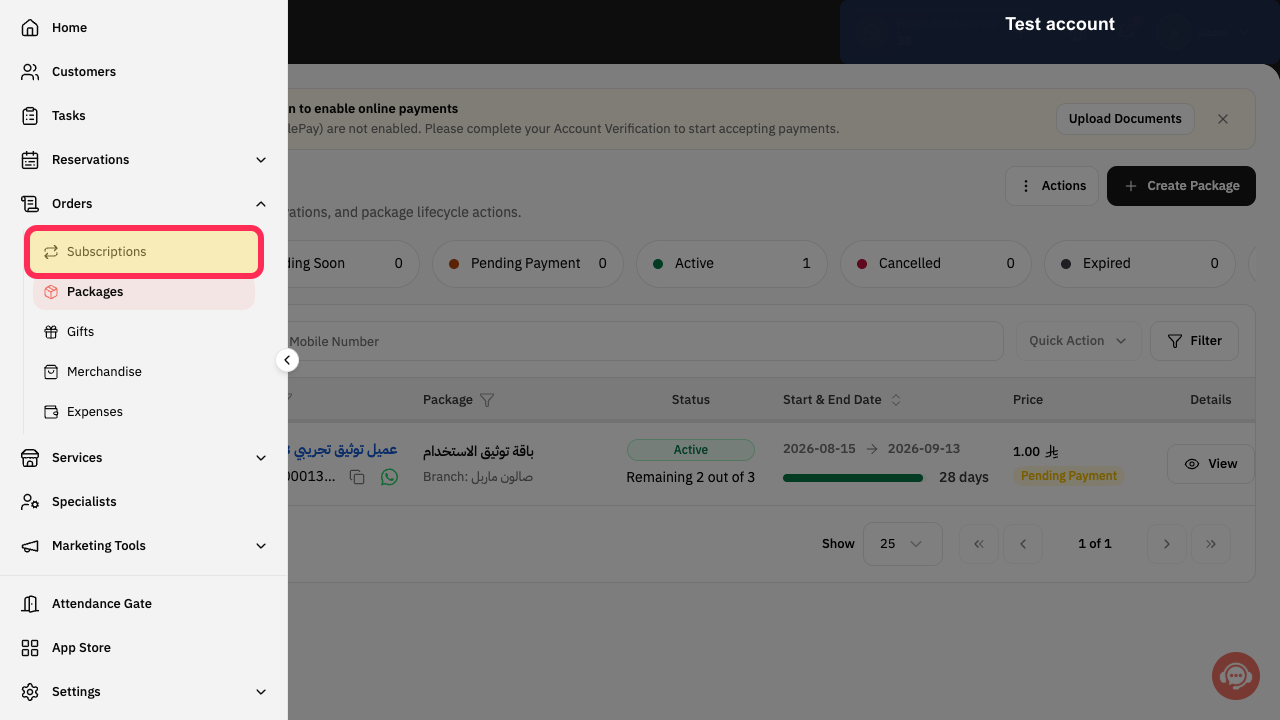
Select Subscriptions in the Rekaz sidebar.
The Subscriptions page opens.
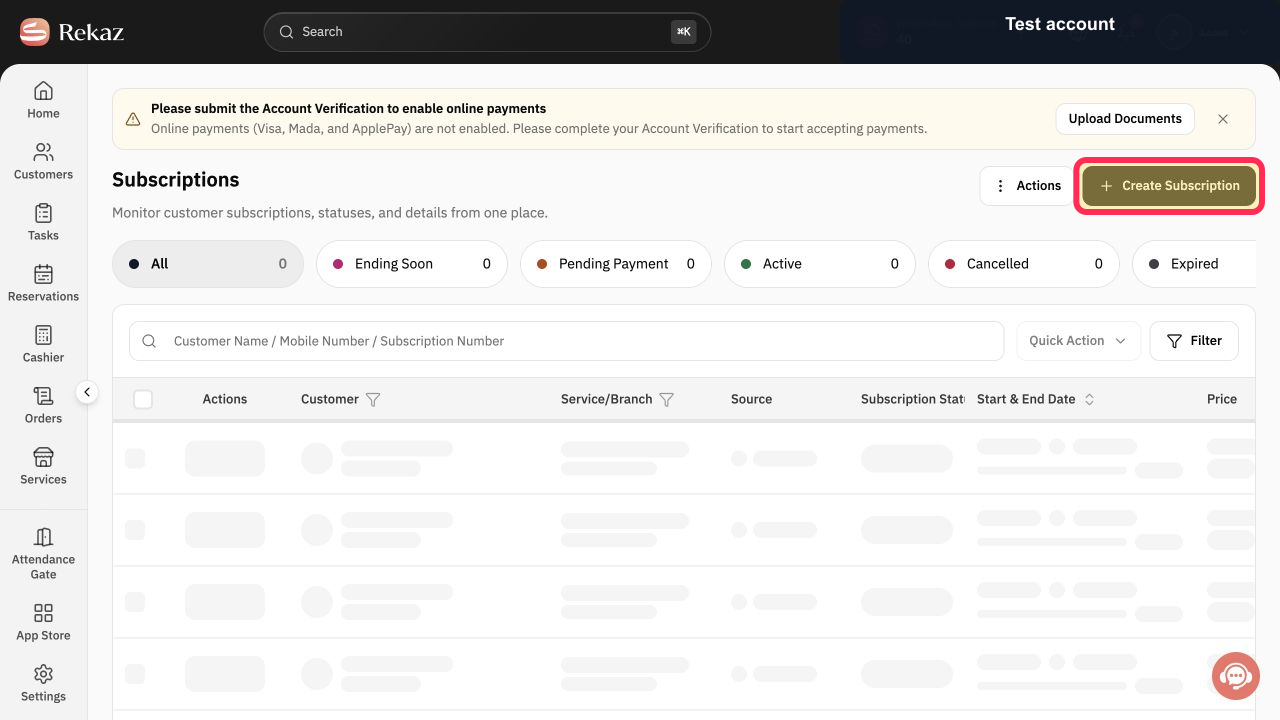
Select Create Subscription.
The Create Subscription dialog opens.
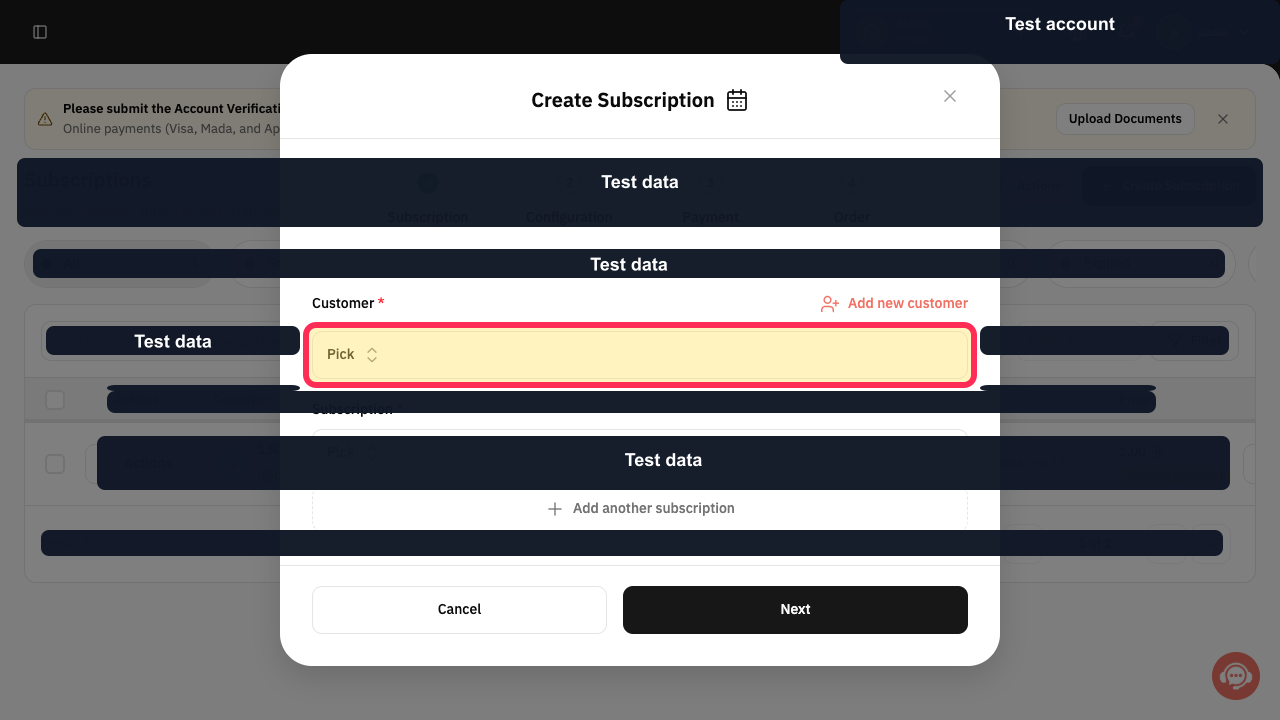
Under Customer, select Pick and choose the customer.
The chosen customer appears in the form.
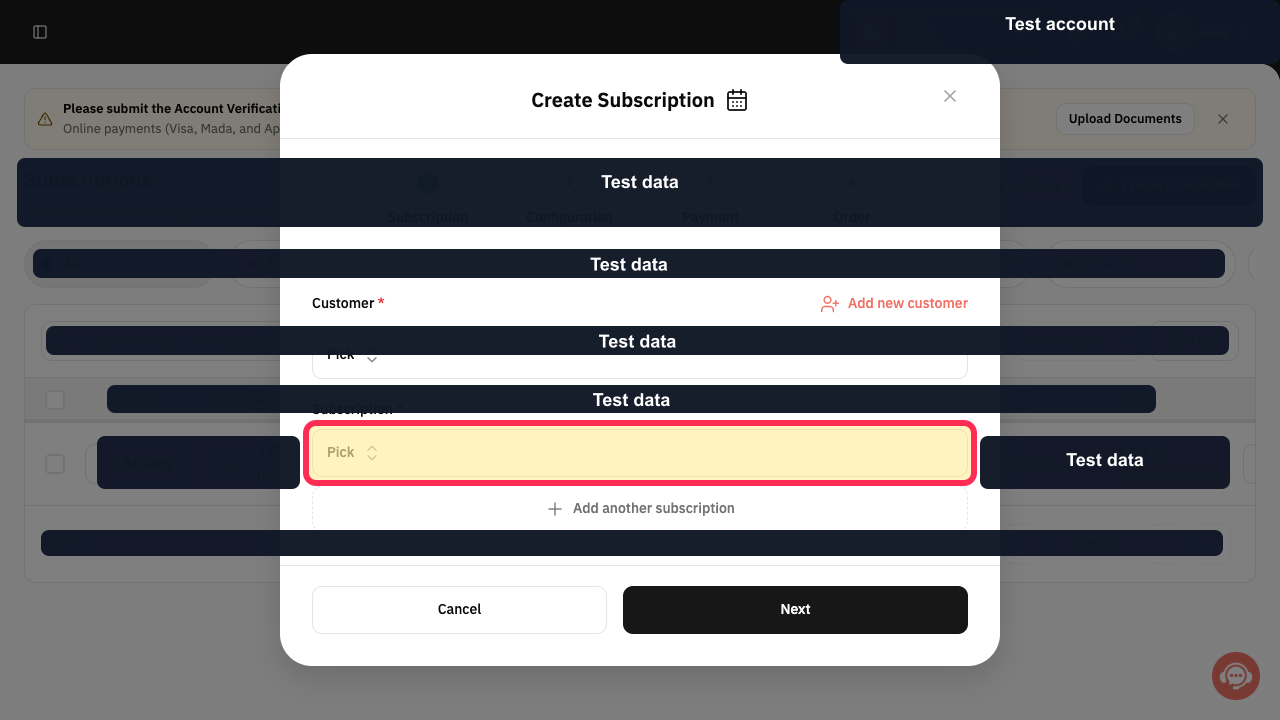
Under Subscription, select Pick and choose the subscription service.
The chosen subscription service appears in the form.
Optional: select Add another subscription to include another subscription service in the order.
Another subscription selector is added.
Select Next.
The Configuration stage opens.
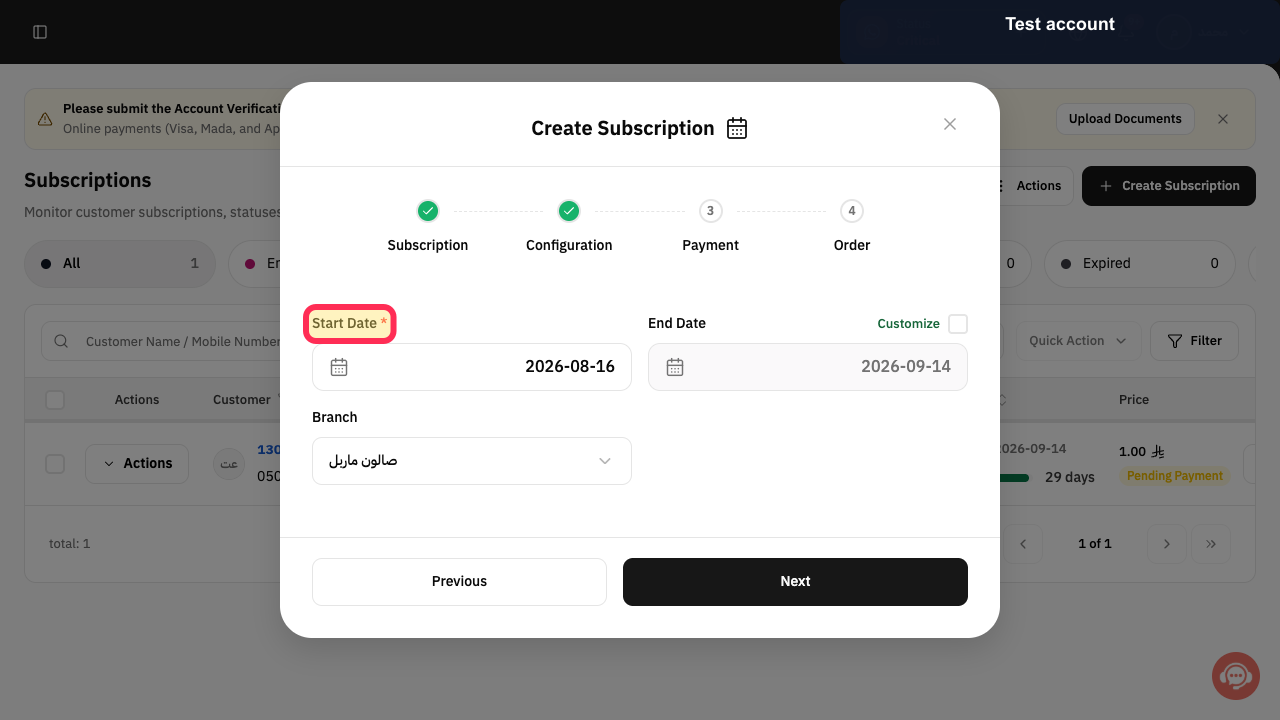
Set Start Date.
The subscription start date is configured.
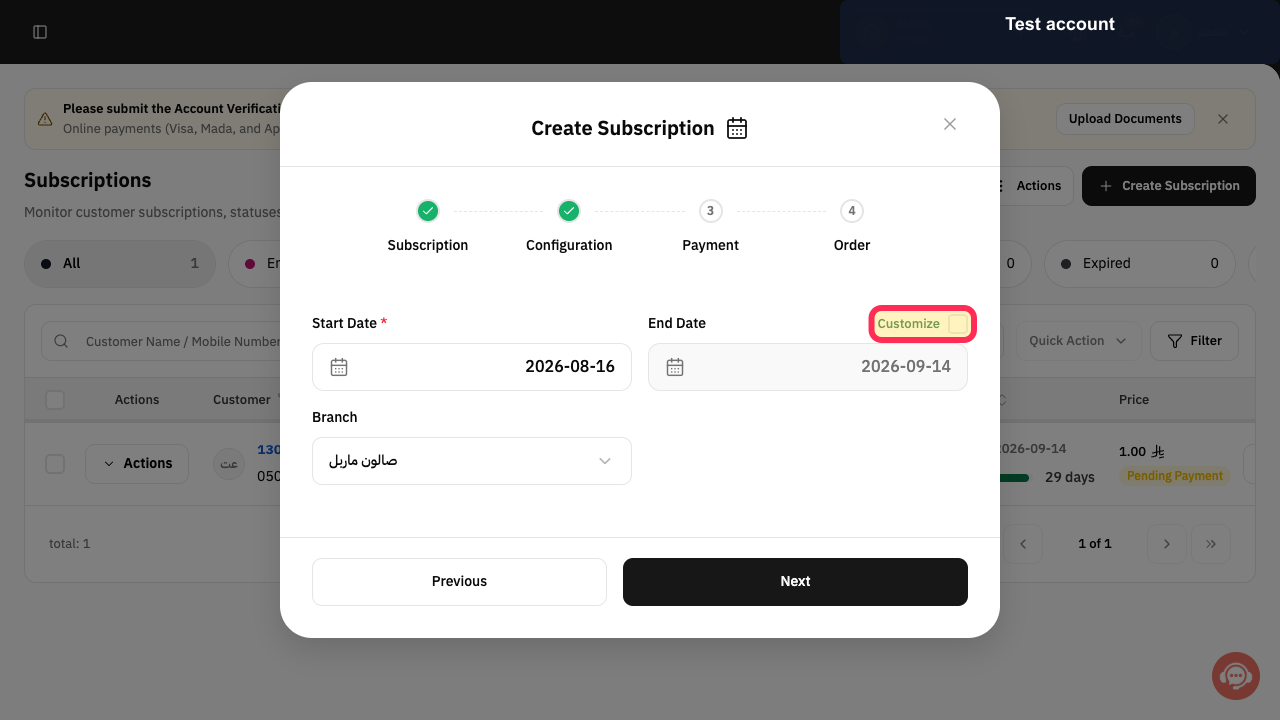
Optional: enable Customize and set End Date if the calculated end date must change.
The custom end date is applied to the form.
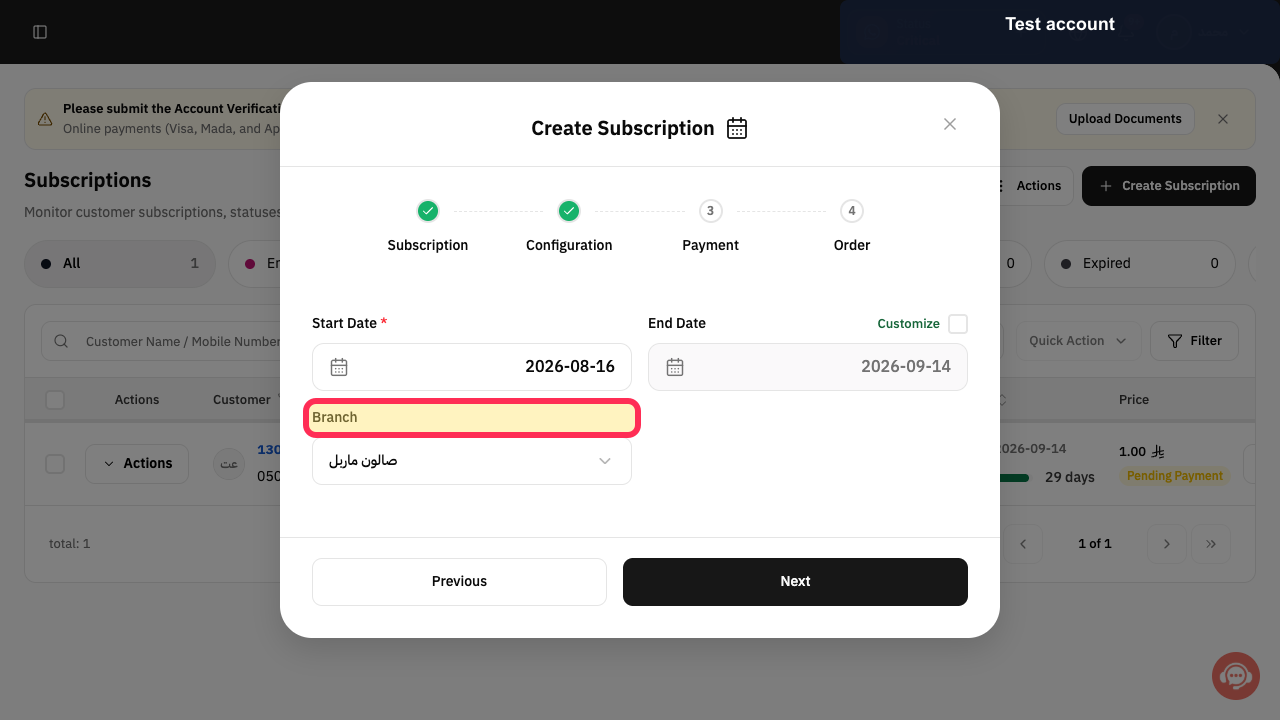
Choose the Branch for the customer subscription.
The selected branch appears in the configuration.
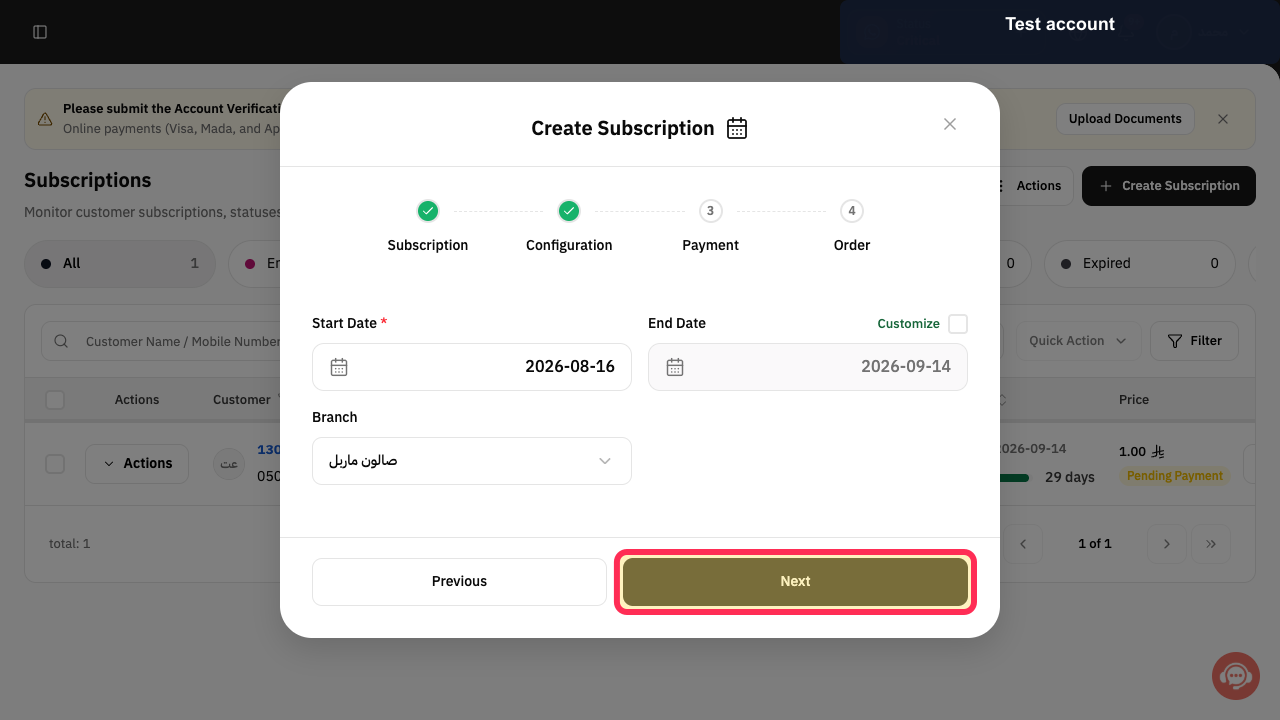
Select Next.
The Payment stage opens.
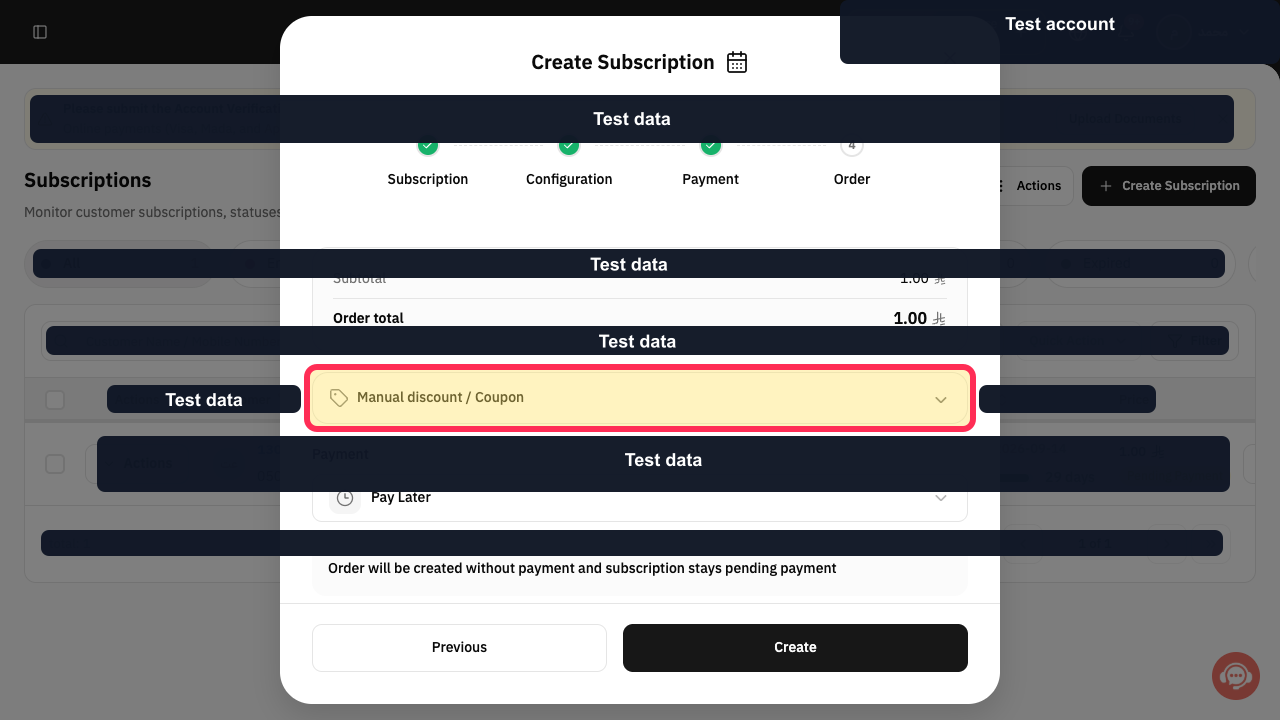
Optional: open Manual discount / Coupon to apply a manual discount or coupon.
The optional discount controls open.
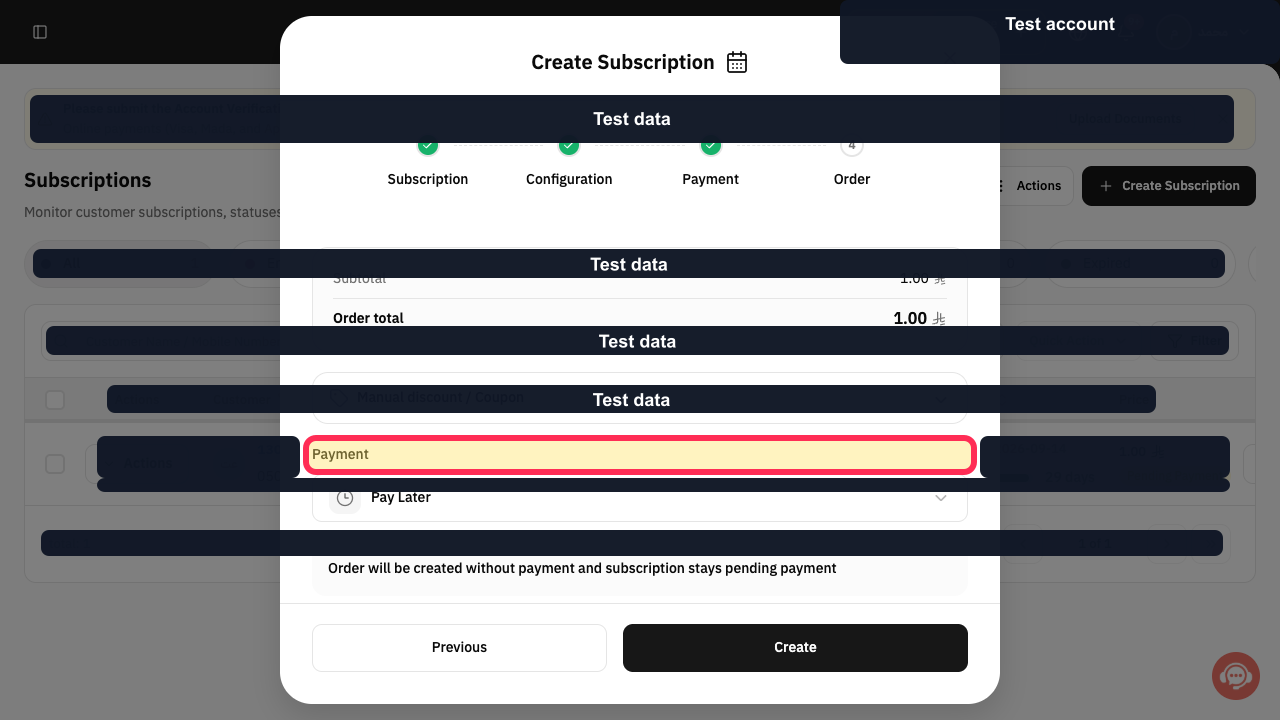
Choose Payment. Keep Pay Later for a pending-payment subscription, or select the method actually used.
The payment treatment is selected.
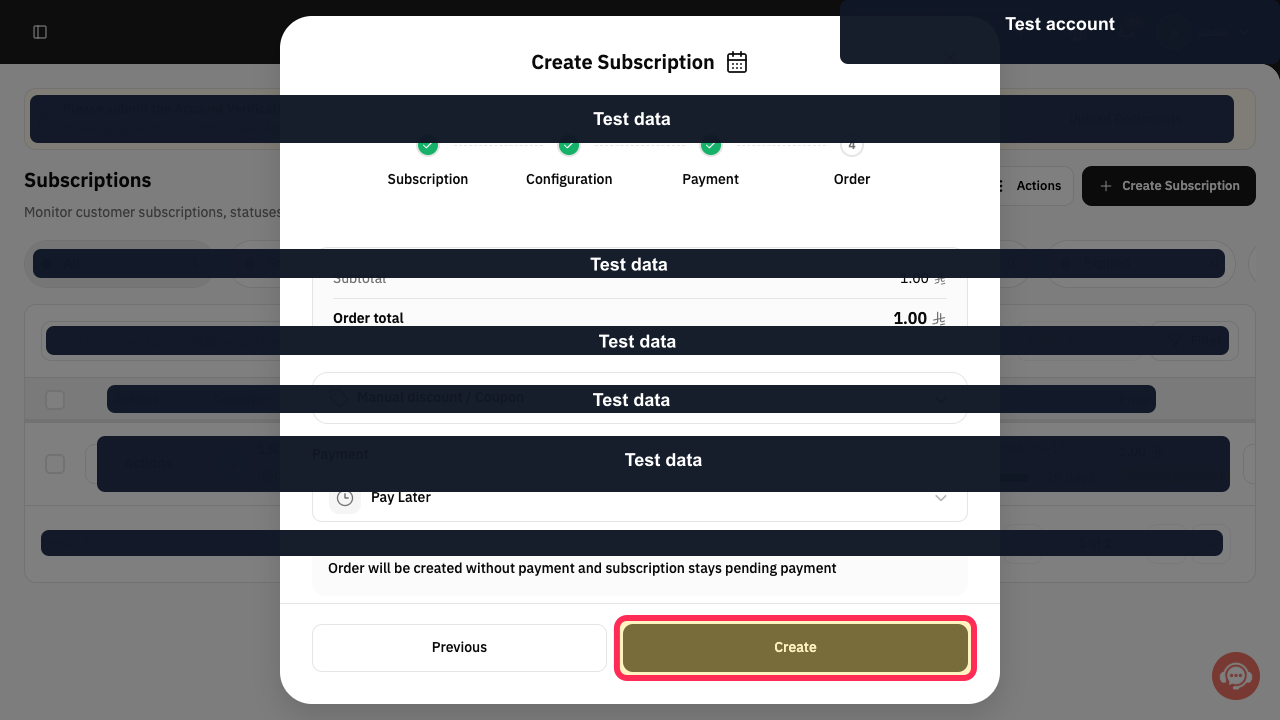
Review the subtotal and order total, then select Create.
The customer subscription is submitted for creation.
Illustrated guide
Step 1: Open Subscriptions from the Rekaz sidebar.
Step 2: Open the customer-subscription wizard.
Step 3: Choose the subscription customer.
Step 4: Choose the subscription service.
Step 5: Add another subscription when needed.
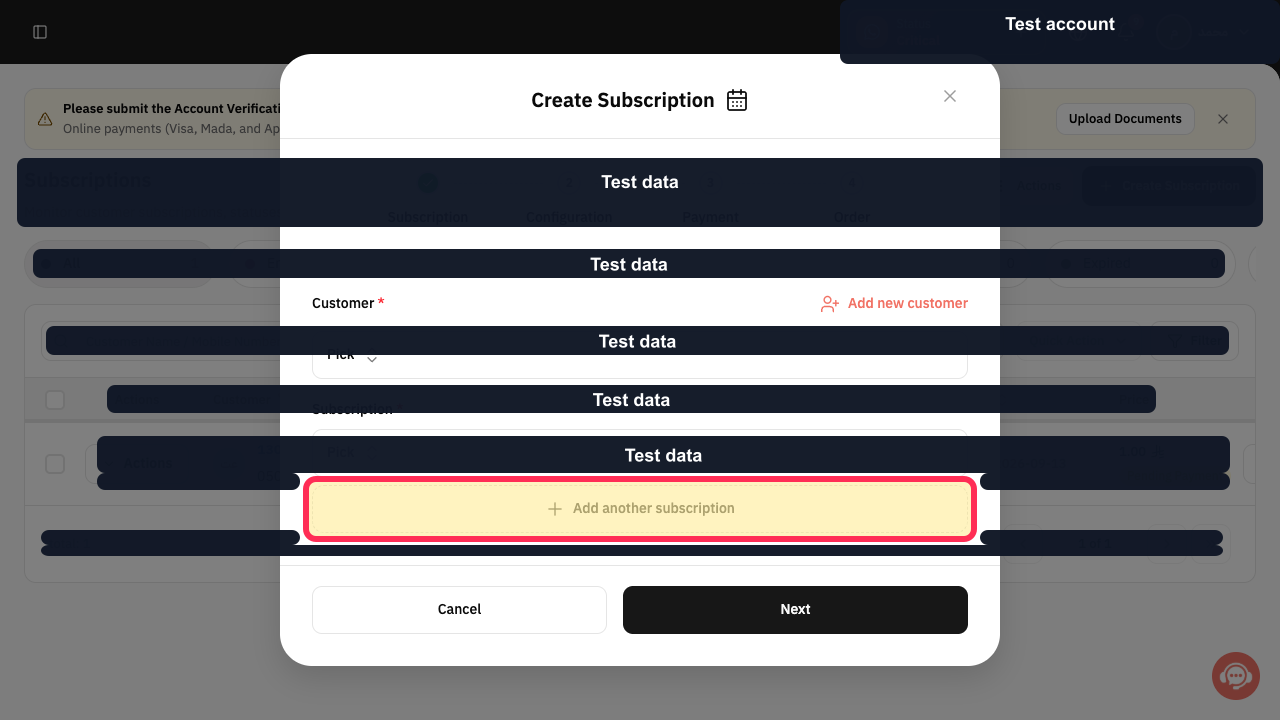
Step 6: Continue to Configuration.
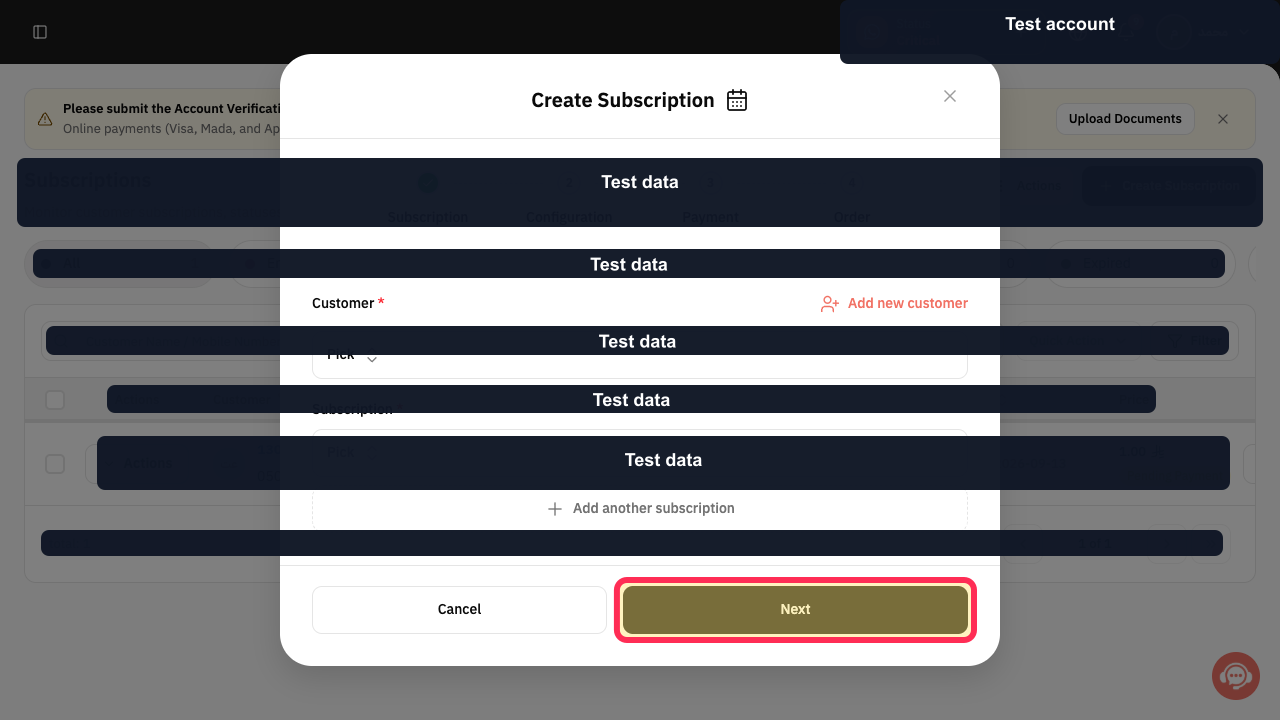
Step 7: Set the subscription Start Date.
Step 8: Customize the End Date when needed.
Step 9: Choose the subscription Branch.
Step 10: Continue to Payment.
Step 11: Apply a discount or coupon when required.
Step 12: Choose the subscription Payment method.
Step 13: Create the customer subscription.
Before you save
Review the customer, subscription service, quantity, Start Date, branch, and any discount before saving.
A discount is optional.
You can apply the discount as a Percentage or a Fixed amount.
Related questions
How do I add a new subscription for a customer in Rekaz?
Where can I find the New Subscription option in Rekaz?
How do I apply a discount when creating a customer subscription in Rekaz?


