How do I publish or hide a package on my website in Rekaz?
Package visibility is controlled from the package row's Actions menu on Services.
Set as Internal hides it from public booking while keeping it in Rekaz. Set as Published makes it publicly available again according to its other booking settings.
Steps
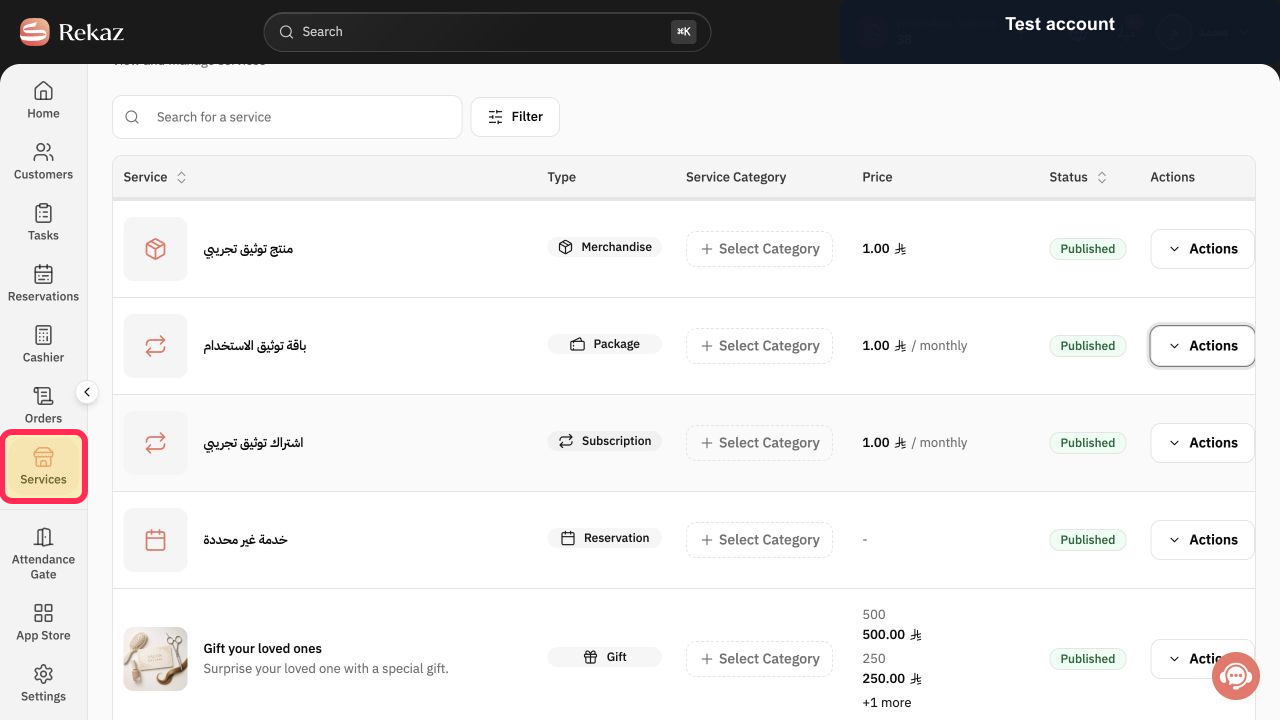
From the Rekaz sidebar, select Services to manage package visibility.
The Services list opens.
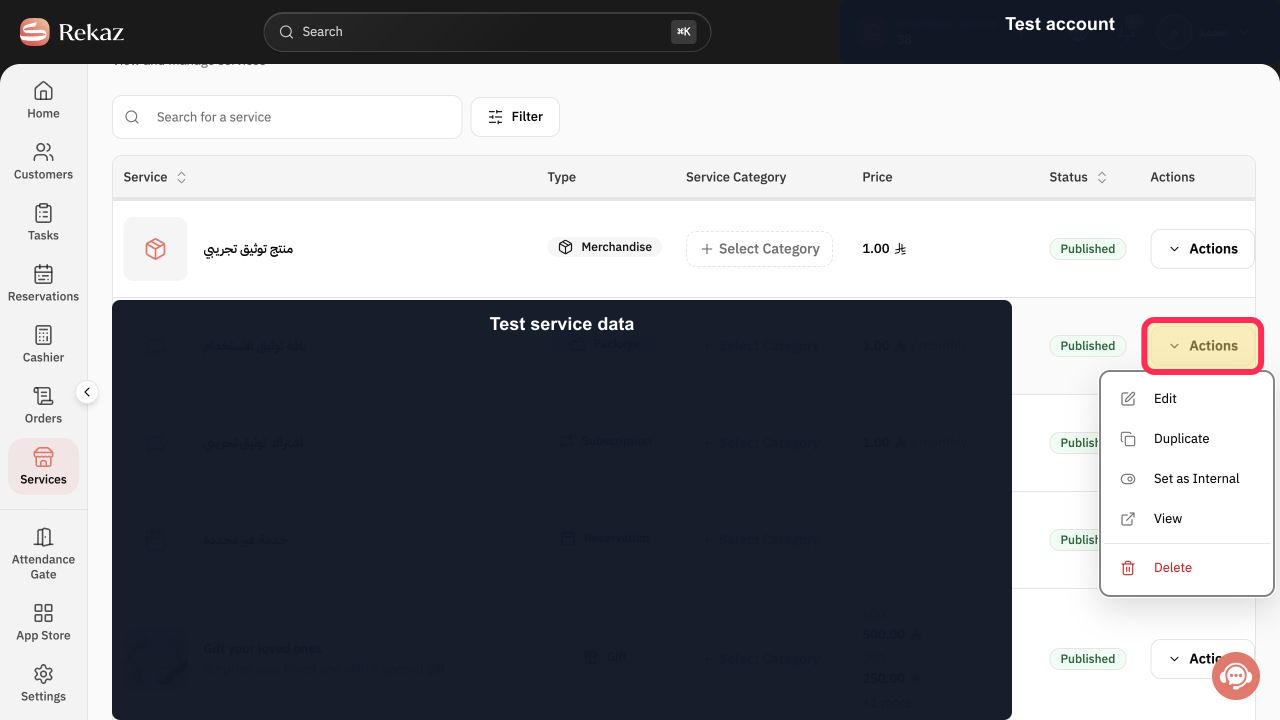
Locate the correct Package row and select Actions.
The package Actions menu opens.
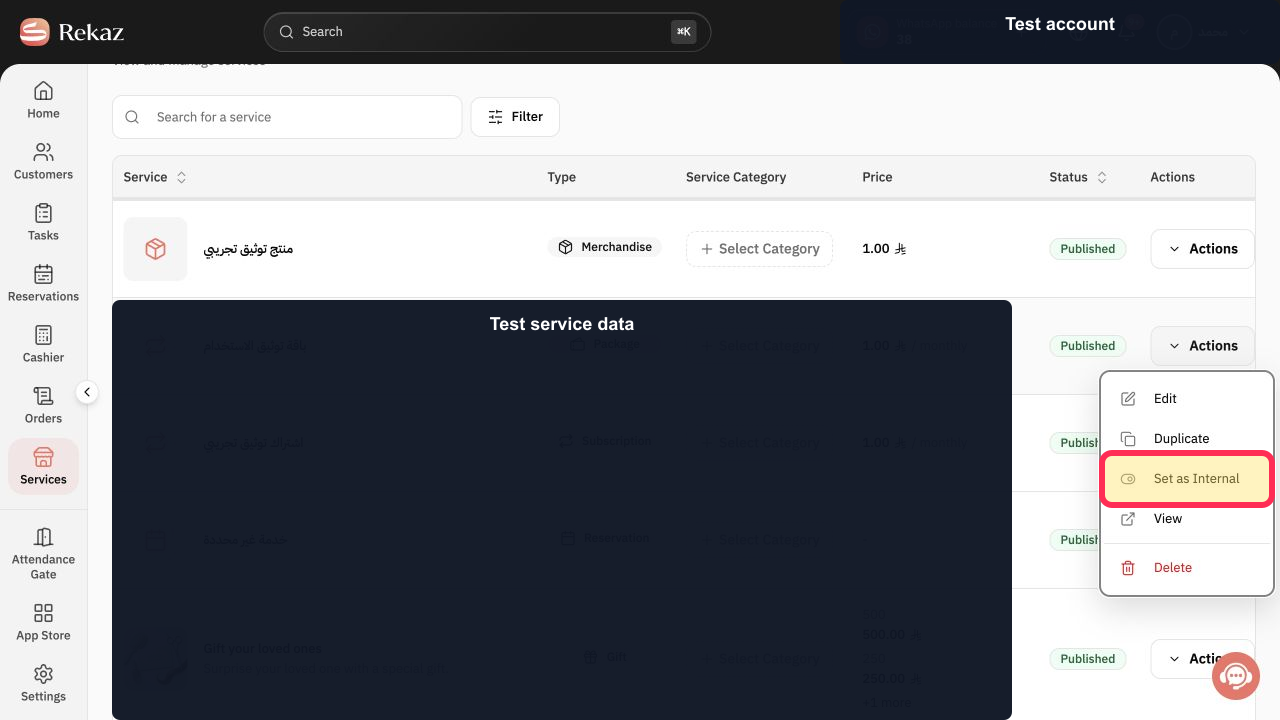
Select Set as Internal.
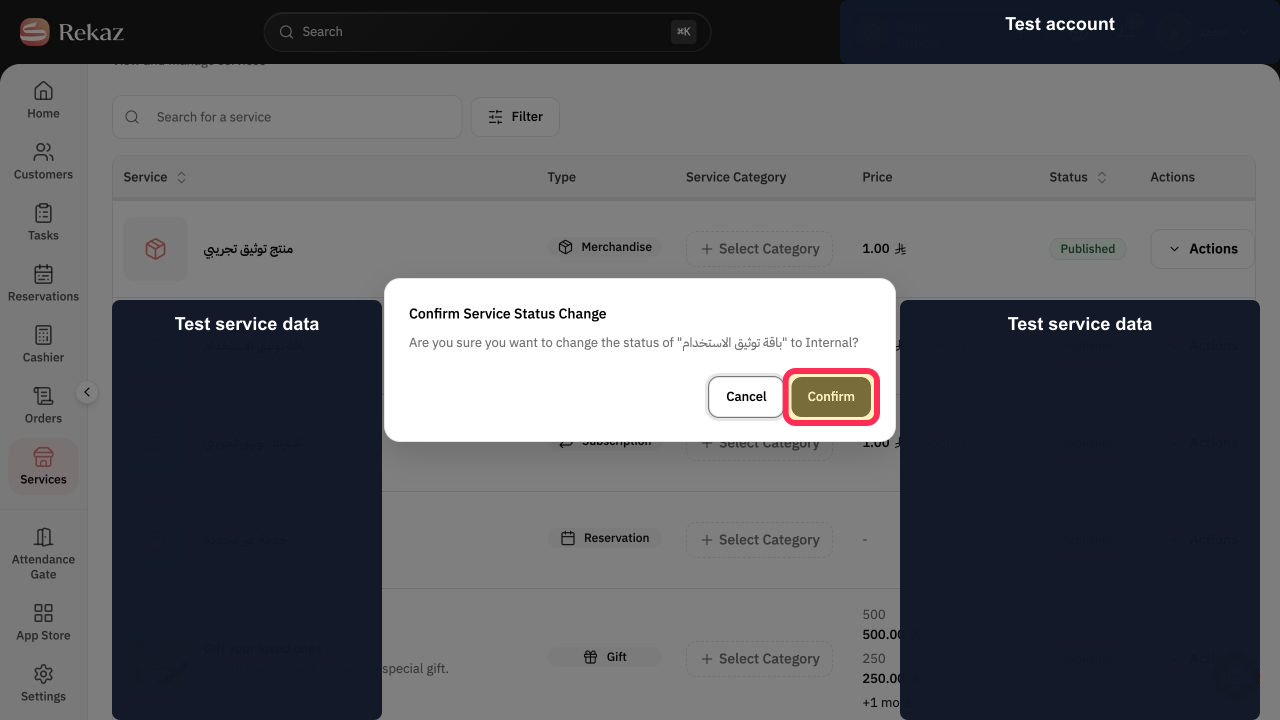
Rekaz displays Confirm Service Status Change for the package.
Verify the package name and the Internal status in the warning, then select Confirm.
The package status changes to Internal.
To publish the package again, reopen Actions for the same Internal package.
The Actions menu now offers Set as Published.
Select Set as Published.
Rekaz displays Confirm Service Status Change for the package.
Verify the package name and Published status, then select Confirm.
The package status returns to Published.
Illustrated guide
Step 1: Open Services to manage the package.
Step 2: Open the package Actions menu.
Step 3: Set the package as internal.
Step 4: Confirm the package's Internal status.
Step 5: Reopen the Internal package Actions menu.
Step 6: Set the package as published.
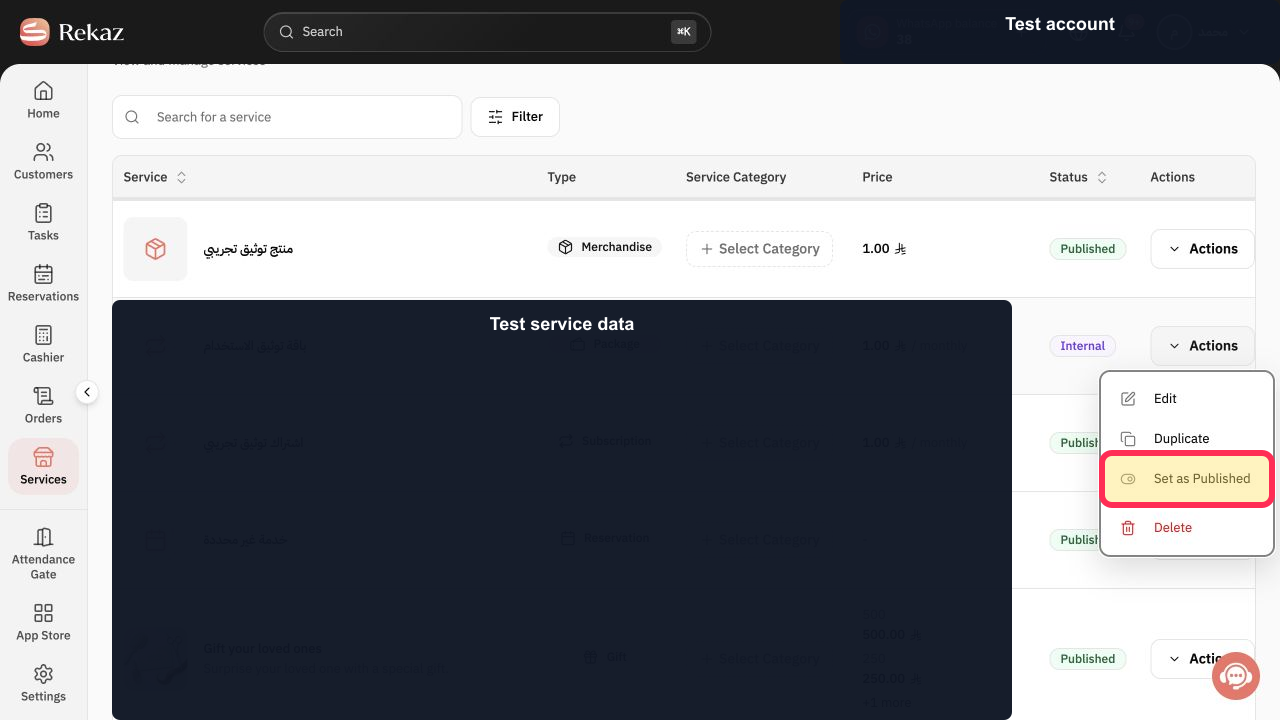
Step 7: Confirm the package's Published status.
Important notes
This uses the same documented interface path as the service visibility procedure.
If the Rekaz interface has changed, check the visible action label before making the final status change.
Related questions
Where can I find the option to publish or hide a package from my website in Rekaz?
What are the steps to hide a package from my website in Rekaz?
How do I make a hidden package available on my Rekaz website again?


