How do I assign a task to a staff member in Rekaz?
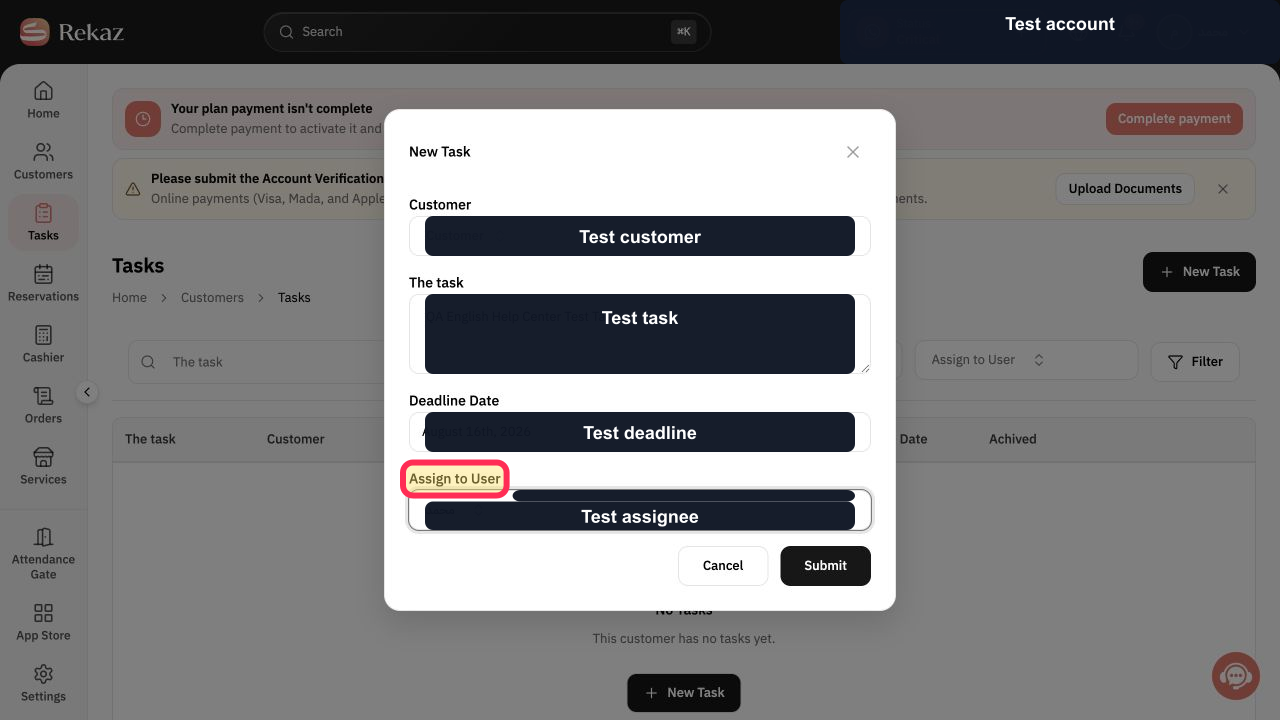
Use Assign to User in the New Task dialog to choose who is responsible for the task.
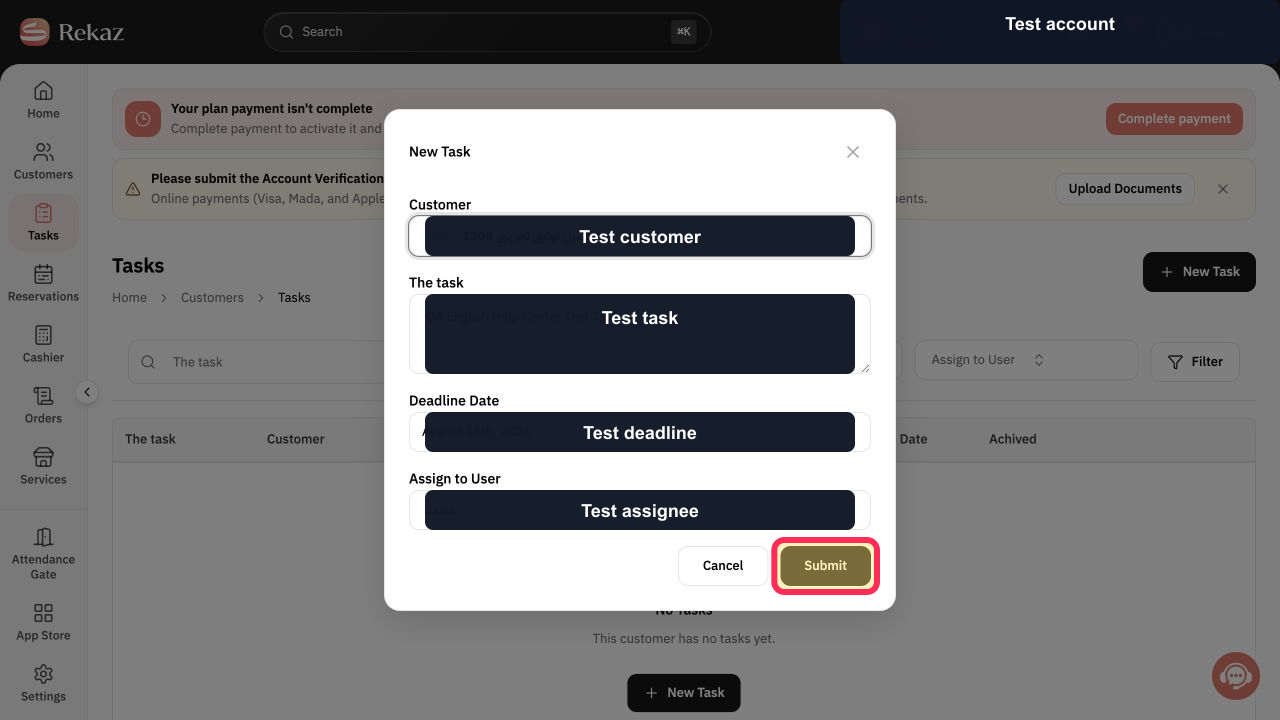
Confirm the customer, task description, deadline, and assignee before submitting the task.
Steps
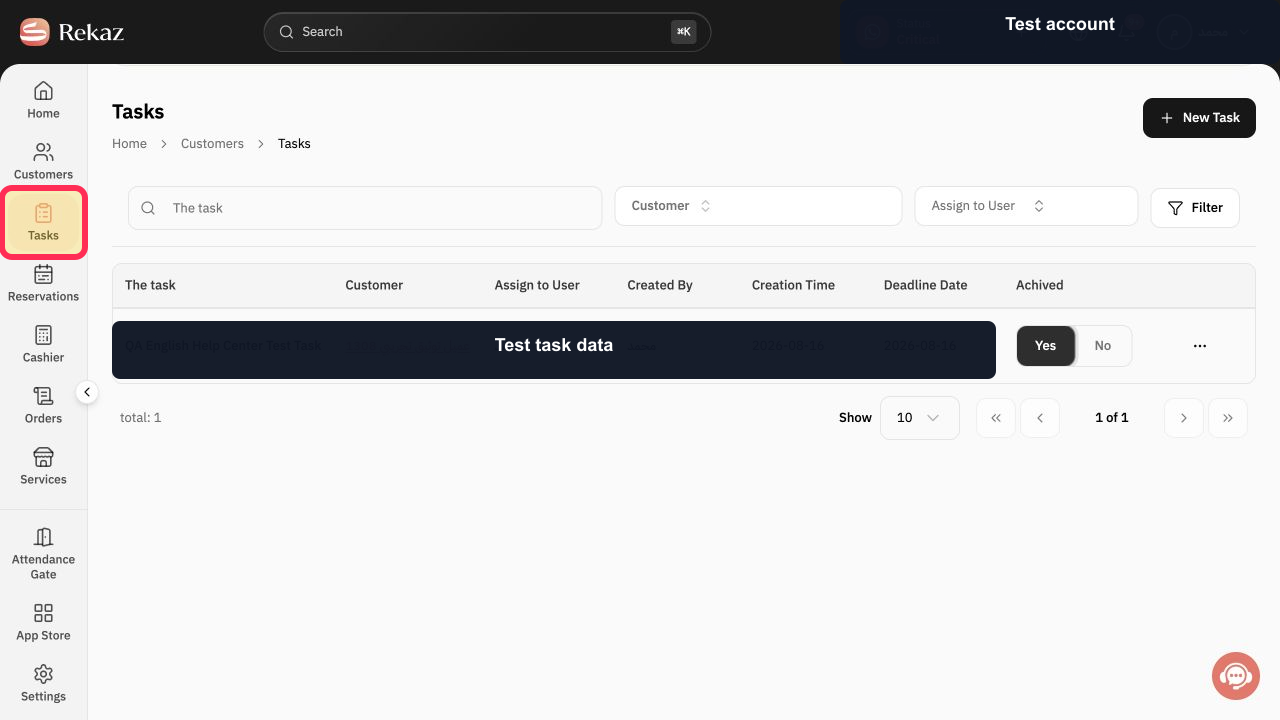
From the Rekaz sidebar, select Tasks.
The Tasks page opens.
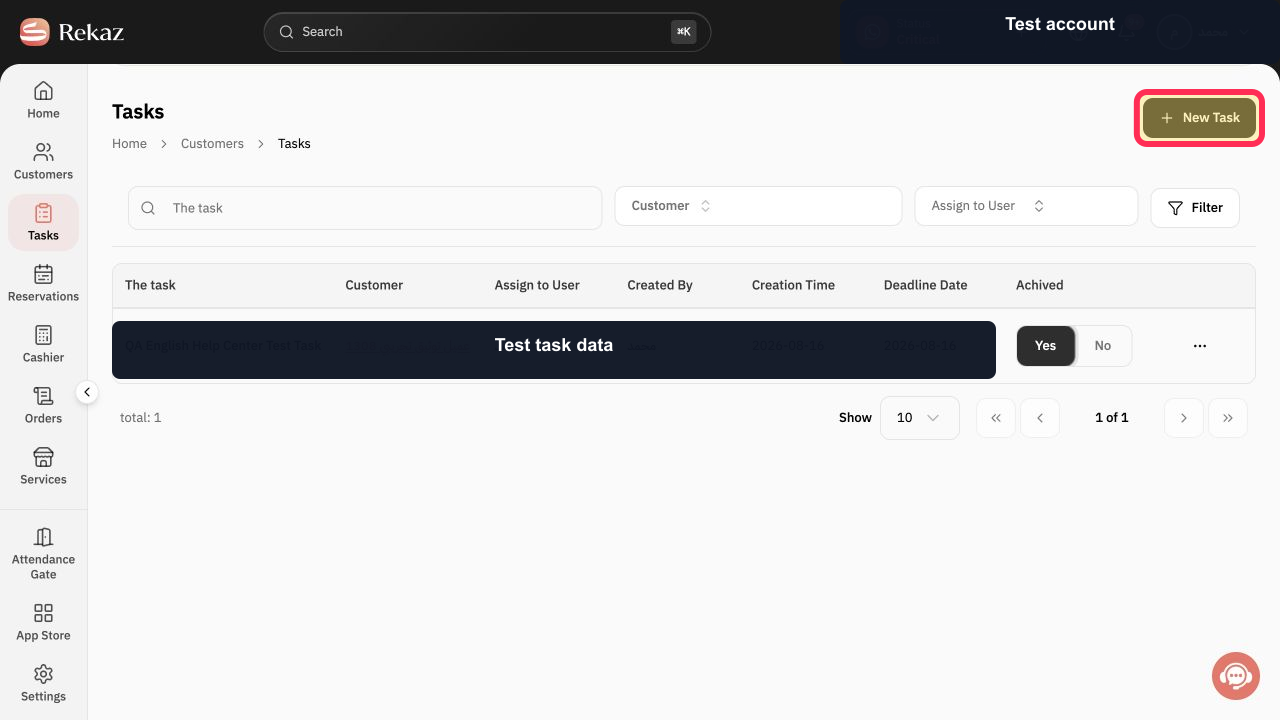
Select New Task.
The New Task dialog opens.
Open Customer and choose the customer linked to the task.
The selected customer appears in the form.
Enter the required work in The task.
The task description appears in the form.
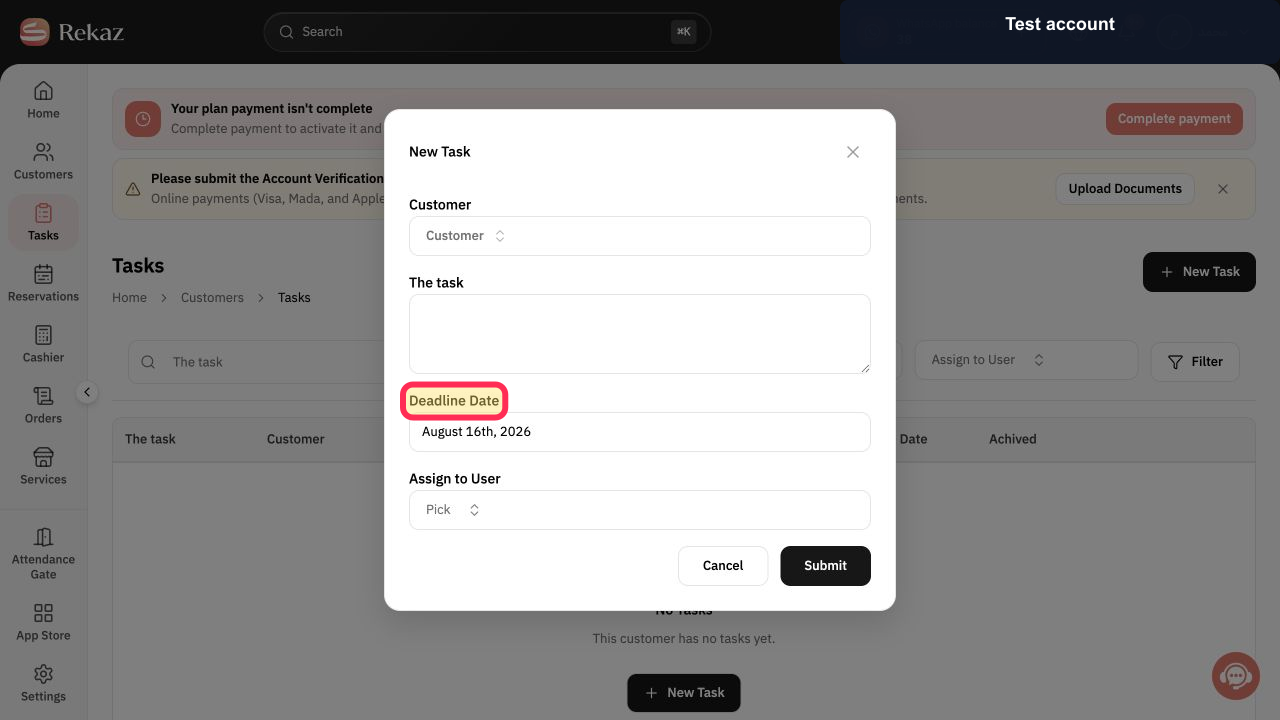
Select Deadline Date and choose the deadline.
The selected deadline appears in the form.
Open Assign to User and choose the responsible staff member.
The selected user appears as the assignee.
Review the task details and select Submit.
The assigned task is created and appears on the Tasks page.
Illustrated guide
Step 1: Open Tasks from the Rekaz sidebar.
Step 2: Open the New Task dialog.
Step 3: Choose the customer for the assigned task.
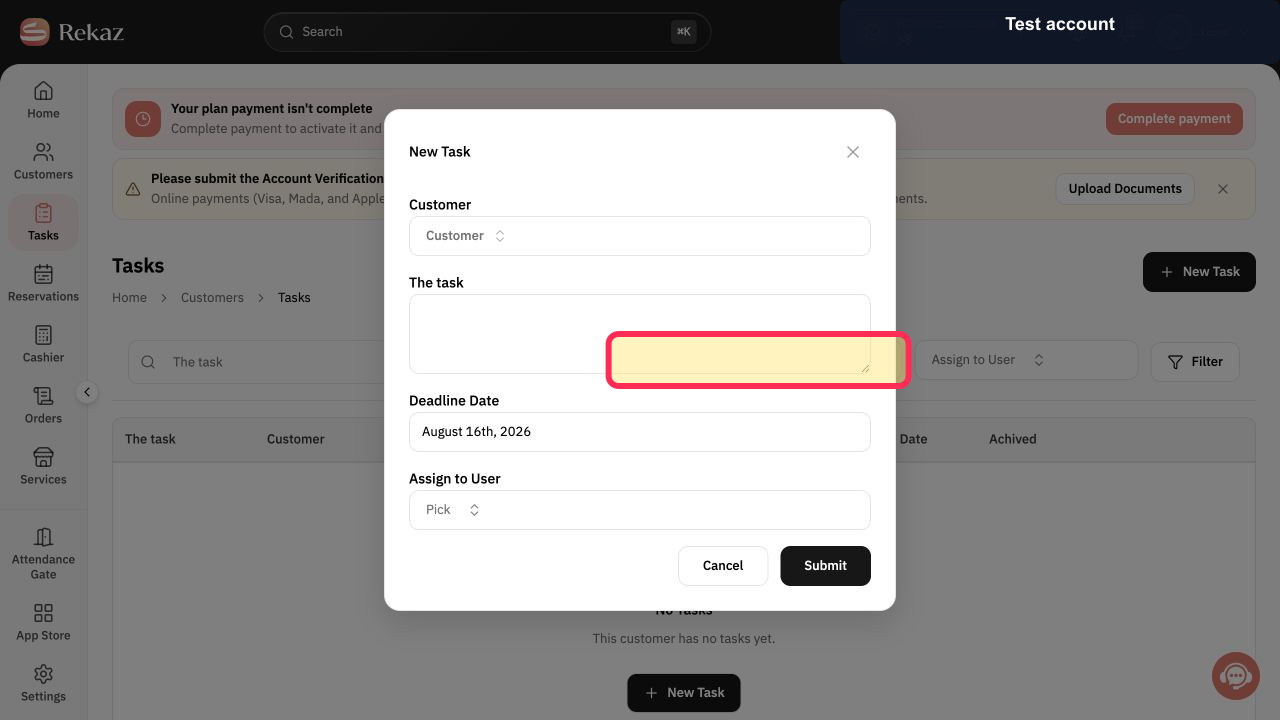
Step 4: Enter the assigned task description.
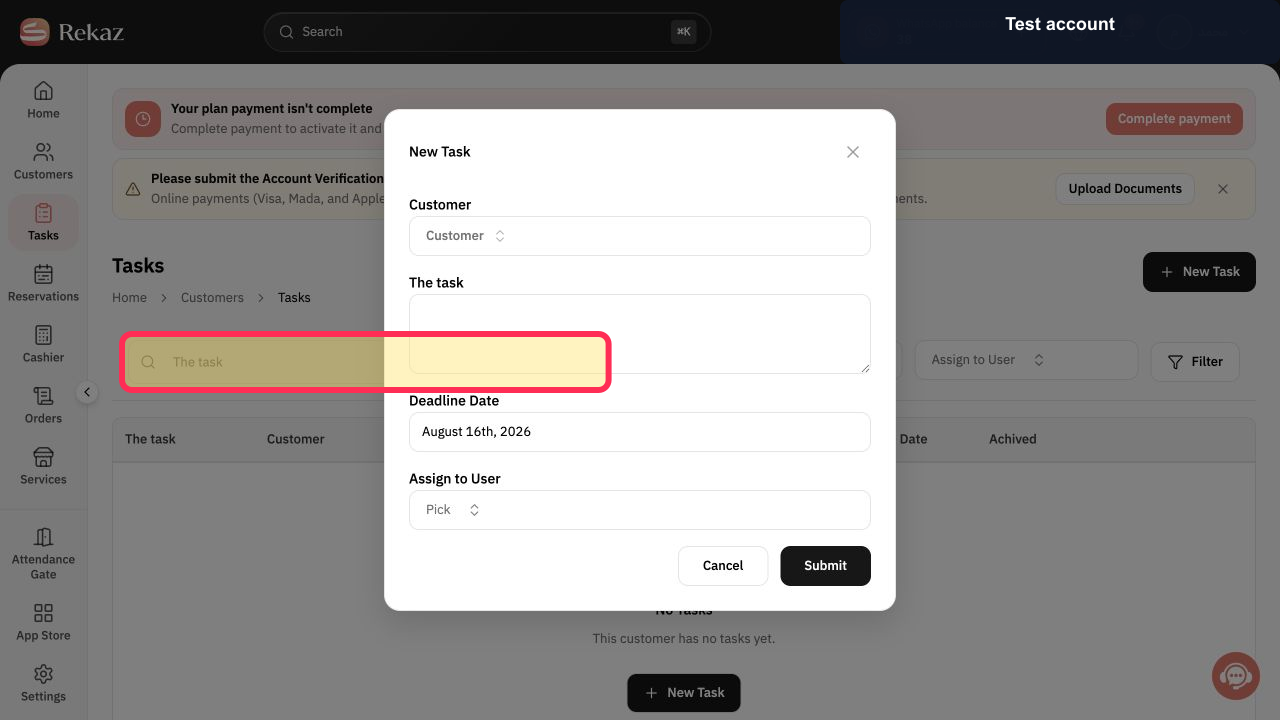
Step 5: Set the assigned task deadline.
Step 6: Assign the task to the responsible Rekaz user.
Step 7: Submit the assigned task.
Important note
If the Rekaz interface has changed, check the visible button label before completing the final action.
Related questions
How do I create a task for a customer in Rekaz?
Where can I assign a task to a staff member in Rekaz?
How do I set a task deadline in Rekaz?


