How do I view a customer’s subscriptions and packages in Rekaz?
To check whether a customer has active subscriptions or linked packages in Rekaz, open their customer record from Customers and review both sections. Subscriptions and packages are shown separately, so check each one when confirming the customer’s products.
Steps
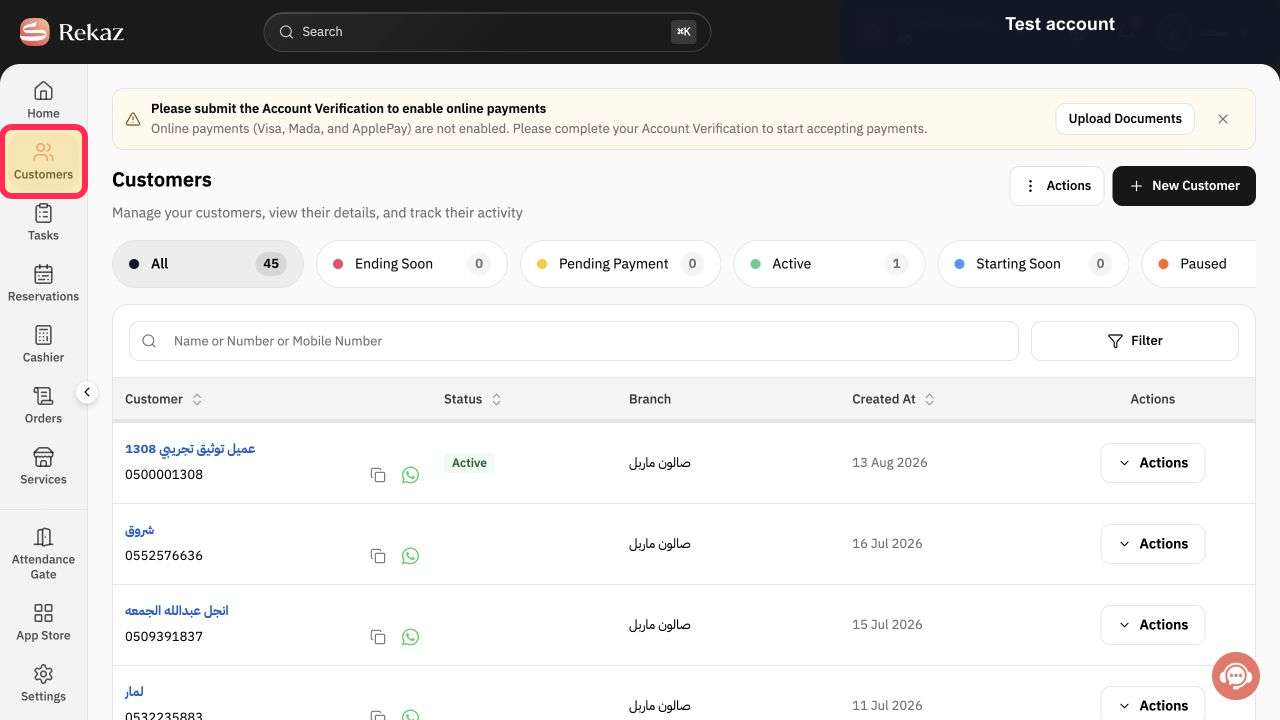
From Home, select Customers in the sidebar.
The Customers list opens.
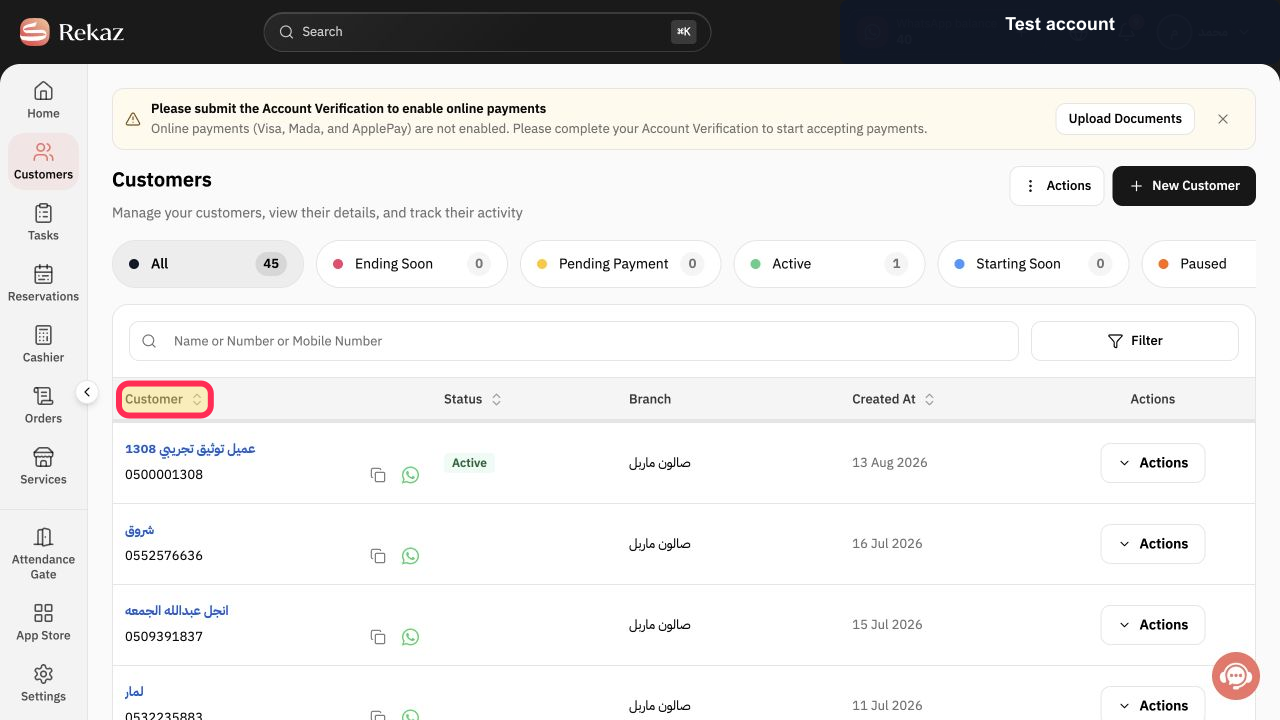
Select the test customer record to open the customer profile. The name and number shown in the example are synthetic test data.
The selected customer’s profile opens.
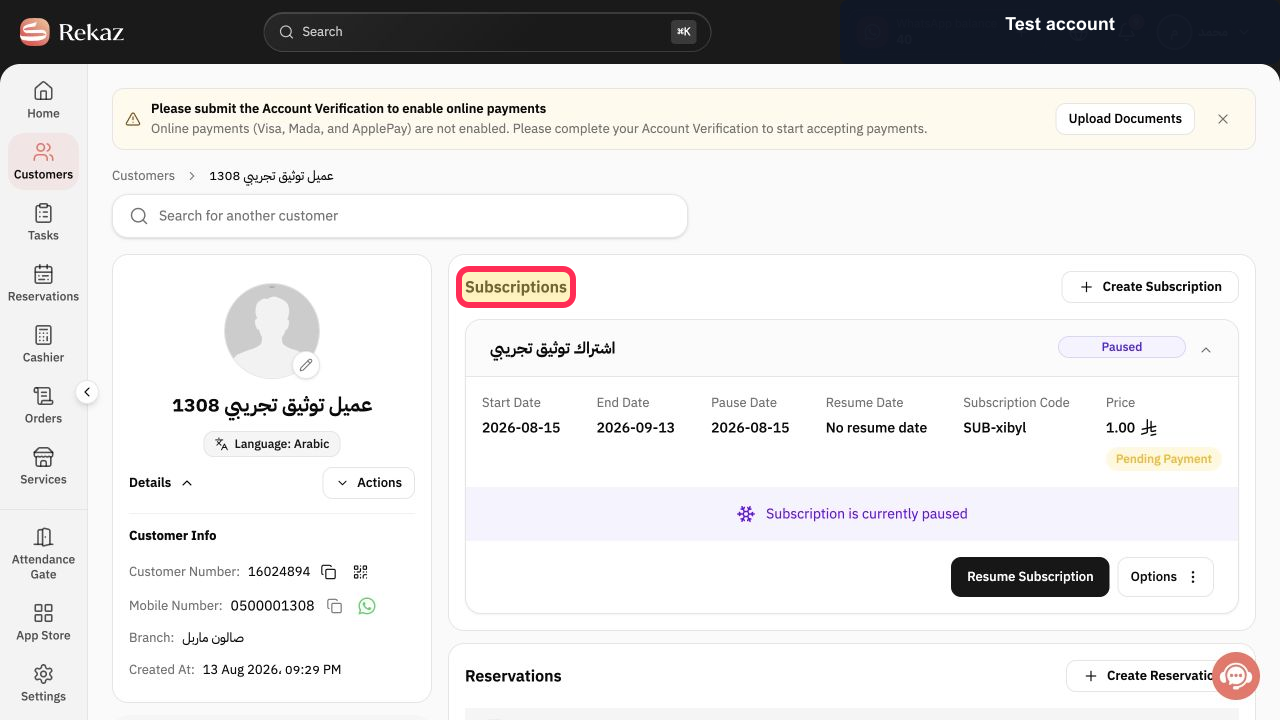
Open the Subscriptions section to review the customer’s current subscriptions.
The customer’s subscription records are displayed, or a no-records message is shown if there are no linked subscriptions.
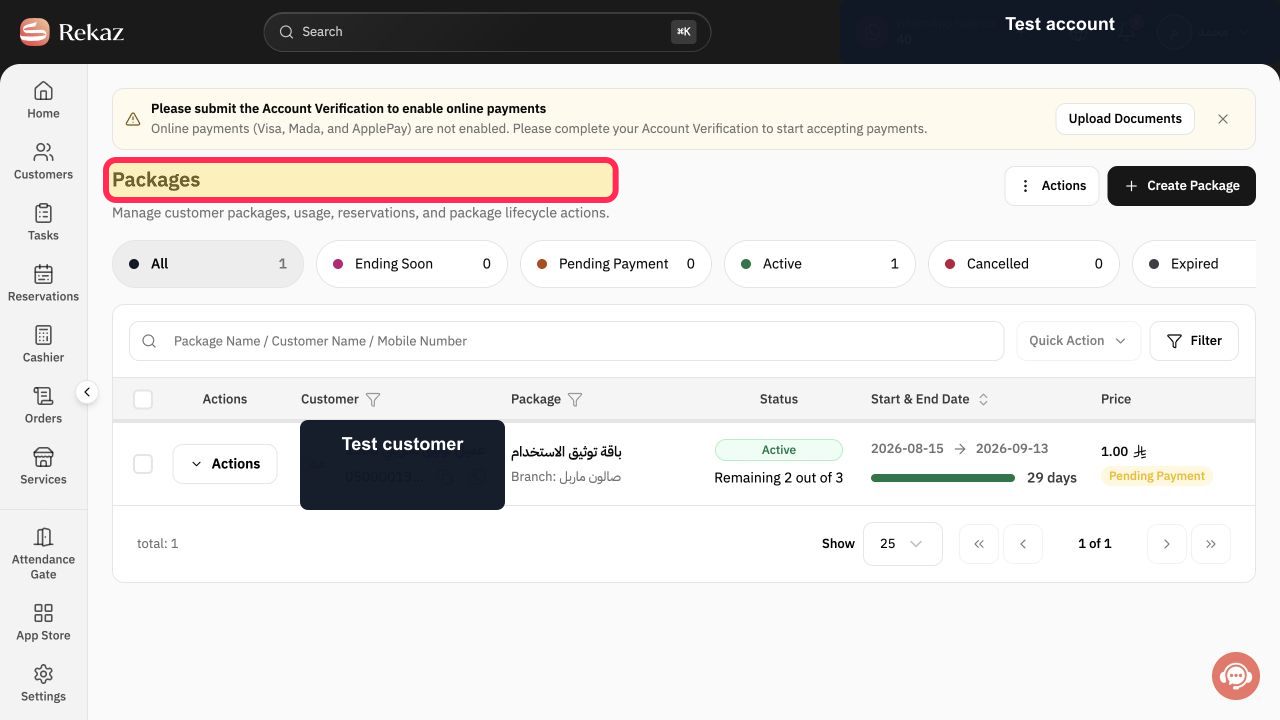
Open the Packages section to review the packages linked to the customer.
The customer’s package records are displayed, or a no-records message is shown if there are no linked packages.
Illustrated guide
Step 1: Open Customers from the Rekaz sidebar.
Step 2: Open the test customer record from the Customers list.
Step 3: Review the customer’s Subscriptions section.
Step 4: Review the customer’s Packages section.
Important notes
Subscriptions and packages are separate sections in the customer profile. Review both when you need to confirm what is linked to a customer.
If a section shows a no-records message, there are no records linked to the current customer in that section.
Related questions
How can I check a customer’s subscription in Rekaz?
Where can I find a customer’s packages in Rekaz?
How do I see whether a customer has a subscription or package in Rekaz?


