How do I view a customer's orders and invoices in Rekaz?
To view a specific customer's orders and invoices in Rekaz, open their profile from Customers, then select Orders. This shows only the records linked to that customer, rather than records for all customers.
If the profile displays a message that no invoices are available, there are no orders linked to that customer in the current record.
Steps
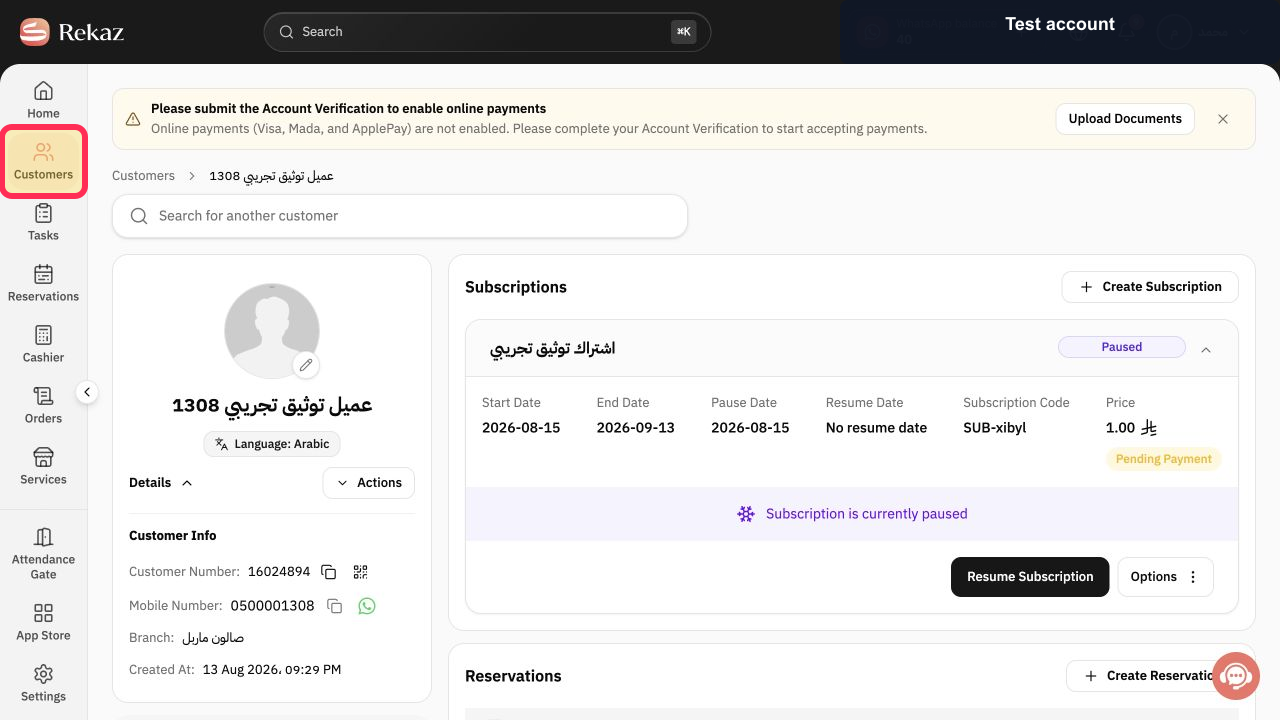
From Home, select Customers in the sidebar.
The Customers list opens.
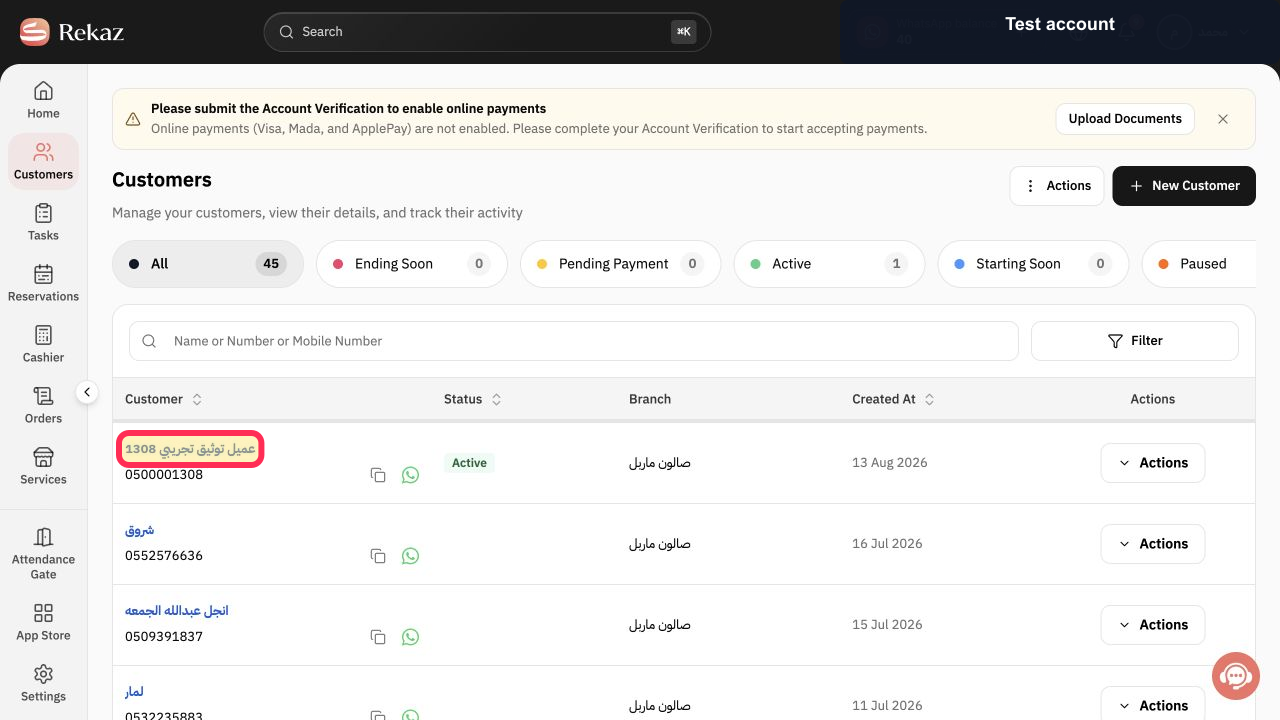
In the Customers list, select the customer record you want to review. The screenshot uses the test customer عميل توثيق تجريبي 1308.
The selected customer profile opens.
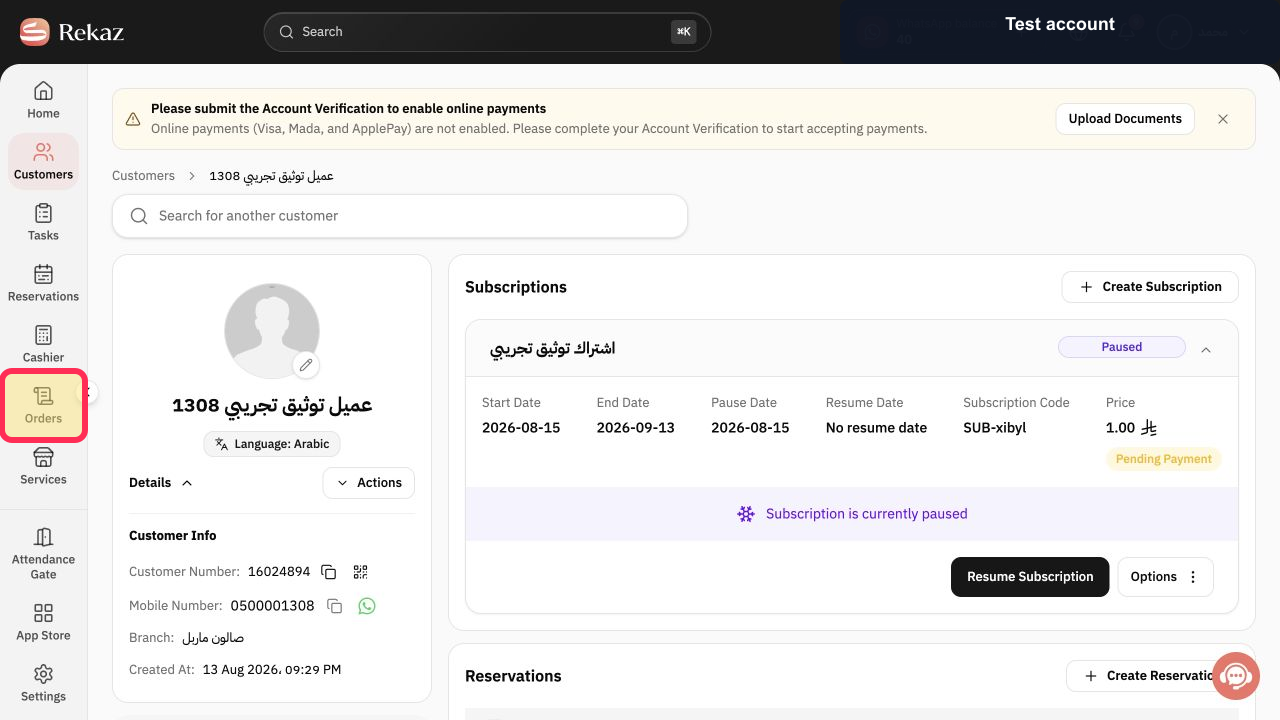
In the customer profile, select Orders.
The Orders section displays the orders and invoices linked to that customer.
Illustrated guide
Step 1: Open the Customers list from the sidebar.
Step 2: Open the customer record to review its orders and invoices.
Step 3: Select Orders in the customer profile to review linked orders and invoices.
If no invoices are displayed
If you see a message indicating that no invoices are available, this customer has no linked orders in the current record.
Need to search more broadly?
Use the Orders page to check the customer identity, date range, or Order Status when you need to search beyond one customer profile.
Related questions
Where can I find a specific customer's invoices in Rekaz?
How do I view a customer's orders in Rekaz?
How can I review a customer's purchases and invoices in Rekaz?


