How do I import a customer list into Rekaz?
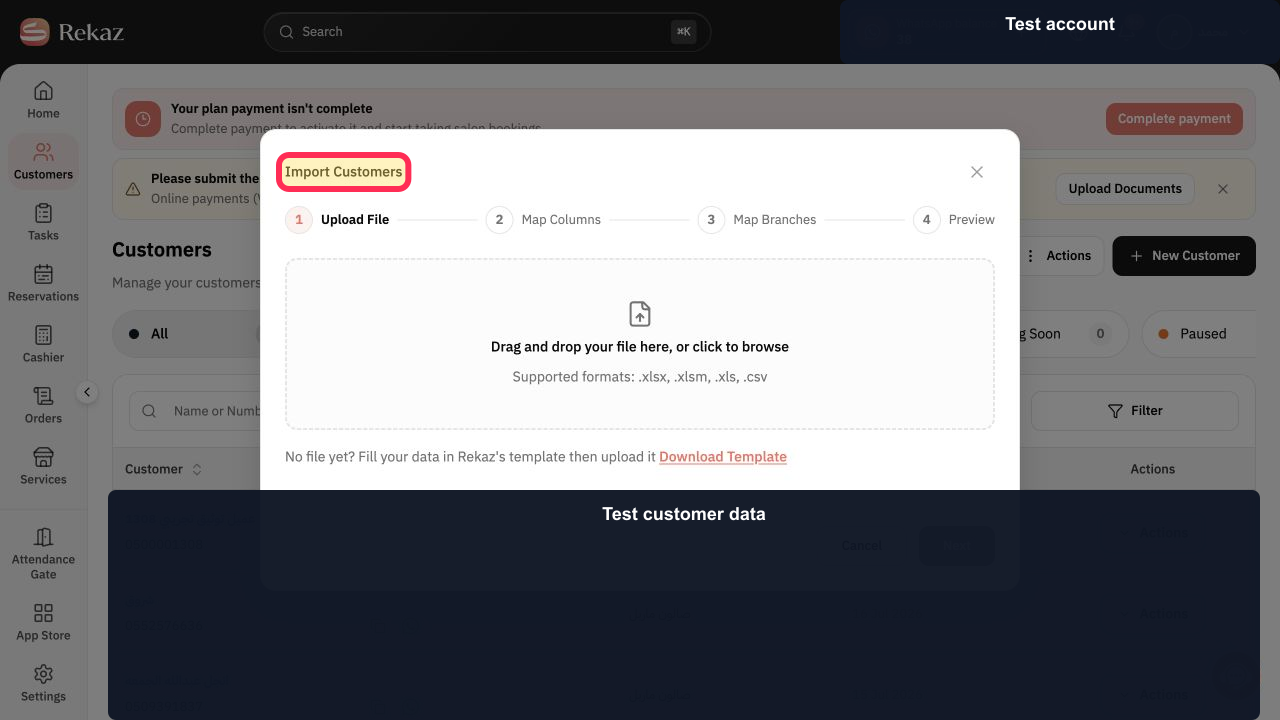
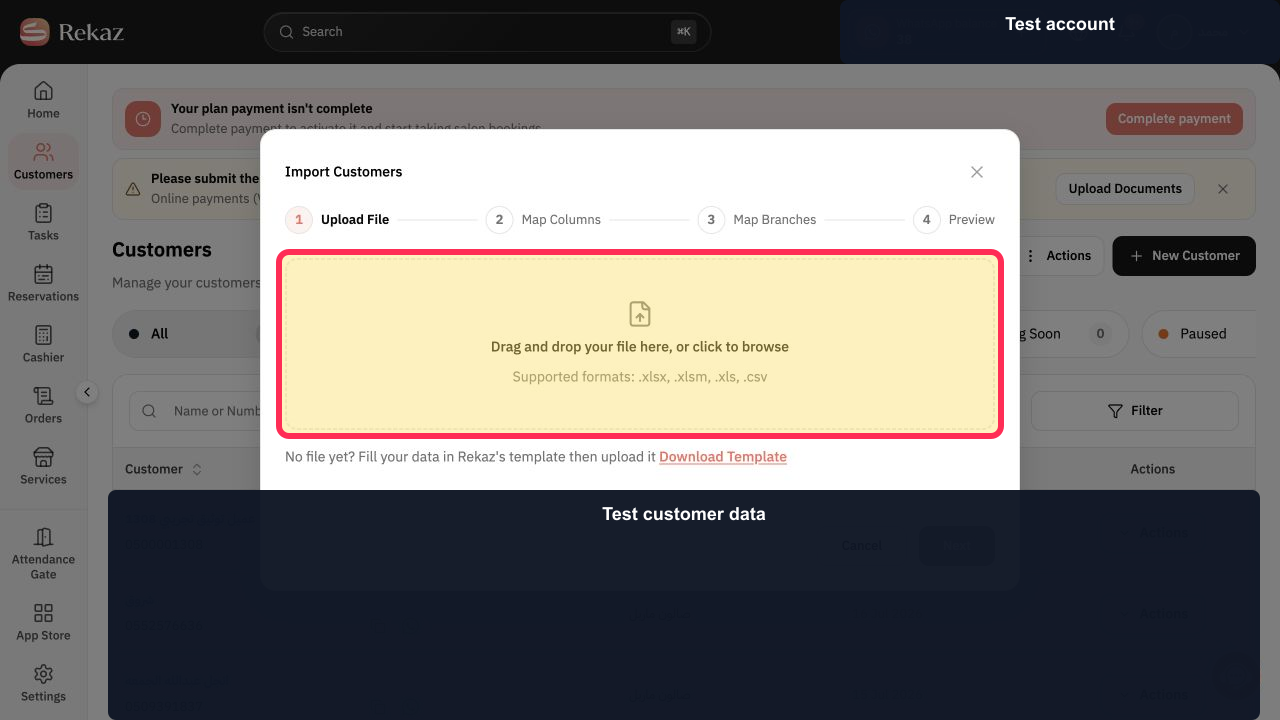
Rekaz shows customer-file upload in the Import Customers dialog. The upload area supports .xlsx, .xlsm, .xls, and .csv files, and the dialog also displays a Download Template option.
The control to open the Import Customers dialog and the mapping, preview, and final-import controls are not currently available.
Steps
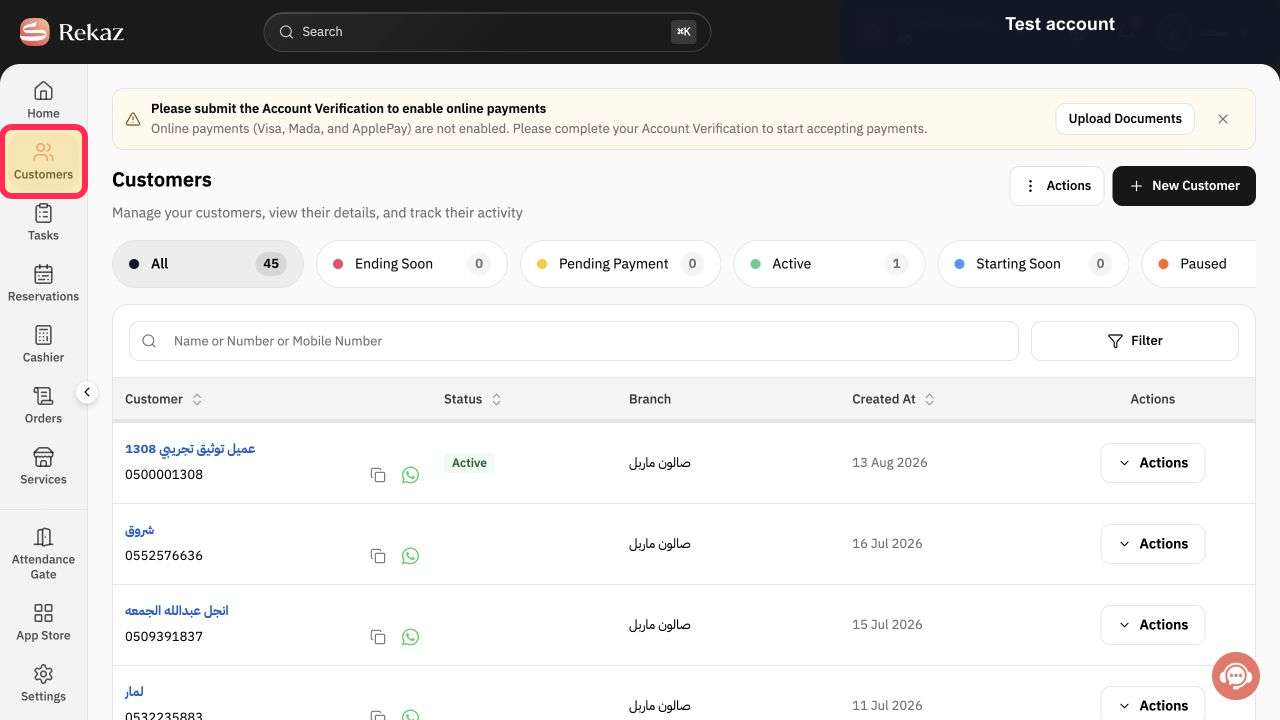
From the Rekaz sidebar, select Customers.
The Customers page opens.
When the import dialog is open, verify that its title is Import Customers before choosing a file.
The Import Customers dialog is visible.
Select the upload area to browse for your customer list, or drag the file into the area. Use a .xlsx, .xlsm, .xls, or .csv file.
You can browse for a supported customer-list file.
Illustrated guide
Step 1: Select Customers from the Rekaz sidebar.
Step 2: Verify that the Import Customers dialog is open.
Step 3: Choose a supported customer file in the Import Customers upload area.
Important notes
Use the Rekaz template to help prevent column errors.
Review values and data before you take any final or financial action.
Do not use a real customer file in Help Center screenshots.
Related questions
Where can I find the customer import option in Rekaz?
What is the correct way to upload an Excel or CSV customer list to Rekaz?
How do I map customer columns and branches during an import in Rekaz?


