How do I delete a customer in Rekaz?
Customer deletion can affect access to that customer's history and related records. Verify the row and follow your retention obligations before confirming.
Use a test customer when practicing this workflow.
Steps
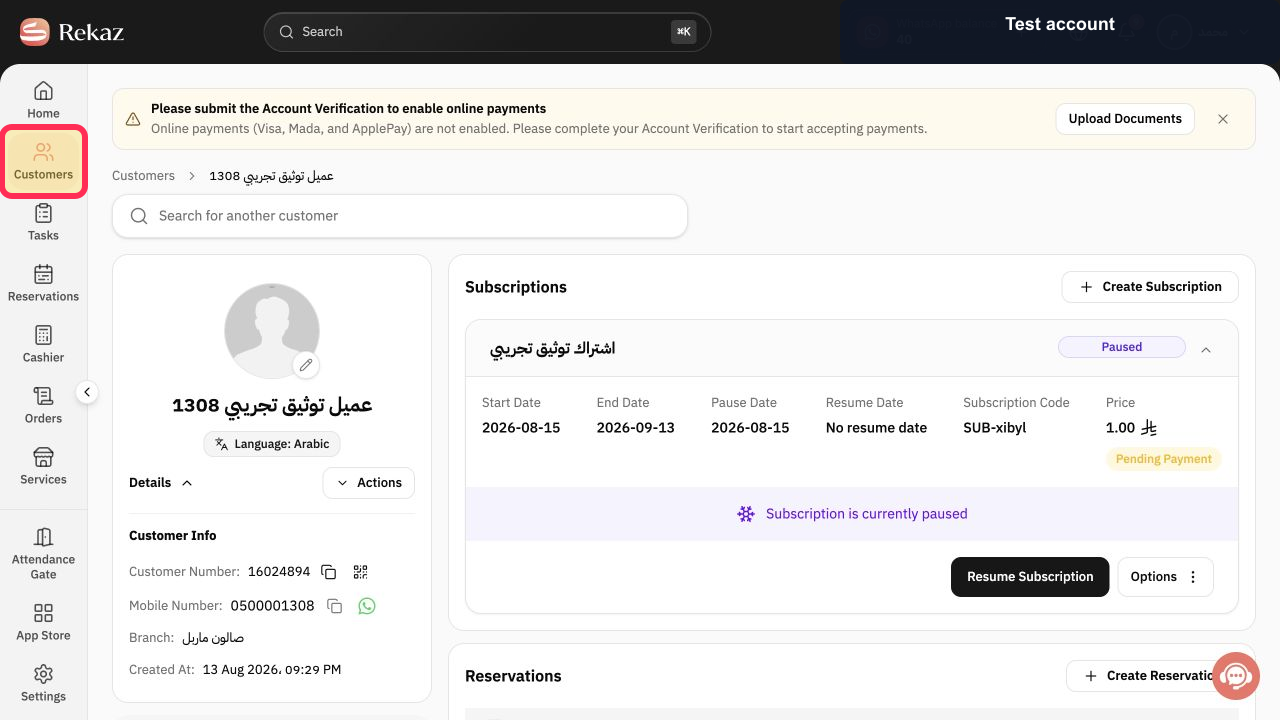
From the Rekaz navigation, select Customers.
The Customers page opens.
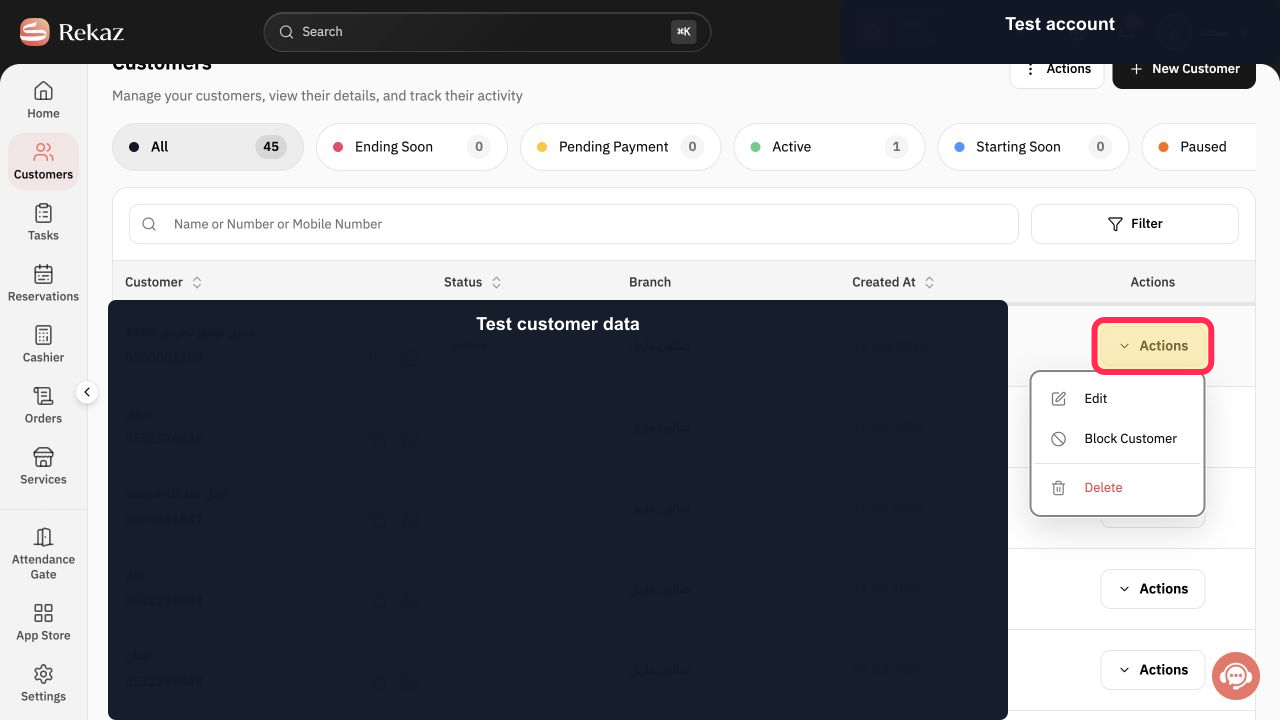
Locate the intended customer and select Actions in that row.
The customer Actions menu opens.
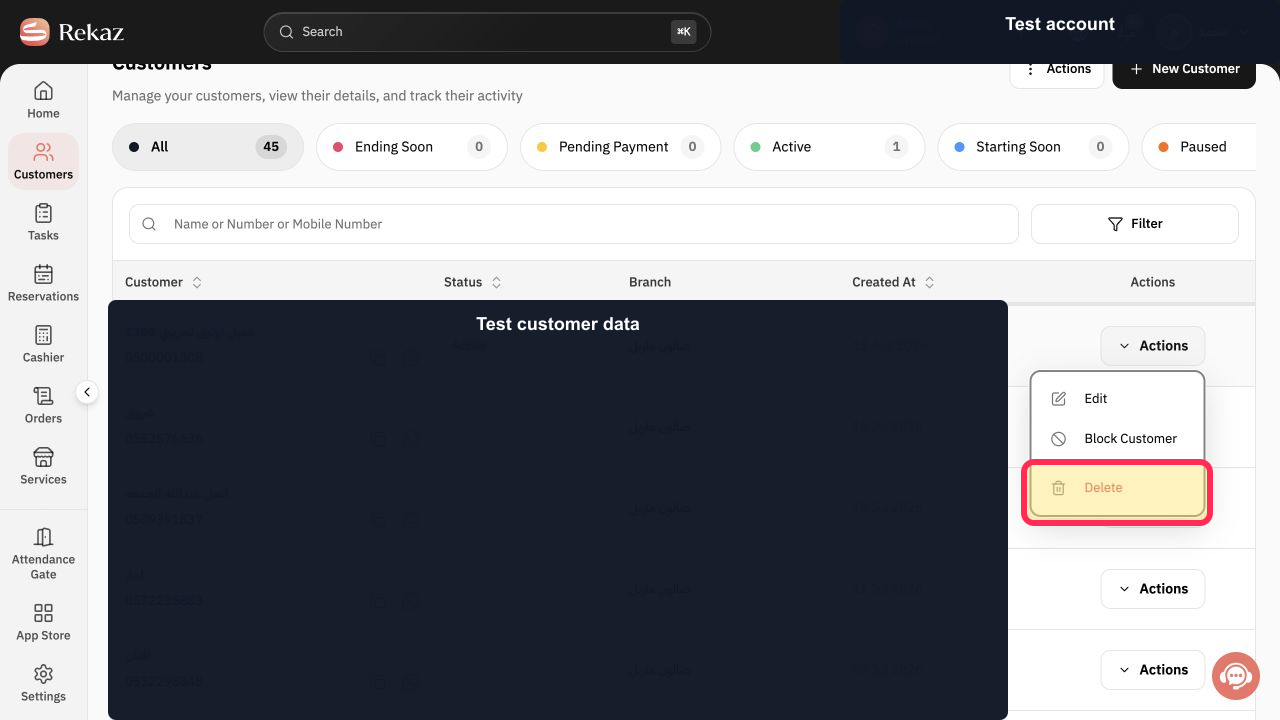
Select Delete from the Actions menu.
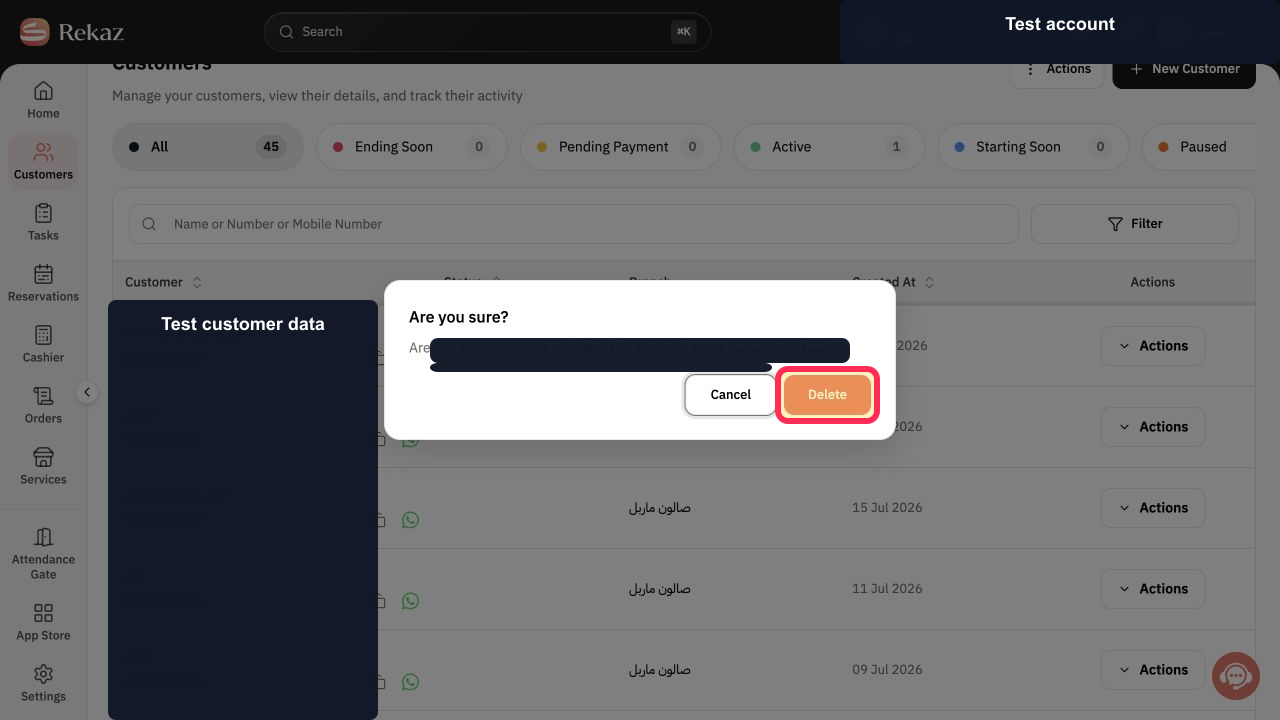
Rekaz opens the customer-deletion confirmation.
Verify the customer shown in the confirmation. Select Delete only when you intend to proceed; otherwise select Cancel.
The customer is deleted only after the final confirmation.
Illustrated guide
Step 1: Open Customers in Rekaz.
Step 2: Open the selected customer's Actions menu.
Step 3: Choose Delete for the selected customer.
Step 4: Confirm deletion only for the correct customer.
Important before deleting a customer
Deletion may affect data linked to the customer. Export any records you need and check your retention policy before confirming.
Review values and data carefully before completing any final or financial action.
Related questions
Where can I find the option to delete a customer in Rekaz?
What are the correct steps to delete a customer in Rekaz?
What should I check before deleting a customer in Rekaz?


