How do I merge duplicate customer accounts in Rekaz?
The current authenticated Rekaz customer-management interface shows Customers, Actions, and New Customer, but it does not show the Merge action or a merge-confirmation flow.
Use the steps below to check the available customer actions. Do not create a new customer account as an attempt to merge existing duplicate accounts; New Customer is a separate account-creation option.
Steps
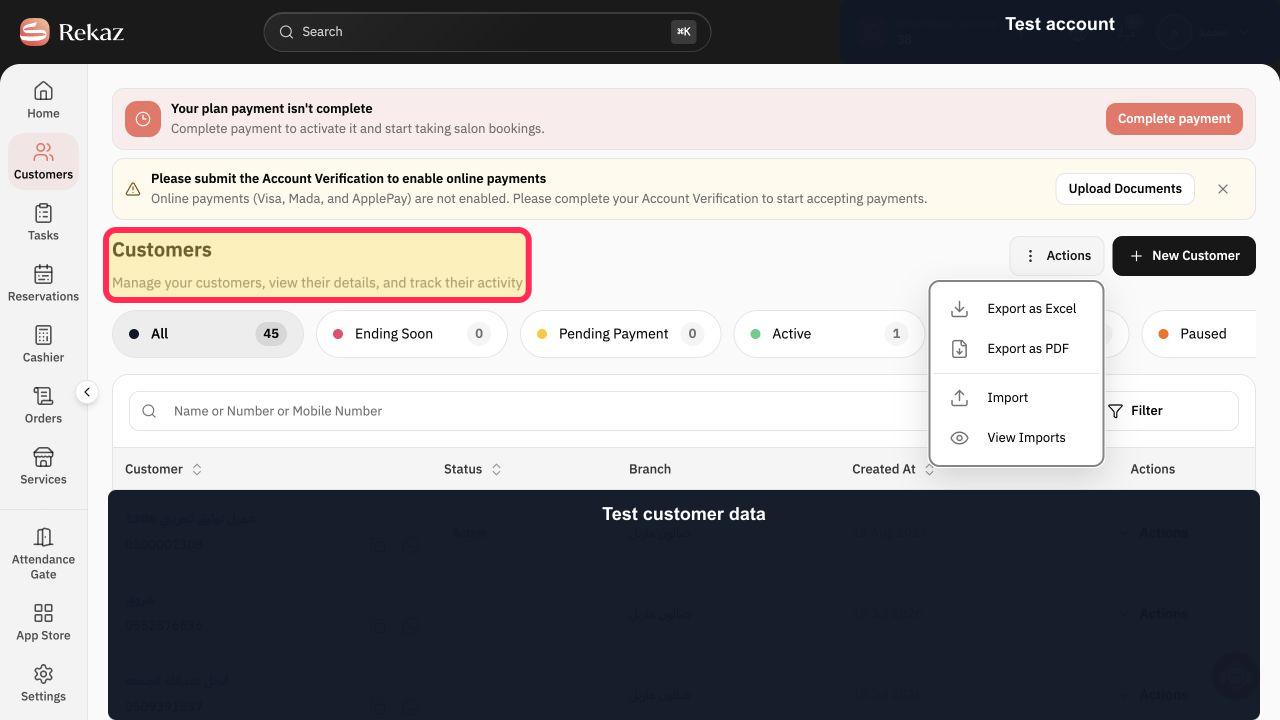
Open the Customers page and verify that the customer-management heading is visible.
The Customers page shows the text “Customers Manage your customers, view their details, and track their activity.”
Select Actions to review the customer actions currently available.
The Actions menu opens for the Customers page.
Verify that New Customer is a separate account-creation option, not a Merge command.
New Customer is visible alongside Actions, while no Merge action is shown in the current interface.
Illustrated guide
Step 1: The current Customers page in Rekaz.
Step 2: Open the available customer actions.
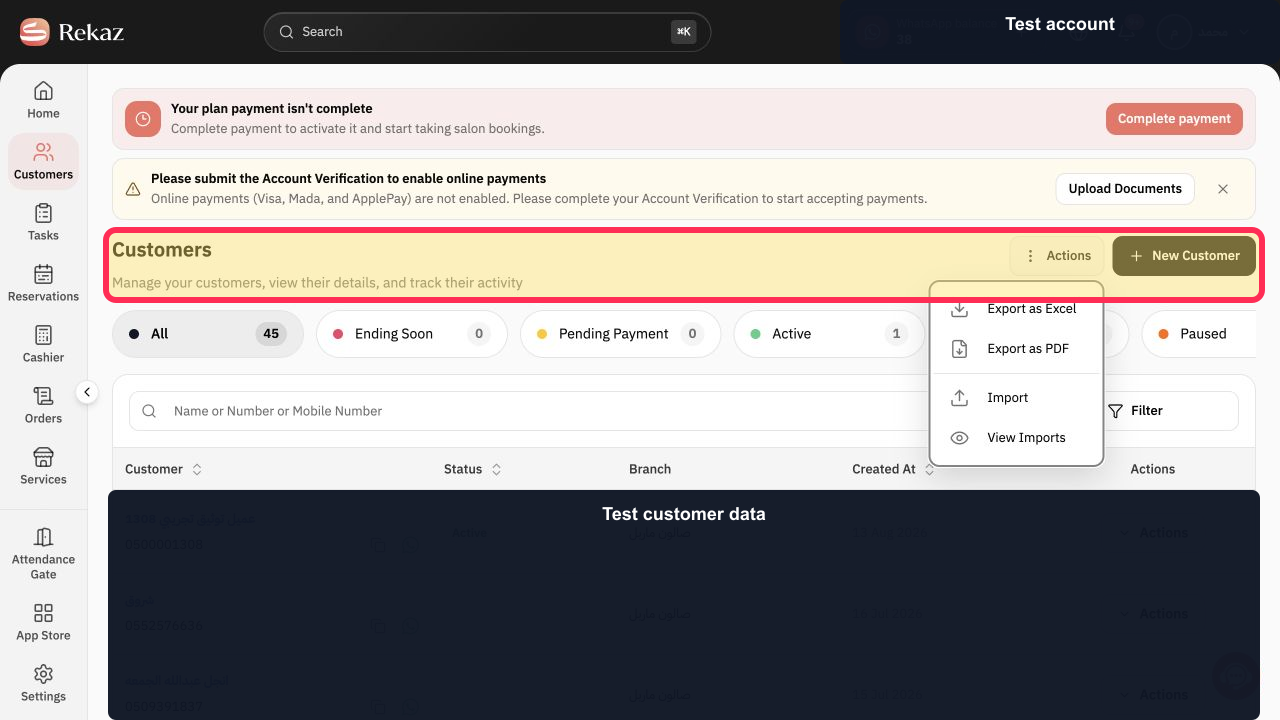
Step 3: The current Customers page shows New Customer but no Merge option.
Important limitation
If the customer signed in through Your Website using their mobile number, you cannot edit that number directly in Rekaz. Create a new customer account with the correct number, then merge the accounts.
Before you confirm the merge
Review both accounts carefully to make sure the correct account is kept as the primary account.
Check linked bookings.
Check linked orders.
Check linked subscriptions.
Review previous customer information that will be transferred.
Interface note
The wording or position of an interface element may vary slightly if the Rekaz interface has changed since this guidance was published.
Related questions
How do I fix a duplicate customer in Rekaz?
Can I merge two customer accounts in Rekaz?
Why can’t I edit a customer’s mobile number in Rekaz?
How do I move a customer’s bookings and subscriptions to the correct account in Rekaz?


