How do I change a customer's mobile number in Rekaz?
A customer's number is used for contact and messaging, so verify both the country code and every digit before submitting the change.
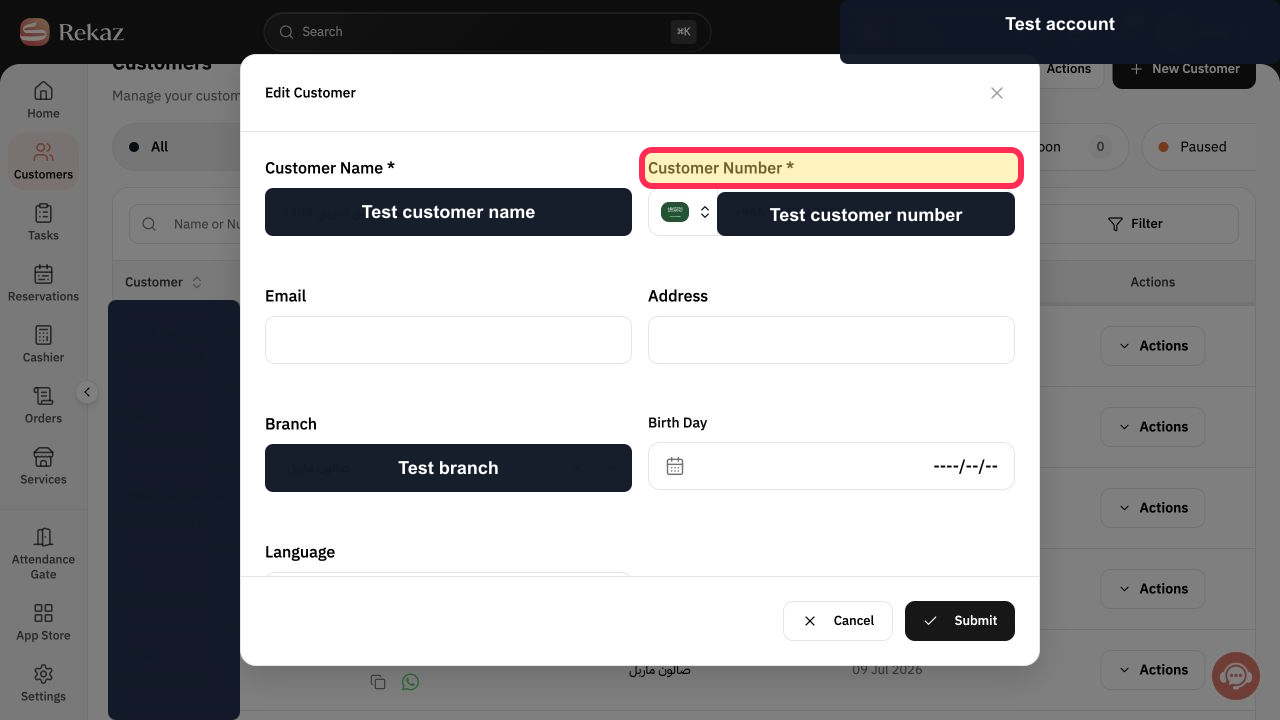
The current field is labelled Customer Number * and the final form action is Submit.
Steps
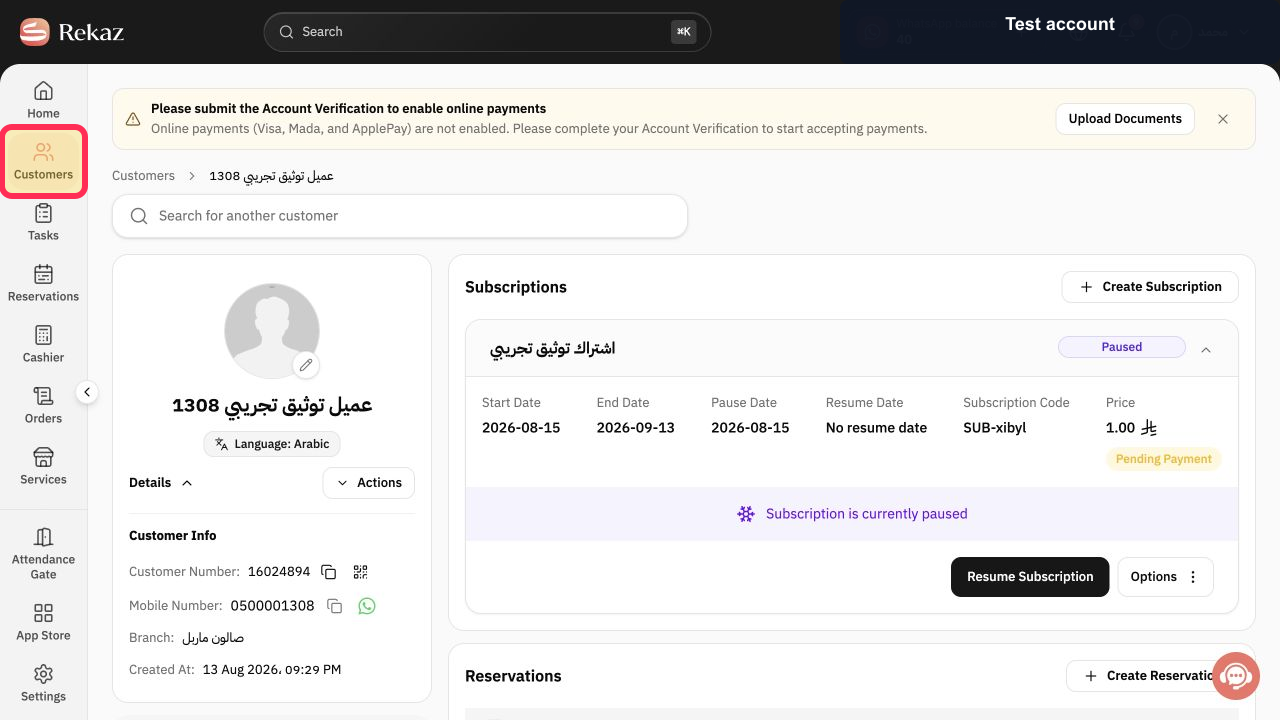
From the Rekaz navigation, select Customers.
The Customers page opens.
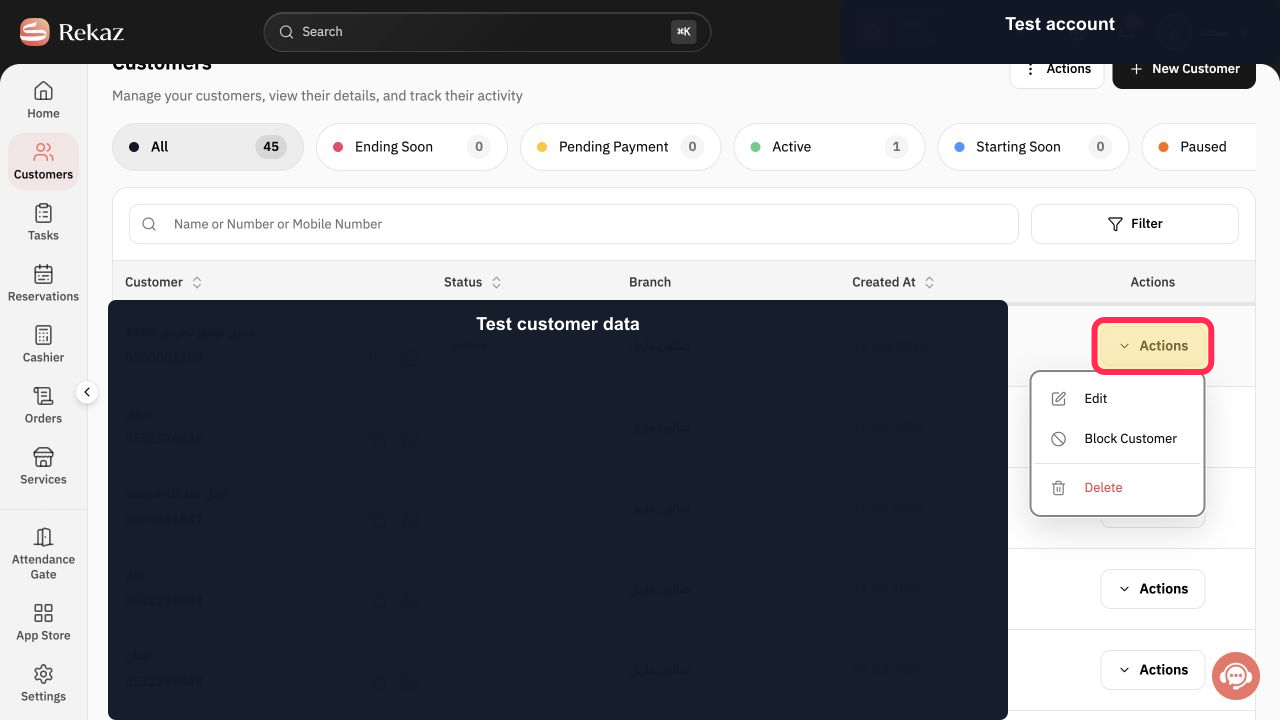
Locate the correct customer and select Actions in that row.
The customer Actions menu opens.
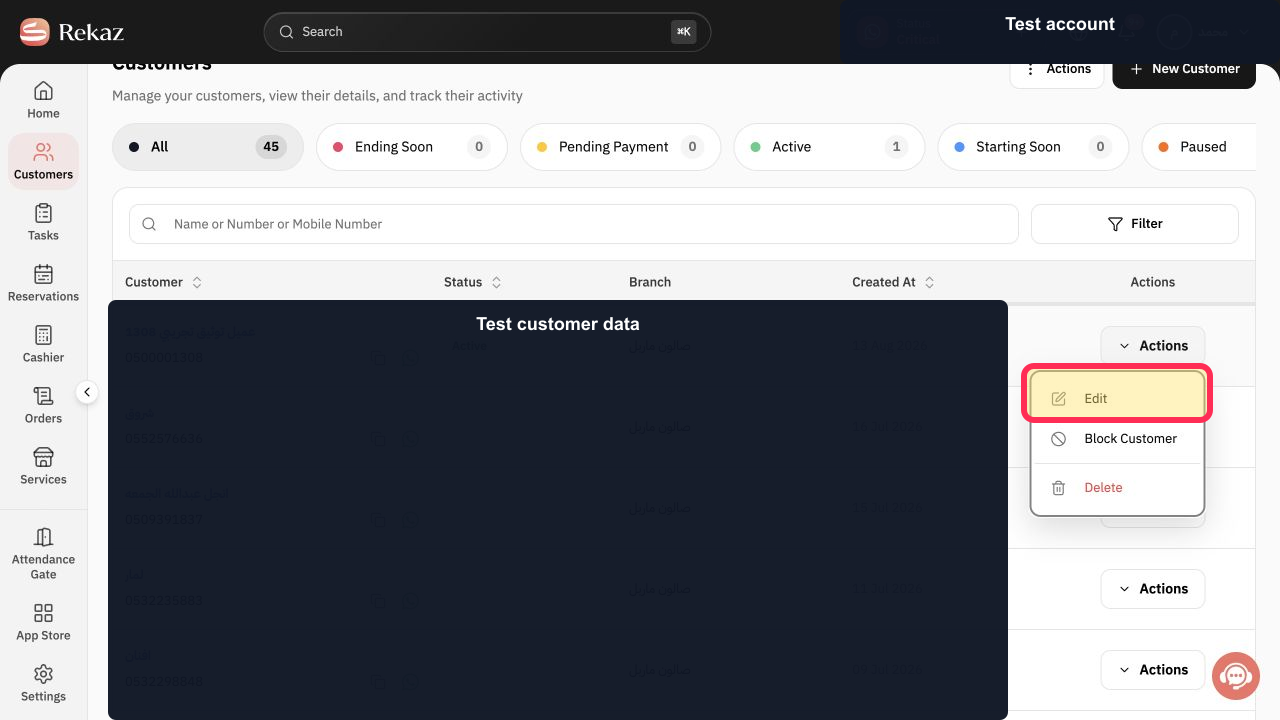
Select Edit.
The Edit Customer form opens.
Under Customer Number *, enter the corrected mobile number.
The corrected mobile number is entered in the required field.
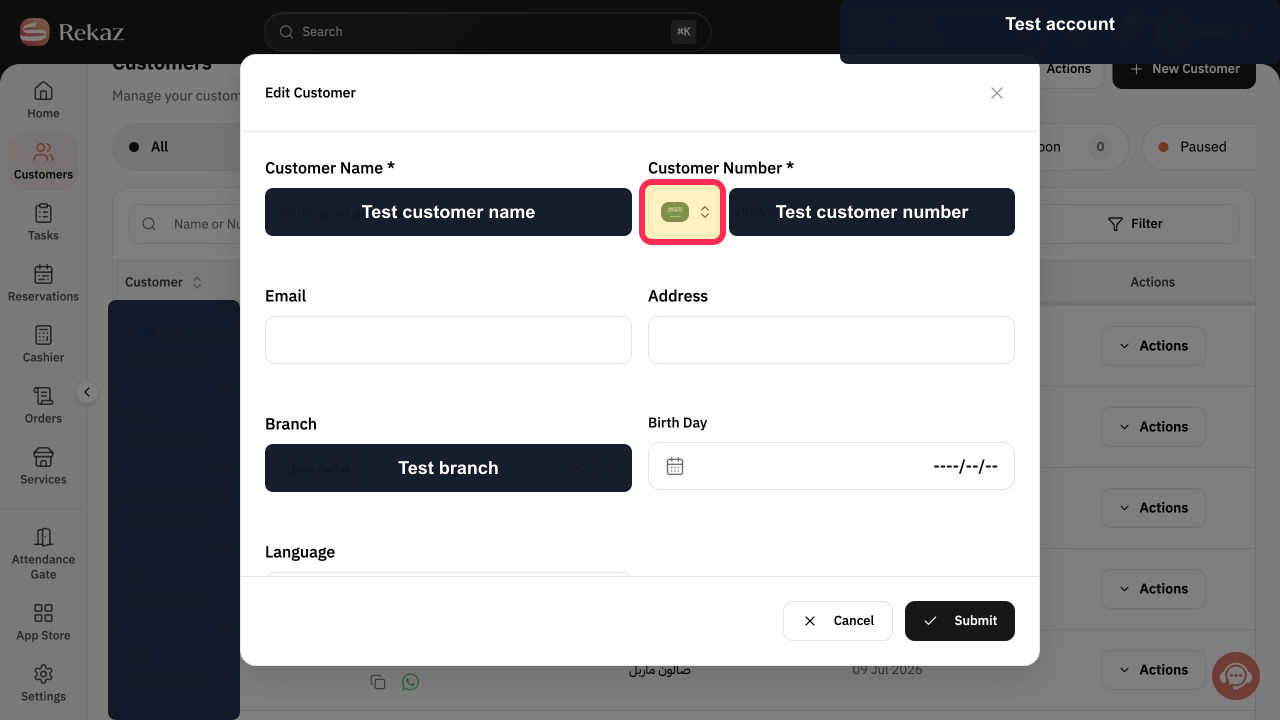
Select Choose a country and verify that the country code matches the customer's mobile number.
The intended country code is selected.
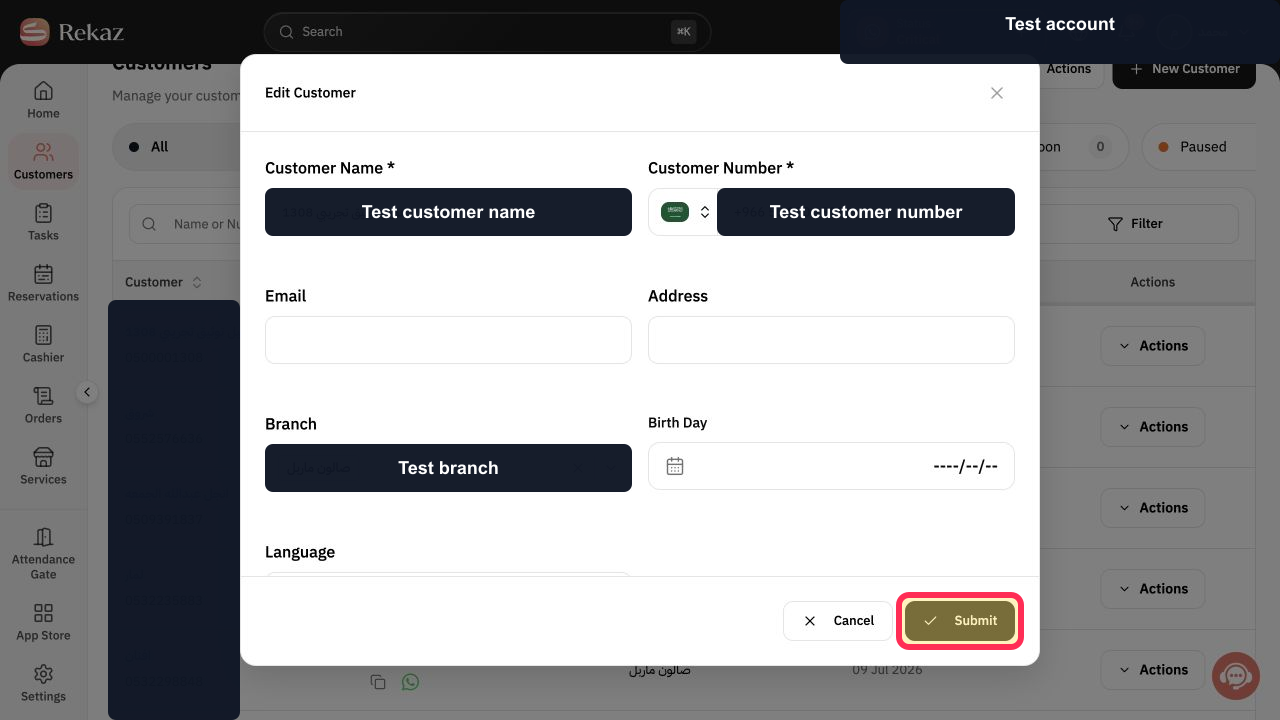
Review the full number and select Submit.
The mobile-number change is submitted.
Illustrated guide
Step 1: Open Customers in Rekaz.
Step 2: Open the selected customer's Actions menu.
Step 3: Choose Edit for the selected customer.
Step 4: Update the required Customer Number field.
Step 5: Verify the customer's country code.
Step 6: Submit the corrected customer mobile number.
Important notes
Review the complete mobile number before saving because notifications may rely on the contact details saved for the customer.
Customer numbers were hidden in the source examples, and no change was saved while the examples were captured.
Related questions
How do I correct a customer's mobile number in Rekaz?
A customer changed their number. How do I update it in Rekaz?
Where can I change the mobile number saved for a customer in Rekaz?


