How do I view provider sales and commissions in Rekaz?
Use Commissions Reports in Rekaz to review provider commission rates and reservation-level commission values. Use Sales & Revenue to compare the services sold, revenue, payments, discounts, refunds, and invoice counts.
Commission is counted only when a reservation is confirmed, its start time has passed, and its order is fully paid; pending and cancelled reservations are not counted.
Steps
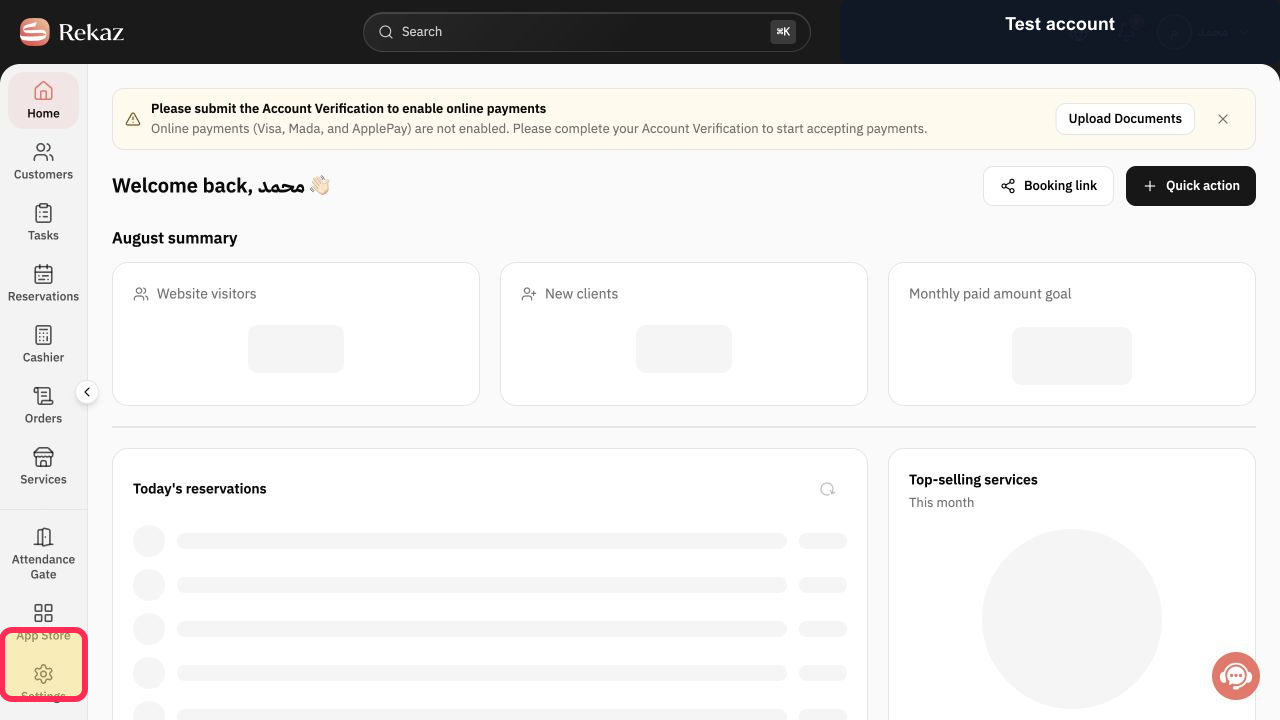
Select Reports in the Rekaz sidebar.
The Reports area opens.
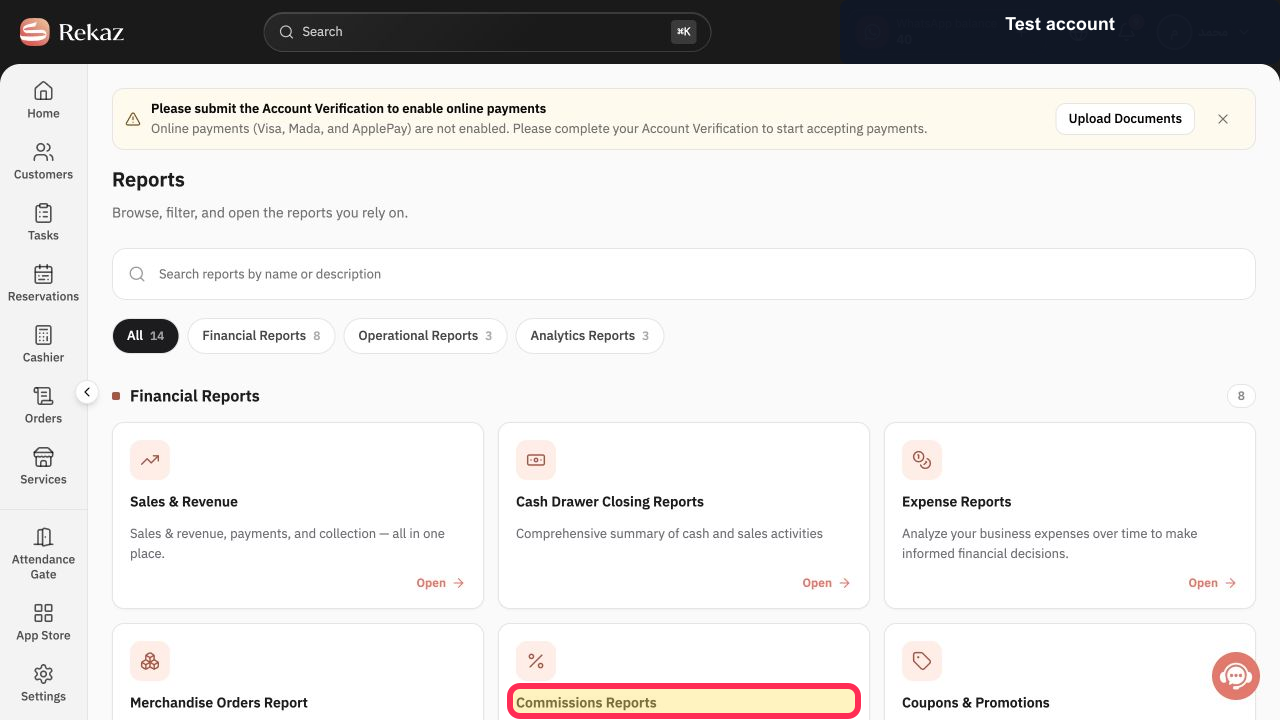
Open Commissions Reports.
The commission report opens with provider and reservation commission data.
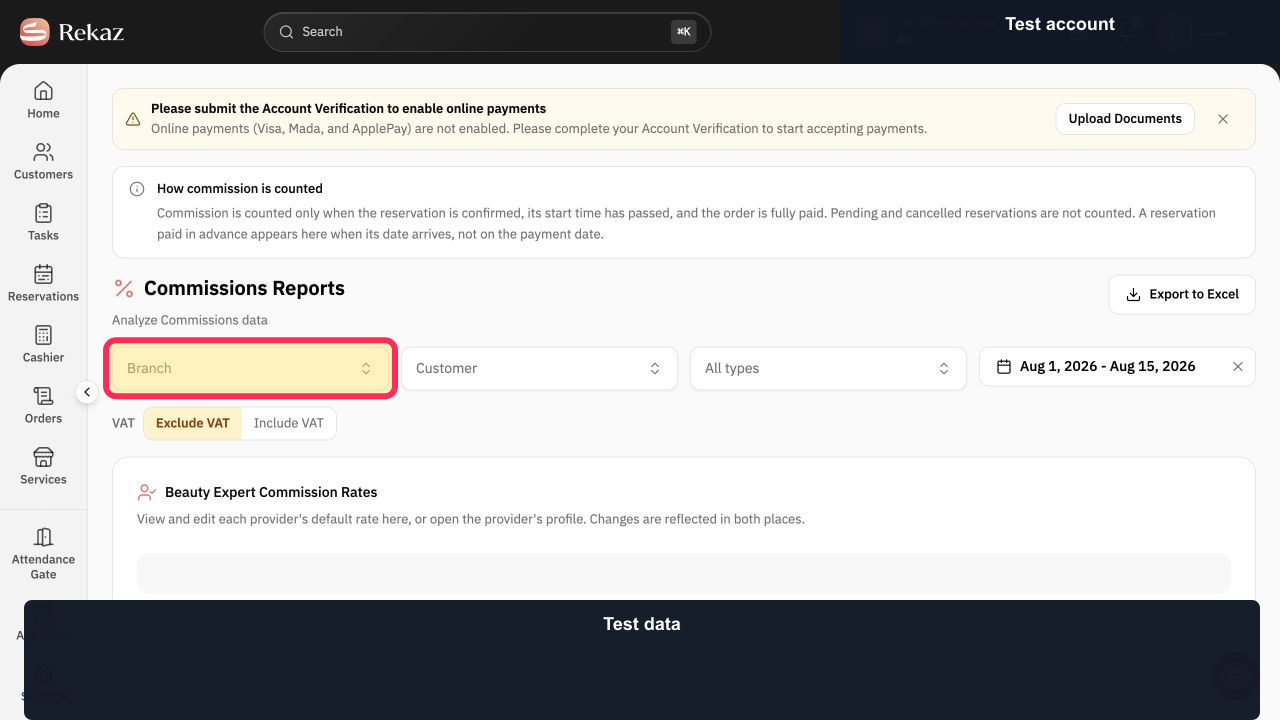
Set Branch, Customer, order type, and the required date range.
The commission report is filtered to the intended records.
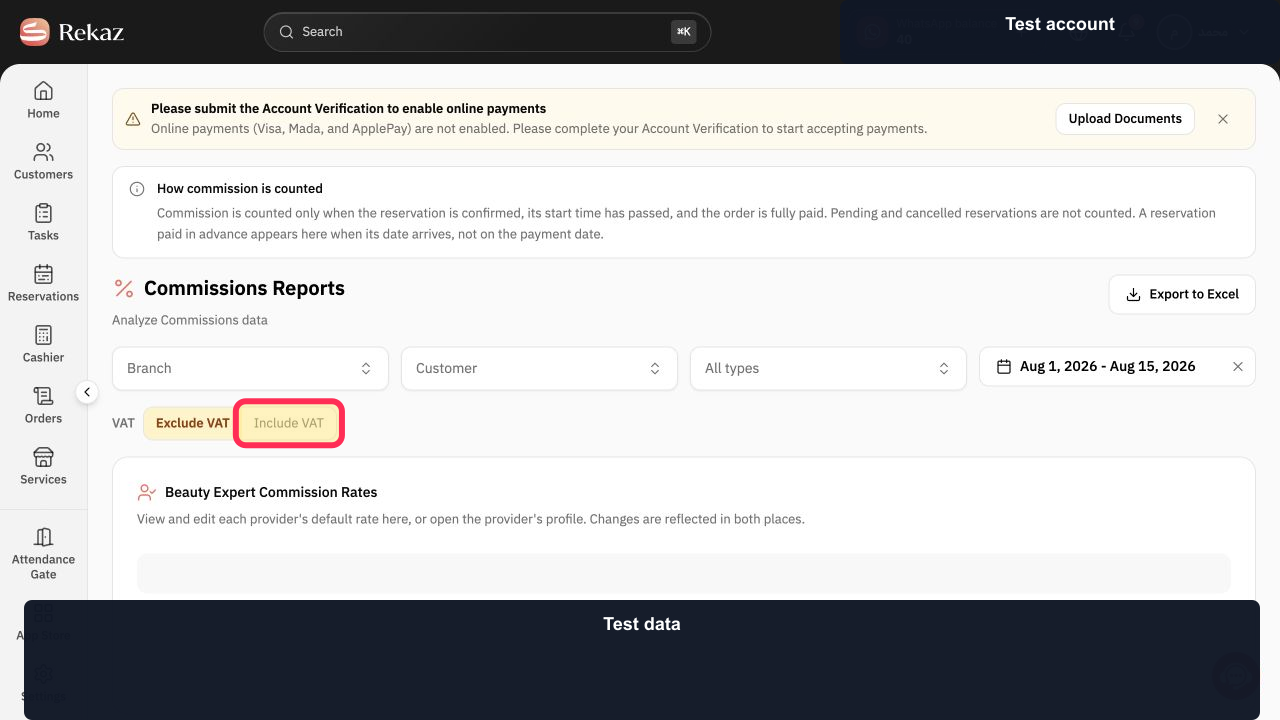
Choose Include VAT or Exclude VAT according to the comparison you need.
Commission values use the selected VAT treatment.
Under Beauty Expert Commission Rates, review the provider default rates.
The provider commission-rate section is visible.
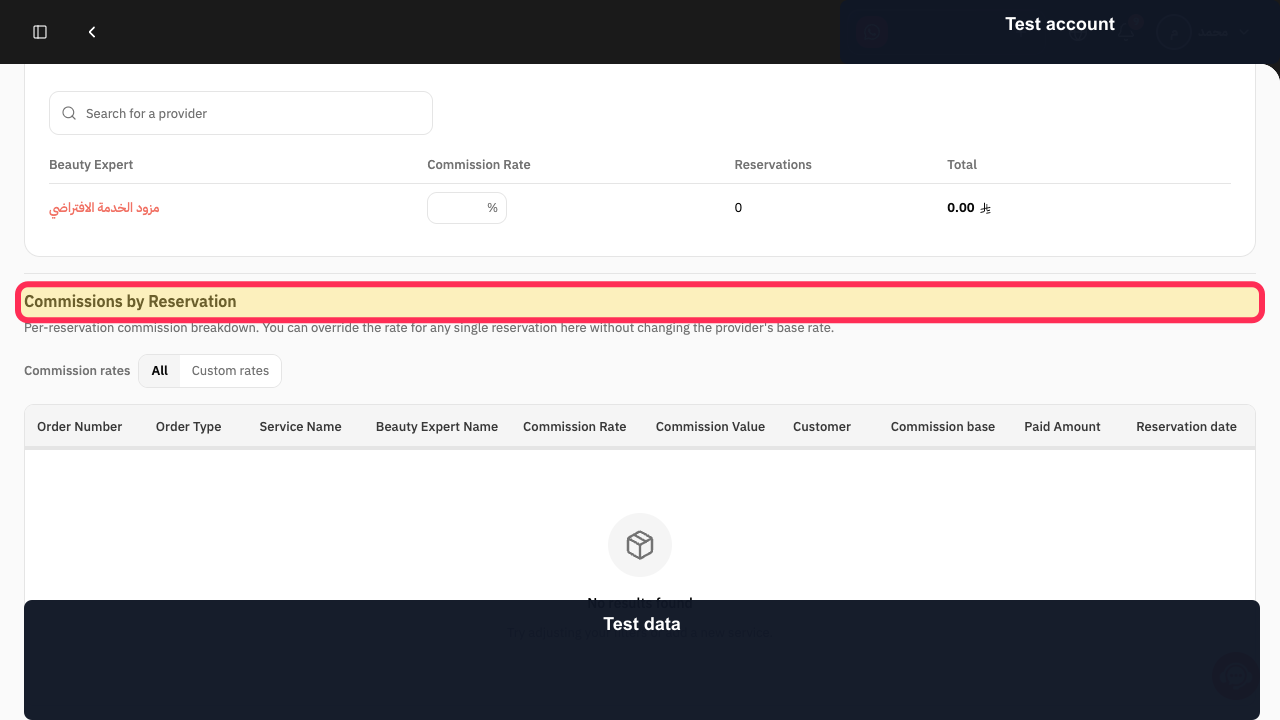
Under Commissions by Reservation, choose All or Custom rates and review Commission Rate, Commission Value, Commission base, Paid Amount, and Reservation date.
The reservation-level commission breakdown is visible.
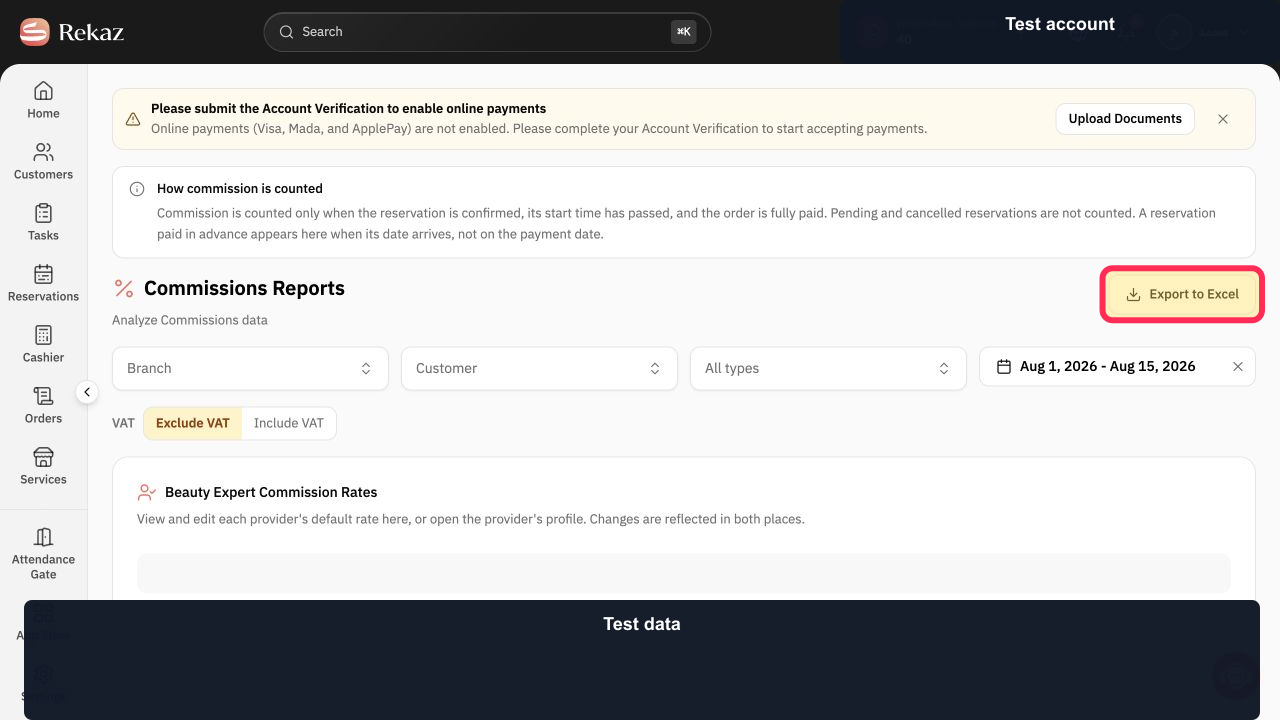
Optional: select Export to Excel to download the commission report.
The commission report export is prepared.
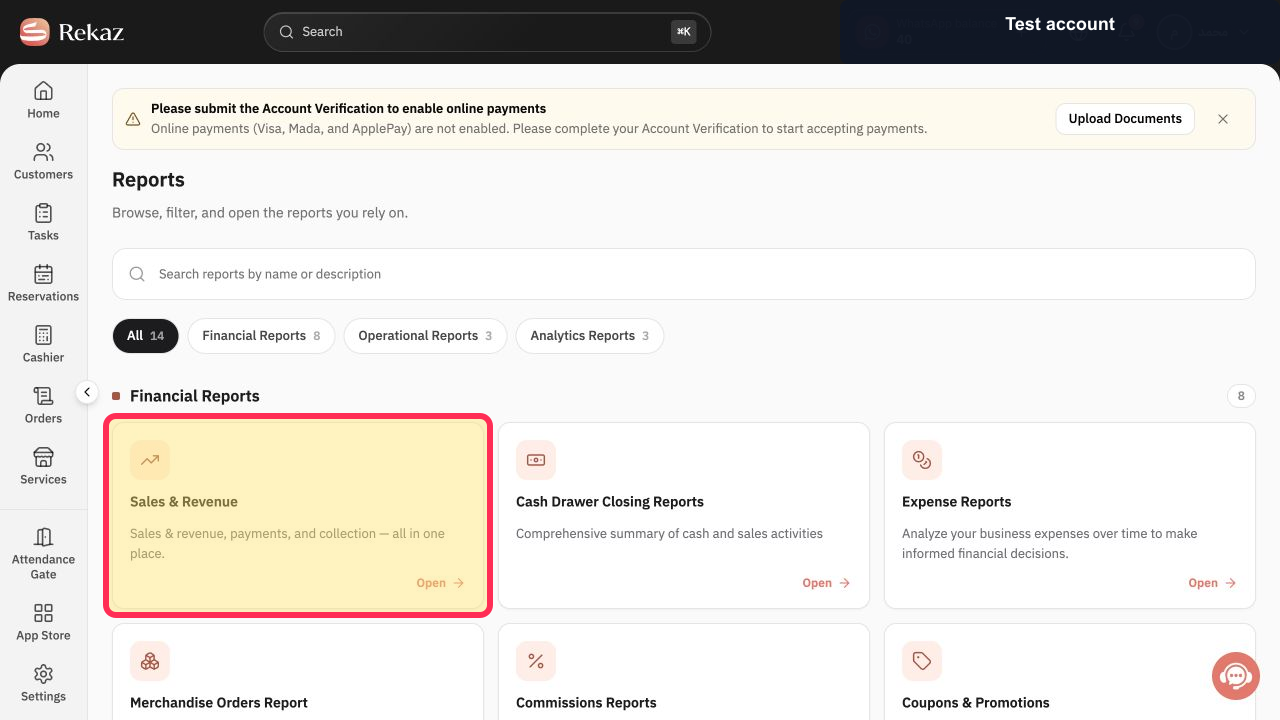
Return to Reports and open Sales & Revenue.
The Sales & Revenue report opens.
Choose the required date range.
Sales values update to the selected dates.
Select Filters.
The sales-report Filters dialog opens.
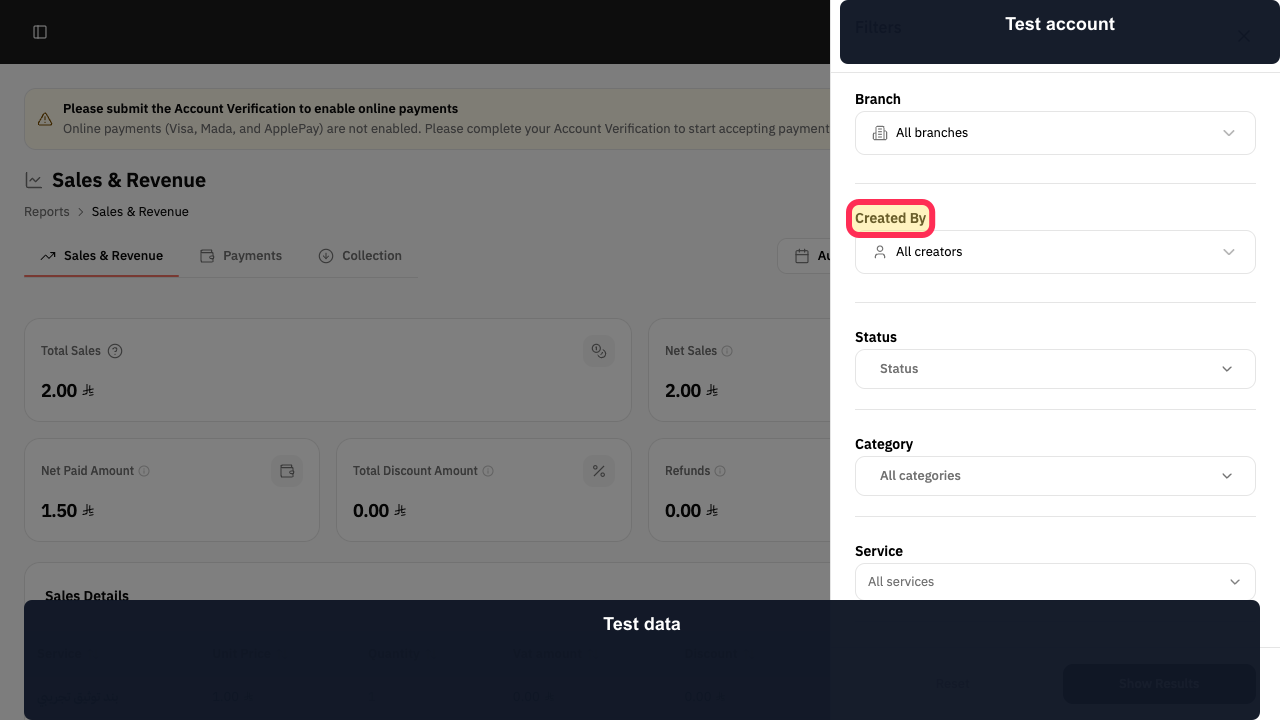
Choose Branch, Created By, Status, Category, and Service as needed.
The requested sales filters are configured.
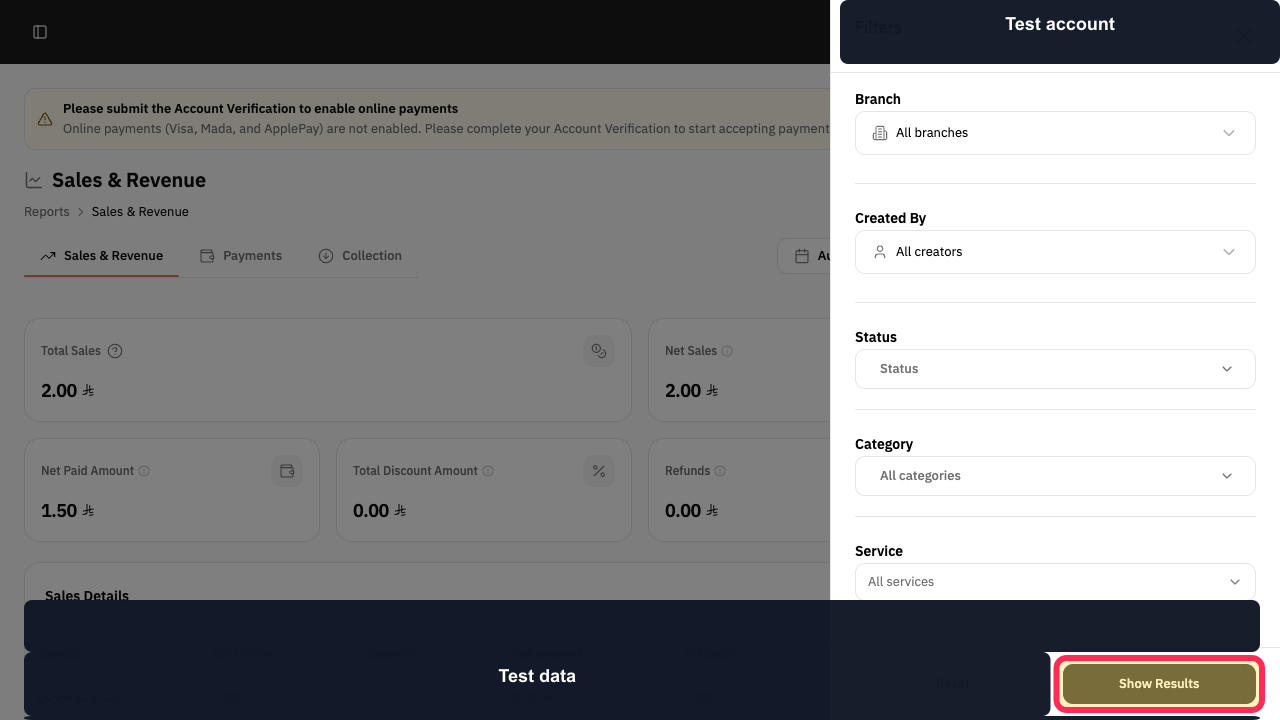
Select Show Results.
The Sales & Revenue report updates to the selected filters.
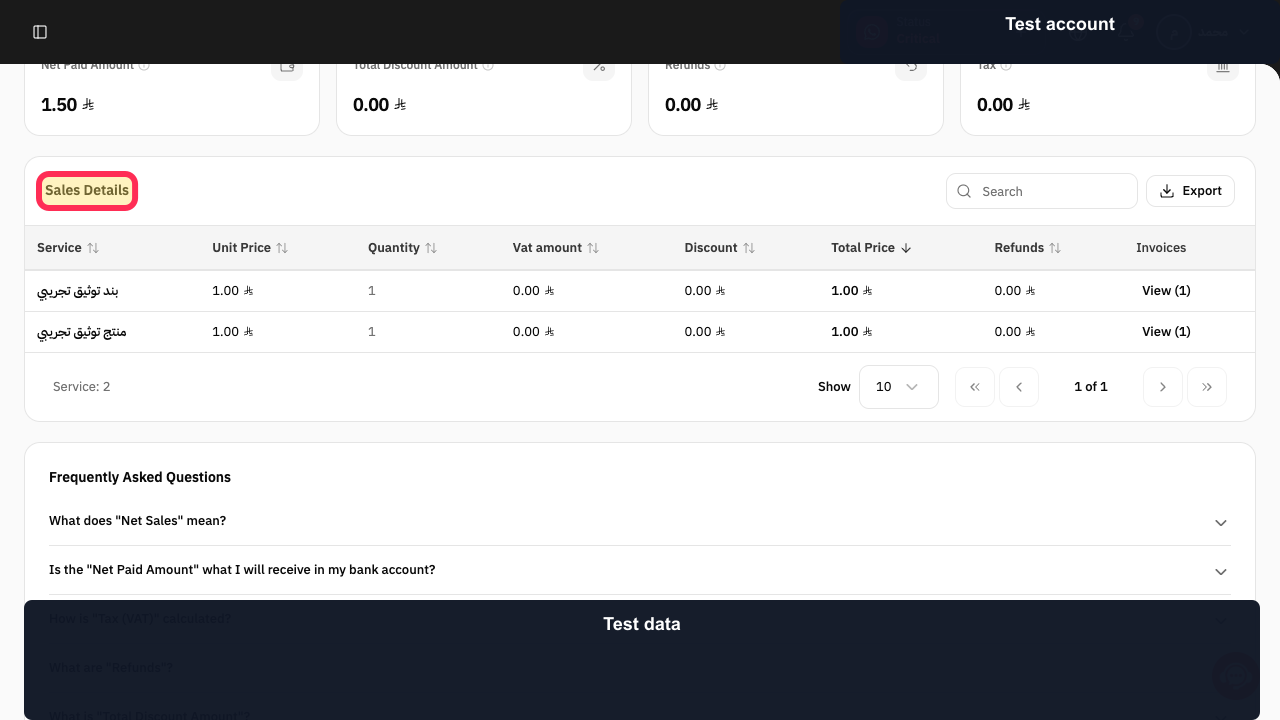
Review Sales Details, use Search to find a service, or select Export when a file is needed.
The provider-related sales can be reviewed or exported.
Illustrated guide
Step 1: Open Reports from the Rekaz sidebar.
Step 2: Open Commissions Reports.
Step 3: Filter the commission report.
Step 4: Choose the commission-report VAT treatment.
Step 5: Review Beauty Expert commission rates.
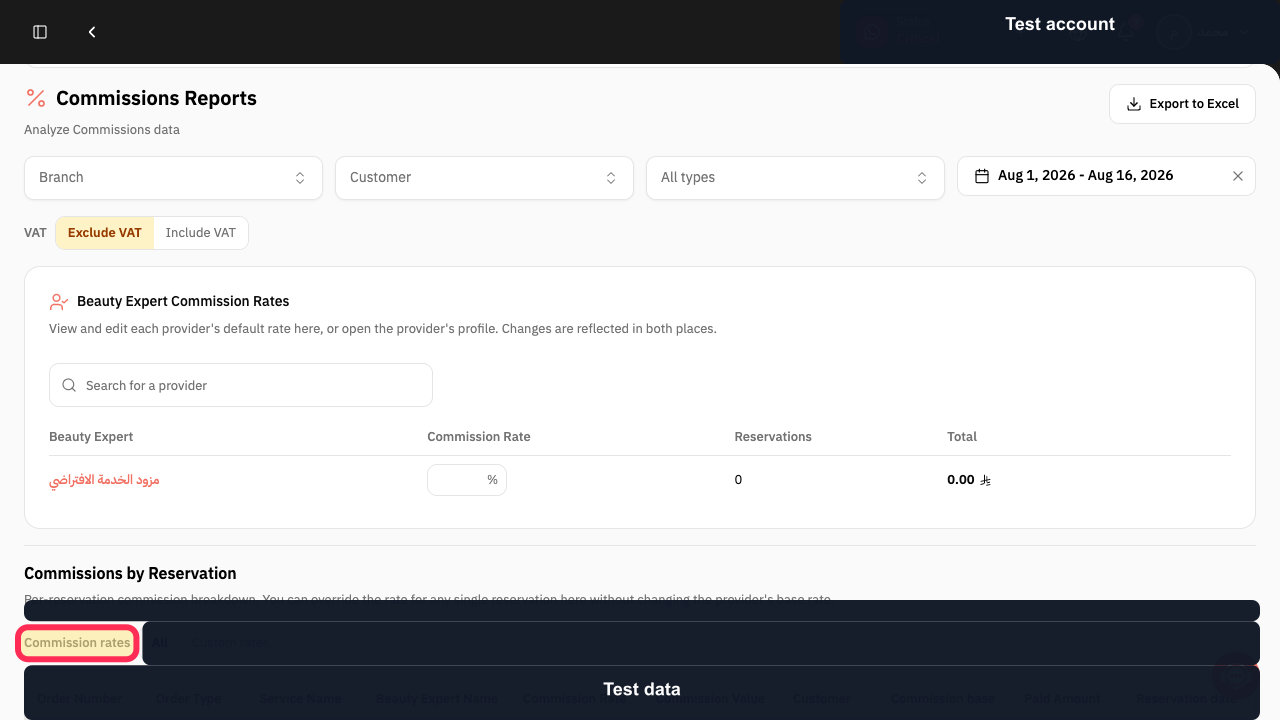
Step 6: Review commission values by reservation.
Step 7: Export the commission report when needed.
Step 8: Open the Sales and Revenue report.
Step 9: Set the Sales and Revenue date range.
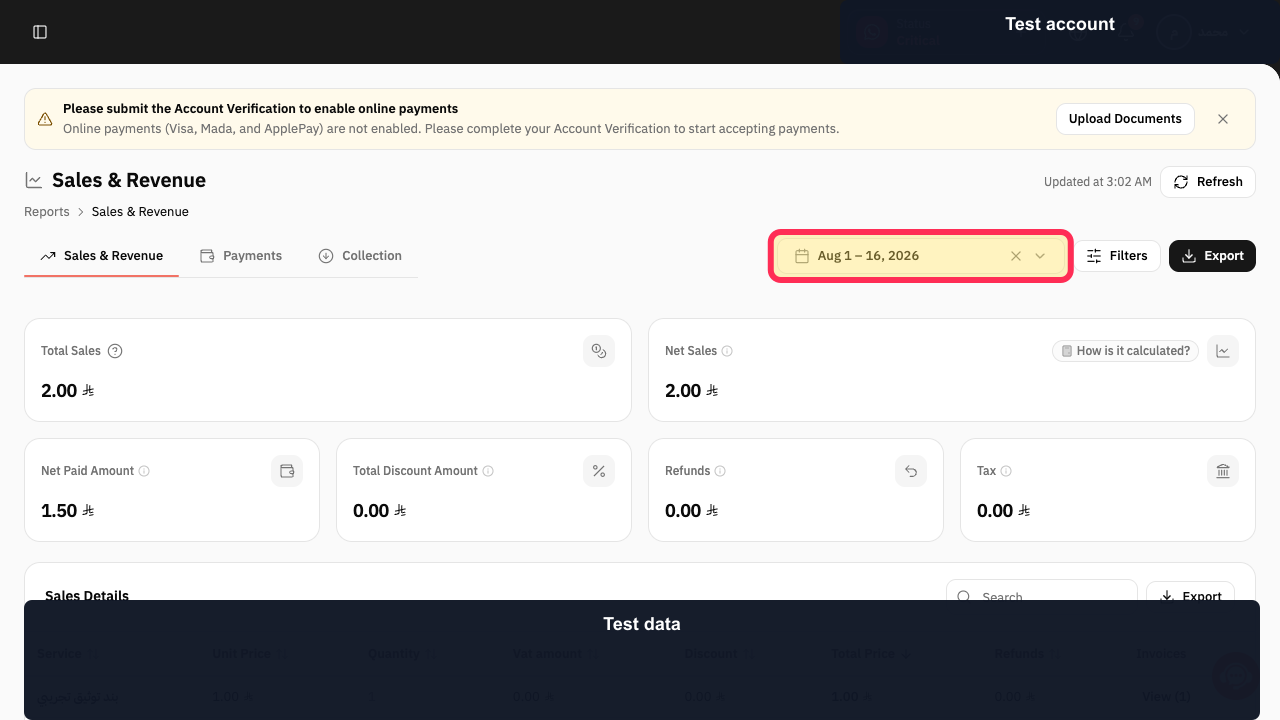
Step 10: Open Sales and Revenue filters.
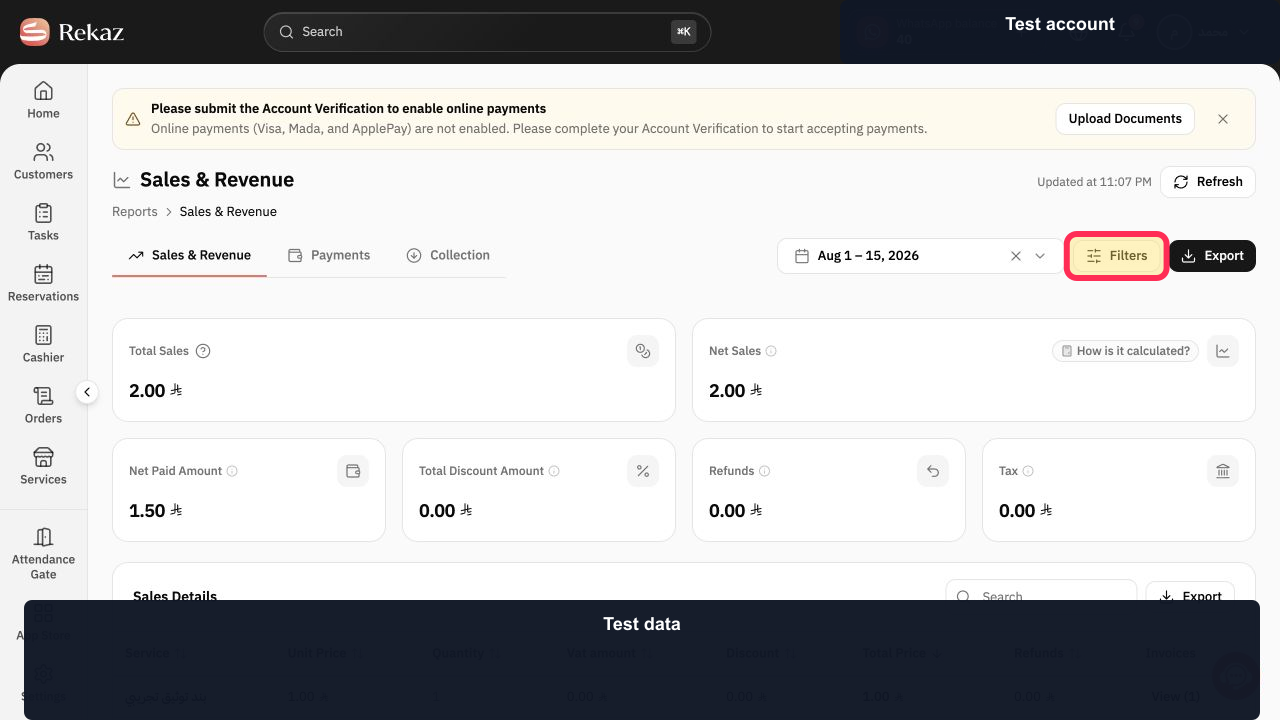
Step 11: Configure the sales-report filters.
Step 12: Apply the sales-report filters.
Step 13: Review and export Sales Details.
Choose the report that matches your goal
Use Commissions when you need commission information for a provider. Use Product Sales when you need sales figures and can narrow them using report filters.
If you need booking data, use the relevant Reservations report. This source does not specify the exact Reservations report or filters to use for provider-level booking analysis.
There is no standalone provider performance card in the current Reports list.
Review the report values and filters before taking any final or financial action.
Related questions
Where can I find provider commission data in Rekaz?
How do I filter Product Sales by provider-related criteria in Rekaz?
How can I view a provider’s sales by branch and service in Rekaz?
Is there a separate provider performance report in Rekaz?


