How do I set a service provider’s service area in Rekaz?
In Rekaz, you can limit a service provider to a defined geographical service area. This is useful for home or mobile services that are not available in every location.
After you enable the service-area setting and add an area, you can turn on a separate delivery fee and enter a fee amount for that area. The provider will not appear to customers outside the selected area after you save the setting.
Steps
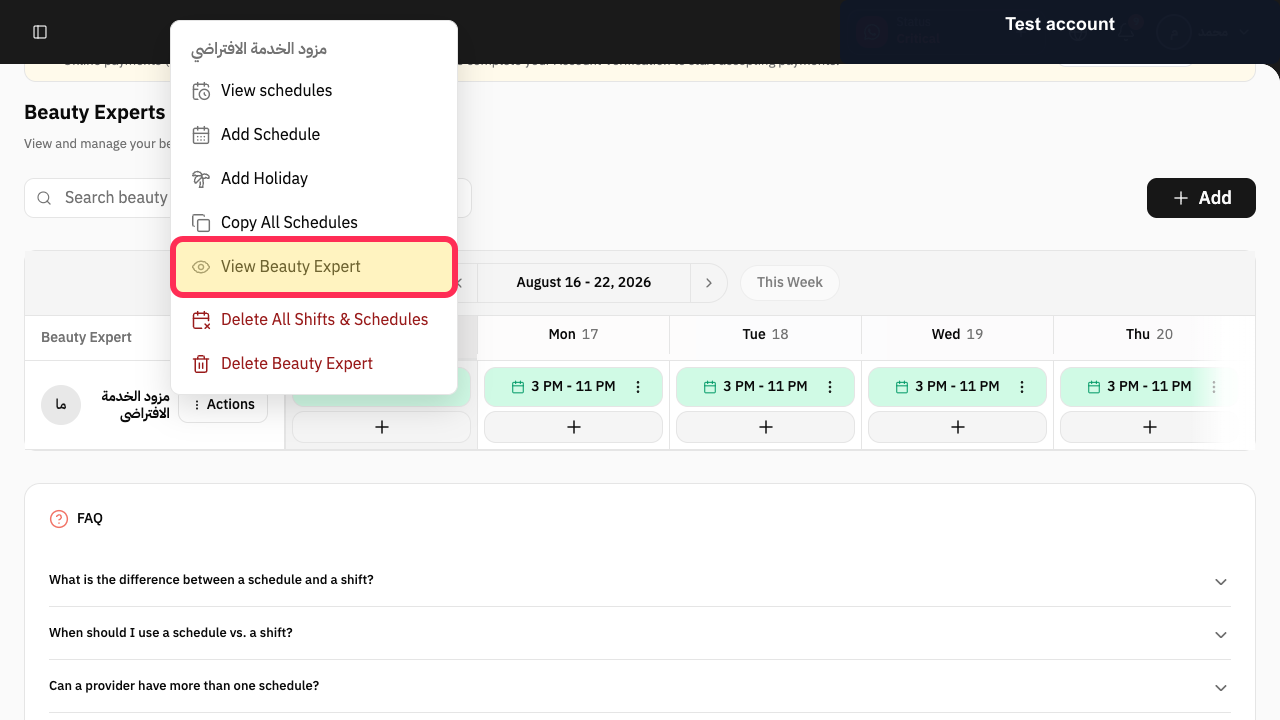
Open Beauty Experts, select Actions for the provider, and choose View Beauty Expert.
The provider profile opens.
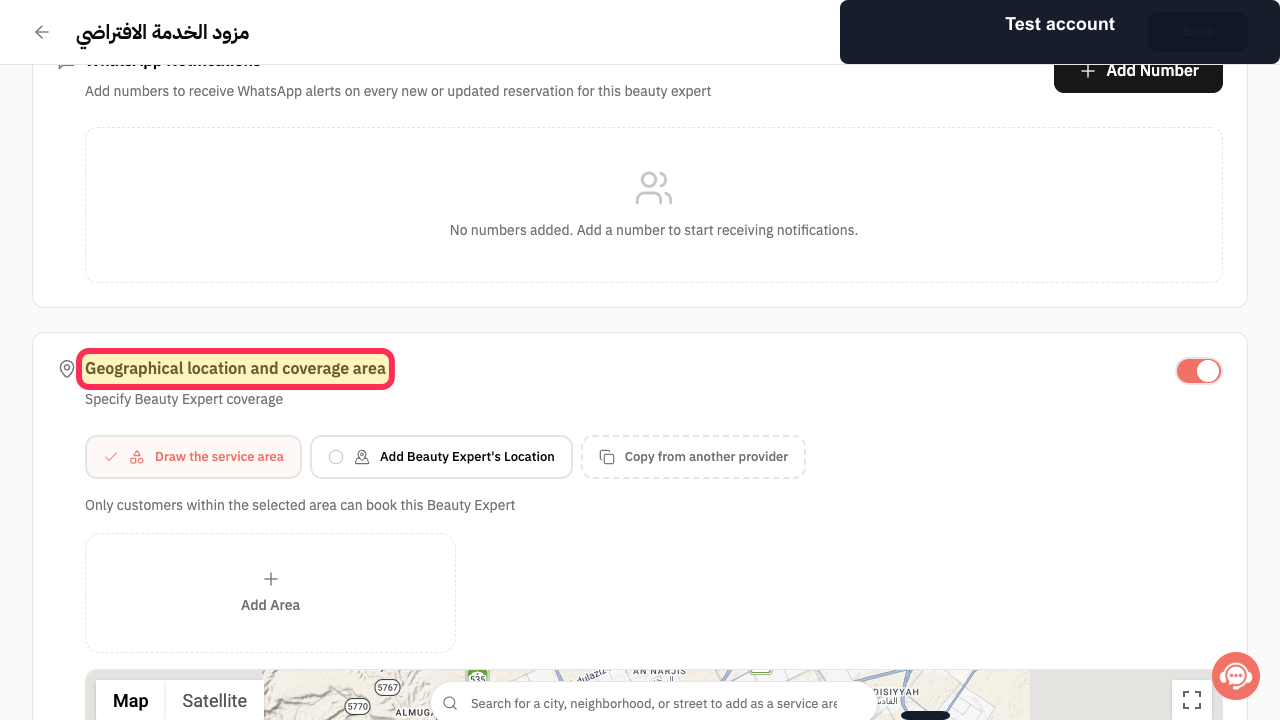
Enable Geographical location and coverage area.
The provider map and coverage controls become active.
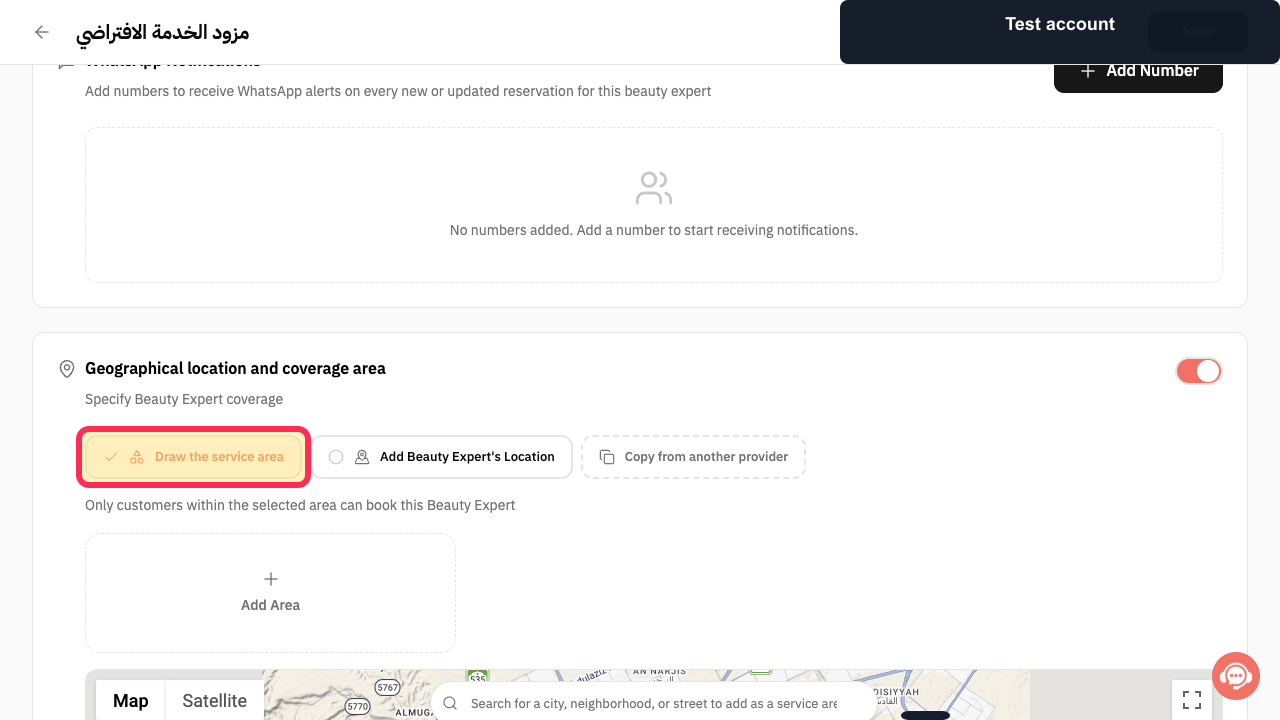
Select Draw the service area.
The service-area mode is selected.
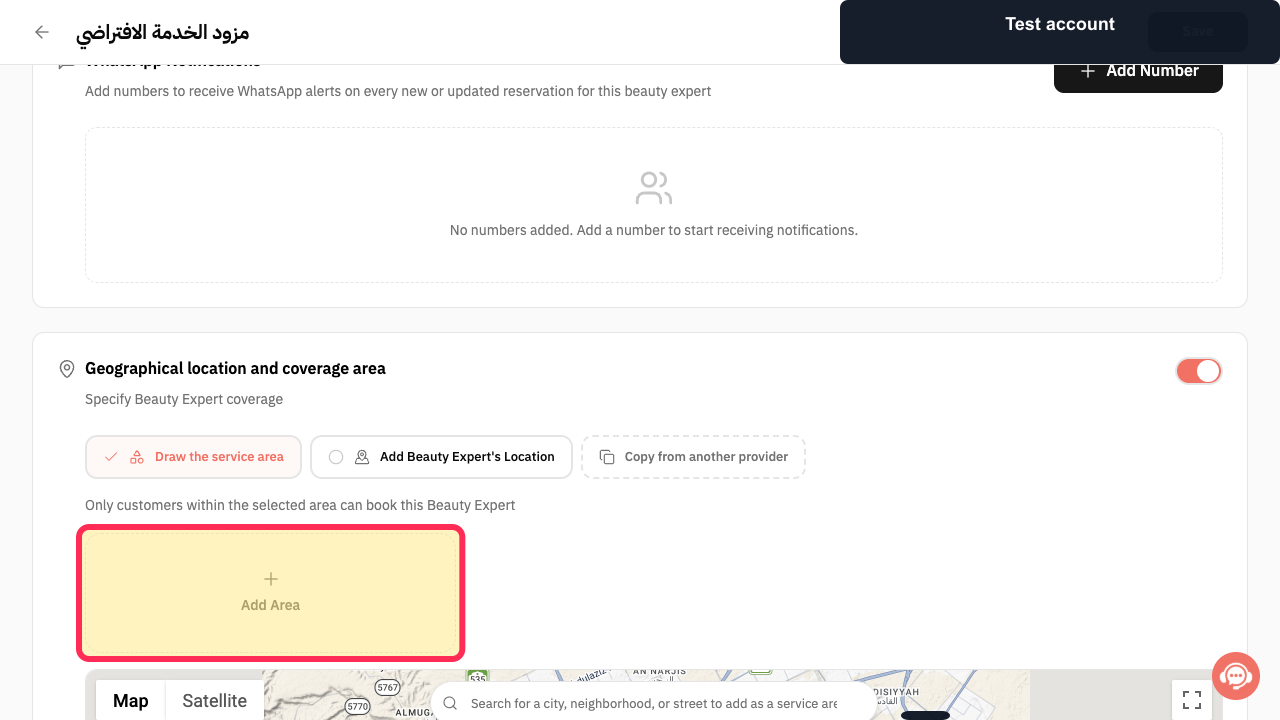
Use the location search or select Add Area to define the provider's service area on the map.
The requested area can be selected or drawn.
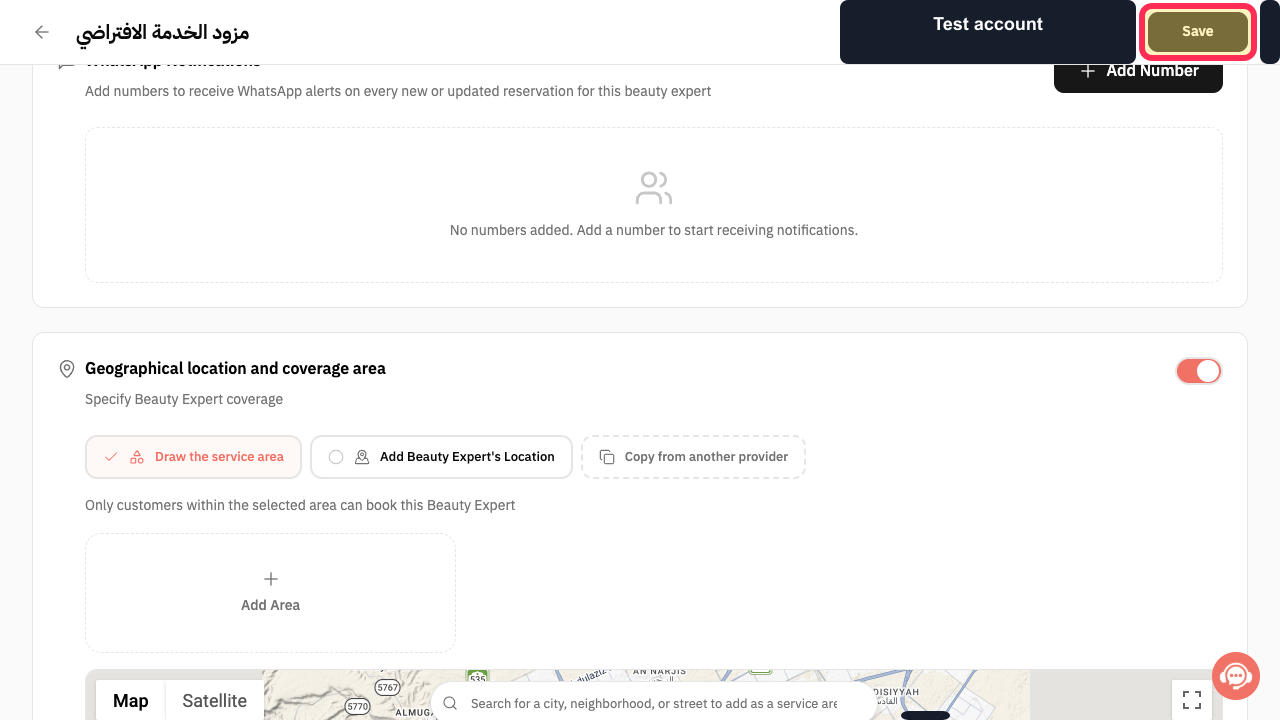
Review the map and select Save.
The service-area settings are submitted.
Illustrated guide
Step 1: Open the Beauty Expert profile.
Step 2: Enable provider geographical coverage.
Step 3: Choose Draw the service area.
Step 4: Define the provider service area.
Step 5: Save the provider service area.
Important notes
A service provider will not appear to customers outside the selected service area after you save the setting.
You can set different delivery fees for different service areas.
Related questions
How do I set service areas for a provider in Rekaz?
How do I add a delivery fee for each service area in Rekaz?
How do I show a service provider only to customers within a specific area in Rekaz?


