How do I delete a service provider in Rekaz?
To delete a service provider in Rekaz, open their profile card and use the Actions menu to reach the deletion confirmation. Check the service provider’s name and any related records before confirming.
The final Delete button was not selected in the documented example, so the completed deletion result has not been verified.
Steps
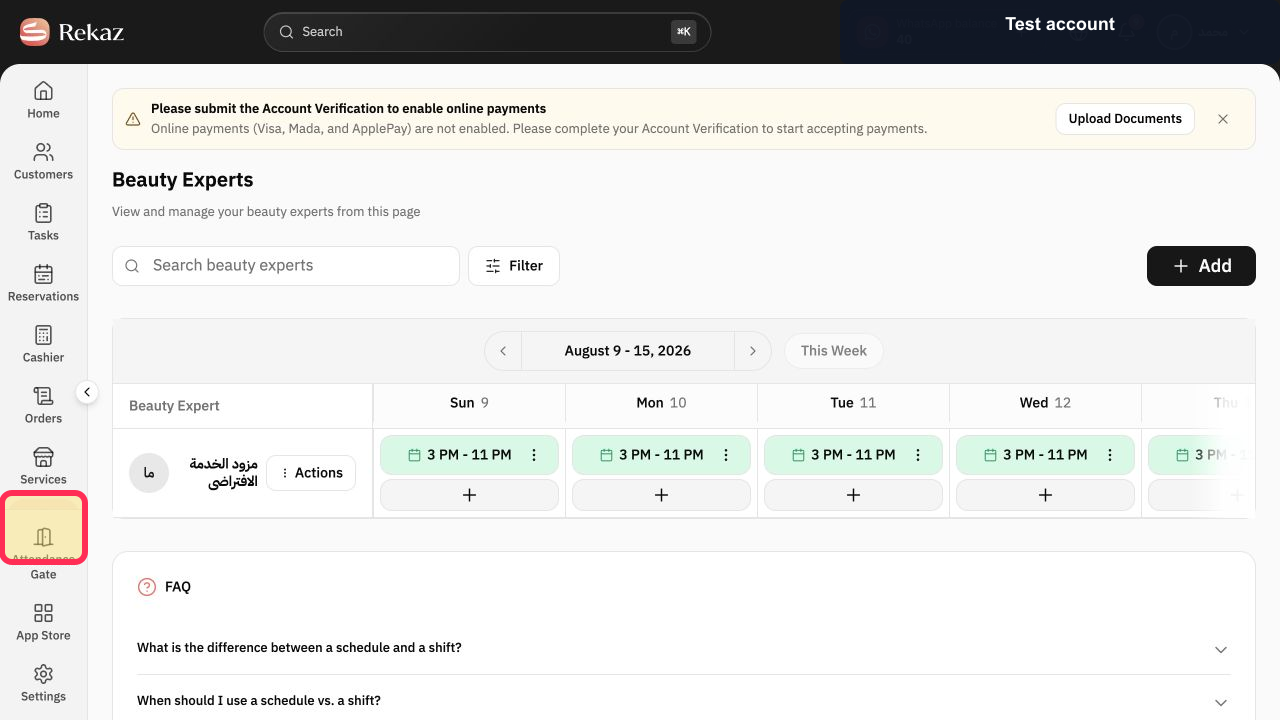
Select Specialists in the Rekaz sidebar and locate the provider you intend to remove.
The correct provider appears on the Beauty Experts page.
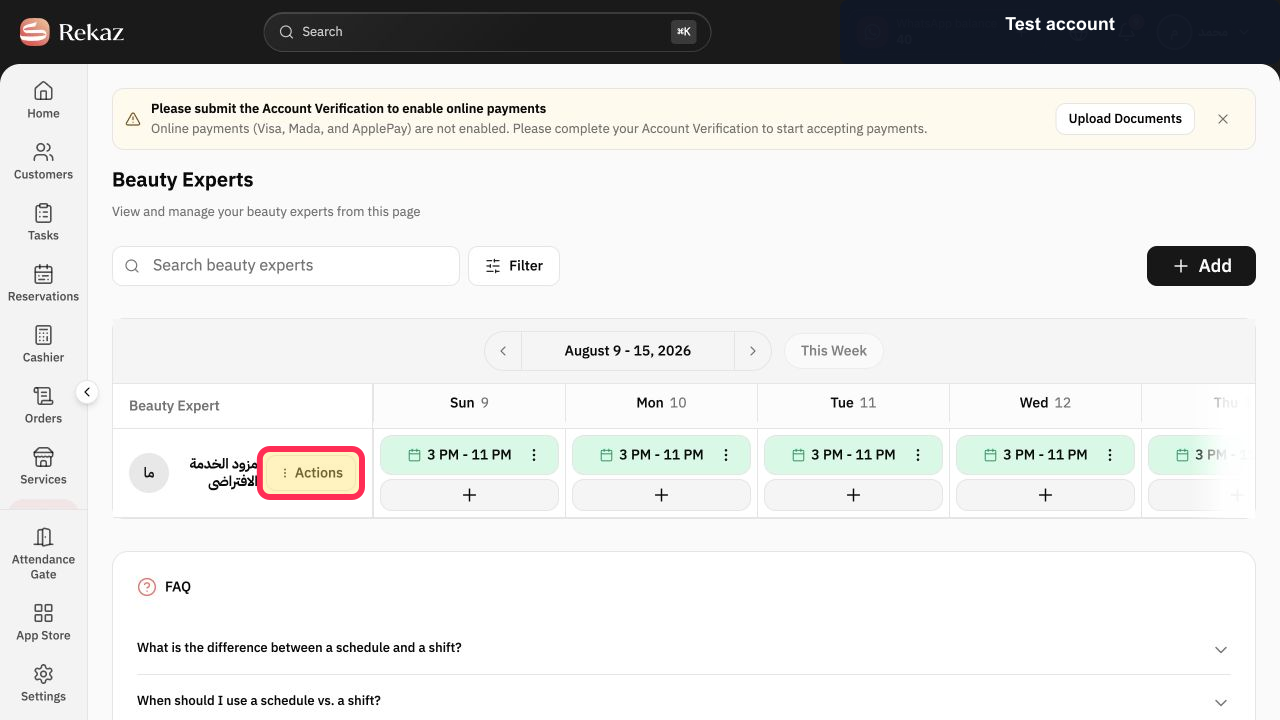
Select Actions beside that provider.
The provider Actions menu opens.
Select Delete Beauty Expert.
The Delete Beauty Expert confirmation opens.
Verify the provider name in the warning and remember that the deletion is permanent.
The correct deletion target is confirmed.
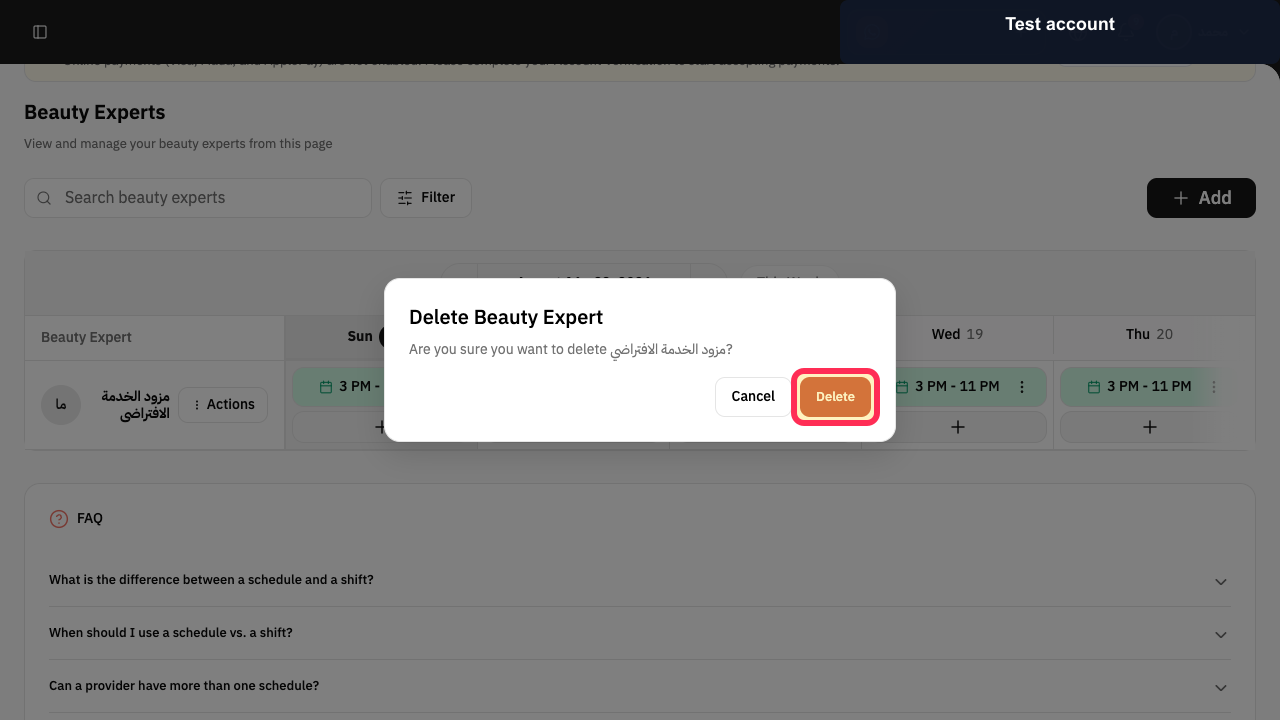
Select Delete to confirm, or Cancel to keep the provider.
The provider is deleted only after final confirmation.
Illustrated guide
Step 1: Open Specialists and locate the Beauty Expert to delete.
Step 2: Open the provider Actions menu.
Step 3: Choose Delete Beauty Expert.
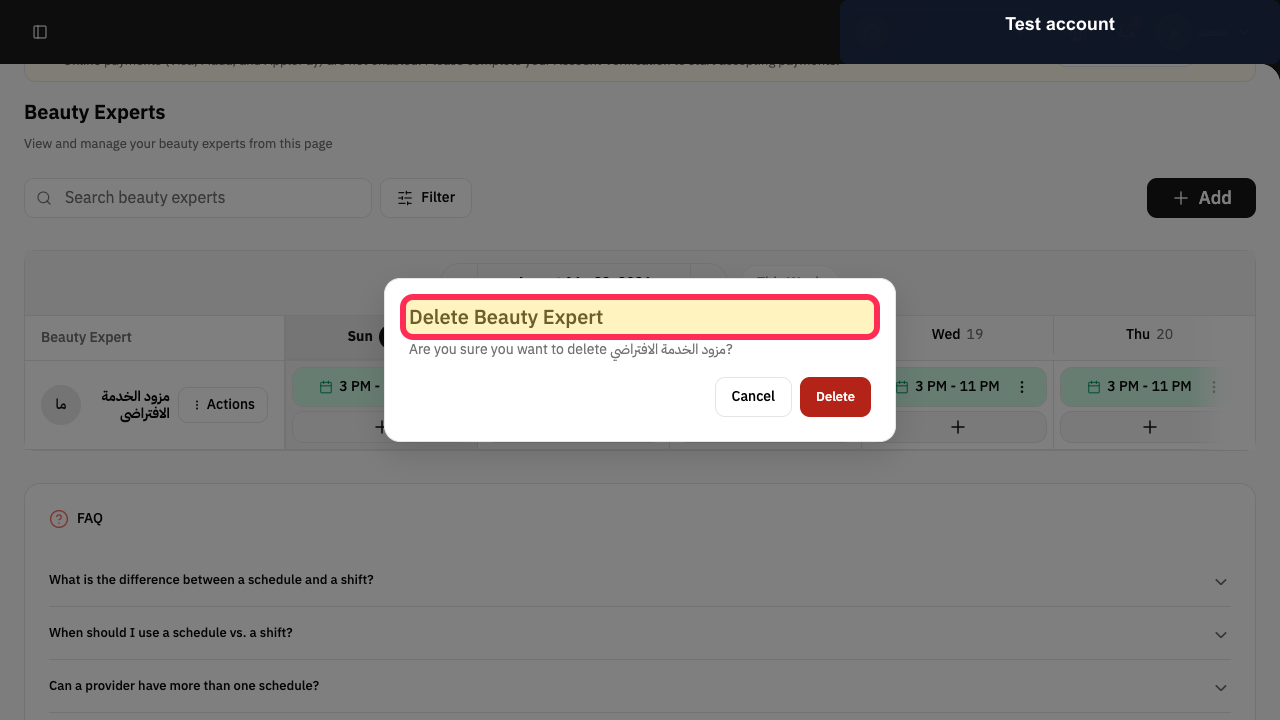
Step 4: Review the provider deletion warning.
Step 5: Confirm or cancel deleting the Beauty Expert.
Important notes
Deleting a service provider is a significant action. Verify the name and any related records before confirming.
The final Delete button was not selected in the documented example.
Related questions
How do I remove a specialist in Rekaz?
Where is the option to delete a service provider in Rekaz?
Do I need to confirm before deleting a specialist in Rekaz?


