How do I edit a service provider’s details in Rekaz?
To edit a service provider in Rekaz, open the provider’s profile from their card, update the required details or settings, and select Save.
Before saving, review the provider’s services and branches carefully. Changes to these settings may affect the provider’s visibility and bookings.
Steps
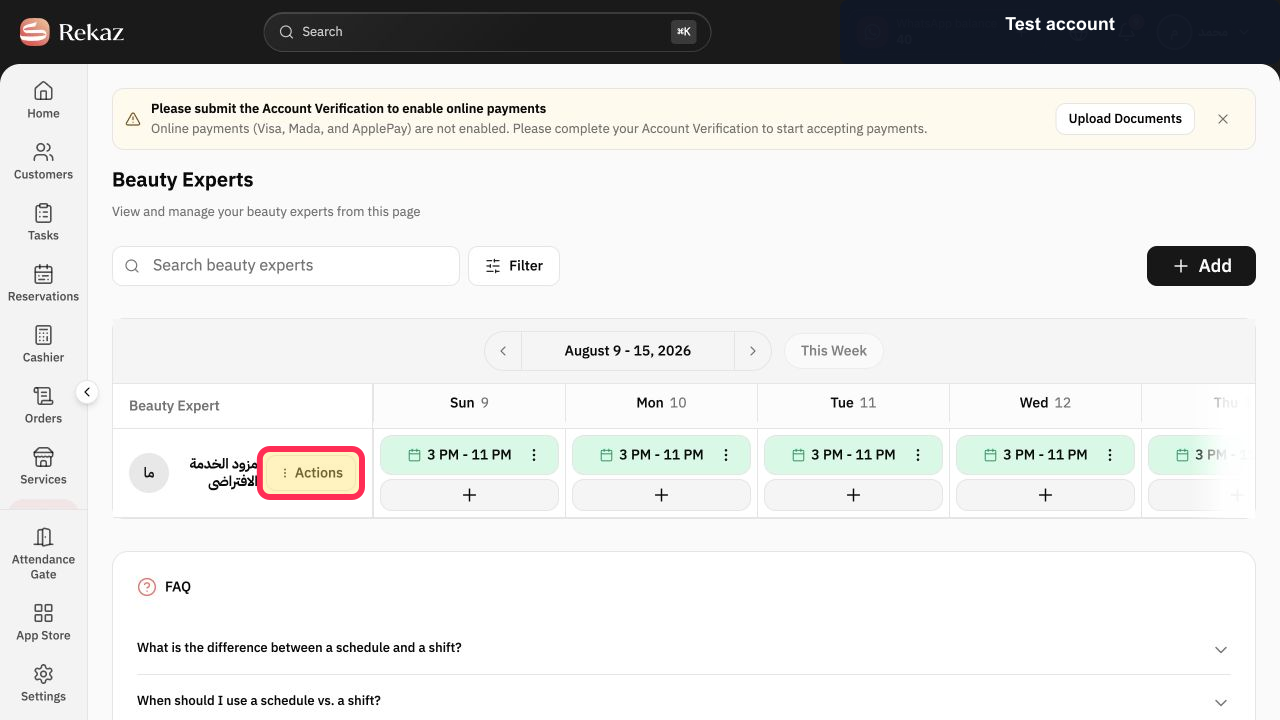
Open Beauty Experts and select Actions for the provider you want to update.
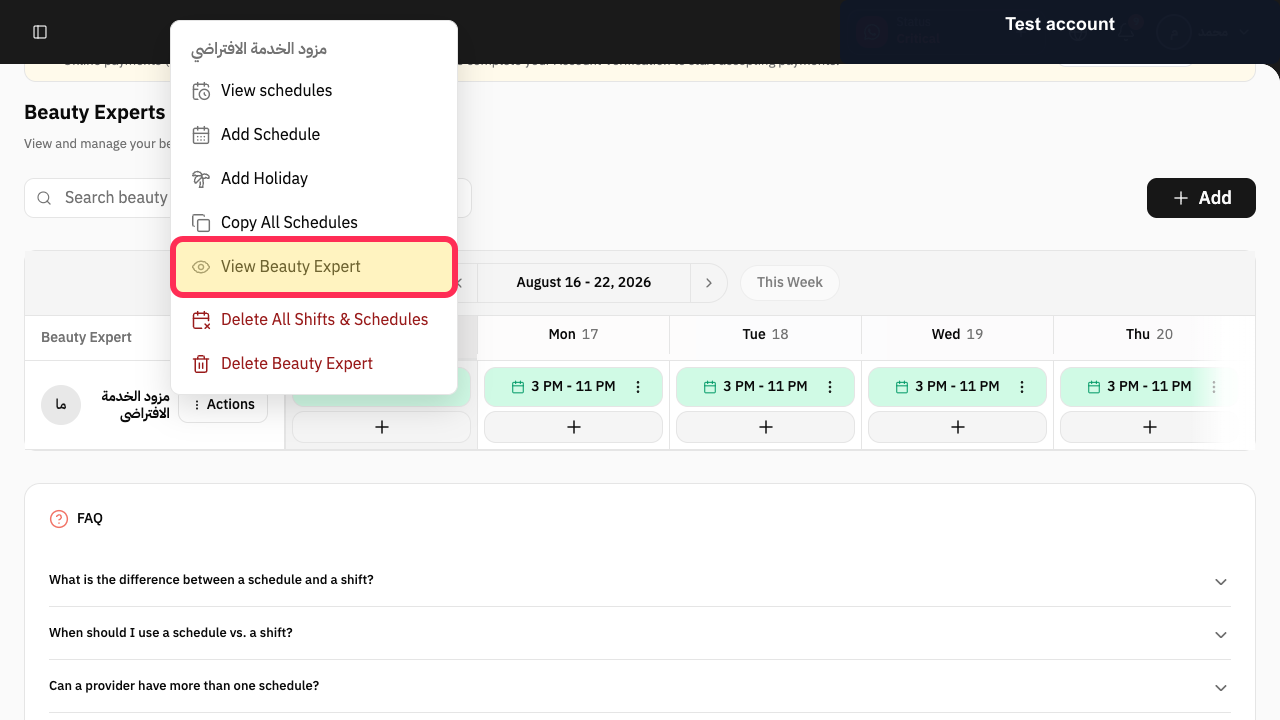
The provider Actions menu opens.
Select View Beauty Expert.
The selected provider's profile opens.
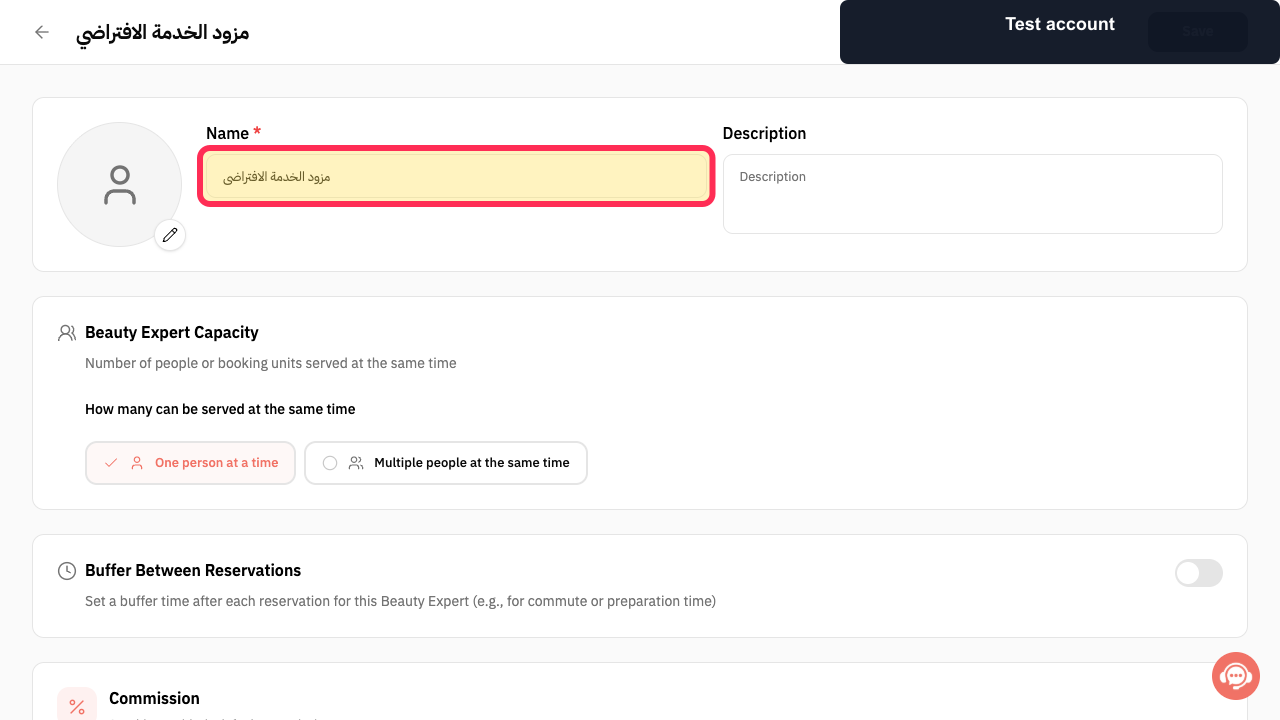
Update Name and Description when needed.
The provider's profile details show the new values.
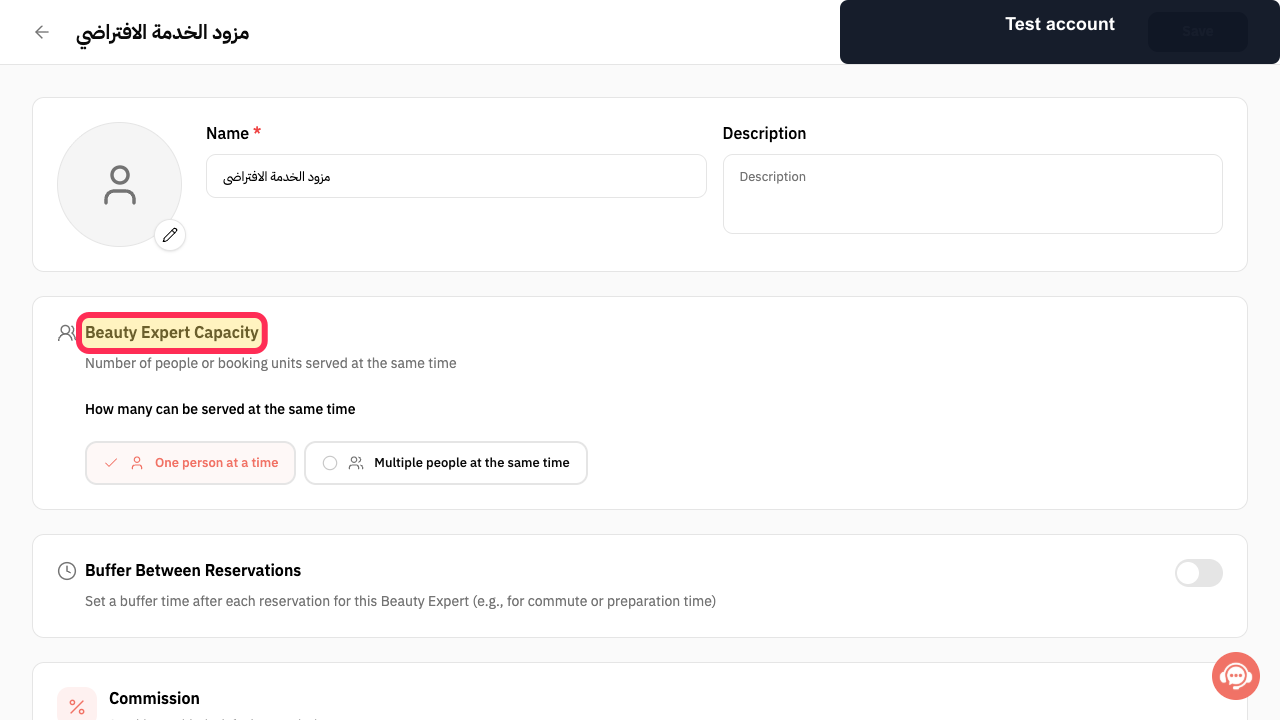
Review Beauty Expert Capacity, Buffer Between Reservations, and Default commission rate.
The provider's capacity, buffer, and commission settings match the intended operation.
Review the provider's weekly schedule and assigned Services.
The profile shows the provider's working schedule and services.
Review WhatsApp Notifications, Geographical location and coverage area, Branch Availability, and Calendar Sync.
All provider-specific operating settings are reviewed before saving.
Select Save at the top of the page.
The provider profile changes are submitted.
Illustrated guide
Step 1: Open Actions for the Beauty Expert.
Step 2: Open the Beauty Expert profile.
Step 3: Edit the provider's name and description.
Step 4: Review provider capacity, buffer, and commission.
Step 5: Review the provider's schedule and services.
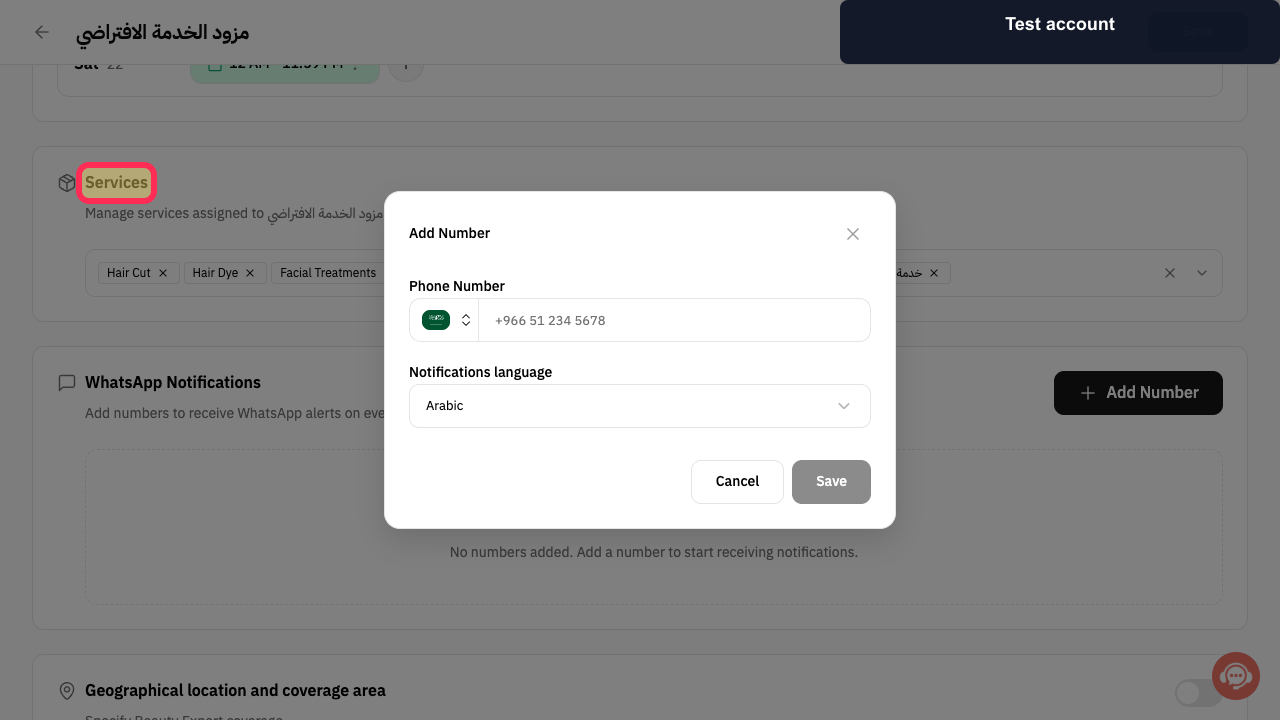
Step 6: Review the remaining Beauty Expert settings.
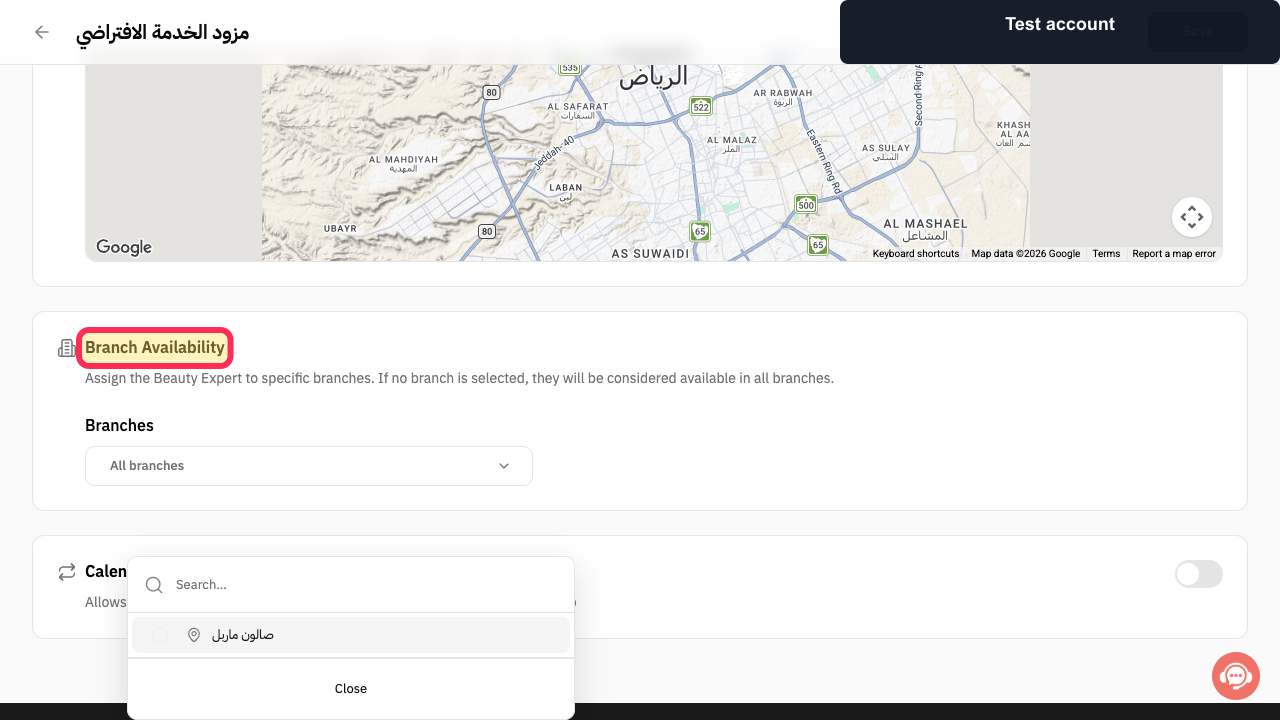
Step 7: Save the updated Beauty Expert profile.
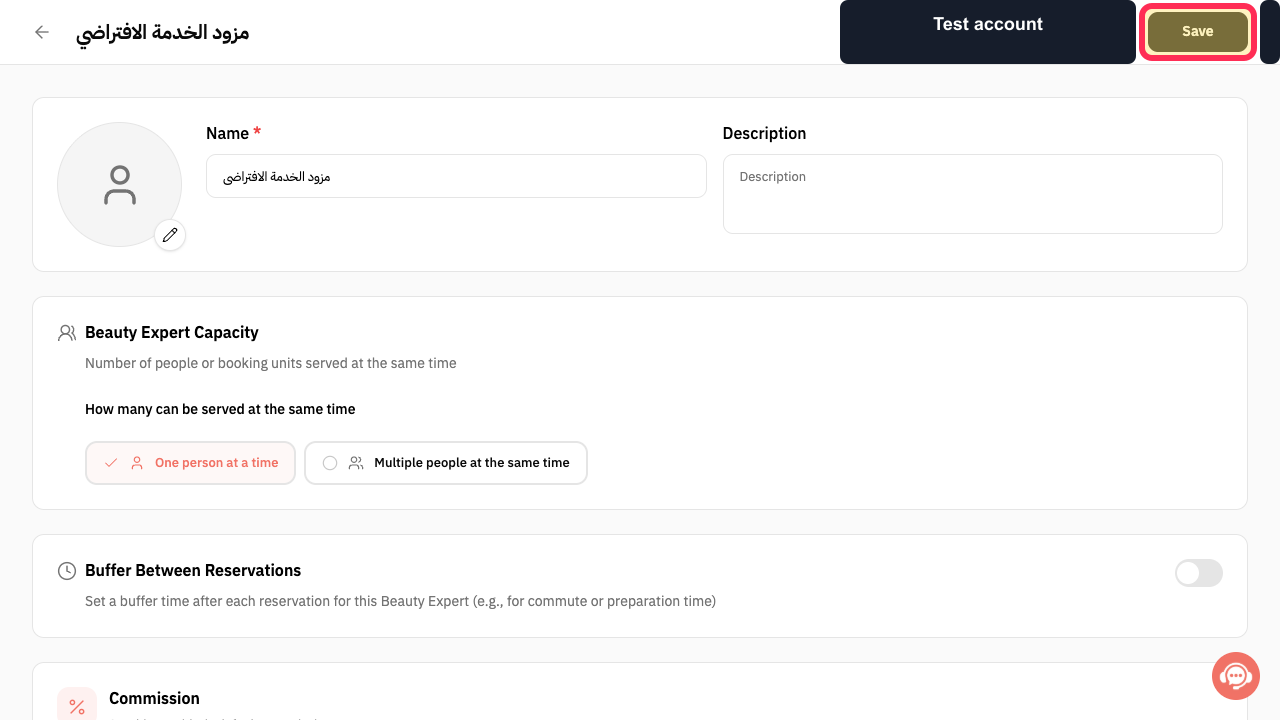
Before you save
Review the Services and Branches sections before saving. Changes there may affect where the provider is visible and which bookings they can receive.
Related questions
How do I change a specialist’s name in Rekaz?
Where can I edit a service provider’s settings in Rekaz?
How do I change a specialist’s commission or capacity in Rekaz?


