How do I add service search terms in Rekaz?
The current Rekaz interface does not show the action of adding separate search terms to an individual service.
To improve search visibility, use clear service details and add only business-wide keywords that accurately describe your business. Rekaz instructs you to separate those keywords with commas.
Steps
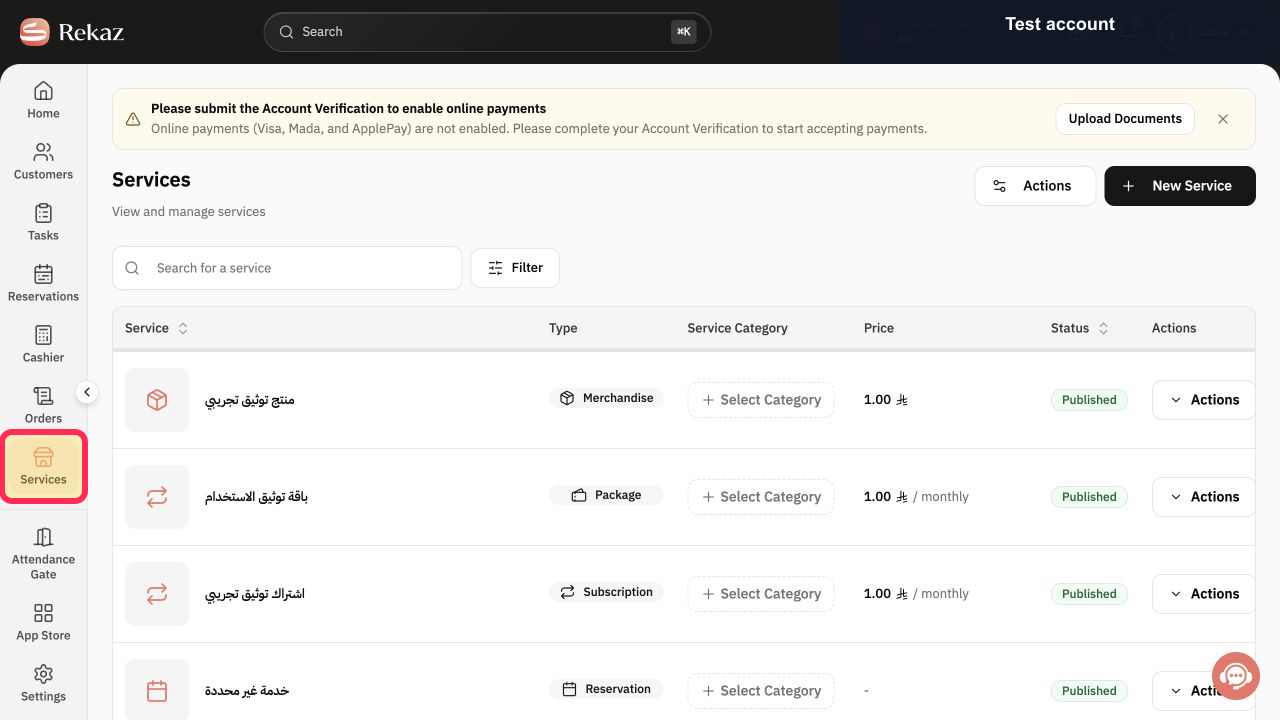
Select Services from the Rekaz sidebar.
The Services area opens, where you can view and manage services.
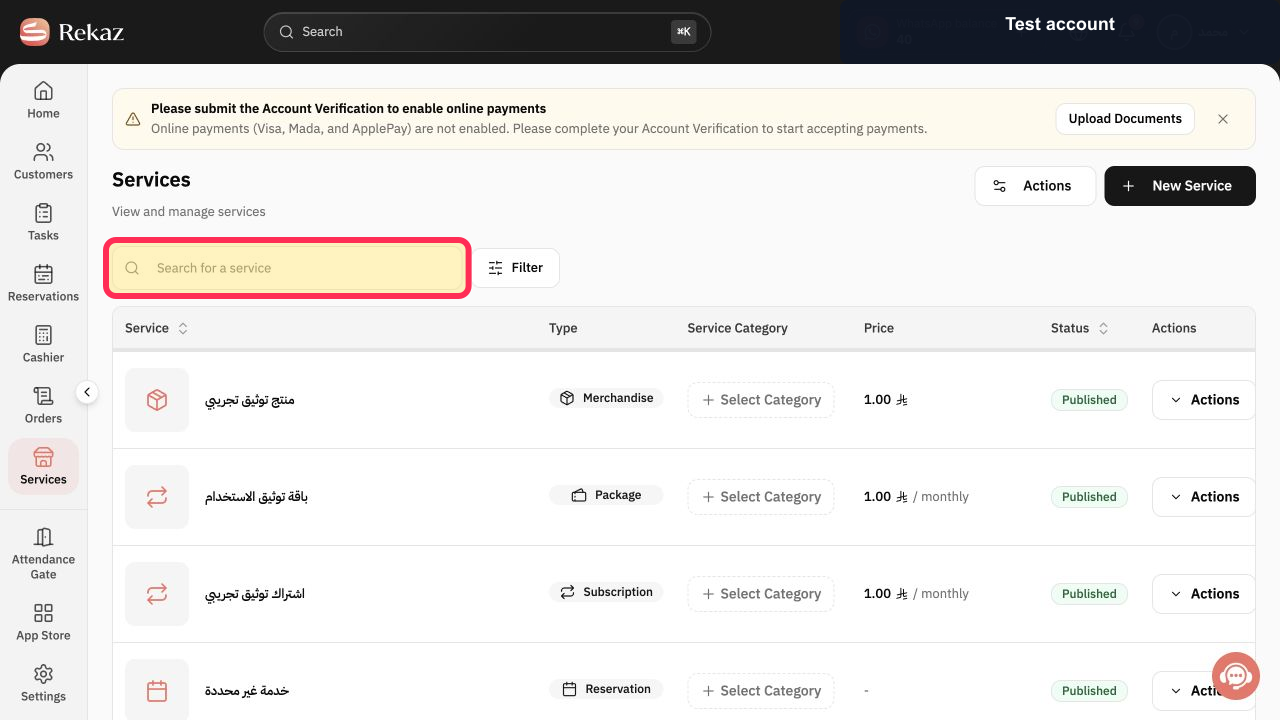
Use Search for a service to locate the service whose details you want to review.
The service list can be filtered to help you find the relevant service.
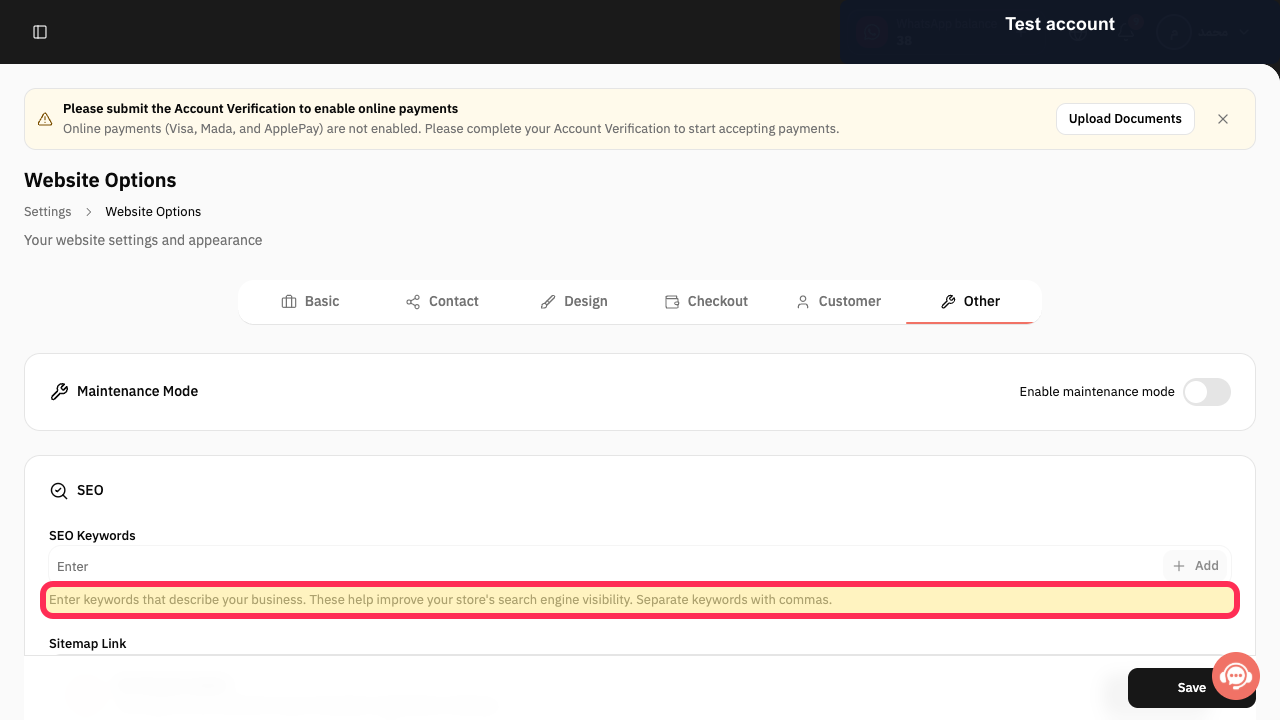
In the Website Options keyword setting, enter keywords that describe your business and separate each keyword with a comma.
The displayed guidance confirms that keywords are business-wide and are used to improve the store's search-engine visibility.
Illustrated guide
Step 1: Open the Services area.
Step 2: Find a service in the Services list.
Step 3: Review the business keyword guidance in Website Options.
Important limitations
There is no separate Search Terms field for an individual service in the current Services list.
Do not add unrelated terms. Use clear service details and terms that accurately reflect your business activity.
Before saving or completing any final action, review the displayed service name, status, amount, or date as applicable.
Related questions
Where can I find the option to add service search terms in Rekaz?
Why can’t I see a separate search-terms field for a service in Rekaz?
How do I improve how my services appear in search and on my website in Rekaz?


