How do I add or change a service image in Rekaz?
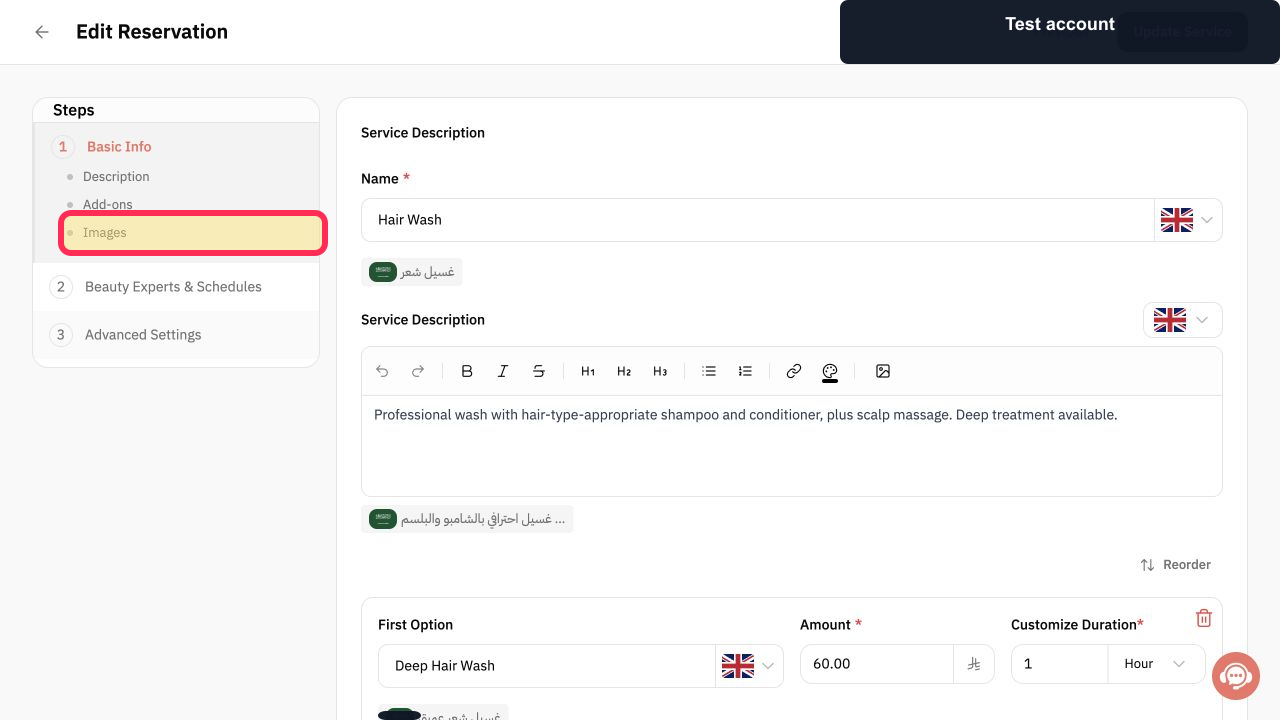
To review image settings for a service, go to Services and open the relevant service editor, then select Images.
The current interface does not show the Images Gallery actions for adding, changing, or deleting an image. Do not rely on the previous Add More, Delete, file-format, or upload instructions until those controls are visible in Rekaz.
Steps
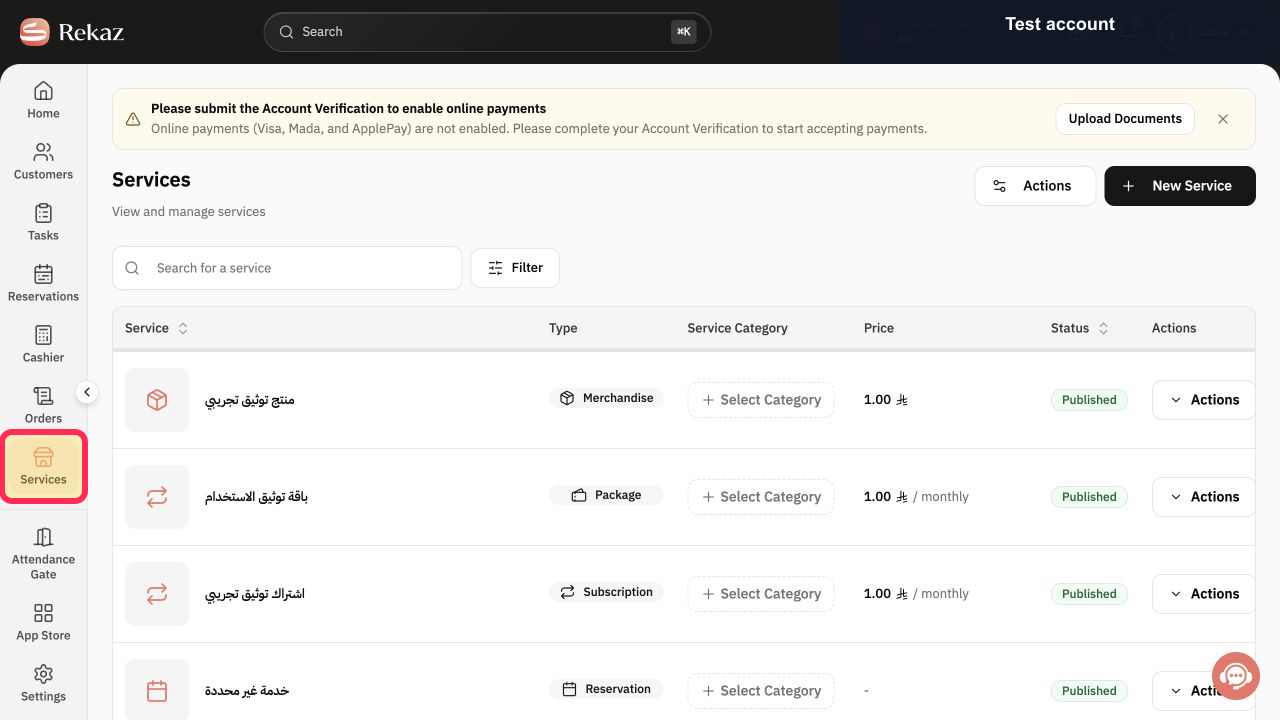
Select Services in the Rekaz sidebar.
The Services page opens.
In the editor for the service, select Images.
The Images area is selected in the service editor.
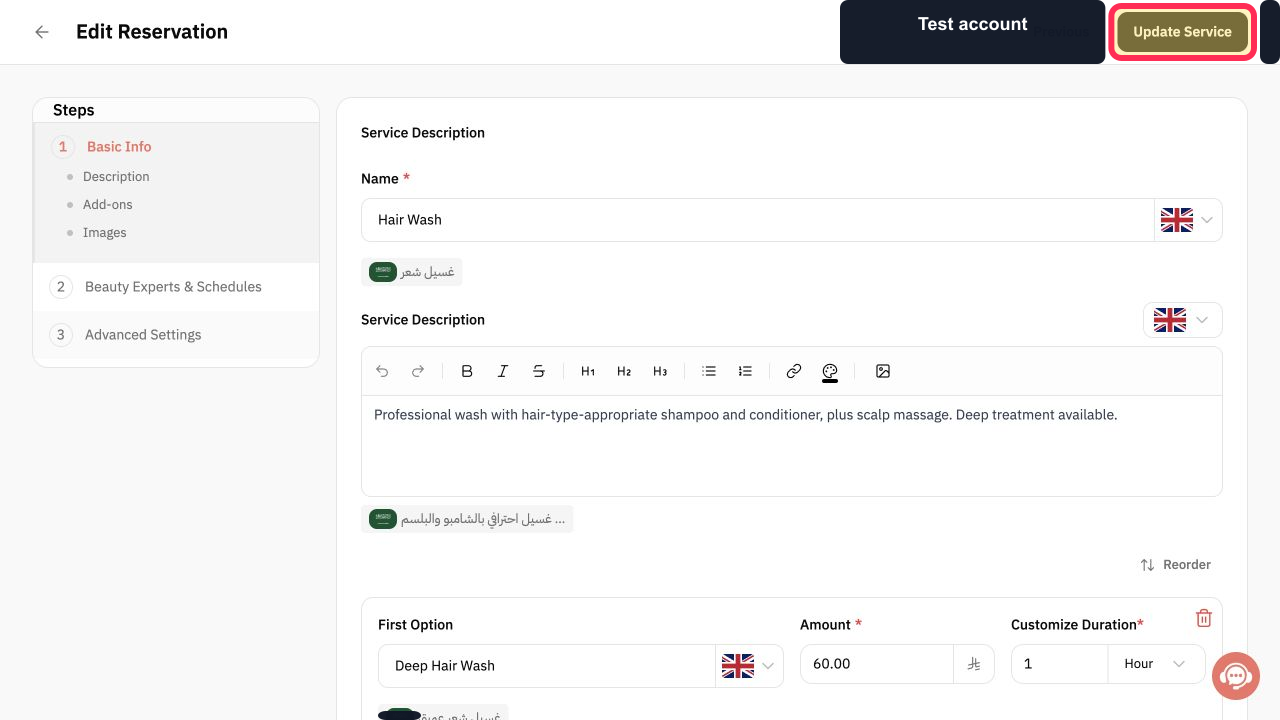
Before saving, check the visible Update Service control and confirm whether an image action is available. The current interface does not show an image upload, replacement, or deletion control.
Update Service is visible, but no control for changing the service image is available in the supplied interface.
Illustrated guide
Step 1: Open Services from the Rekaz sidebar.
Step 2: Select Images in the service editor.
Step 3: The current service editor shows Update Service but no image-change control.
Important notes
Images Gallery is located in the service’s Basic Info section, below Service Options and Add-ons.
If the Rekaz interface has changed, check the visible button name before completing the final action.
Recommended image size: square, 1200 × 1200 px.
Supported formats: JPEG and PNG.
Maximum file size: 10 MB per image.
Related questions
Where can I find Images Gallery for a service in Rekaz?
How do I upload a new service image in Rekaz?
How do I delete an existing service image in Rekaz?


