How do I make a service available in specific branches in Rekaz?
To make a service available only in selected branches in Rekaz, open the service, go to its Advanced Settings, and select the branches that offer it. Leave the branch list empty to make the service available to everyone.
Steps
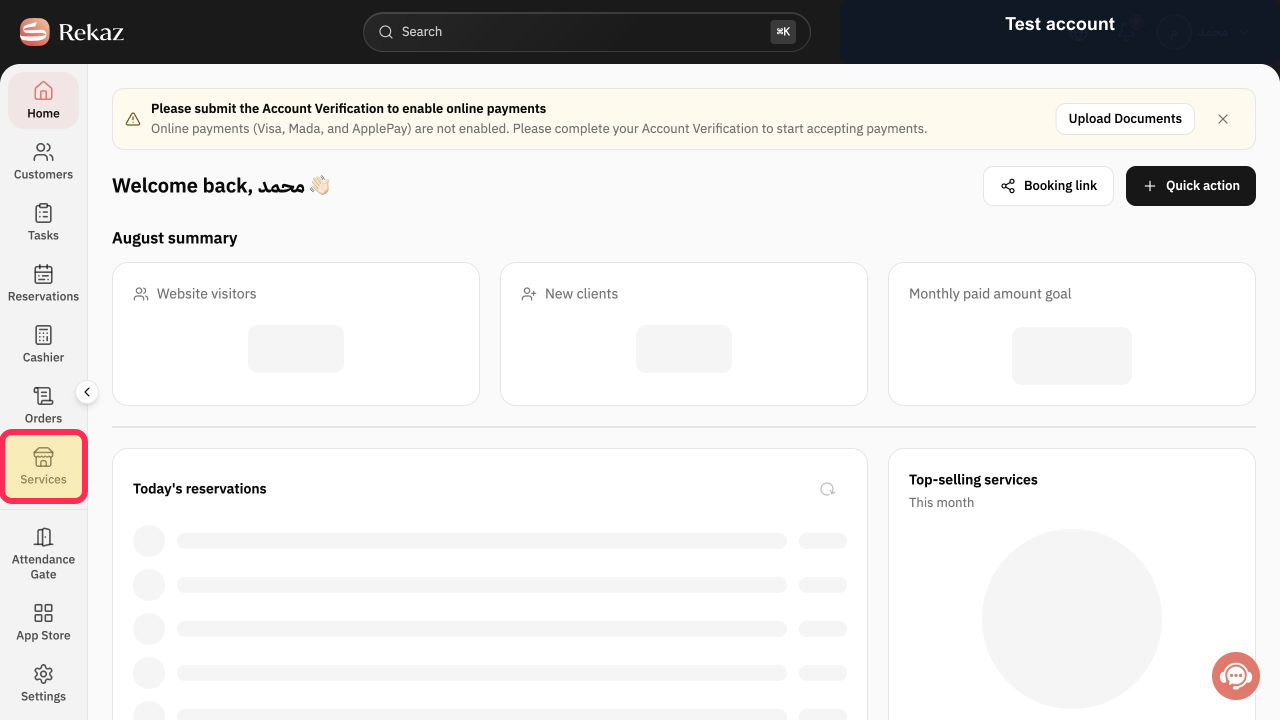
From the Home sidebar, select Services. On the Services page, open the service whose branch availability you want to change.
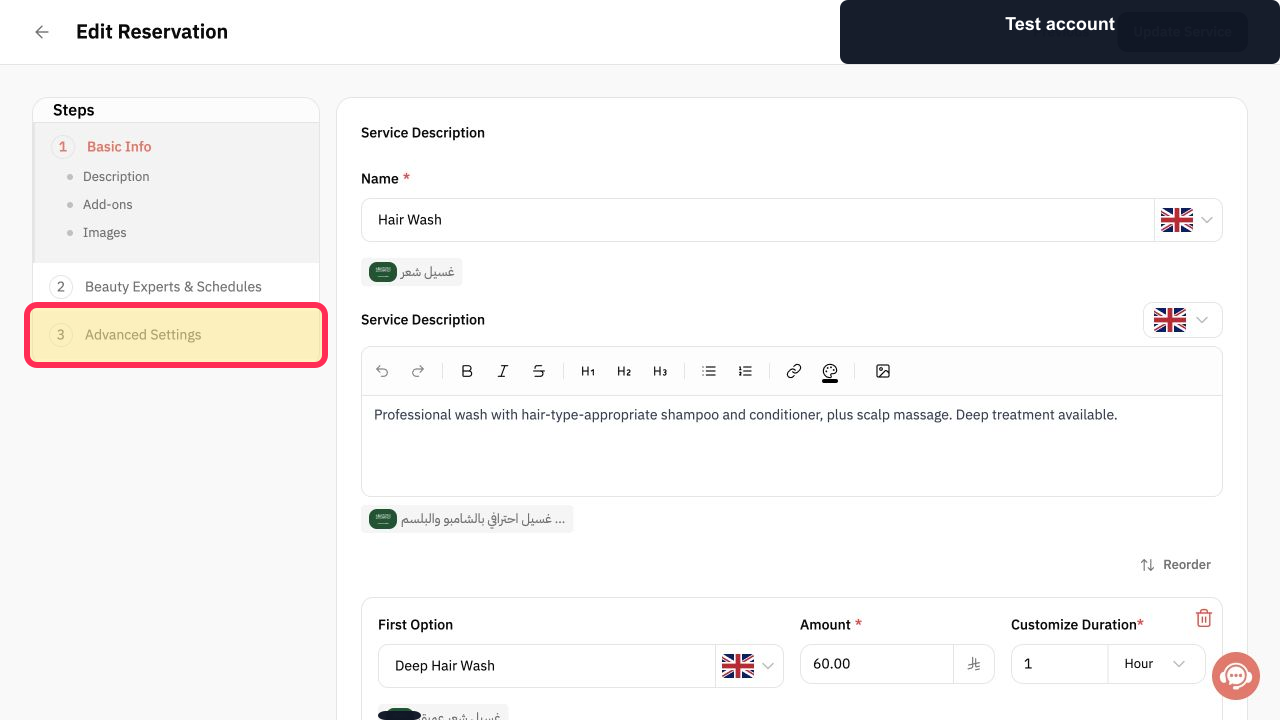
The selected service opens in the service editor.
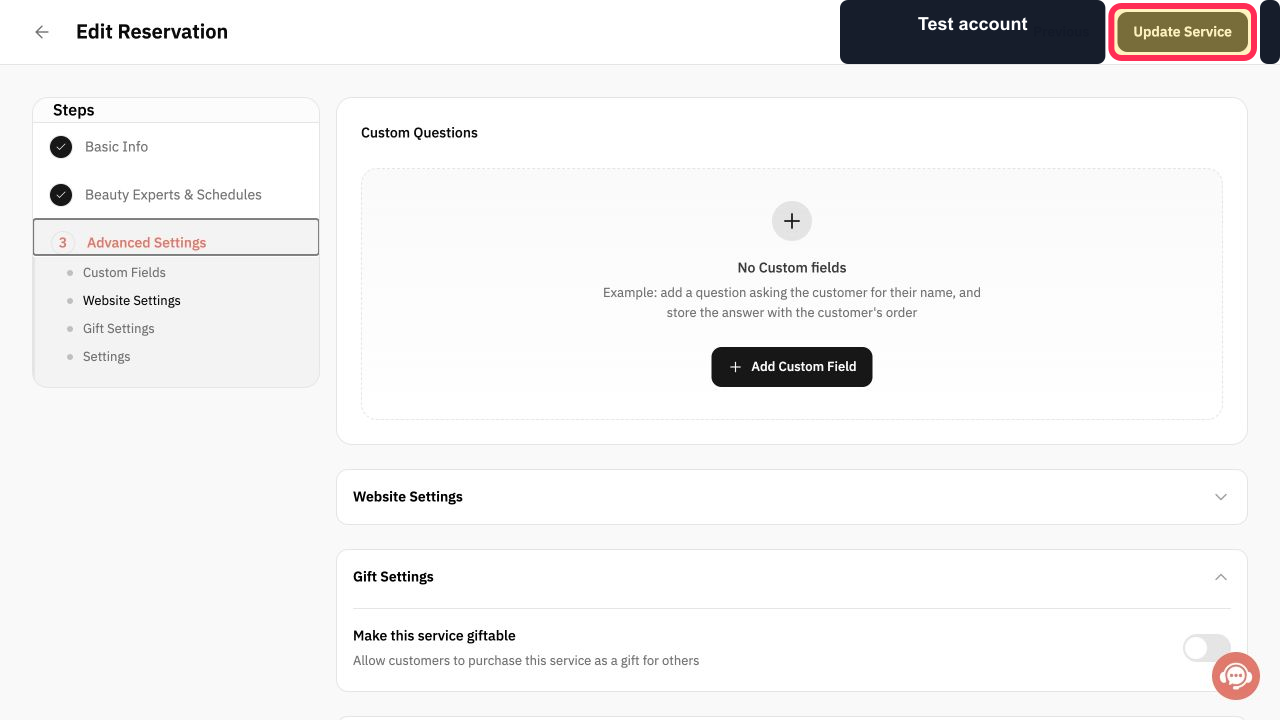
In the service editor steps, select Advanced Settings, then select Settings.
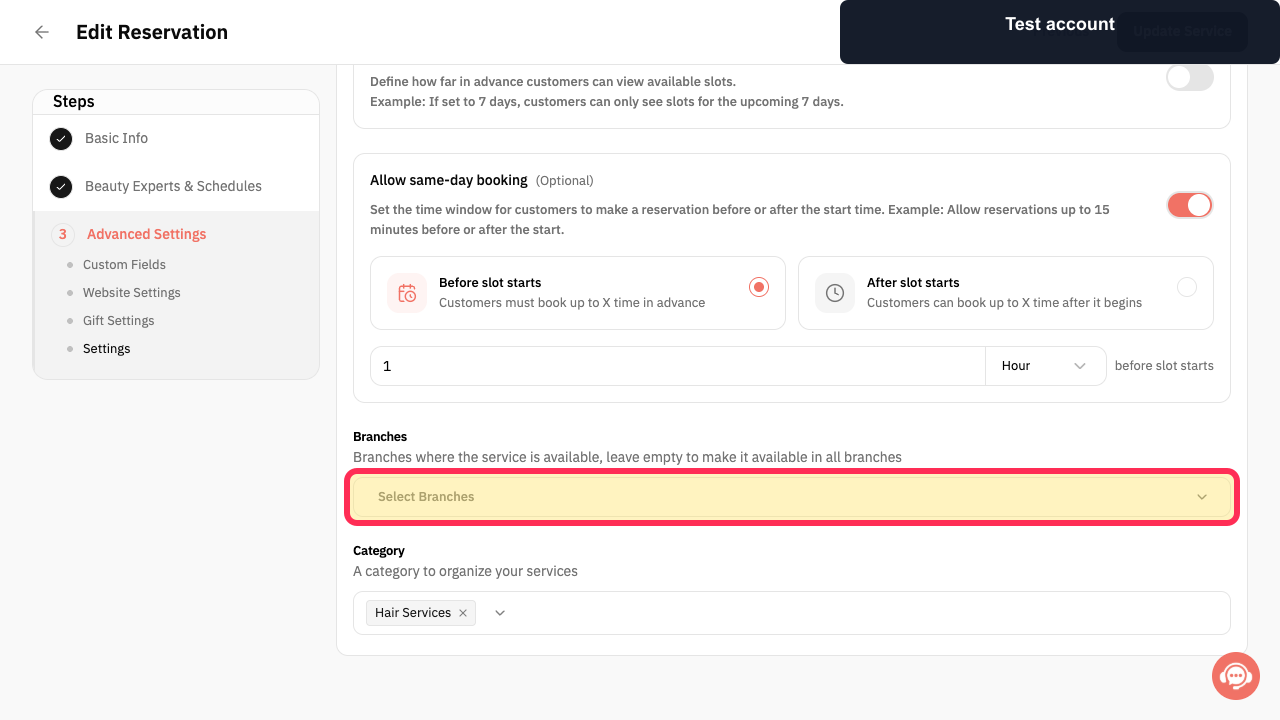
The Service Settings screen opens.
In the Branches section, open Select Branches.
You can view and choose the branches for this service.
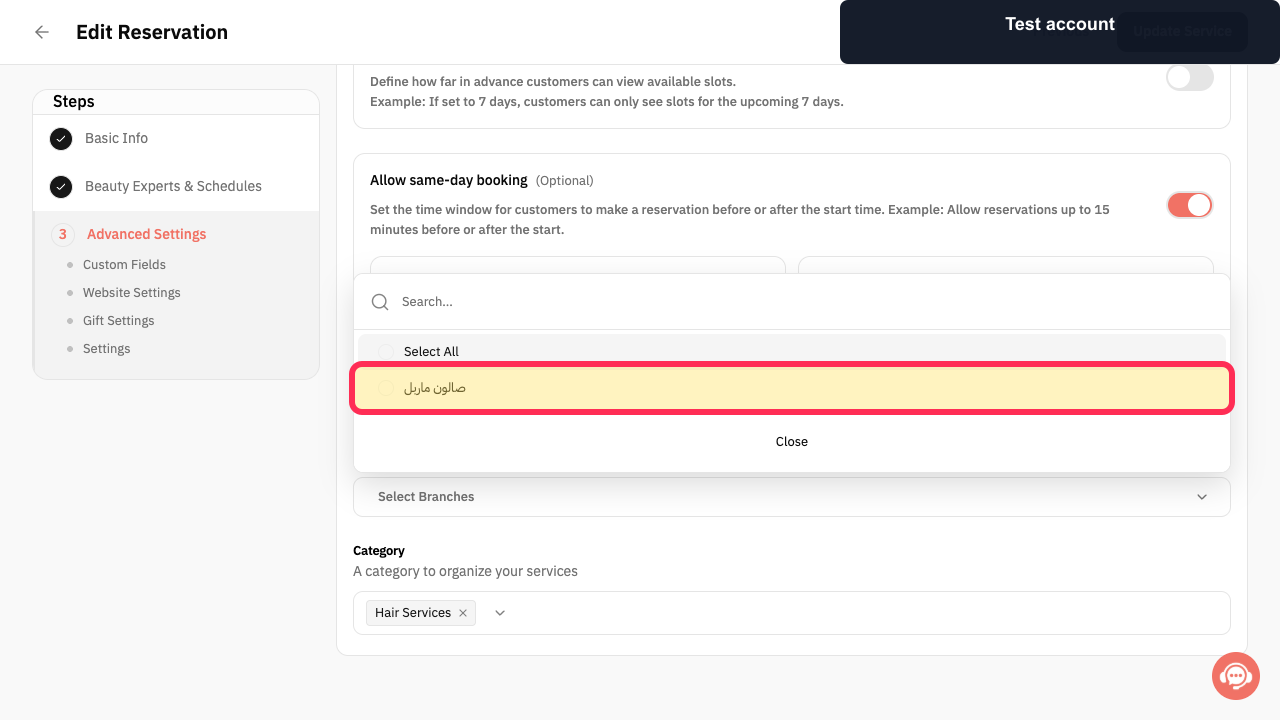
In the branch picker, select every branch where the service is offered. Leave the selection empty only when the service should be available in all branches.
Review the selected branches, then select Update Service to save your changes.
The service branch availability is updated.
Illustrated guide
Step 1: Open the service you want to make available in specific branches.
Step 2: Open Advanced Settings and then Settings for the service.
Step 3: Open the branch selector in Service Settings.
Step 4: Select the specific branch or branches that offer the service.
Step 5: Save the selected branches for the service.
Important notes
Leaving the branch list empty makes the service available to everyone.
When needed, make sure the service providers are assigned to the same branch.
Related questions
How do I link a service to a branch in Rekaz?
How do I hide a service from a specific branch in Rekaz?
How do I show a service in only one branch in Rekaz?


