How do I set a service duration in Rekaz?
In Rekaz, a service duration determines how much time that service option occupies in the appointment schedule. Open the service, set a duration value and its unit for each option, then update the service to save your changes.
Steps
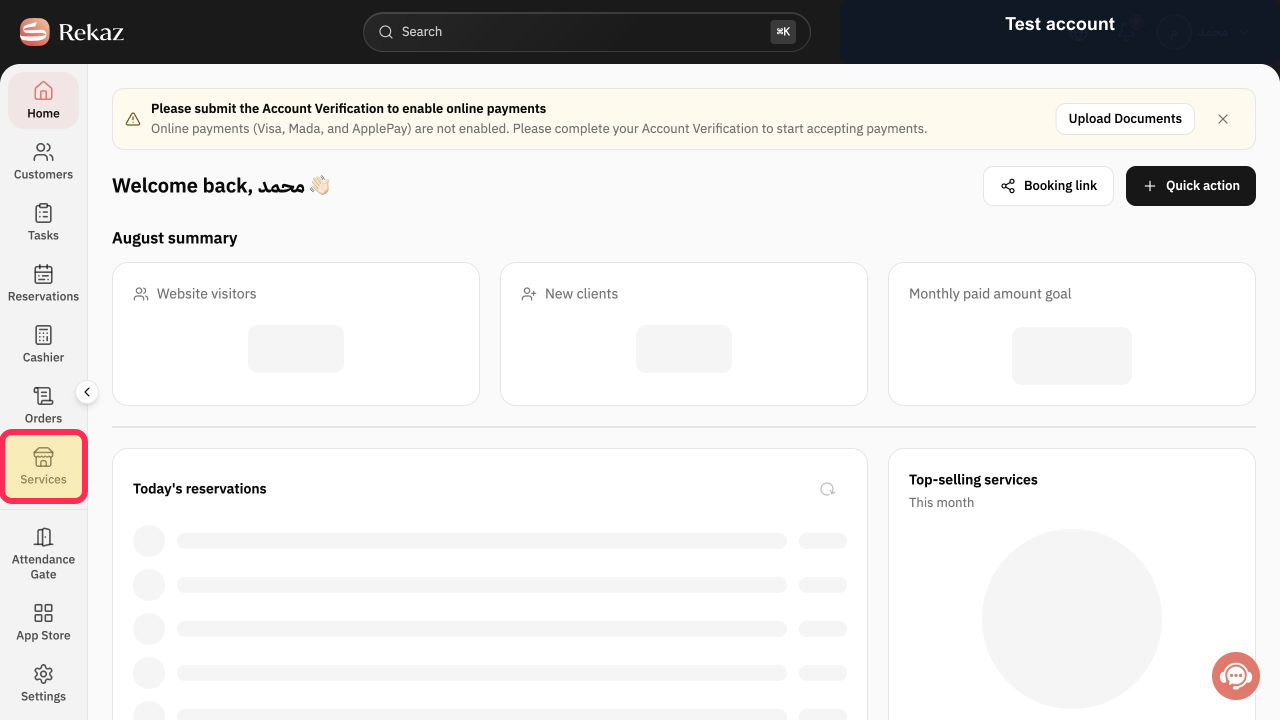
From Home, select Services in the sidebar.
The Services page opens and shows your available services.
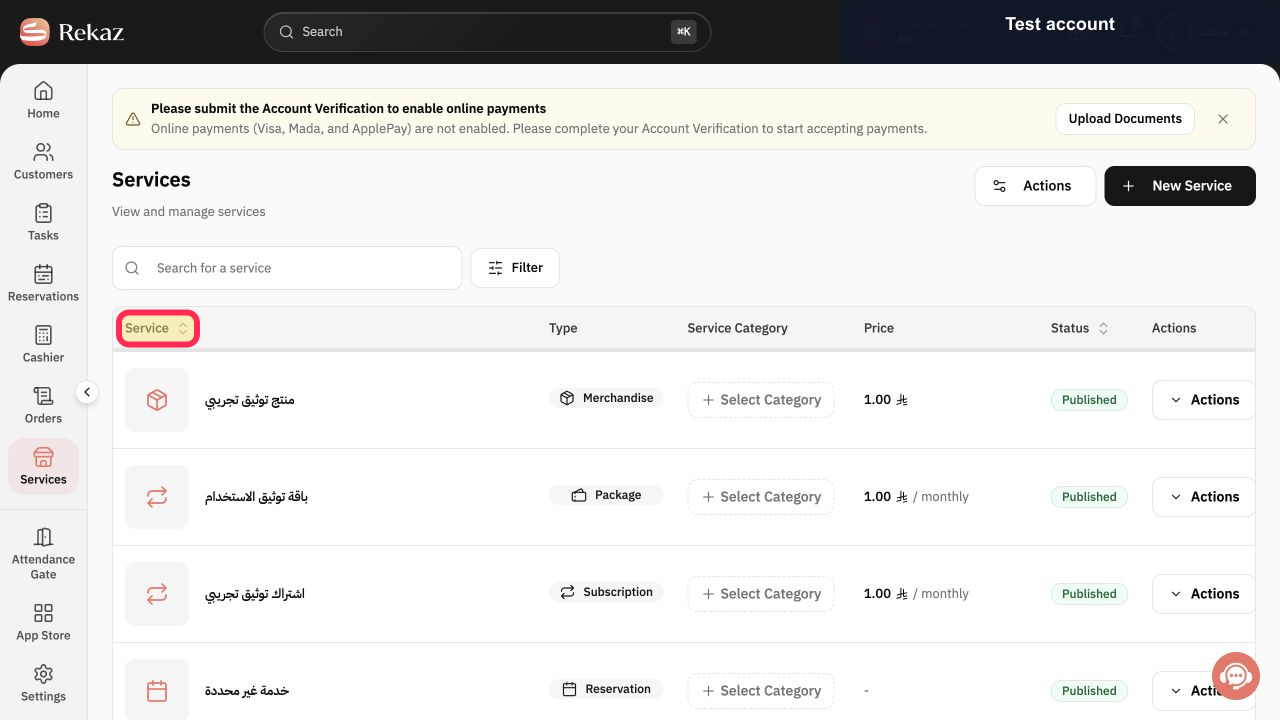
Select the Service name of the service whose duration you want to set.
The selected service opens with its options and settings.
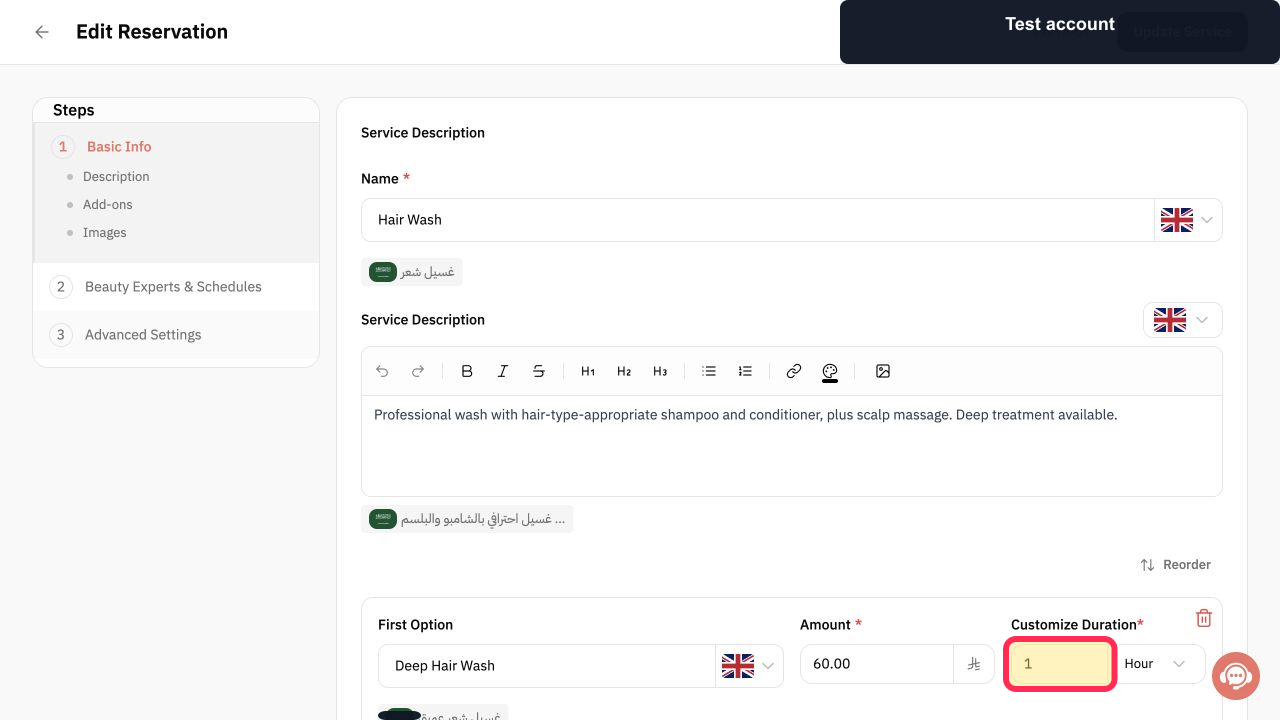
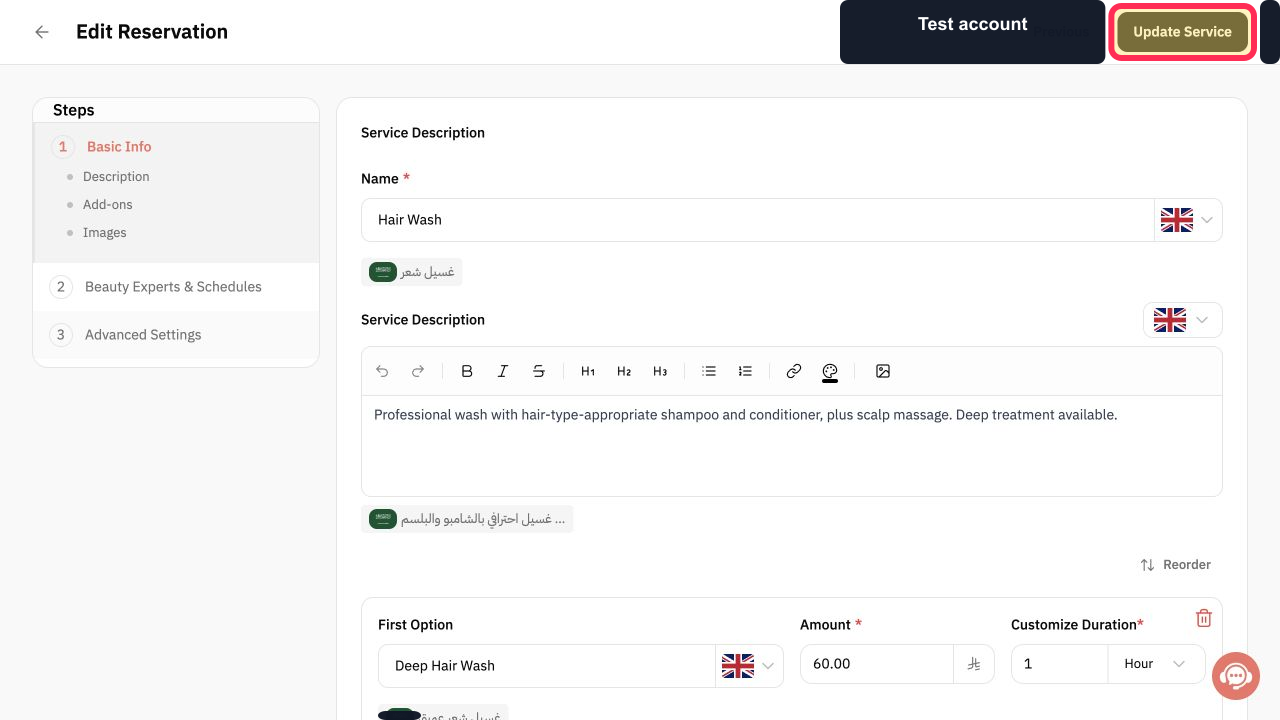
For the relevant service option, enter the required number in the duration field.
The duration value is entered for that option.
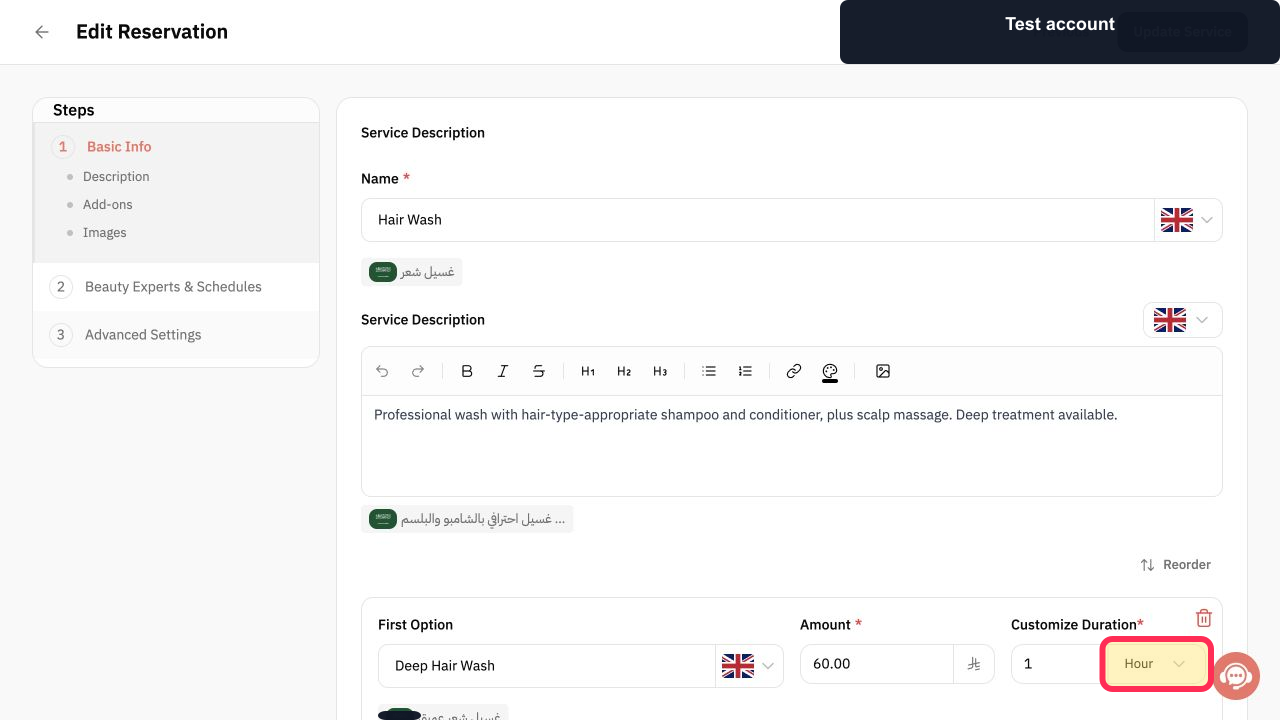
Select the appropriate duration unit. The verified example uses Hour.
The service duration uses the selected unit.
Review the duration for every service option, then select Update Service.
The updated service duration is submitted.
Illustrated guide
Step 1: Open the Services page from the sidebar.
Step 2: Open the service you want to edit.
Step 3: Enter the duration value for the service option.
Step 4: Choose the service duration unit; Hour is the verified example.
Step 5: Update the service after reviewing its duration.
Important notes
If a service has multiple options, review and set the duration for each option separately.
The duration affects the time reserved in the appointment schedule.
Related questions
How do I change a service duration in Rekaz?
Where do I set how many minutes a service takes in Rekaz?
How do I set the appointment duration for a service in Rekaz?


