How do I change a service price in Rekaz?
In Rekaz, you can set or change the price for each option within a service independently. This is useful when options have different session types or durations.
Open the service, change the Amount for the correct option, and use Update Service to save the new price. The price change was not saved during the recording of this guide, so the final save result was not verified.
Steps
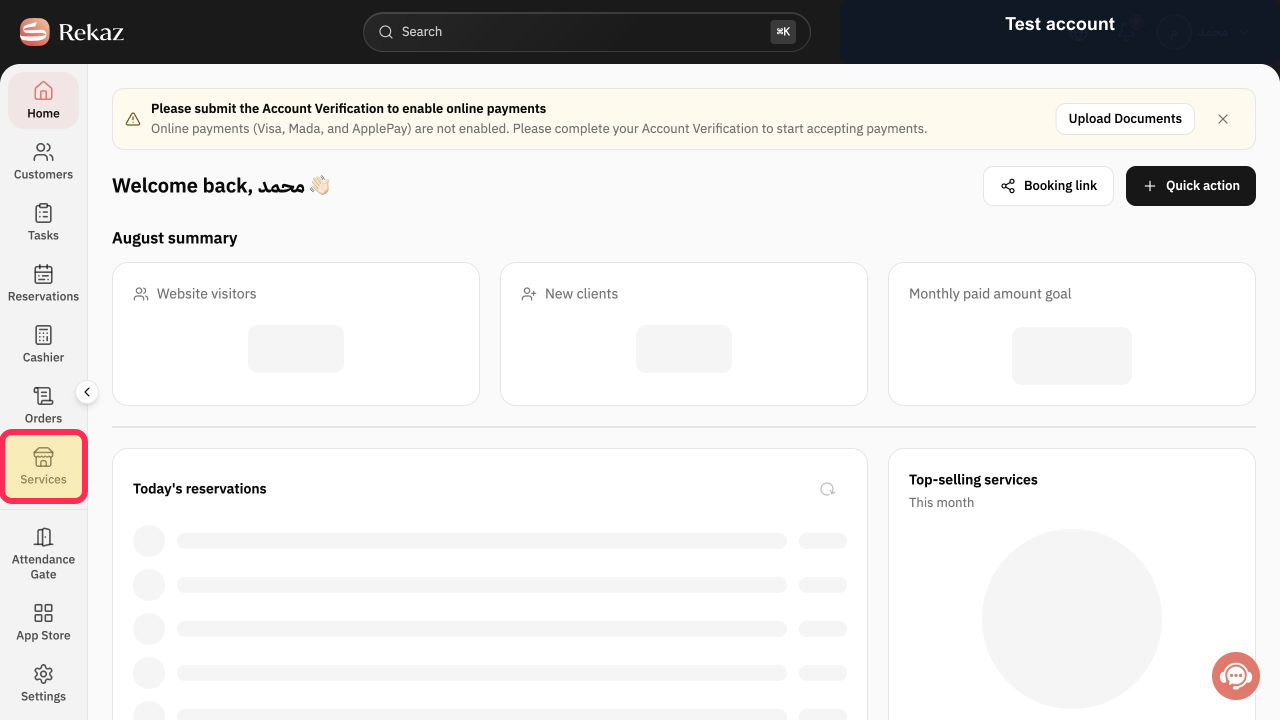
From Home, select Services in the sidebar.
The Services page opens.
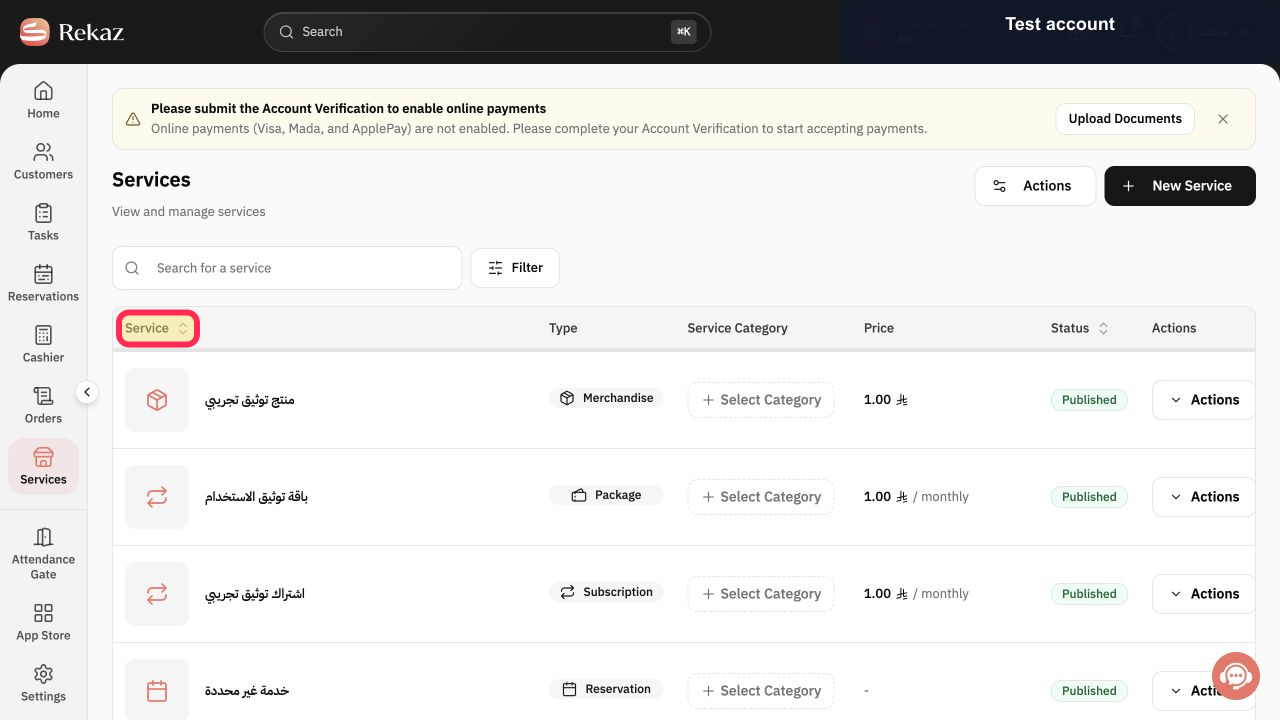
Select the Service name you want to edit.
The selected service opens in the service editor.
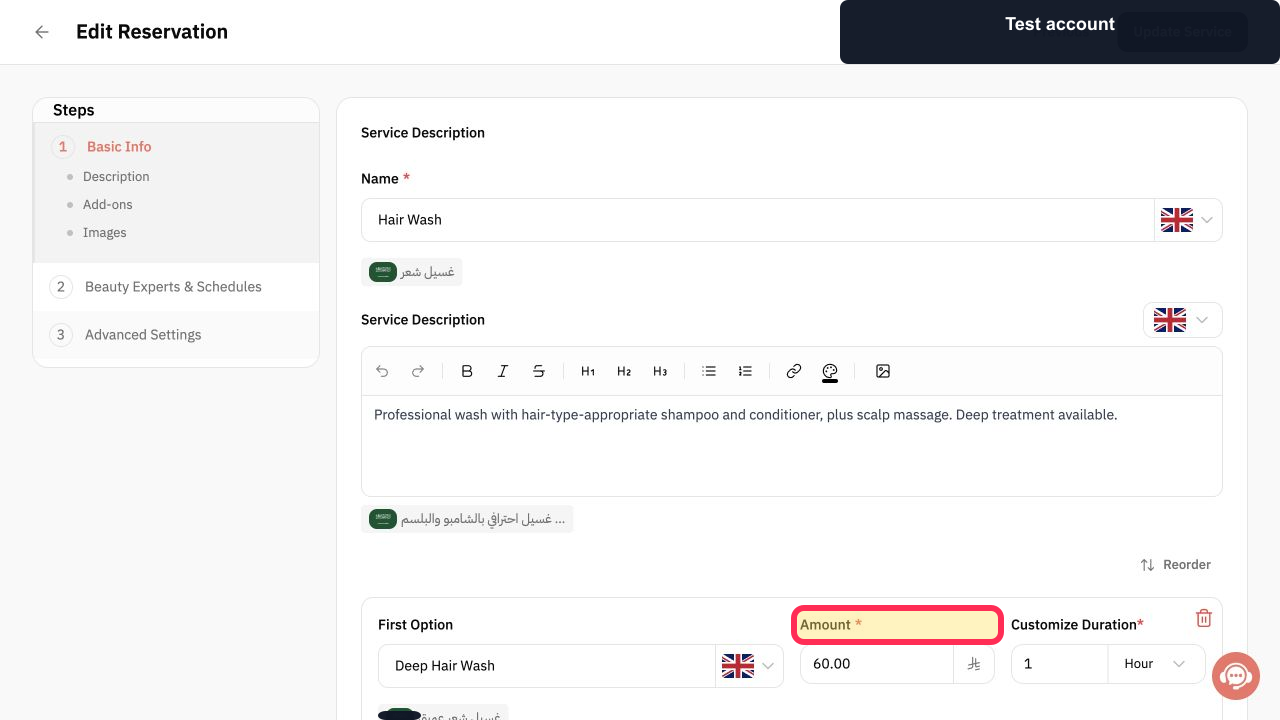
For the relevant option, enter the new value in the Amount field.
The new amount is shown for that option.
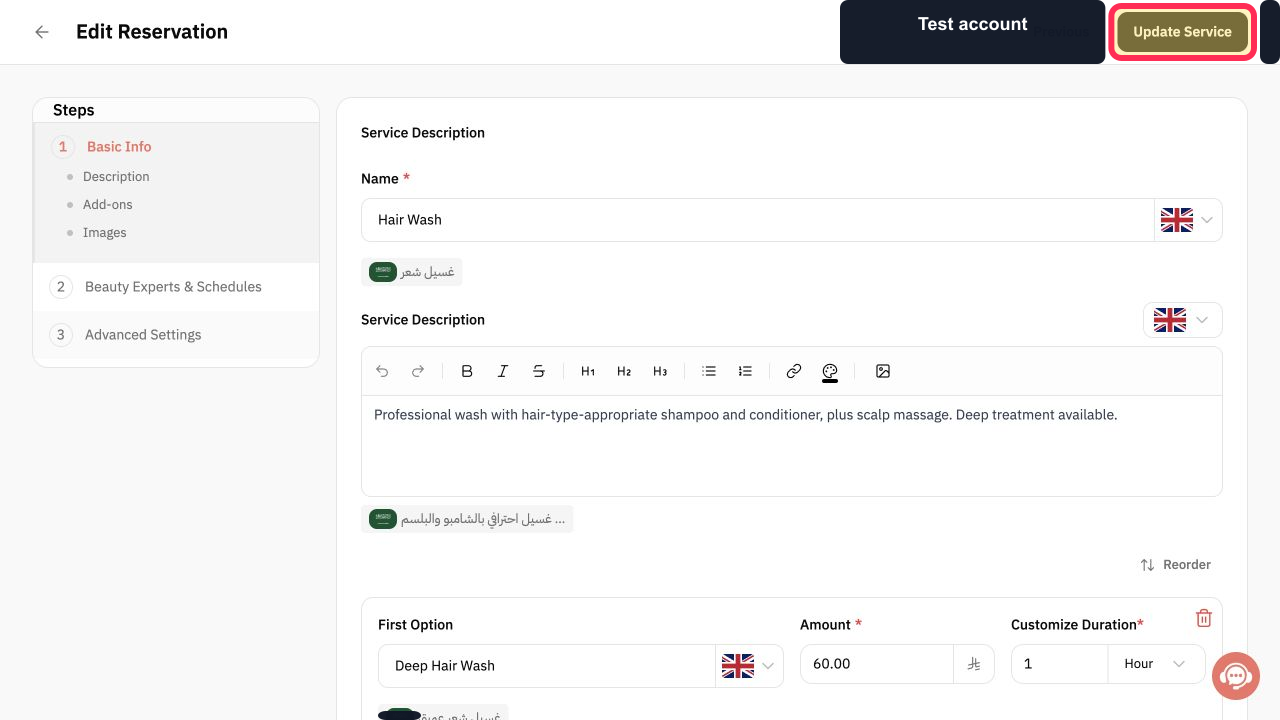
Review the price, then select Update Service.
The service editor processes the update. The saved result was not verified during the recording of this guide.
Illustrated guide
Step 1: Select Services from the sidebar.
Step 2: Open the service you want to update.
Step 3: Update the Amount for the correct service option.
Step 4: Review the price and select Update Service.
Important notes
If the service has multiple options, make sure you update the correct option.
A price change was not saved during the recording of this guide, so successful saving was not verified.
Related questions
How do I change the price of a service in Rekaz?
Where can I edit the Amount for a service option in Rekaz?
How do I save a new service price in Rekaz?


