How do I delete a service in Rekaz?
Deleting a service is a permanent action. Confirm the service name and consider its reservations, orders, packages, and website visibility before proceeding.
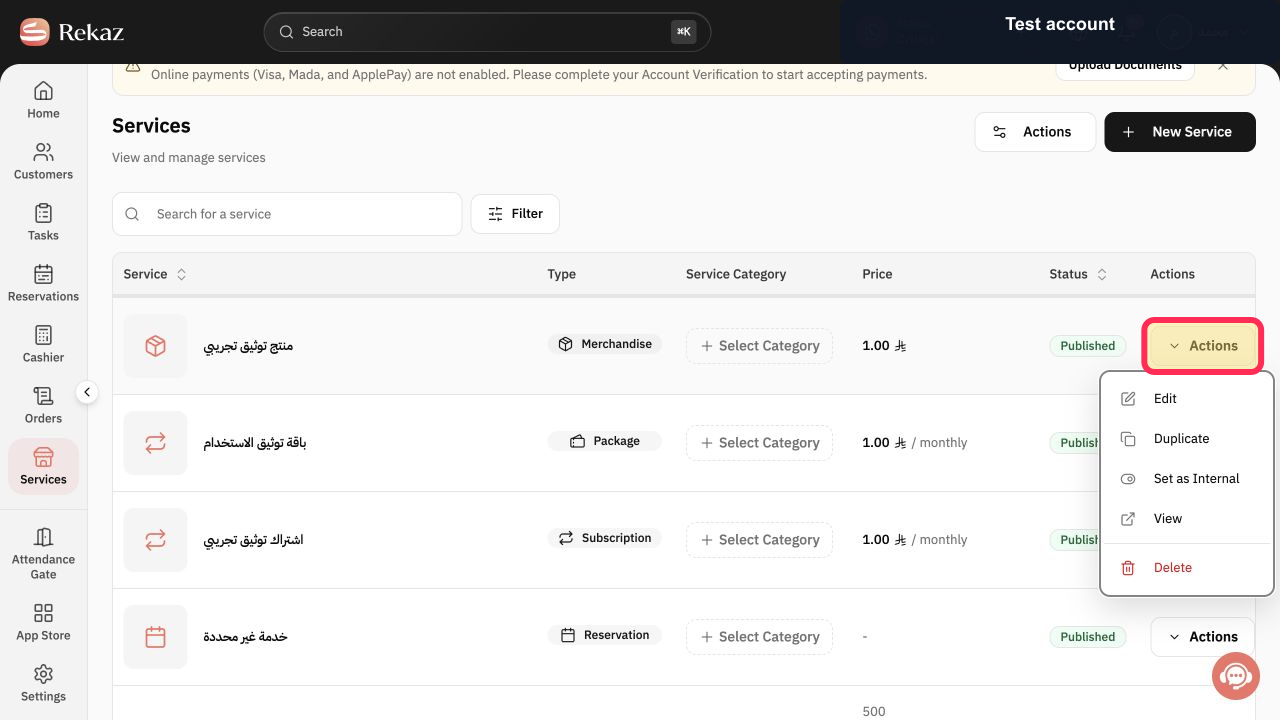
The verified Services menu currently includes Edit, Duplicate, Set as Internal, View, and Delete.
Steps
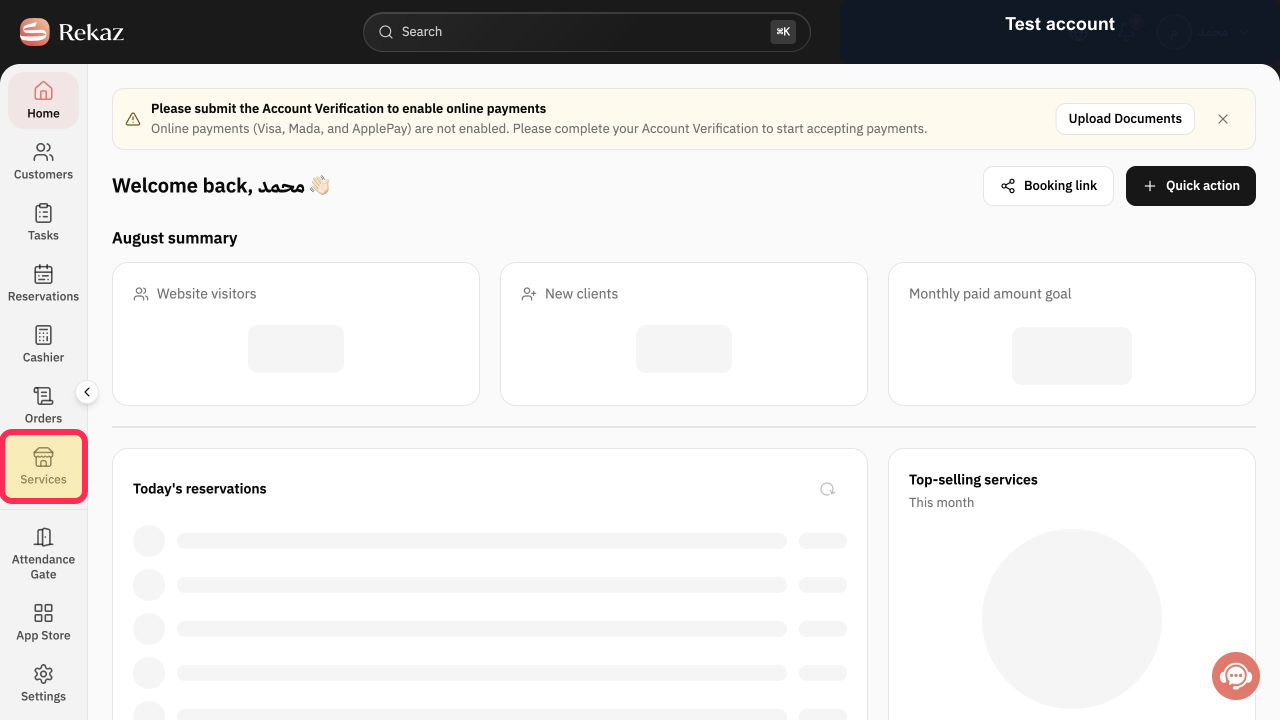
From the Rekaz navigation, select Services.
The Services list opens.
For the service you intend to remove, select Actions.
The service Actions menu opens.
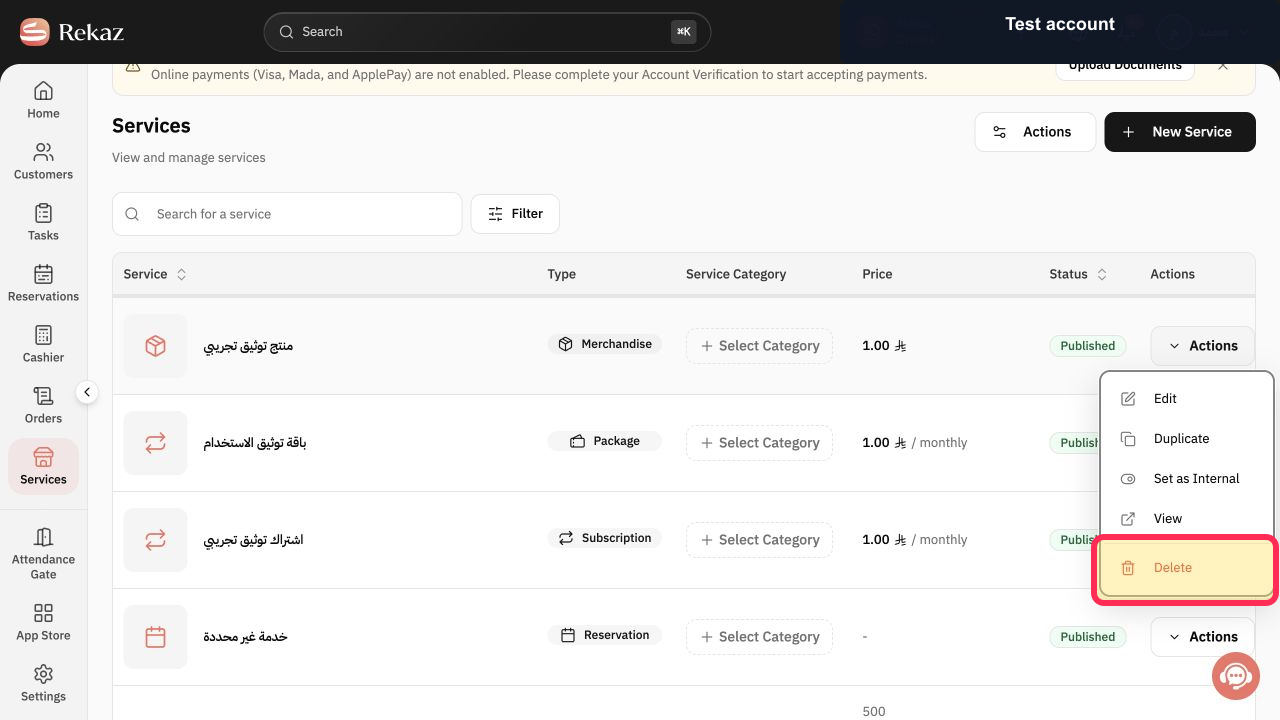
Select Delete from the Actions menu.
Rekaz opens a permanent-deletion warning for the selected service.
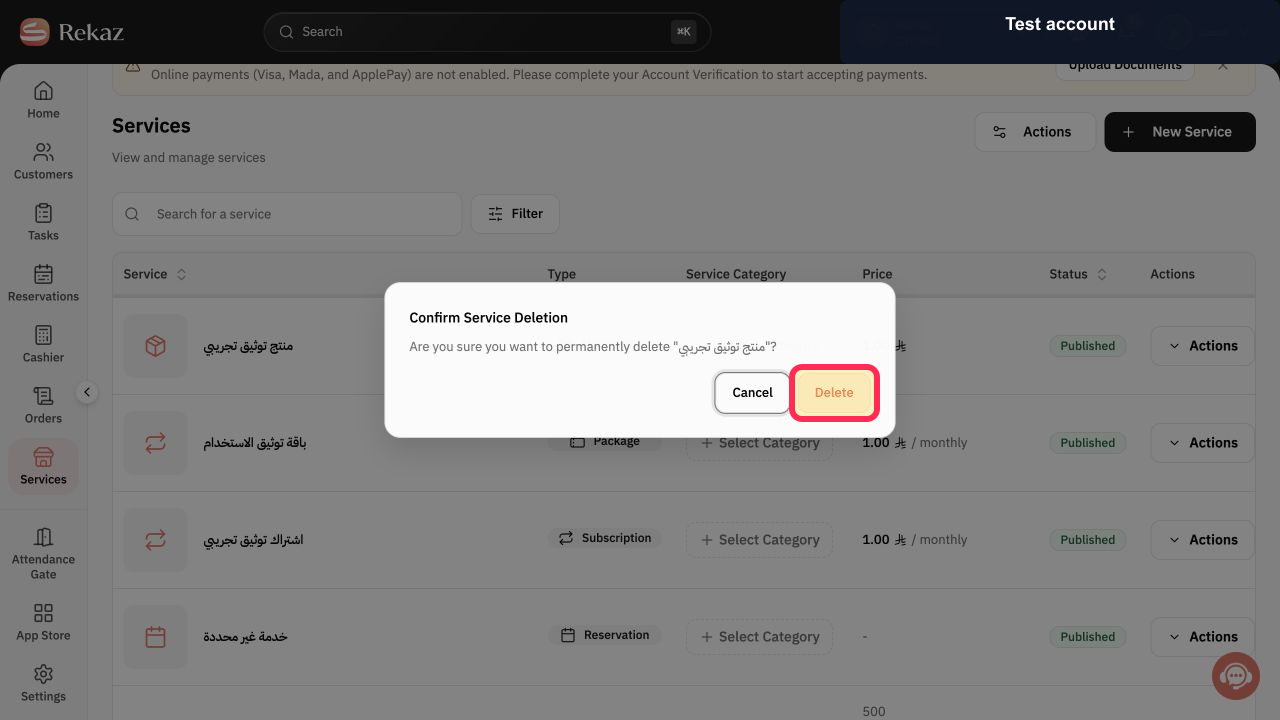
Read the Confirm Service Deletion warning and verify the service name. Select Delete only when you intend to permanently remove it; otherwise select Cancel.
The service is deleted only after the final confirmation.
Illustrated guide
Step 1: Open Services in Rekaz.
Step 2: Open the selected service's Actions menu.
Step 3: Choose Delete for the selected service.
Step 4: Confirm permanent service deletion only after reviewing the warning.
Important warning
The documented confirmation message states that deleting a service is permanent. Use this option only when you no longer need the service and its record.
No service was deleted while documenting this guide.
Related questions
How can I remove a service in Rekaz?
Where is the Delete option for a service in Rekaz?
Is deleting a service permanent in Rekaz?


