How do I create a reservation service in Rekaz?
Create a Reservation service in Rekaz from Services. Configure its basic information, price and duration, optional choices and add-ons, assigned Beauty Experts, capacity controls, website presentation, gifting, booking rules, branches, and category.
The service is not created until you select Create on the final Advanced Settings step.
Steps
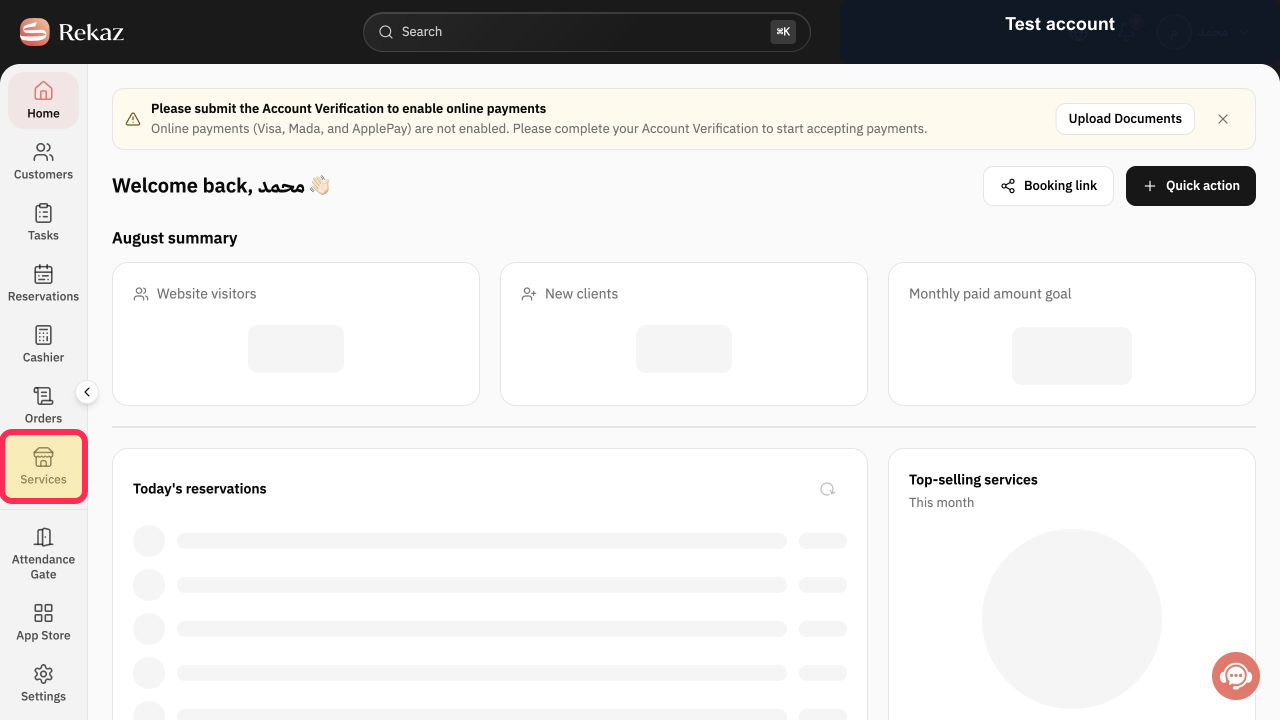
Select Services in the Rekaz sidebar.
The Services page opens.
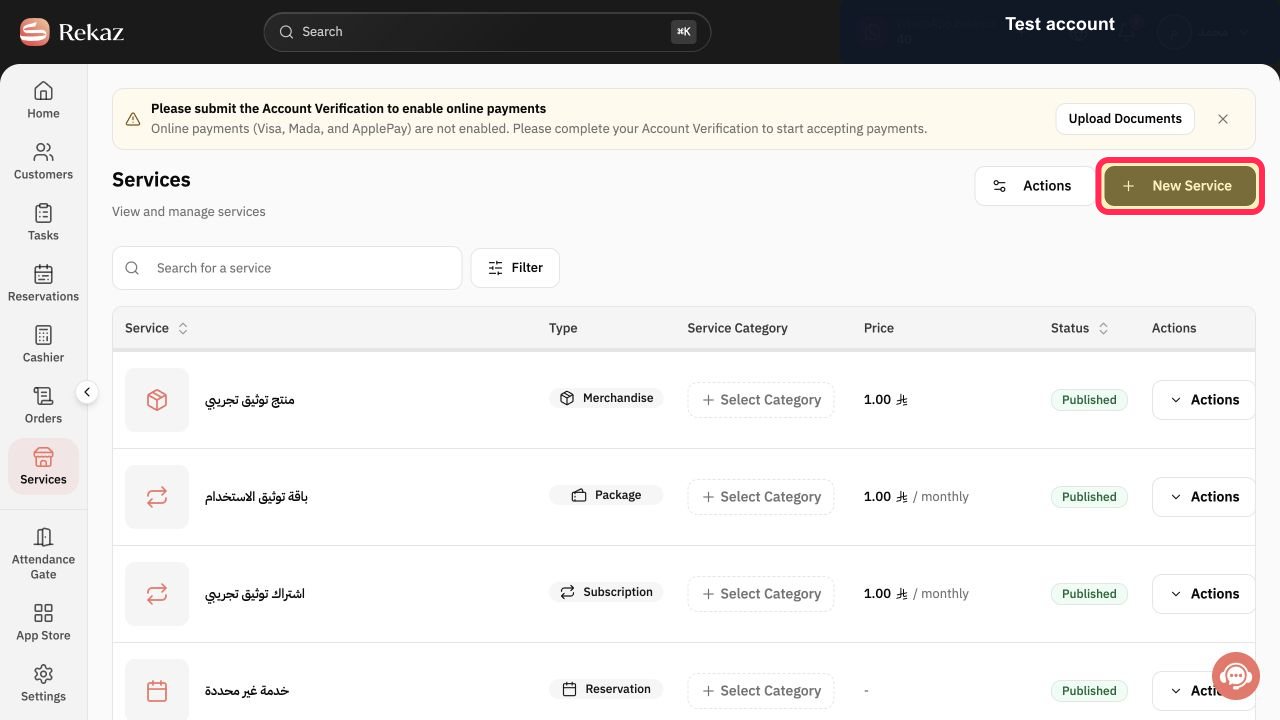
Select New Service.
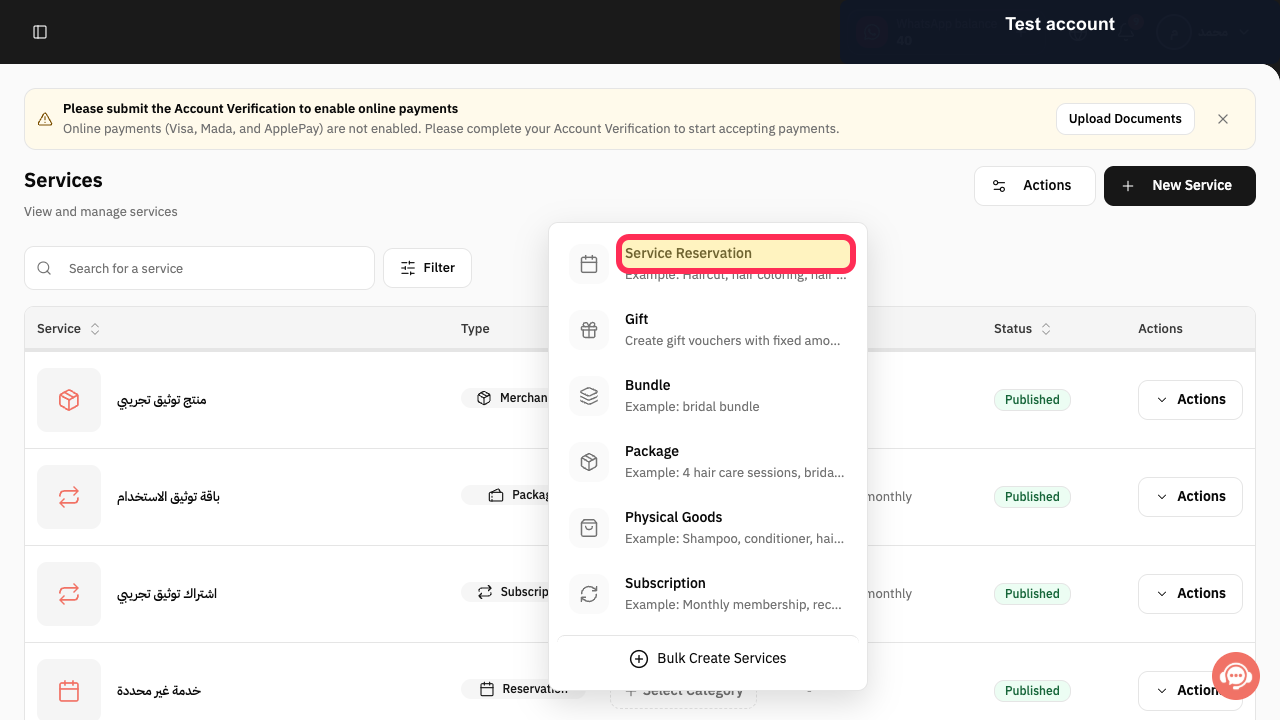
The New Service menu opens.
Select Service Reservation.
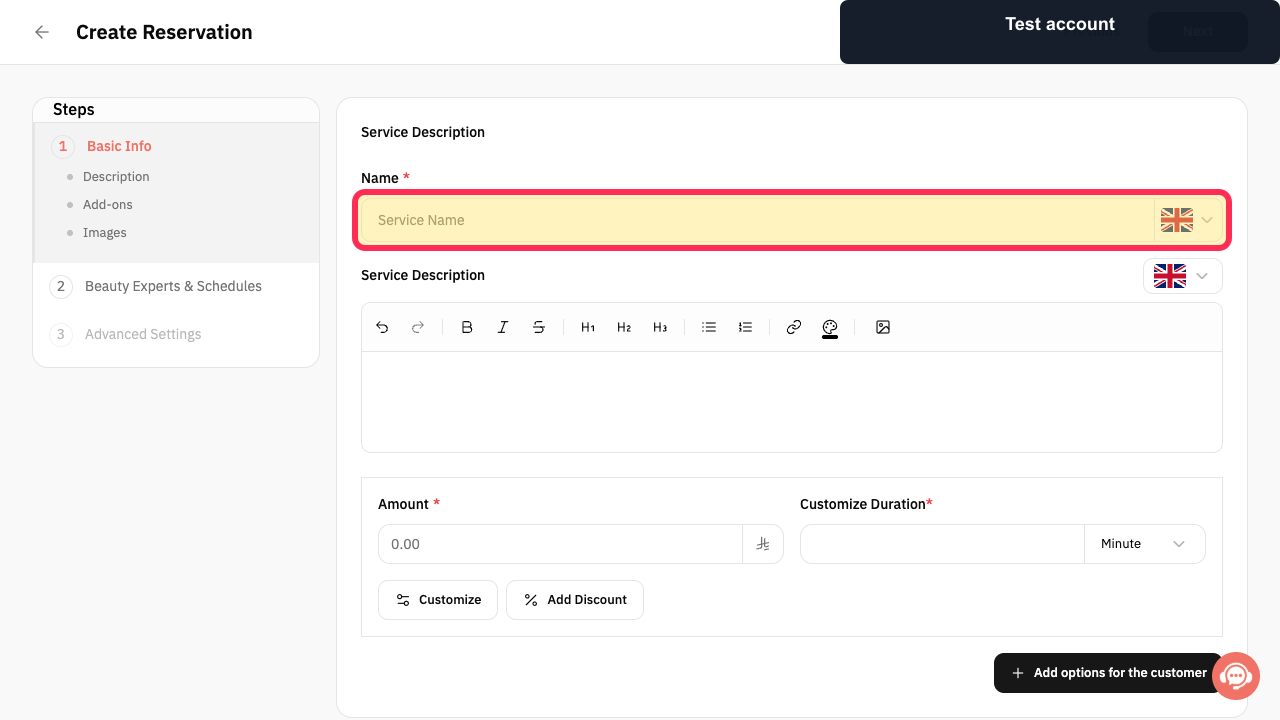
The Create Reservation service form opens at Basic Info.
Enter the service Name and, when useful, its Service Description.
The reservation service name and description are entered.
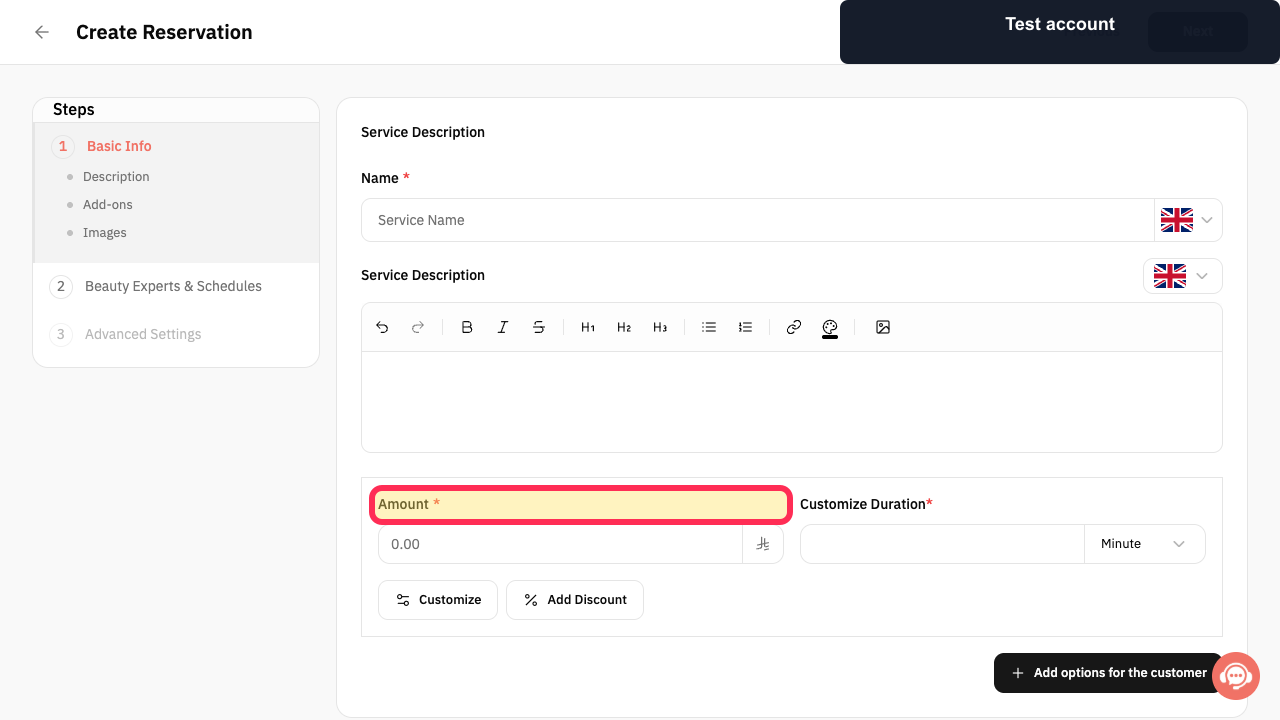
Enter Amount.
The service price is configured.
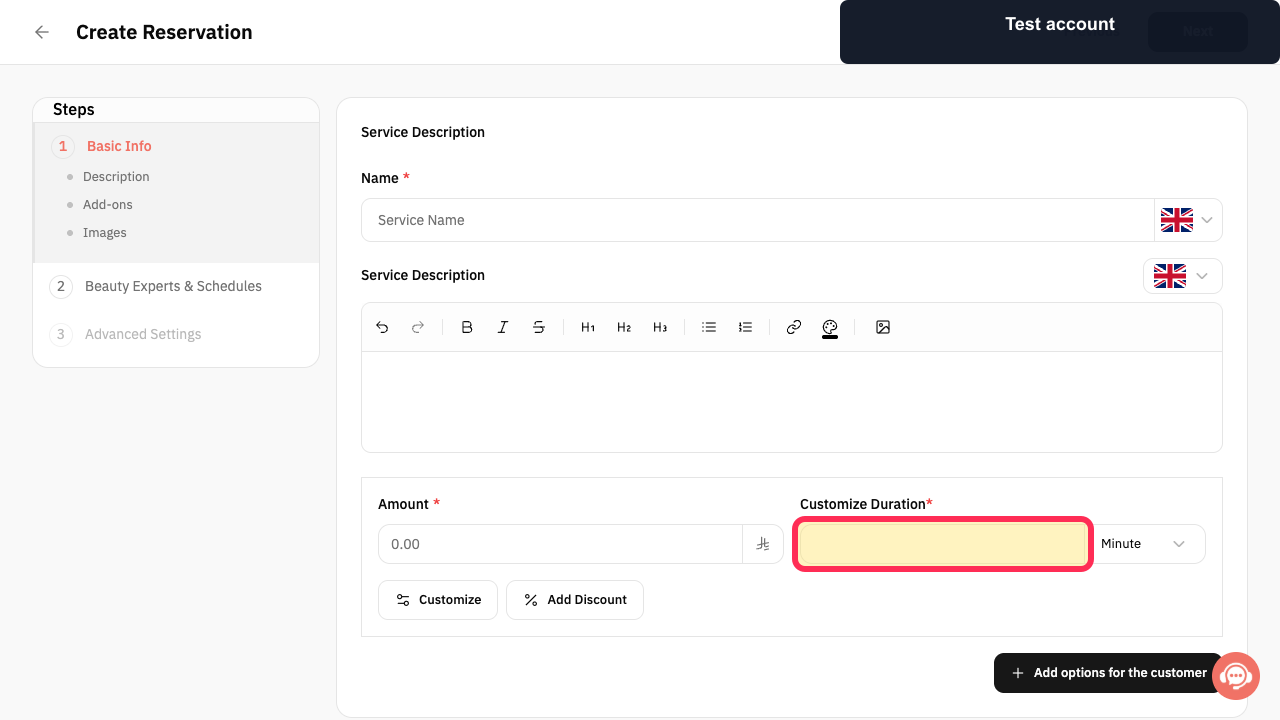
Enter Customize Duration and choose Minute or the required duration unit.
The appointment duration is configured.
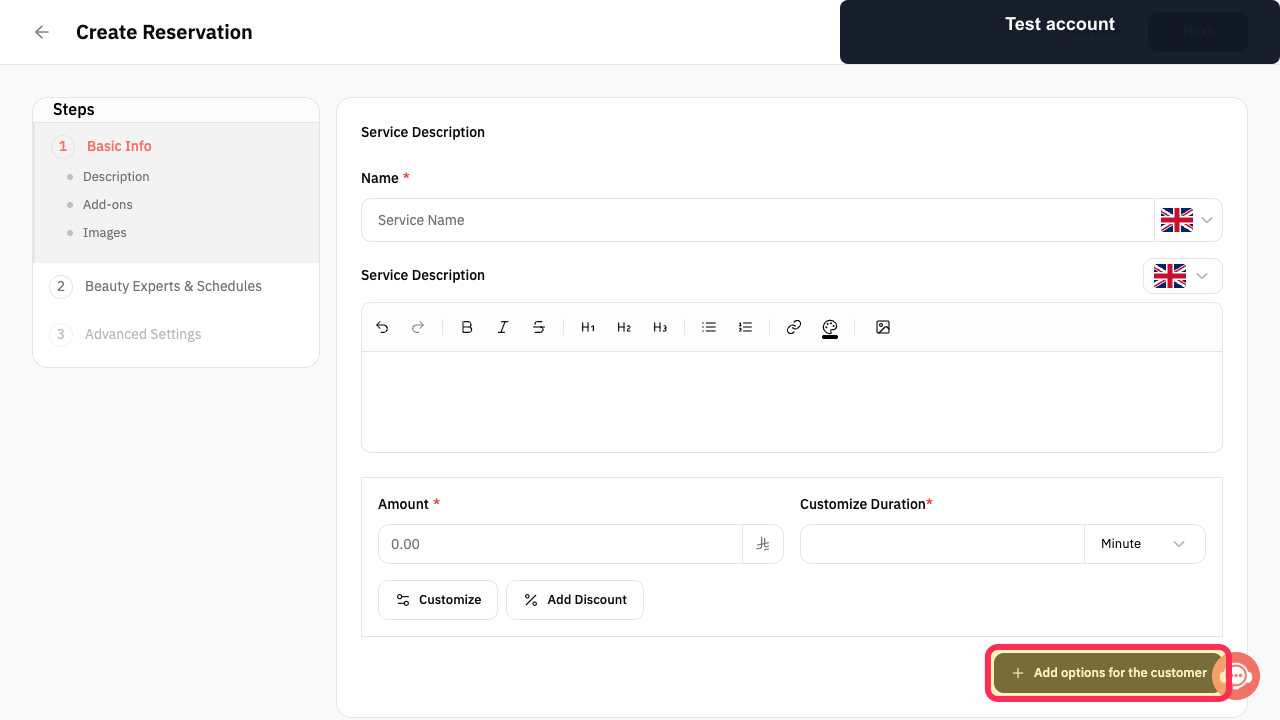
Optional: use Customize, Add Discount, or Add options for the customer when the service needs pricing or customer choices.
The selected optional configuration opens.
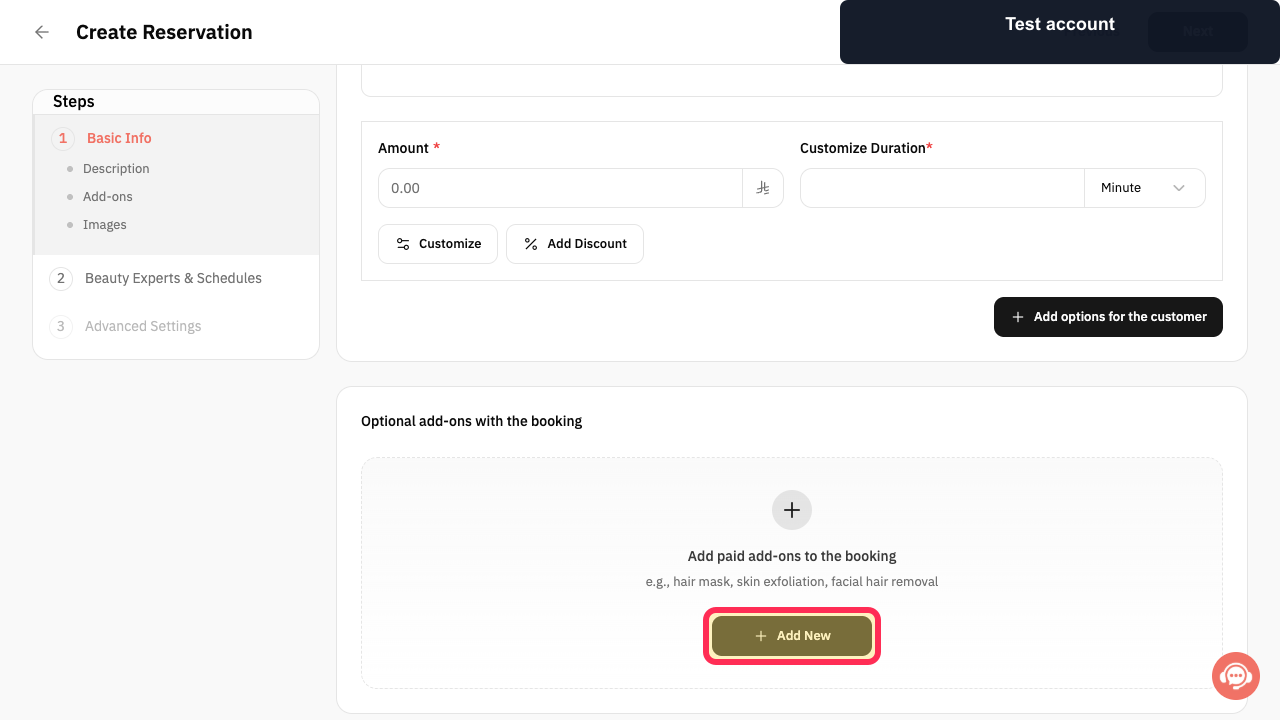
Optional: under Optional add-ons with the booking, select Add New to add a paid add-on.
A paid add-on can be configured.
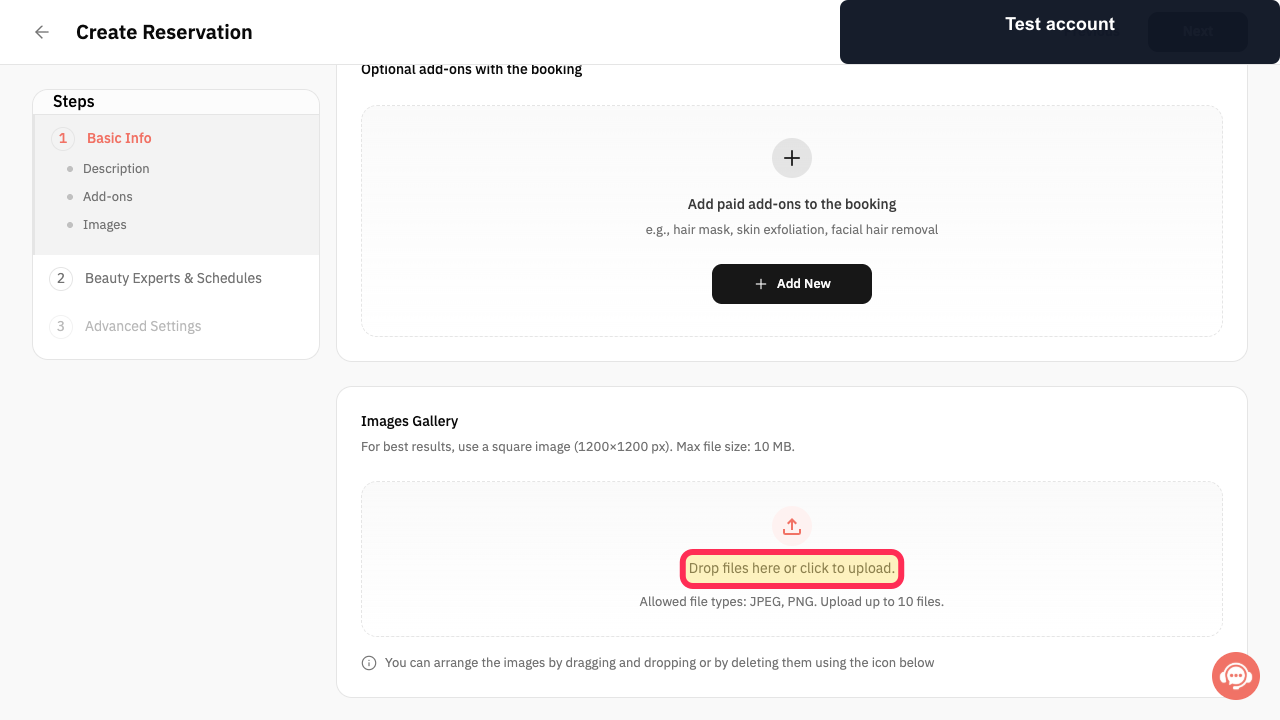
Optional: under Images Gallery, select the upload area or drop the service images onto it.
The selected images are added to the service gallery.
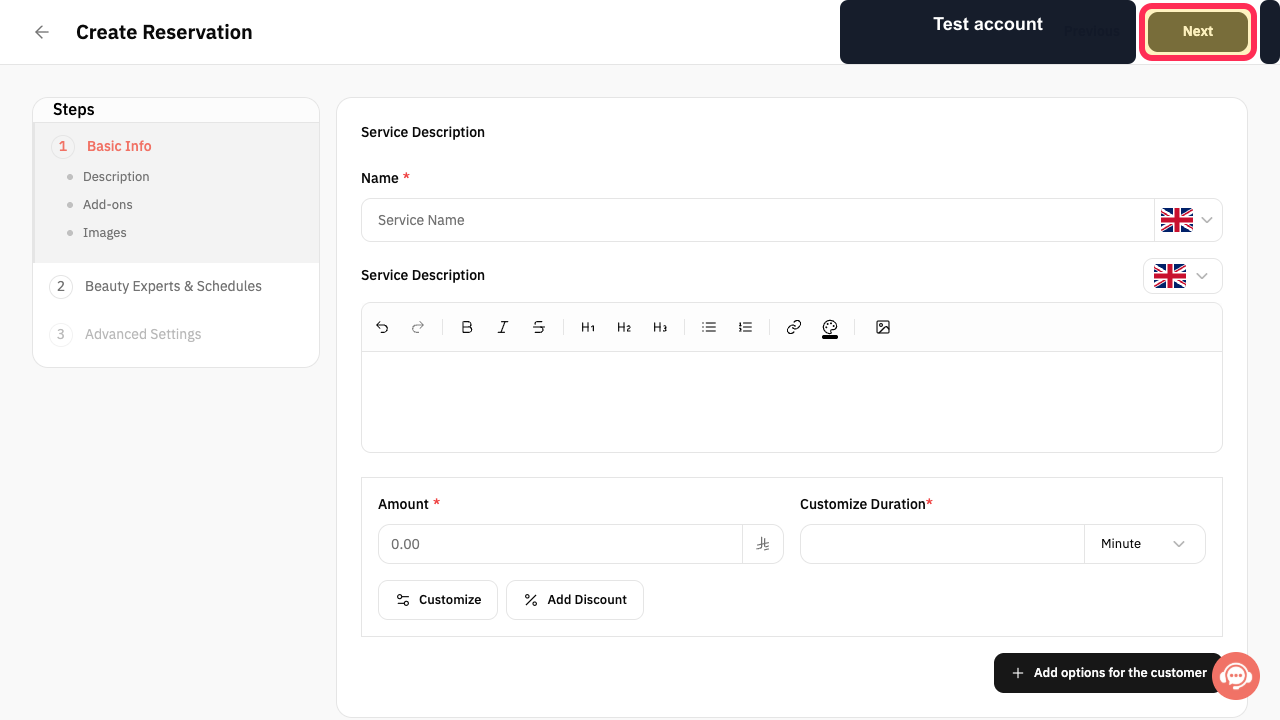
Select Next.
Beauty Experts & Schedules opens.
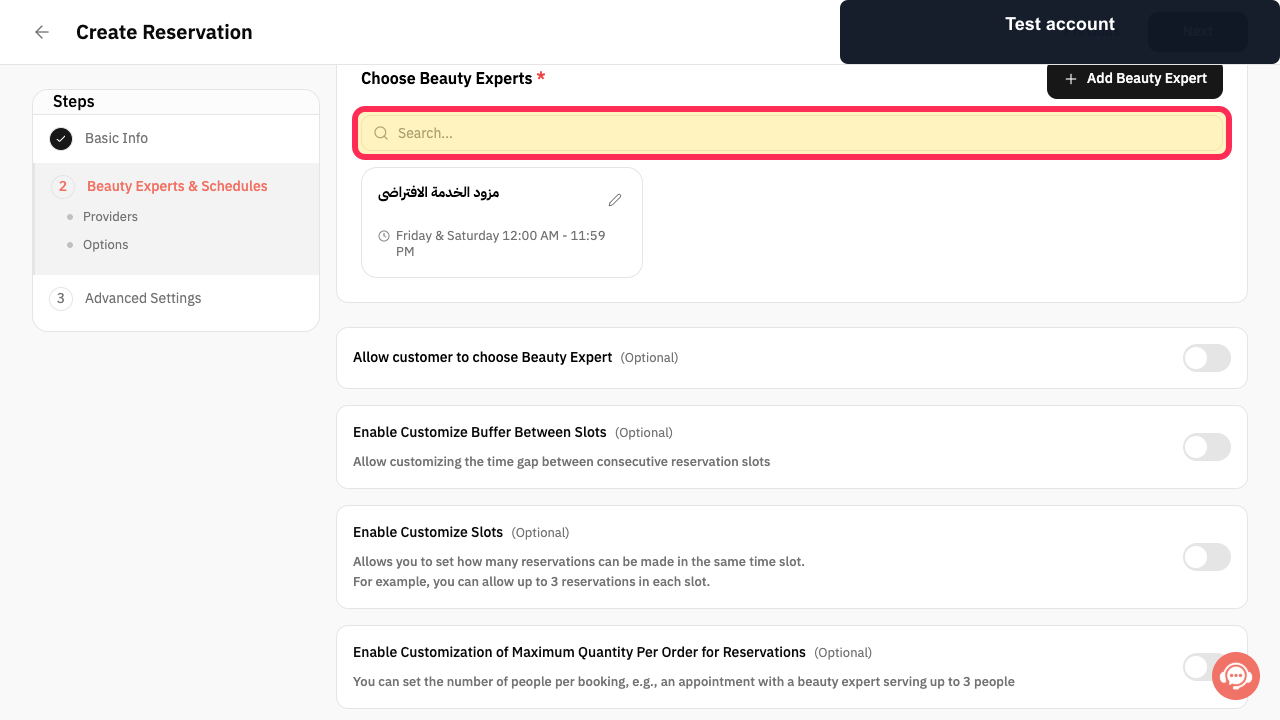
Use Search to find the required Beauty Expert, then select that expert's row.
The Beauty Expert is assigned to the reservation service.
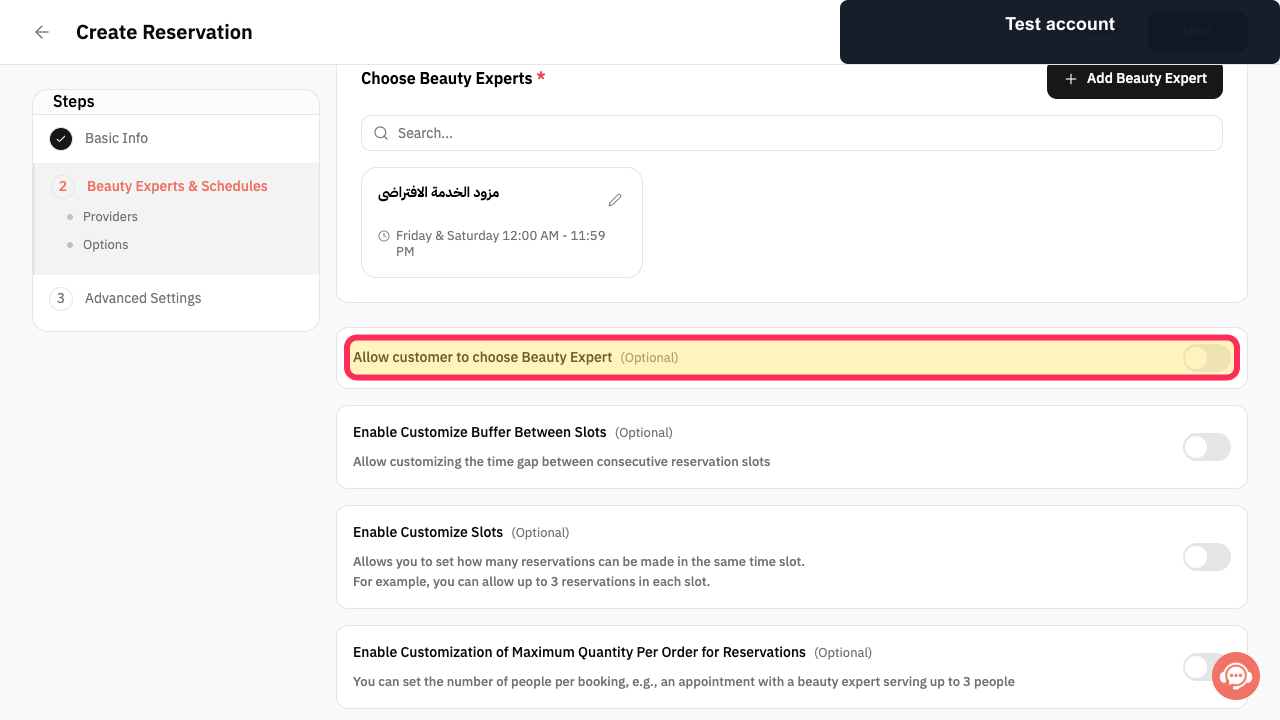
Choose whether customers may select a Beauty Expert.
Provider choice follows the selected setting.
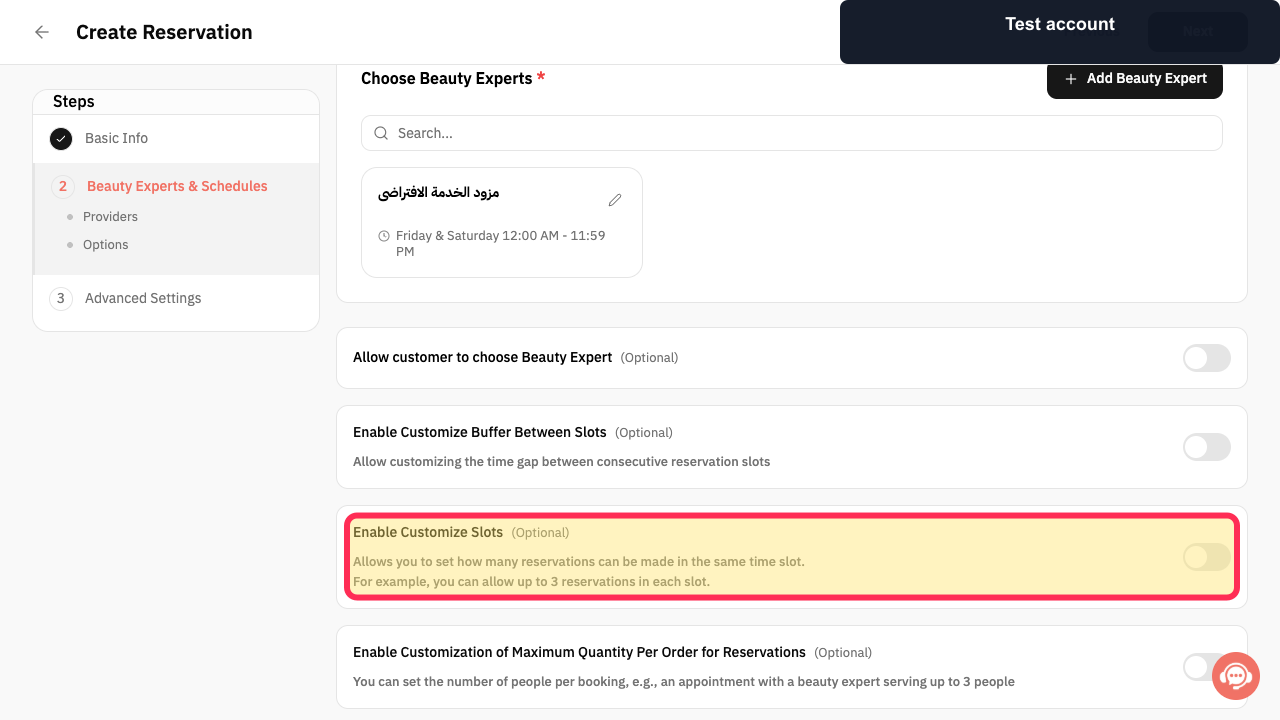
Optional: enable Customize Buffer Between Slots, Customize Slots, or Maximum Quantity Per Order when the service requires those capacity controls.
The reservation capacity and spacing rules are configured.
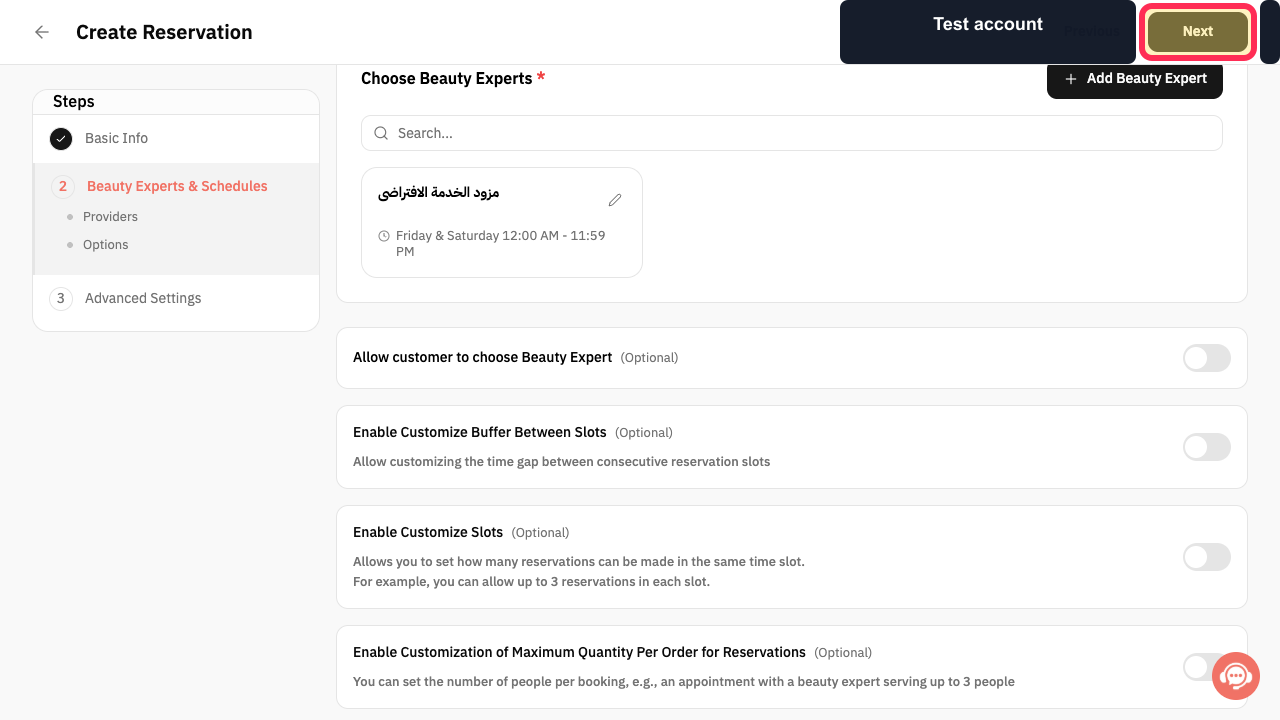
Select Next.
Advanced Settings opens.
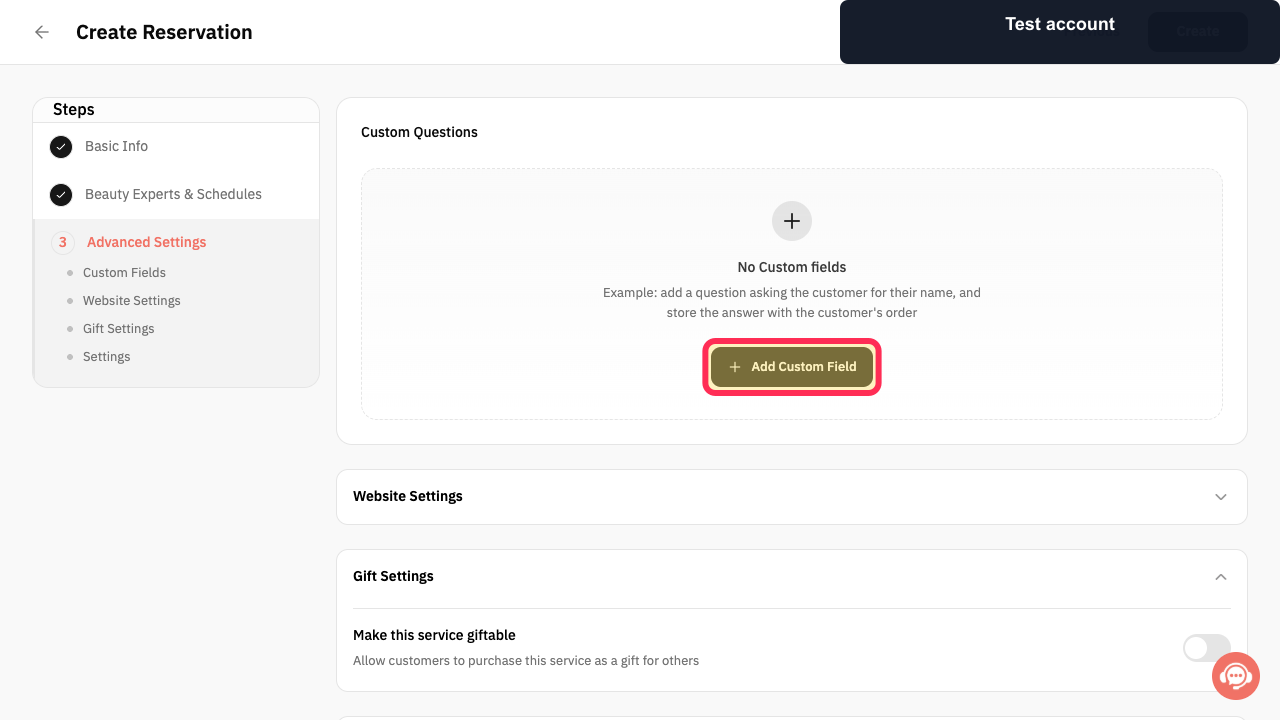
Optional: select Add Custom Field to ask customers an additional booking question.
A custom booking question can be configured.
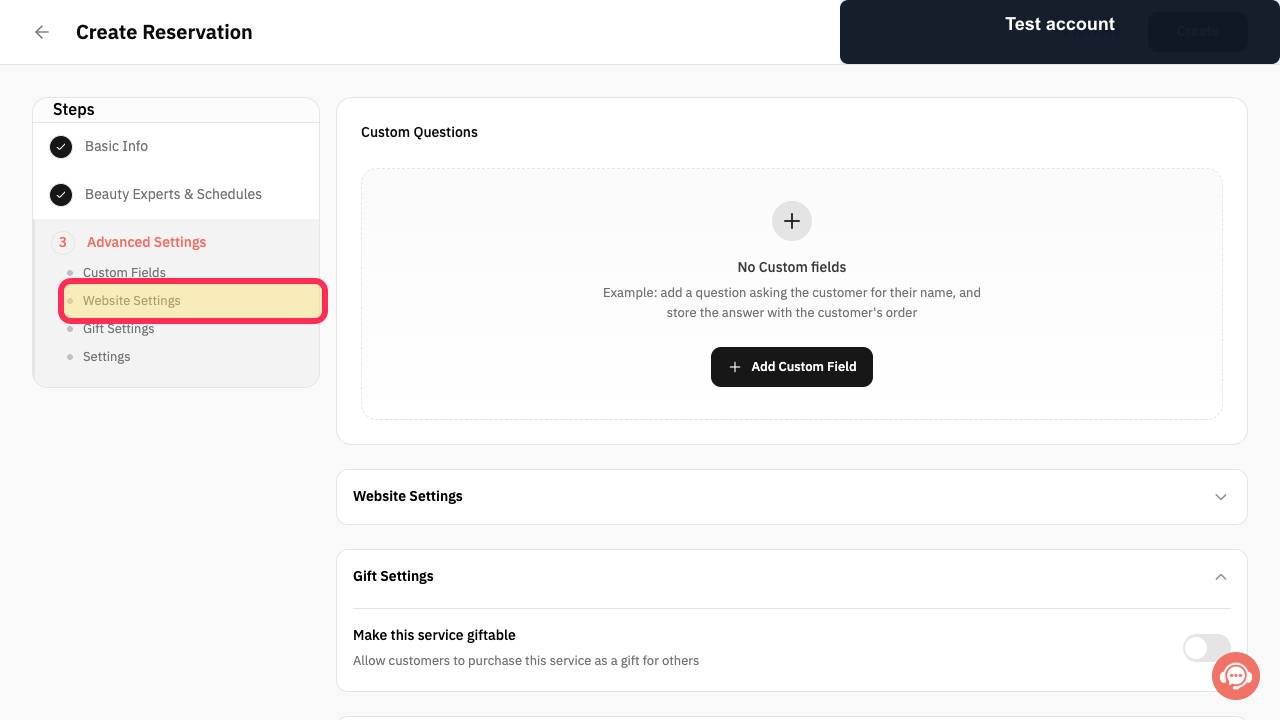
Open Website Settings when the service page needs SEO, button-label, badge, or preview changes.
The reservation service website controls expand.
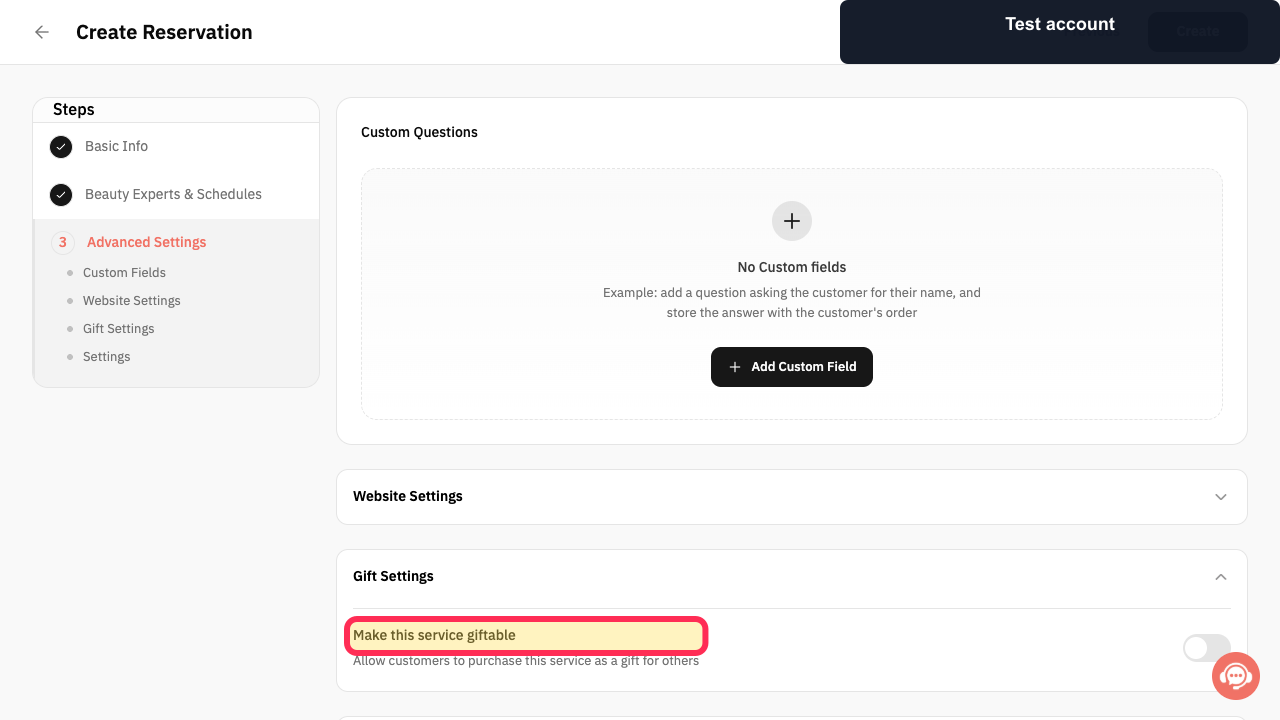
Under Gift Settings, enable Make this service giftable only when customers may purchase the reservation service as a gift.
Giftability follows the selected setting.
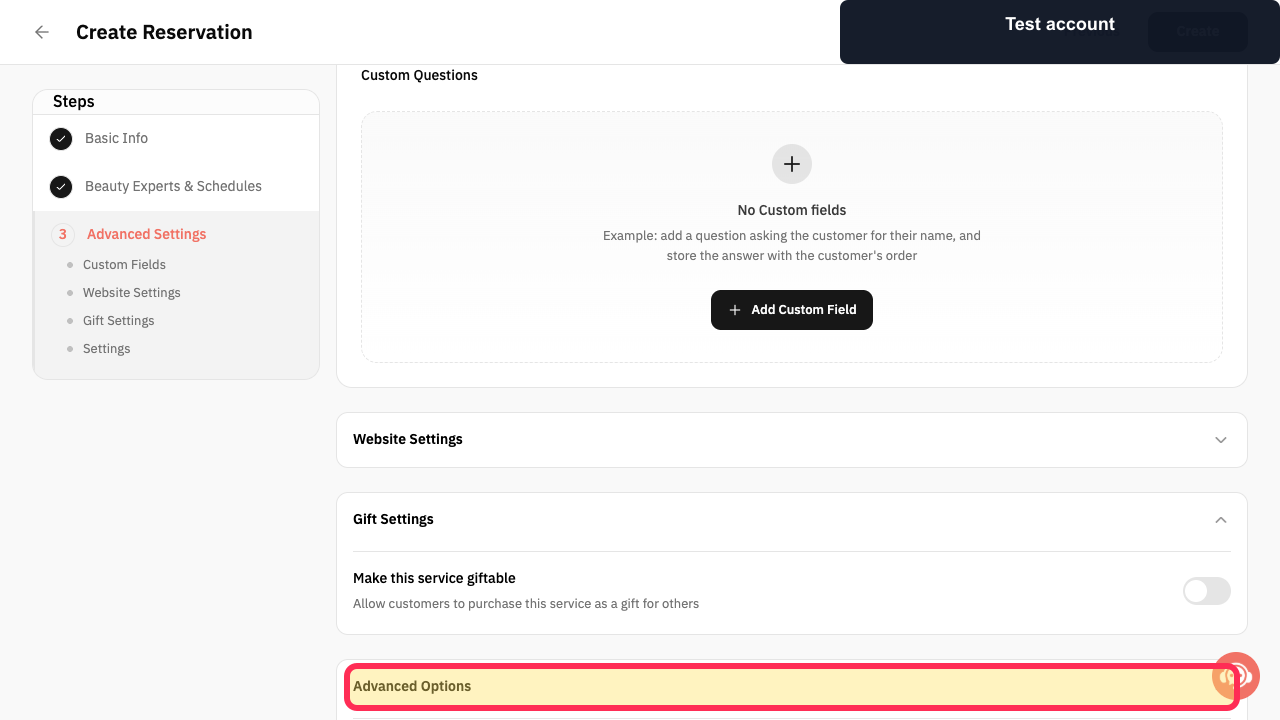
Open Advanced Options and configure slot display, Maximum Advance Booking Period, and same-day booking only when needed.
The advanced reservation rules match the intended booking policy.
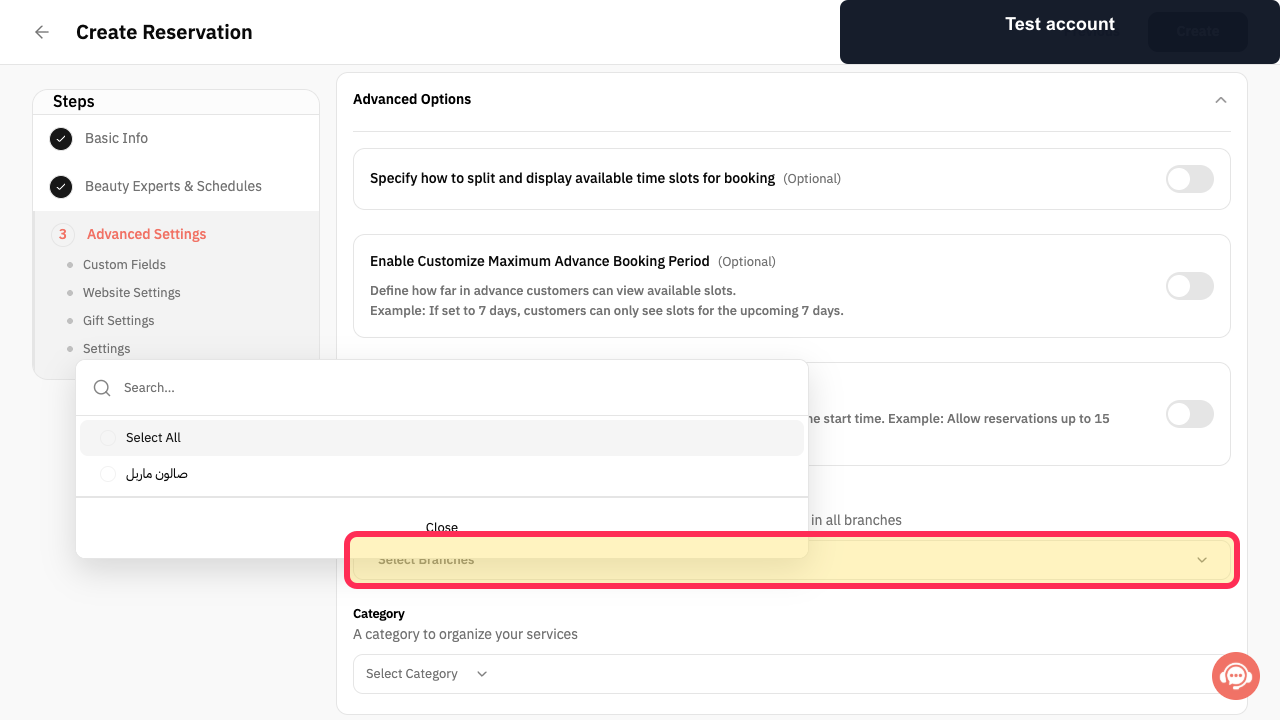
Select Select Branches when the service is limited to specific branches, and choose Select Category to organize it.
The reservation service branch availability and category are configured.
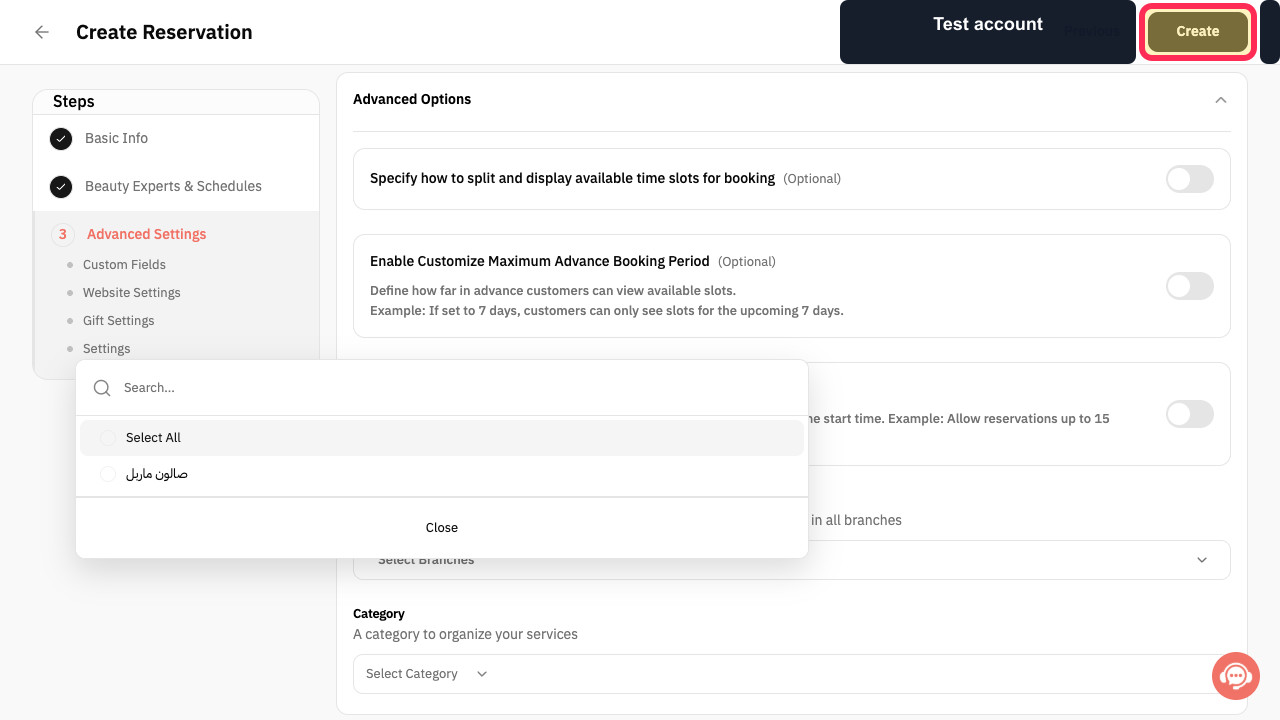
Review every stage and select Create.
The Reservation service is submitted for creation.
Illustrated guide
Step 1: Open Services from the Rekaz sidebar.
Step 2: Open the New Service menu.
Step 3: Choose Service Reservation.
Step 4: Enter the service name and description.
Step 5: Set the reservation service amount.
Step 6: Set the reservation service duration.
Step 7: Configure optional service pricing or customer choices.
Step 8: Add an optional paid booking add-on.
Step 9: Upload images in the reservation service Images Gallery.
Step 10: Continue to Beauty Experts and Schedules.
Step 11: Find and select a Beauty Expert.
Step 12: Choose whether customers select their Beauty Expert.
Step 13: Configure optional slot spacing and capacity.
Step 14: Continue to Advanced Settings.
Step 15: Add a custom reservation question.
Step 16: Open the reservation Website Settings.
Step 17: Choose whether the reservation service is giftable.
Step 18: Configure advanced reservation booking rules.
Step 19: Choose service branches and category.
Step 20: Create the Reservation service.
Required information
A reservation service requires a service name, an amount, a reservation duration, and at least one service provider.
Service name
Amount and reservation duration
At least one provider
Important note
The screenshots stop before Create is selected and do not show the final post-click screen.
Related questions
How do I add a new service in Rekaz?
How do I create a service that customers can book in Rekaz?
Where do I set a service price and duration in Rekaz?


