How do I export customers in Rekaz?
Customer exports are available from Actions at the top of the Customers page.
Exported files can contain customer personal data. Store and share them only with authorised people and according to the business's retention policy.
Steps
From the Rekaz sidebar, select Customers to open the customer export page.
The Customers page opens.
At the top of the Customers page, select Actions to open the export options.
The page-level Actions menu opens.
Select Export as Excel when you need an XLSX customer file.
Rekaz prepares the customer export as an Excel file.
Select Export as PDF instead when you need a PDF customer file.
Rekaz prepares the customer export as a PDF file.
Illustrated guide
Step 1: Open Customers for the customer export.
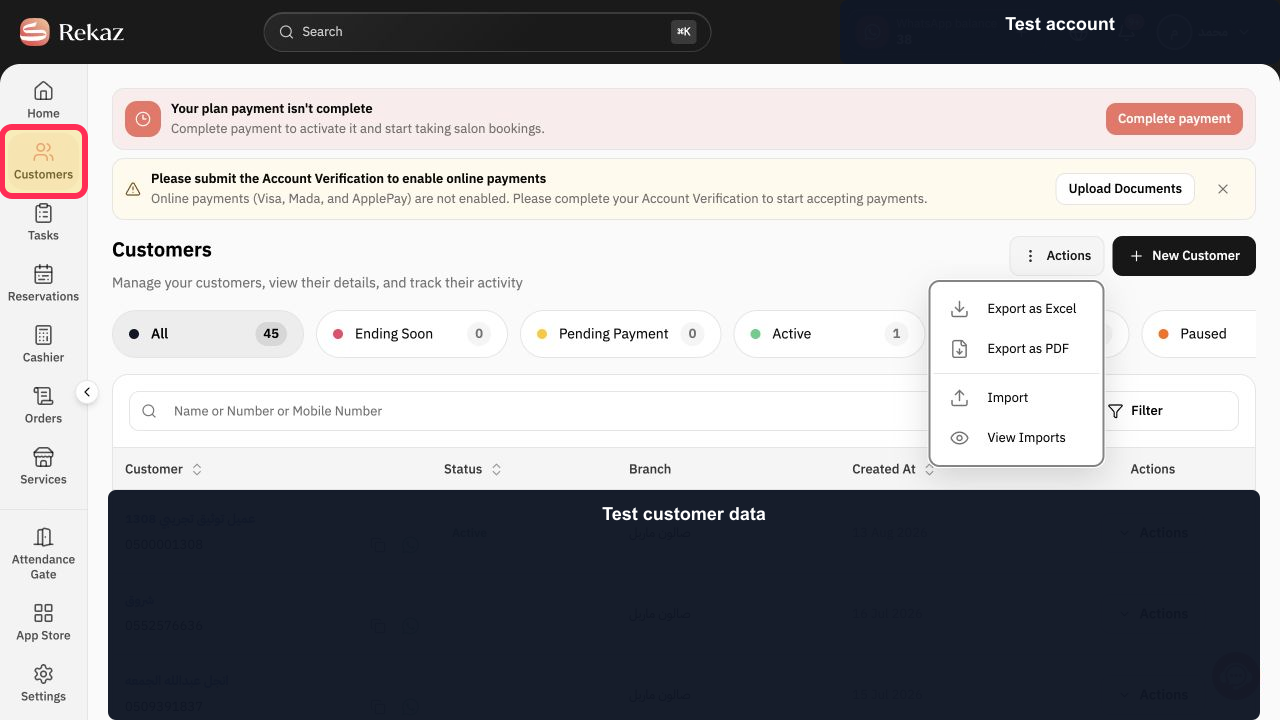
Step 2: Open the customer export Actions menu.
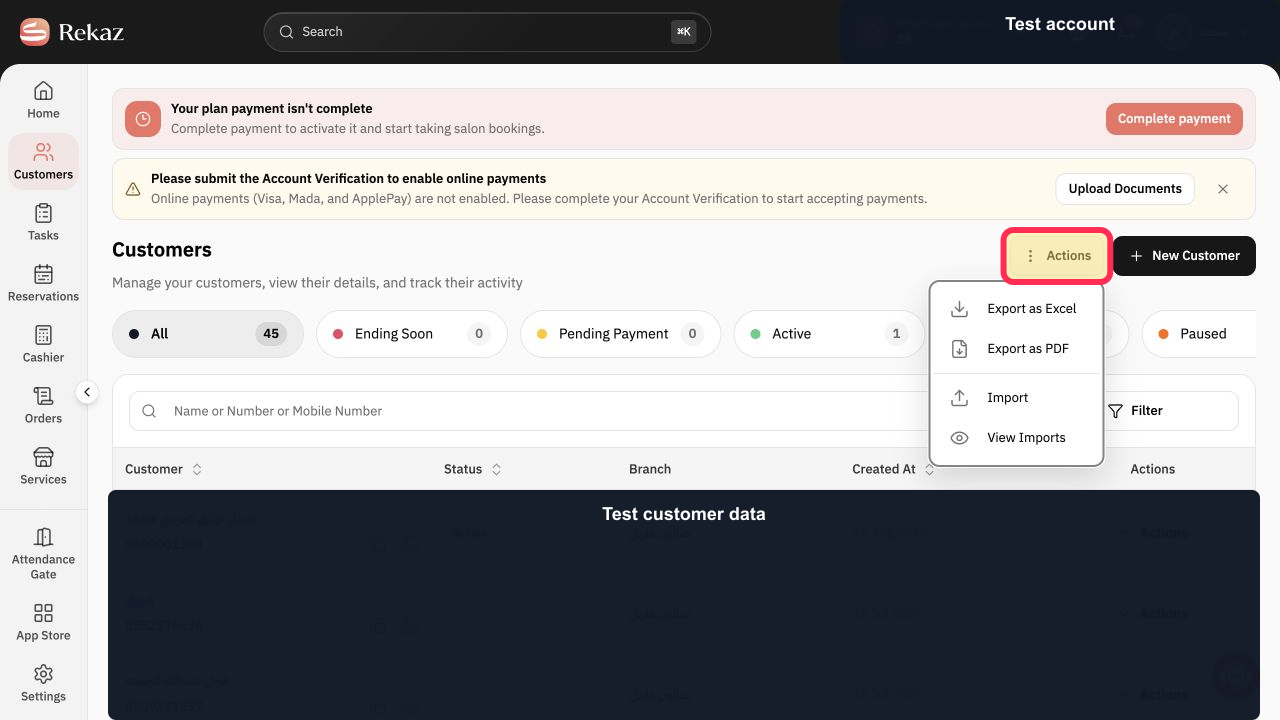
Step 3: Export the customer list as Excel.
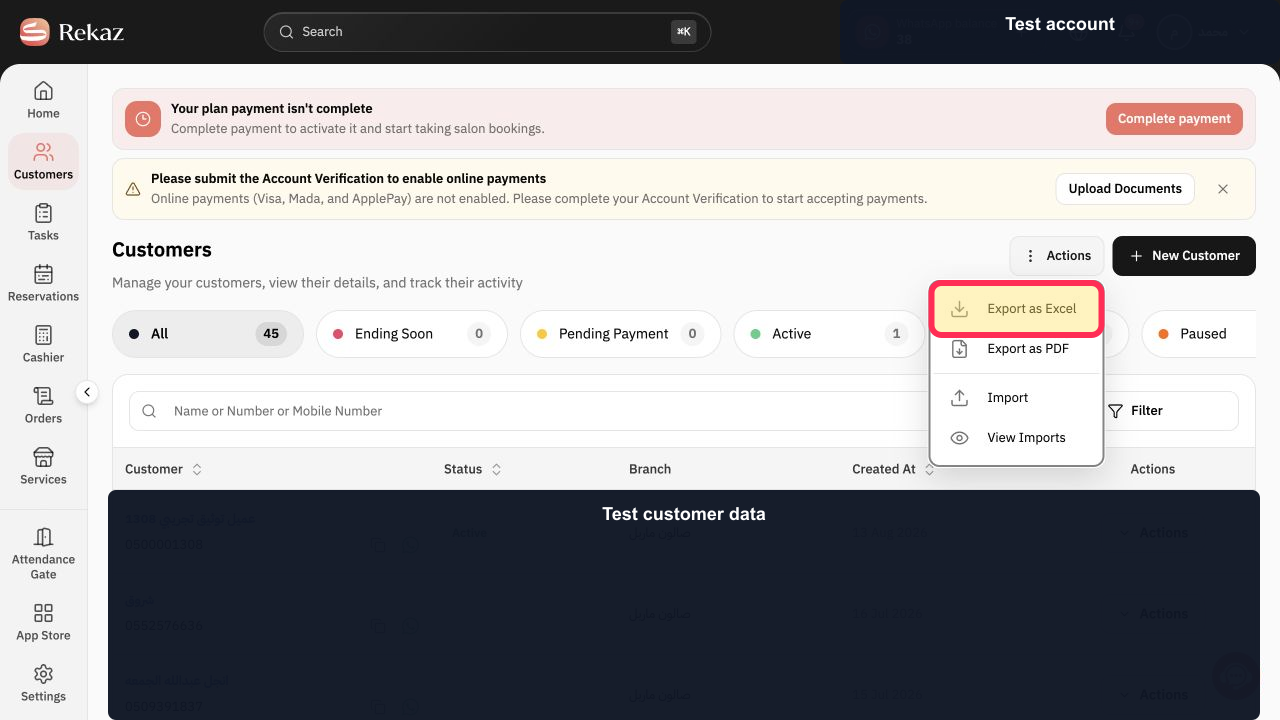
Step 4: Export the customer list as PDF.
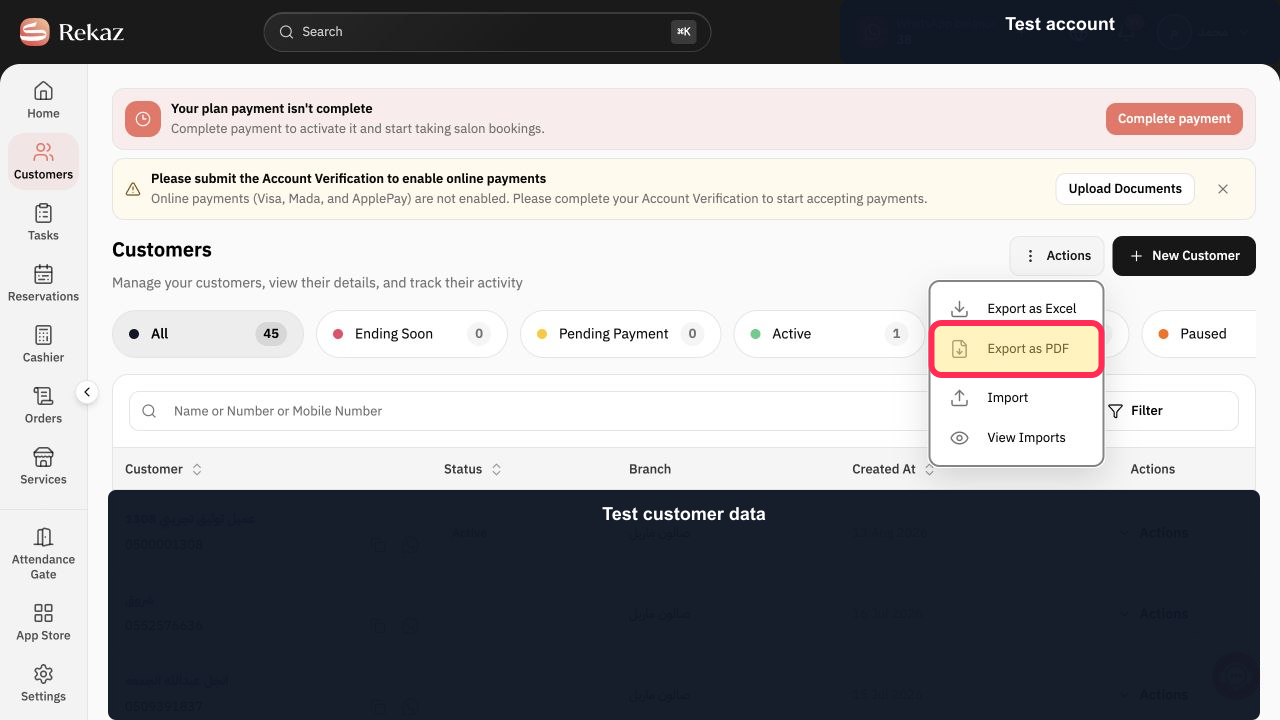
Available export formats
Rekaz currently supports customer exports in .xlsx and PDF formats only.
You can open .xlsx files in Microsoft Excel, Google Sheets, or Apple Numbers.
Export timing and cost
Exporting customers is free.
Exports start directly in Rekaz. The time needed depends on how many customers are registered in your account.
Related questions
Can I export my customer list as an Excel file in Rekaz?
Can I export customers as a PDF in Rekaz?
Is exporting customers free in Rekaz?
How long does it take to export customers in Rekaz?


