How do I enable and manage customer reviews in Rekaz?
Rekaz Customer Reviews lets you allow customers to rate their experience, anonymize reviewer names in public reviews, and automatically send a WhatsApp rating request after an experience.
Steps
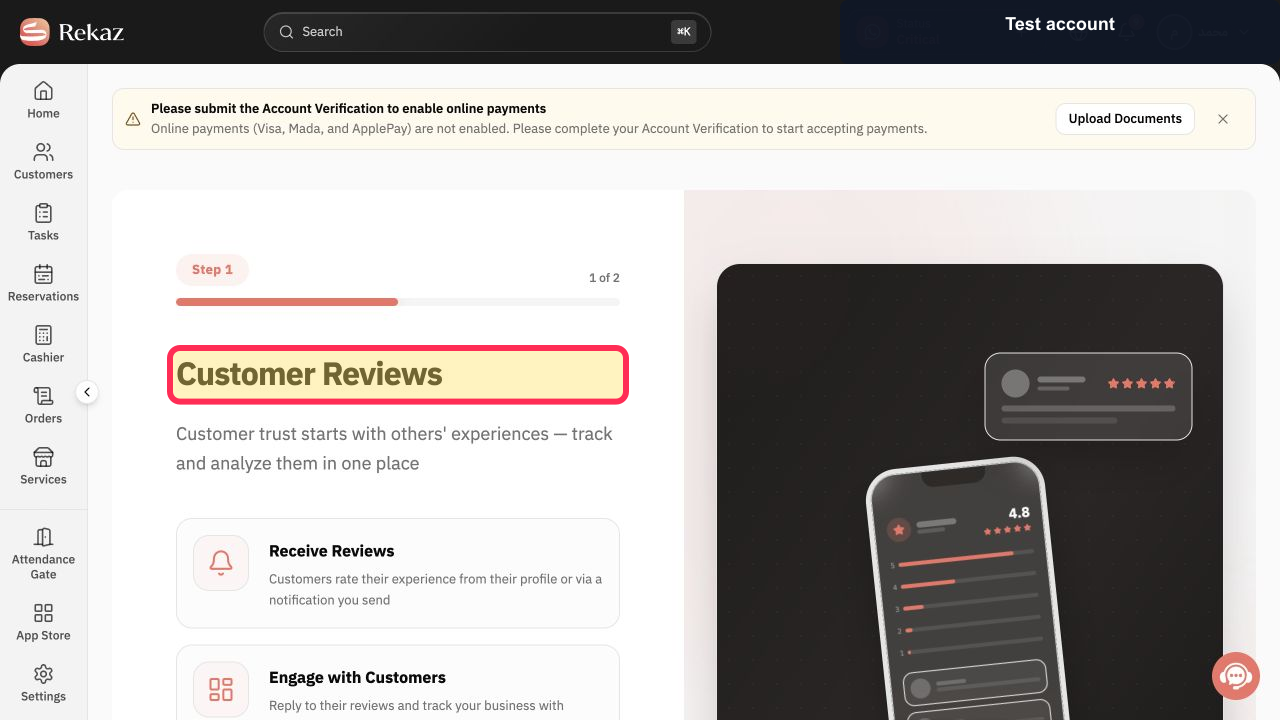
On the Customer Reviews page, verify that you are in the customer-review area.
The Customer Reviews heading is visible.
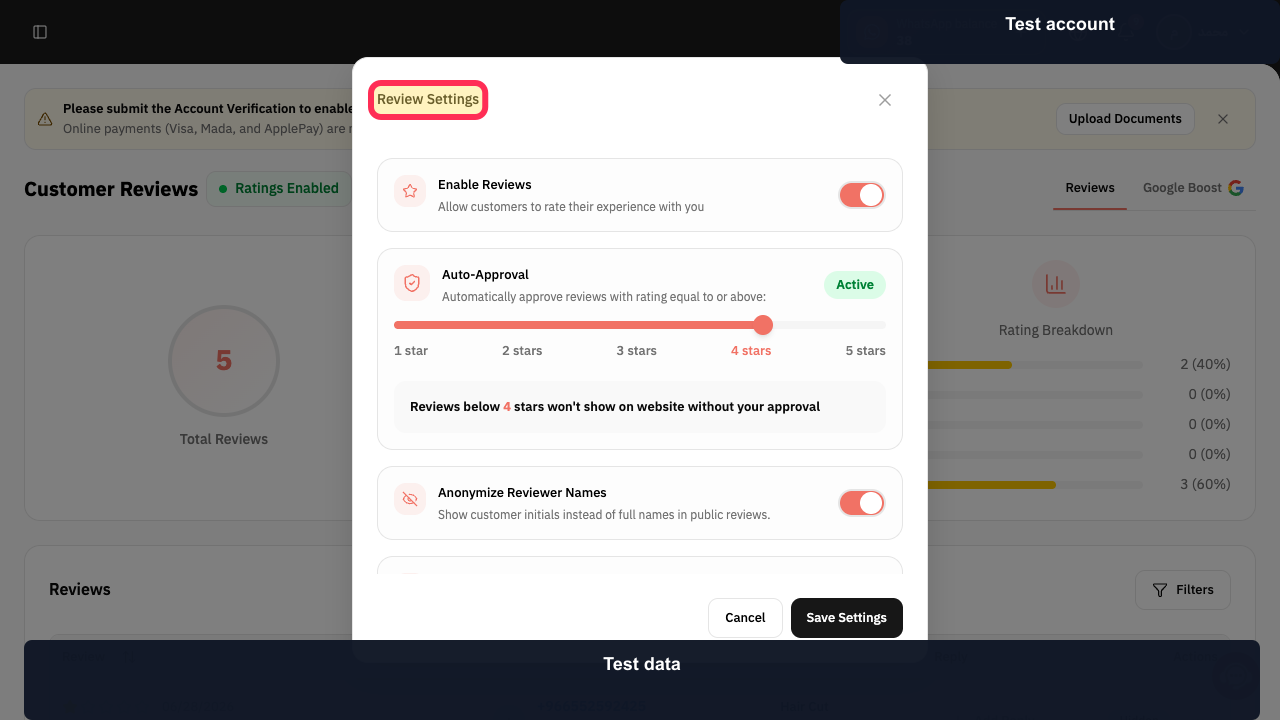
In the settings panel, verify that Review Settings is open before changing review options.
The Review Settings heading is visible.
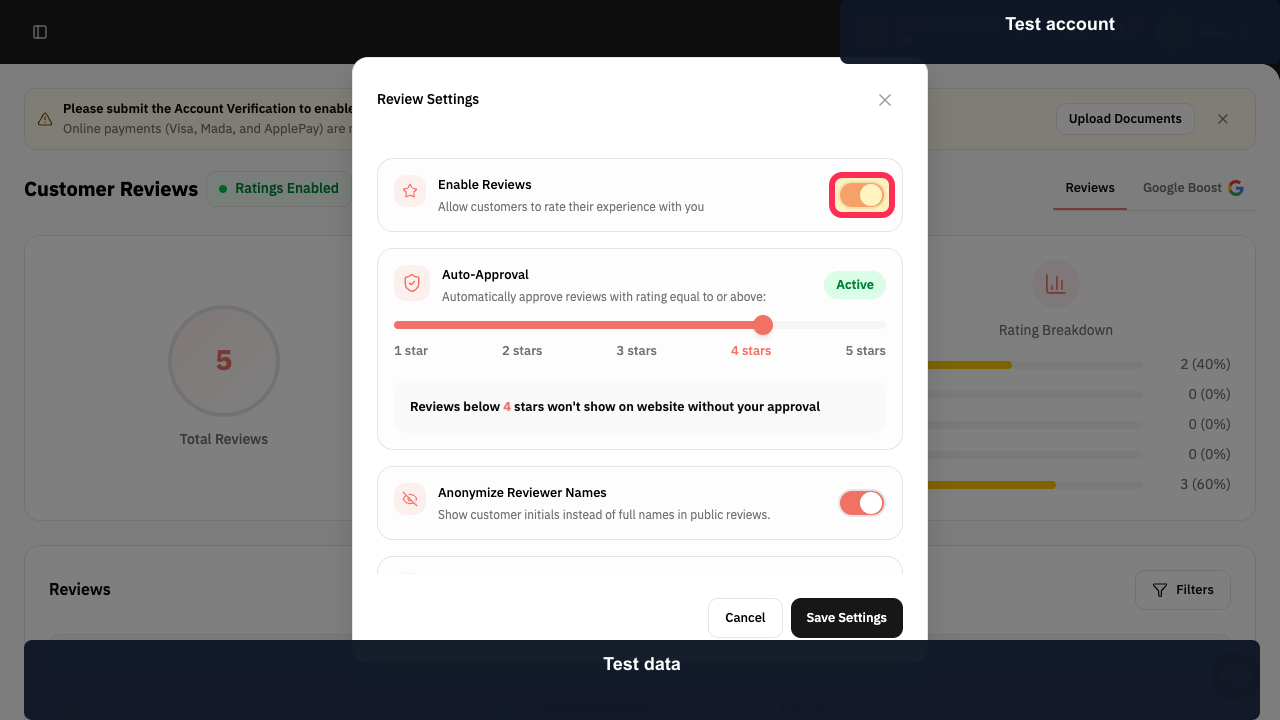
Turn on the Enable Reviews switch to allow customers to rate their experience.
Customer reviews are enabled.
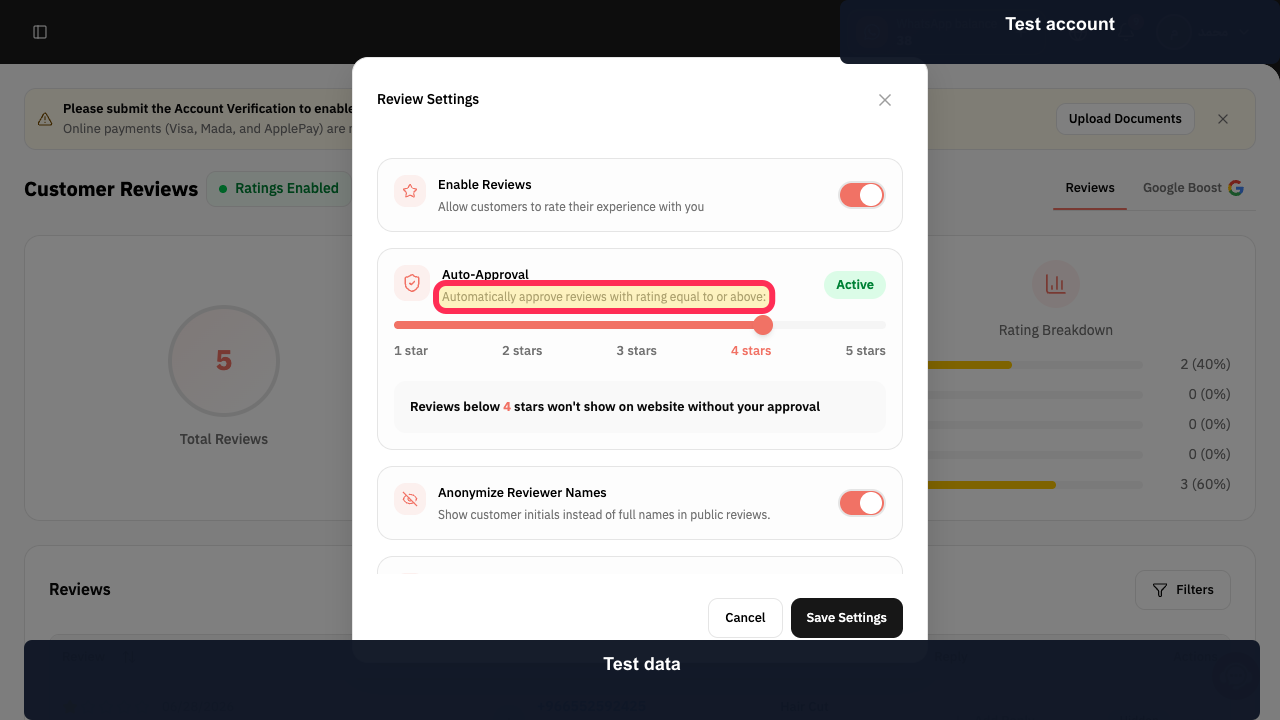
Review the automatic-approval description to confirm that it applies to reviews at or above a rating.
The automatic-approval rule is described as applying to reviews with a rating equal to or above a threshold.
Turn on Anonymize Reviewer Names if public reviews should show customer initials instead of full names.
Public reviewer names are set to display as initials rather than full names.
Turn on WhatsApp Rating Request to automatically send a WhatsApp rating request after a customer’s experience.
WhatsApp rating requests are enabled.
Select Reviews to open the customer-review list.
The Reviews list is displayed.
Select Review for the review you want to inspect.
The selected review’s action context is displayed.
Illustrated guide
Step 1: The Customer Reviews page in Rekaz.
Step 2: The Review Settings panel for customer reviews.
Step 3: The Enable Reviews switch in Review Settings.
Step 4: The automatic-approval description in Review Settings.
Step 5: The Anonymize Reviewer Names switch in Review Settings.
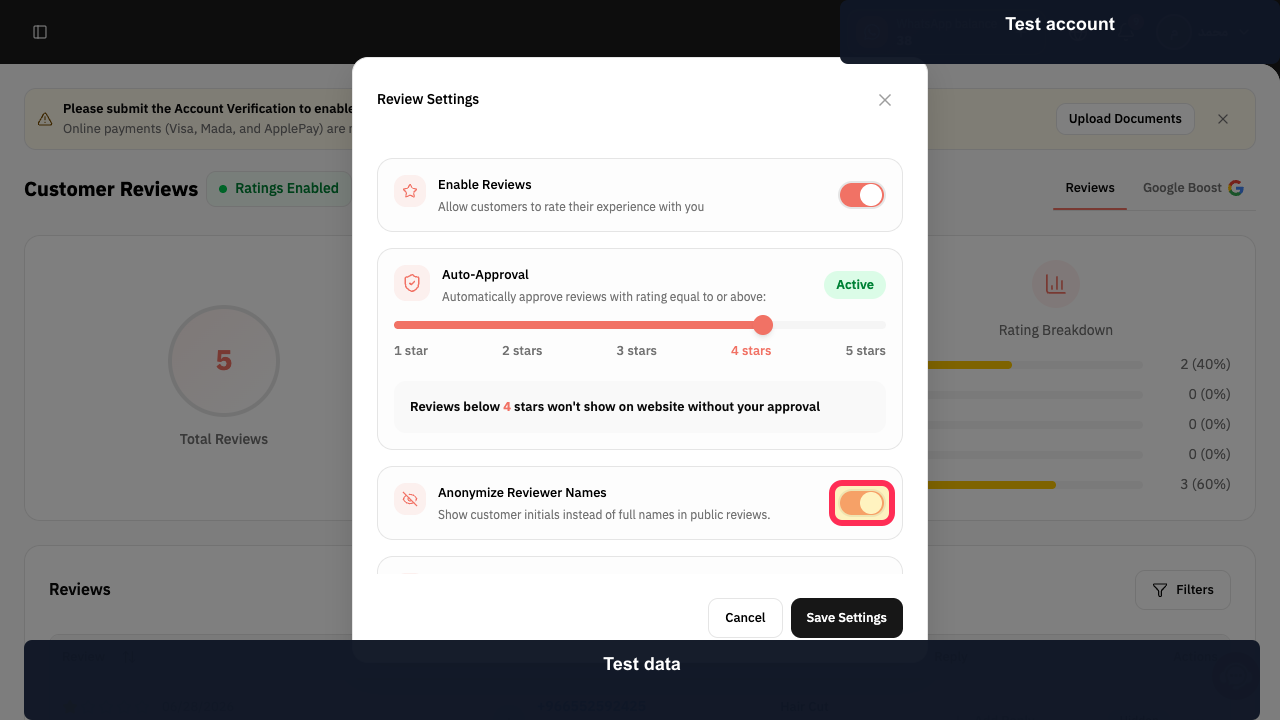
Step 6: The WhatsApp Rating Request switch in Review Settings.
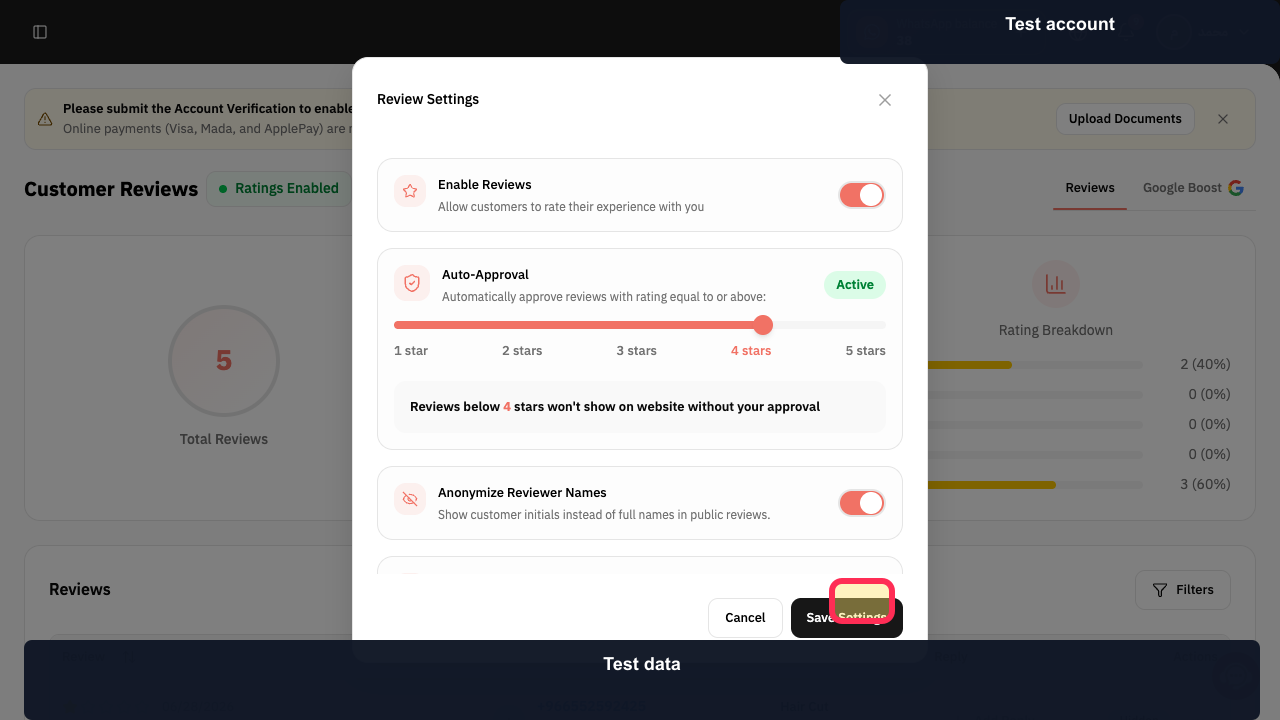
Step 7: The Reviews button in Customer Reviews.
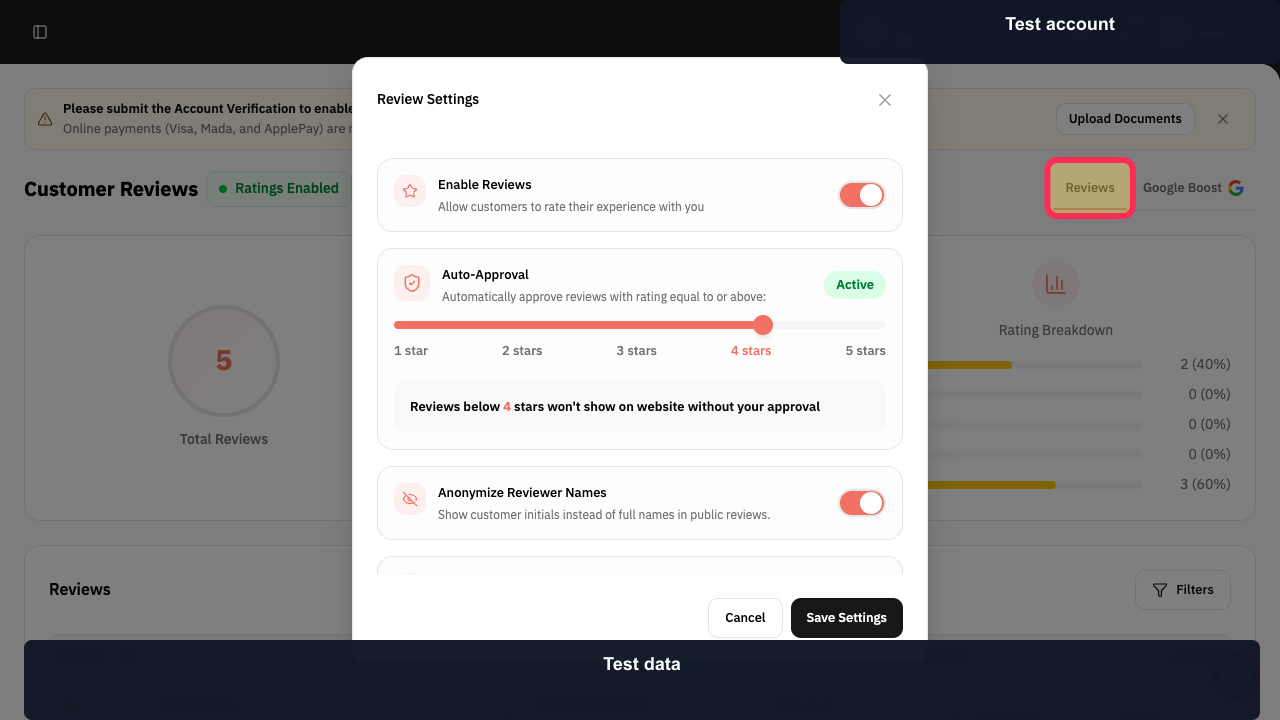
Step 8: The Review control for a customer review.
How automatic review display works
Auto-Approval lets you choose the minimum number of stars a review must have before it is displayed automatically. For example, you can configure reviews with fewer than 4 stars not to display automatically.
Where reviews appear
Rekaz has three review types. Their display location is determined automatically by the review type and cannot be changed.
Service reviews appear only on the page for their related service.
Service Provider reviews appear only when that Service Provider is selected.
General reviews appear only on the Website.
Google Reviews
For more information about Google Reviews, use the Rekaz Learn More page: https://platform.rekaz.io/CustomerReviews/Google/LearnMore
Related questions
How do I enable customer reviews in Rekaz?
How do I hide or show a customer review in Rekaz?
How do I reply to a customer review in Rekaz?
How do I set a minimum star rating for automatically displayed reviews in Rekaz?
Where do service, Service Provider, and general reviews appear in Rekaz?


