How do I add a package to a customer in Rekaz?
To add a package to a customer in Rekaz, open Packages, select the customer and package, configure its dates and branch, then choose how the order will be paid.
After the package exists, use View and Add usage to book one of the package's included services for the customer.
Steps
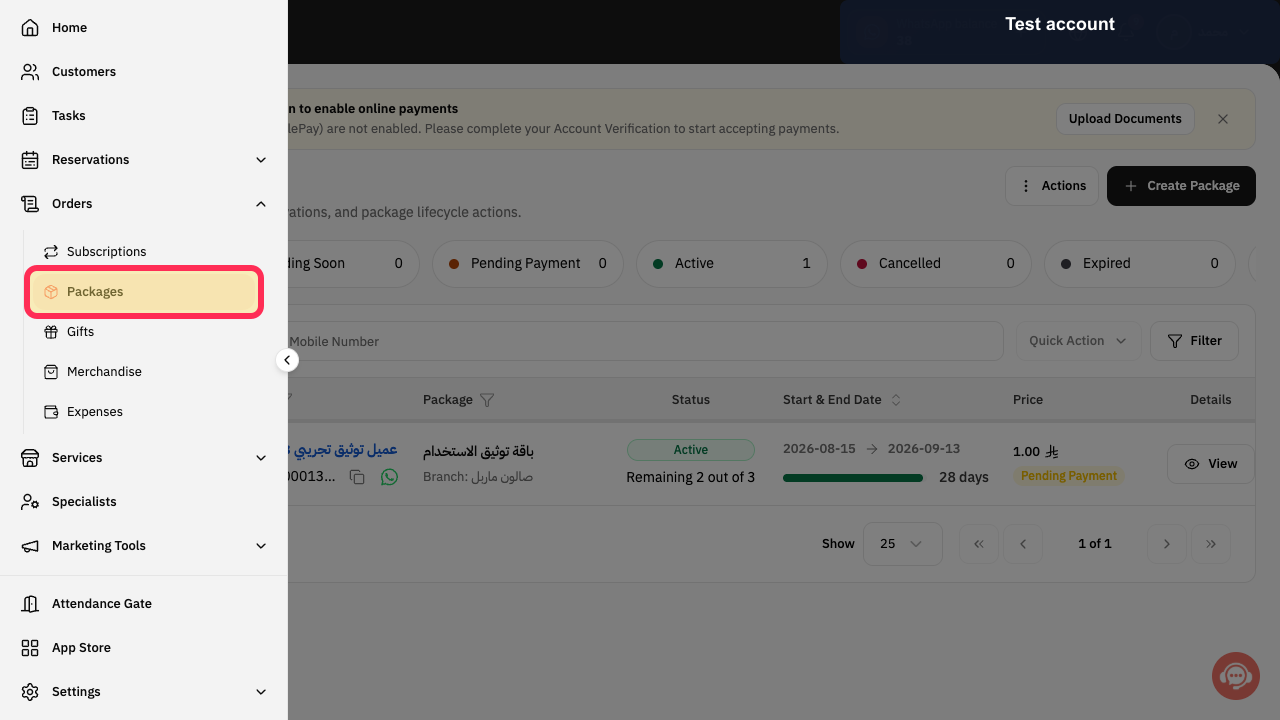
From the signed-in Rekaz dashboard, select Packages in the sidebar.
The Packages page opens.
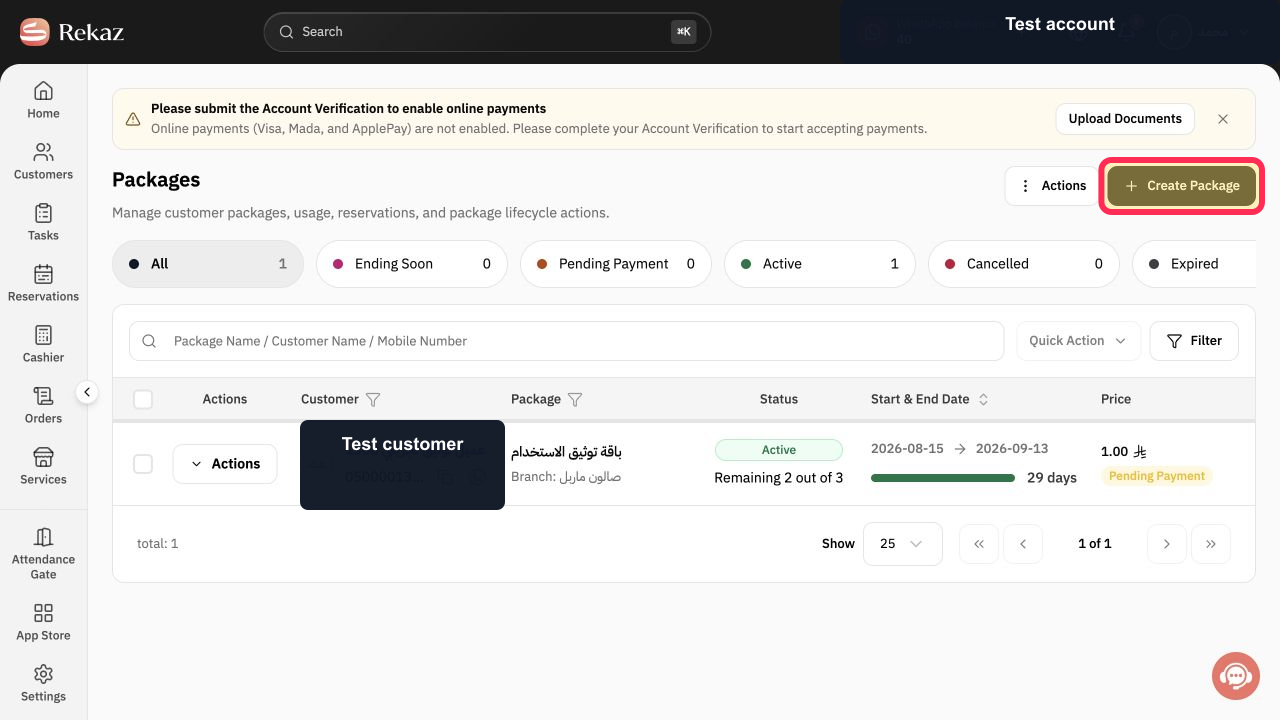
Select Create Package.
The Create Package dialog opens at the Package step.
Under Customer, select Pick and choose the customer who will receive the package.
The selected customer appears in the Customer field.
Under Package, select Pick and choose the package the customer is buying.
The selected package appears in the Package field.
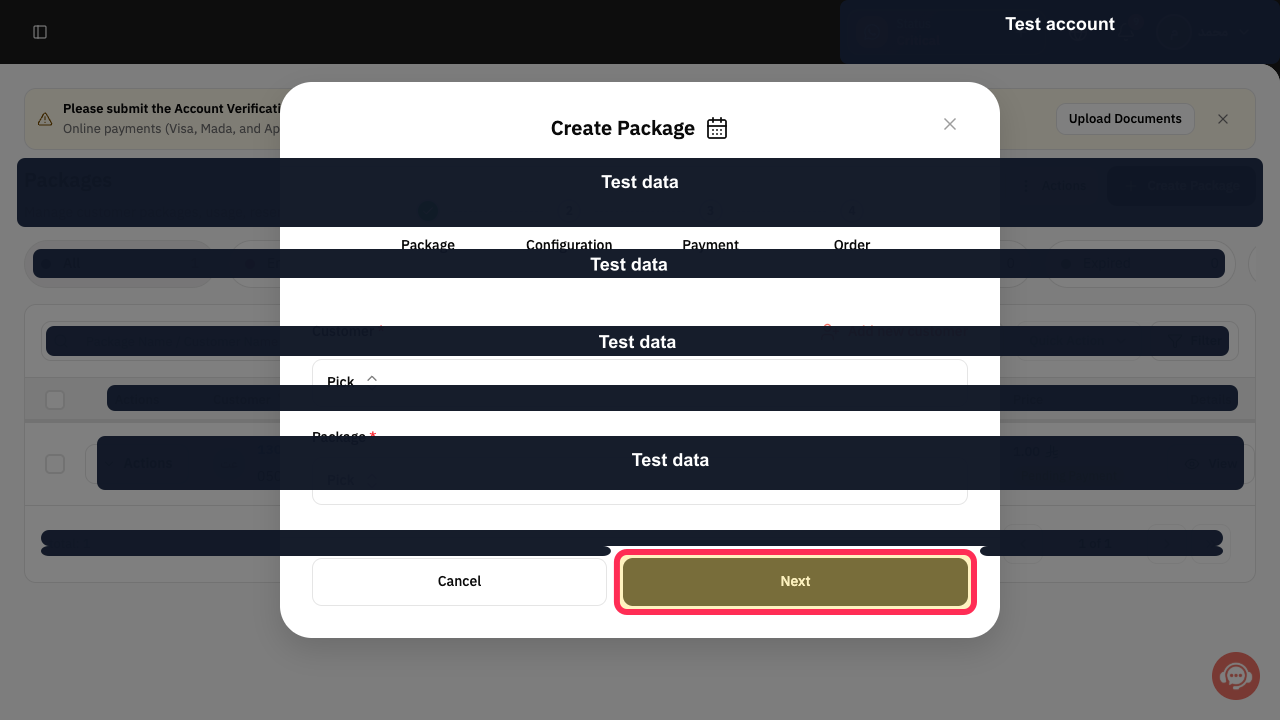
Select Next.
The Configuration step opens.
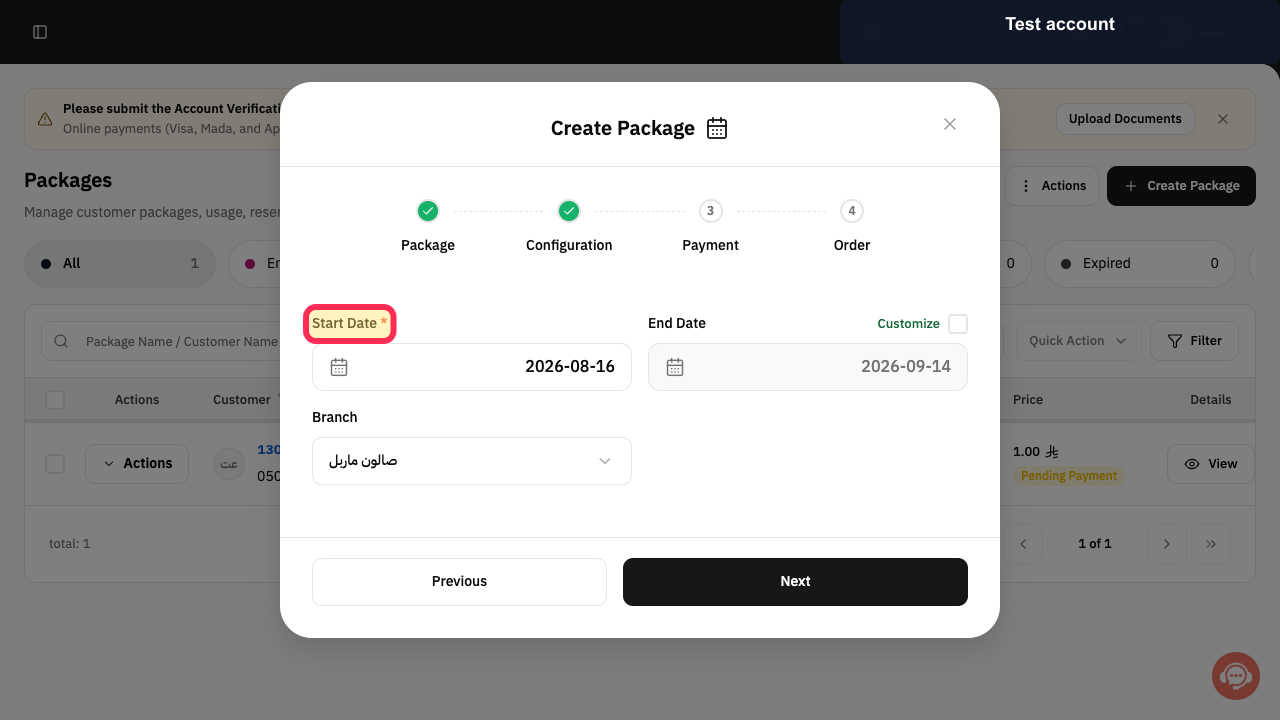
Set Start Date for the customer package.
The package start date is configured.
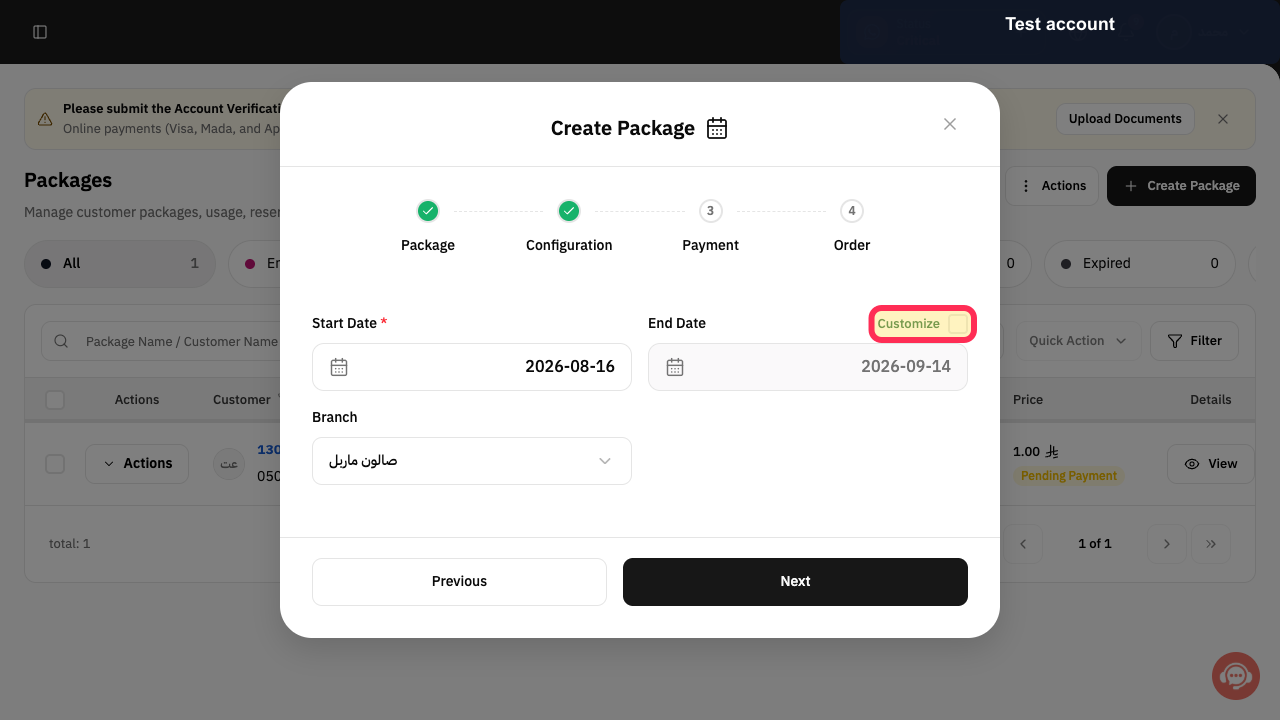
If the calculated End Date must be changed, enable Customize and choose the required end date.
The package end date follows the selected setting.
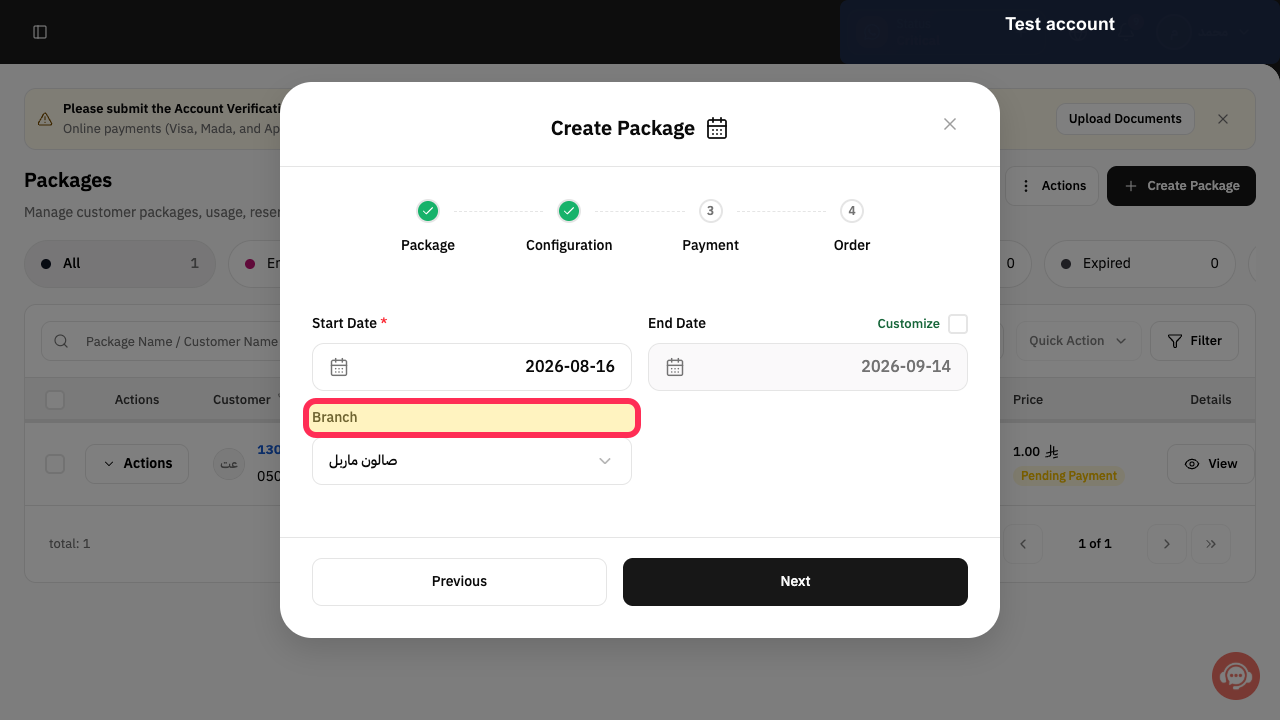
Choose the Branch that will own this customer package.
The selected branch appears in the package configuration.
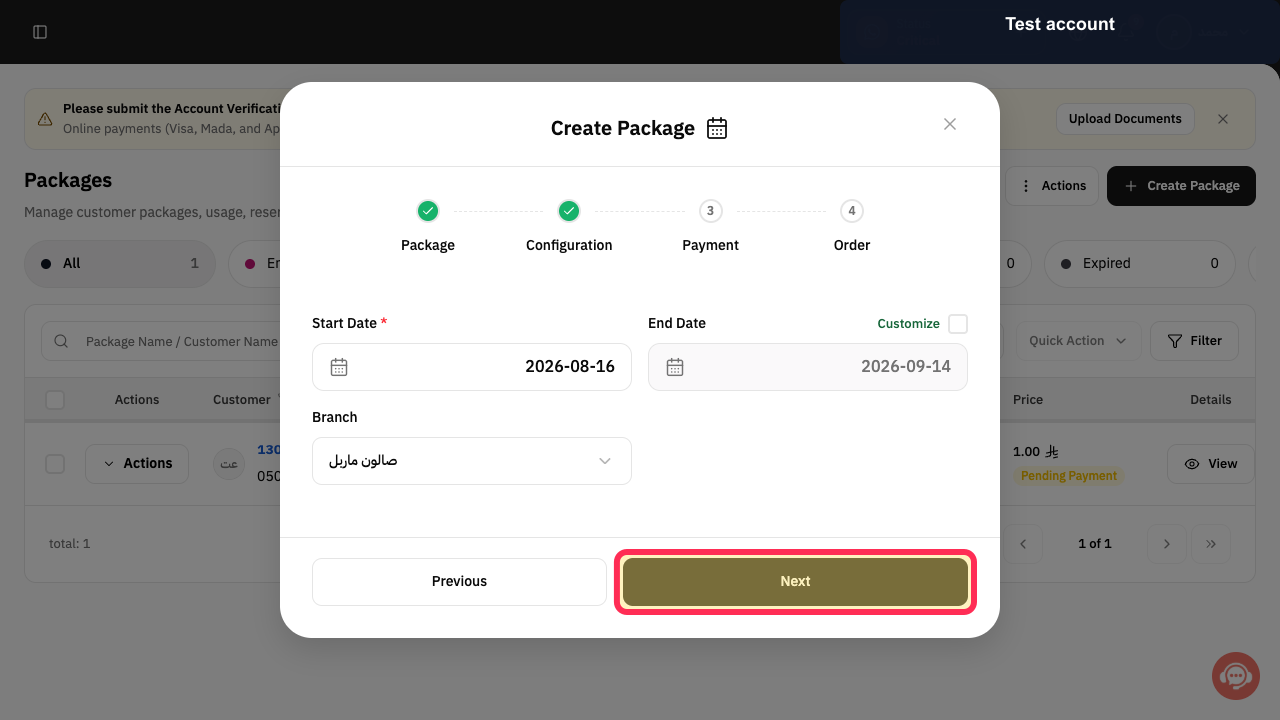
Select Next.
The Payment step opens with the order subtotal and total.
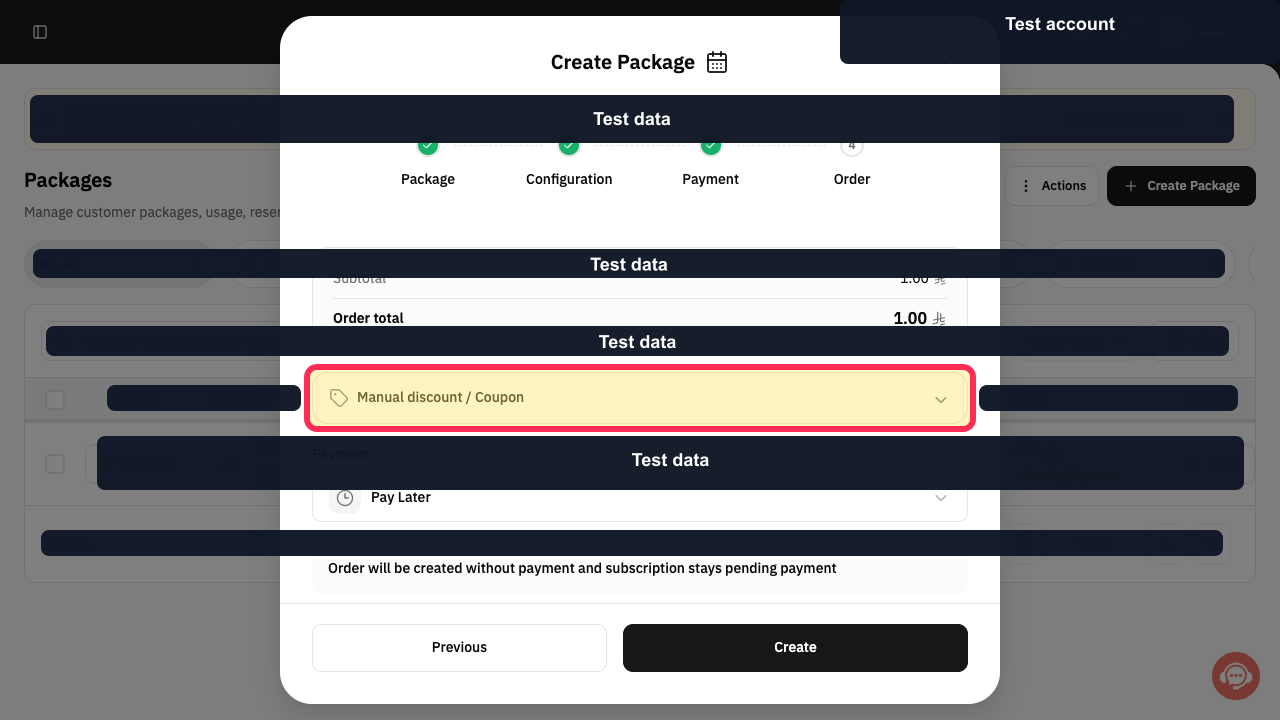
Optional: open Manual discount / Coupon when the order should use a discount or coupon.
The discount controls open when selected.
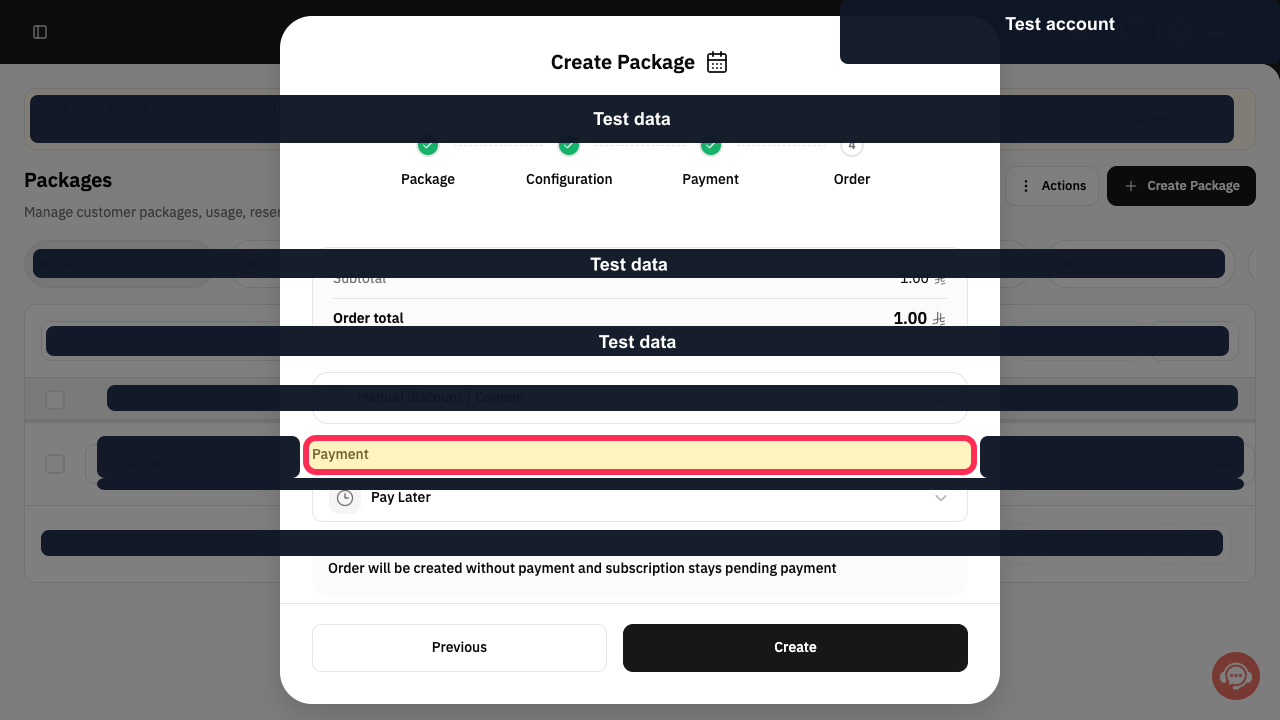
Under Payment, keep Pay Later to create a pending-payment package, or choose the payment method actually used by the customer.
The selected payment treatment is shown in the Payment field.
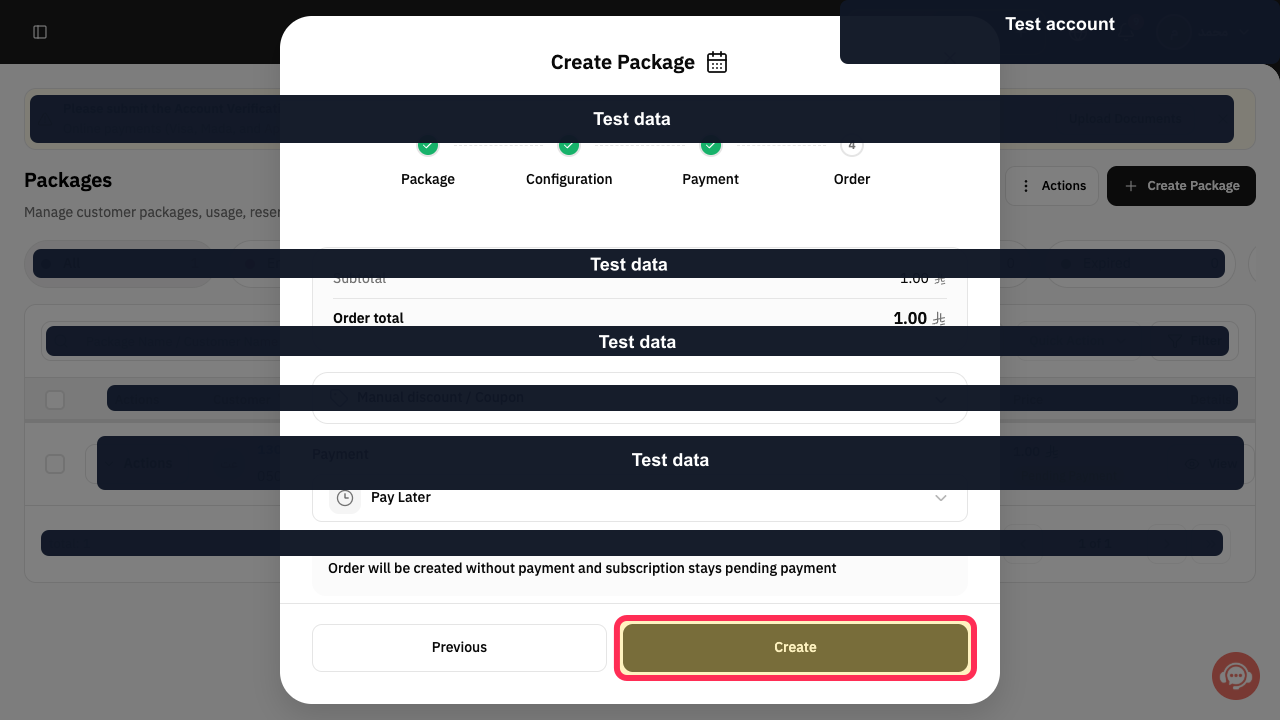
Review the order and select Create.
The customer package order is submitted.
To book a package usage later, return to Packages and locate the customer's package.
The customer package appears in the Packages list.
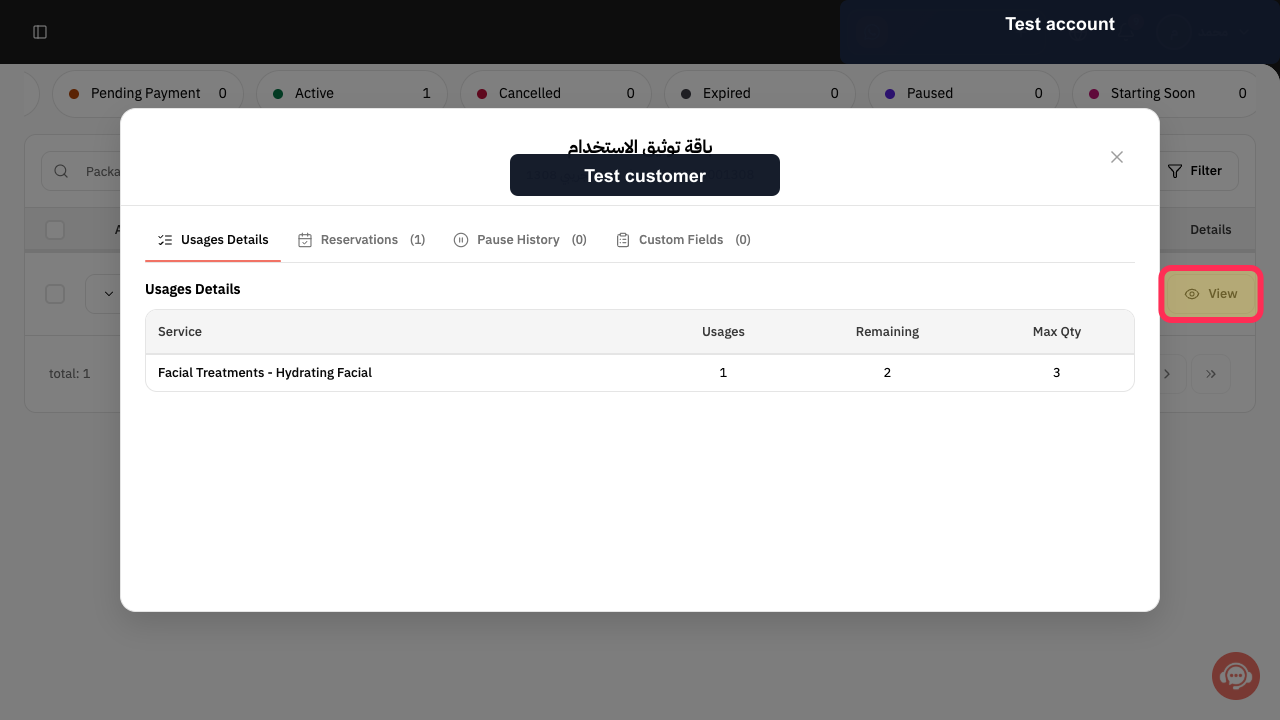
Select View for the customer package.
The package details panel opens.
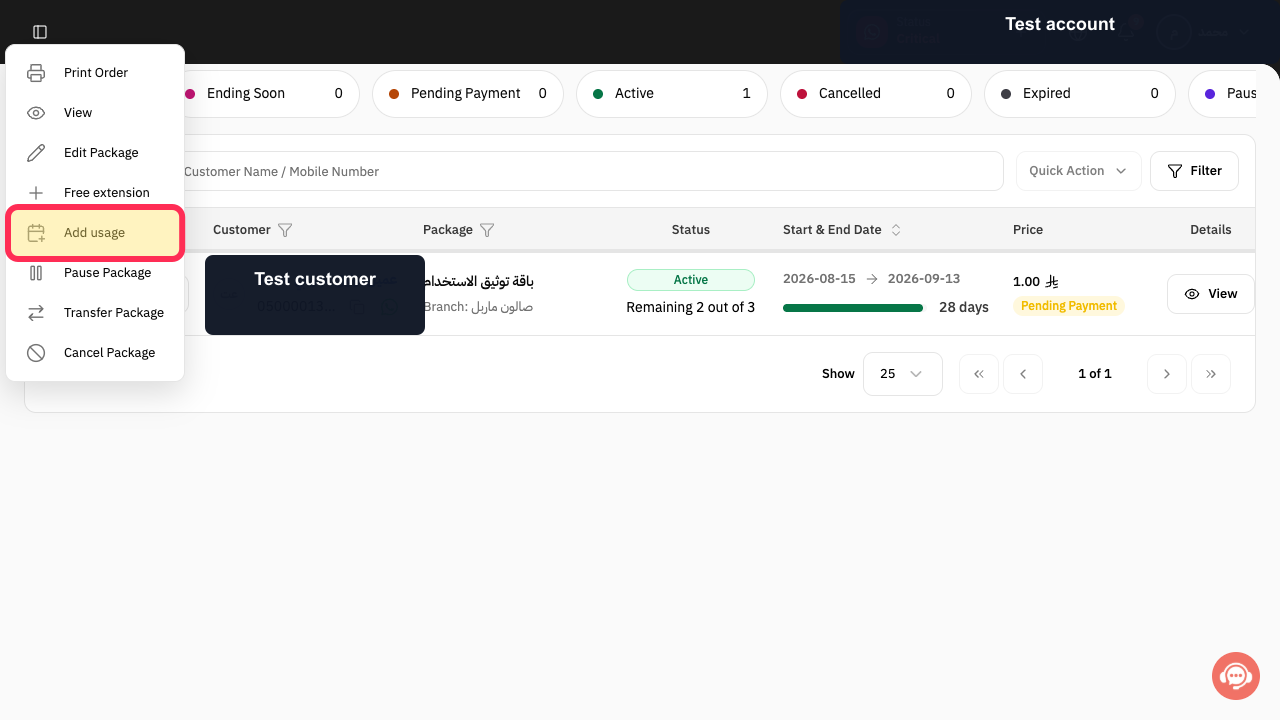
Select Add usage.
The Sales Dashboard opens for a package usage.
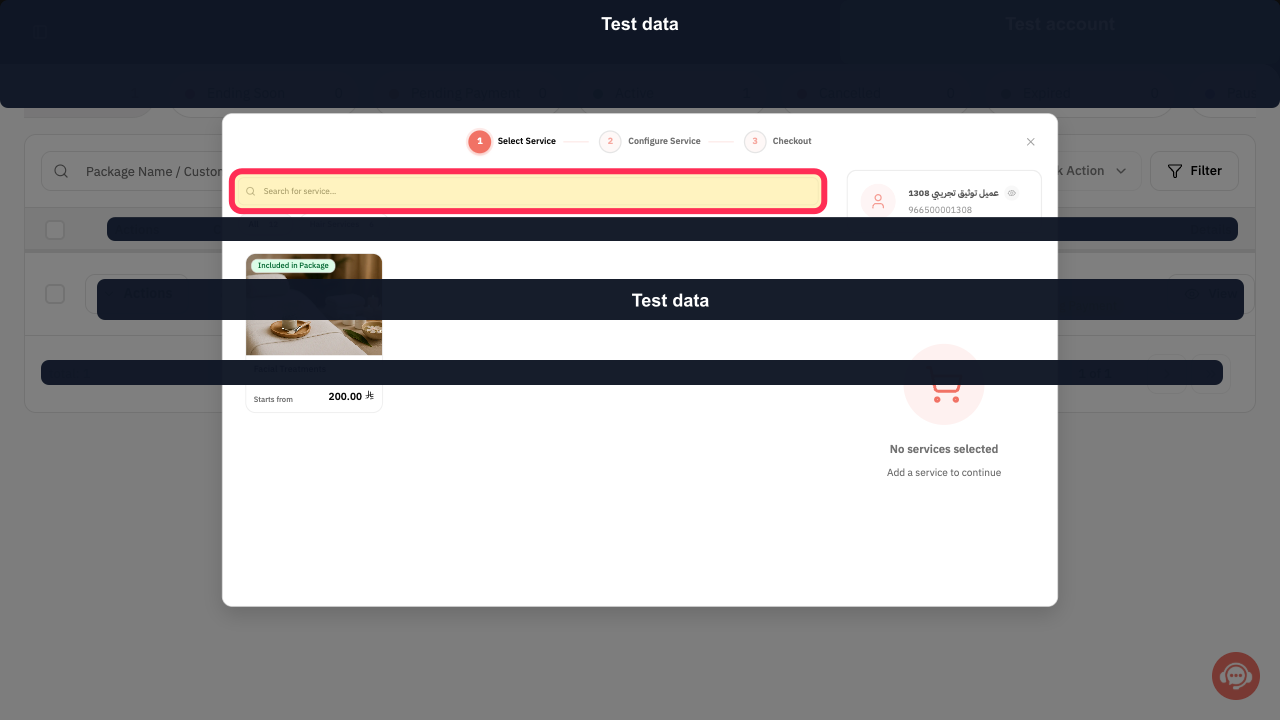
Use Search for service to find an included service.
Matching services included in the package are displayed.
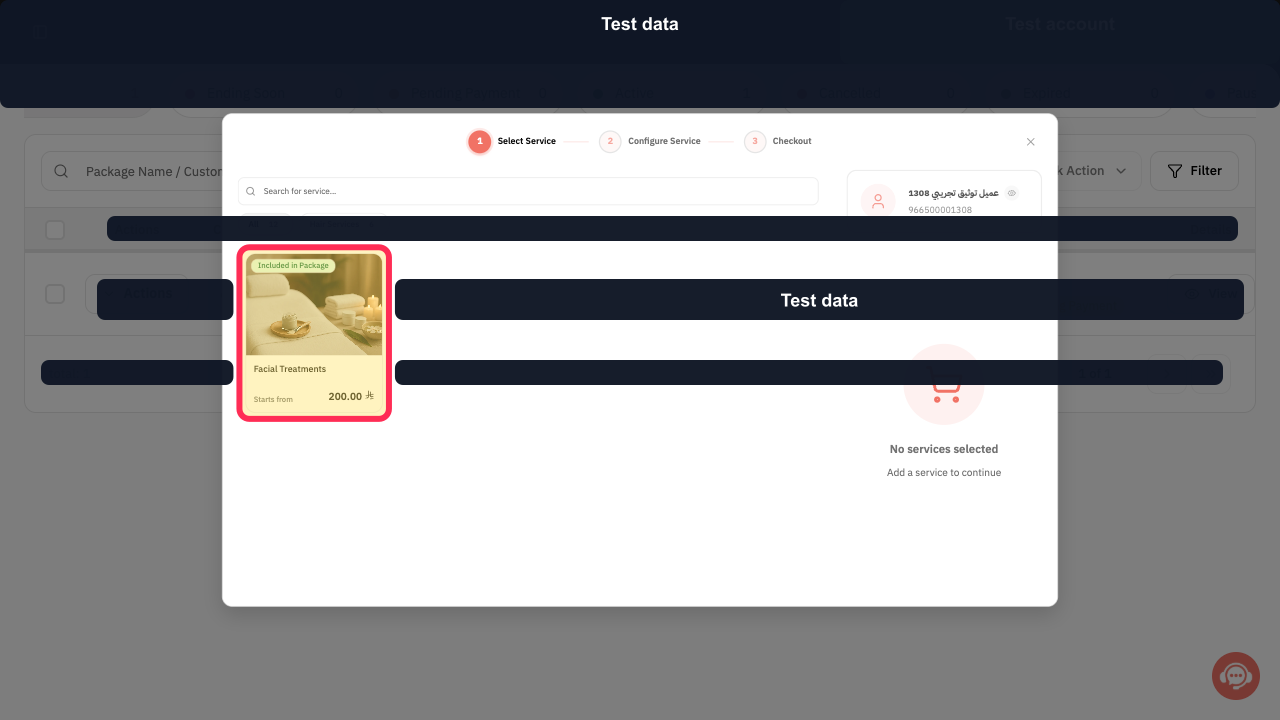
Select the included service card.
Configuring Reservations opens for that service.
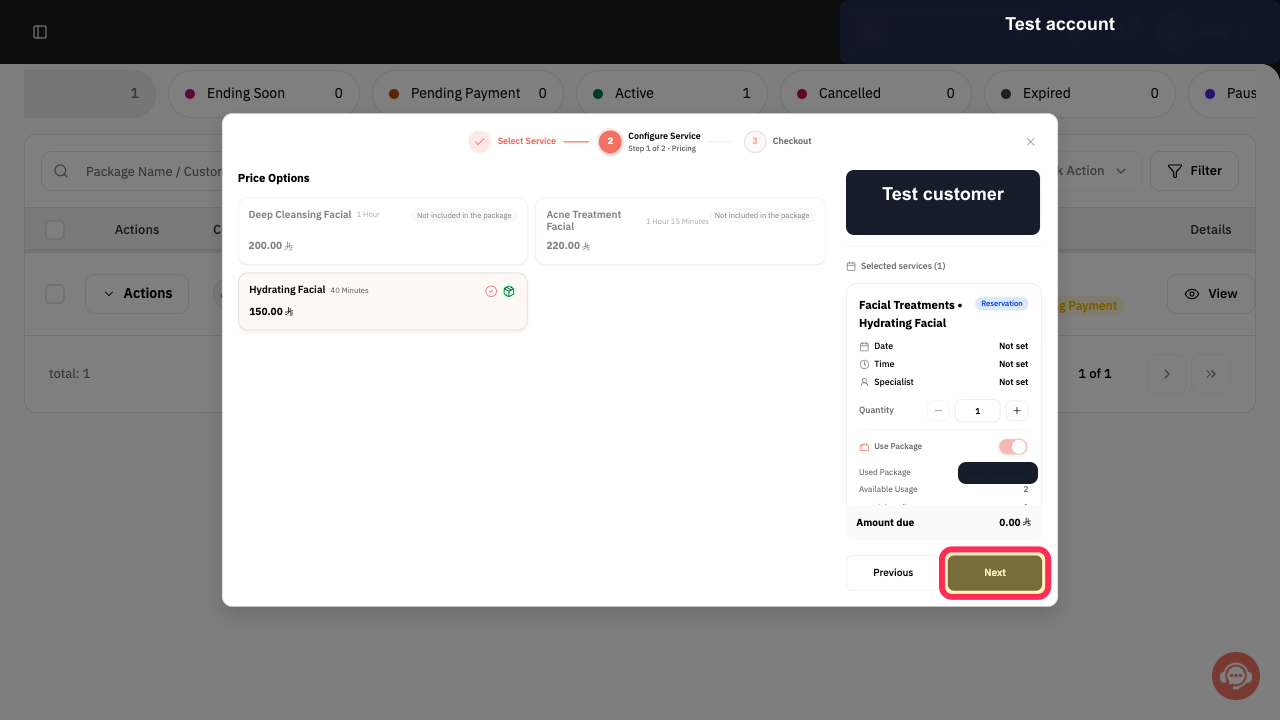
Choose the required Price Option and review the quantity or package usage setting, then select Next.
The service usage configuration is ready for scheduling.
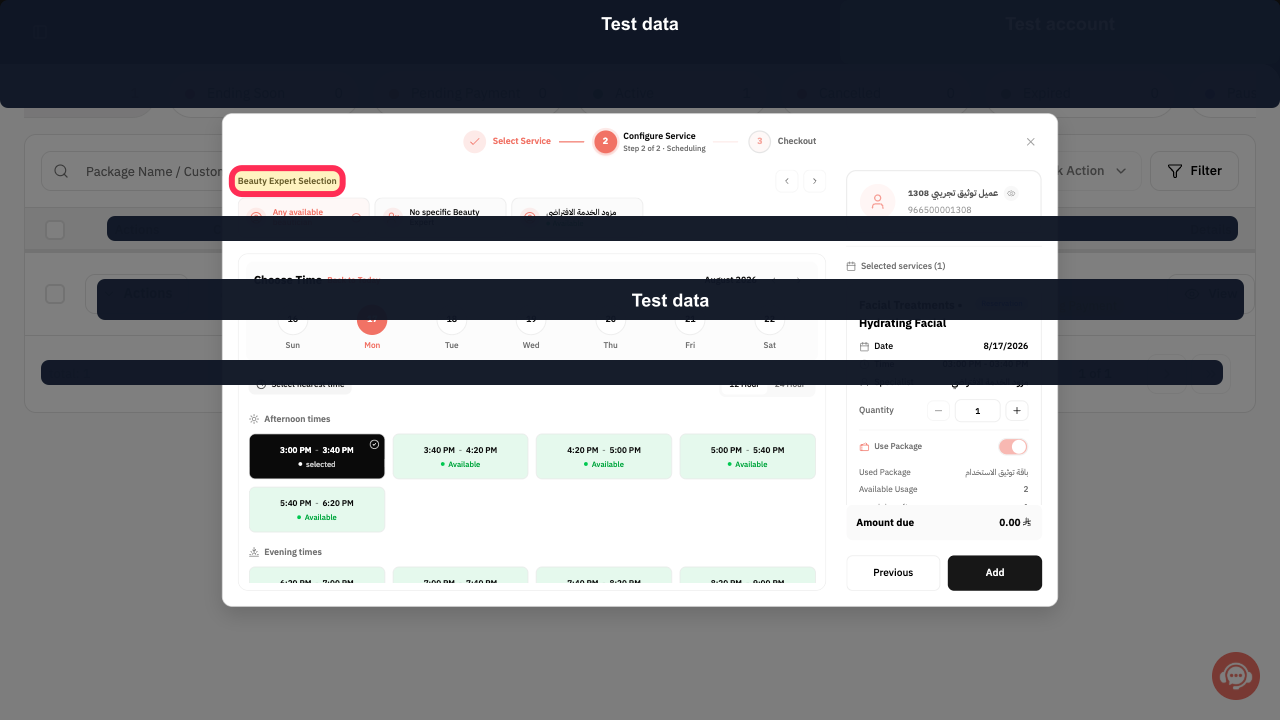
Choose the Beauty Expert, reservation date, and an available time.
The selected expert and appointment time appear in the reservation configuration.
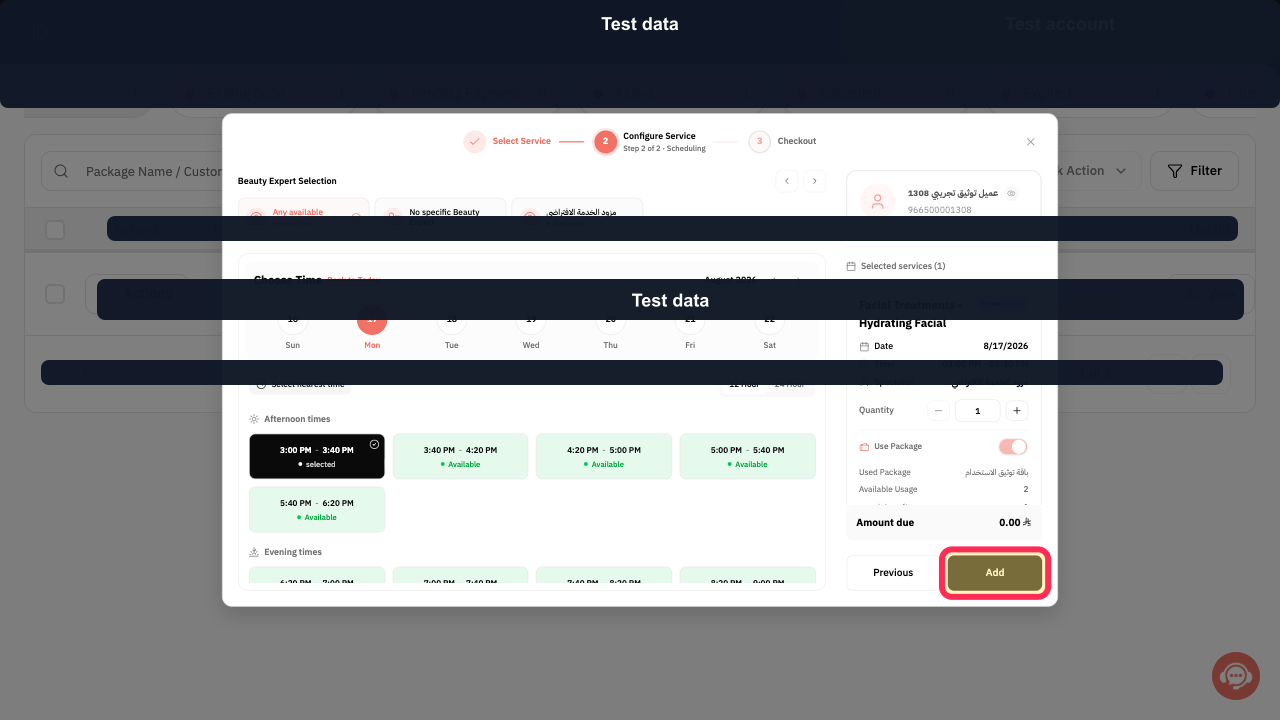
Select Add.
The configured package usage is added to the reservation.
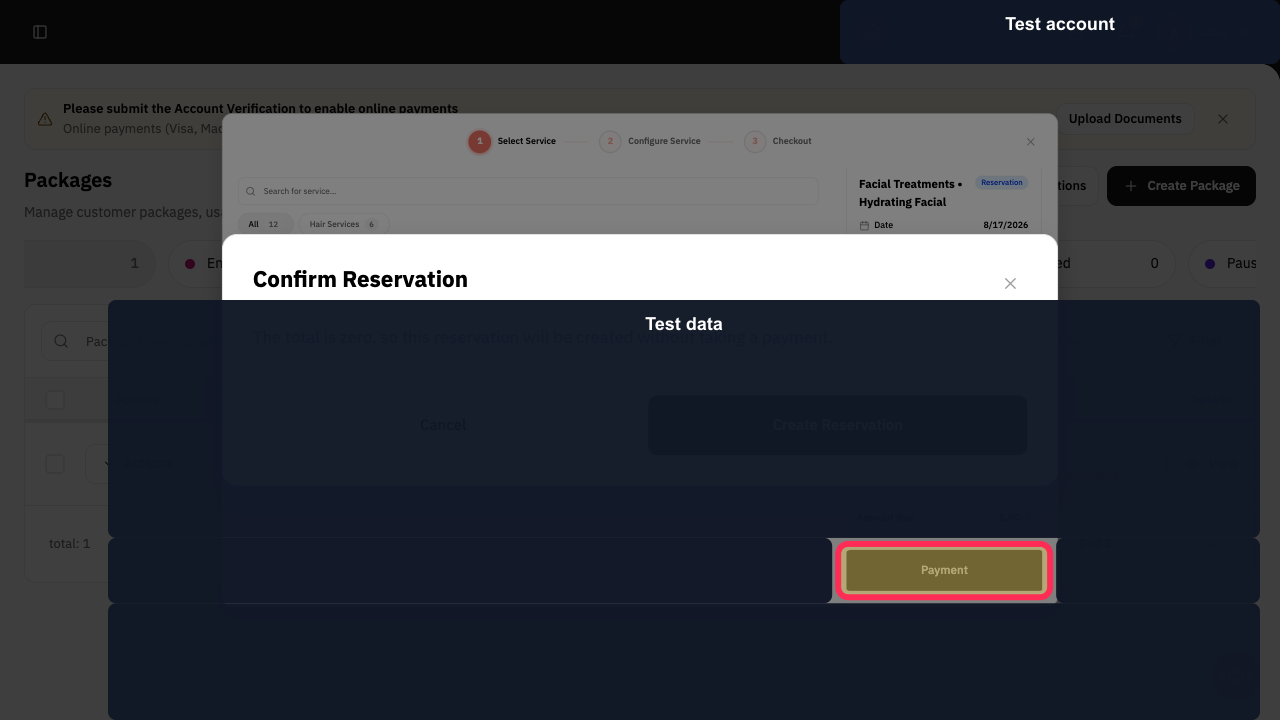
Review the configured reservation and select Payment.
The reservation confirmation flow opens.
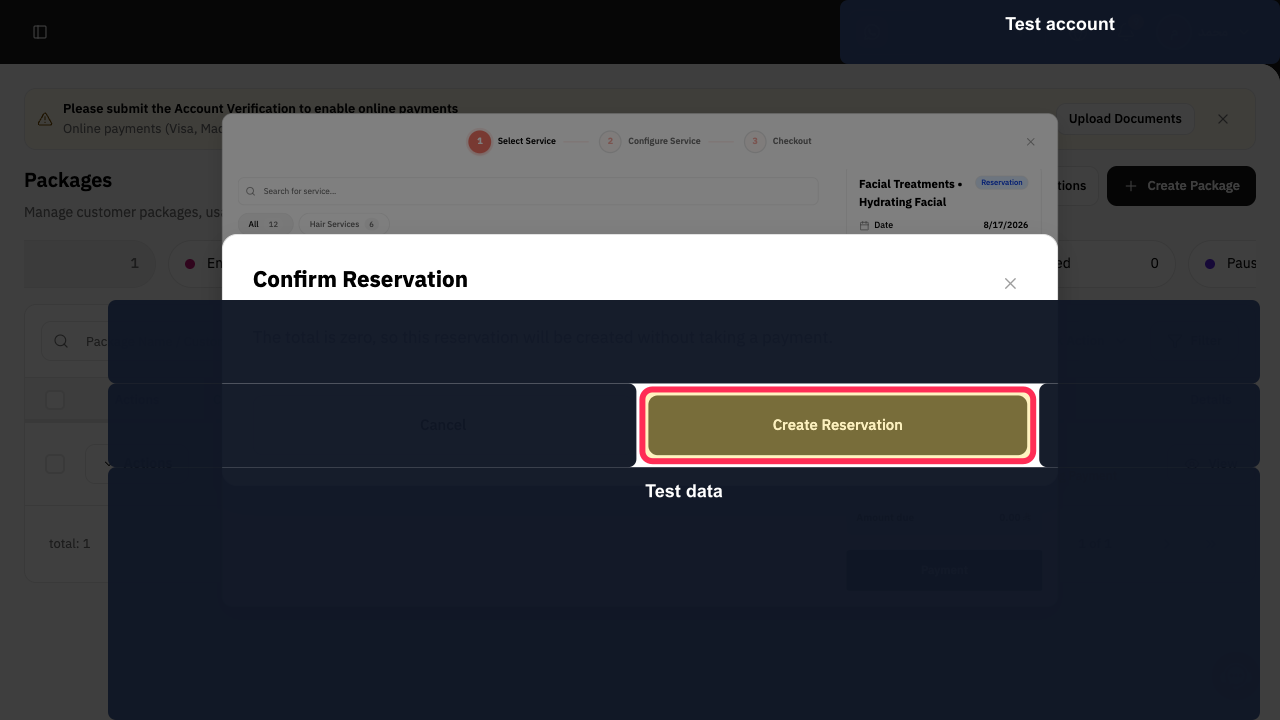
Select Create Reservation to confirm the package usage, or Cancel to leave without creating it.
The package usage is created only after final confirmation.
Illustrated guide
Step 1: Open Packages from the Rekaz sidebar.
Step 2: Start creating a customer package.
Step 3: Pick the customer for the package.
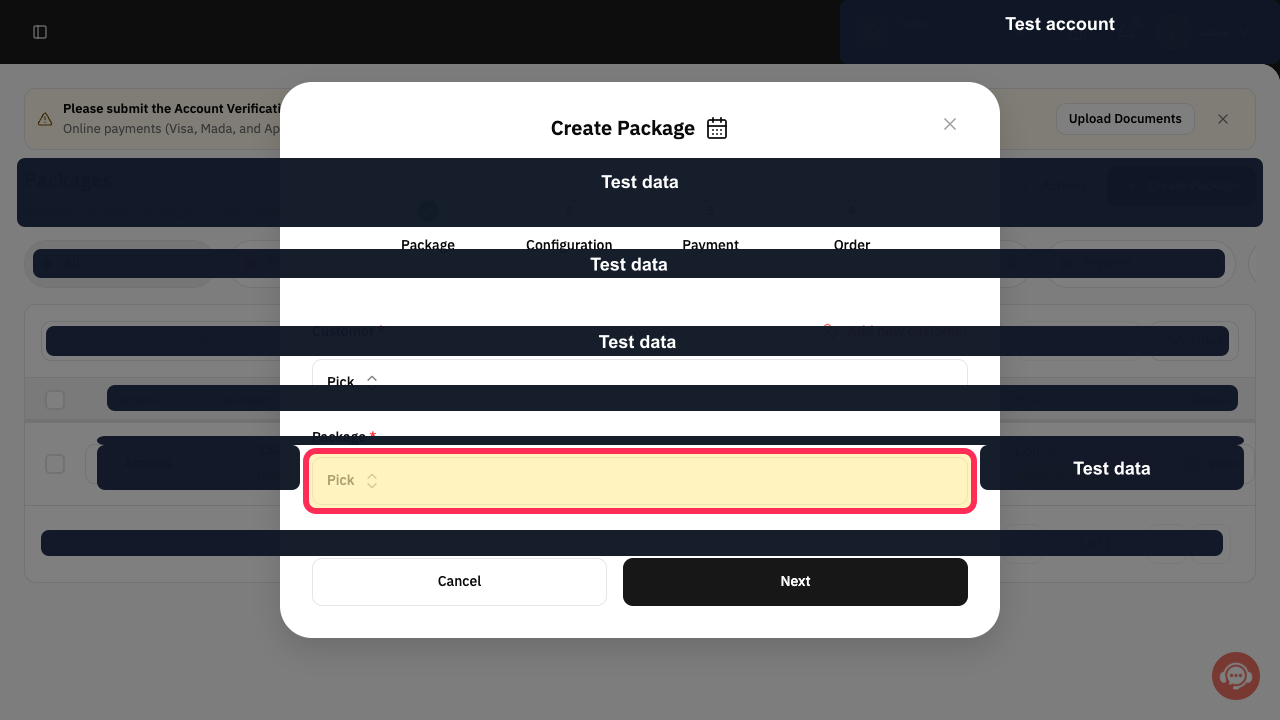
Step 4: Pick the package the customer is buying.
Step 5: Continue to package configuration.
Step 6: Set the customer package start date.
Step 7: Customize the package end date when needed.
Step 8: Choose the customer package branch.
Step 9: Continue to package payment.
Step 10: Open the package discount or coupon controls when needed.
Step 11: Choose how the customer package will be paid.
Step 12: Create the customer package order.
Step 13: Locate the customer's package in Rekaz.
Step 14: Open the customer package details.
Step 15: Start adding a package usage.
Step 16: Search for a service included in the package.
Step 17: Choose an included package service.
Step 18: Configure the included service usage.
Step 19: Choose the provider, date, and time for the package usage.
Step 20: Add the configured package usage.
Step 21: Continue to the package-usage confirmation.
Step 22: Confirm creating the package usage reservation.
Book a usage from a customer package
Open the customer’s package from Packages, scroll to the bottom of its details page, and select Add usage. Then choose the Service the customer wants to book.
Payment notes
When payment has been received, enter the Amount Paid, choose the Payment Method, and select Save.
If payment is still pending or the customer will use a Payment Link, close the payment page using the X icon instead of recording a completed payment.
Related questions
How do I assign a package to a customer in Rekaz?
How do I record payment for a customer package in Rekaz?
How do I add a usage to a customer package in Rekaz?


