How do I manage service providers in Rekaz?
Use the Beauty Experts page in Rekaz to add providers, review their weekly availability, open their profiles, and manage schedules, holidays, branches, services, notifications, coverage, and commission settings.
The current English interface calls this area Beauty Experts. Provider-specific actions are available from the Actions menu beside each expert.
Steps
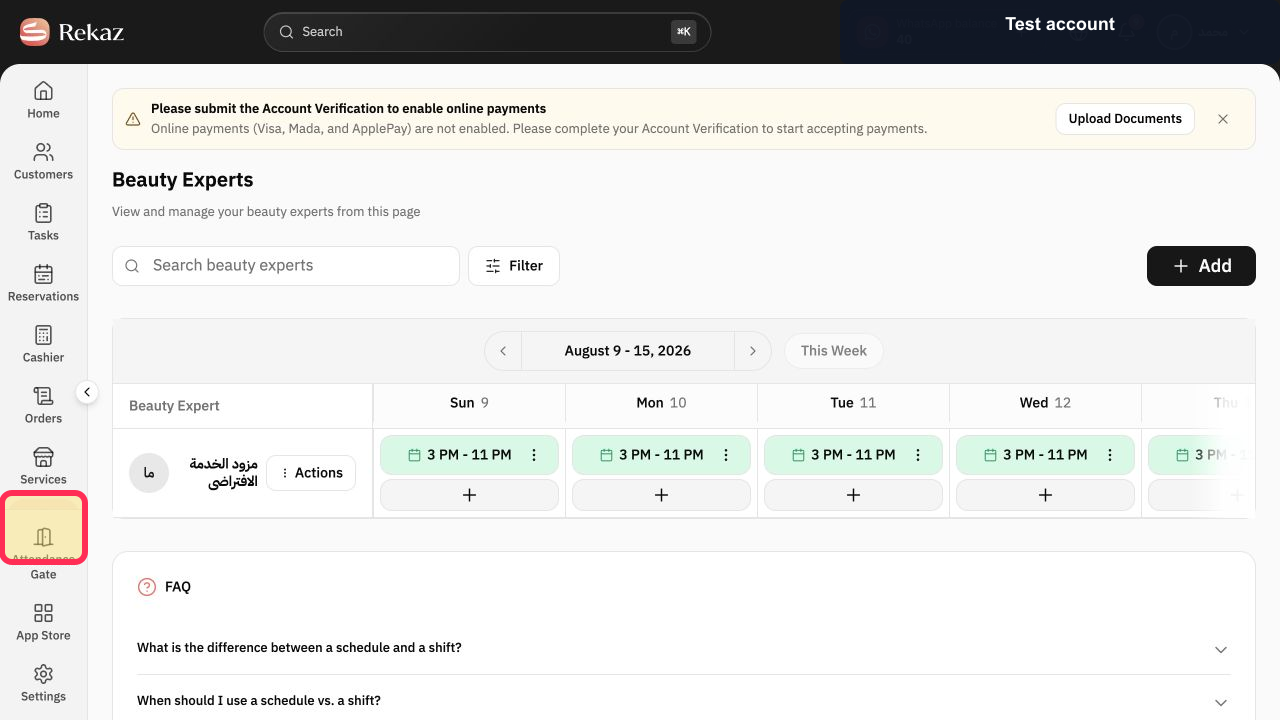
From the signed-in Rekaz dashboard, select Specialists in the sidebar.
The Beauty Experts page opens with the provider list and weekly schedule.
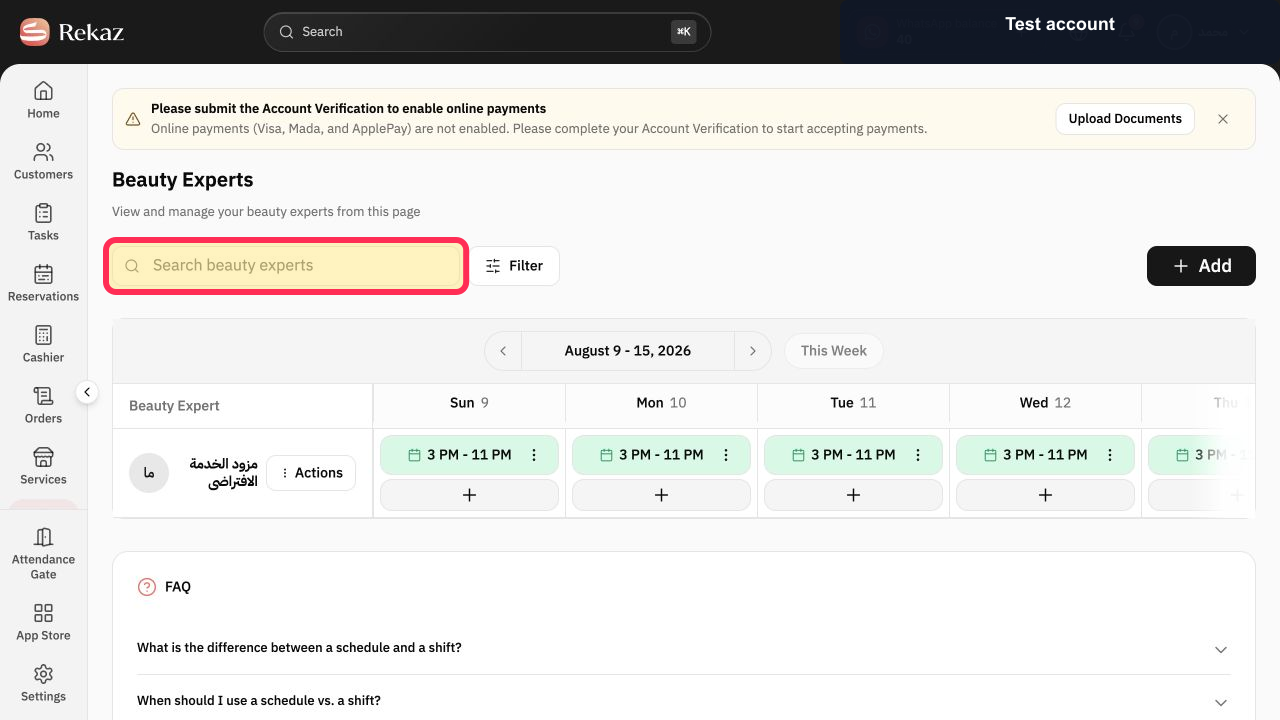
Use Search beauty experts or Filter when you need to find a specific provider.
The list is narrowed to the matching Beauty Experts.
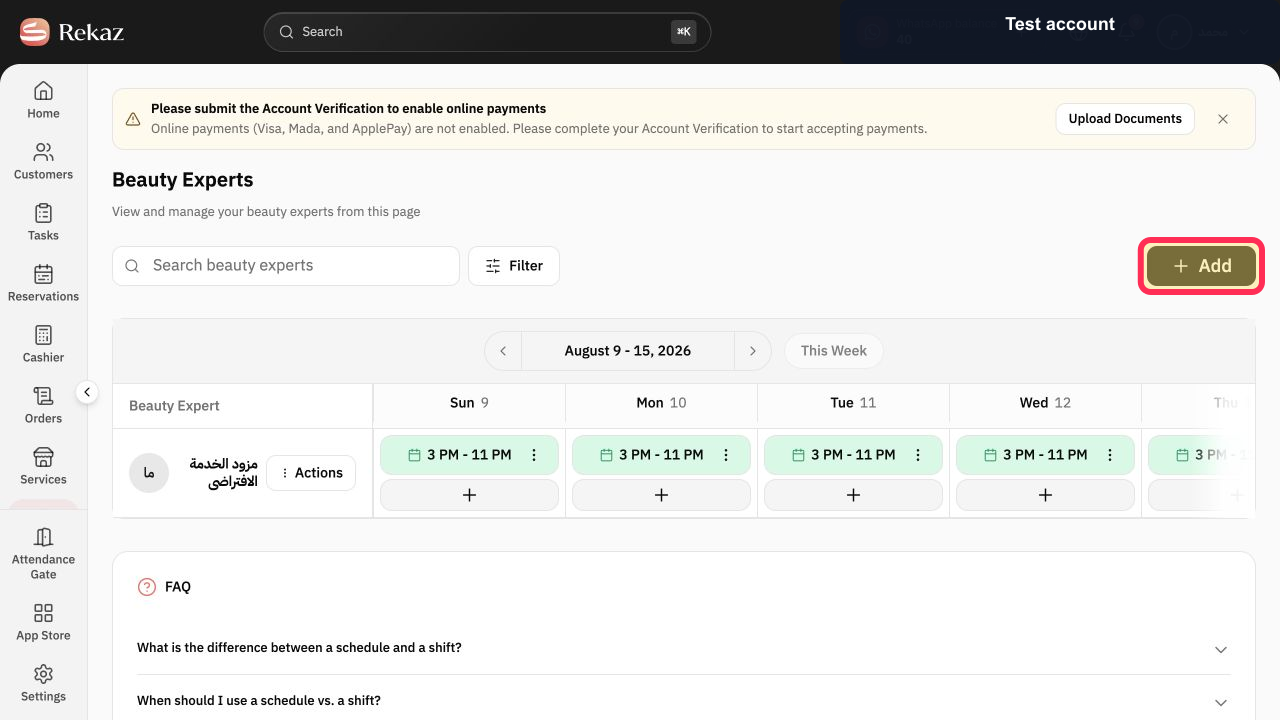
Select Add to open the creation menu.
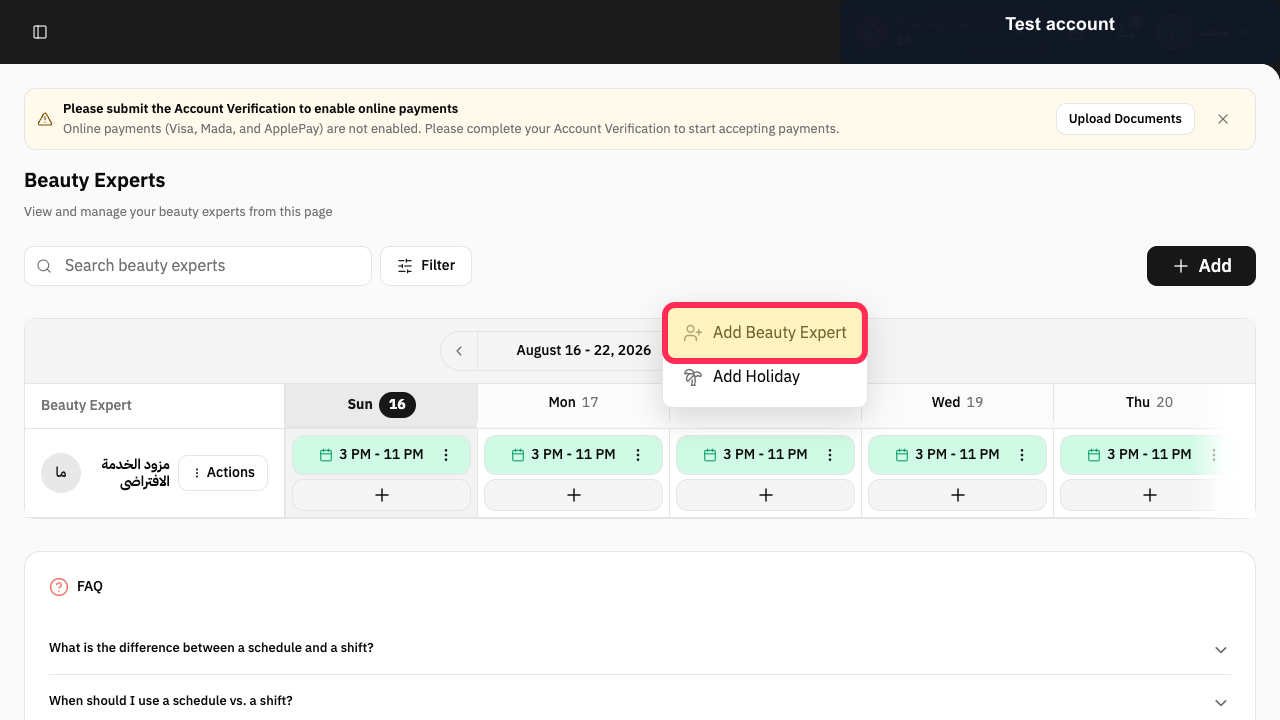
The Add menu displays Add Beauty Expert and Add Holiday.
Select Add Beauty Expert to create a provider, or close the menu if you only need to manage an existing provider.
The Add Beauty Expert form opens when selected.
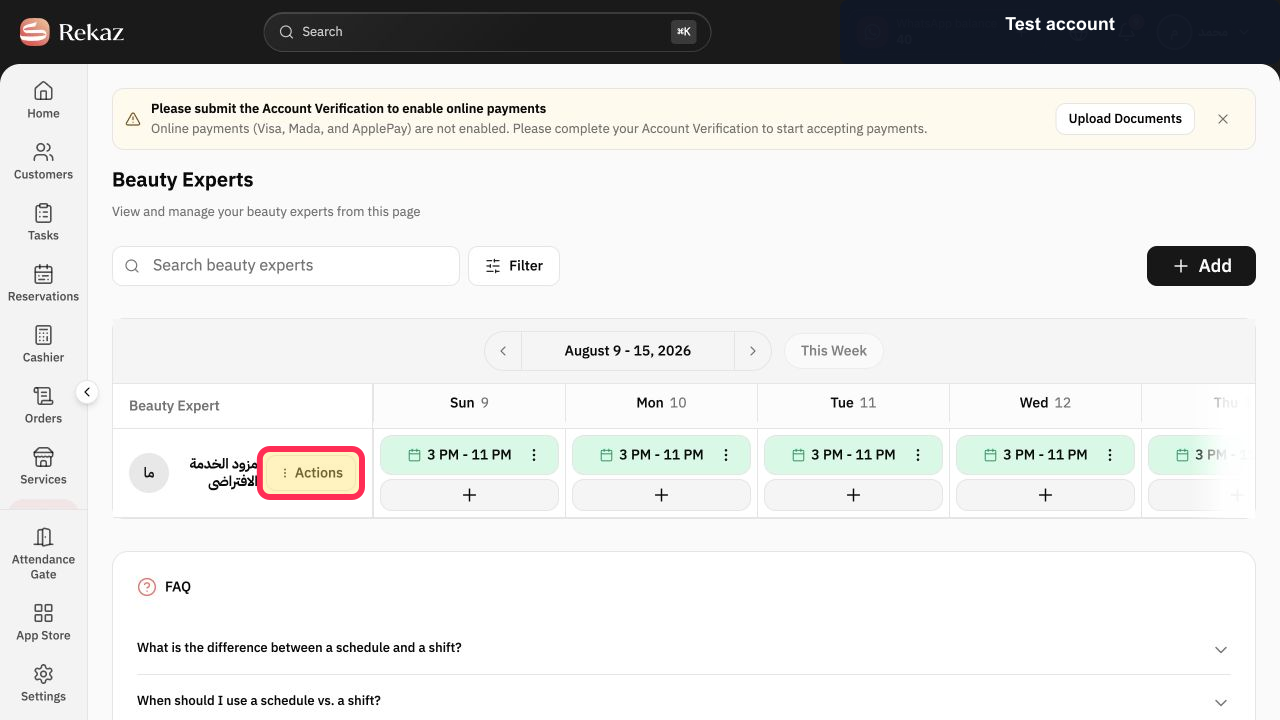
For an existing provider, select Actions.
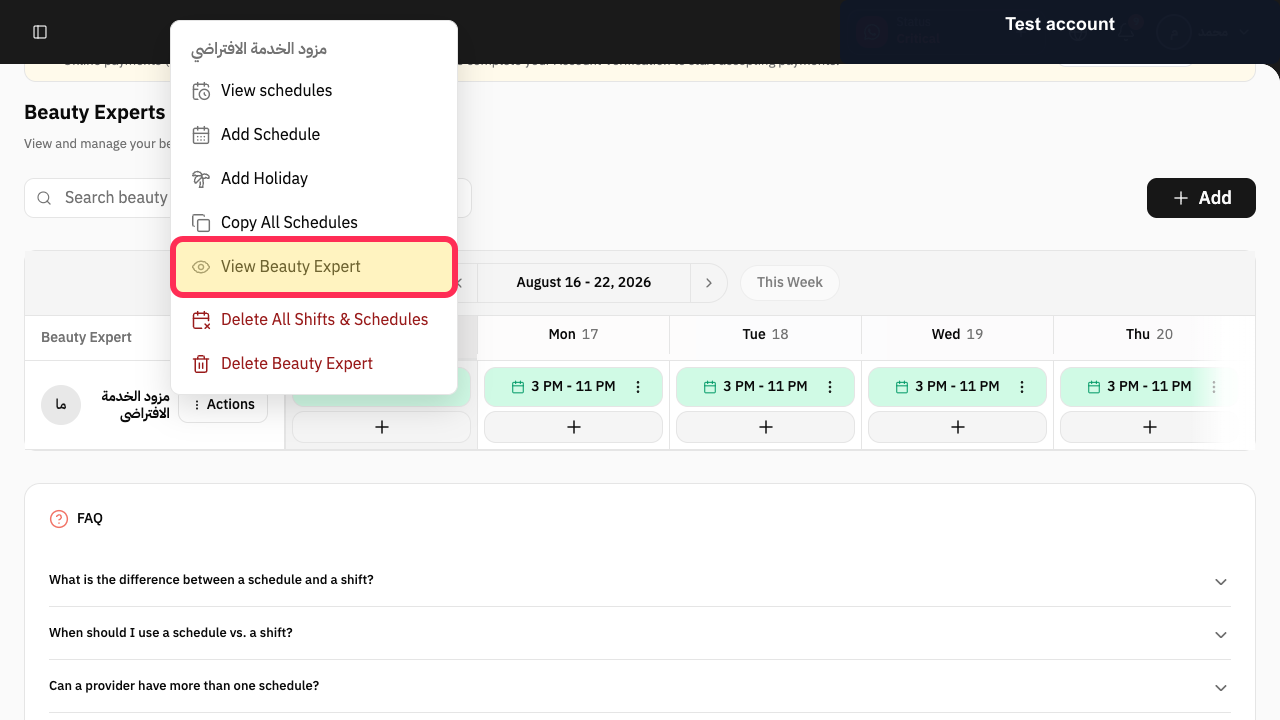
The provider Actions menu opens.
Choose the required action: View schedules, Add Schedule, Add Holiday, Copy All Schedules, View Beauty Expert, Delete All Shifts & Schedules, or Delete Beauty Expert.
The selected provider-management workflow opens.
Illustrated guide
Step 1: Open the Beauty Experts page from Specialists.
Step 2: Find a Beauty Expert by search or filter.
Step 3: Open the Beauty Experts Add menu.
Step 4: Choose Add Beauty Expert from the menu.
Step 5: Open the selected Beauty Expert's Actions menu.
Step 6: Choose the required provider-management action.
Manage a provider’s working schedule
After creating a provider, open their profile to manage their Working Schedule and set their work dates and times.
You can copy one day’s schedule to the remaining days and add another work period when needed.
Use Edit work schedule to change the provider’s schedule.
Copy an existing day’s schedule to other days.
Add another work period for the provider.
Update provider profile details
From the provider’s profile, you can add an image and a description. You can also update the provider’s capacity and working schedule.
Use Add Image to add a provider photo.
Update the provider’s description.
Adjust the provider’s capacity.
Use Edit work schedule to update their working times.
Add a holiday or vacation
To record a provider’s time off, use Add Holiday and select the relevant days or hours.
Select the days covered by the holiday or vacation.
Select specific hours when the time off applies to only part of a day.
Related questions
How do I add a service provider in Rekaz?
How do I change a provider’s working schedule in Rekaz?
How do I add a holiday for a service provider in Rekaz?
How do I update a service provider’s capacity in Rekaz?


