How do I create a subscription service in Rekaz?
To create a subscription service in Rekaz, open Services, start a new service, and select Subscription.
The current setup separates Basic Info from Subscription Settings, including availability dates, subscription capacity, branch availability, and category.
Steps
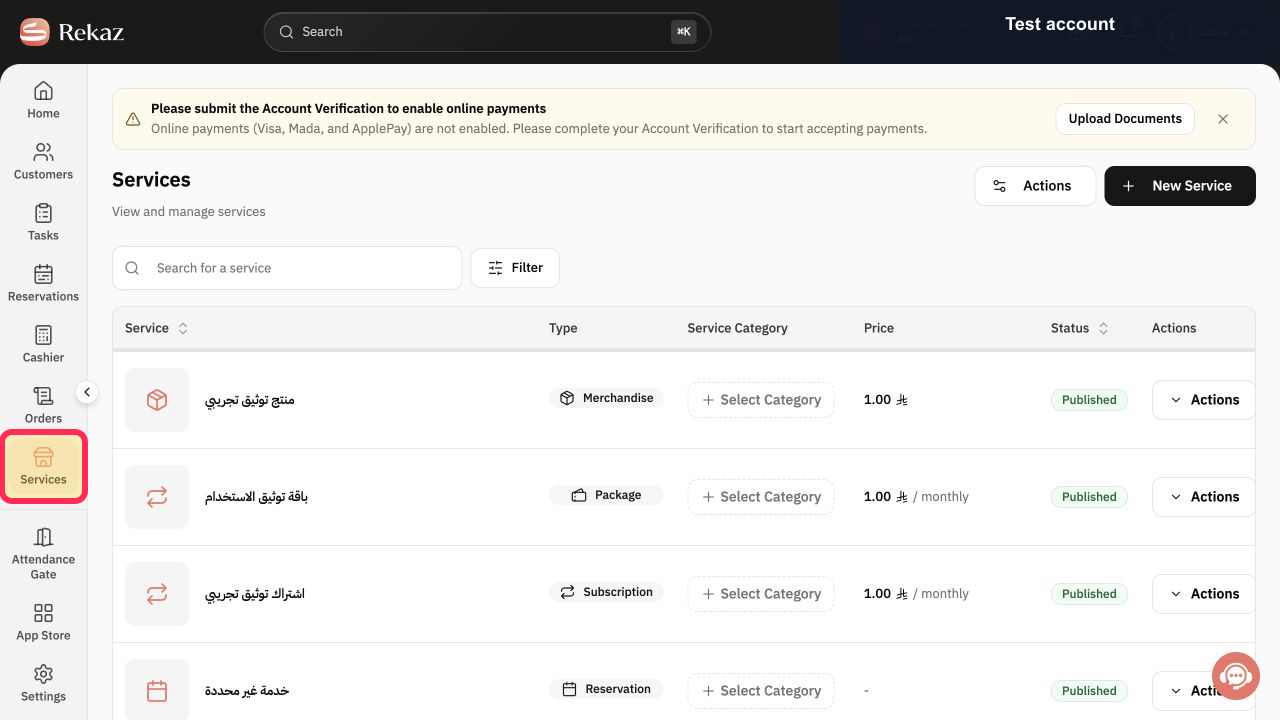
From the signed-in Rekaz dashboard, select Services in the sidebar.
The Services section opens.
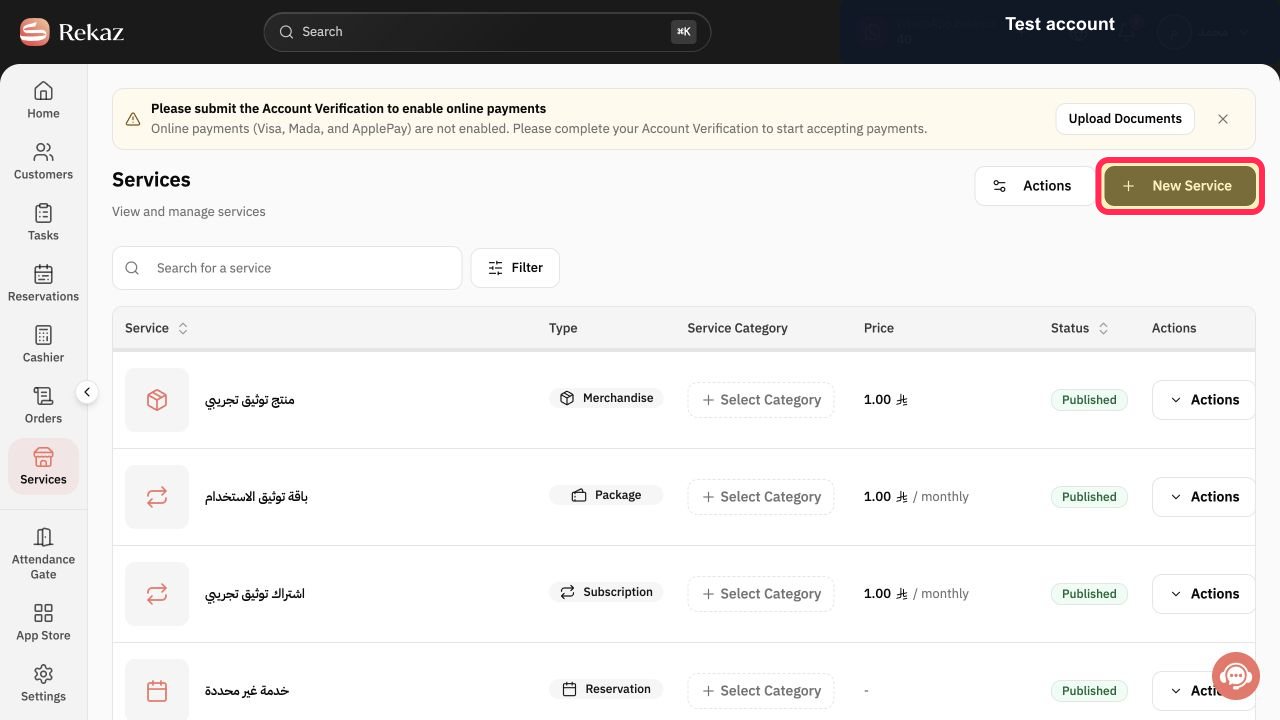
Select New Service.
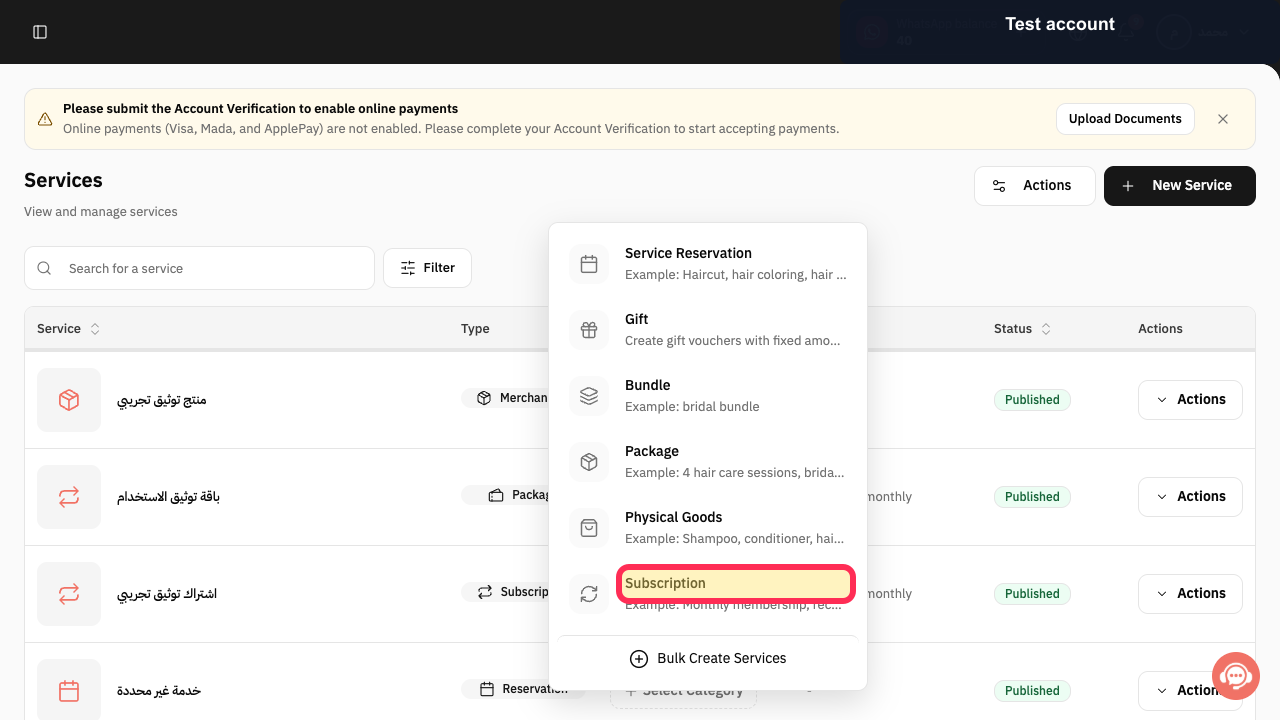
The available service types are displayed.
Select Subscription.
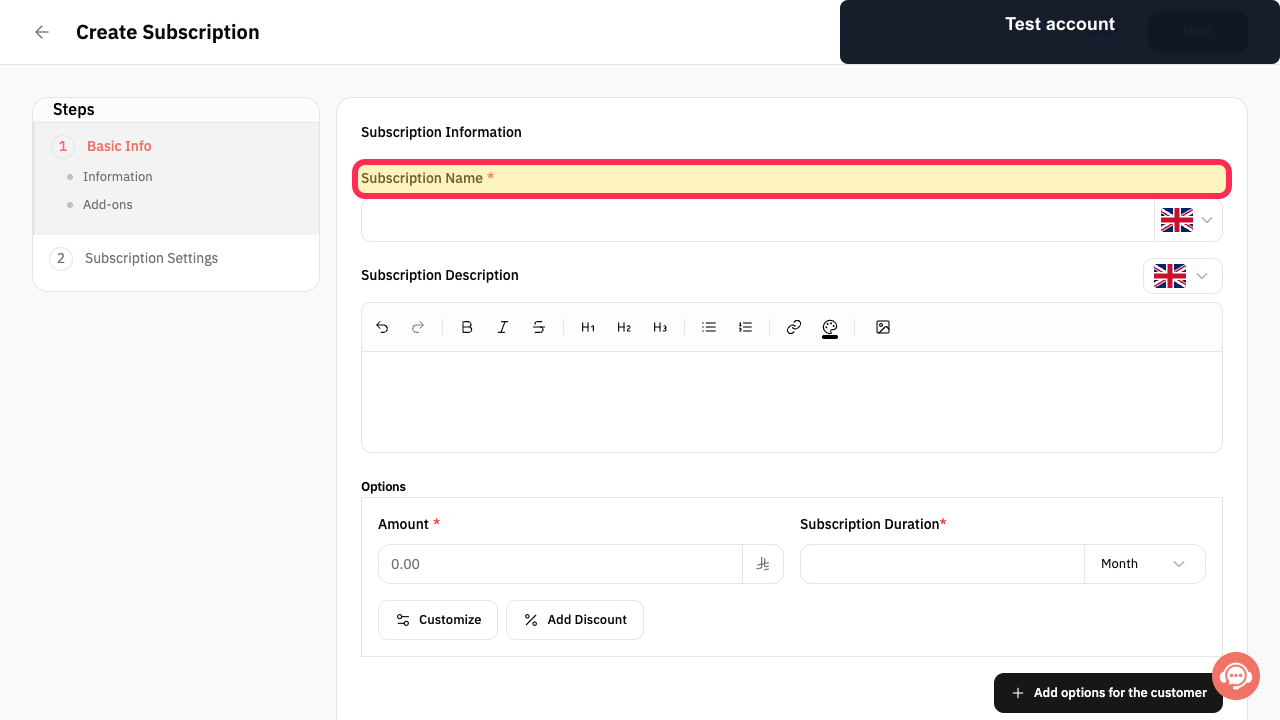
The Create Subscription setup opens.
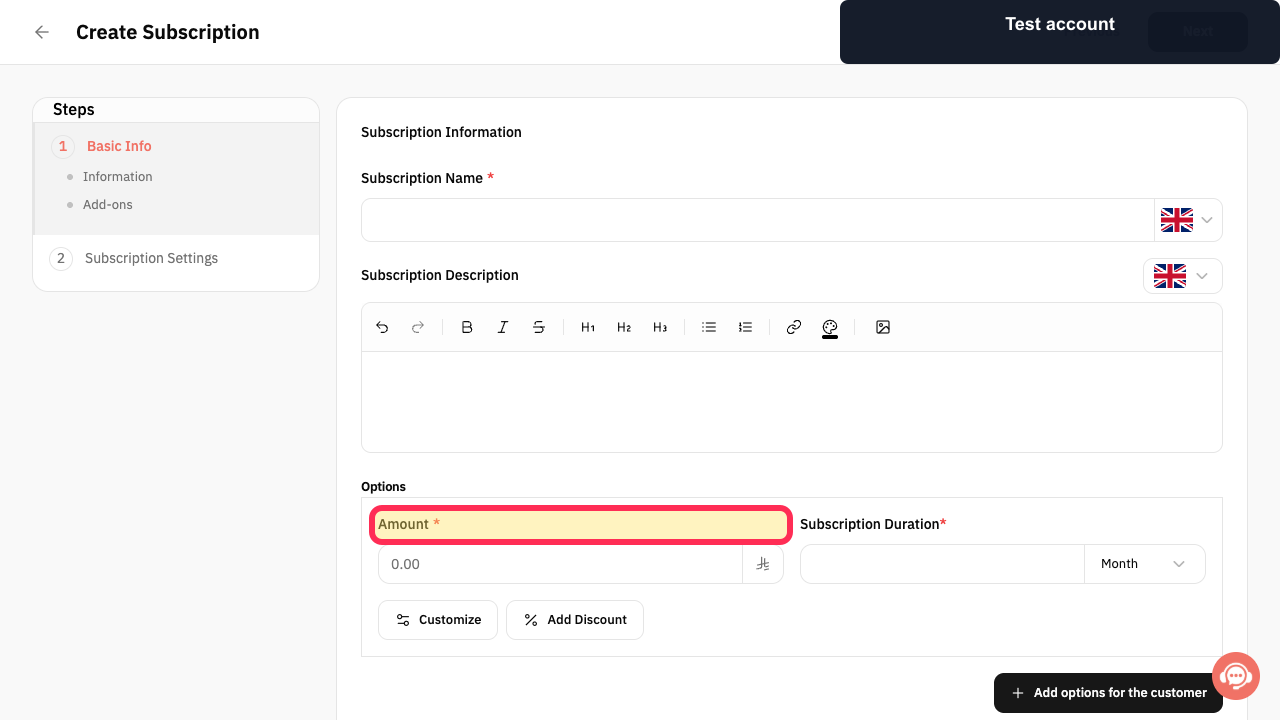
In Basic Info, enter the Subscription Name and, when useful, the Subscription Description.
The subscription identity is entered in English.
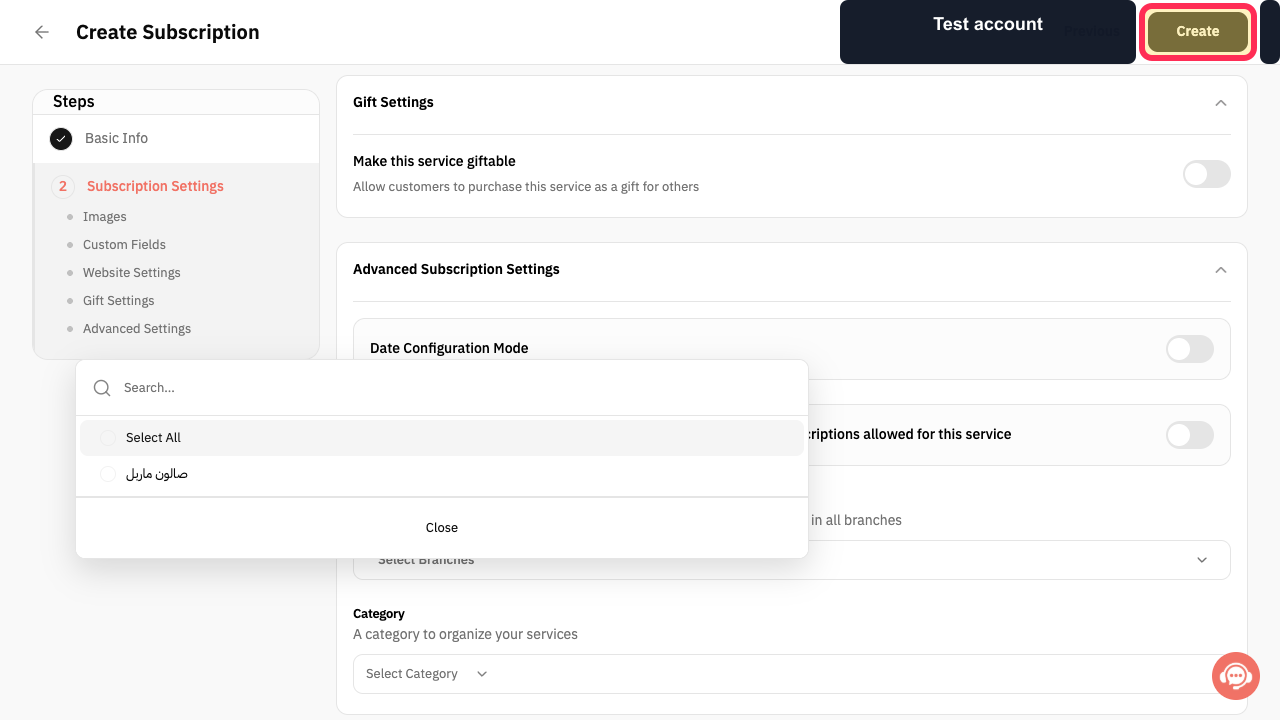
Enter the Amount and Subscription Duration, then choose the duration unit.
The subscription price and duration are configured.
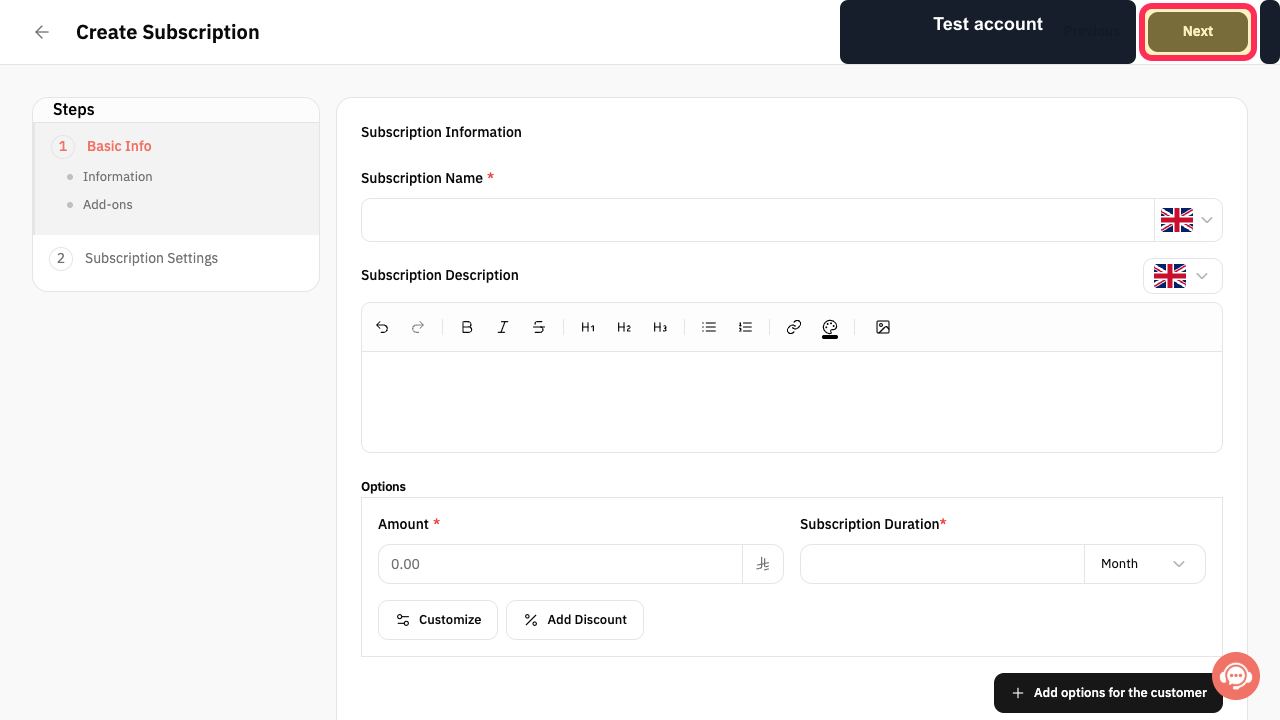
Select Next.
Subscription Settings opens.
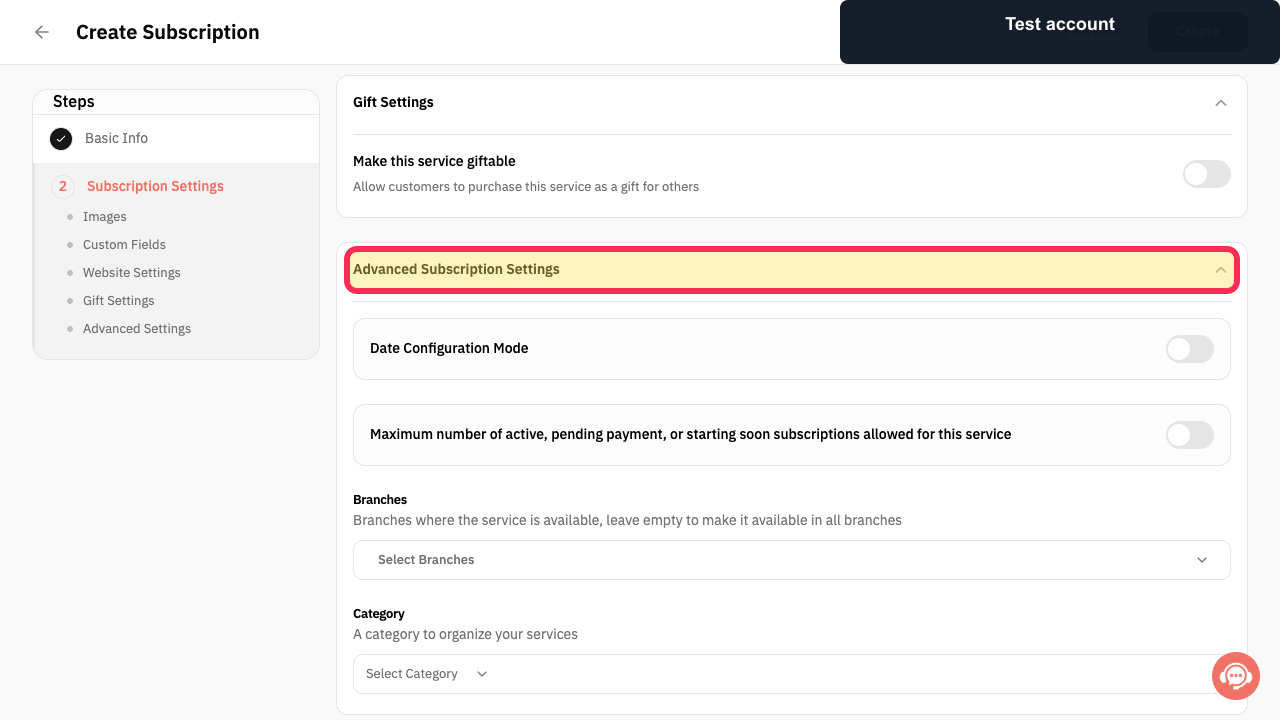
Expand Advanced Subscription Settings.
The date, capacity, branch, and category controls are displayed.
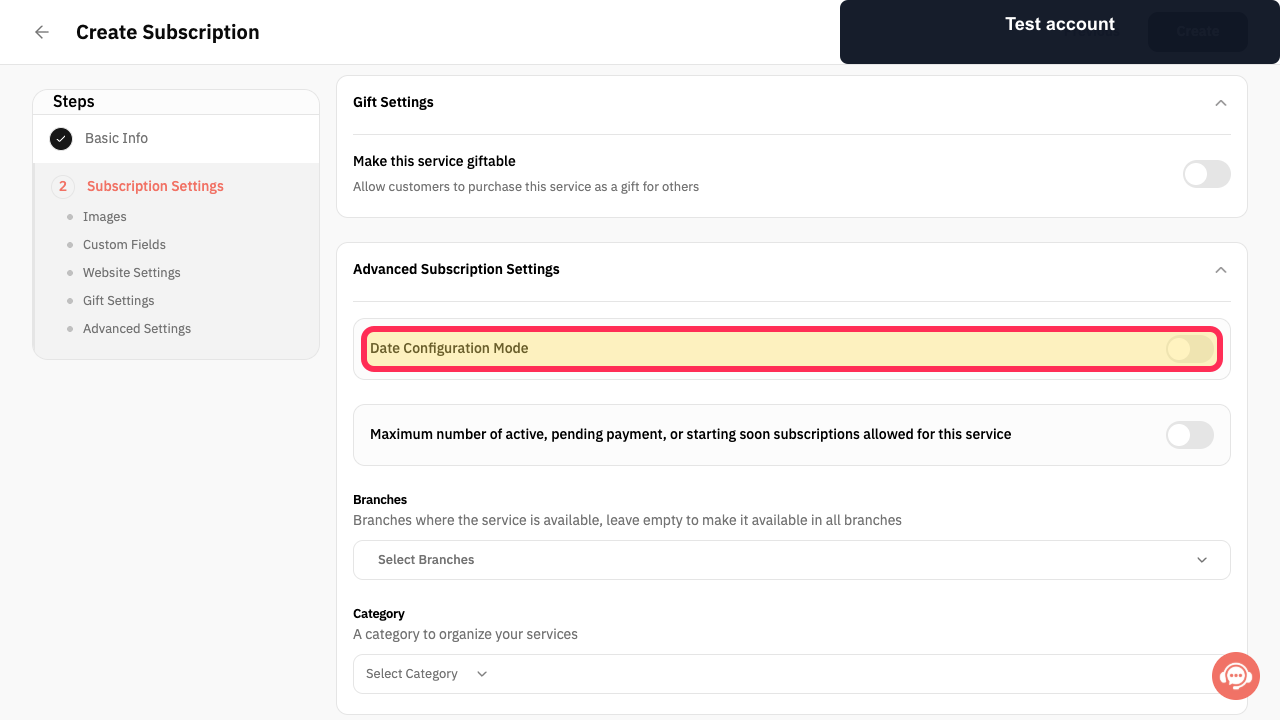
Enable Date Configuration Mode when the subscription must use controlled start dates.
Specific Dates and Relative Duration become available.
Choose Specific Dates for an exact window, or Relative Duration when the dates should be calculated relative to another date.
The selected date mode is applied.
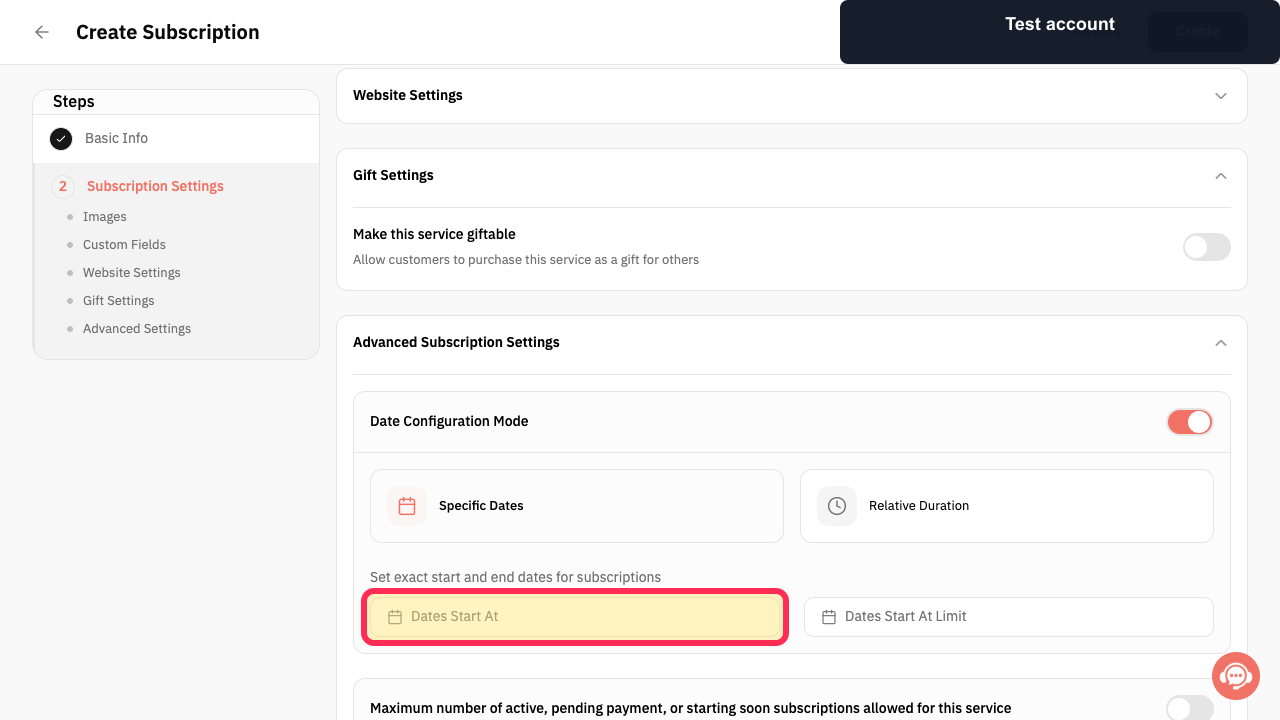
Set Dates Start At and Dates Start At Limit for the allowed subscription-start window.
The first and last allowed start dates are configured.
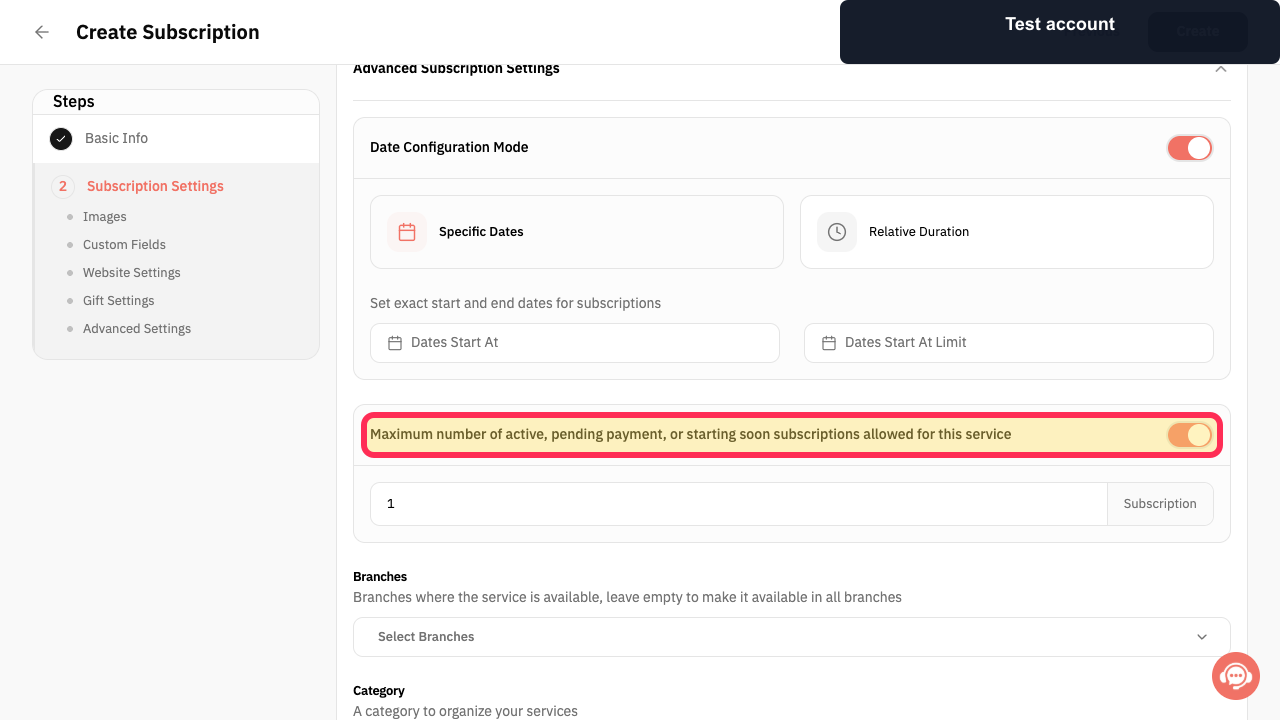
Enable the maximum-subscriptions control and enter the allowed number when capacity must be limited.
Rekaz limits active, pending-payment, or starting-soon subscriptions for this service.
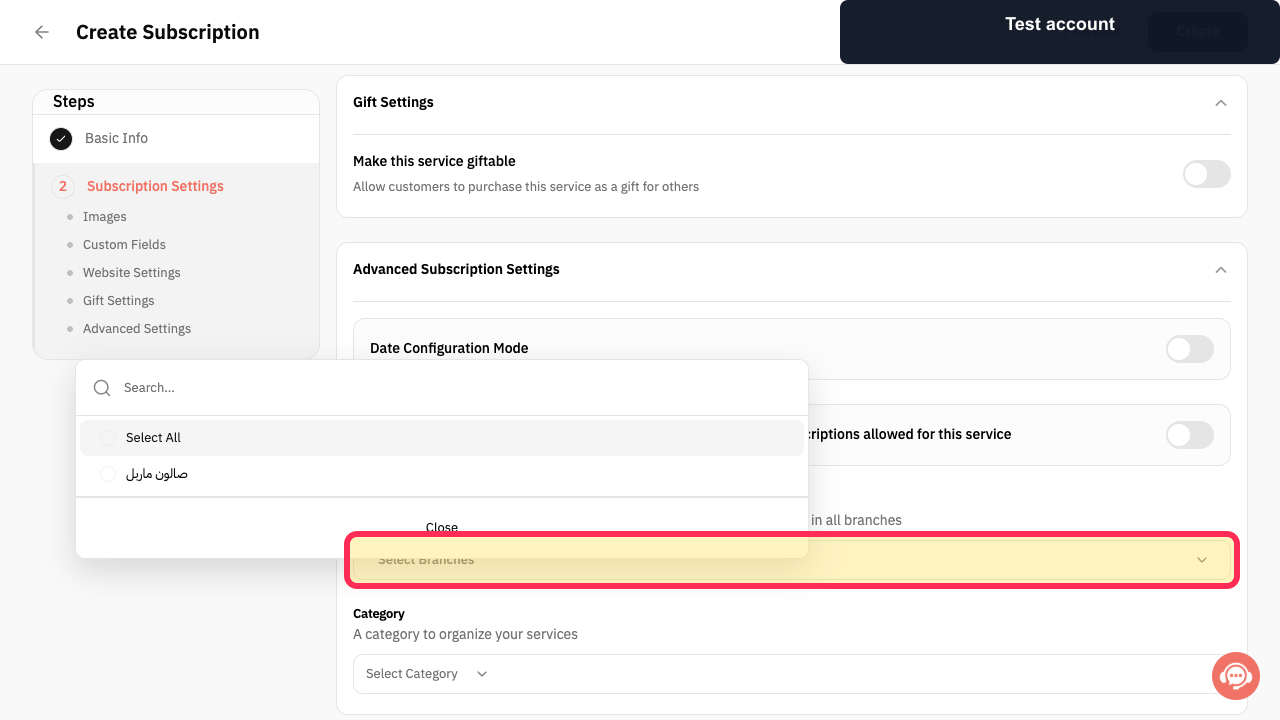
Select Branches when the subscription should only be available at specific branches; leave it empty to allow all branches.
The branch availability is configured.
Review the settings, then select Create at the top of the page.
The subscription service is submitted for creation.
Illustrated guide
Step 1: Open Services from the Rekaz sidebar.
Step 2: Start creating a new service.
Step 3: Choose Subscription as the service type.
Step 4: Enter the subscription name and description.
Step 5: Set the subscription amount and duration.
Step 6: Continue to Subscription Settings.
Step 7: Open Advanced Subscription Settings.
Step 8: Enable subscription date configuration.
Step 9: Choose the subscription date mode.
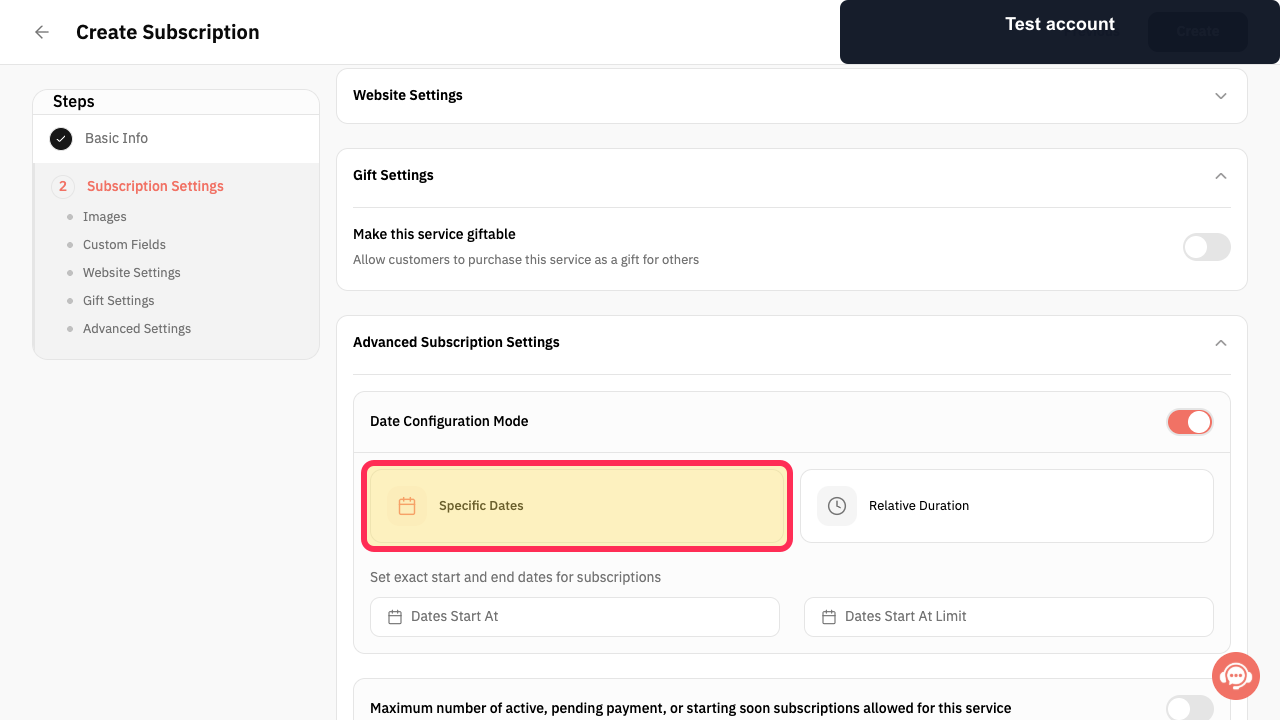
Step 10: Set the allowed subscription-start dates.
Step 11: Set the maximum subscription capacity.
Step 12: Choose where the subscription is available.
Step 13: Create the subscription service.
Add subscription options
Use Add Option to create different subscription choices for the same service.
Example: For a football subscription, create one option for a one-month subscription and another for a three-month subscription.
Advanced subscription settings
Subscription advanced settings can control when customers can start a subscription and how many customers can subscribe.
Set the first and last dates on which a customer can start the subscription. For example, if the available start-date range is 1 January to 31 January, customers cannot start the subscription before or after that range.
Set a minimum lead time before a subscription can start. For example, a customer may need to start the subscription at least three days before a specified date.
Set the maximum number of subscriptions allowed for the service. For example, a football subscription can be limited to 50 subscribers.
Related questions
How do I add subscription options in Rekaz?
How do I limit the number of customers who can subscribe in Rekaz?
How do I set available subscription start dates in Rekaz?


