How do I control which services appear on my website in Rekaz?
Set as Internal removes a published service from the customer-facing website while keeping it available internally.
When restoring visibility, reopen the same row's Actions menu and use the corresponding public or publish action shown in the current interface; confirm the label before selecting it.
Steps
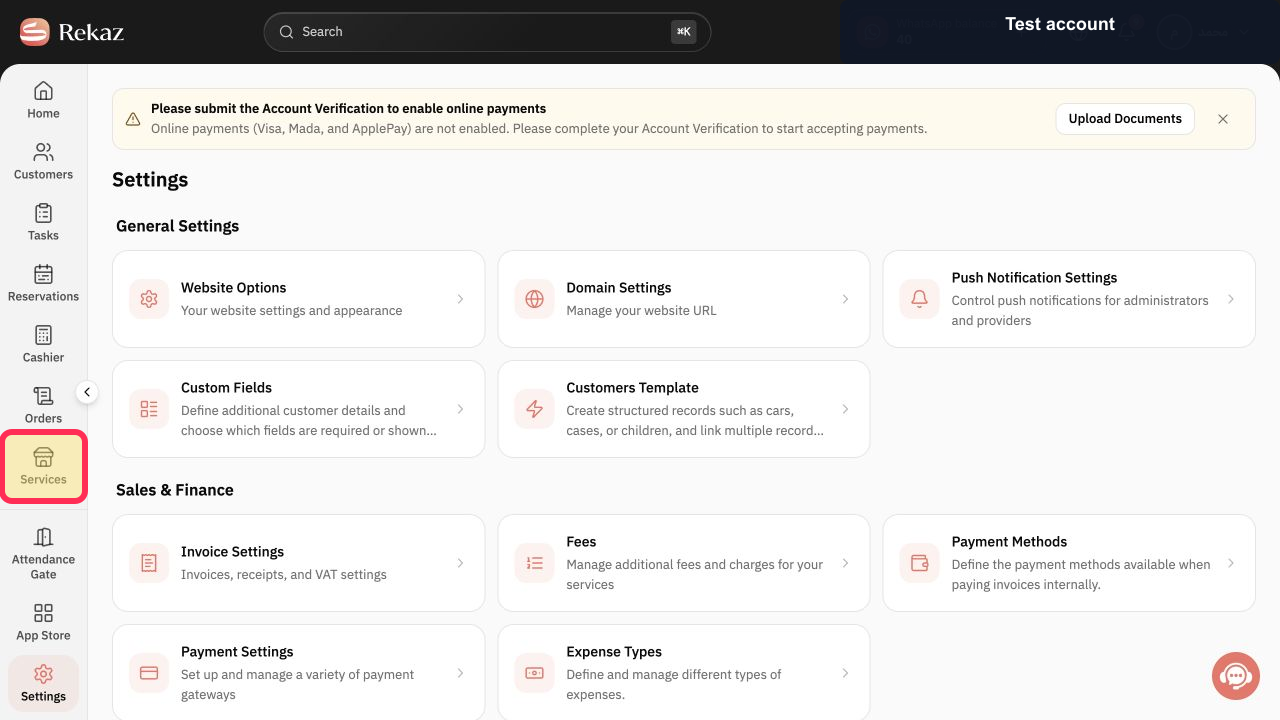
From the Rekaz navigation, select Services.
The Services list opens.
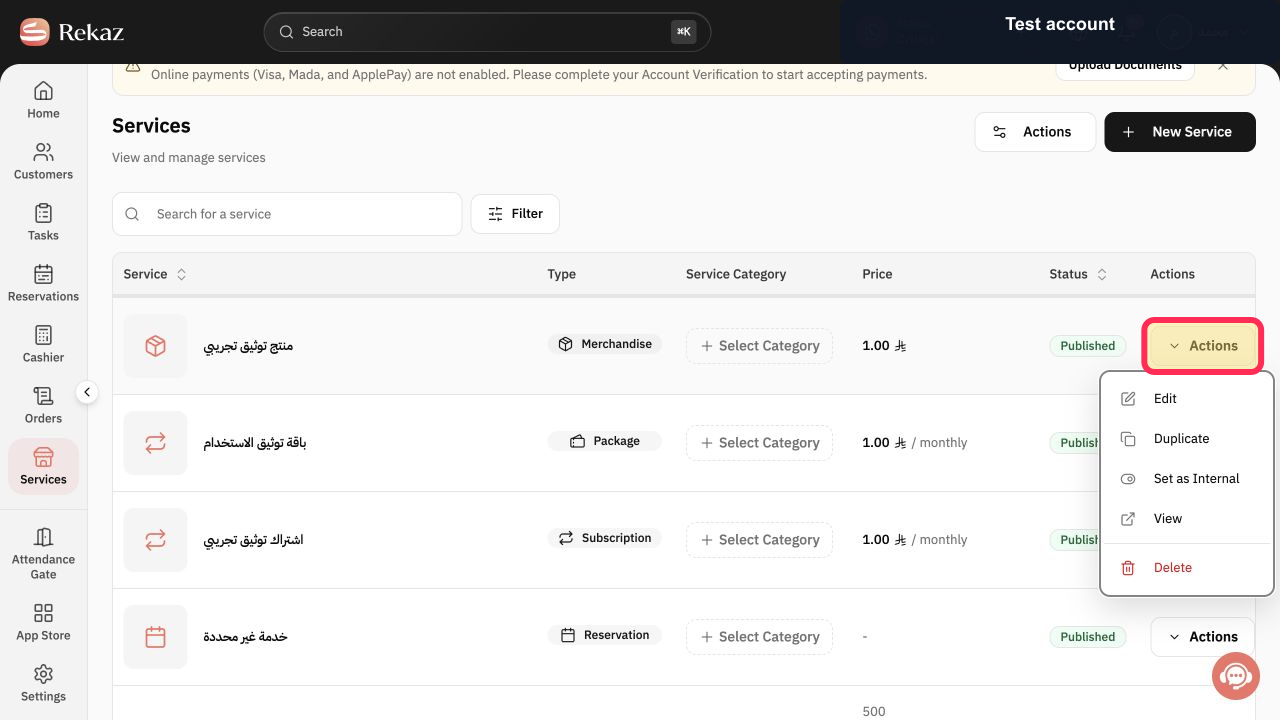
Locate the service you want to hide and select Actions in that row.
The selected service's Actions menu opens.
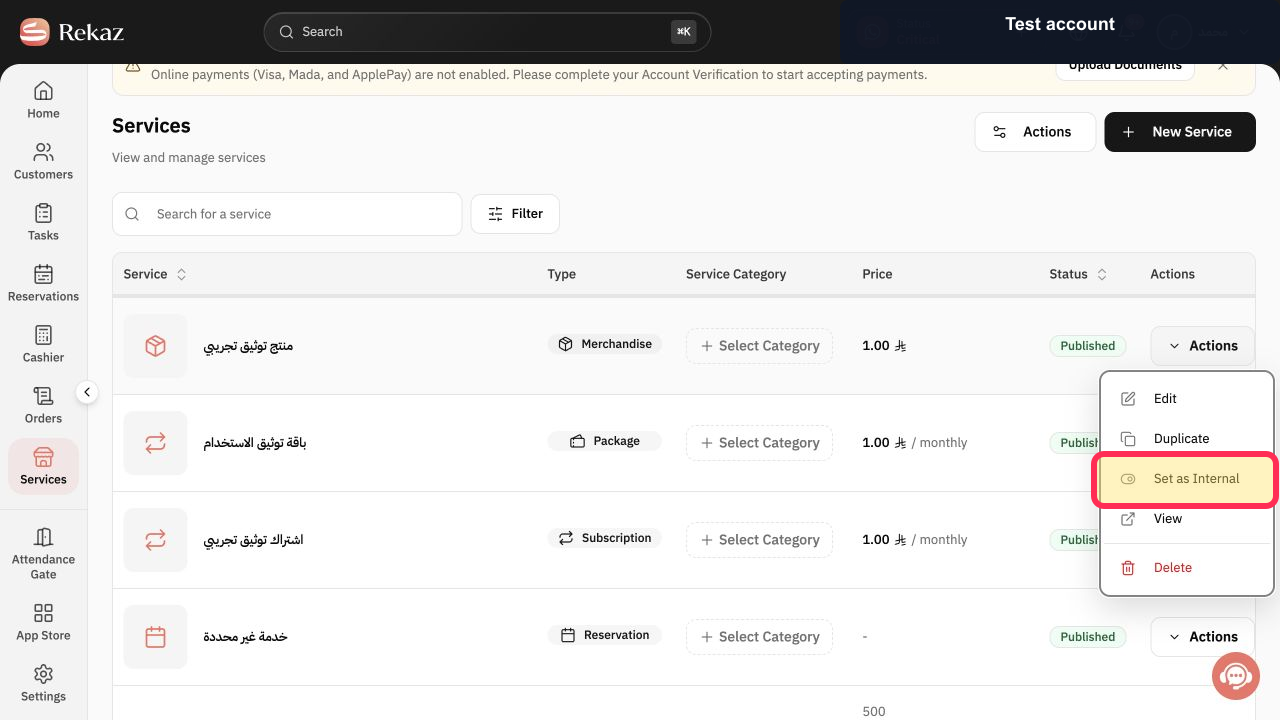
Select Set as Internal.
The service is changed to internal visibility and is no longer intended for public booking.
Illustrated guide
Step 1: Open Services in Rekaz.
Step 2: Open the intended service's Actions menu.
Step 3: Hide the service from the booking website.
Show the service again
To make the service appear on your website again, repeat the status-change action from the service’s Actions menu.
Important note
There is no separate visibility setting inside Website Design for this purpose. A service’s website visibility is linked to its publishing status on the Services page.
Related questions
How do I hide a service from my website in Rekaz?
How do I publish a service on my website in Rekaz?
Where can I change a service’s website visibility in Rekaz?


