How do I publish website changes in Rekaz?
To apply website changes in Rekaz, save them from Website Options. Then use Visit website to check whether the updated version is shown.
Rekaz does not provide a separate Publish action on the current screen. Before saving, review the name, status, amount, or date displayed, where applicable.
Steps
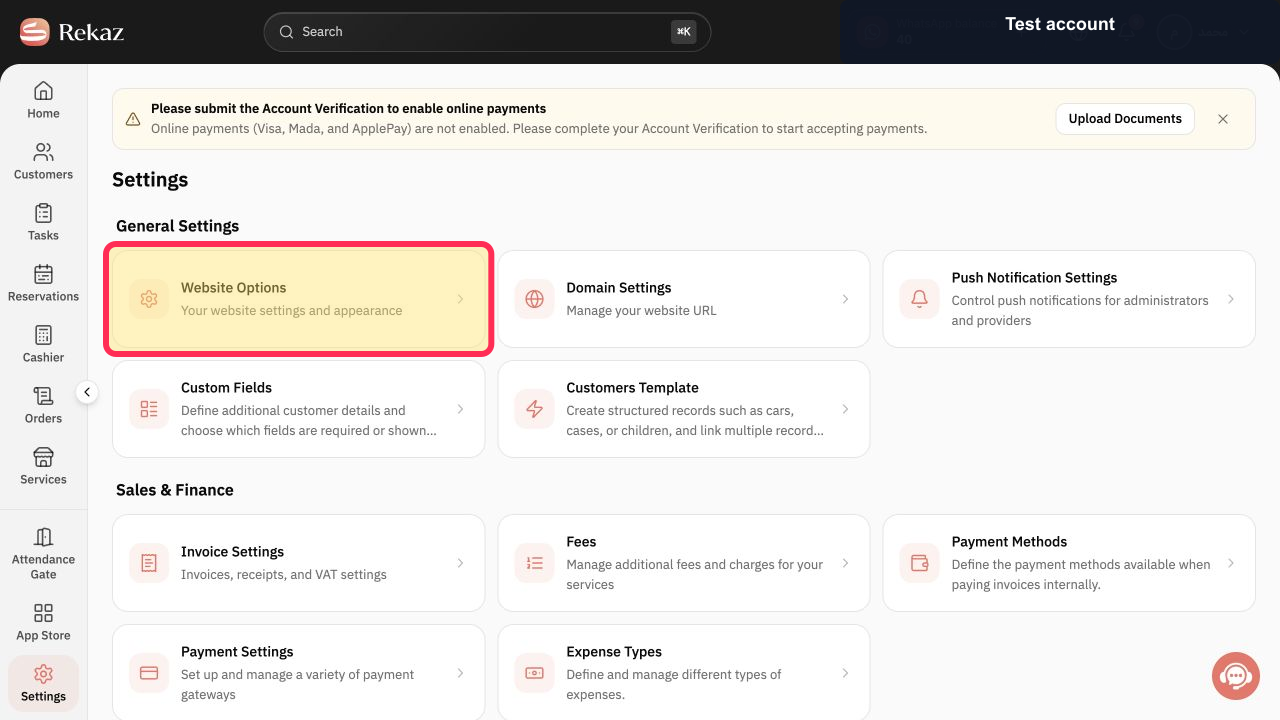
From Home, navigate to Website Options.
The Website Options screen opens.
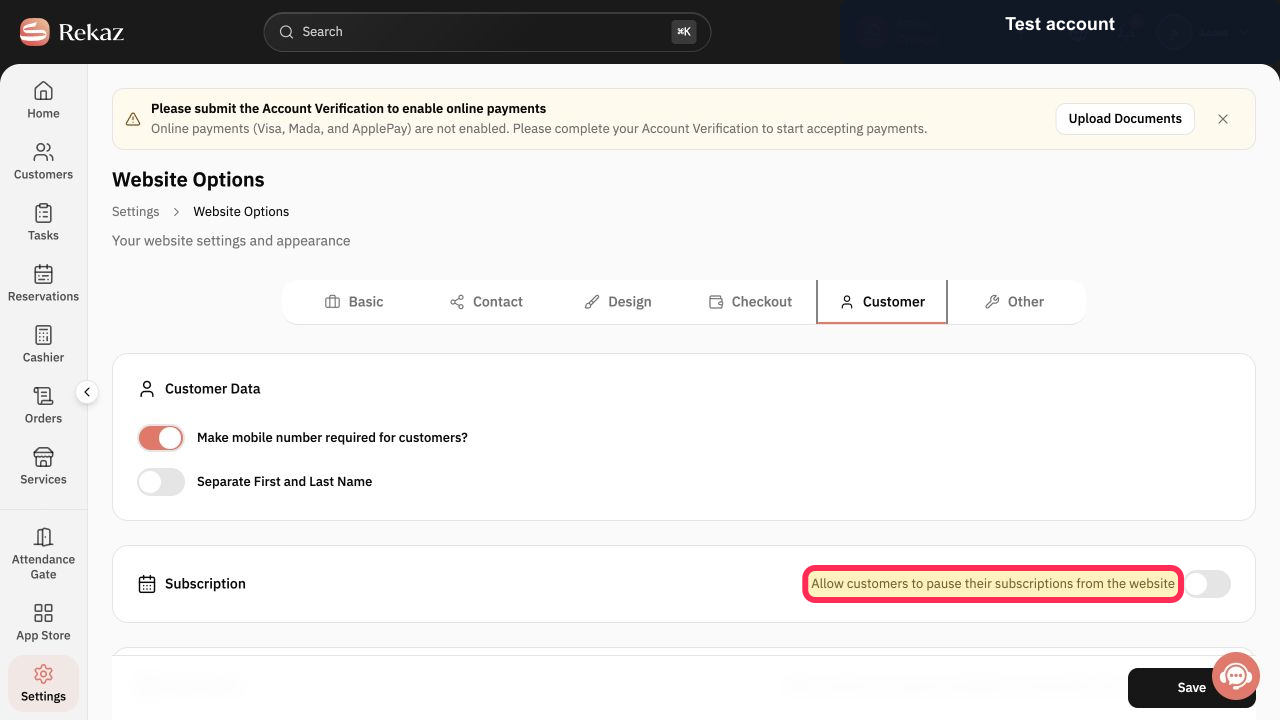
Review the changes you made in Website Options before saving.
Your updated settings are ready to be saved.
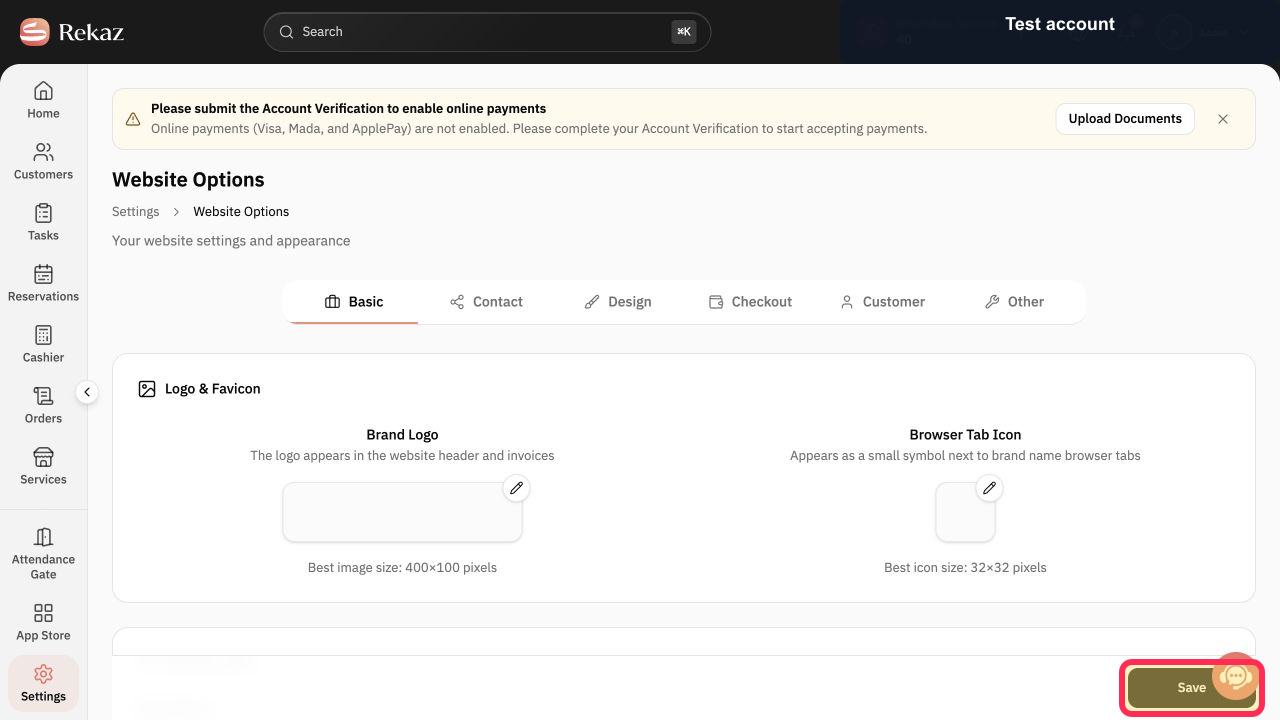
Click Save at the bottom of the page. Saving is the available action that applies the change.
Your changes are saved and applied.
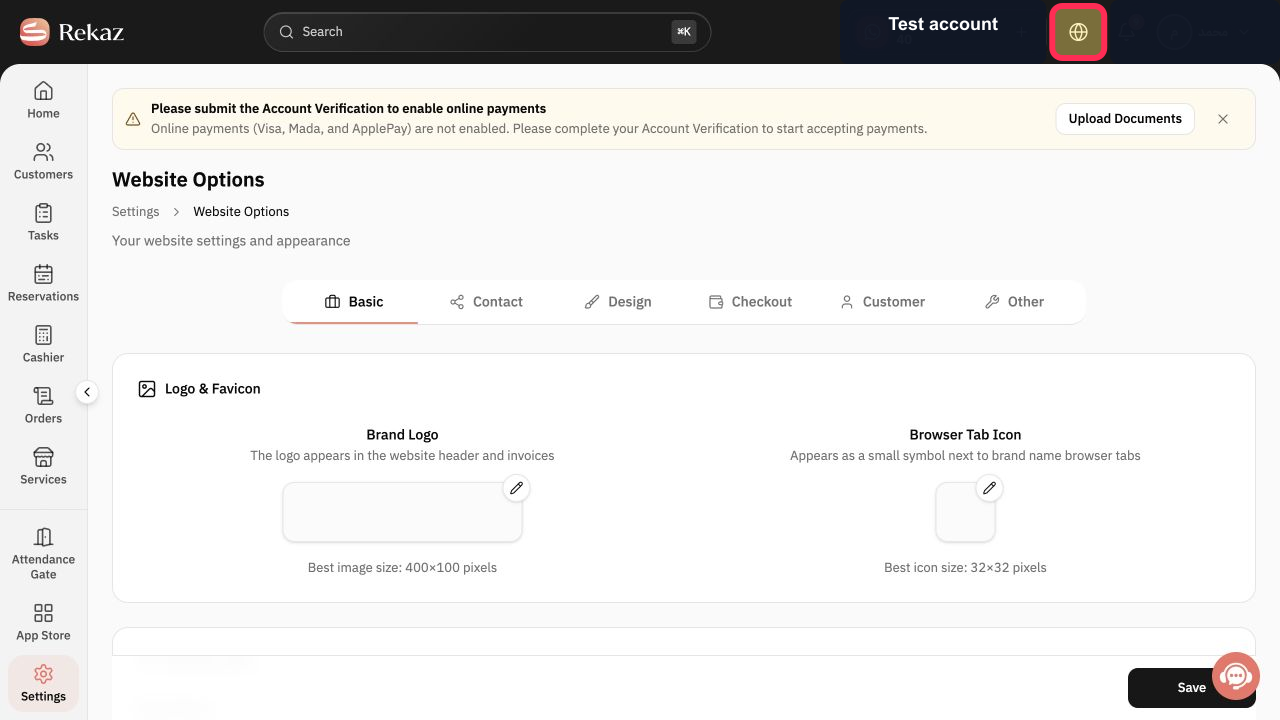
Open Visit website and review the result on your website.
Your website opens so you can check the saved changes.
Illustrated guide
Step 1: The Website Options control used to open your website settings in Rekaz.
Step 2: The updated website settings to review before saving.
Step 3: The Save button at the bottom of Website Options.
Step 4: The Visit website control used to open and review your website.
If the previous version is still displayed
Try a full browser refresh, then check the website again. If the old version remains, contact Rekaz support.
Related questions
How do I save website changes in Rekaz?
Is there a separate Publish button for website changes in Rekaz?
Why are my saved website changes not showing in Rekaz?


