How do I add or edit Terms & Conditions in Rekaz?
To manage the available Terms & Conditions option in Rekaz, go to Settings and open Website Options, then use the Checkout section.
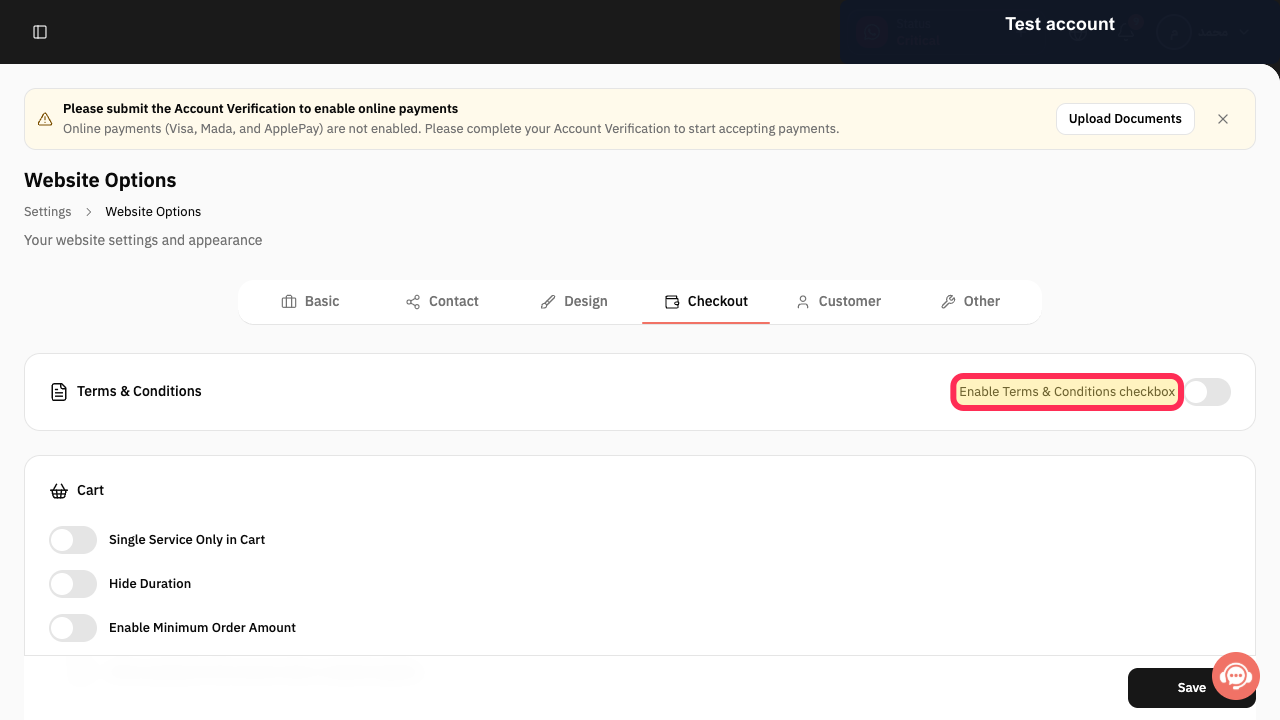
The current interface shows an option to enable the Terms & Conditions checkbox, but it does not show the text editor or a save action for adding or editing the Terms & Conditions wording.
Steps
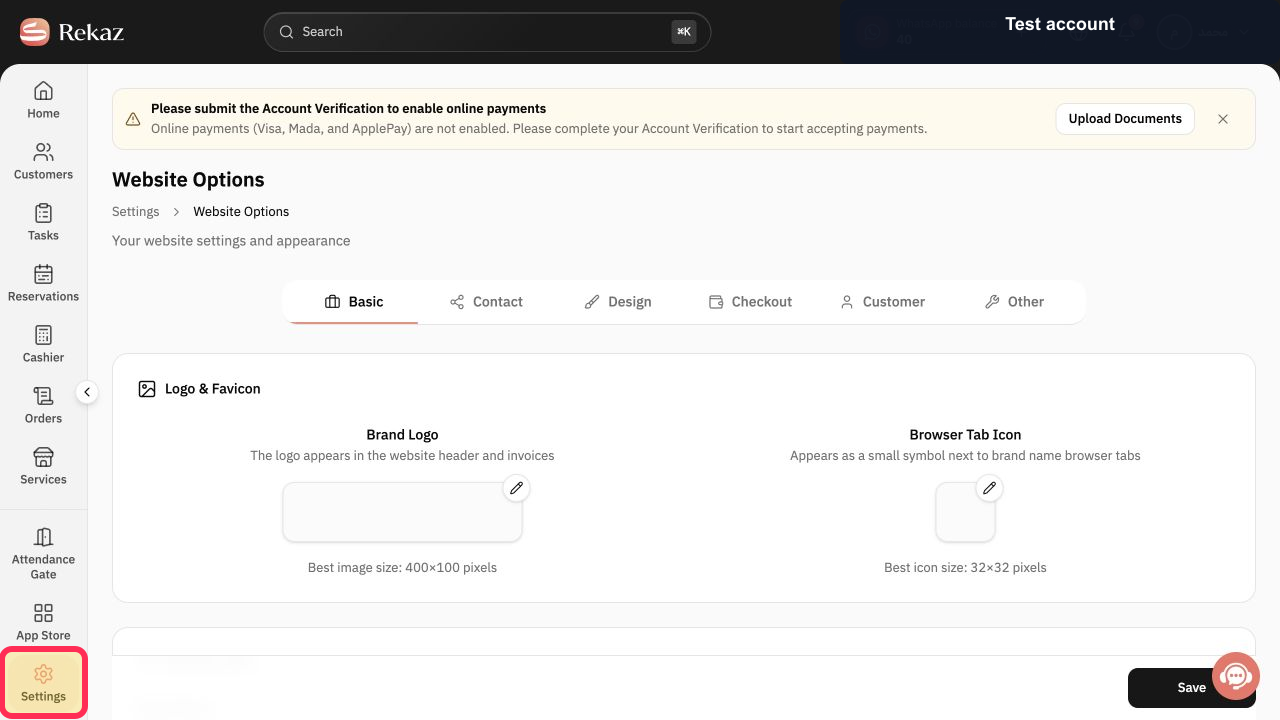
In the Rekaz sidebar, select Settings.
The Settings page opens.
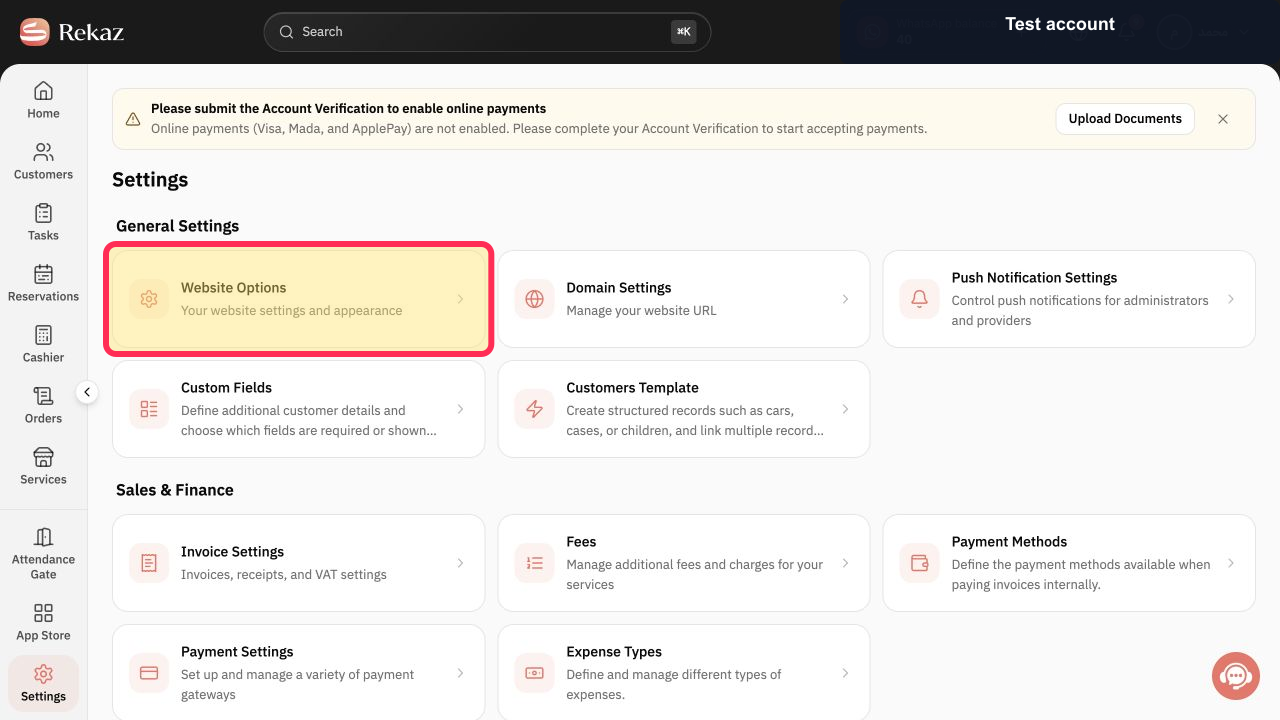
Select Website Options.
The Website Options page opens.
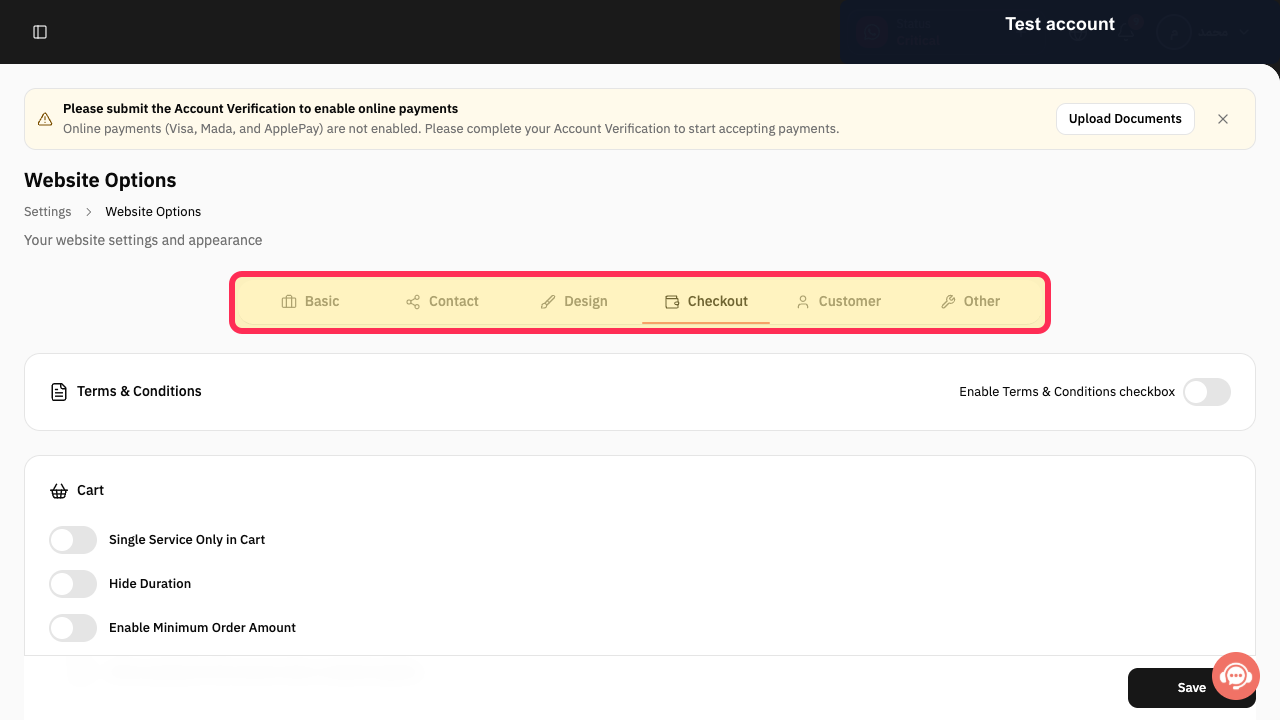
Select Checkout in the Website Options tab row.
The Checkout section is displayed, including the Terms & Conditions option.
Select Enable Terms & Conditions checkbox.
The Terms & Conditions checkbox option is enabled.
Illustrated guide
Step 1: The Settings option in the Rekaz sidebar.
Step 2: The Website Options card on the Settings page.
Step 3: The Website Options tab row with Checkout available.
Step 4: The Enable Terms & Conditions checkbox option in Checkout.
Before you start
You need access to Settings to update the Terms & Conditions content.
Note
The wording or location of an interface item may vary slightly if the Rekaz interface has changed since this guide was updated.
Related questions
How do I add Terms & Conditions in Rekaz?
Where can I find the Terms & Conditions option in Rekaz?
How do I update Terms & Conditions in Rekaz?


