How do I add a WhatsApp button to my website in Rekaz?
To add a WhatsApp button to your Rekaz website, enter a WhatsApp number in Contact settings and enable the website button option. Use a number with the correct country code that can receive customer messages.
After saving, test the button on the published version of your website.
Steps
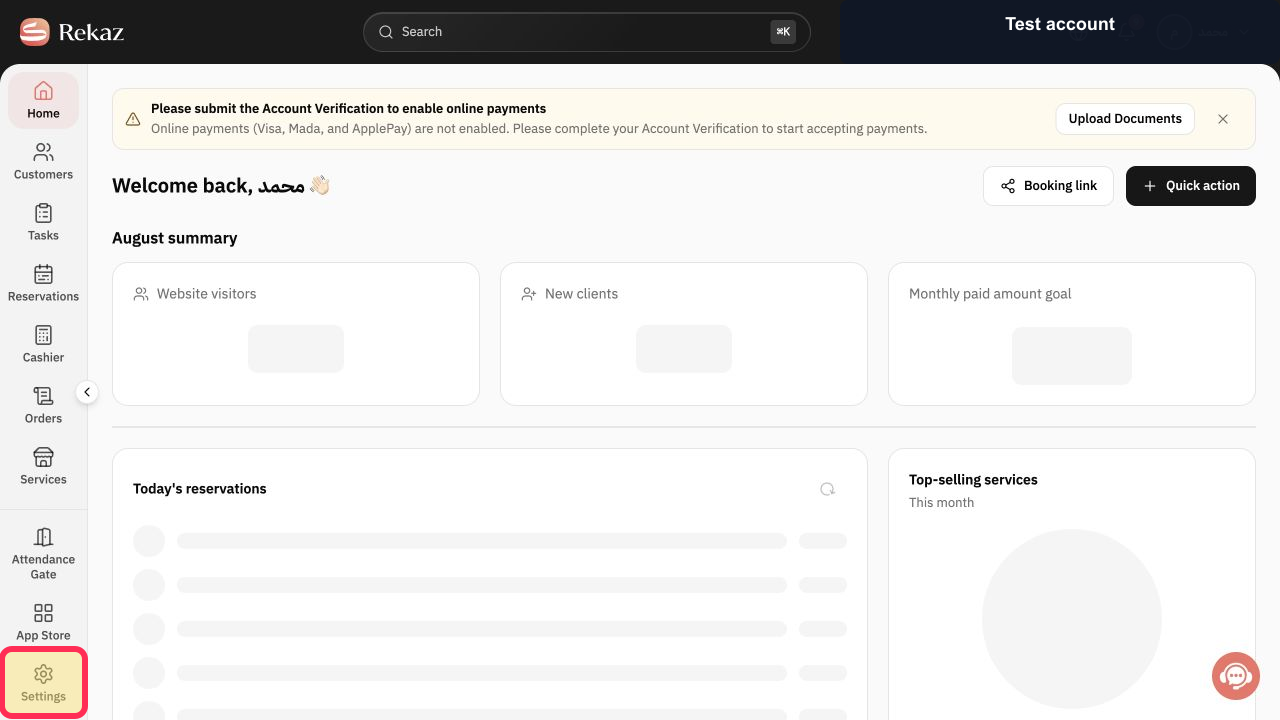
From the sidebar, select Settings.
The Settings page opens.
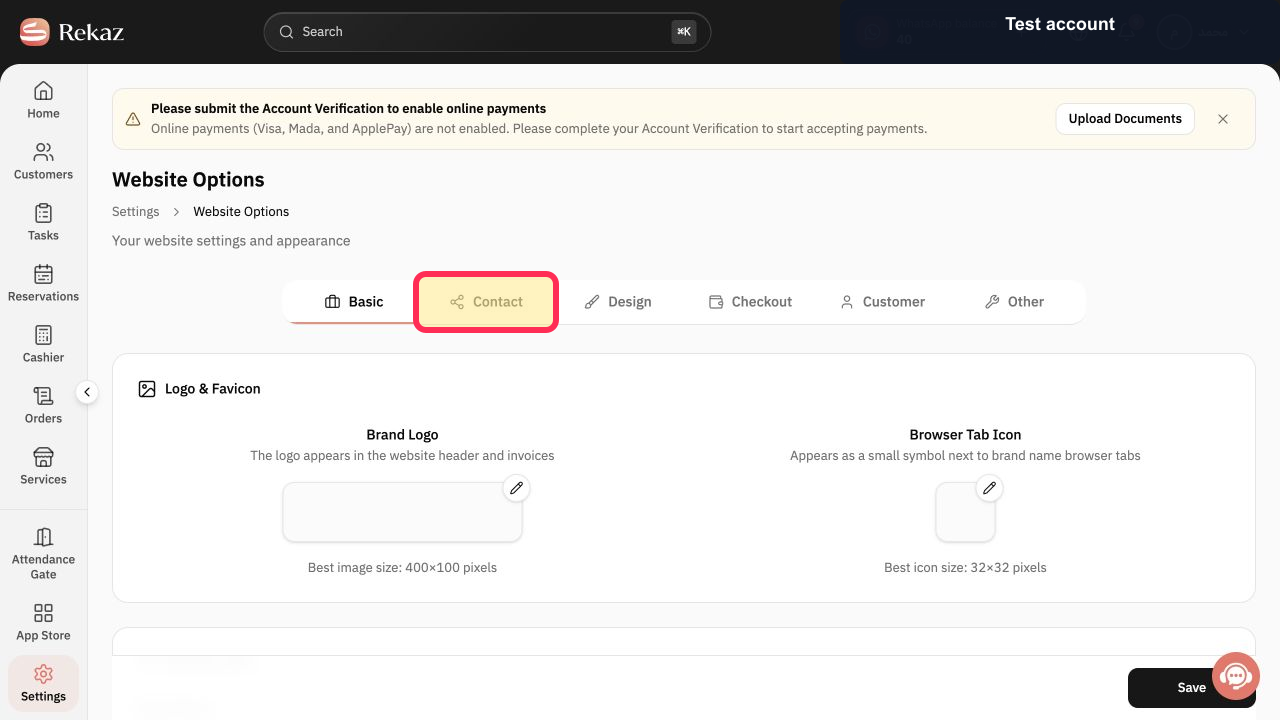
Open the Contact tab.
The Contact settings are displayed.
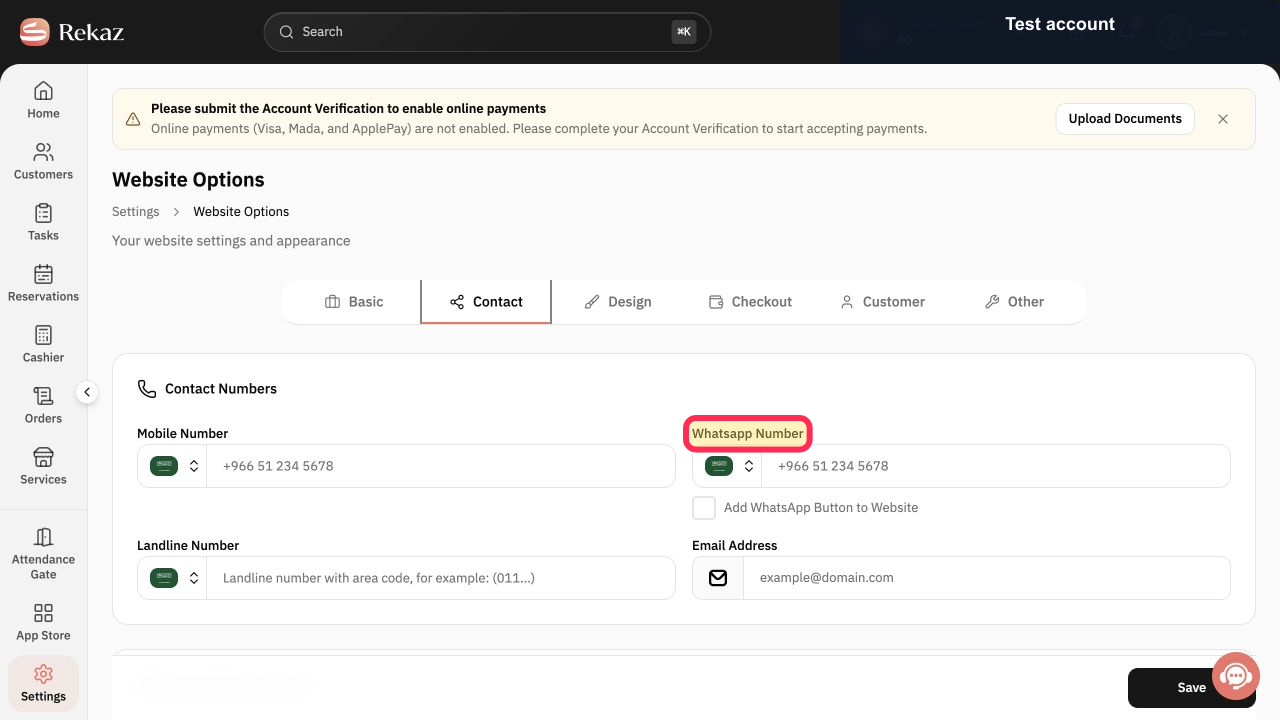
Enter the business WhatsApp number in the Whatsapp Number field.
The WhatsApp number is shown in the field.
Enable Add WhatsApp Button to Website.
The option is enabled.
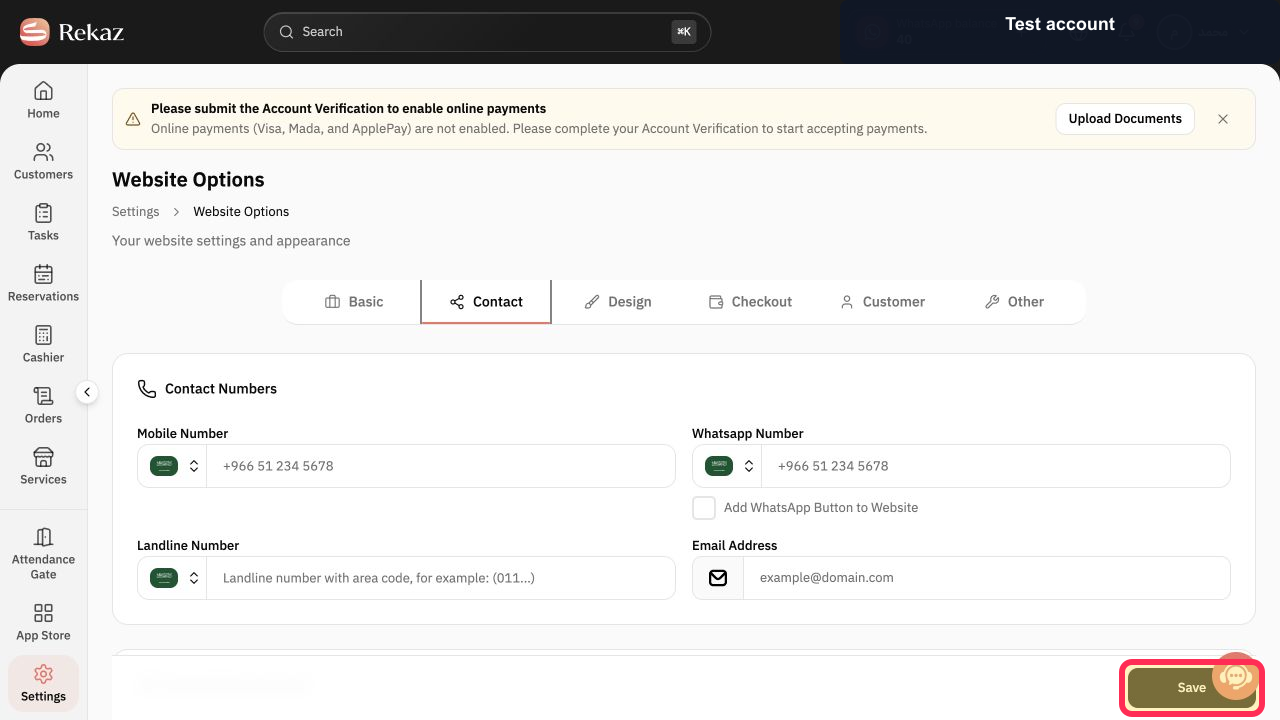
Select Save.
Your changes are saved.
Illustrated guide
Step 1: Select Settings from the sidebar.
Step 2: Open the Contact tab.
Step 3: Enter your WhatsApp contact number.
Step 4: Enable the WhatsApp button for your website.
Step 5: Save your WhatsApp button settings.
Before you save
Make sure the business WhatsApp number includes the correct country code and can receive messages from customers.
Check the button
After saving, open the published version of your website and test the WhatsApp button.
Related questions
How can I add a WhatsApp button to my Rekaz website?
Where can I find the WhatsApp website button setting in Rekaz?
How do I add my WhatsApp number to my website in Rekaz?


