How do I change my website colors in Rekaz?
In Rekaz, website appearance settings are accessed from Settings through Website Options. The current interface includes a Design section.
The current interface does not show color controls or a color-specific save action. Website color-change steps are not available in the current interface.
Steps
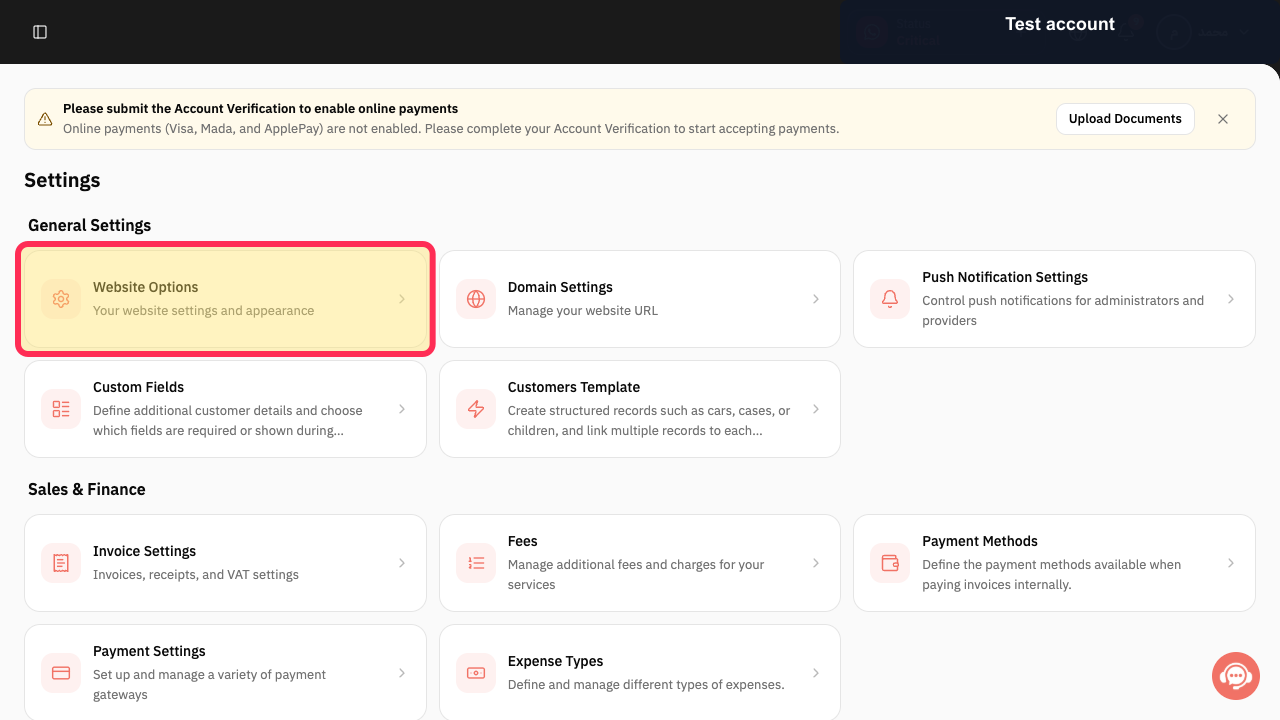
On the Settings page, select the Website Options card.
The Website Options page opens.
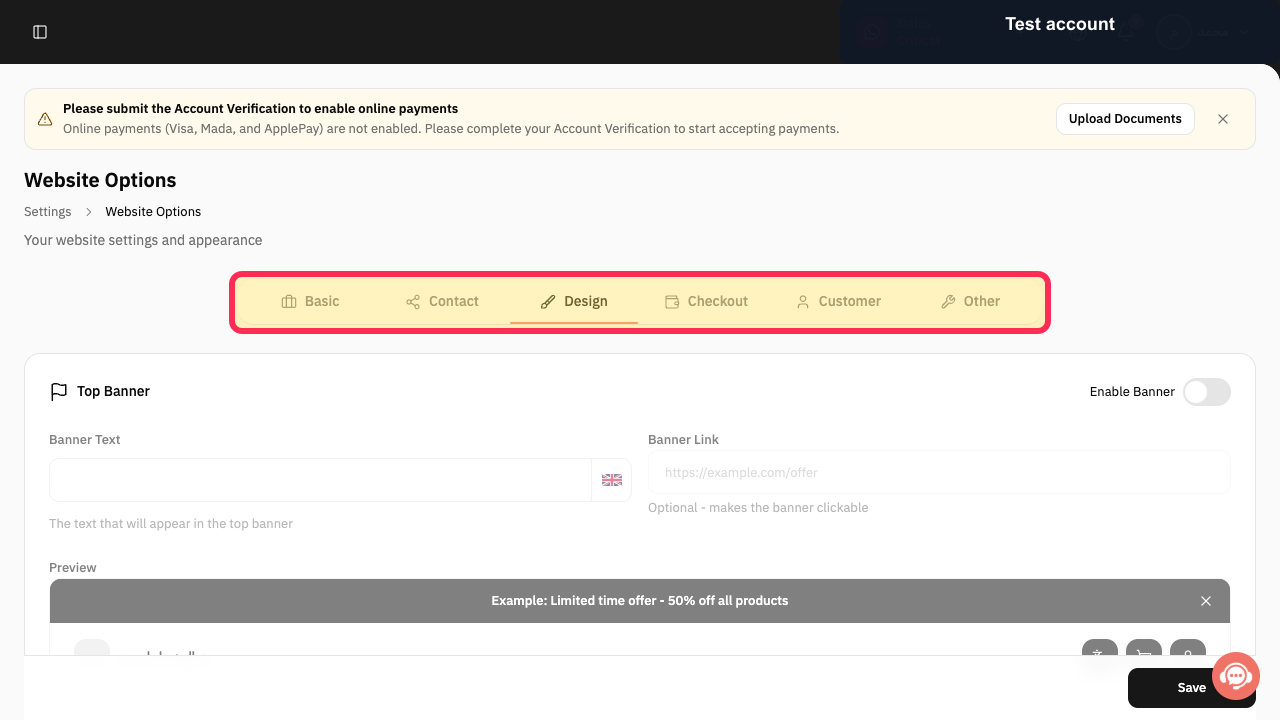
Review the section navigation in Website Options and locate the Design section.
The available Website Options sections include Basic, Contact, Design, Checkout, Customer, and Other.
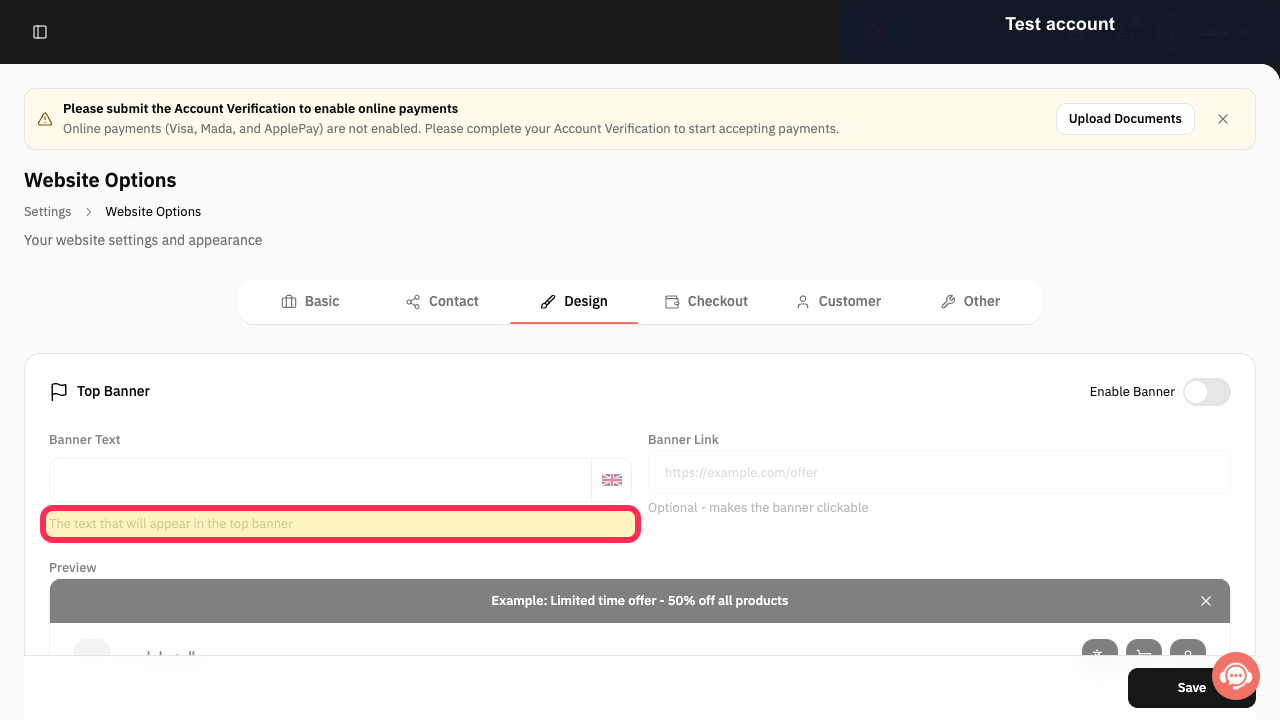
In the Design section, review the available design settings.
A design setting for the top-banner text is visible. The current interface does not show fields for Primary Color, Background Color, or Text Color.
Illustrated guide
Step 1: The Website Options card on the Settings page.
Step 2: The section navigation in Website Options, including Design.
Step 3: A currently visible setting in the Design section.
Tips for readable website colors
Use high-contrast color combinations so that text and buttons are easy to read on different screen sizes. Review all selected color values before saving.
Check Preview after saving.
Check the live website after saving.
Review the website on both mobile and desktop.
Confirm that text and buttons remain readable against the selected background color.
Related questions
Where can I find the website color settings in Rekaz?
How do I change the Primary Color on my Rekaz website?
How do I change my website background and text colors in Rekaz?


