How do I reply to a customer review in Rekaz?
Use Add Reply on the correct review row. Read the review and verify the service and date before writing a public response.
Do not include private customer information, phone numbers, payment details, or internal notes in a public reply.
Steps
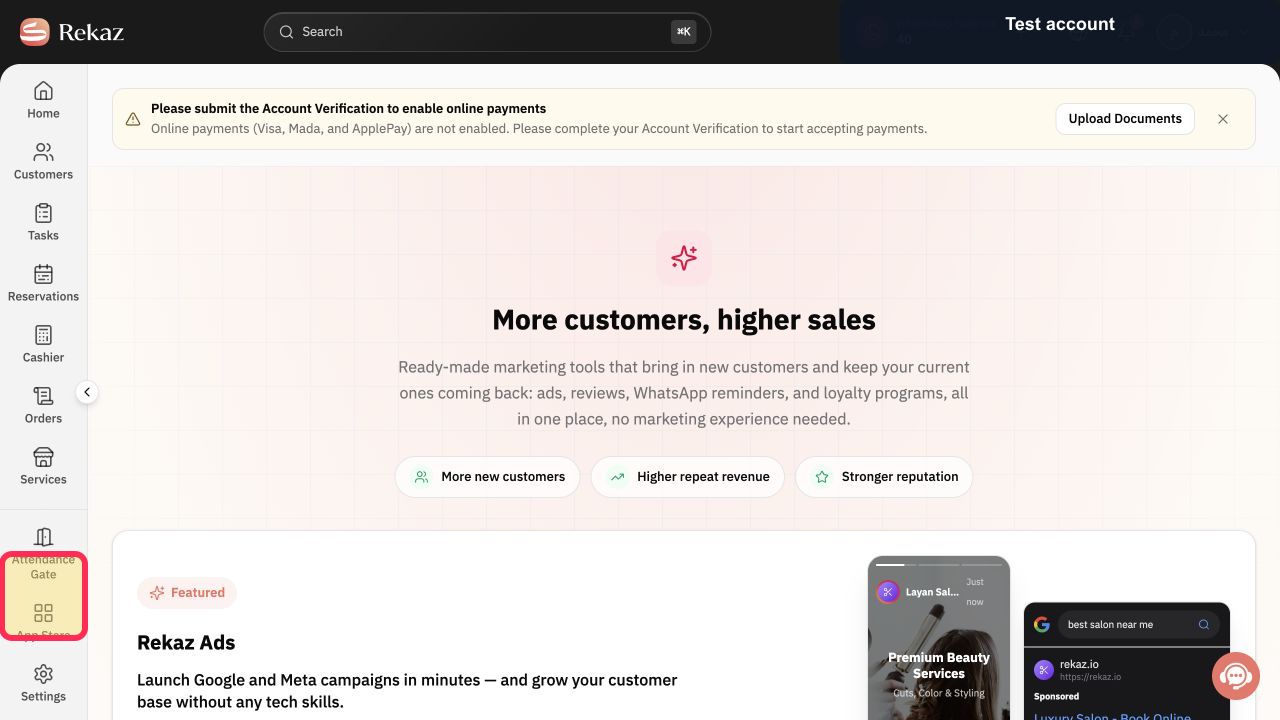
From the Rekaz navigation, select Marketing Tools.
The Marketing Tools area opens.
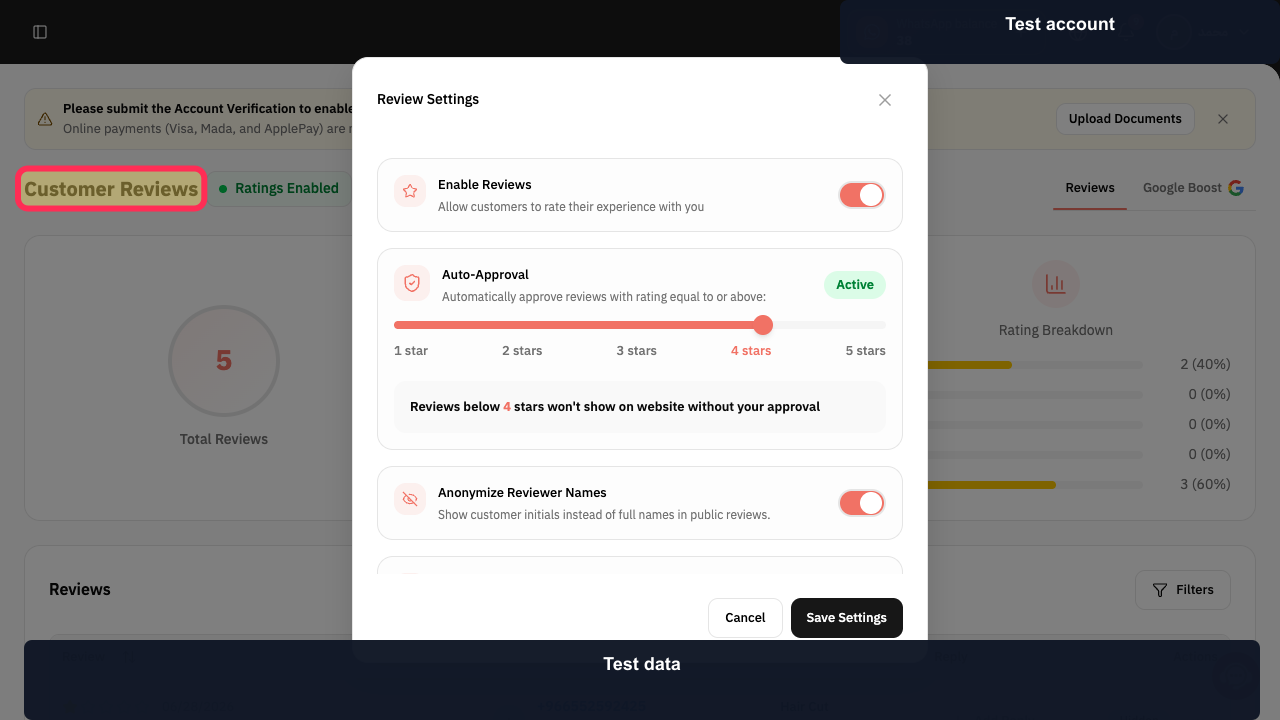
Open Customer Reviews.
The Customer Reviews dashboard opens.
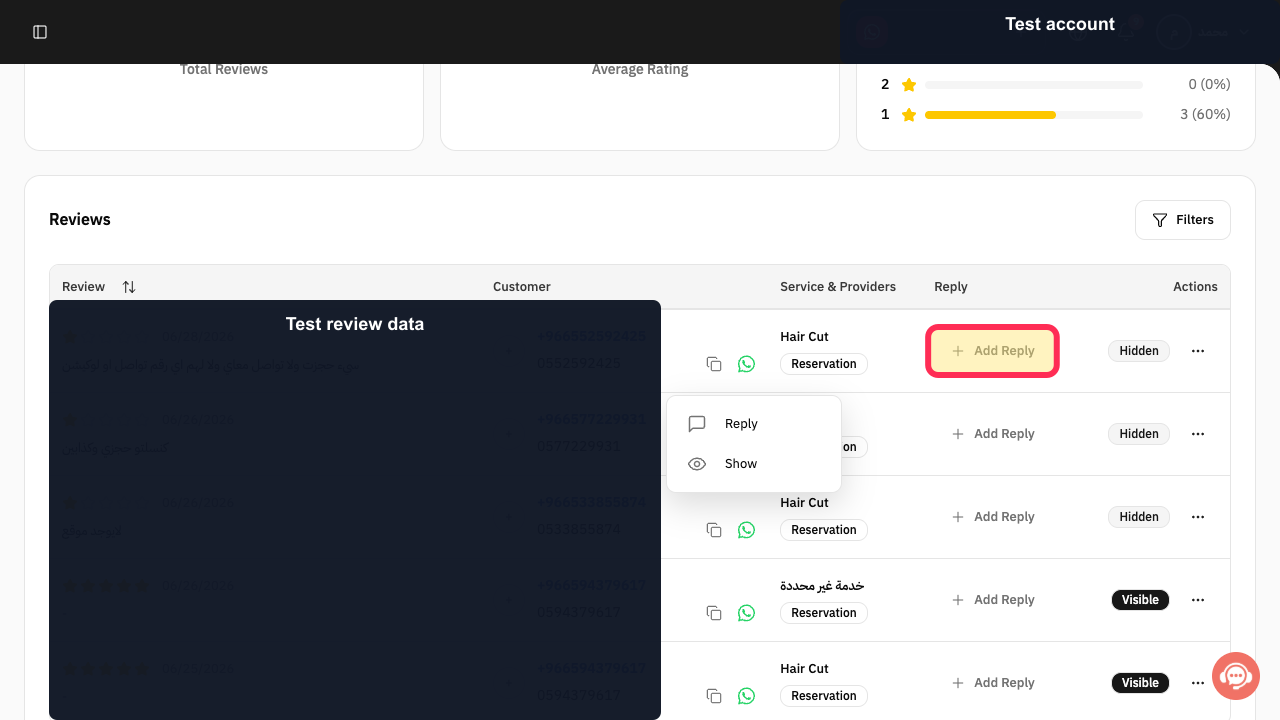
Locate the intended review and select Add Reply.
The reply workflow opens for that review.
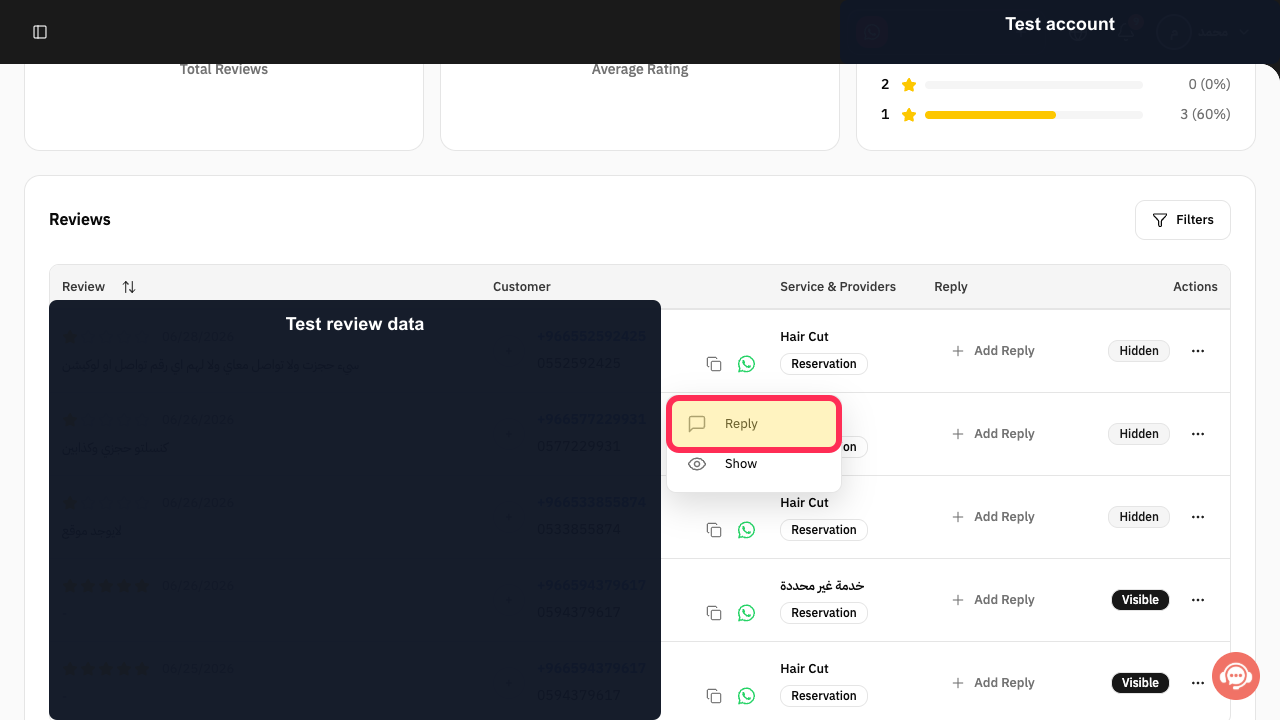
Write a concise response using the reply form, check that it contains no private customer information, and use the form's final send action.
The reviewed public reply is submitted for the selected review.
Illustrated guide
Step 1: Open Marketing Tools.
Step 2: Open Customer Reviews.
Step 3: Start a reply to the selected review.
Step 4: Complete the reply using the opened review form.
Important note
Interface labels or the position of controls may change after the source was last updated.
Related questions
How can I respond to a customer review in Rekaz?
Where can I find Customer Ratings in Rekaz?
How do I use Add Reply for a customer review in Rekaz?


