How do I show or hide a customer review in Rekaz?
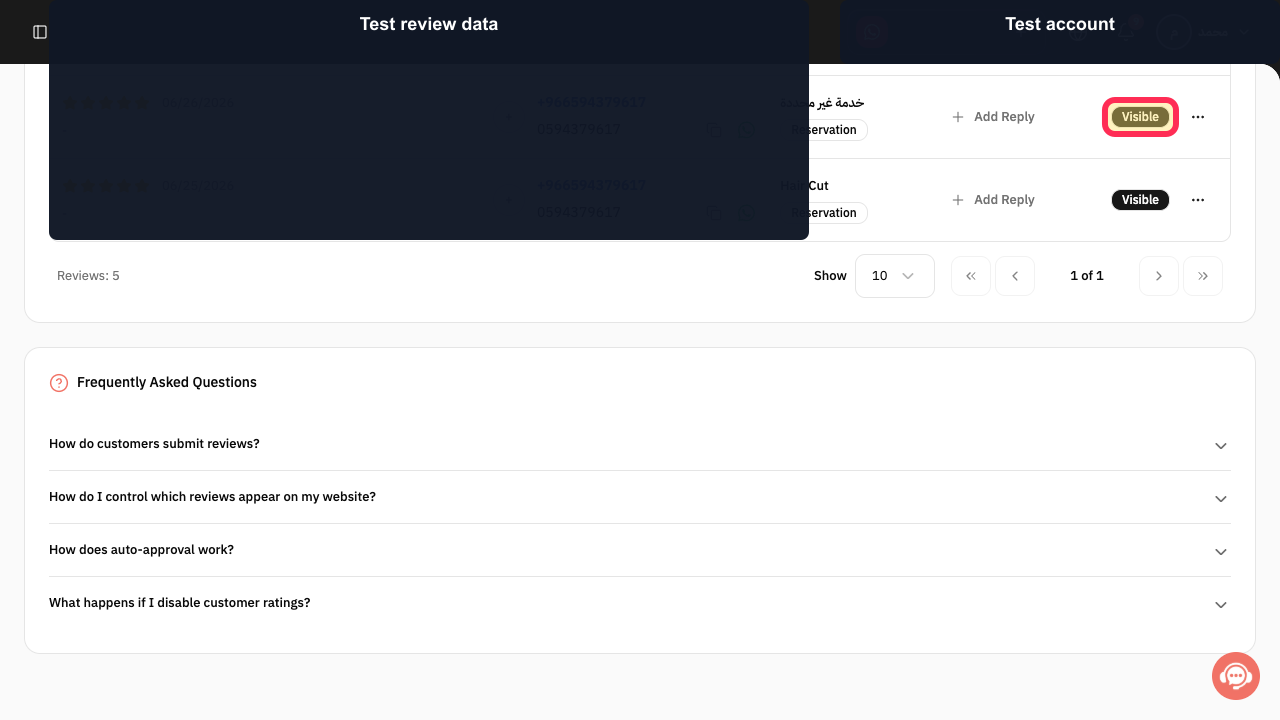
A review marked Visible can be shown publicly according to the current review settings; Hidden keeps it out of public display.
Verify the review text, date, service, and customer row before changing its status.
Steps
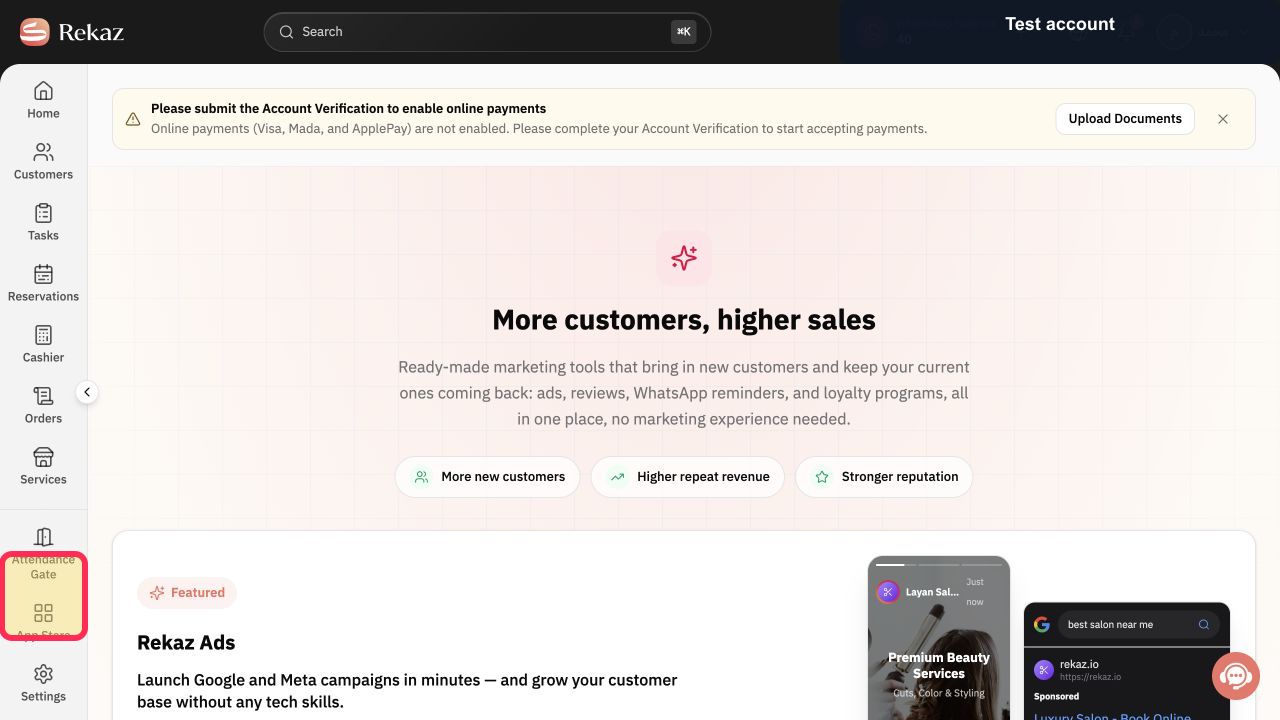
From the Rekaz navigation, select Marketing Tools.
The Marketing Tools area opens.
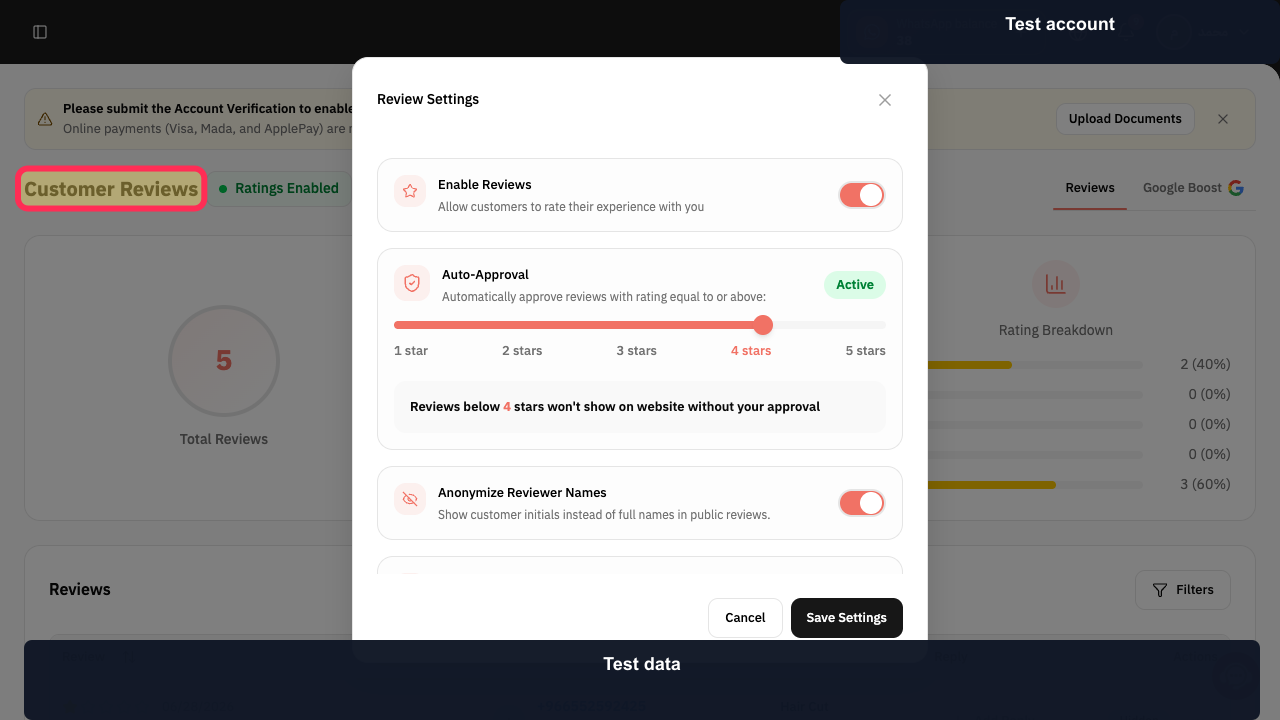
Open Customer Reviews.
The Customer Reviews dashboard opens.
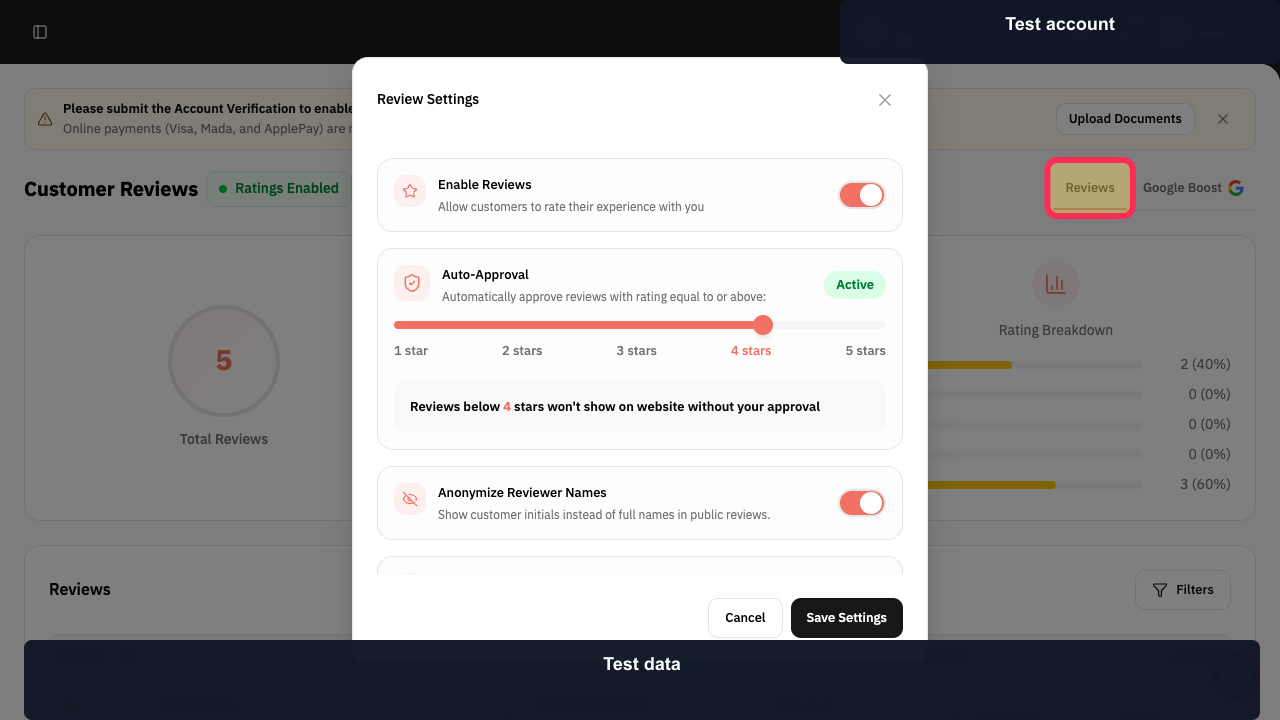
Select Reviews if another tab is active.
The Reviews list is visible.
Locate the intended row under Review and verify its date and related service.
The intended review row is identified.
Select the review's current Visible or Hidden status and change it to the intended state.
The review visibility reflects the selected status.
Illustrated guide
Step 1: Open Marketing Tools.
Step 2: Open Customer Reviews.
Step 3: Open the Reviews list.
Step 4: Locate the review to update.
Step 5: Change the review between Visible and Hidden.
Important notes
Interface wording or the location of an item may vary slightly if the Rekaz interface has changed since the source was updated.
Related questions
Where can I find Customer Ratings in Rekaz?
How do I make a customer review visible in Rekaz?
How do I hide a customer review in Rekaz?


