How do I enable and configure customer ratings in Rekaz?
Customer Reviews settings control whether reviews are enabled, which ratings are auto-approved, whether public names are anonymized, and whether WhatsApp rating requests are sent.
Review every switch before saving because these settings affect what customers receive and what may appear publicly.
Steps
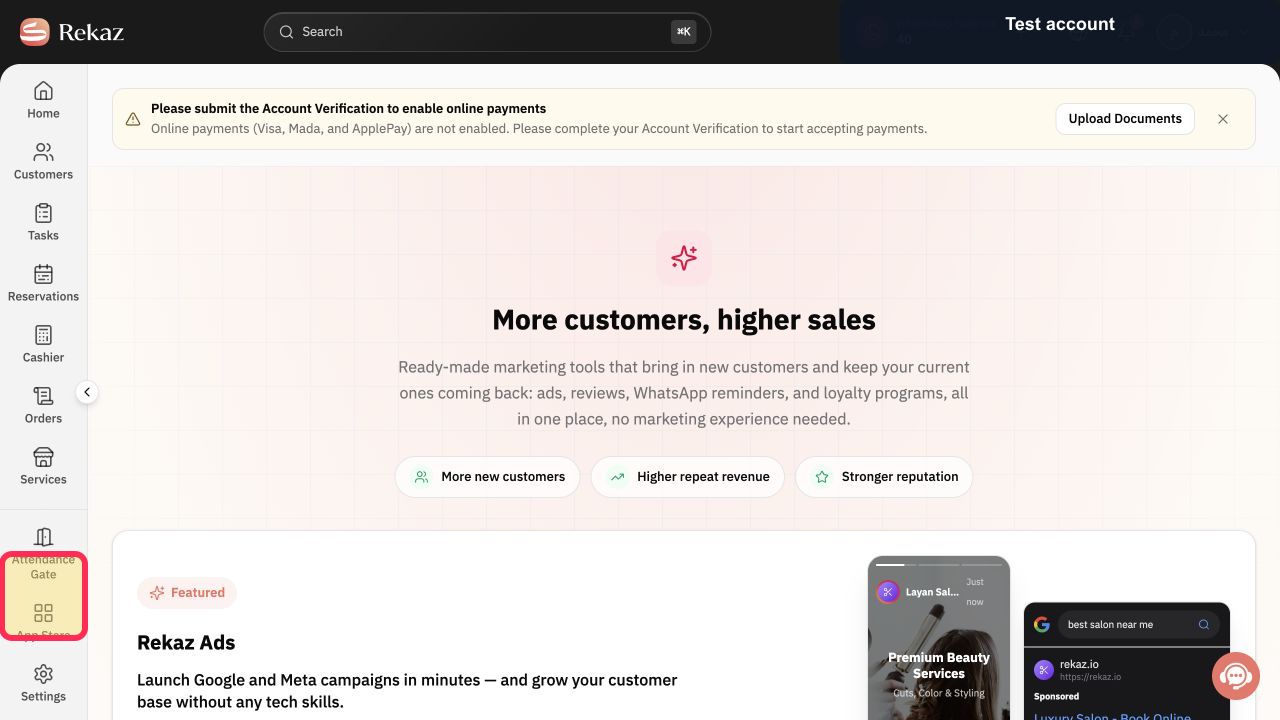
From the Rekaz navigation, select Marketing Tools.
The Marketing Tools area opens.
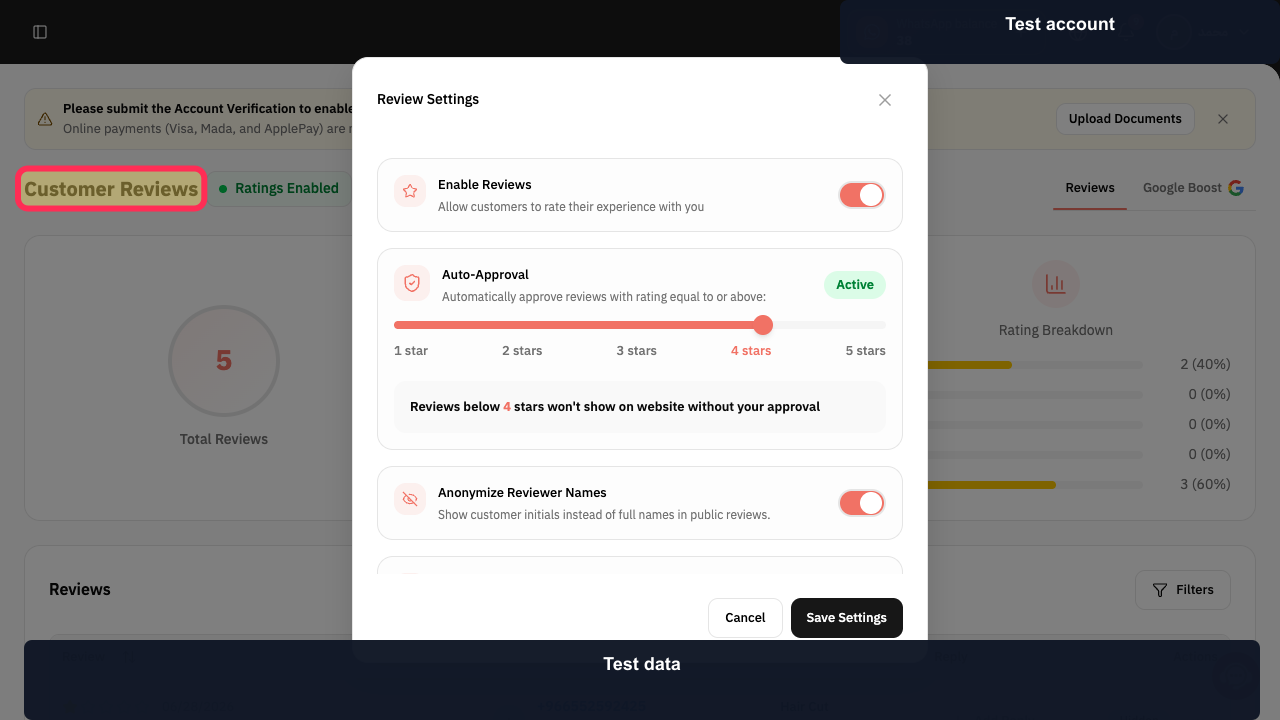
Open Customer Reviews.
The Customer Reviews dashboard opens.
Select Settings.
The Review Settings dialog opens.
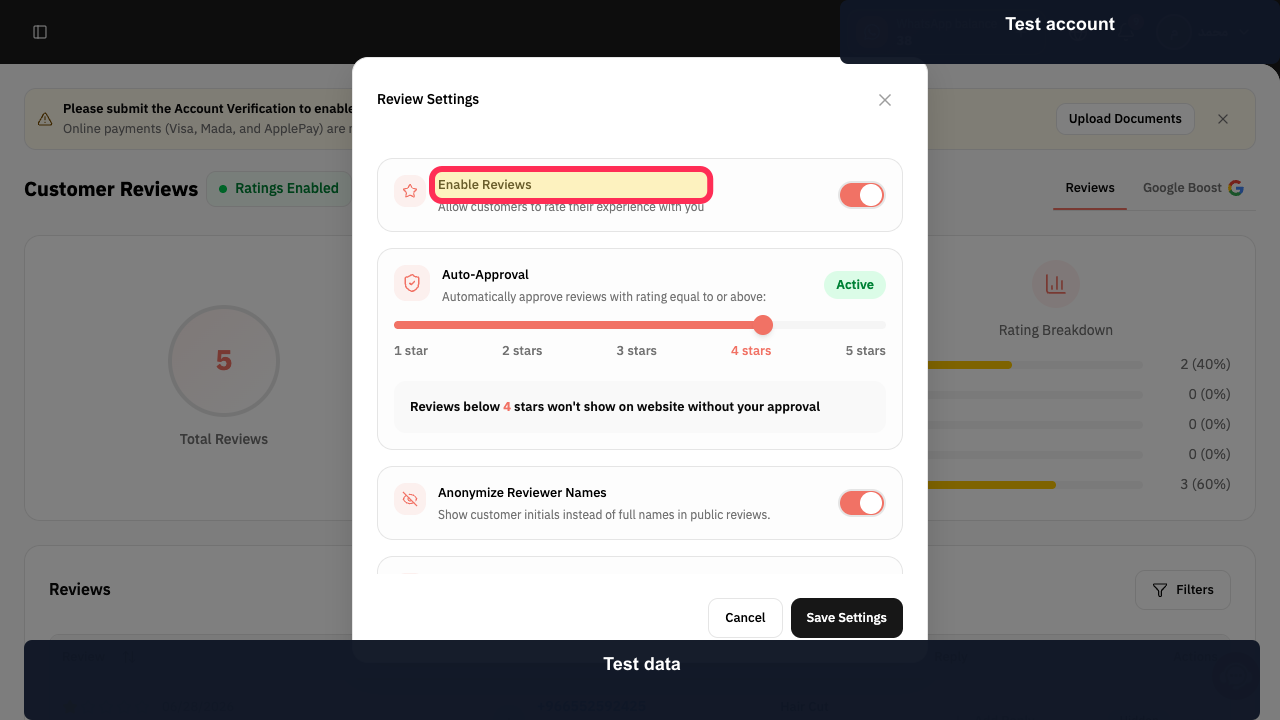
Set Enable Reviews to the intended on or off state.
Review availability reflects the selected state.
Configure Auto-Approval and choose the minimum star rating that can be shown without manual approval.
The auto-approval rule is configured.
Set Anonymize Reviewer Names when public reviews should show customer initials instead of full names.
Reviewer-name privacy reflects the selected state.
Set WhatsApp Rating Request according to whether customers should receive automatic review requests after their experience.
The WhatsApp rating-request setting is configured.
Review all settings and select Save Settings.
The Customer Reviews configuration is saved.
Illustrated guide
Step 1: Open Marketing Tools.
Step 2: Open Customer Reviews.
Step 3: Open Review Settings.
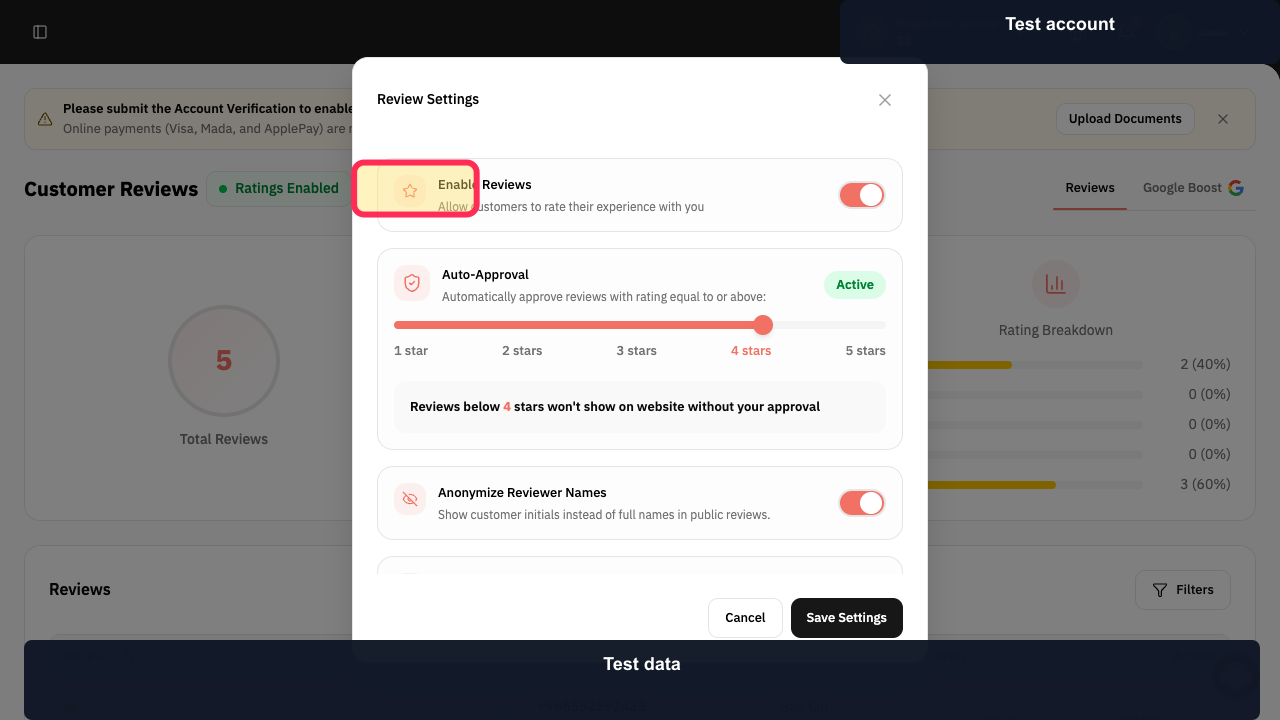
Step 4: Configure Enable Reviews.
Step 5: Configure review Auto-Approval.
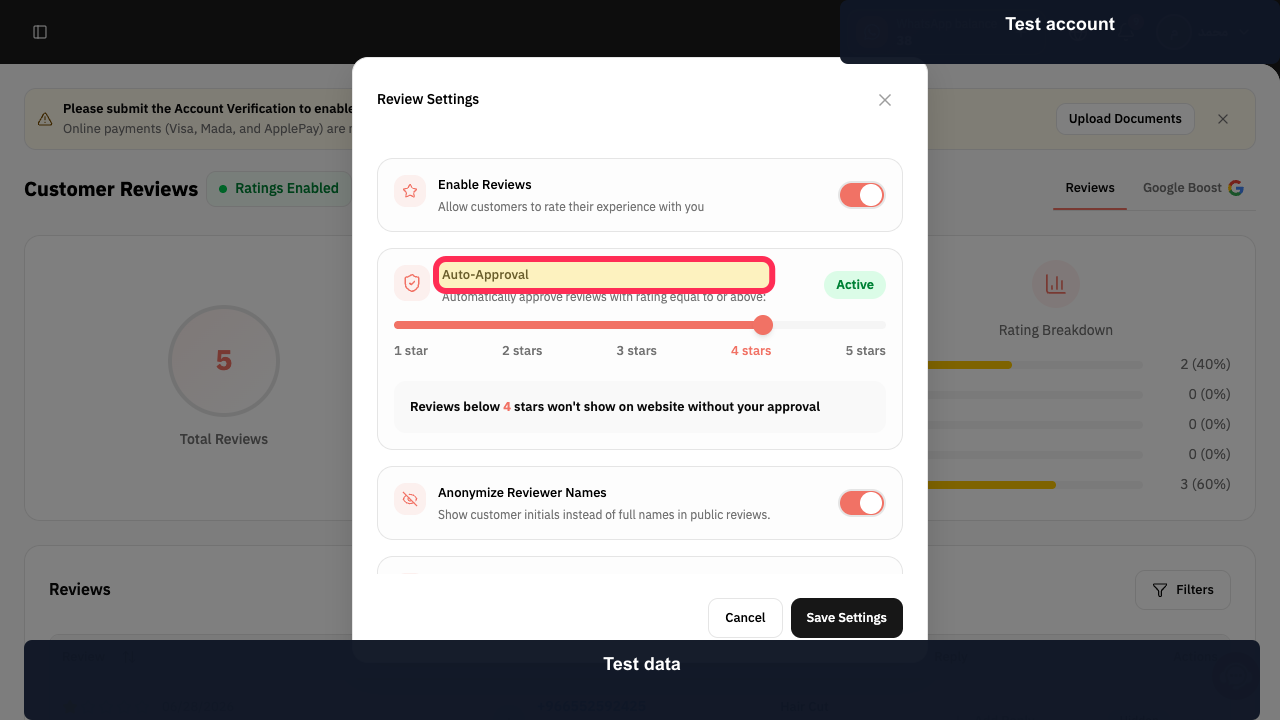
Step 6: Configure reviewer-name anonymization.
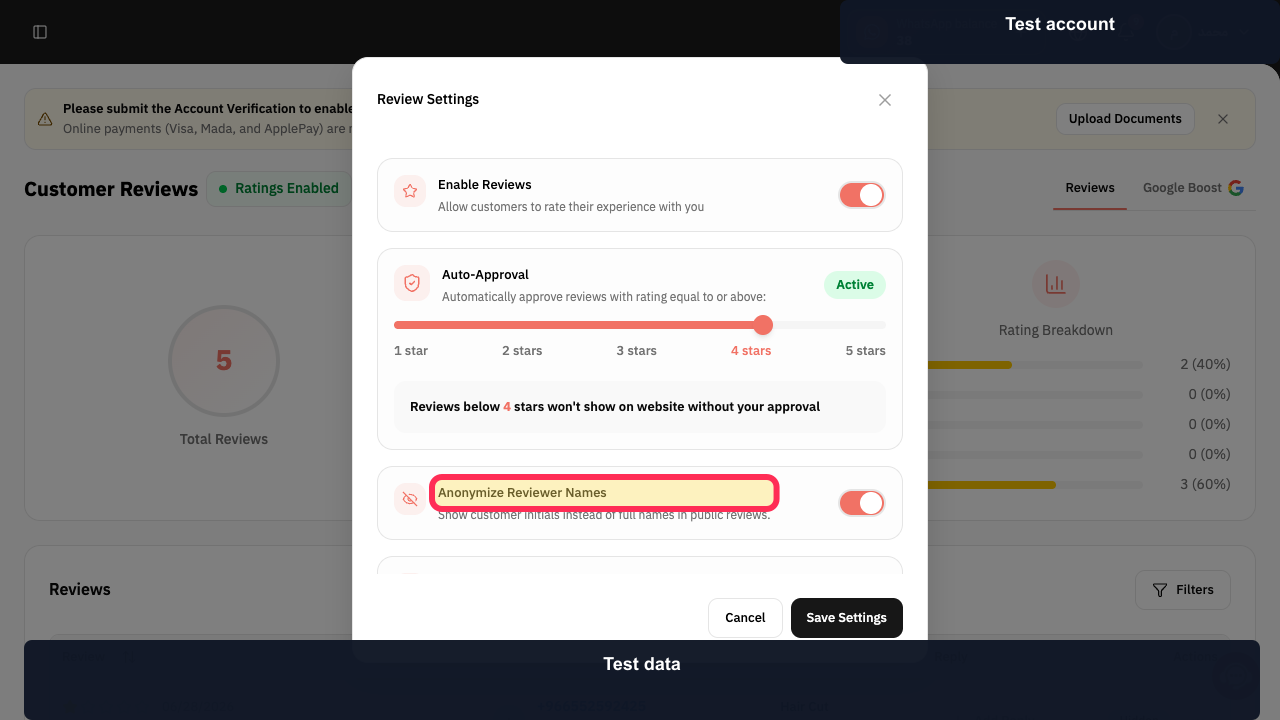
Step 7: Configure WhatsApp Rating Request.
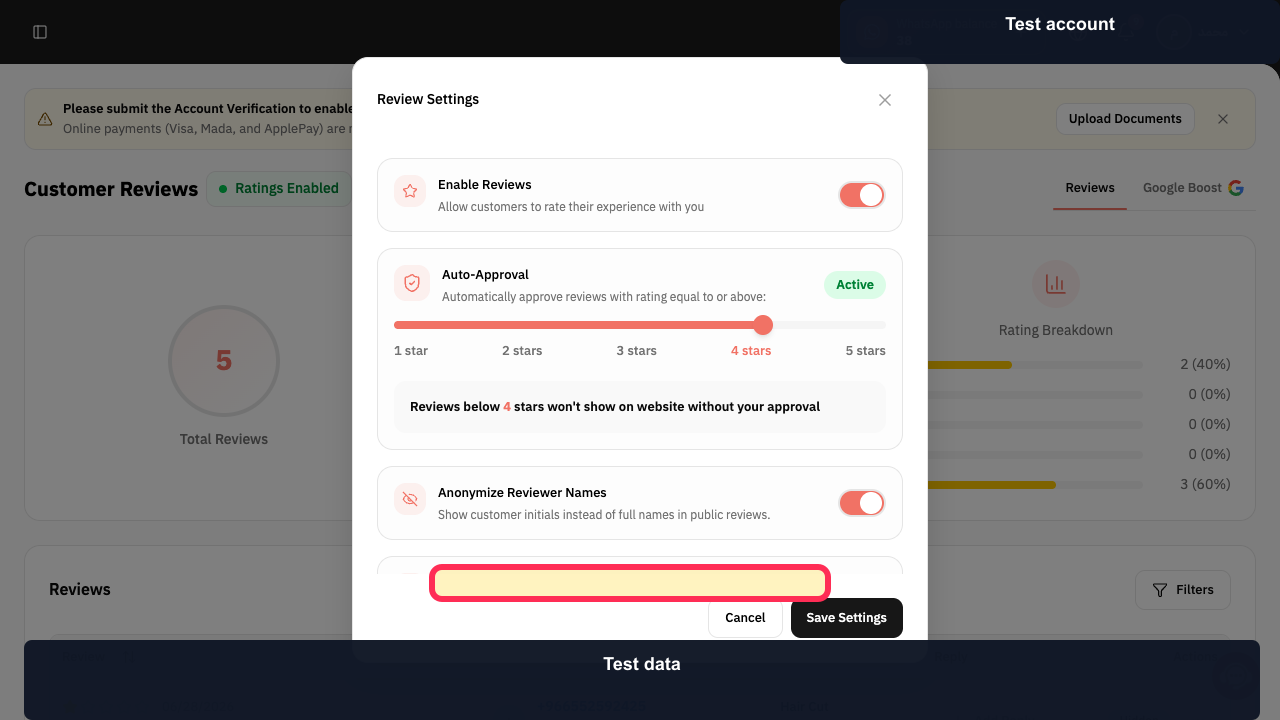
Step 8: Save the Customer Reviews settings.
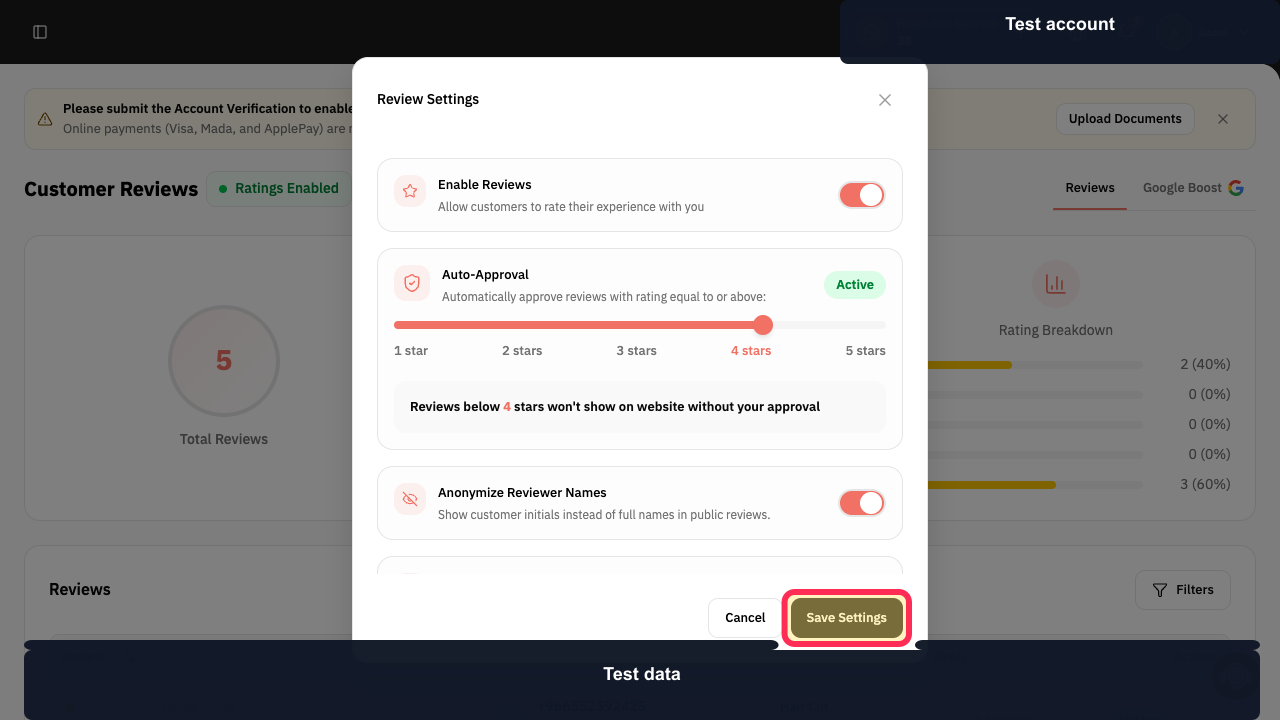
Important notes
Labels or element locations may change over time.
The customer-ratings entry may be labeled Customer ratings, Customer Reviews, Customer reviews, or Customer Ratings.
Use the option currently shown in your Marketing Tools area for customer ratings.
Detailed steps for Google ratings, showing or hiding ratings, replying to reviews, or rating-display locations are not available here.
Related questions
Where can I find customer ratings in Rekaz?
How do I set Auto-Approval for customer ratings in Rekaz?
How do I configure customer-rating sending options in Rekaz?


