How do I customise a customer loyalty wallet in Rekaz?
Rekaz currently shows loyalty card customisation as part of Loyalty Program setup. Choose a loyalty program, then use the Customize Your Card screen to adjust the available colour settings.
Steps
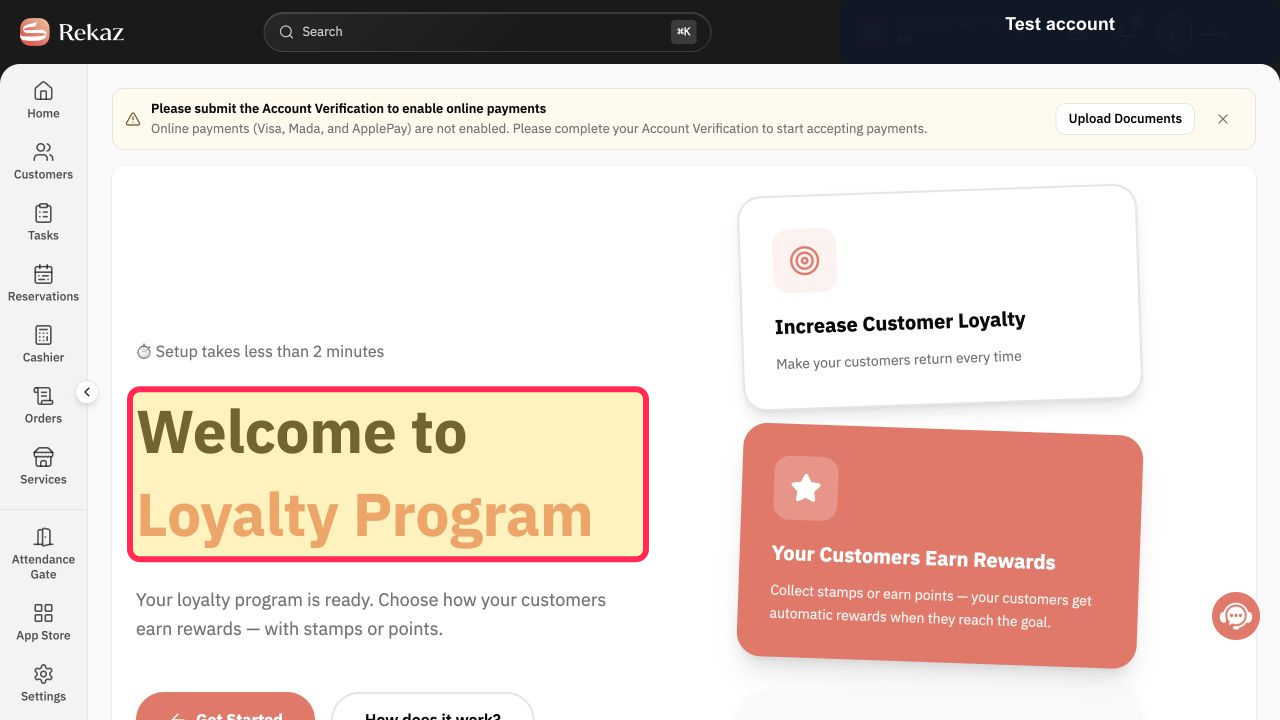
Open Loyalty Program and verify that the welcome screen is displayed.
The Welcome to Loyalty Program heading is visible.
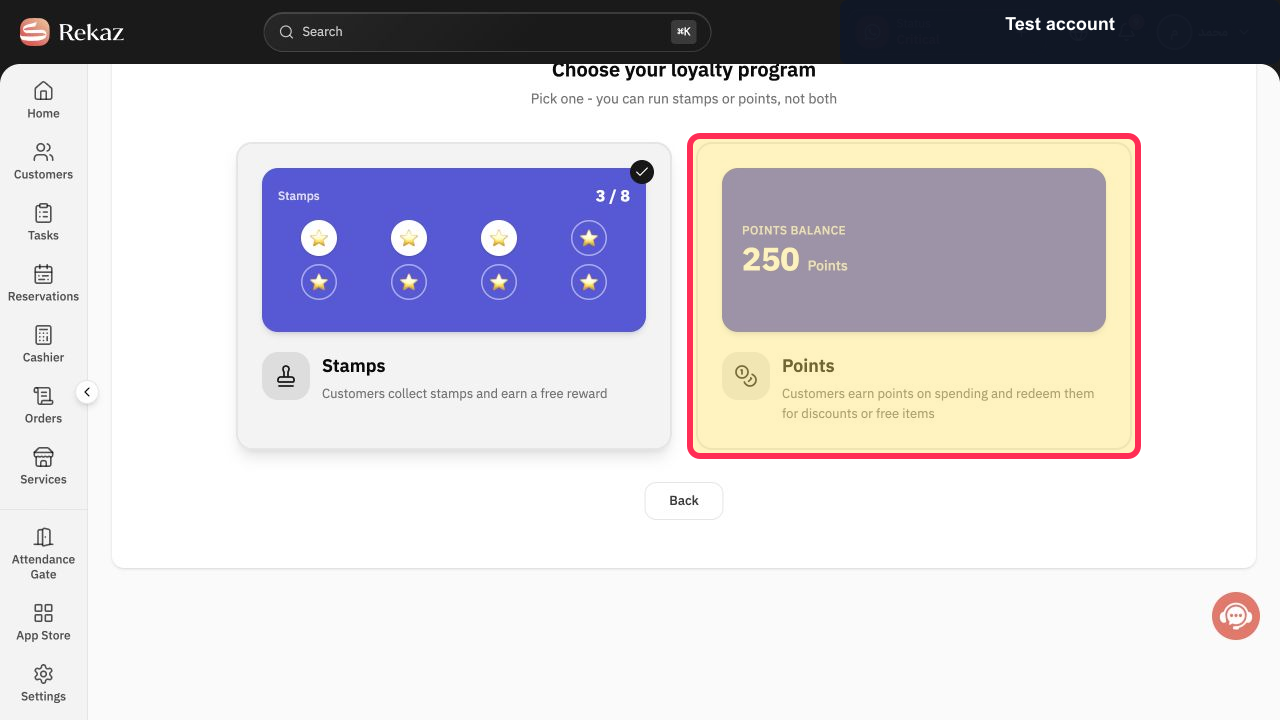
Choose the Points loyalty program to continue to its setup options.
The Points loyalty program is selected for setup.
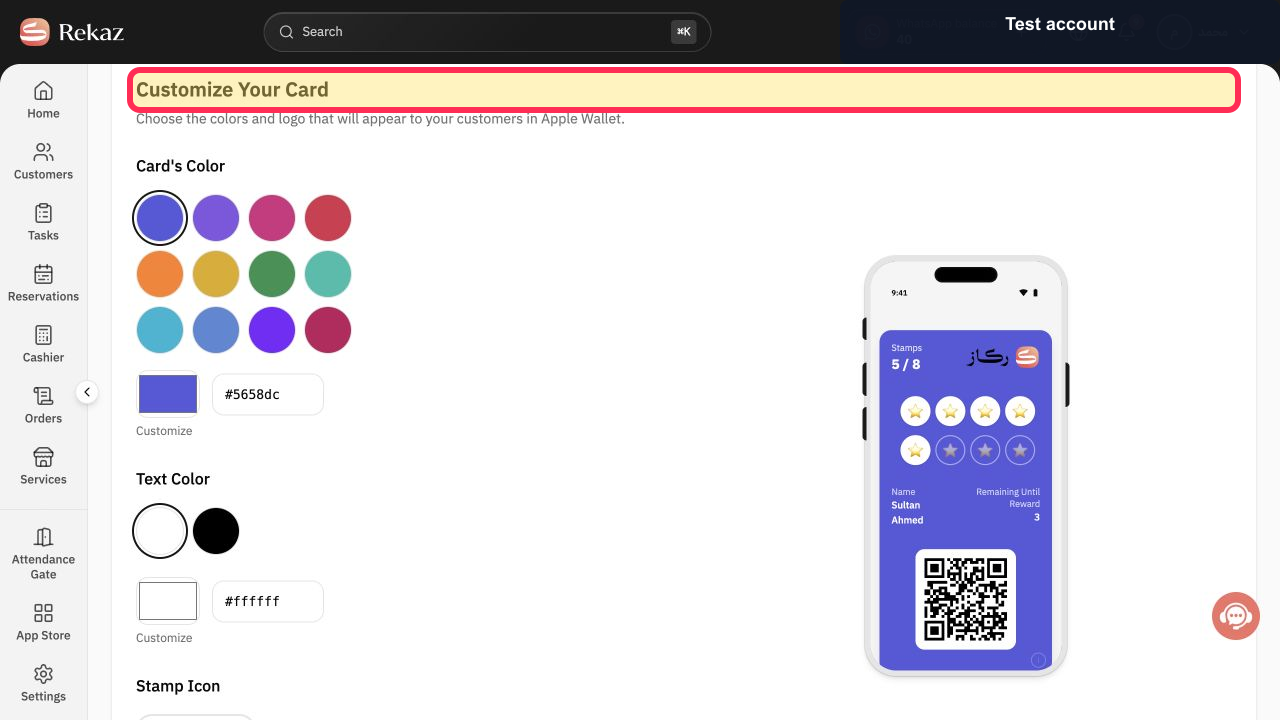
Verify that the Customize Your Card screen is open before making design changes.
The Customize Your Card heading is visible.
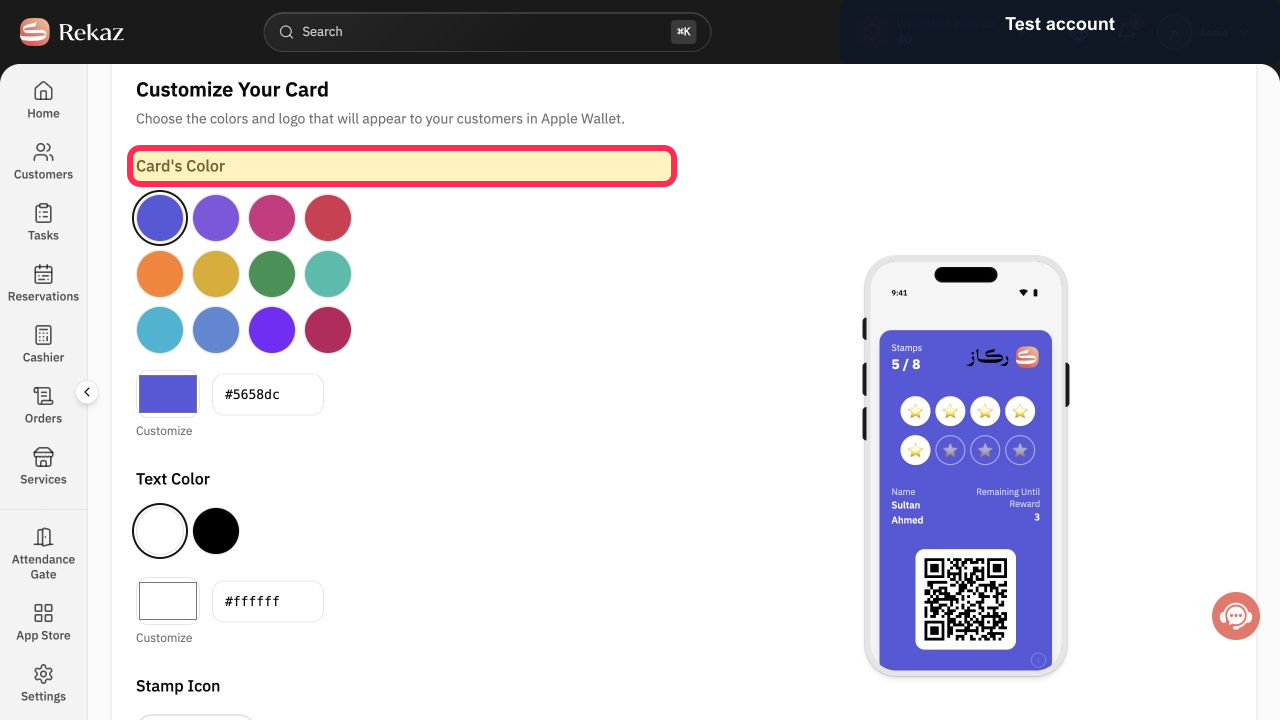
Adjust the card colour using the Card's Color setting.
The Card's Color setting is visible for configuring the loyalty card appearance.
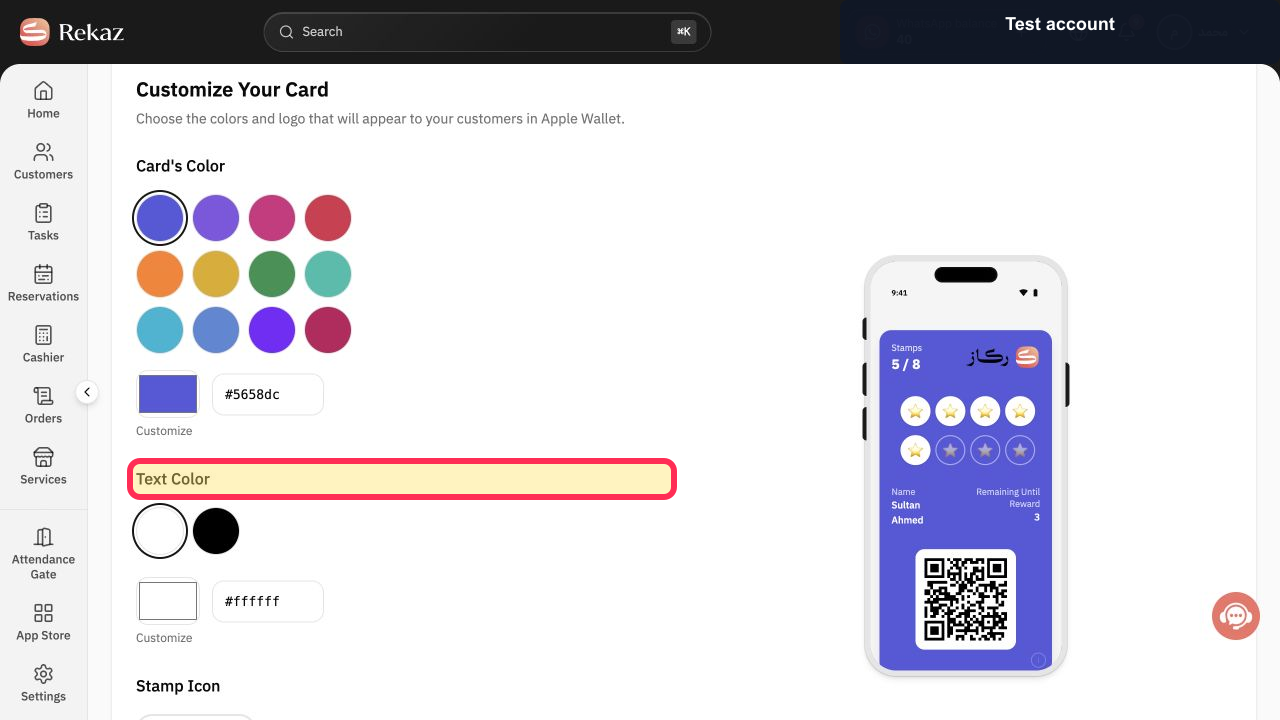
Adjust the text colour using the Text Color setting.
The Text Color setting is visible for configuring text on the loyalty card.
Illustrated guide
Step 1: The Loyalty Program welcome screen in Rekaz.
Step 2: Choose the Points loyalty program.
Step 3: The loyalty card customisation screen.
Step 4: Change the loyalty card colour.
Step 5: Change the loyalty card text colour.
Important notes and limitations
Review the displayed name, status, amount, or date before saving or taking any final action.
You can change colours, the logo, and customer-facing text, then review a preview and save.
Related questions
How do I edit a loyalty wallet card in Rekaz?
Where can I find the option to customise a customer loyalty wallet in Rekaz?
What are the correct steps to customise a customer loyalty wallet in Rekaz?


