How do I send a notification to Loyalty Customers in Rekaz?
The current campaign form uses Targeted Audience rather than a fixed button named Loyalty Customers. Prepare or select a customer group that represents your loyalty audience; do not assume every customer belongs to it.
Review the audience, schedule, content, and WhatsApp anti-spam warning before saving or starting the campaign.
Steps
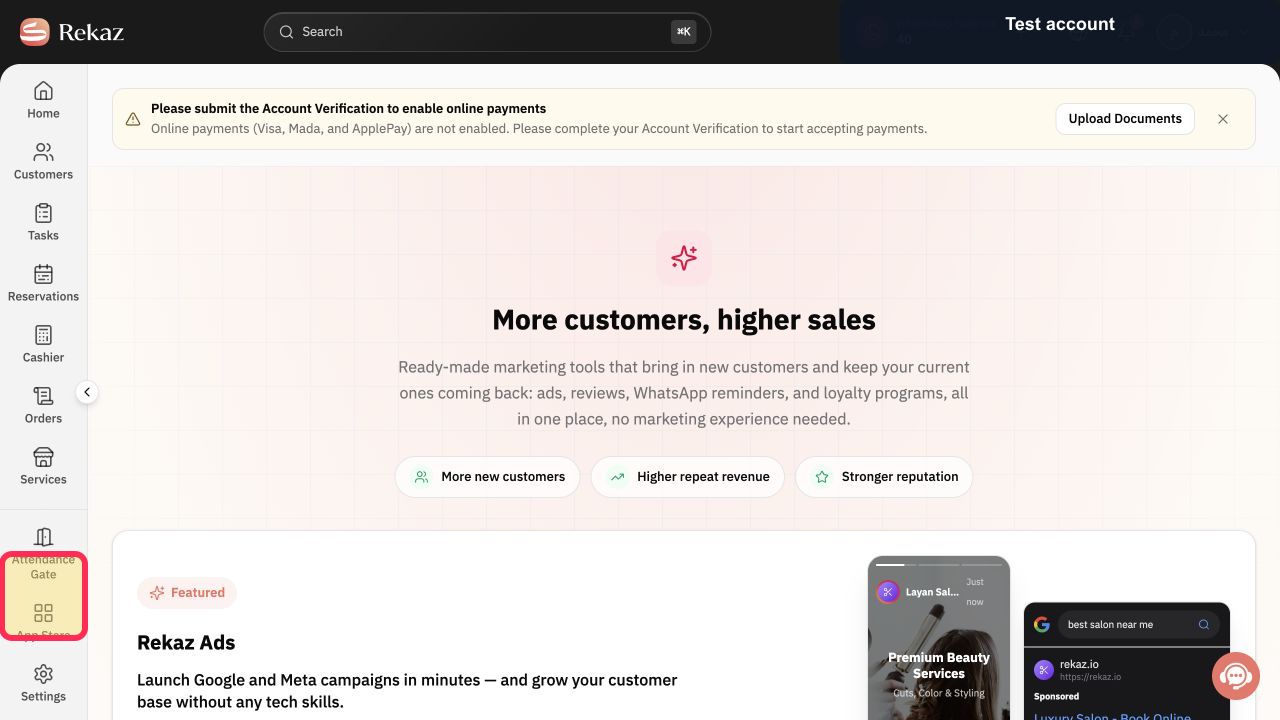
Open Marketing Tools from the Rekaz navigation.
The Marketing Tools area opens.
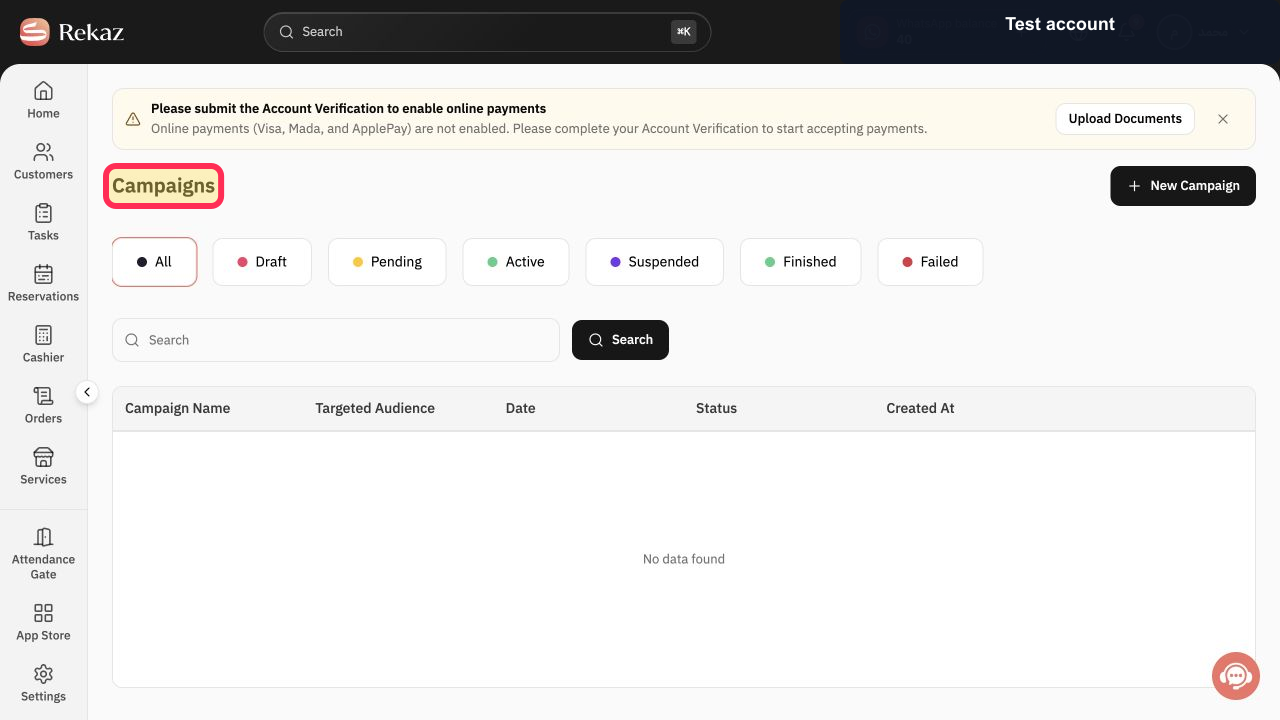
Open Campaigns.
The Campaigns list opens.
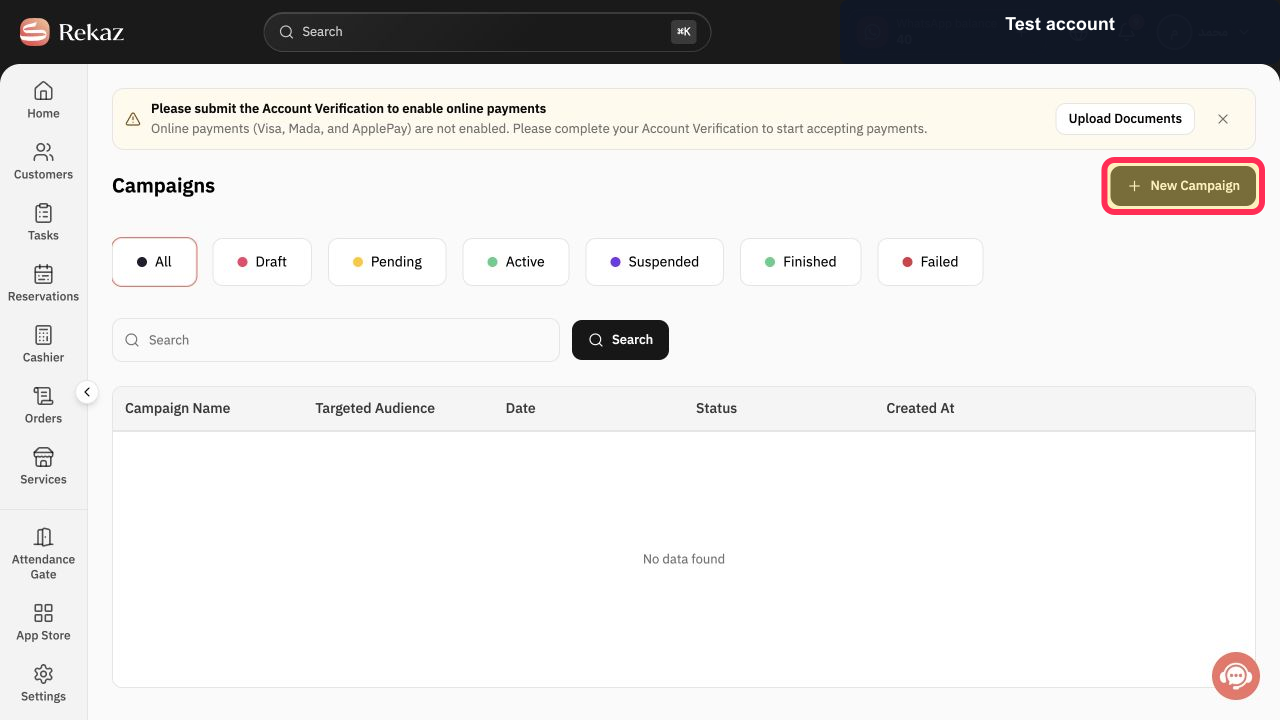
Select New Campaign.
The campaign creation form opens.
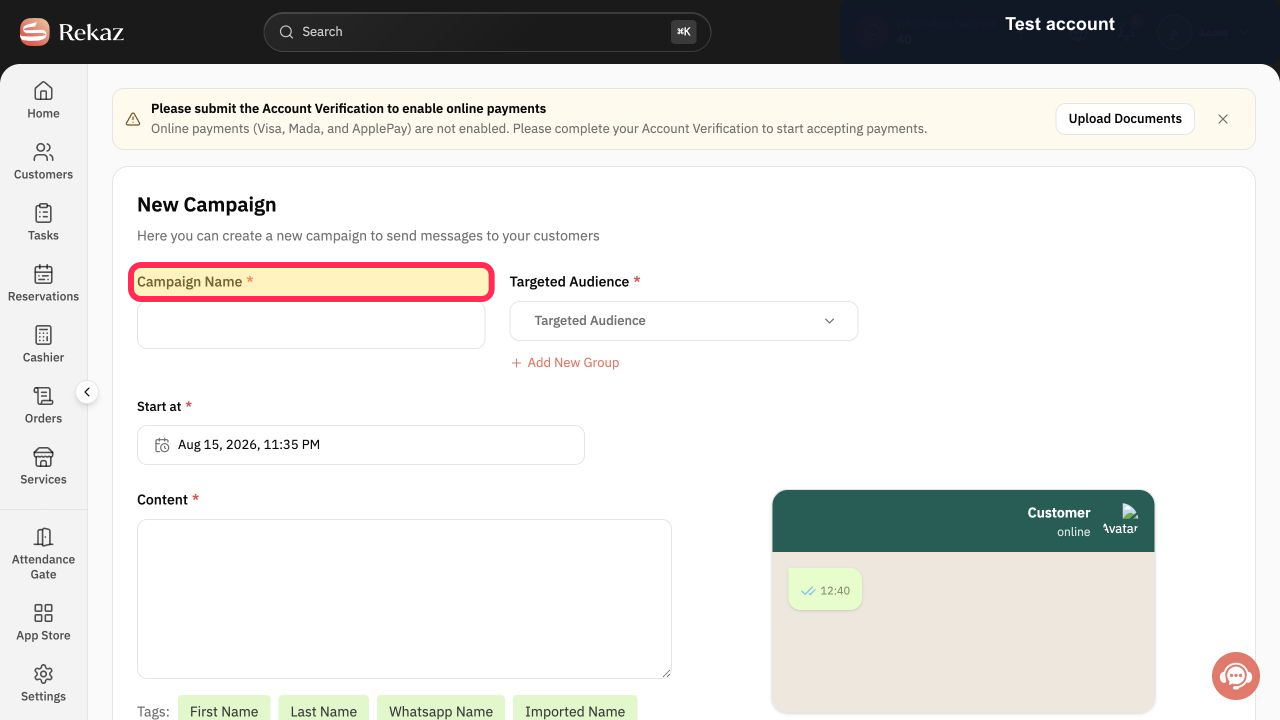
Enter a clear internal name under Campaign Name*.
The campaign can be identified later in the Campaigns list.
Select Targeted Audience and choose the saved group that represents Loyalty Customers.
The intended loyalty audience group is selected.
If that group does not exist, select Add New Group and create it from verified loyalty-customer criteria before returning to the campaign.
A dedicated audience group can be prepared instead of messaging all customers.
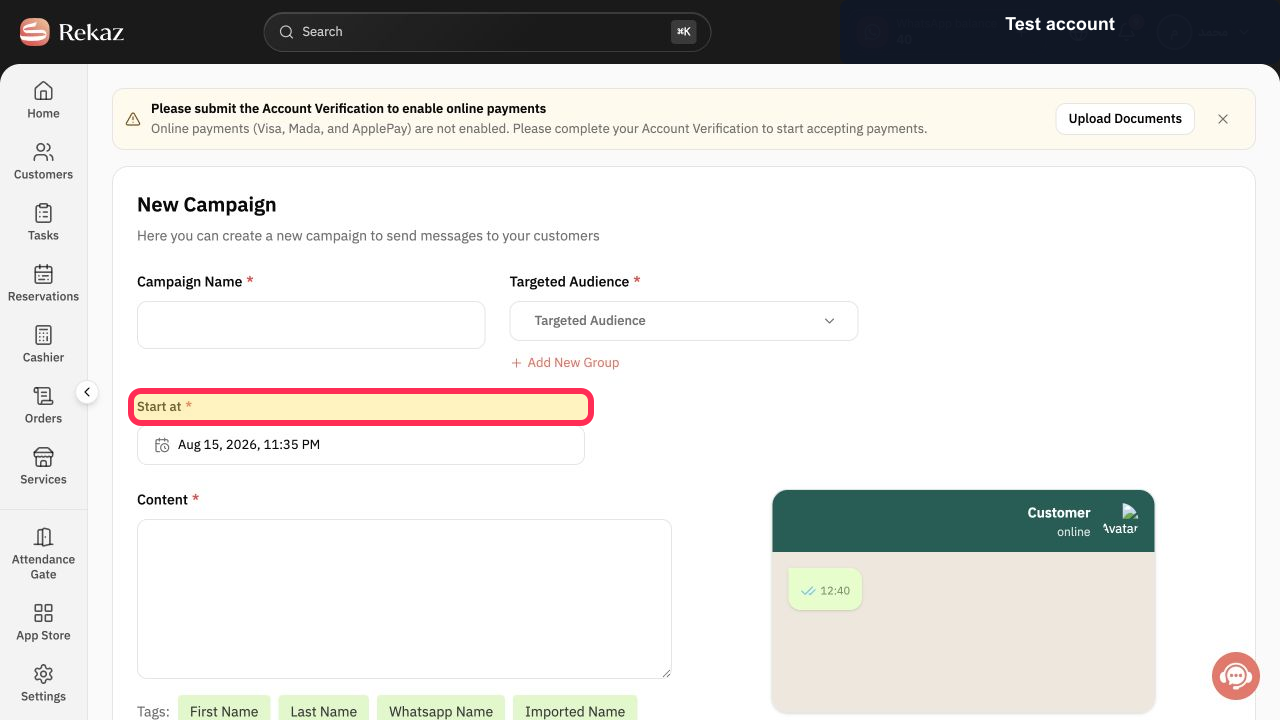
Select Start at* and choose the intended campaign date and time.
The campaign schedule is set.
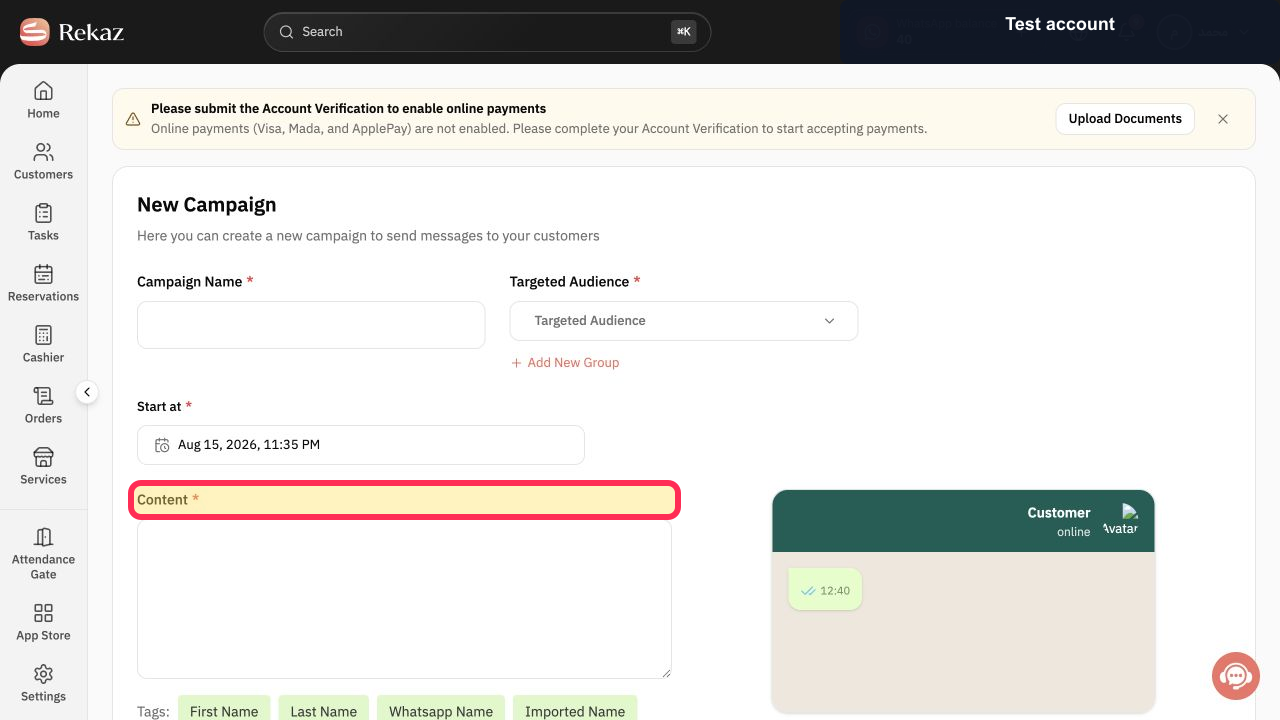
Enter the WhatsApp message under Content*. Use First Name, Last Name, Whatsapp Name, or Imported Name only when the stored data is reliable.
The campaign content is ready for review.
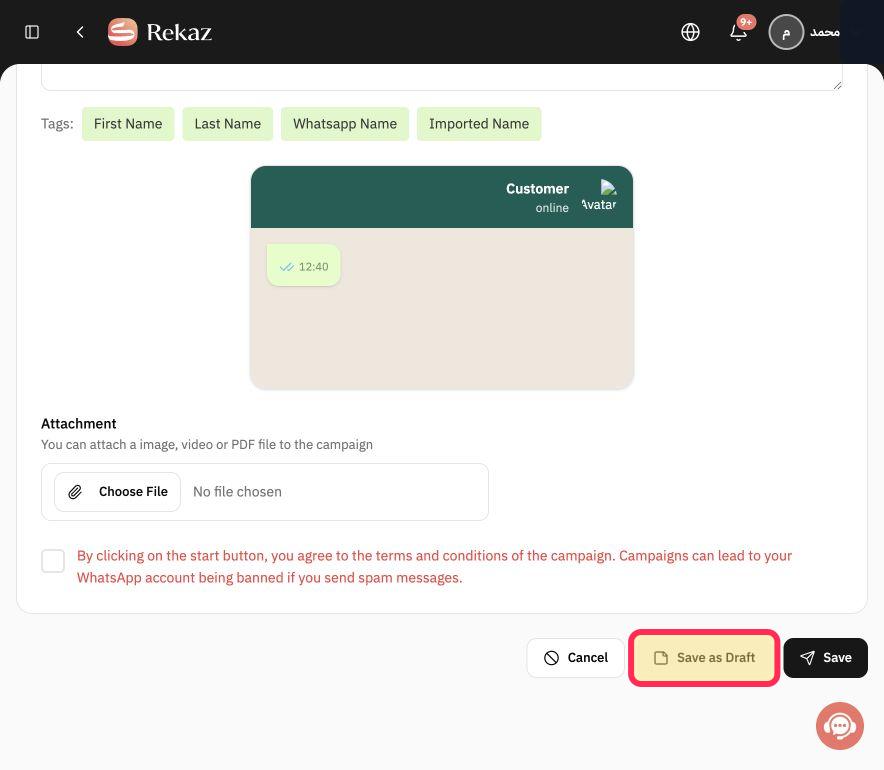
Select Save as Draft when another person must review the audience, timing, content, or attachment.
The campaign is saved without starting it.
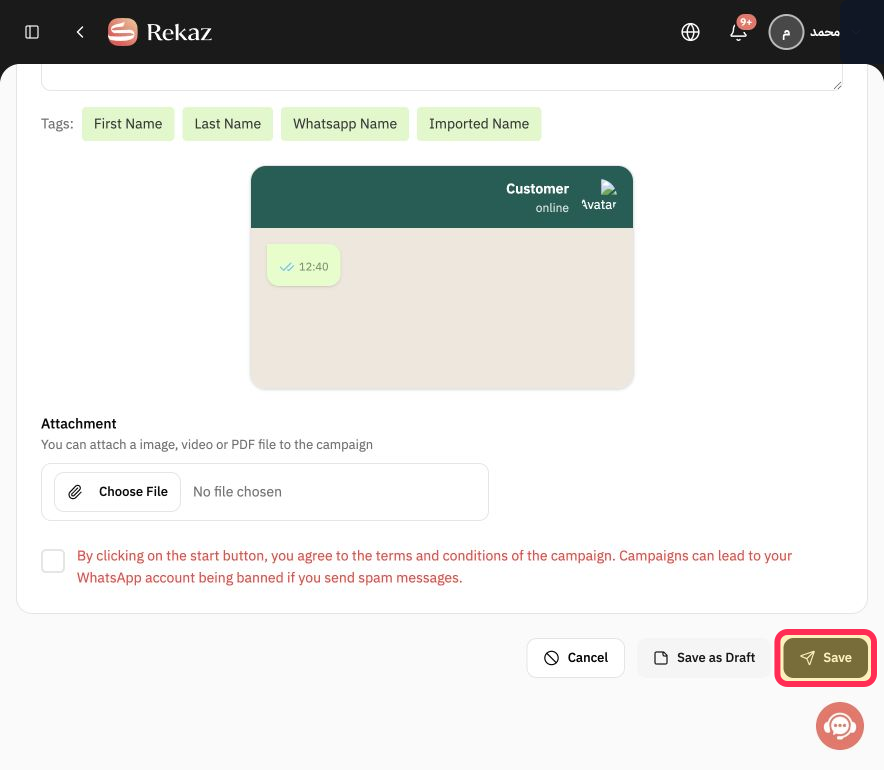
After checking the audience and anti-spam warning, select Save only when you intend to continue with the campaign.
The reviewed campaign is submitted using the current form's final action.
Illustrated guide
Step 1: Open Marketing Tools in Rekaz.
Step 2: Open Rekaz Campaigns.
Step 3: Start a new Rekaz campaign.
Step 4: Enter the campaign name.
Step 5: Choose the Loyalty Customers audience group.
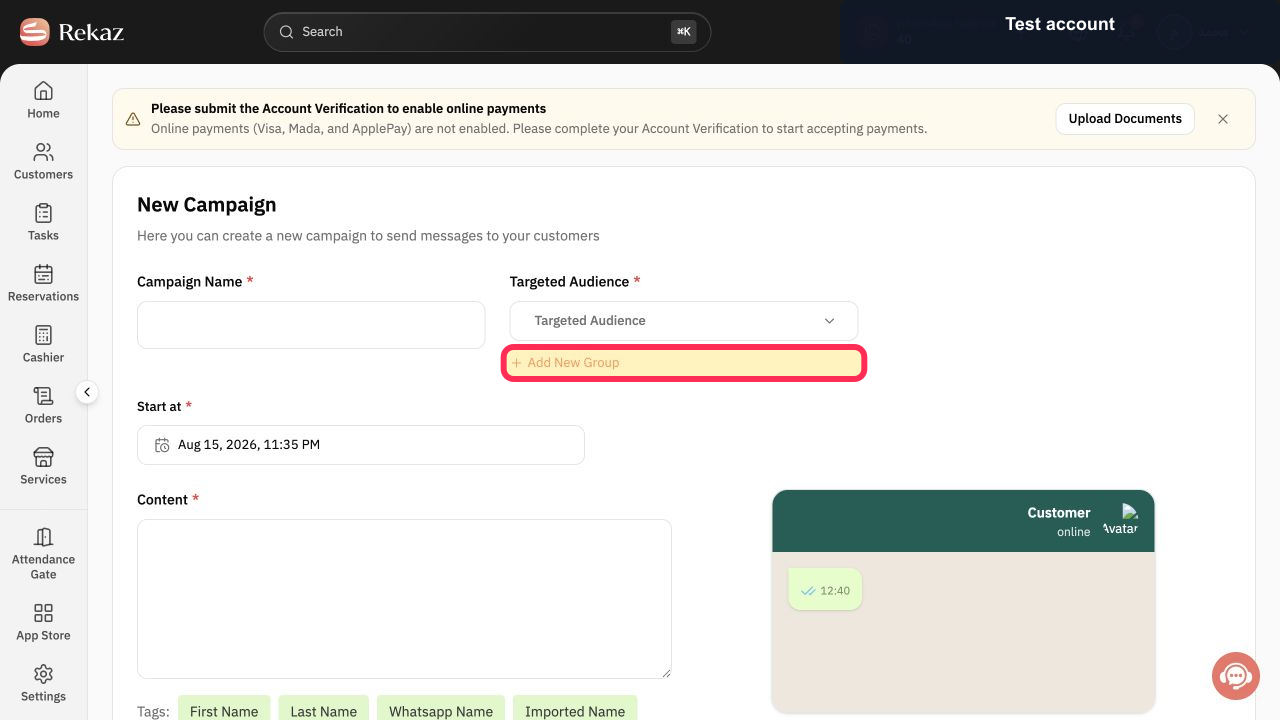
Step 6: Add a customer group for the loyalty audience when needed.
Step 7: Schedule the loyalty campaign.
Step 8: Write the loyalty campaign content.
Step 9: Save the campaign as a draft for review.
Step 10: Save the reviewed loyalty campaign.
Important notes
The available final action may be Save or Send. Confirm the campaign details before selecting it.
Options that are not visible in the current interface are limitations of the interface, not steps to complete.
Related questions
How do I send a notification to Loyalty Program customers in Rekaz?
Where can I find the option to notify Loyalty Customers in Rekaz?
What are the steps to send a notification to Loyalty Customers in Rekaz?


