How do I set a coupon end date in Rekaz?
In Rekaz, you can schedule a coupon to end automatically by setting its End Date during coupon creation. You can also set its start date and the active days and hours.
The documented flow does not confirm a separate action for immediately disabling an already published coupon. If you cannot find an Edit or disable action for the coupon, contact Rekaz Support rather than creating a replacement coupon or deleting data without confirmation.
Steps
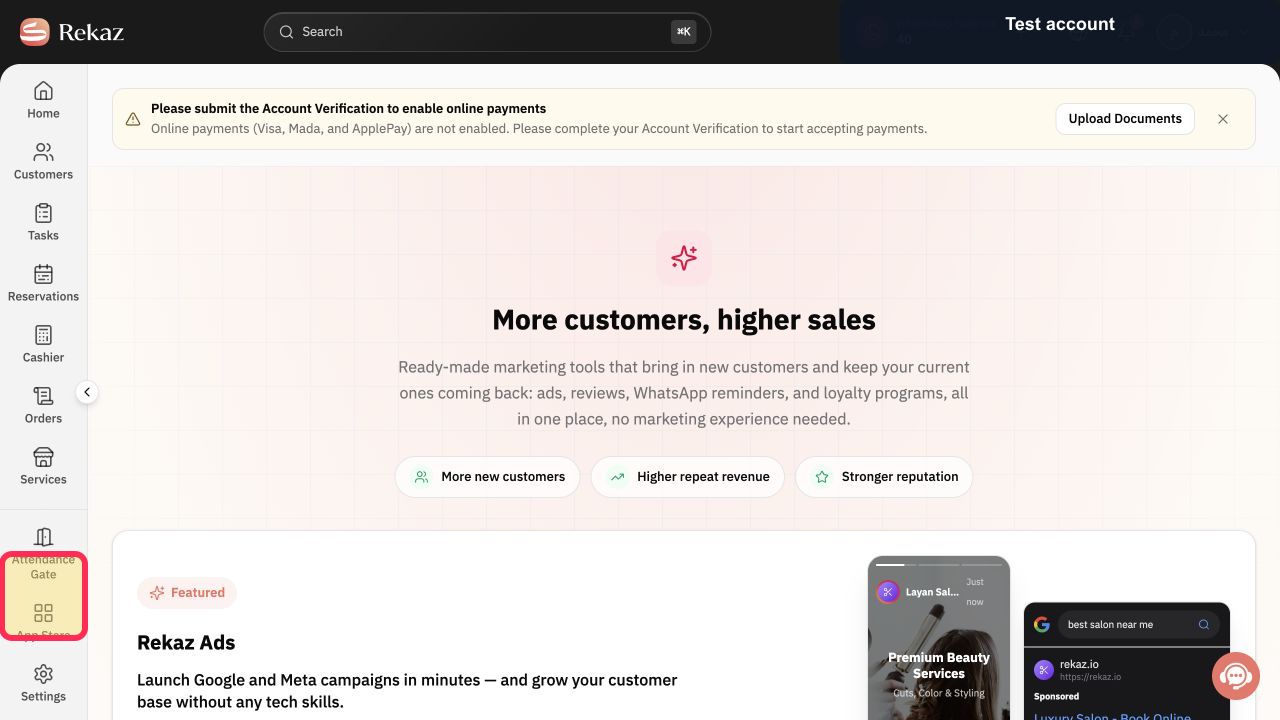
From Home, select Marketing Tools in the sidebar.
Marketing Tools opens.
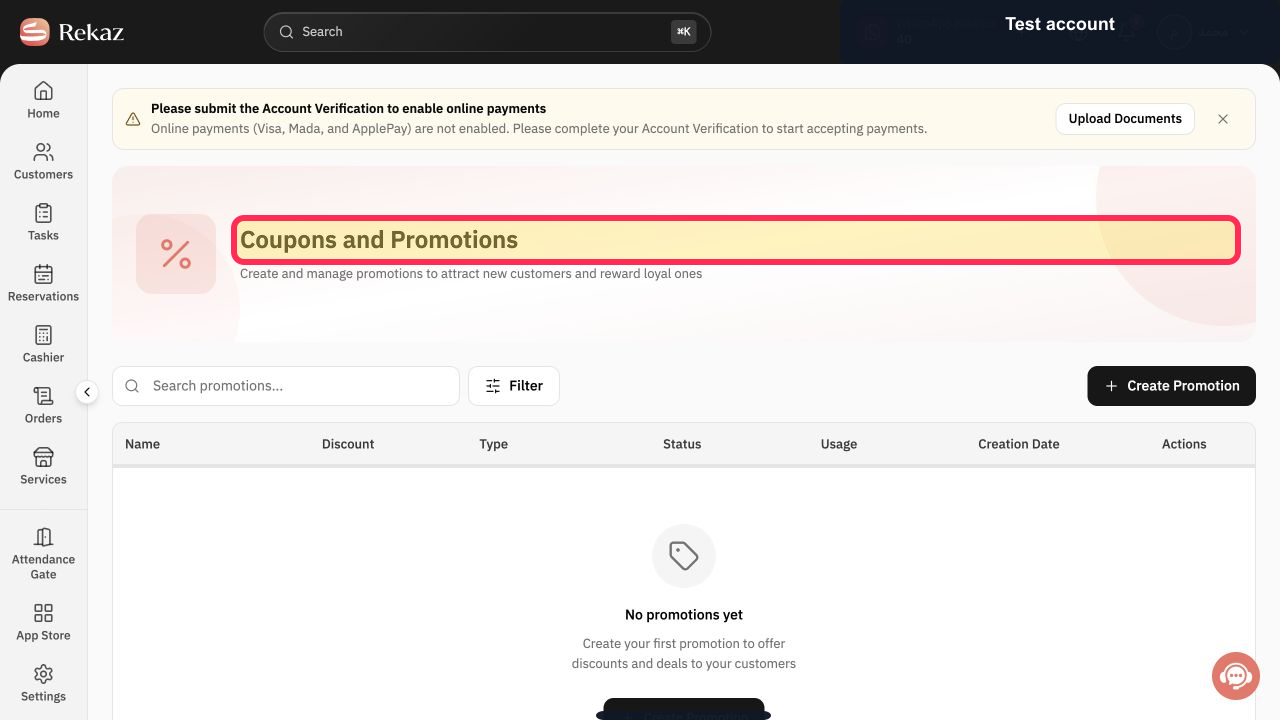
Open the coupon section. Its current English label needs confirmation because the available UI terminology lists both “Coupons & Promotions” and “Coupons and Promotions.”
The coupon management area opens.
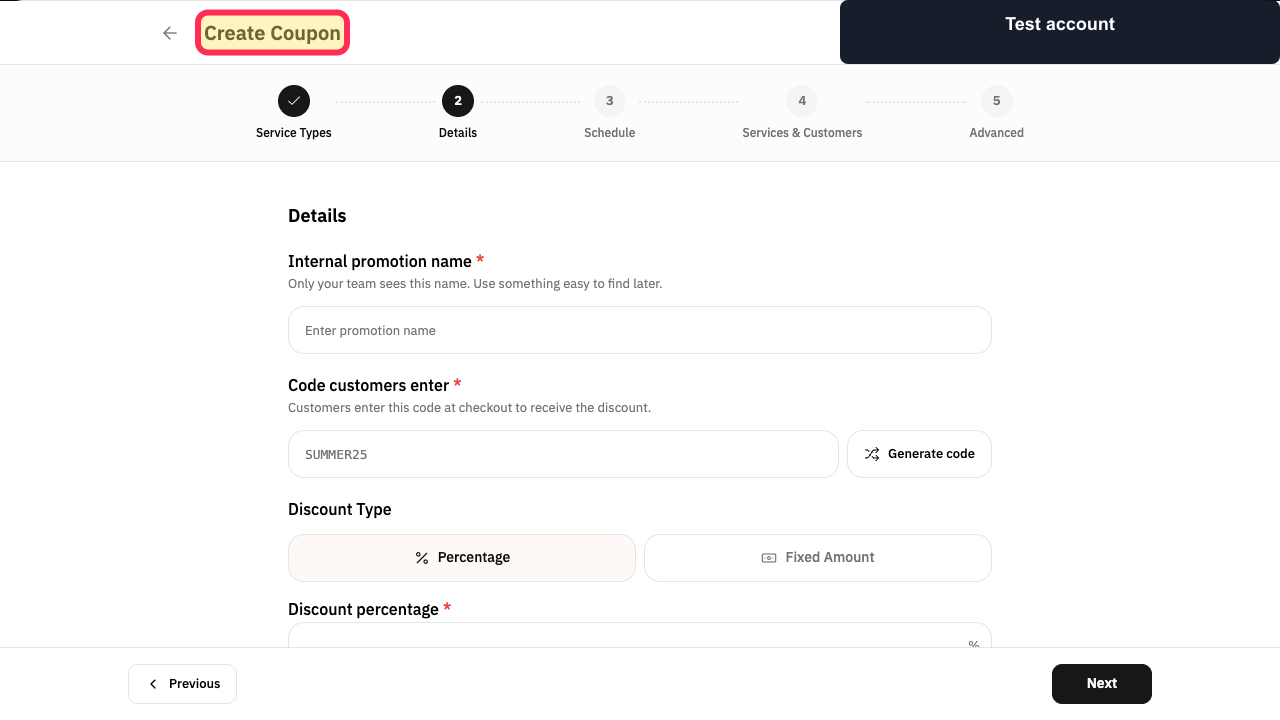
Select Create Coupon to begin creating a new coupon.
The New Coupon setup flow opens.
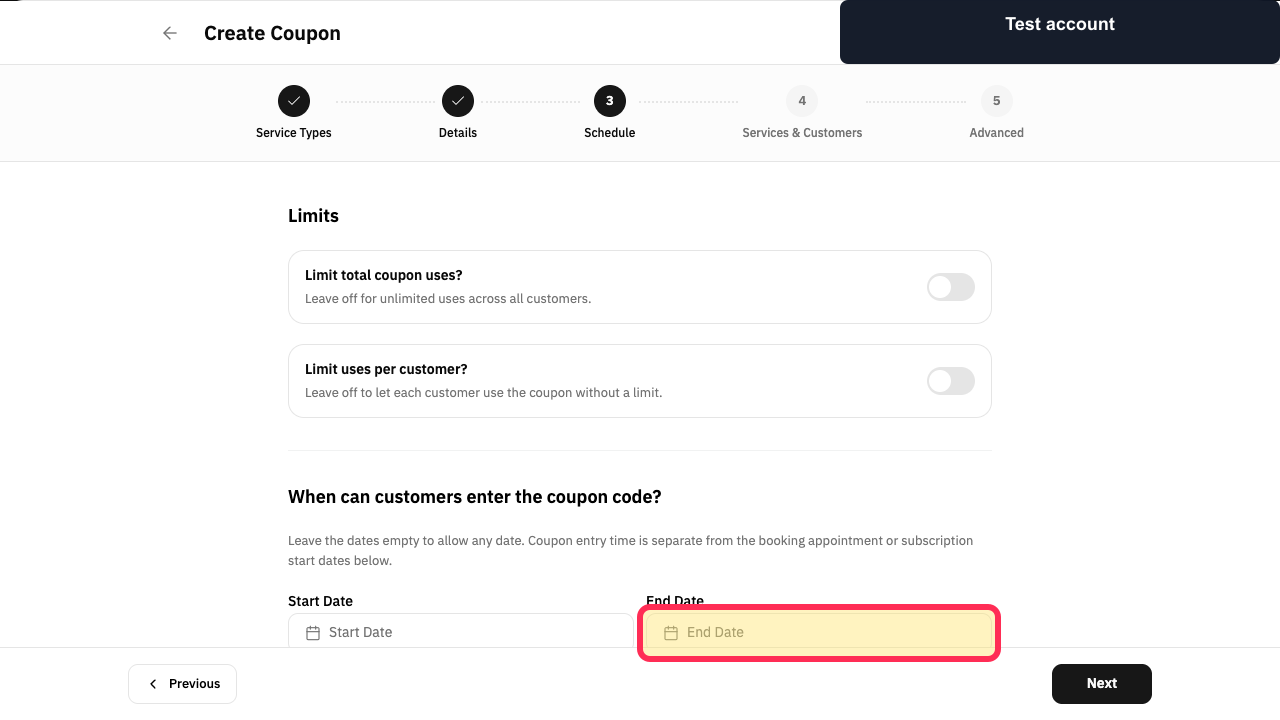
In Schedule, set the coupon’s End Date.
An end date is set for the coupon. The coupon will stop applying automatically when that date is reached.
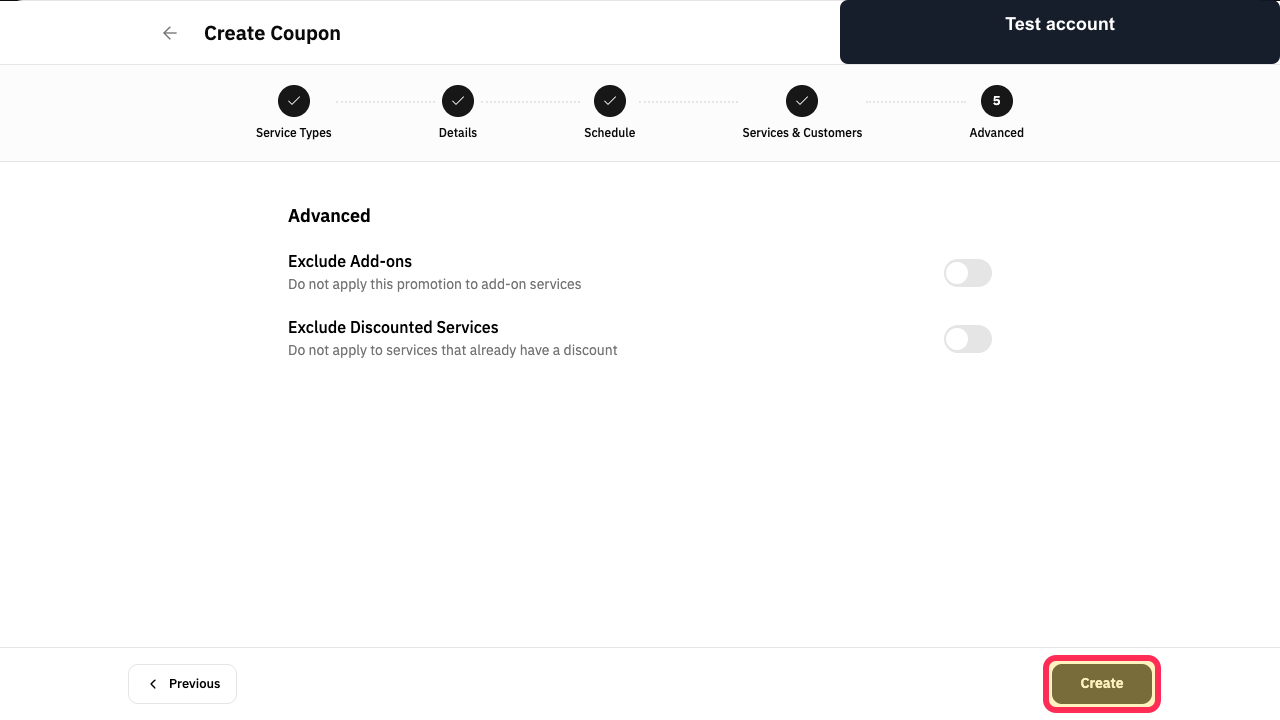
Review the End Date and the remaining limits and restrictions, then select Create.
The coupon is created with the scheduled end date.
Illustrated guide
Step 1: Open Marketing Tools from the Rekaz sidebar.
Step 2: Open the coupon management area.
Step 3: Start a new coupon.
Step 4: Set the coupon End Date in Schedule.
Step 5: Review the coupon settings and create the coupon.
Important limitations
The documented flow covers setting the schedule when creating a coupon; it does not verify an immediate stop action for an already published coupon.
If an existing published coupon does not show an Edit or disable action, contact Rekaz Support for assistance.
Check the visible button name before taking a final or financial action if the Rekaz interface has changed.
Do not create a replacement coupon or delete data unless the appropriate action has been confirmed.
Related questions
How can I make a coupon expire automatically in Rekaz?
Where do I set a coupon End Date in Rekaz?
Can I disable a published coupon immediately in Rekaz?


