How do I create a discount coupon in Rekaz?
Create a discount coupon in Rekaz from Coupons and Promotions. The current five-step wizard covers service types, details, schedule and limits, services and customers, and advanced exclusions.
Review every rule before the final Create action because coupon eligibility can affect reservations, subscriptions or packages, and merchandise.
Steps
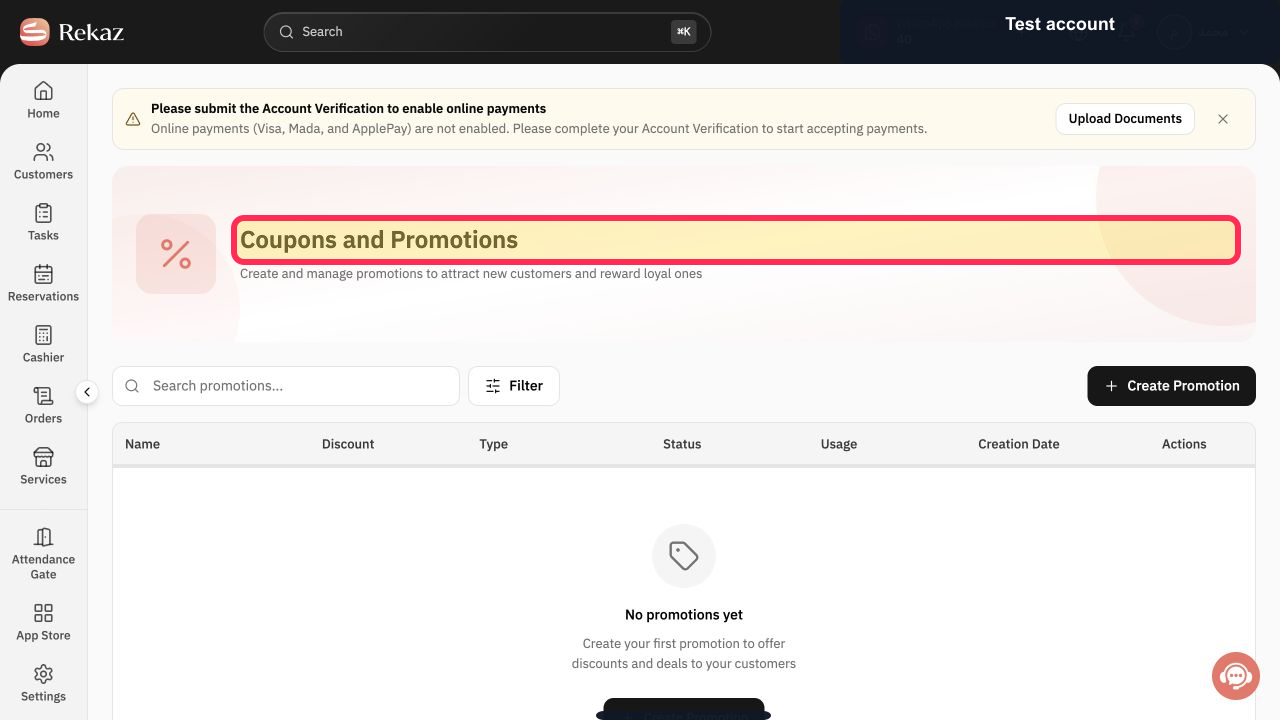
Open Coupons and Promotions in Rekaz.
The Coupons and Promotions page opens.
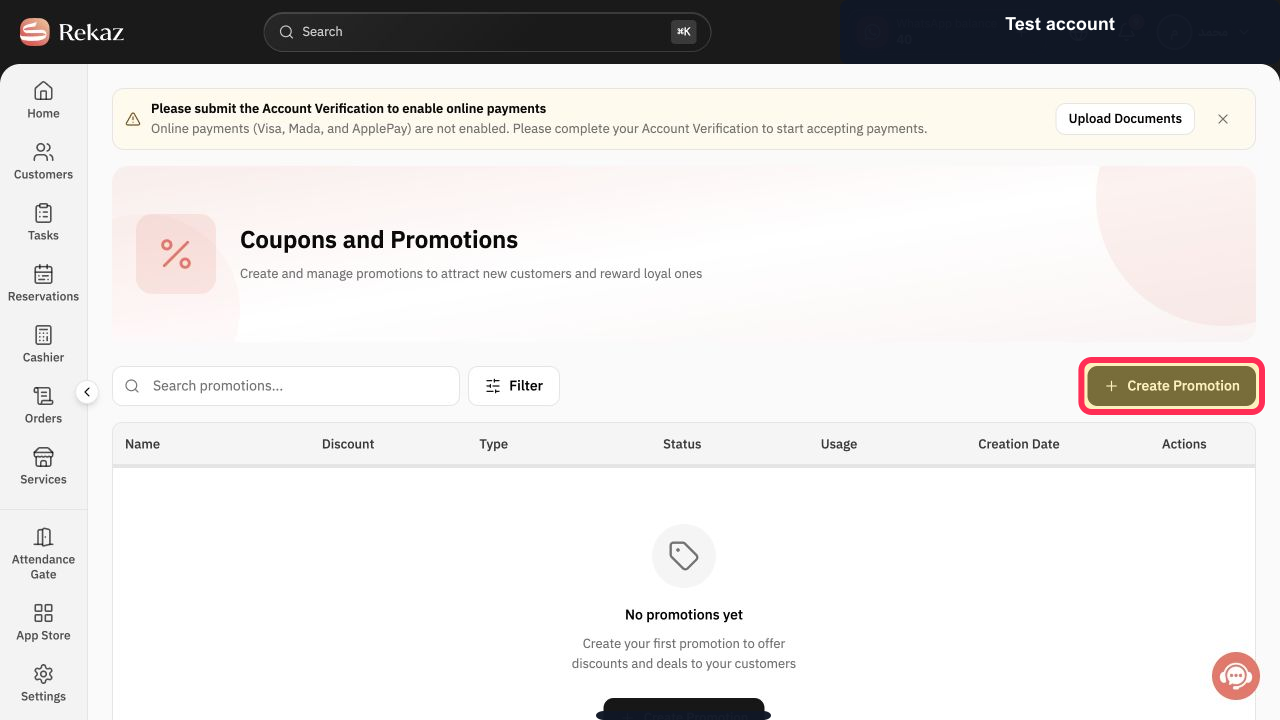
Select Create Promotion.
The promotion-type chooser opens.
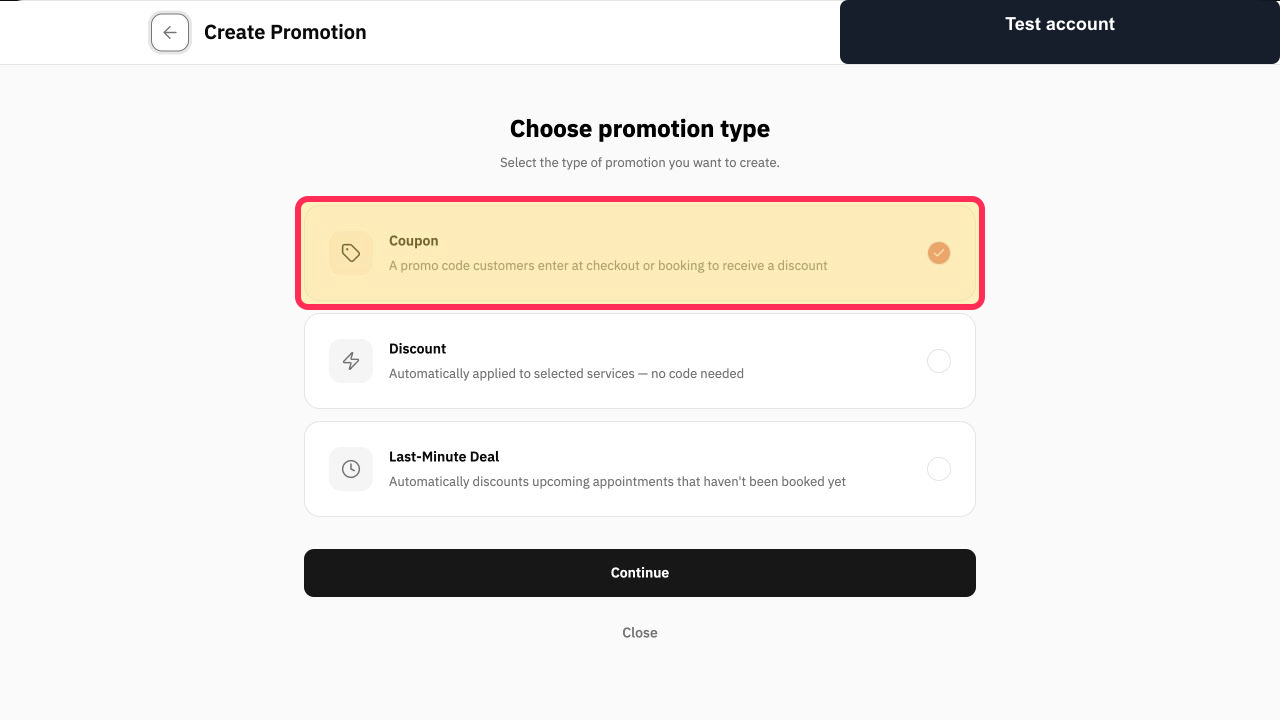
Select Coupon and select Continue.
The Create Coupon wizard opens.
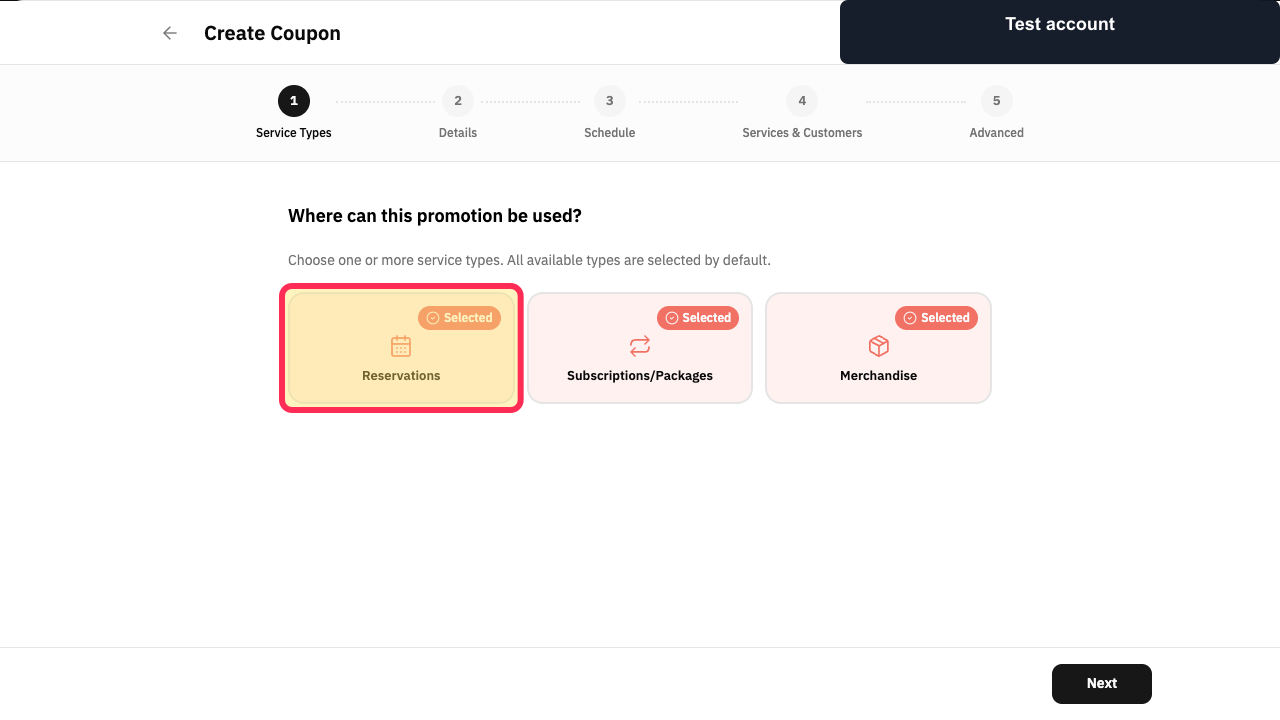
Select the applicable service types: Reservations, Subscriptions/Packages, and Merchandise, then select Next.
The selected service types are recorded.
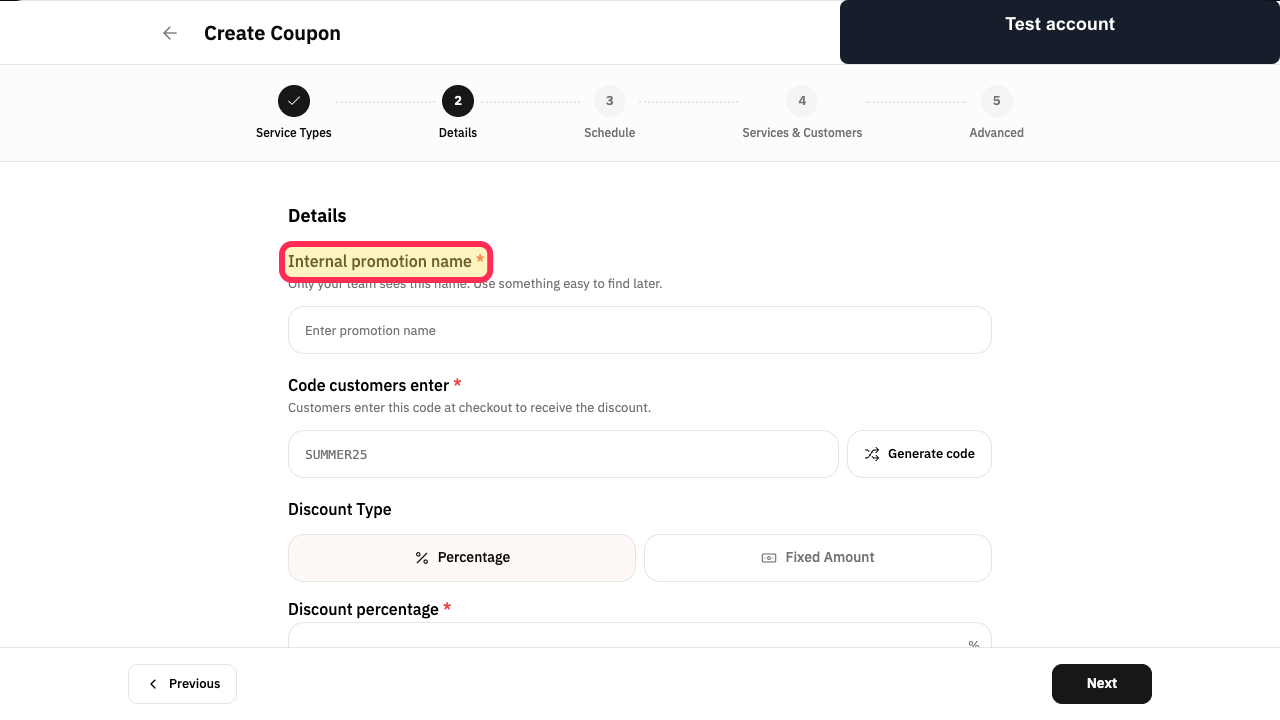
Enter the Internal promotion name.
The internal coupon name is entered.
Enter the Code customers enter, or select Generate code.
The customer-facing coupon code is set.
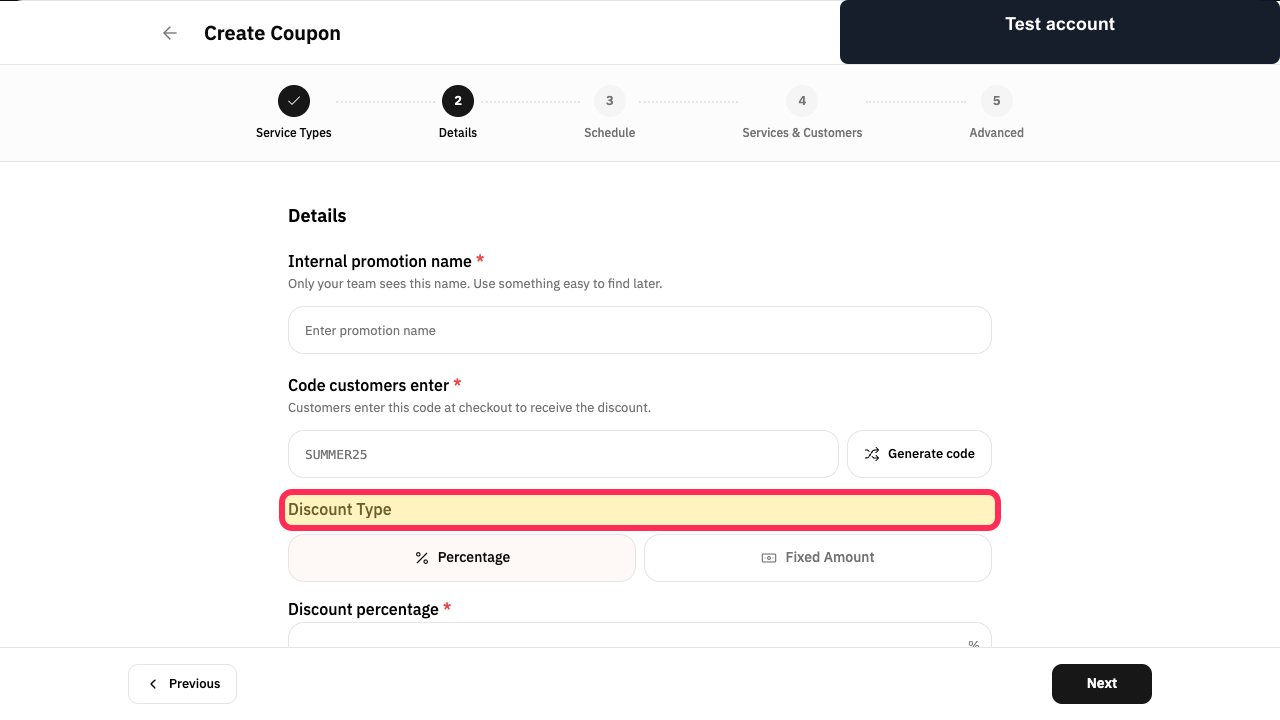
Choose Percentage or Fixed Amount and enter the discount value.
The coupon discount is configured.
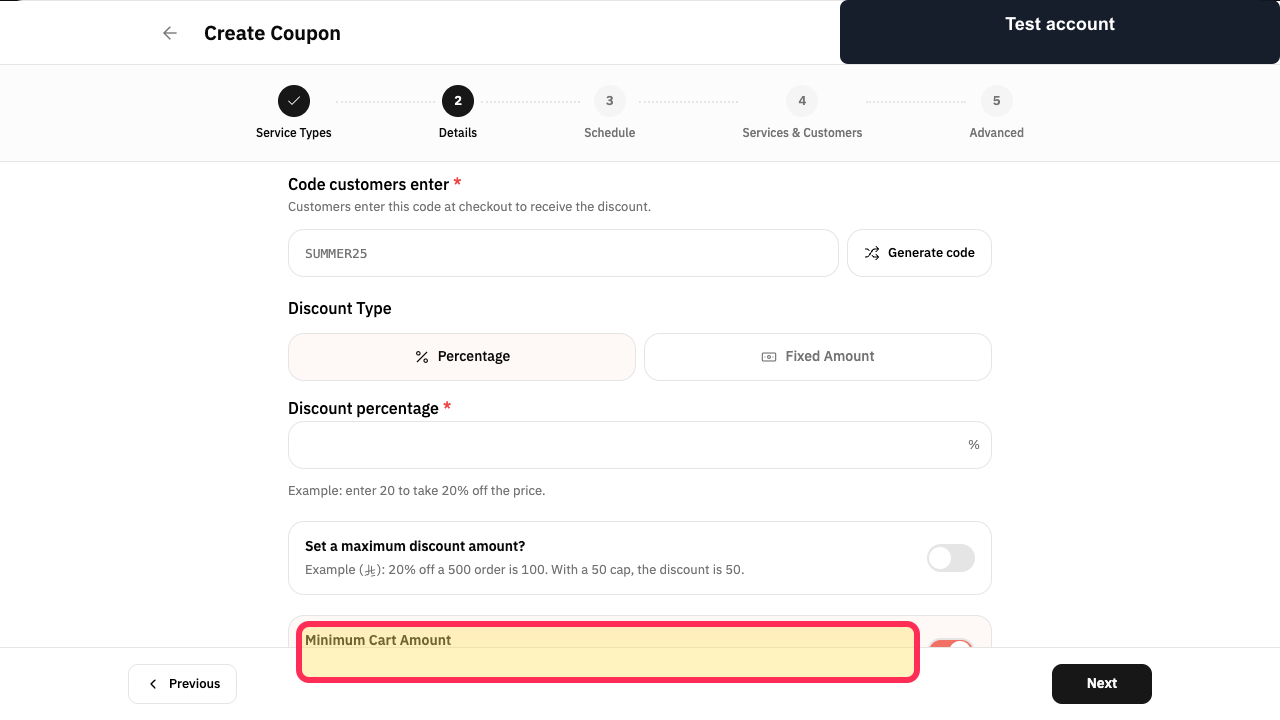
Optional: enable a maximum discount amount or Minimum Cart Amount, then select Next.
Optional amount limits are configured.
Optionally enable Limit total coupon uses and Limit uses per customer.
The coupon usage limits are configured.
Set Start Date and End Date for coupon entry, or leave them empty to allow any date.
The coupon-entry date window is configured.
Optional: limit coupon entry to certain days or hours.
The entry-day and entry-hour rules match the intended restrictions.
Choose the allowed booking dates, booking days, and subscription start dates, then select Next.
The eligible service dates are configured.
Under Services, keep All services or select Edit to choose covered services.
The covered services are configured.
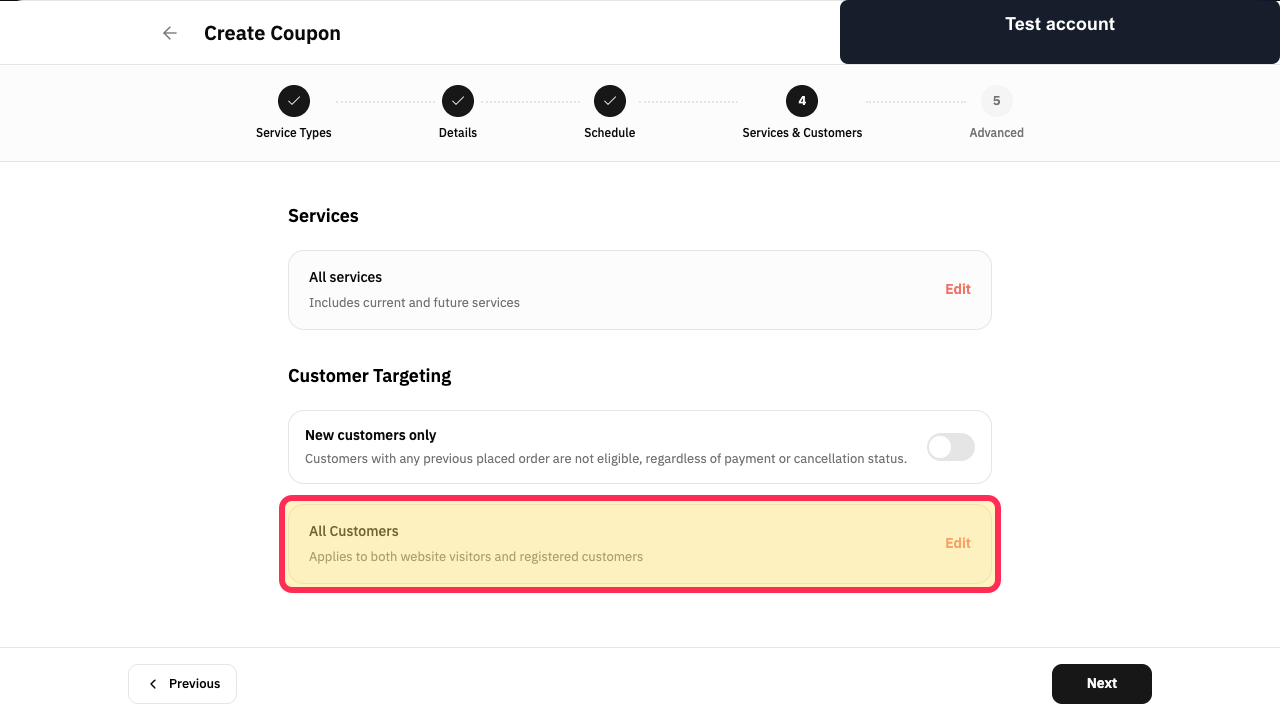
Under Customer Targeting, choose New customers only or All Customers, and use Edit when a narrower audience is needed.
The eligible customer audience is configured.
Select Next.
Advanced opens.
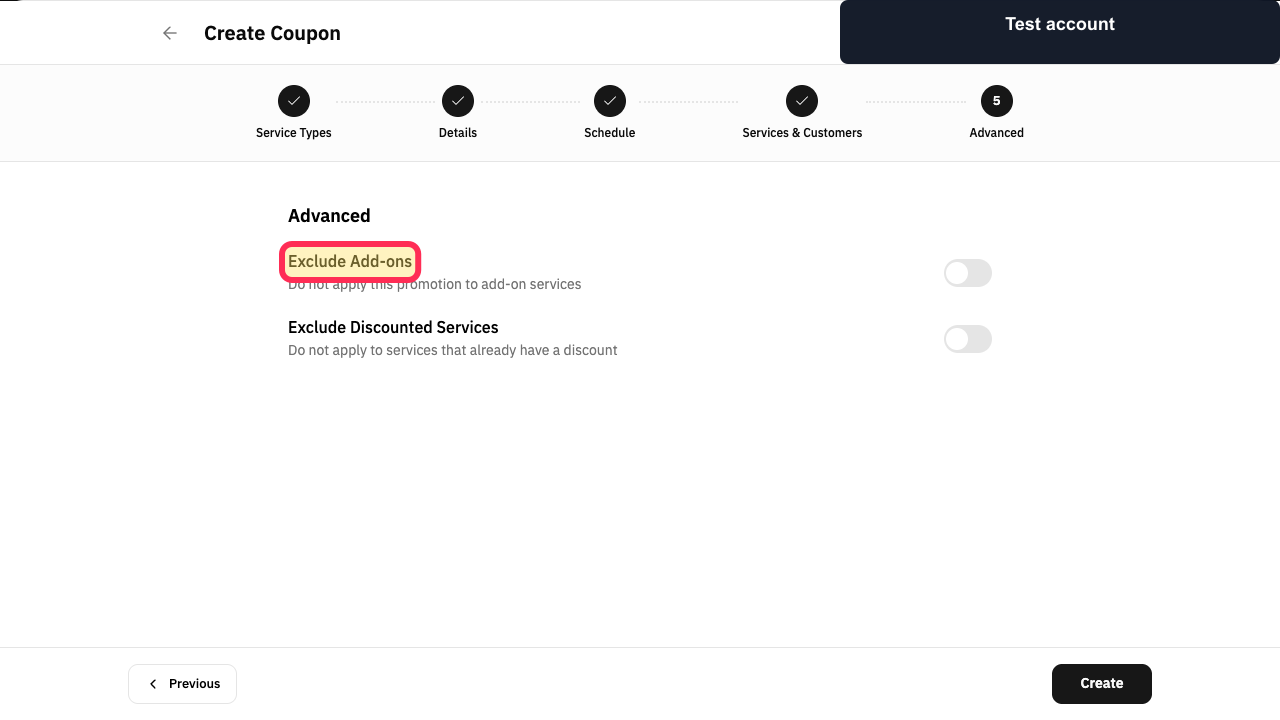
Choose whether to Exclude Add-ons or Exclude Discounted Services.
Advanced exclusions are configured.
Review the coupon and select Create.
The discount coupon is submitted for creation.
Illustrated guide
Step 1: Open Coupons and Promotions.
Step 2: Start creating a promotion.
Step 3: Choose Coupon as the promotion type.
Step 4: Choose where the coupon can be used.
Step 5: Enter the internal promotion name.
Step 6: Set the coupon code.
Step 7: Set the discount type and value.
Step 8: Configure optional coupon amount limits.
Step 9: Set total and per-customer usage limits.
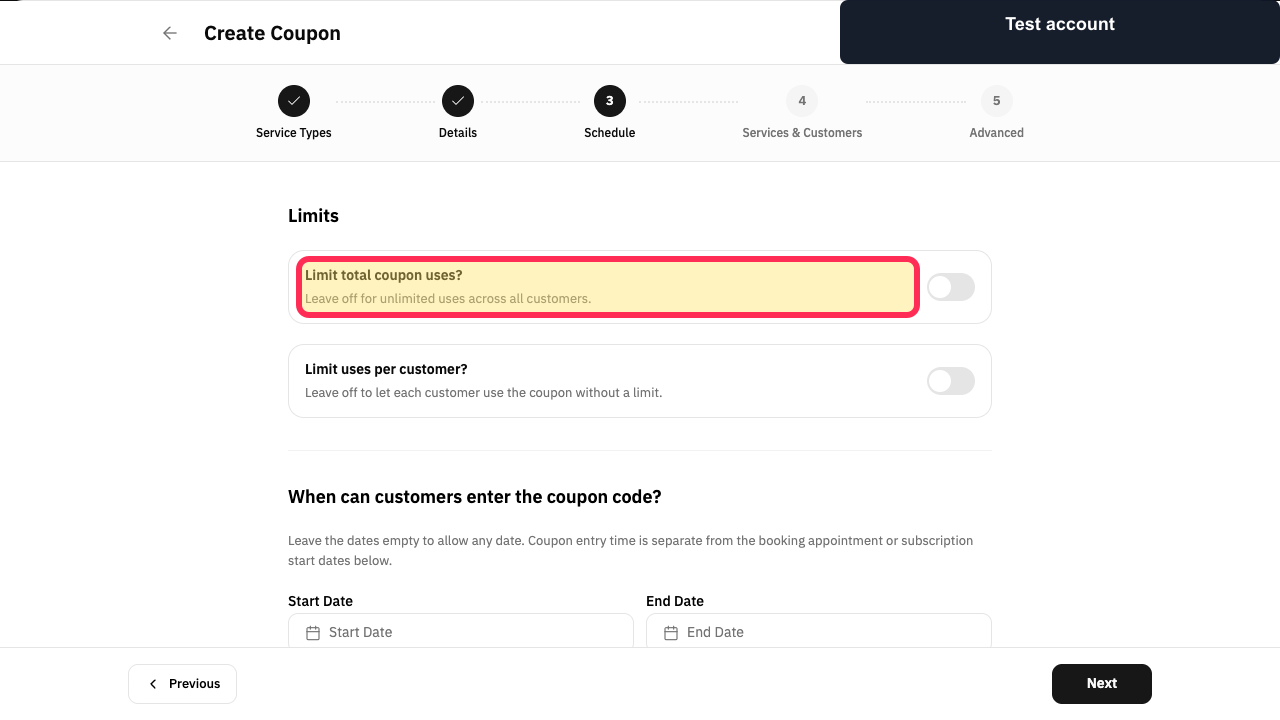
Step 10: Set when customers can enter the coupon.
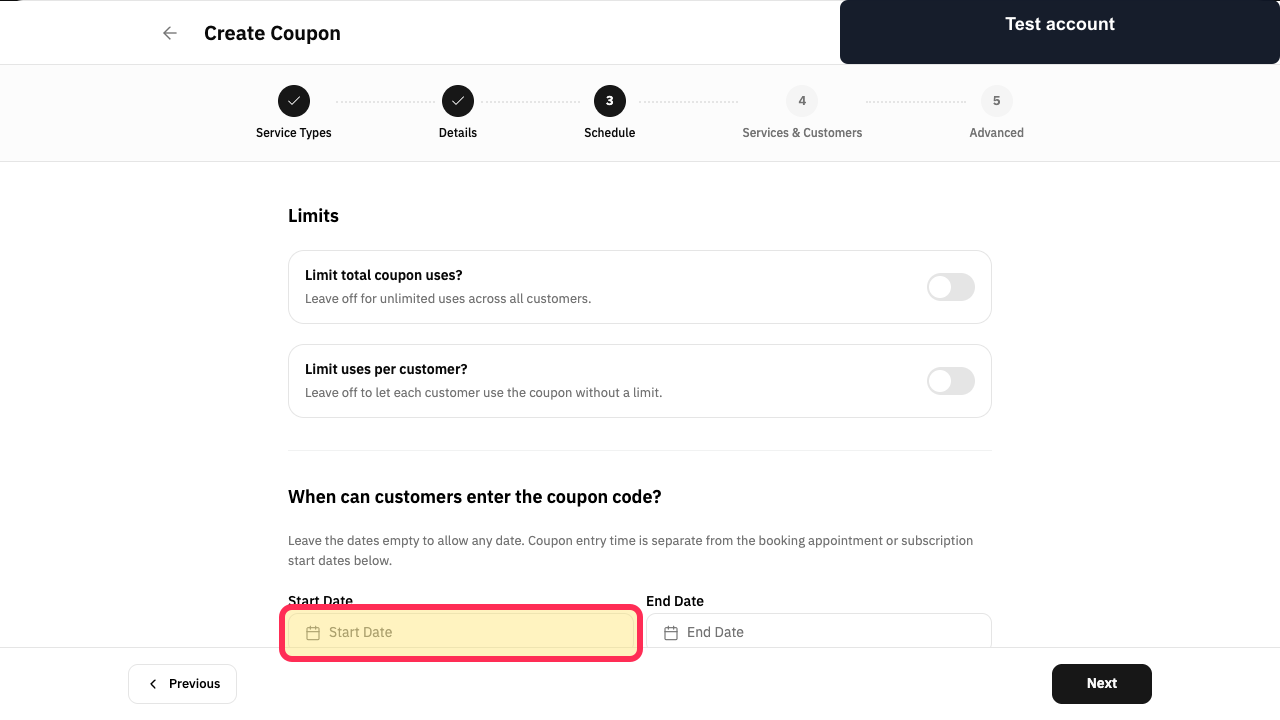
Step 11: Configure coupon entry days and hours.
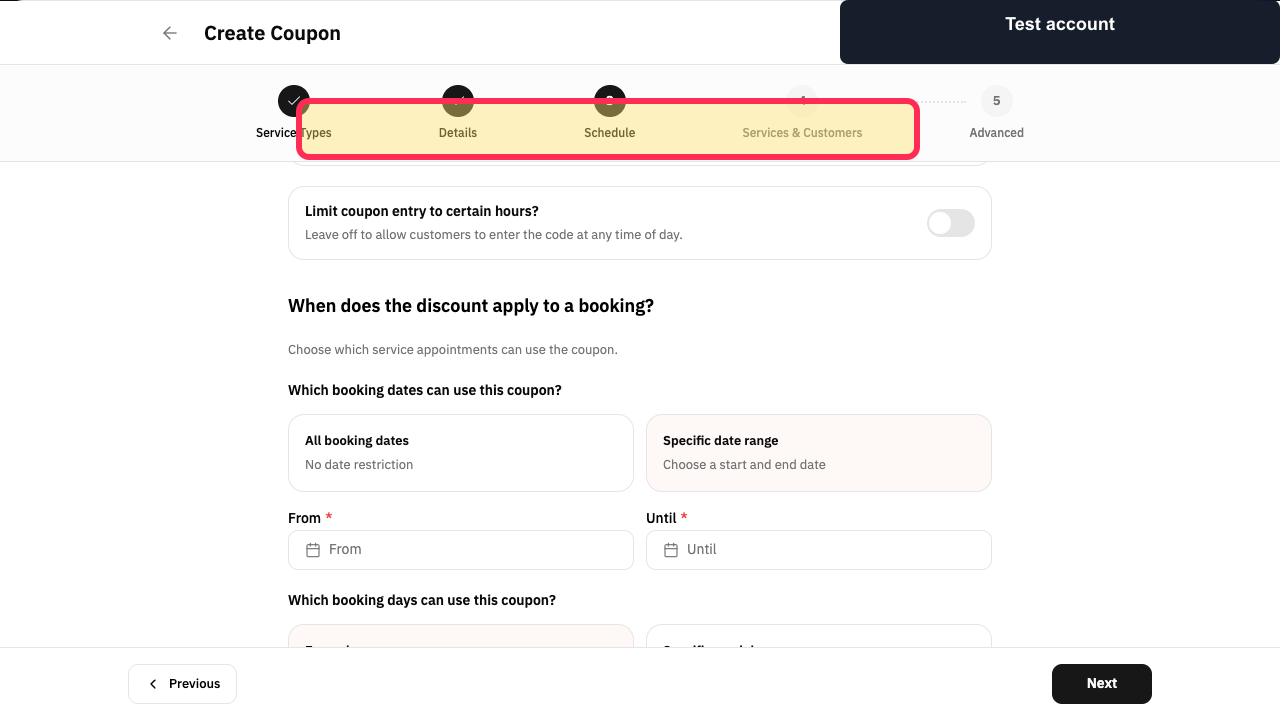
Step 12: Set the eligible booking and subscription dates.
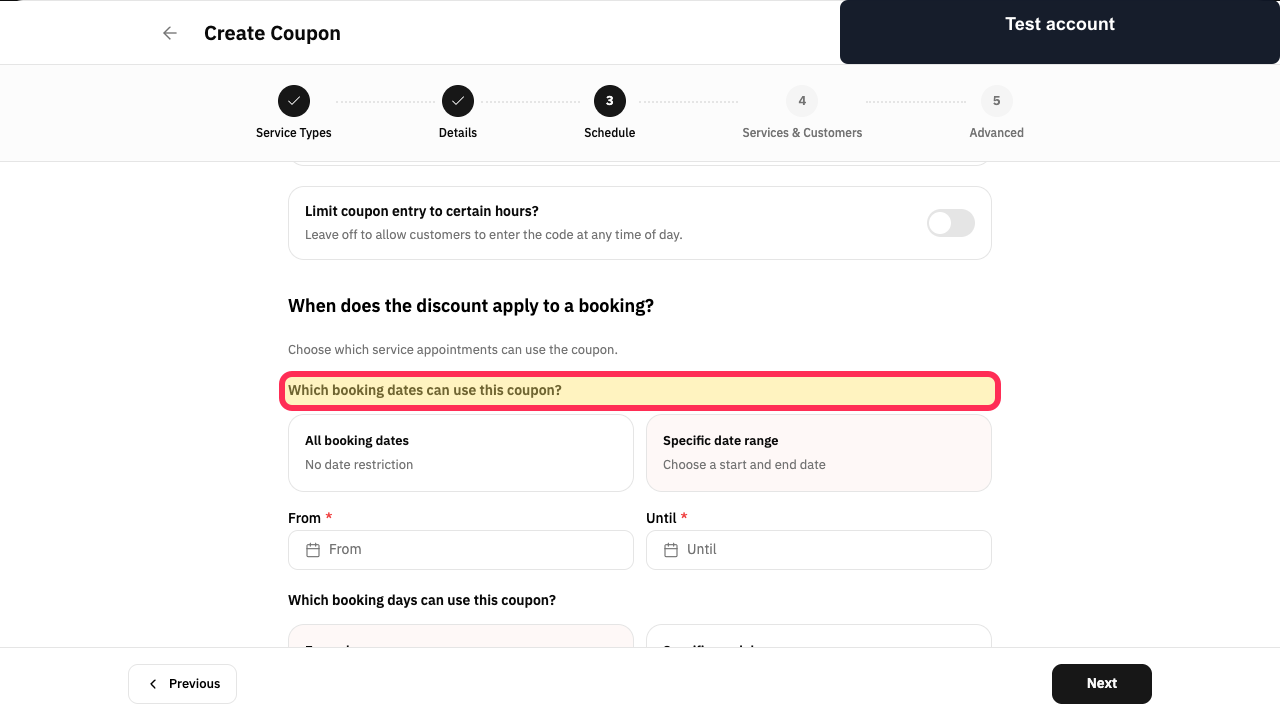
Step 13: Choose the services covered by the coupon.
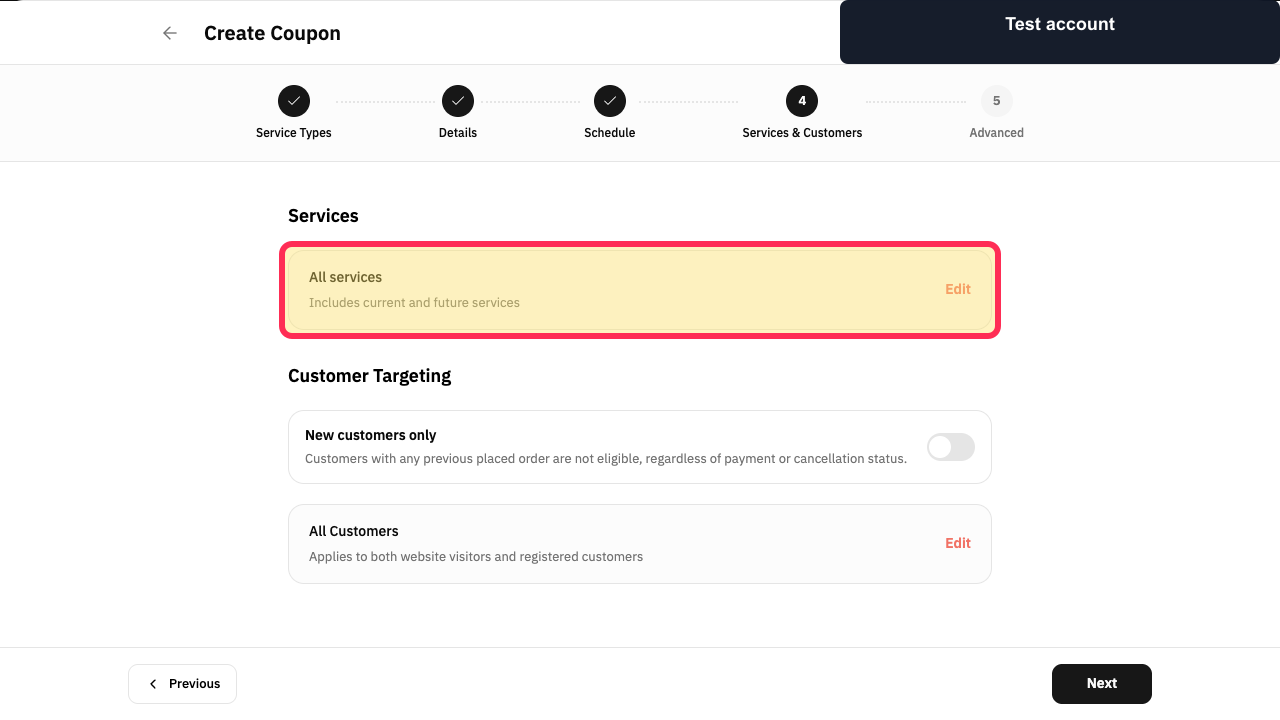
Step 14: Choose the customers covered by the coupon.
Step 15: Continue to Advanced settings.
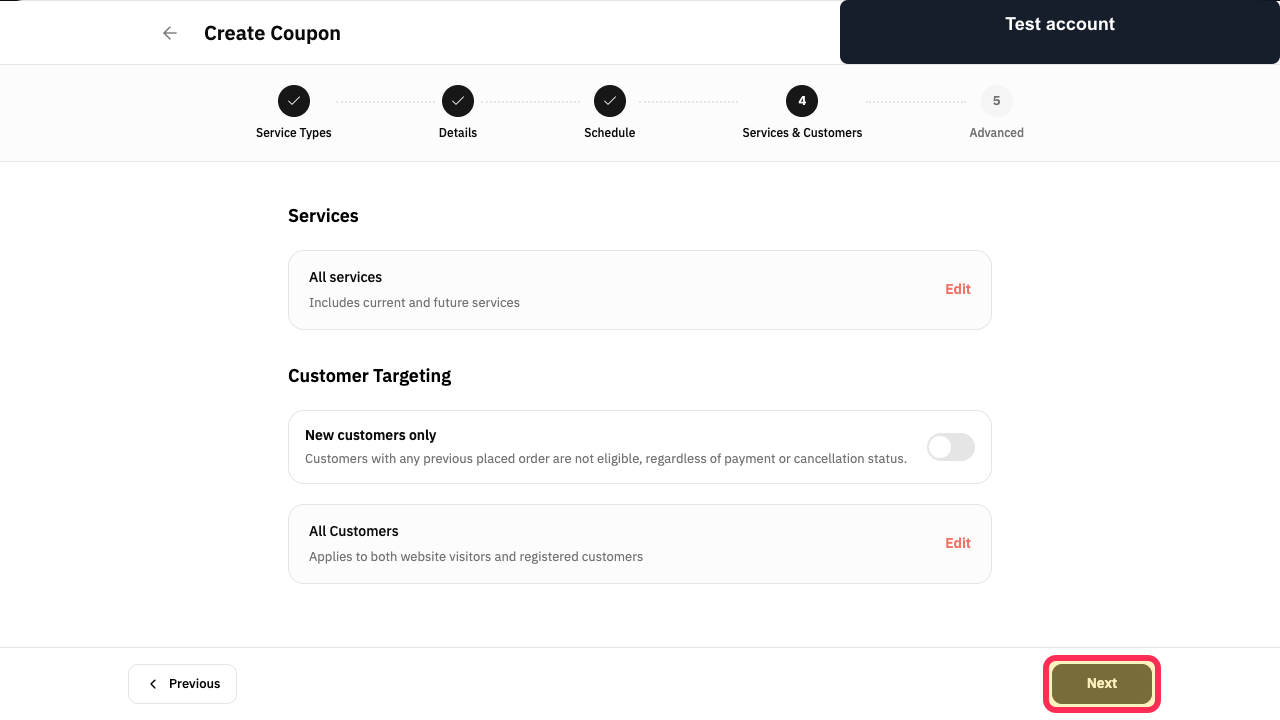
Step 16: Configure advanced coupon exclusions.
Step 17: Create the discount coupon.
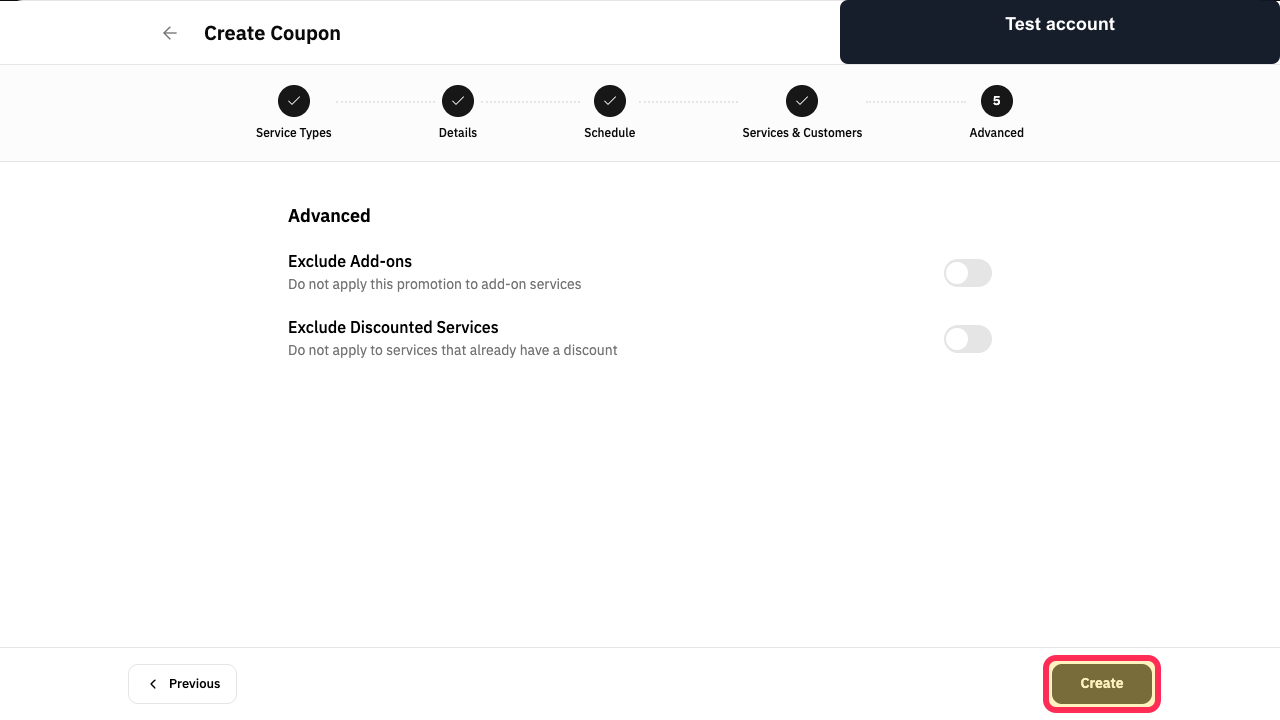
Before you create the coupon
Review the settings in **Advanced settings**, then select **Create** to finish creating the coupon.
Set a total usage limit and a limit for each customer before creating the coupon.
Use the active dates, days, and hours to control when the coupon can be used.
Customer and service customisation is optional and can be used when needed.
Related questions
How do I create a coupon code in Rekaz?
Where can I find Coupons & Promotions in Rekaz?
How do I set a coupon usage limit in Rekaz?
How do I choose the active dates and hours for a coupon in Rekaz?


