How do I manage automated call reminders and booking confirmations in Rekaz?
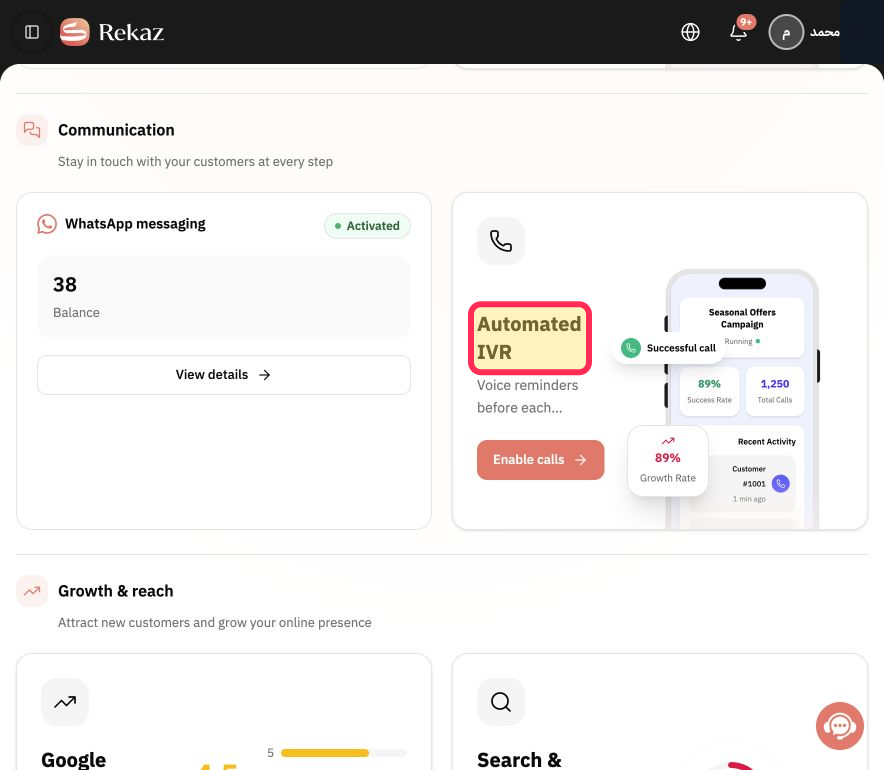
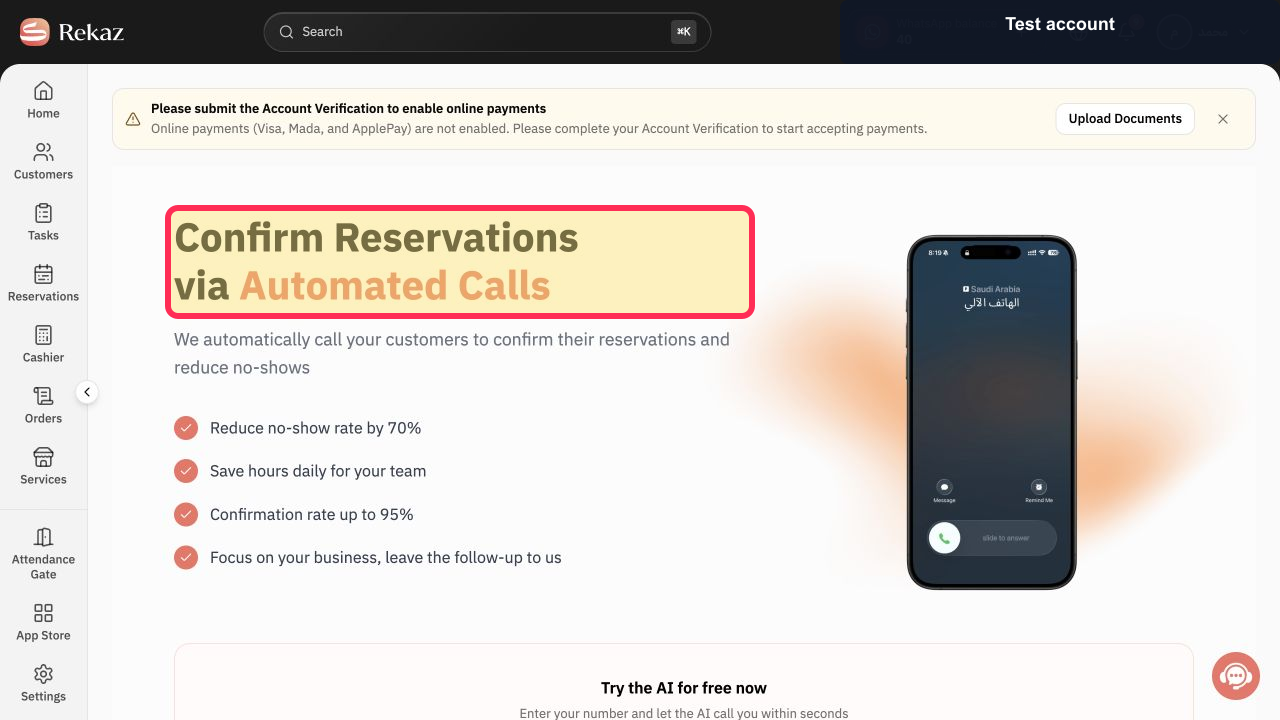
Use Marketing Tools to find the automated-call area in Rekaz. The the available interface identifies this area as Automated IVR and shows a page titled “Confirm Reservations via Automated Calls.”
The current interface does not show the separate booking reminder and booking confirmation switches, or a Save button for automated calls. Therefore, this guide can help you locate and verify the automated-call area, but cannot provide steps to change those unsupported settings.
Steps
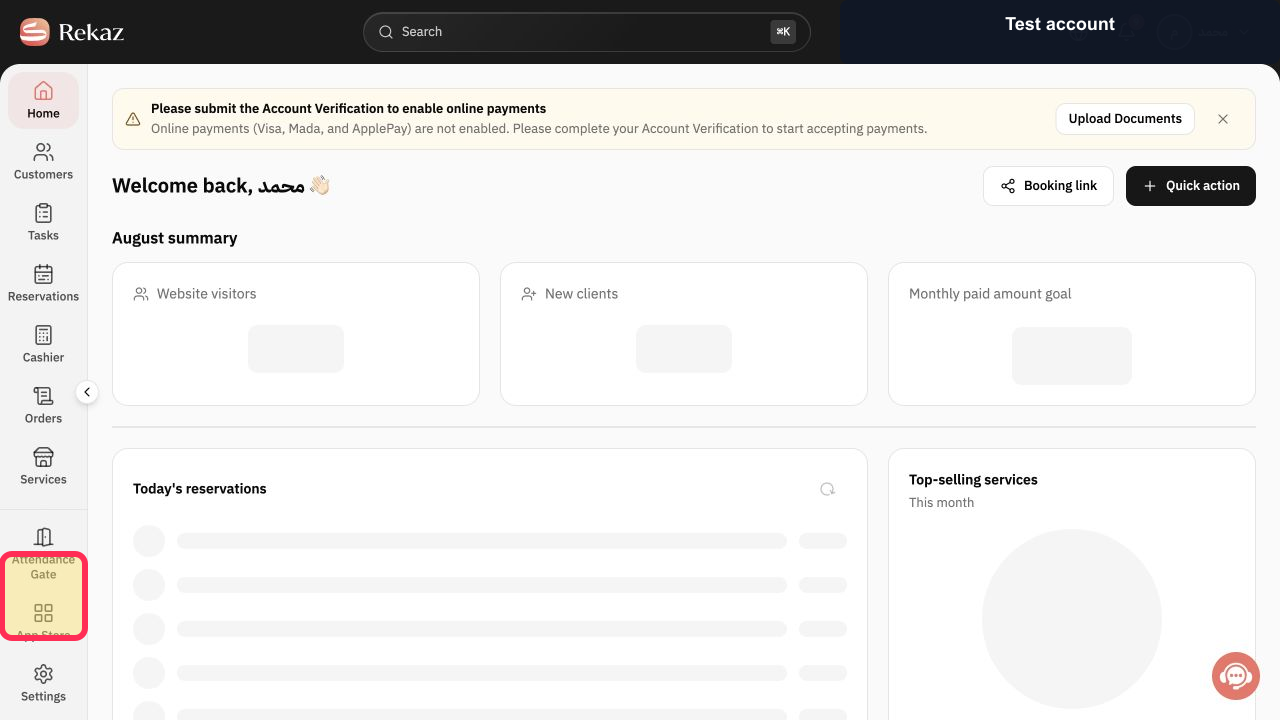
From the sidebar, select Marketing Tools.
The Marketing Tools area opens.
In Marketing Tools, verify that the Automated IVR option is available.
The heading “Automated IVR” is visible.
Verify that the automated-call page is titled “Confirm Reservations via Automated Calls.”
The page heading “Confirm Reservations via Automated Calls” is visible.
Illustrated guide
Step 1: Select Marketing Tools from the sidebar.
Step 2: Automated IVR in Marketing Tools.
Step 3: Automated reservation call confirmation page.
What you can manage
Automated Confirmations lets you control whether automated call notifications are enabled or disabled for booking reminders and booking confirmations.
You can change reminders and confirmations separately.
Save after making your changes.
Important note
The exact position or wording of controls may change when Rekaz is updated. The exact visible label for the booking confirmation toggle could not be verified from the available interface terms.
Related questions
How do I turn automated call booking reminders on or off in Rekaz?
How do I enable or disable automated booking confirmations in Rekaz?
Where can I find Automated Confirmations in Rekaz?


