How do I top up WhatsApp message credits in Rekaz?
Rekaz provides a Top up whatsapp credits button on the WhatsApp notifications page to begin a WhatsApp credit top-up.
The current interface shows the button that starts the top-up process, but it does not show the instructions for entering a quantity, choosing a payment method, or confirming payment. Do not rely on those unsupported details in this guide.
Steps
On the WhatsApp notifications page, select Top up whatsapp credits to begin the credit top-up process.
The current interface shows the Top up whatsapp credits action on the WhatsApp notifications page. Subsequent top-up fields and payment options are not represented in the interface.
Verify that the alternative automatic option is available if you want to configure recurring credit purchases instead of starting a manual top-up.
The WhatsApp notifications page shows the Set up auto top-up button alongside the manual top-up action.
Illustrated guide
Step 1: Select Top up whatsapp credits on the WhatsApp notifications page.
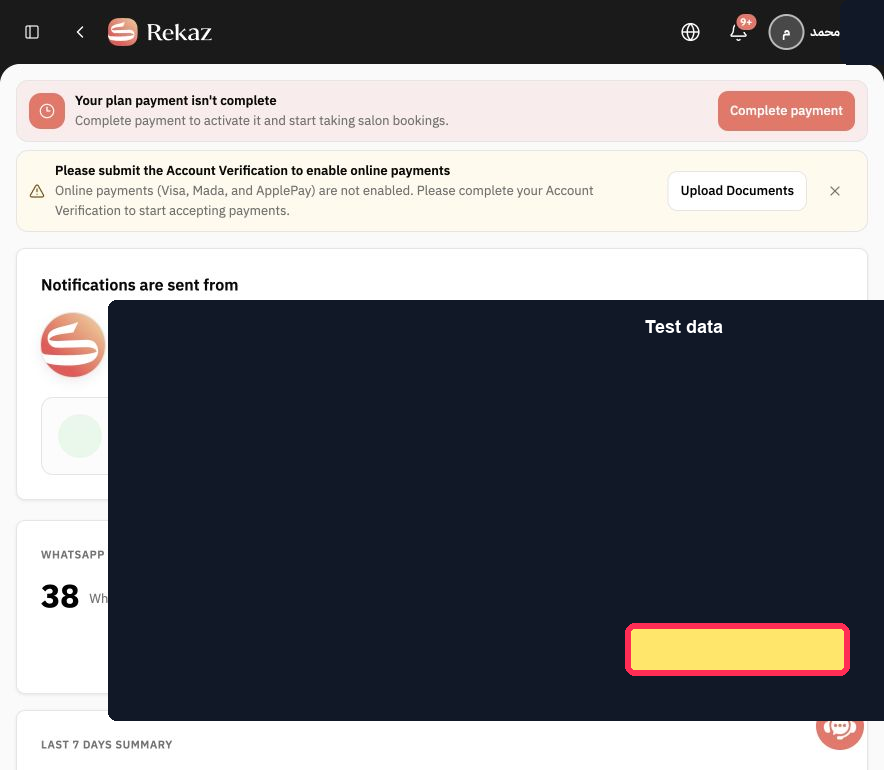
Step 2: The Set up auto top-up option on the WhatsApp notifications page.
Important notes
Check your Current balance and review the top-up quantity, payment method, and other details before taking any final or financial action.
Do not include payment information in Help Center screenshots or share sensitive payment details with anyone.
If the top-up flow does not display the quantity or payment method options, contact Rekaz support for assistance.
Related questions
Where can I find WhatsApp message credits in Rekaz?
How can I check my WhatsApp notification credit balance in Rekaz?
How do I add WhatsApp notification credits in Rekaz?
How do I choose the WhatsApp credit top-up quantity and payment method in Rekaz?


