How do I print an invoice to a cashier printer in Rekaz?
To start printing an invoice in Rekaz, go to Orders, open the relevant order, and select Print.
The current interface does not show the actions for selecting a thermal cashier printer or setting paper width. Those options cannot be configured or documented from the supplied Rekaz UI.
Steps
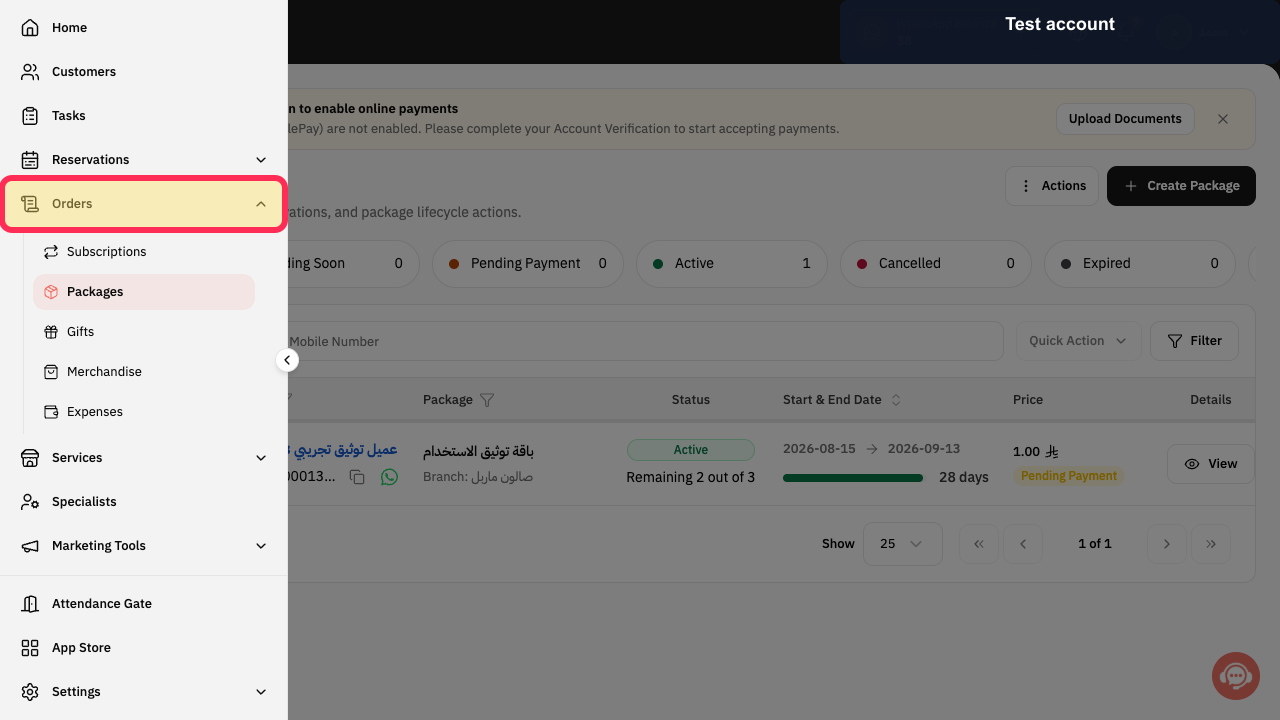
From the signed-in Rekaz sidebar, select Orders.
The Orders area opens.
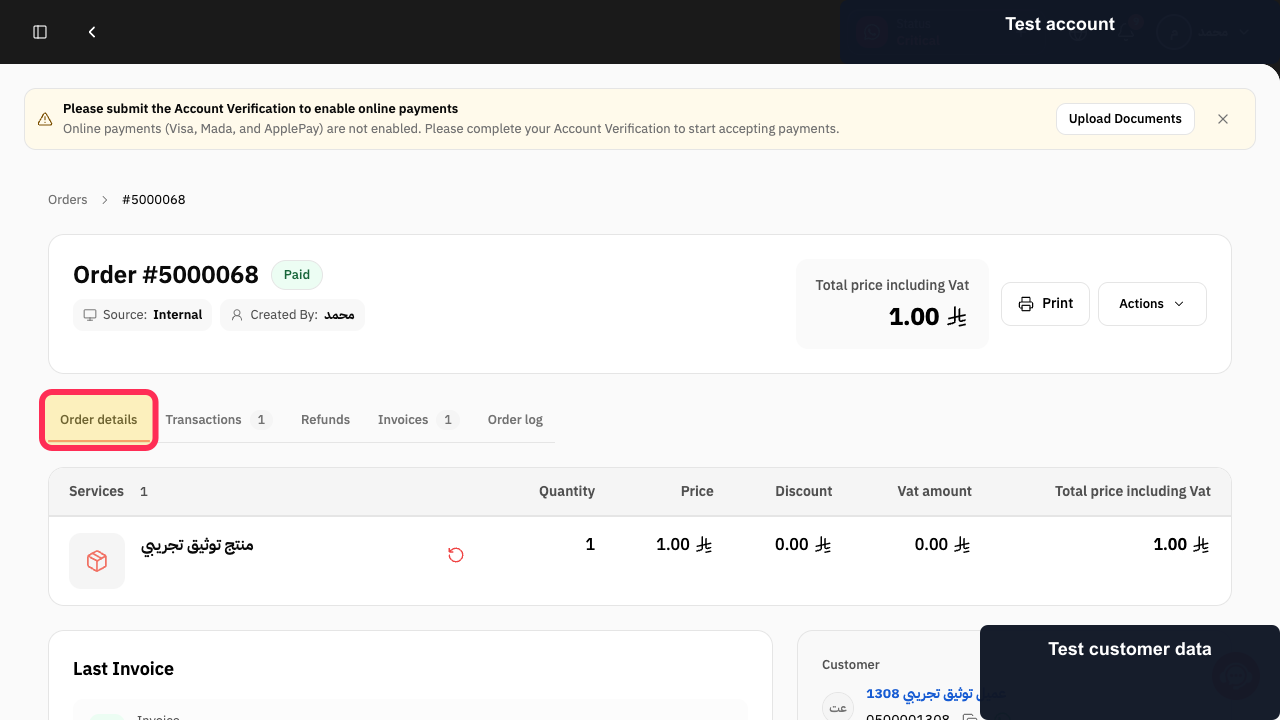
Open the order that contains the invoice you want to print.
The order opens and its Order details are displayed.
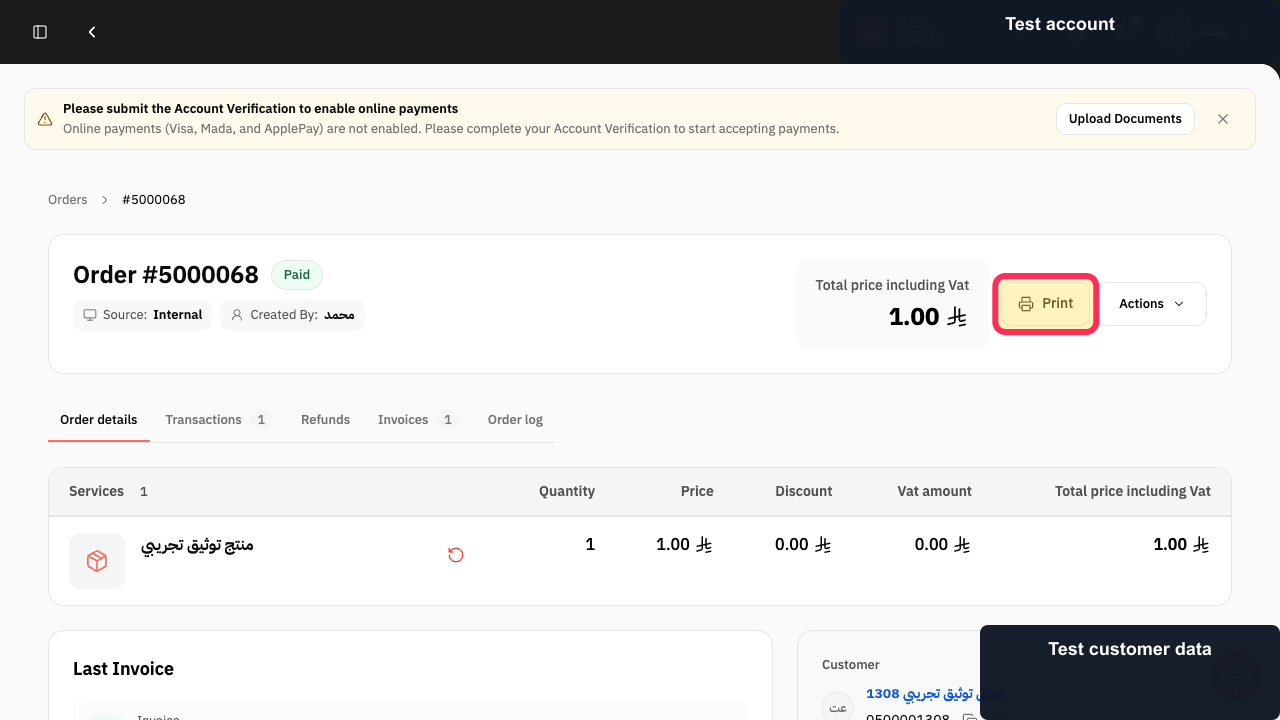
At the top of Order details, select Print to start the invoice print action.
The Print action is started from the order.
Illustrated guide
Step 1: Select Orders from the Rekaz sidebar.
Step 2: Open the order that contains the required invoice.
Step 3: Select Print at the top of Order details.
Where printer settings are managed
Rekaz opens the print command. The printer and paper-width choices are made in the browser or operating system print dialog, not in Rekaz.
The exact names and layout of print-dialog controls can vary by browser, operating system, and installed printer driver.
Alternative print entry point
You can also start from the Last Invoice card by selecting Print Invoice, then choose the correct paper width for the printer in the system print dialog.
Important notes
Use a test order when testing a printer.
Guide screenshots use sample data and may hide fields that are not needed for the step.
Related questions
Where can I find the invoice print option in Rekaz?
How do I choose a thermal cashier printer when printing an invoice in Rekaz?
How do I set the correct paper width for an invoice printer in Rekaz?


