How do I print an invoice on A4 paper in Rekaz?
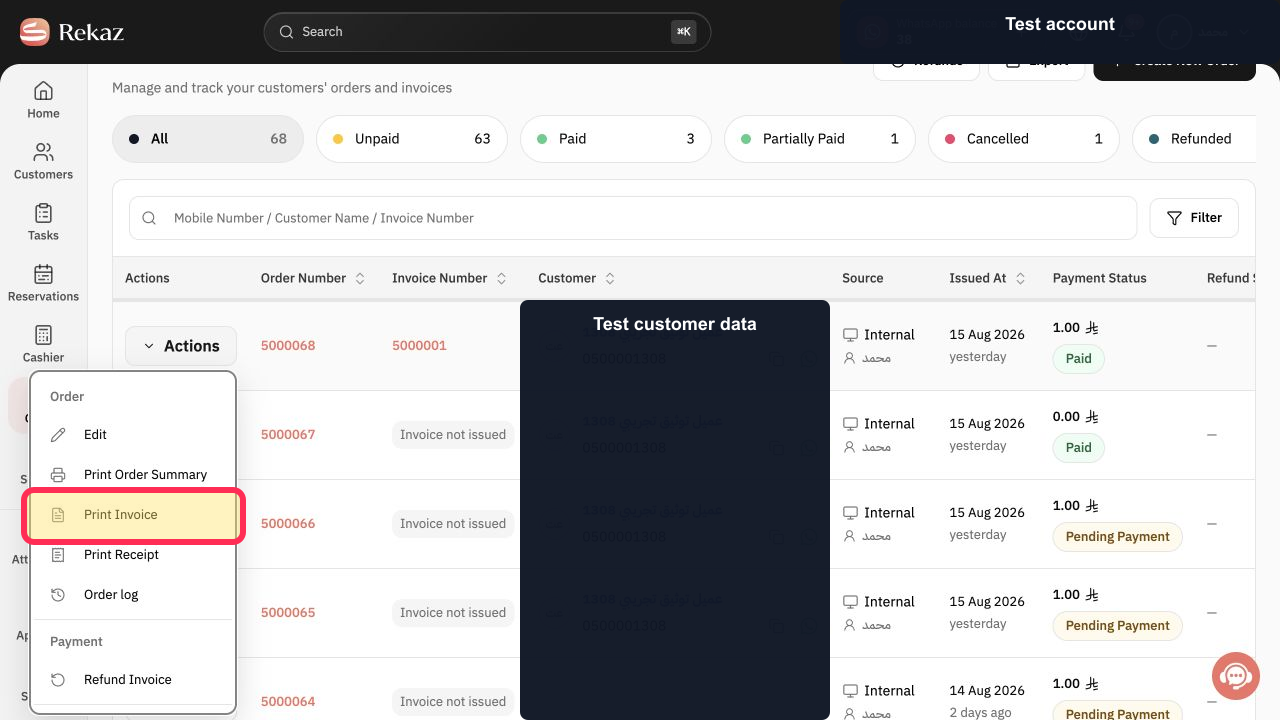
To print an invoice in Rekaz, open Orders and use Print Invoice in the paid order’s available actions.
The current Rekaz interface does not show an A4 paper-size setting or the controls of any subsequent print dialog. Therefore, Rekaz cannot provide an available in-app step for selecting A4.
Steps
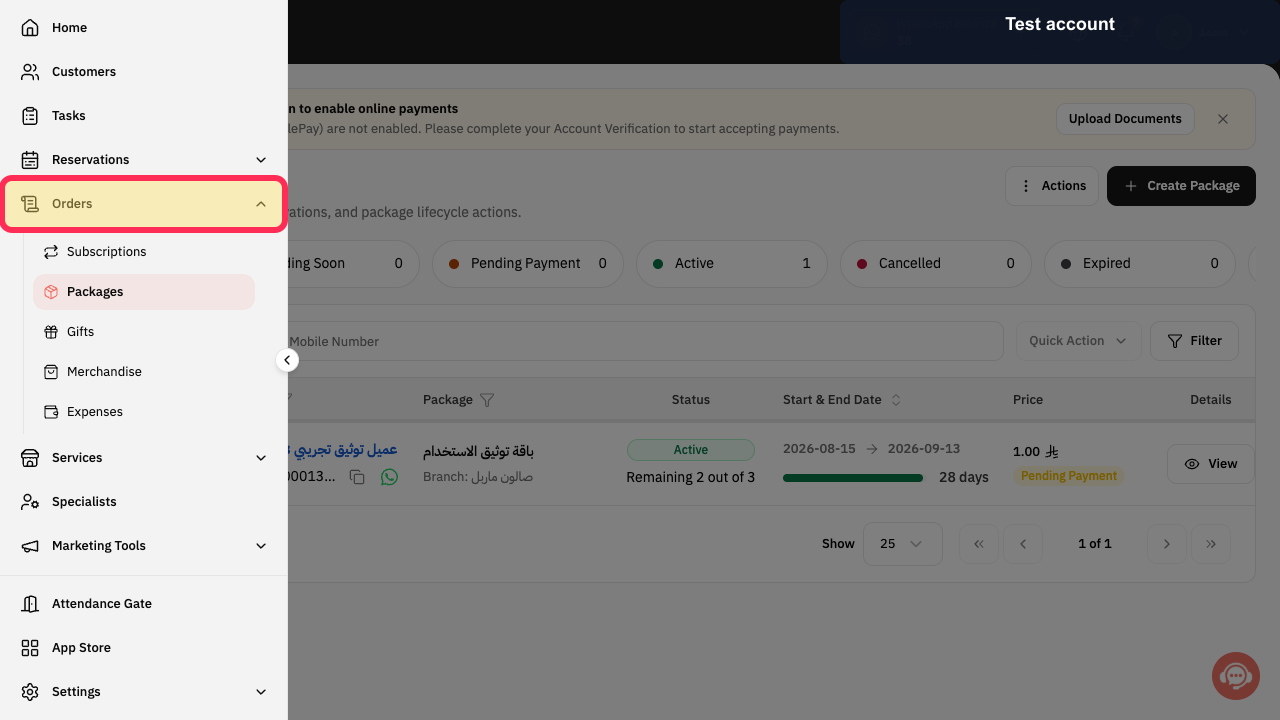
In the Rekaz sidebar, select Orders.
The Orders area opens.
For the relevant paid order, select Print Invoice from its available actions.
Rekaz starts the invoice-printing action.
Illustrated guide
Step 1: Select Orders in the Rekaz sidebar.
Step 2: Select Print Invoice in the paid order’s available actions.
Alternative way to start printing
If a Last Invoice card is available, you can select Print Invoice from that card. Then choose A4 in the browser or operating system print settings.
Important notes
Rekaz starts the print command, but printer selection and paper size are controlled by your browser or operating system.
The exact labels and layout of the external print dialog can vary by browser, device, and operating system.
Use a test order when testing print settings.
Paper size is not a setting inside Rekaz.
Related questions
Where can I choose A4 paper size when printing an invoice in Rekaz?
Why is the A4 paper-size option shown in my browser or system print dialog instead of Rekaz?
How do I print the Last Invoice on A4 paper in Rekaz?


