How do I add a note to an invoice or receipt in Rekaz?
In Rekaz, open Invoice Settings and then select Company Information to reach the available configuration area for commercial registration, VAT settings, and invoice notes.
The current interface does not show separate Invoice Notes or Receipt Notes editors, a receipt-note setting, or a way to save notes. The older instructions for entering separate notes, previewing them, and saving them are therefore not supported by the current interface.
Steps
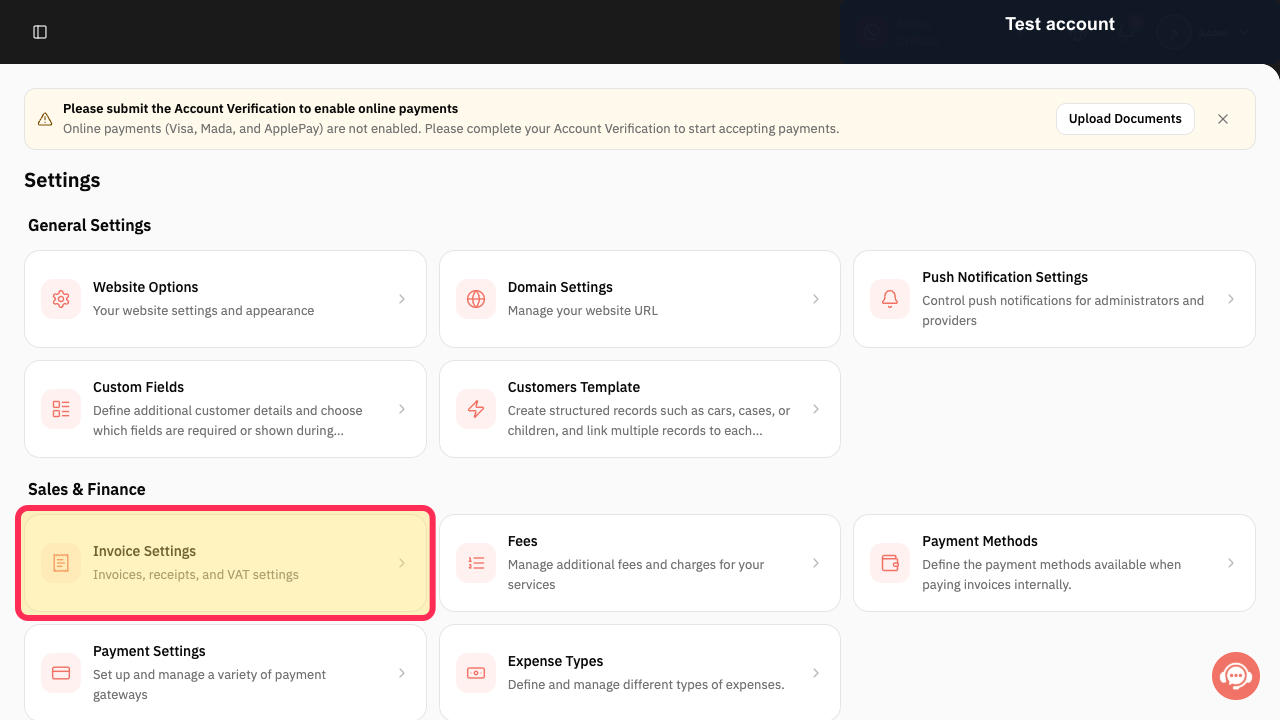
From the Settings page, select Invoice Settings.
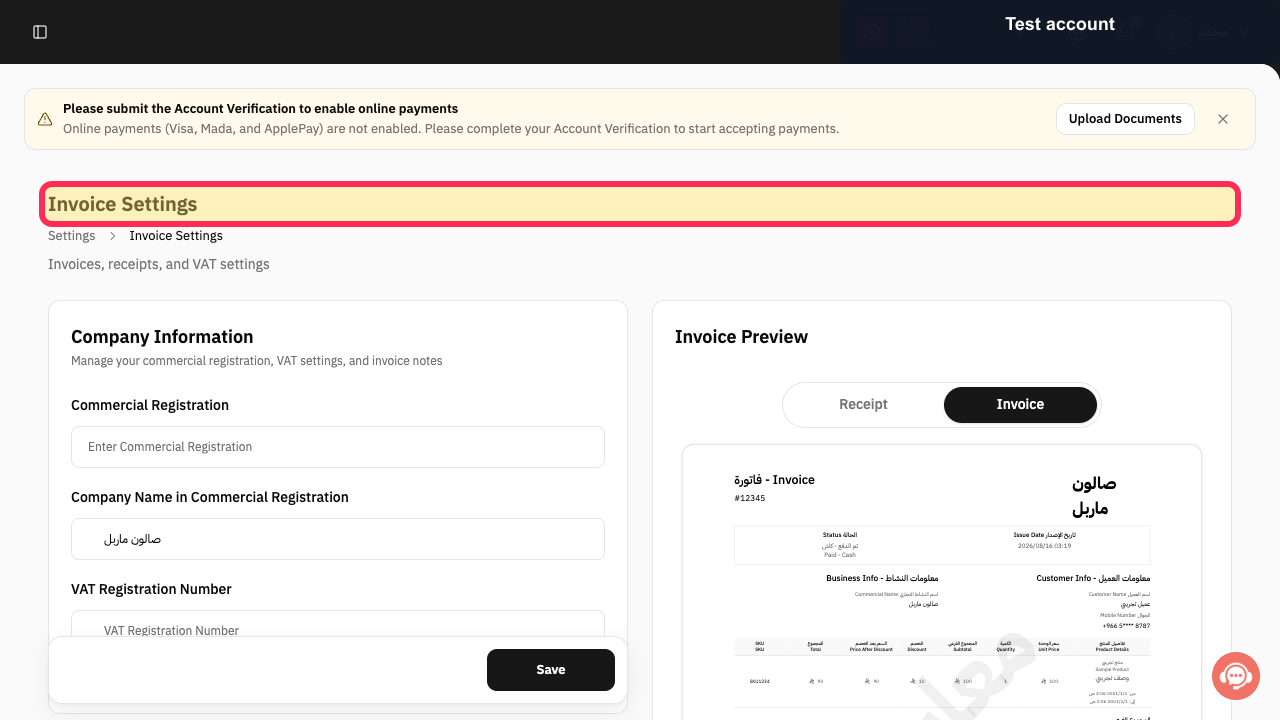
The Invoice Settings page opens.
Verify that the Invoice Settings heading is visible.
The page heading reads Invoice Settings.
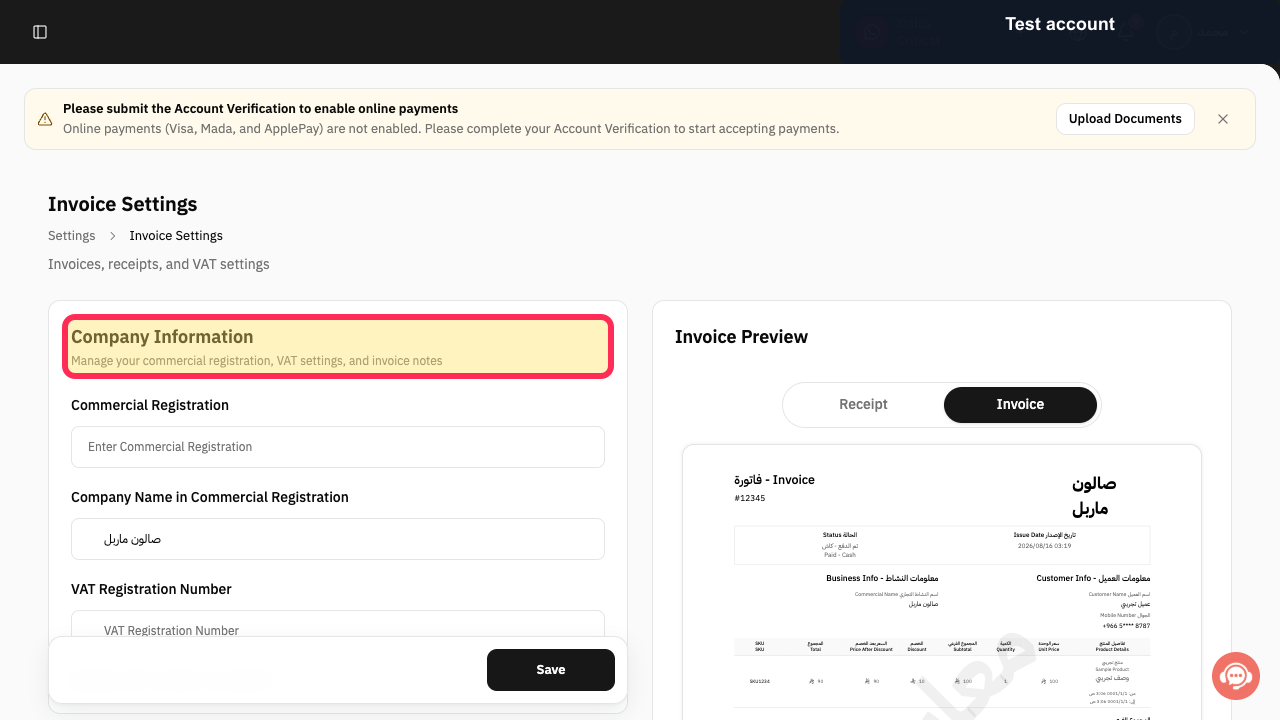
Select Company Information to open the available company configuration area.
The Company Information configuration area opens; its description identifies commercial registration, VAT settings, and invoice notes as the available scope.
Illustrated guide
Step 1: Select Invoice Settings from Settings.
Step 2: Invoice Settings page heading.
Step 3: Select Company Information in Invoice Settings.
Important notes
Invoice Notes and Receipt Notes are separate fields.
Use these settings for new documents only. They do not change a document that has already been issued.
Related questions
How do I add a return policy to an invoice in Rekaz?
How do I add text at the bottom of a receipt in Rekaz?
Where can I add my store terms to an invoice in Rekaz?


