How do I change the business name shown on an invoice in Rekaz?
The business name shown on an invoice comes from your Company Information in Rekaz Invoice Settings. Update the Company Name to the legal name used in your business documents, review the Preview, and save.
Before saving, review the rest of your company information to make sure all invoice details are correct.
Steps
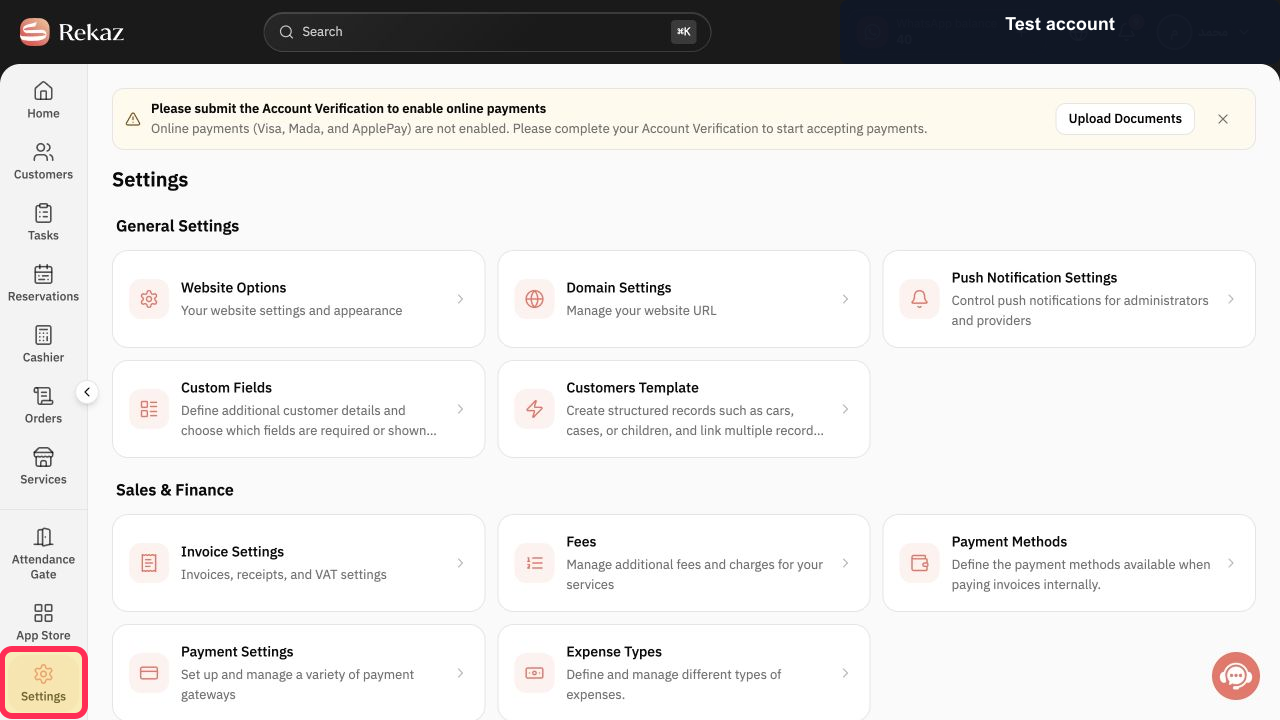
From the sidebar, select Settings.
The Settings area opens.
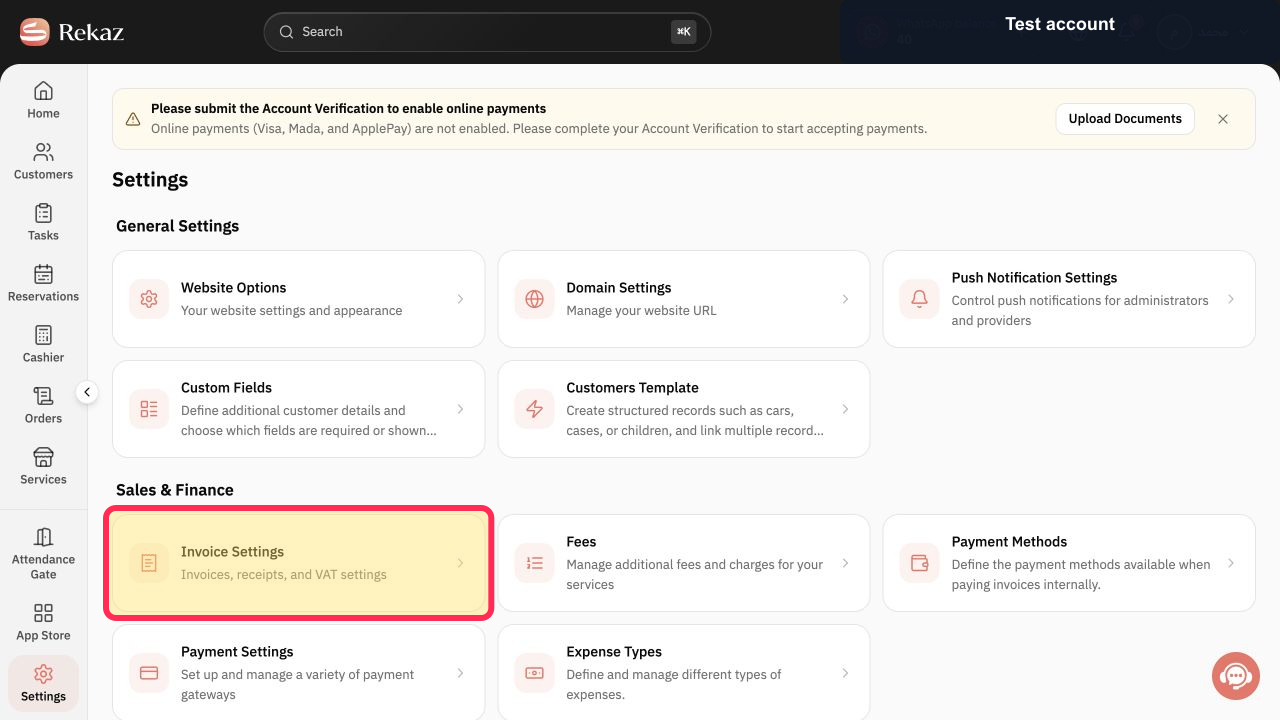
Open Invoice Settings.
Invoice Settings opens.
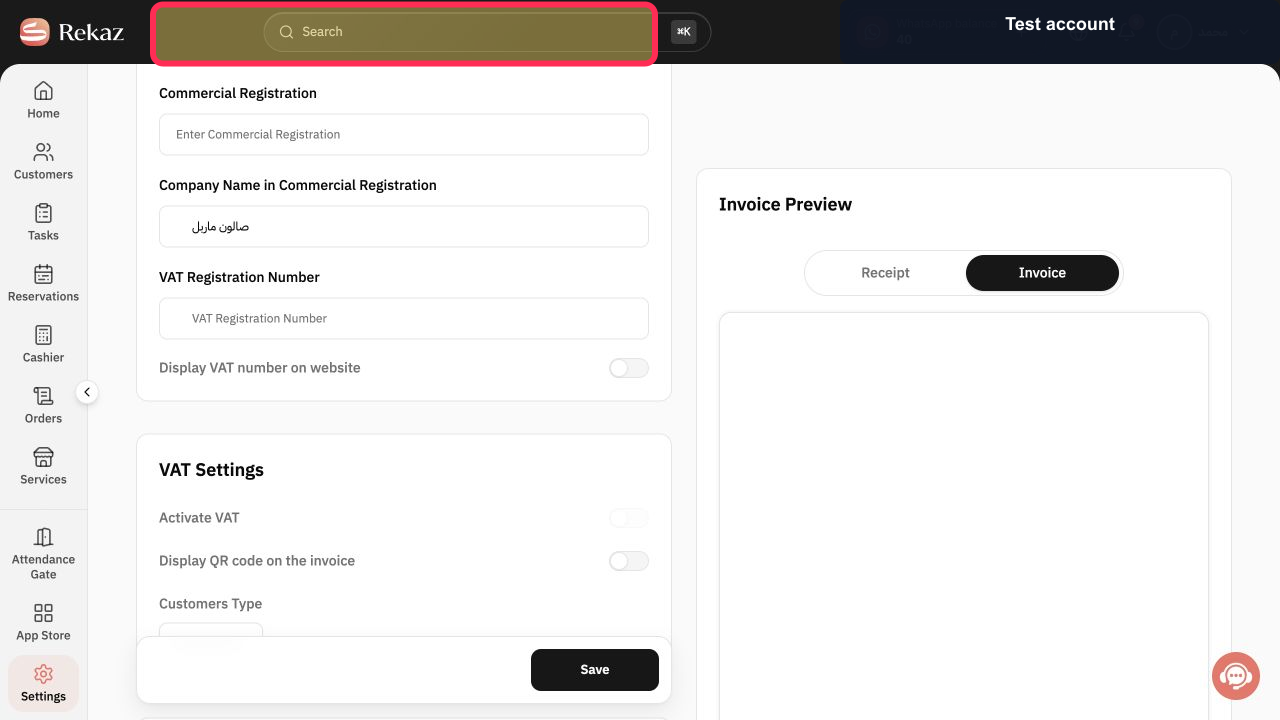
Open Company Information.
The company details, including Company Name, are displayed.
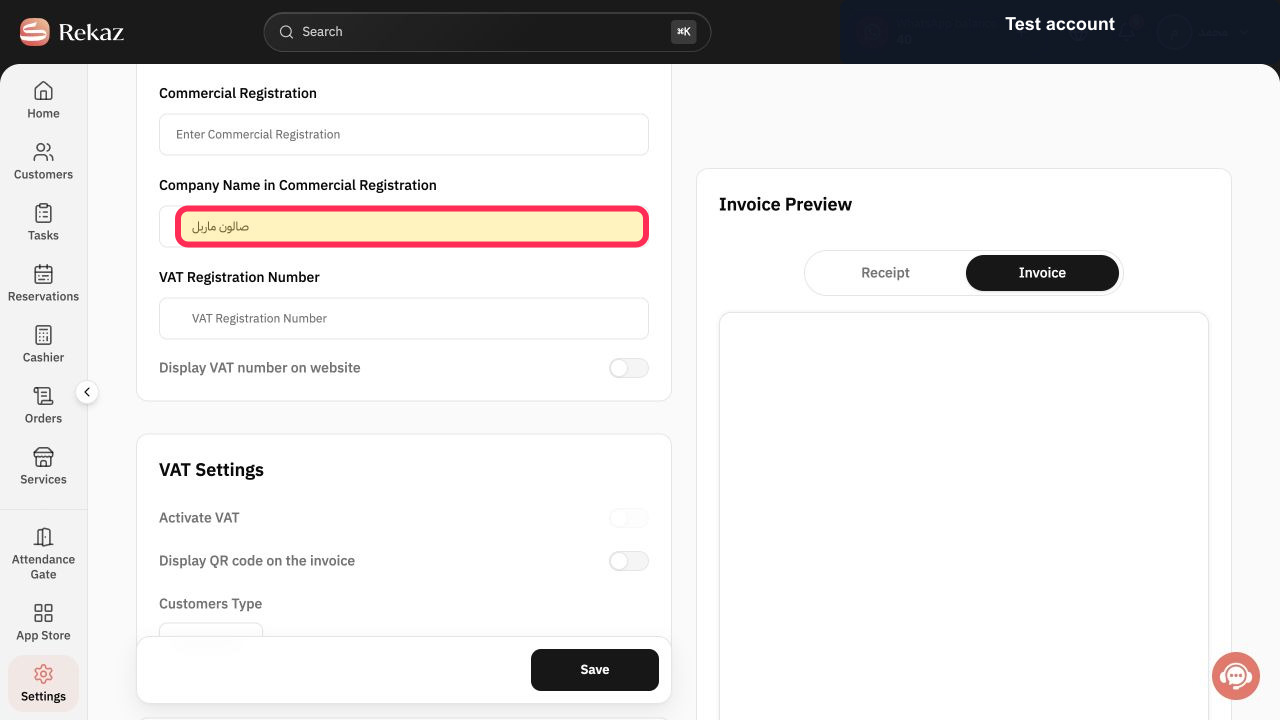
Edit the Company Name field and enter the correct legal business name.
The updated business name appears in the Company Name field.
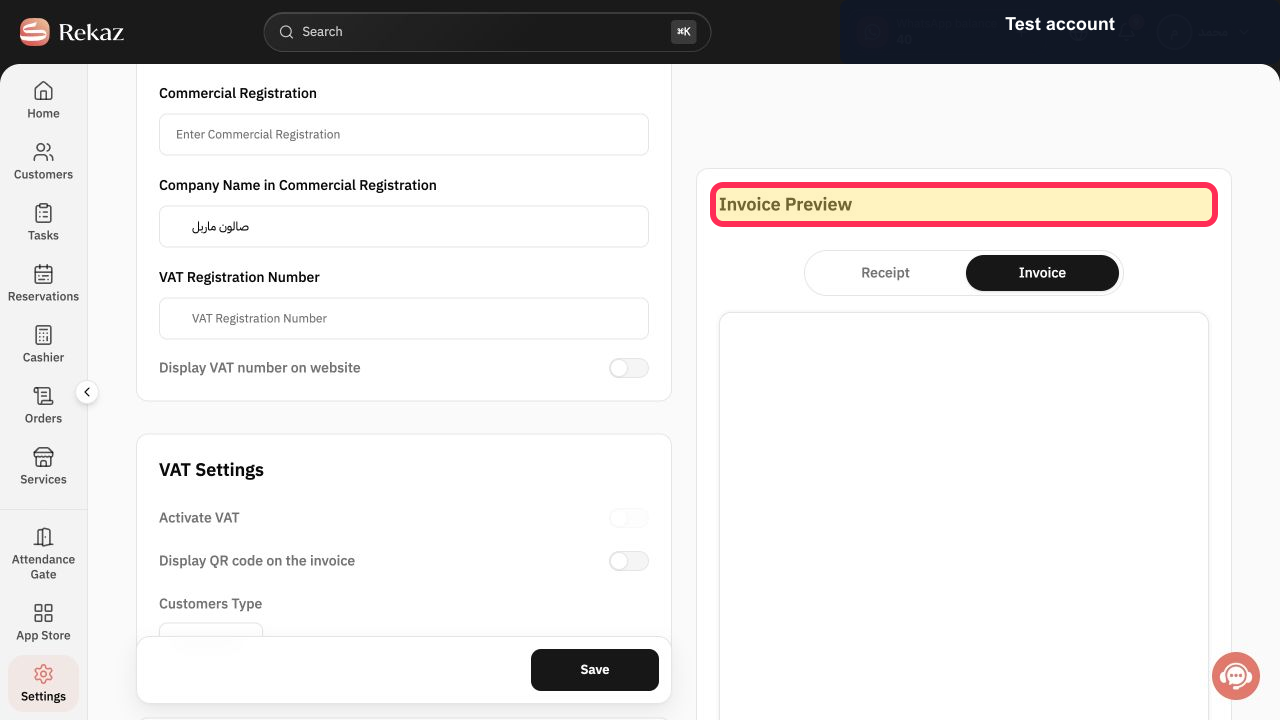
Review the updated name in Preview.
The invoice preview shows the business name you entered.
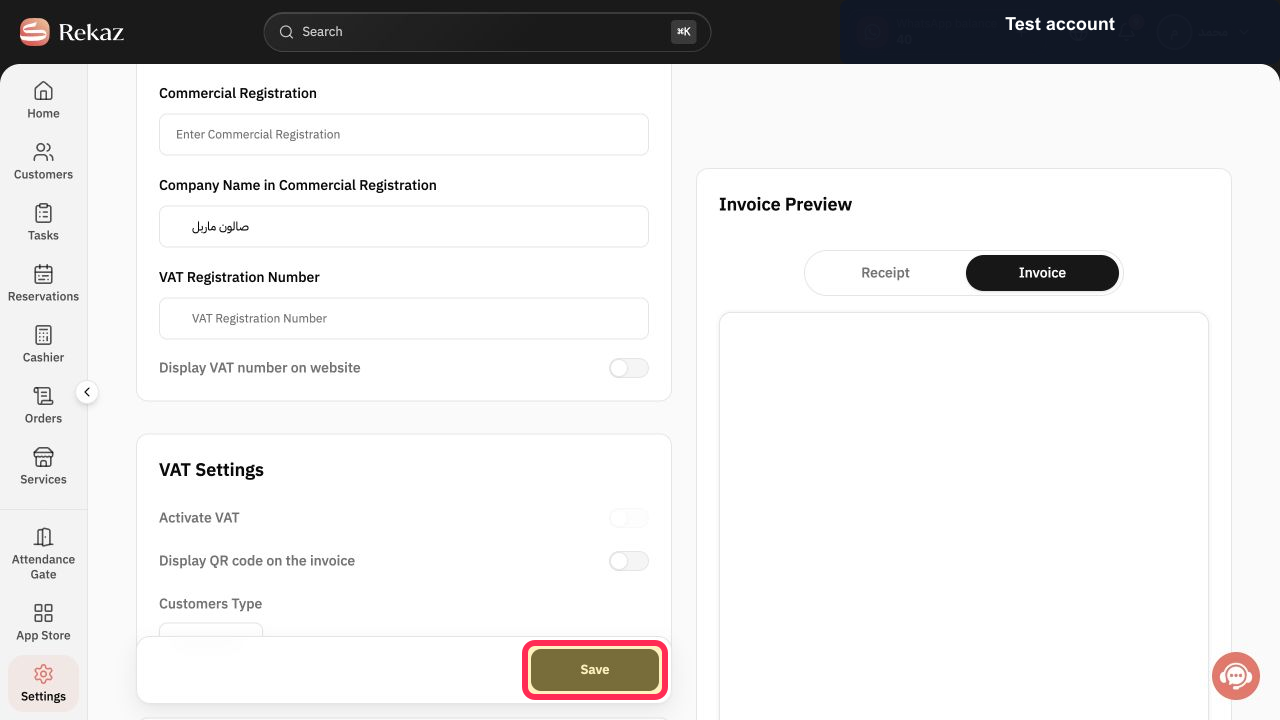
Select Save.
Your updated company information is saved.
Illustrated guide
Step 1: Select Settings from the Rekaz sidebar.
Step 2: Open Invoice Settings.
Step 3: Open Company Information in Invoice Settings.
Step 4: Update the Company Name used on invoices.
Step 5: Review the updated business name in Preview.
Step 6: Save the updated invoice company information.
Important notes
Use the business name approved in your business documents.
Review all company information before you save your changes.
Related questions
How do I change the company name on an invoice in Rekaz?
Where can I edit the business name on a receipt in Rekaz?
My invoice shows an old business name. How do I update it in Rekaz?


